List of draw.io plugins
Plugins should be used as-is, as unsupported examples for developers.
There are a number of built-in plugins that can be added to draw.io, either added as a one-off or loaded every time you use draw.io with that browser.
To load a plugin, use the p=xxxx URL parameter, separating multiple plugin IDs with a semicolon. This does not permanently load the plugin, so the next time you create a diagram it won't be available.
For example:
- To load the anonymize plugin in our online editor: https://app.diagrams.net/?splash=0&p=anon
- To load both the anonymize and text plugins: https://app.diagrams.net/?p=anon;text
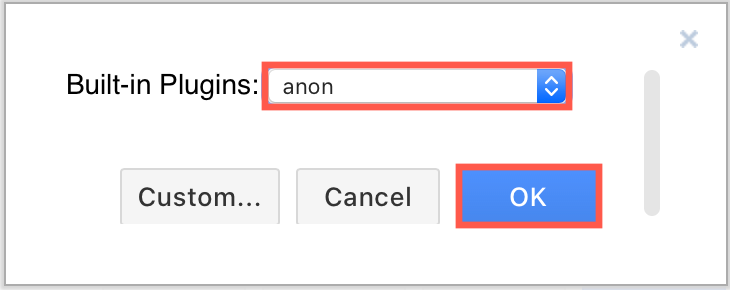
To permanently add plugins, select a plugin from the list of built-in plugins via the Add Plugin dialog, click OK and then Apply to save your changes. Make sure you reload the editor in your browser tab after you permanently add or remove a plugin.
Note: Plugins are not part of the core functionality of draw.io, they are intended as examples for developers to create additional functionality.
The following plugins are available from the draw.io GitHub repository.
| Filename | ID | Description |
|---|---|---|
| example plugin | p1 | Defines a custom sidebar and placeholders (source code) |
| explore.js | ex | Adds Explore from Here to the context menu, and a click handler to the lightbox (example, how to use) |
| tooltips.js | tips | Adds an icon for shapes and connectors with tooltips (example) |
| svgdata.js | svgdata | Adds metadata and IDs in the SVG export |
| number.js | number | Numbers all shapes in chromeless mode (how to use) |
| sql.js | sql | Adds Arrange > Insert > Advanced > From SQL (how to use) |
| props.js | props | Shows shape metadata in chromeless mode (example, how to use) |
| text.js | text | Adds Extras > Extract Text for extracting all of the text in a diagram |
| animation.js | anim | Adds Extras > Animation which autostarts in chromeless mode (example) |
| update.js | update | Adds data-driven diagrams in chromeless mode (source code, example) |
| replay.js | replay | Adds Extras > Record for replaying all changes made to a diagram |
| anonymize.js | anon | Adds Extras > Anonymize Current Page to remove metadata and change labels, including the page name (how to use) |
| webcola.js | webcola | Adds Layout > WebCola Layout to run the interactive, constraint-based layout |
| flow.js | flow | Adds Toggle Flow to the context menu, and a connector click handler to the lightbox |
Note: Plugins work with the web version of draw.io (app.diagrams.net) or our Docker image if you want to run your own server. They do not work with draw.io for Confluence/Jira or with draw.io Desktop.