Enhanced security with Google Workplace and se.diagrams.net

· 4 min read
draw.io
draw.io Team

Many diagrams in companies contain highly sensitive data - you don't want to share this data outside of your company's cloud systems. A stricter content security policy lets you diagram securely with draw.io via our online editor at se.diagrams.net, storing your diagram file in your Google Workspace or Google Drive account.

Features that require conversion tools on our servers, required to import and export files in a couple of formats, are not available when you use se.diagrams.net.

All other features that require processing of your diagram data are done directly in your browser. This ensures your diagram data is only communicated between your browser and your Google Workplace account.

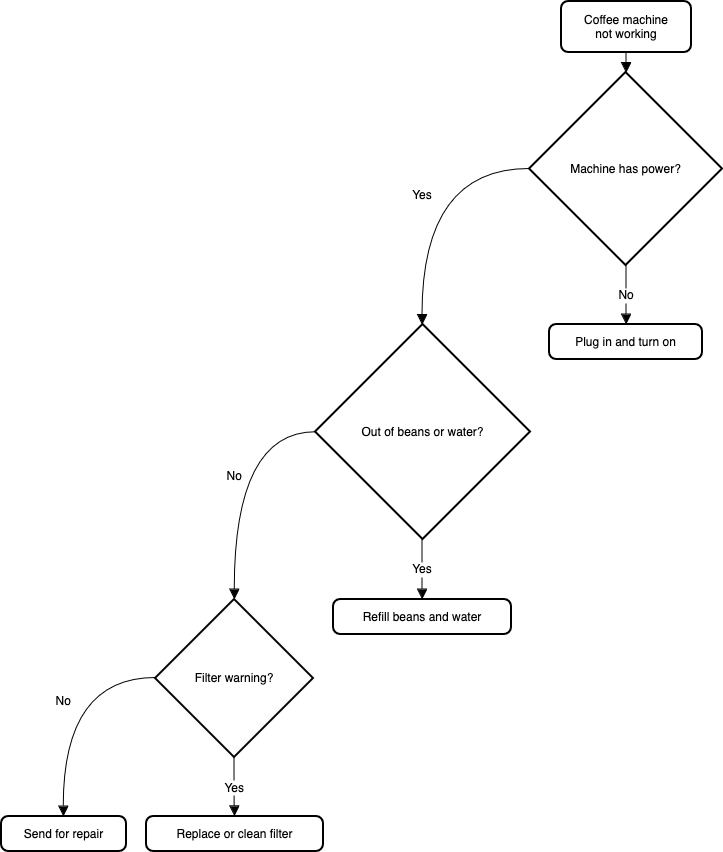
Example data flow diagram for threat modelling

Diagram securely

draw.io is a unique security-first diagramming tool in that we provide the application platform, but your diagram data only lives in your browser while you are working on it, and in your Google Drive or Workspace account at rest.

We are dedicated to data security - we don’t use any trackers within our diagram editor or store your diagram data. Your diagram data is secure and private when you use draw.io. The few conversion tools that require remote server functionality are not available on se.diagrams.net.

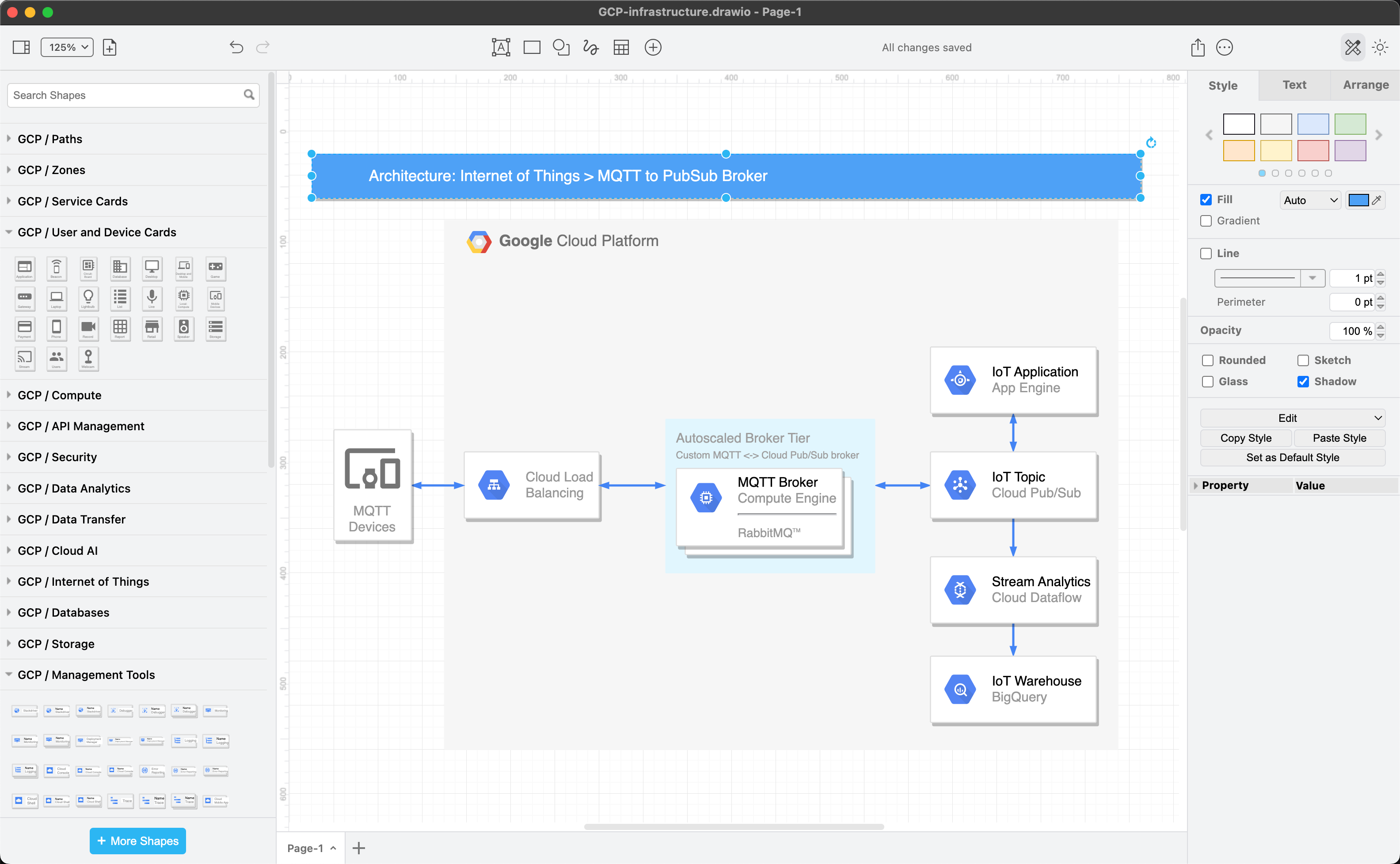
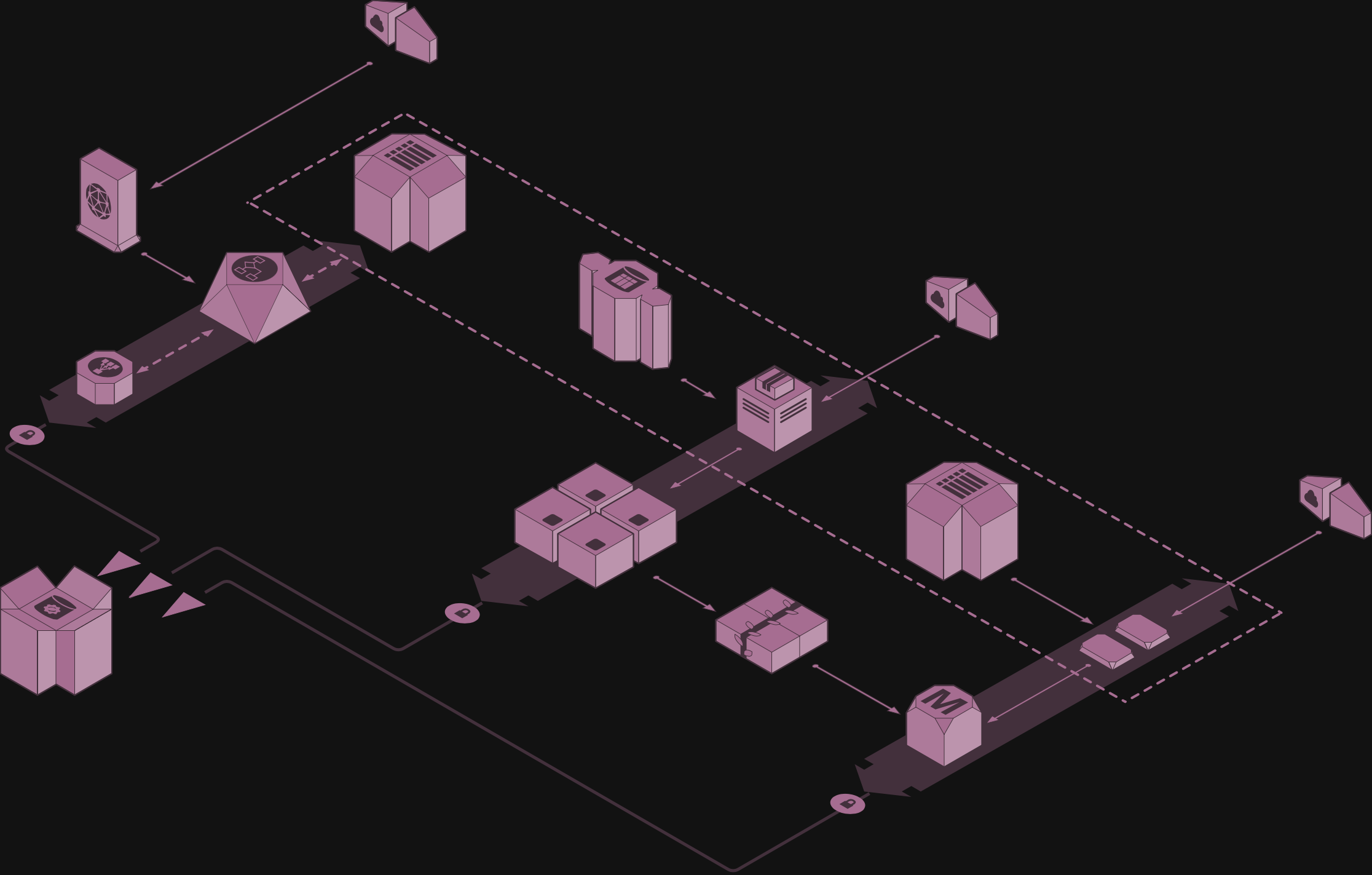
IBM Internet of Things template network diagram from draw.io

Protect sensitive diagram data

Many types of diagrams require stricter data security in a corporate context: entity relationship diagrams for modelling or documenting databases, infrastructure and network diagrams, sensitive business processes and BPMN diagrams, supply chain dependencies, business models, attack trees and flows in threat modelling, and even UML diagrams that expose the inner workings of your applications' code.

Because your sensitive diagram data doesn't leave your infrastructure and is never stored on the our servers, se.diagrams.net is a tool which lets you comply with data protection certifications such as ISO 27000, 27001 and 27002.

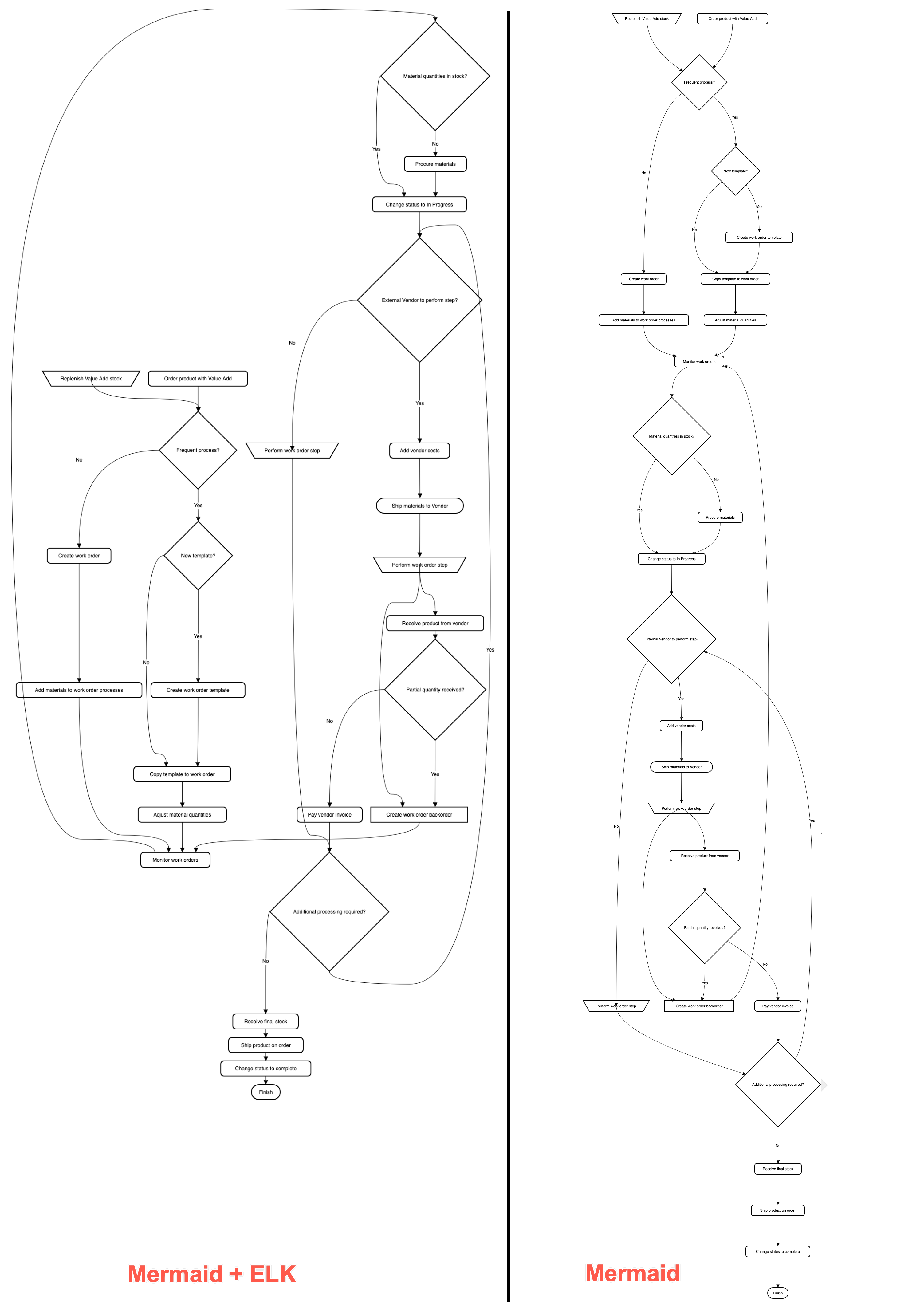
Where orchestration models show process flow in BPMN diagrams, choreography models focus on the message passing between two (or more) roles.

Impact on editor features

Import: .vsd, .gliffy and .lucid file formats are not available.

Export: Export to .vsd and .pdf file formats.

  • When you select File > Export As > PDF, it will automatically open a dialog where you can print your diagram to a PDF file.
  • The conversion to a .vsdx file is done in your browser. Select File > Export As > VSDX to export to this format.

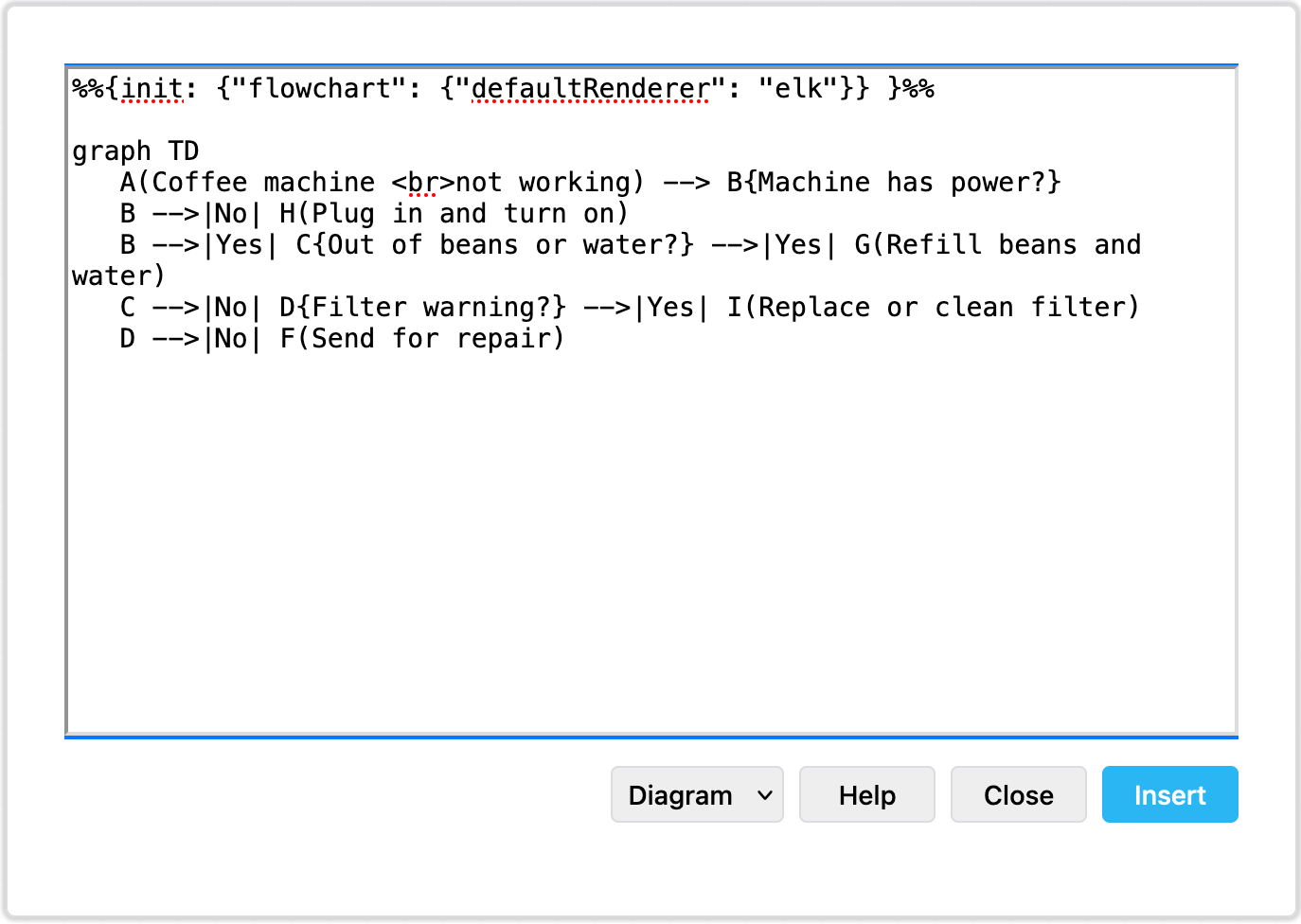
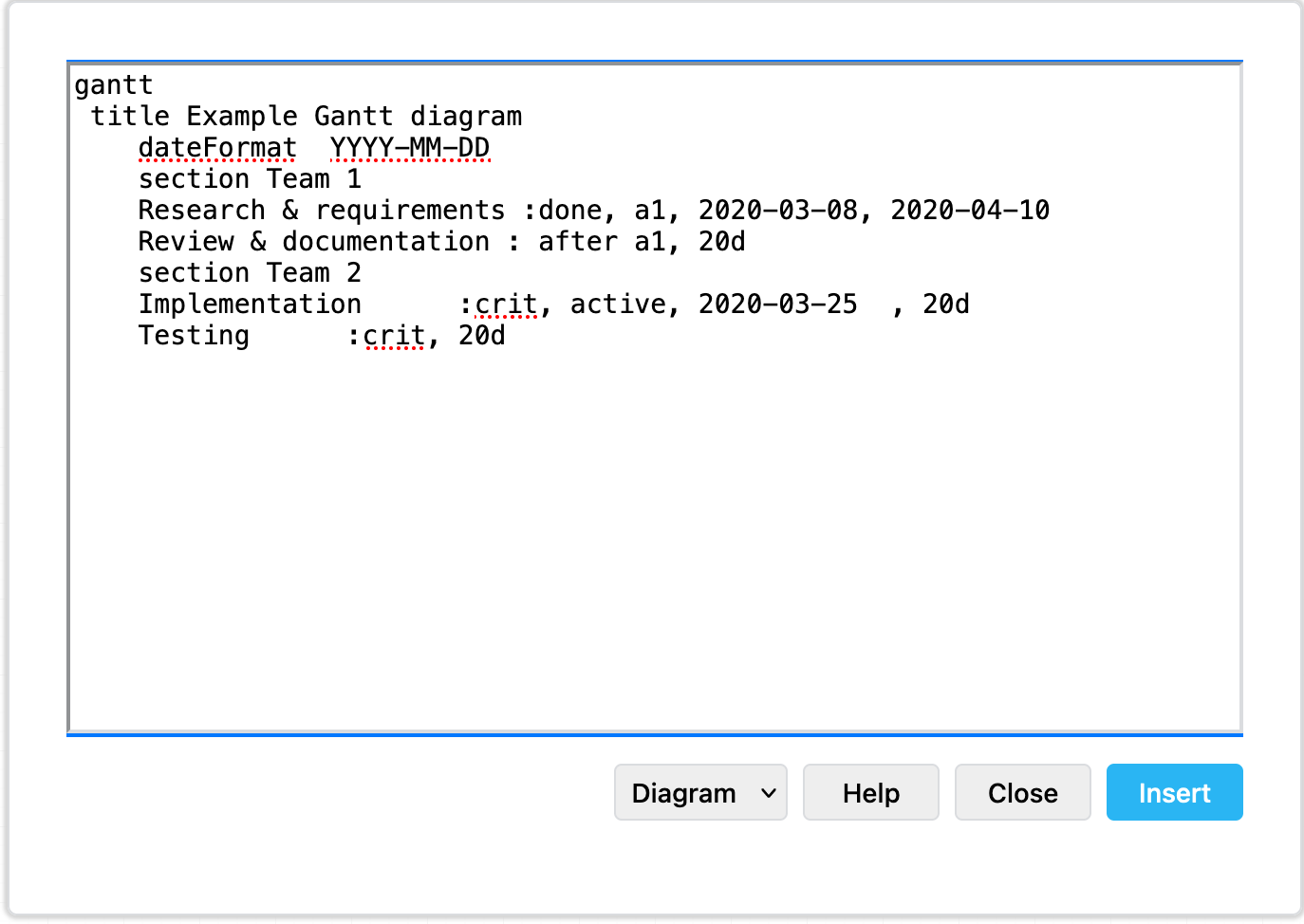
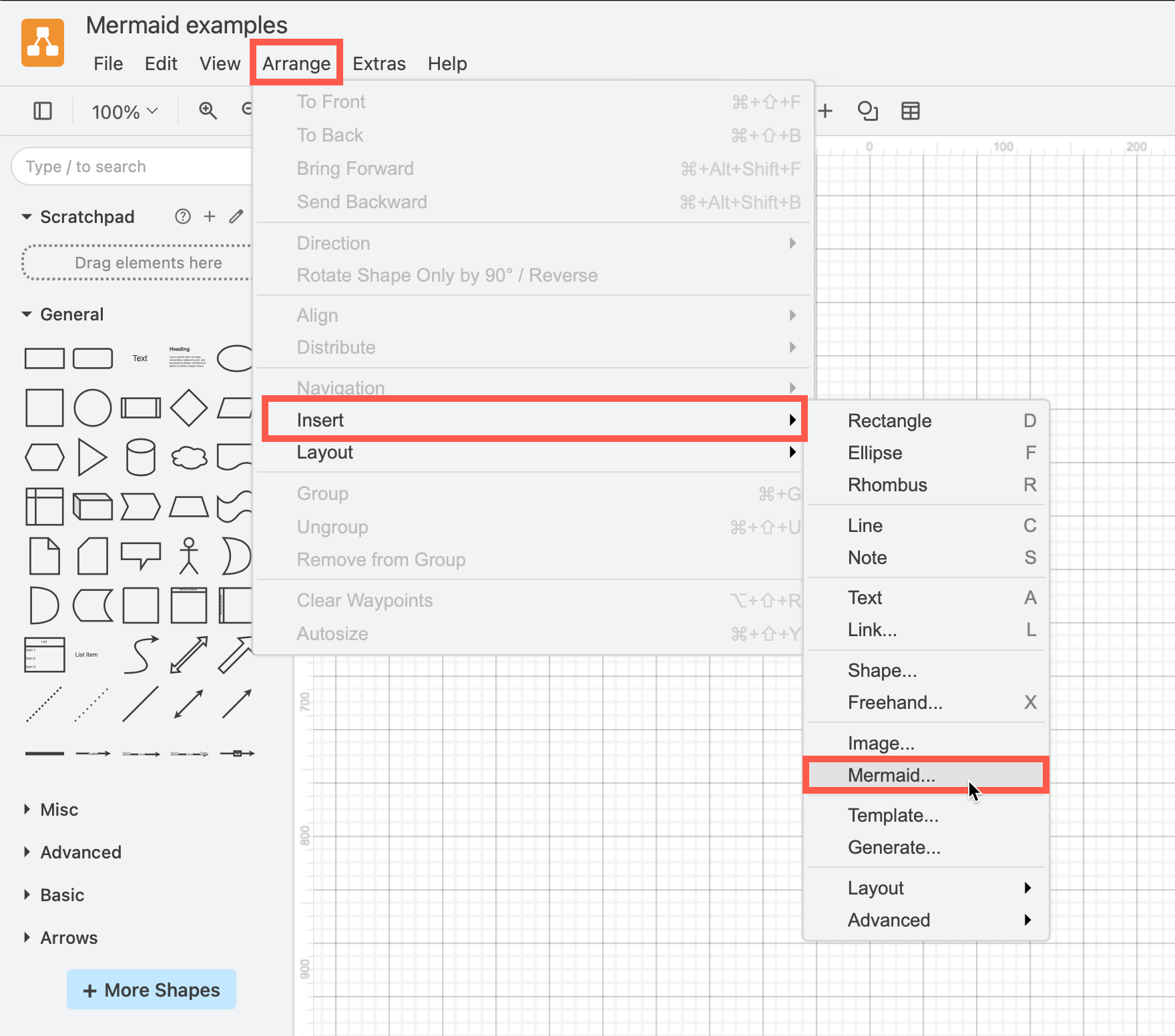
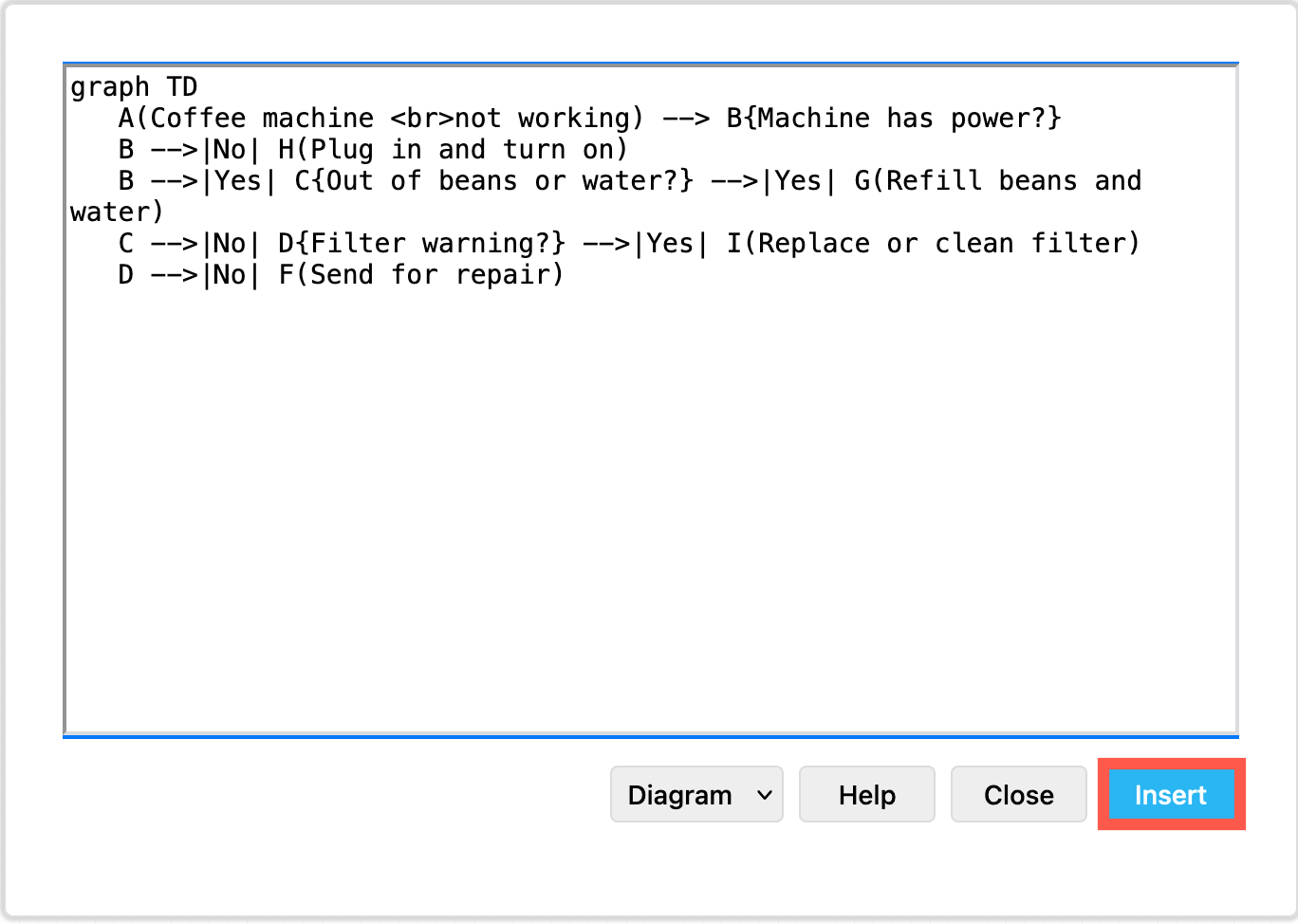
Use the Mermaid syntax instead: Arrange > Insert > Advanced > Mermaid

Storage location: Google Drive is the only cloud storage location available for both diagram files and custom shape libraries.

Use a secure online whiteboard

Change the se.diagrams.net editor theme to show a minimal whiteboard-like collection of tools and panels.

  1. If you don't already have this editor theme enabled, select Extras > Theme > Sketch.
  2. Reload your browser tab to switch to the simpler editor theme.
Sketch editor theme is currently being developed
_[Download this tutorial from GitHub](https://se.diagrams.net/?splash=0&ui=sketch&title=#Uhttps%3A%2F%2Fraw.githubusercontent.com%2Fjgraph%2Fdrawio-diagrams%2Fmaster%2Fblog%2Fboard-visual-tutorial.drawio), add it to your Google Drive account, and open it in [se.diagrams.net](https://se.diagrams.net/?splash=0&ui=sketch)_

The draw.io app for Confluence Cloud transitions to Forge-only

· 4 min read
draw.io
draw.io Team

Atlassian has encouraged all Connect apps to transition to Forge where their modernised Forge architecture can provide increased data security, updated integrated tools and UIs and other useful features. Our hybrid Connect/Forge draw.io app is currently migrating to be fully Forge-only, allowing for enough time to troubleshoot before the first migration deadline in January 2026, should any problems arise.

You should see no difference in functionality - the diagram editor is not changing, and your existing diagrams and draw.io macros will not be changed through this transition.

No full-screen custom macro UI on Forge

We, like many other app developers, delayed moving draw.io to Forge as Atlassian has not yet implemented the full-screen custom UI dialog that is widely used by many Marketplace apps.

A reduced diagram editor size may impact productivity or cause distractions as it does not fully cover the page behind. Some have also reported related display issues with dialogs not appearing correctly on mobile devices in the Forge-only apps.

While we reported this issue back in November 2021, it is currently scheduled by Atlassian to be implemented in FY26Q2 (although, it is not yet included in the Connect-Forge capability equivalence roadmap).
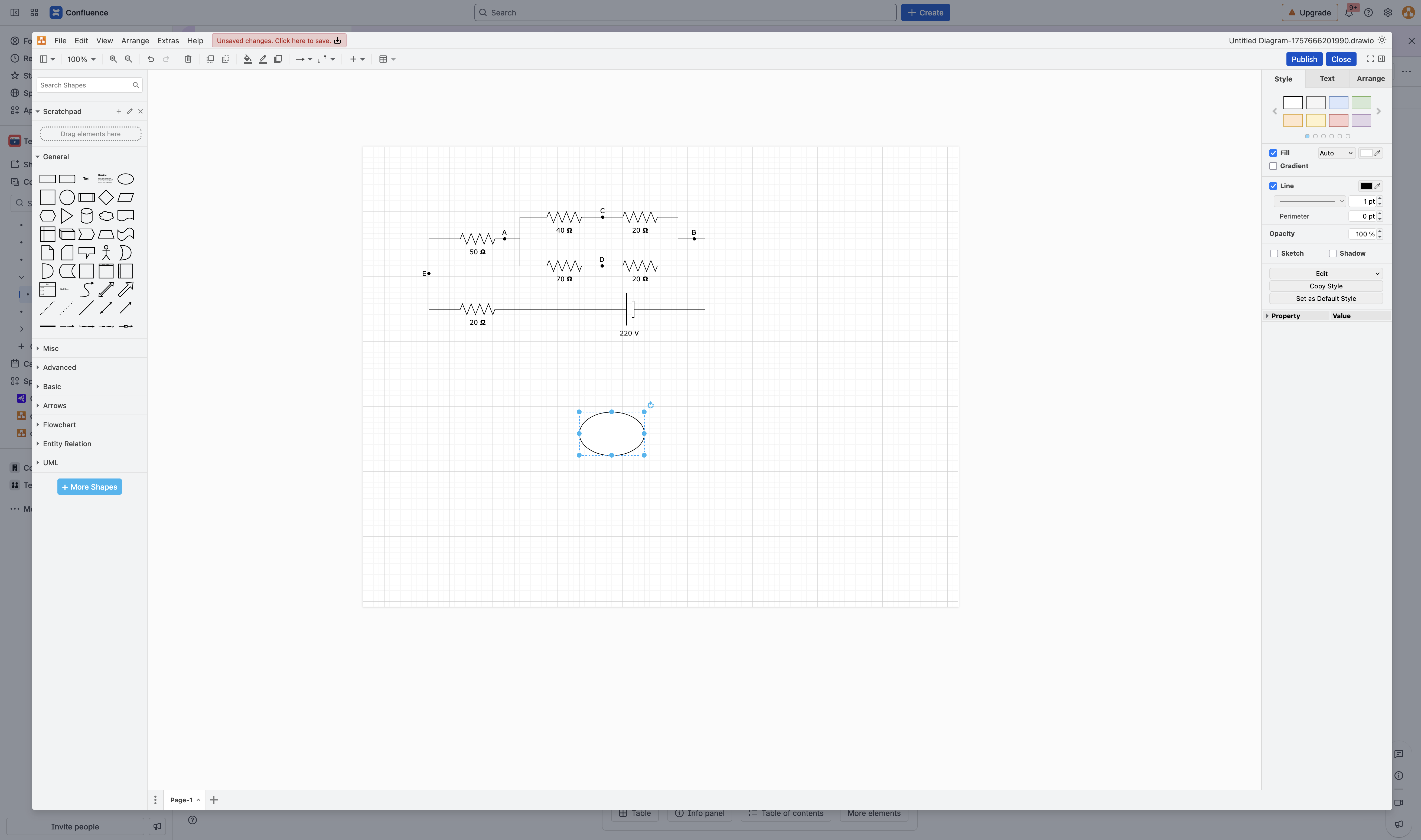
The Forge-only draw.io app cannot run in full screen as Atlassian does not currently support full screen apps in their Forge UI suite - if this is an issue, please add a comment to Atlassian's FRGE-557 or ECO-195 bug reports

If full-screen diagramming or mobile diagramming is a priority for your teams, or if you are an app developer that is affected by this bug, please do comment on the original FRGE-557 issue and the more recent ECO-195 issue.

As soon as this issue has been implemented by Atlassian, the draw.io macros in your Confluence Cloud instance will once again work in full screen.

Updating your draw.io app

Atlassian may choose to rollout these updated Forge-only apps automatically, or your administrator may need to manually update the draw.io app.

If your teams require the full-screen app functionality as described above, we recommend not updating the draw.io app until Atlassian has resolved this issue.

Note: No diagrams or macros will be removed from any pages in which they are used or edited in any way. There is no danger of losing data on this update.

Migrating from DC to Cloud?

Atlassian has also recently announced the end of life for Data Center, with a three-year staged transition period starting in March 2026.

If you are migrating from Confluence DC to Cloud because of this, or to take advantage of the enhanced security features of Atlassian's modernised Forge architecture, migrate your draw.io diagrams in Confluence using the PageID method that preserves in-diagram links and embedded diagrams.

Which draw.io app for Confluence Cloud?

The draw.io for Confluence Cloud app that is transitioning to Forge is available in two editions - Standard and Advanced. The diagramming features of these two editions are the same.

The Advanced edition of the draw.io app includes premium support, custom security reviews, and additional data security options.

The draw.io Zero Egress app is already Forge-only, and provides strict data security, ensuring no diagram data leaves your Confluence instance (zero egress). For customers with such strict data security requirements, Atlassian plans to offer a single tenant Isolated Cloud and their Atlassian Government Cloud. The draw.io Zero Egress app is designed to work with Atlassian's new secure Cloud offerings.

Read more about the differences between the draw.io apps for Confluence Cloud
Shape library updates for multi-colour shapes

· 4 min read
draw.io
draw.io Team

There are many shapes in the draw.io shape libraries that use more than one line or fill colour. These shapes are being updated so you can change each of the colours and style your diagram with more flexibility.
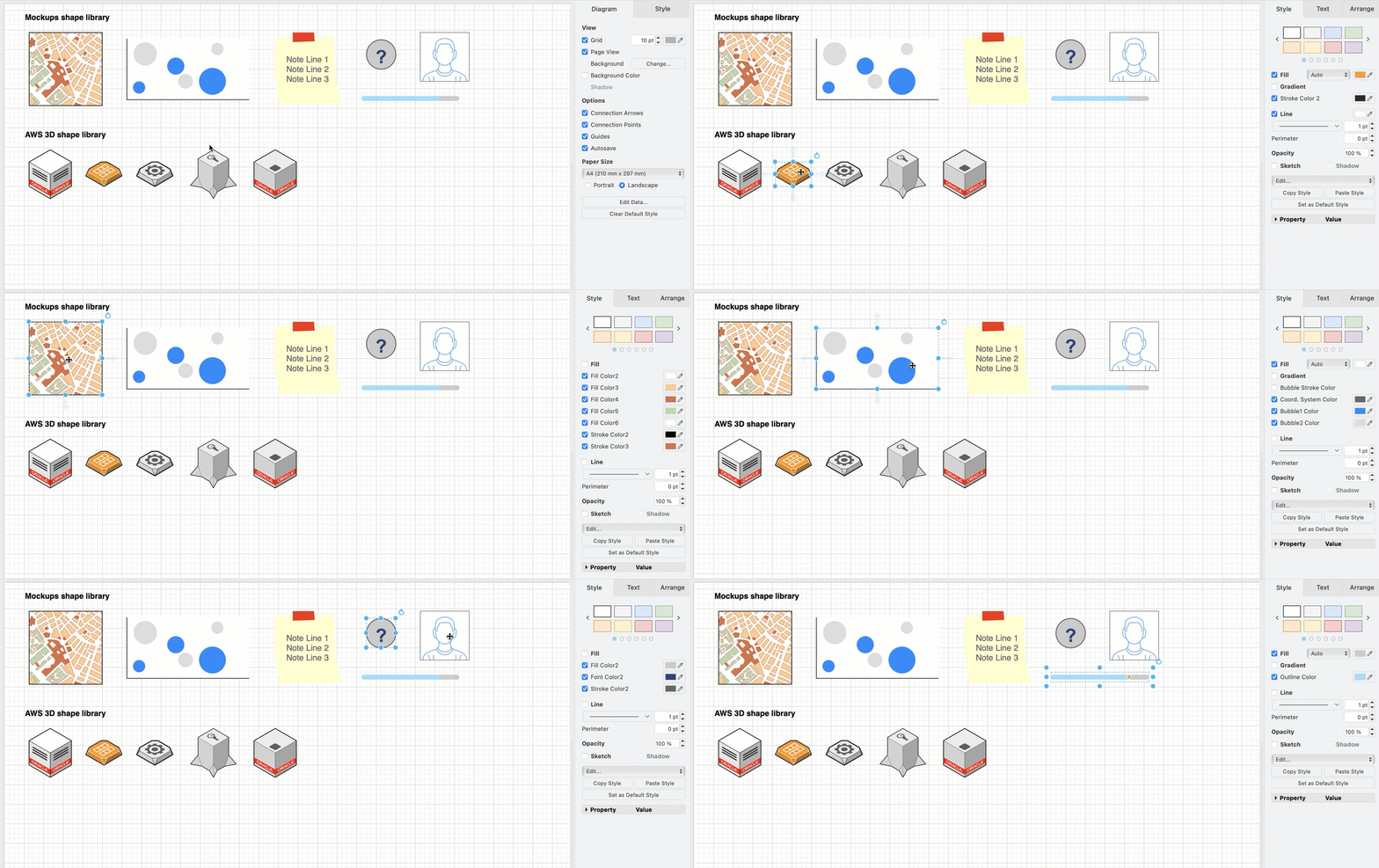
The updated AWS shapes allow you to customise all of the colours in the shapes

As the collection of shape libraries is rather large in draw.io, it will take some time to update all of those that contain multi-coloured shapes. The first two libraries that have been updated are Mockups and the AWS 3D shapes.

Each shape still contains a Fill and a Line (outline) colour that typically forms the background colour and the outer line colour of the shape. The additional colours are defined with new, customisable style settings.

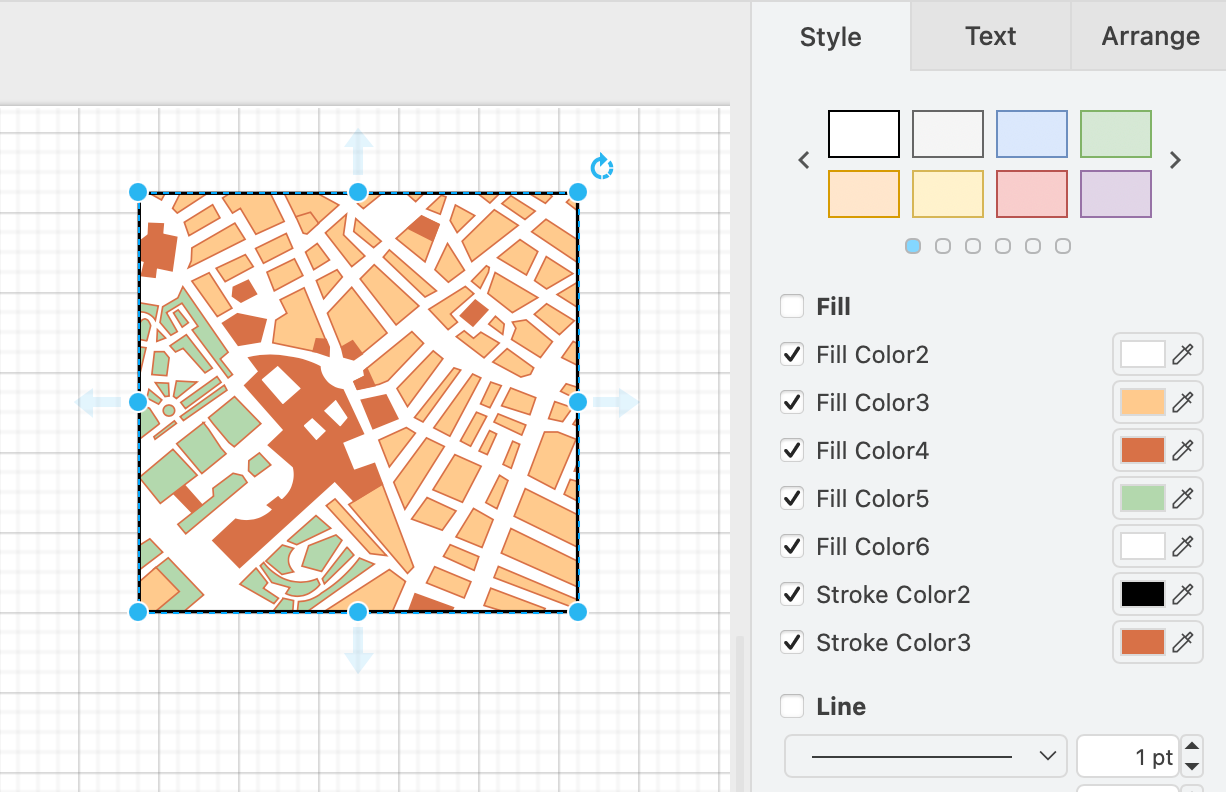
For example, the Mockup Map shape has a white background and black outline, but also internal areas with different fill colours and a different internal outline colour.
The updated Mockups Map shape has many customisable internal fill and outline colours

The list of fill and outline colours will be different for each shape.
The updated Mockups and AWS 3D shape libraries allow you to customise multi-colour shapes

How it works

A default attribute was introduced for the fillcolor and strokecolor attributes.

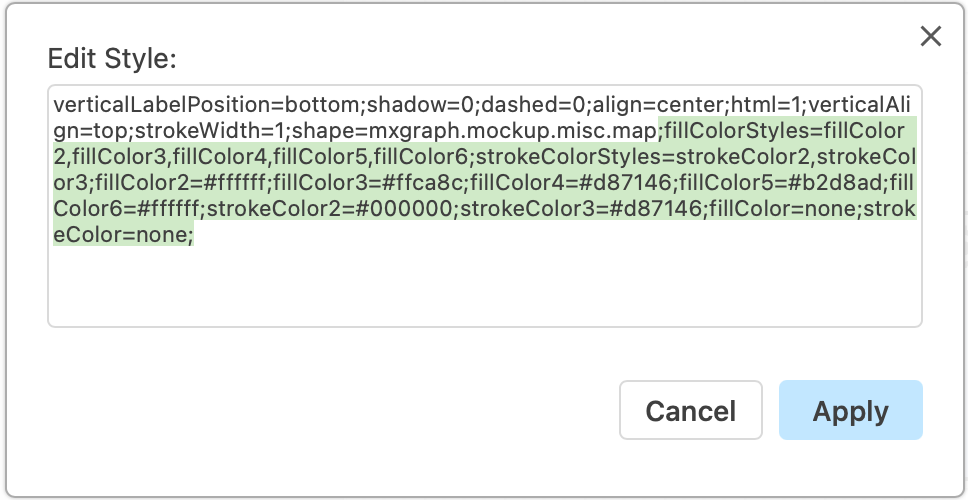
Each shape has a list of defaultFillColors and defaultStrokeColors attributes which are used to show the customisable colours in multi-colour shapes. These are comma-separated lists that define the default colours in the fillColorStyles and strokeColorStyles attributes within a shape.

Right click on a shape, then edit the colour style attributes, then click Apply.
Right click on a shape and select Edit Style to change the colours of the shape directly

Which libraries have been updated?

The updated AWS 3D and Mockups shape libraries are available now in the current version of the web-based draw.io editor. The Cloud and IT shape libraries are in the process of being updated to this new, more flexible system of colours. Multi-colour shapes in other shape libraries will be updated after the IT shapes are finished.

Go to app.diagrams.net/clear.html to ensure you are using the most recent version of the online draw.io editor.

Gradients with multi-coloured shapes

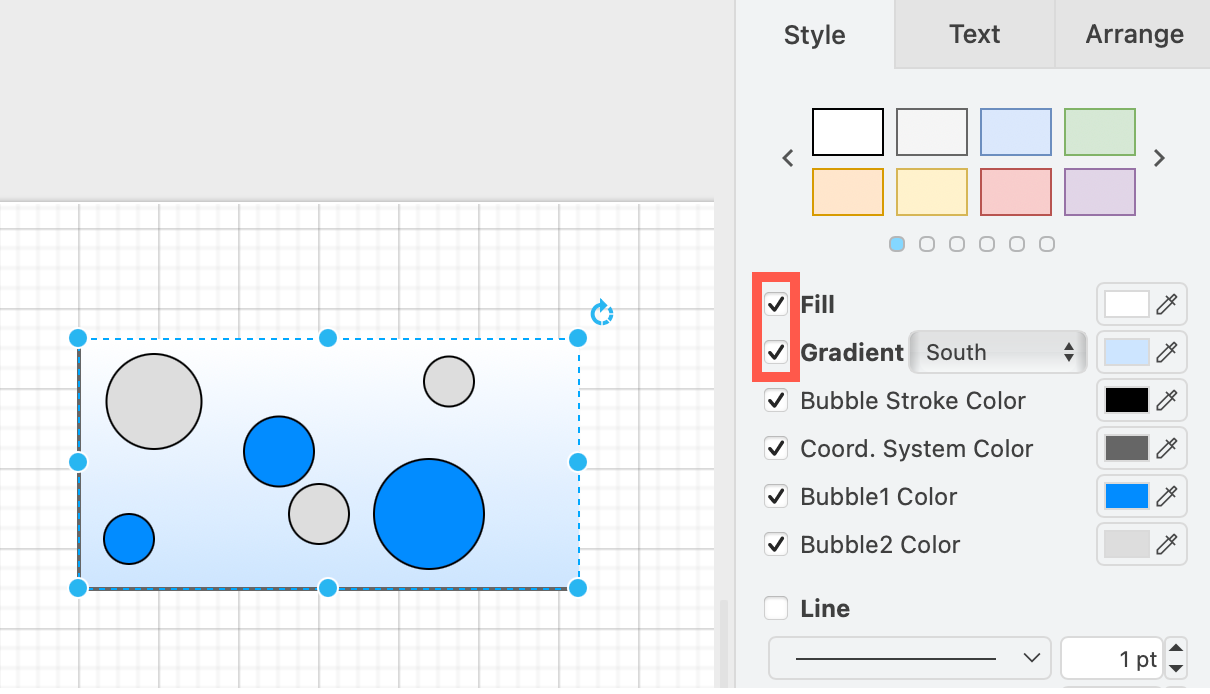
The gradient option in the Style tab of the format panel will use the main background fill colour. The gradient does not apply to any of the other additional colour styles within the multi-colour shape.
The updated Mockups Map shape has many customisable internal fill and outline colours

Reset to the original colour styles

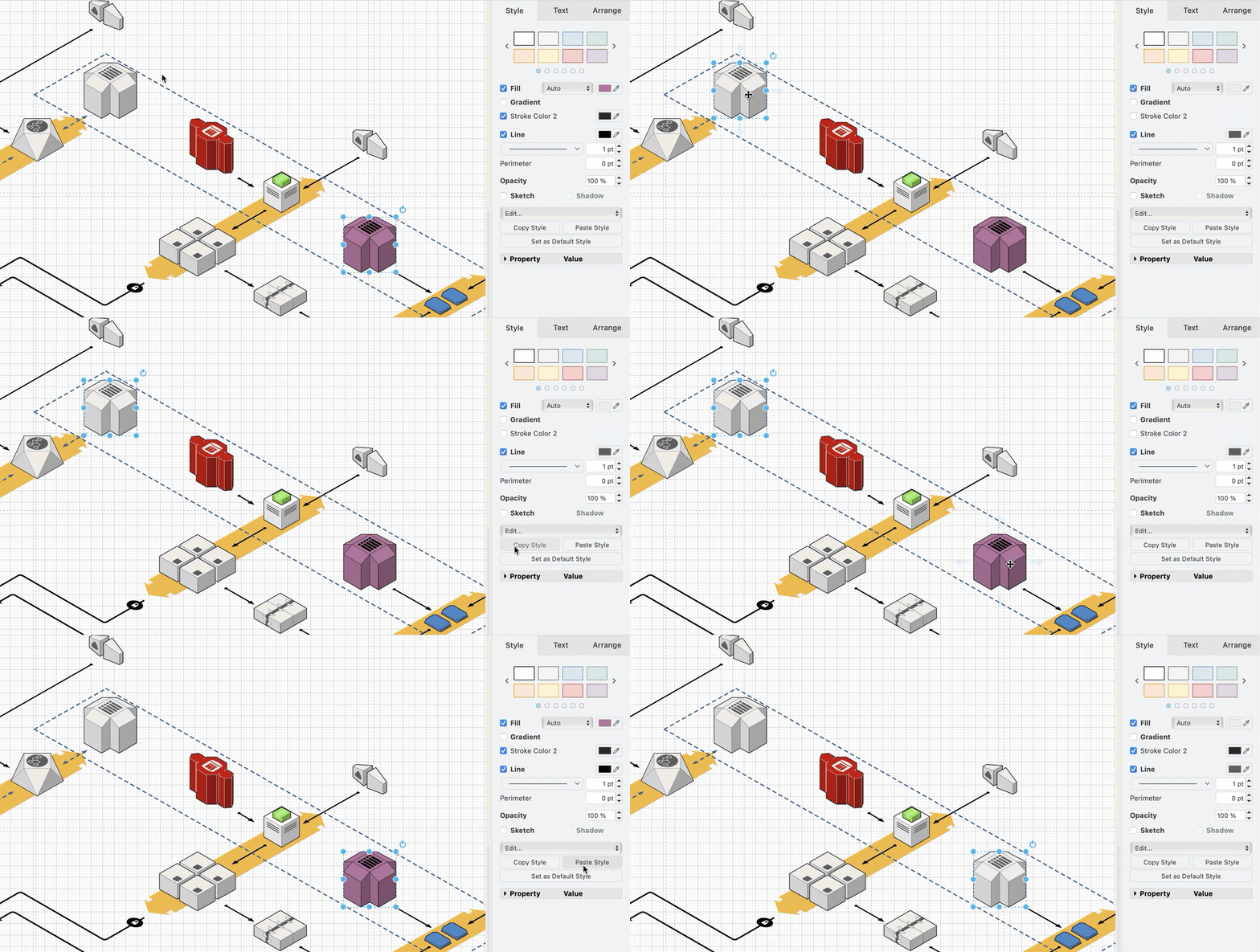
To revert to the original colour, the easiest is to copy the original style from an unstyled shape and apply it to the customised shape.

  1. Select the unstyled shape. In the Style tab, click Copy Style.
  2. Select the customised shape. In the Style tab, click Paste Style.
    The updated Mockups and AWS 3D shape libraries allow you to customise multi-colour shapes

Learn more about styling shapes

Configure draw.io online to disable AI diagrams

· 4 min read
draw.io
draw.io Team

Like many software apps, diagramming tools now have AI-powered features that 'help' you diagram. These can be premium features and may not be easily disabled. With the free online draw.io editor, you have access to the diagram generation features by default. It's easy to disable this in draw.io - configure the editor or use the fully offline draw.io Desktop app.

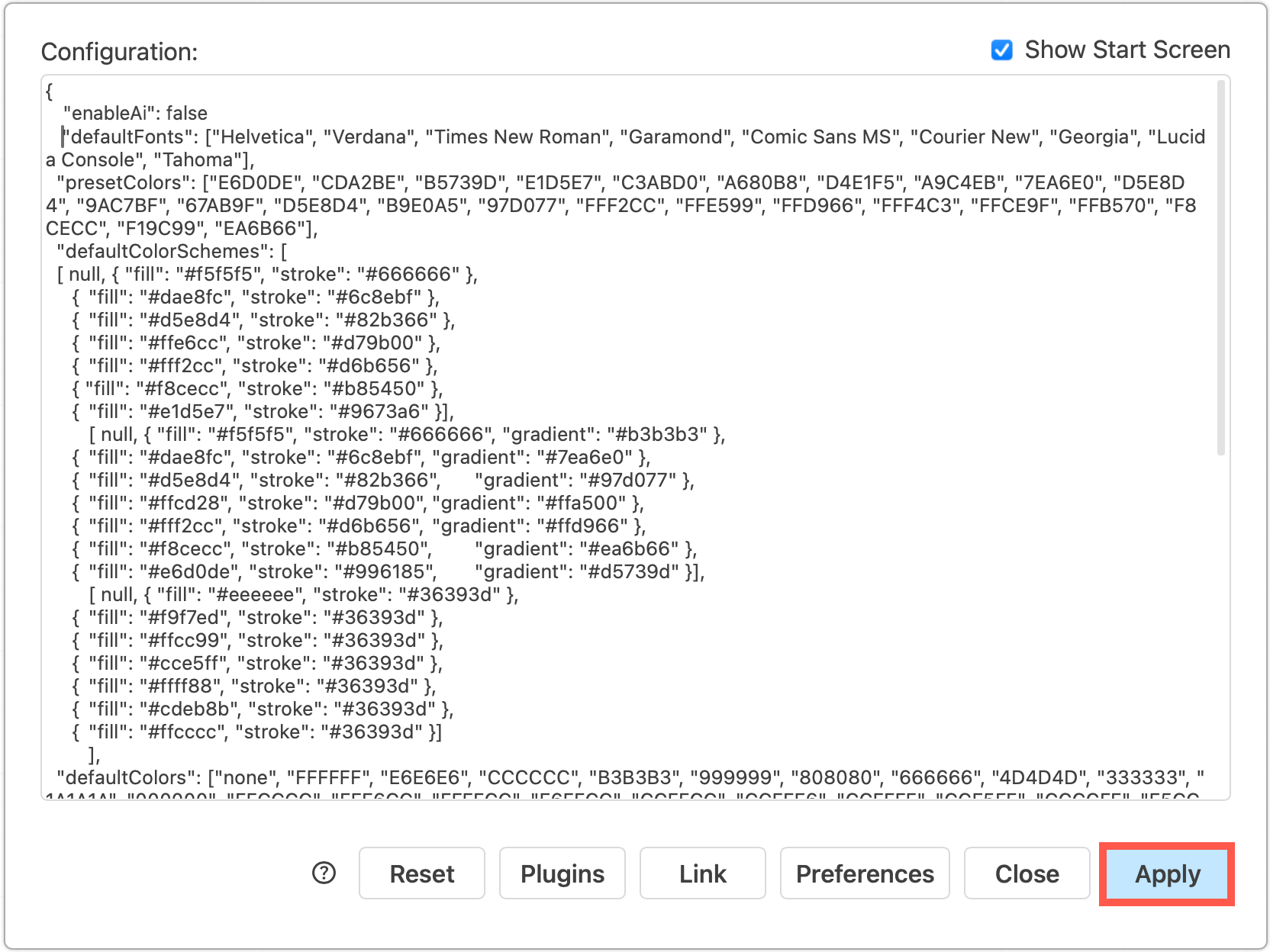
All version of draw.io are highly configurable, with options for custom colours and fonts, and to enable or disable specific features

Note: Diagram generation features are disabled by default in the draw.io apps for Confluence - ask your instance administrator to configure the draw.io editor if you want to (and are allowed to) use this feature.

While draw.io only shares the text you enter as the query to generate a diagram, and only at the time of generation.

draw.io does not share your diagram data with these LLM tools unless you specifically request that the generator modify your diagram or a selection of your diagram (this behaviour can be customised or disabled in the draw.io configuration).

Note, other diagramming applications typically share your diagram data in full and by default with these generation tools, and do not allow you to customise or limit this behaviour.

If you need to include sensitive data or draw confidential diagrams, your diagramming application must not share your diagram data.

Use an offline tool like draw.io Desktop

Since version 10.7.5, draw.io Desktop has been a fully offline application. You do not need a connection to the internet to use all the built-in shape libraries and templates, or use your own custom shape libraries, fonts or templates stored on your device.

Diagram generation features are not available in draw.io Desktop.

The draw.io desktop app works on MacOS, Windows and Linux

Choose your platform (Windows, macOS or Linux), and download draw.io Desktop to start diagramming securely and privately.

Tip: Many extra template and example diagrams are available in the JGraph/drawio-diagrams repository on GitHub. Download these in advance to use them in draw.io Desktop.

Configure the draw.io web application

Alternatively, you can run the web app while offline as a progressive web app, or configure the editor in your browser to disable the diagram generation features.

All versions of the draw.io application are highly configurable, including but not limited to:

  • default palette colours and styles
  • default and custom fonts
  • custom templates and a customised template library
  • default and custom shape libraries to automatically open by default
  • default page and grid size

Here's a full list of the draw.io editor configuration options for the web application, draw.io Desktop, and the draw.io apps for Confluence Cloud and DC.
Only the online draw.io web application has the diagram generation enabled by default. To disable the diagram generation features, add a line to the editor configuration and refresh the tab to reload the draw.io editor.

Disable diagram generation in the draw.io configuration

This removes the Generate tool from template library and menu, the Generate option from the search field, and the sparkle tool from the toolbar.

Note: Be careful about capitalisation - draw.io configuration options are written using lower camel case (Java).

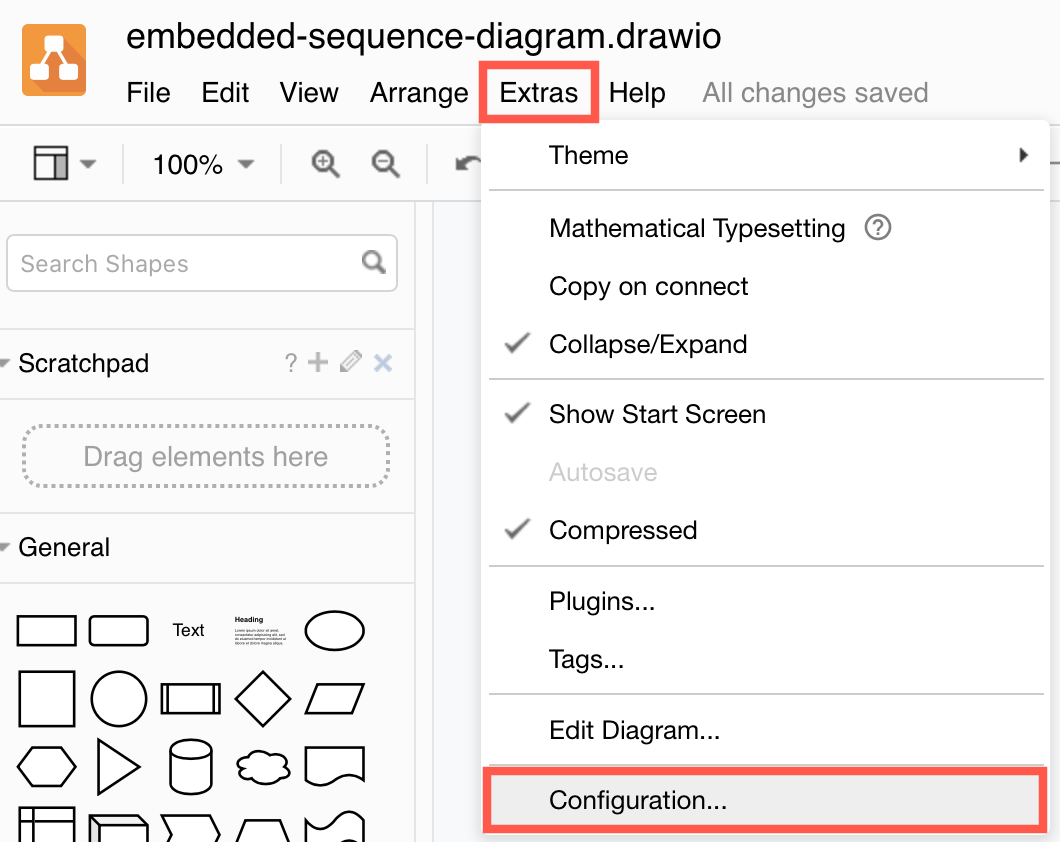
  1. Select Extras > Configuration from the menu, or ... > Settings > Configuration from the toolbar.
    Access the draw.io configuration via Extras /> Configuration
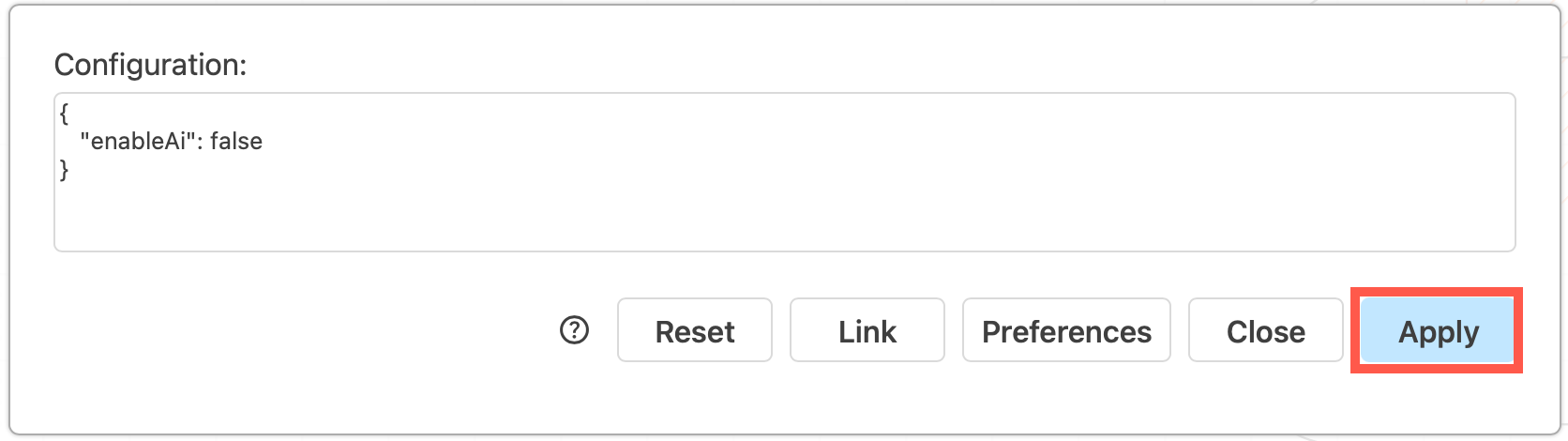
  2. Add the following JSON string to the configuration: "enableAi": false
    Set the enableAI option to false in the draw.io configuration to disable the Generate in the template library, the Generate menu and search options, and the sparkle tool
  3. Click Apply to save your changes. Reload the browser tab to load the new draw.io configuration and disable the diagram generation features.

Note: If you set the lockdown option to true in the draw.io configuration, this will also disable the diagram generation features.

Using draw.io with attachment retention rules in Confluence Data Center

· 4 min read
draw.io
draw.io Team

Retention rules in Confluence Data Center allow you to automatically delete historical versions of pages and attachments that you no longer need. draw.io diagrams are stored as page attachments. Therefore, the data retention settings you choose will apply to older versions of those diagrams.

To implement a retention strategy, Confluence DC administrators need to set several rules.

  • Apply global rules to all spaces in your Confluence instance, including archived and personal spaces.
  • Apply different rules for pages and for attachments.
  • Set exemptions and individual rules for spaces with longer data history requirements.
  • Set permissions that allow space administrators to set their own retention rules in their spaces.
  • Set a global rule or space exemptions for purging any manually deleted items that are in the trash.

Important: Historical draw.io diagram versions, pages and other attachments that are deleted using these retention rules cannot be restored. Make sure your backup strategy takes this into account.

Set the coverage level to Advanced or higher to ensure the audit log records all deletions and purges.

Why use retention rules?

When collaborating on a draw.io diagram in Confluence DC, diagram attachment versions will be saved regularly to record everyone's contributions. If those diagrams include many embedded images, the size of those attachments can become quite large. Diagram versions will accumulate quickly during collaboration.

Setting automatic deletion of old versions will reduce the size of the Confluence database and attachment directory, and thus speed up backups and upgrades.

Note: One of the main considerations for your data retention strategy is where teams are required to keep records of their work for compliance and auditing purposes.

Which retention approach is best for diagrams?

Retention rules apply to all page attachments, not just attached diagrams. Choose rules that are appropriate for all attached content.

Important: The order in which you set rules is important - when you set a global rule, it will be implemented immediately.

Choose one of these retention strategies:

  • Set the global rule to keep all for both page and attachment versions, then set space exemptions to clean up specific spaces.

  • Add space exemptions to keep all in spaces where you must retain the version history, then set a global rule to clean up all remaining non-critical spaces. This is useful when audits are required only on documentation in specific spaces.

The default retention setting is to keep all pages and attachments and not purge the trash automatically.

If you find your instance is growing too large and slow, choose which versions of pages and attachments that you want to keep.

  • keep by age
  • keep by version number, where the most recent x versions are kept

The second approach is likely more useful if you need to see how a diagram was developed and by whom.

Refer to Atlassian's documentation to see how to set retention rules as an administrator.

The latest versions are never deleted even if that version is older than the retention rule - only the historical versions are deleted.

When are old versions deleted?

A scheduled job will run every 10 minutes to permanently delete a small batch of outdated versions so as not to overwhelm your instance.

As an administrator, you can manually run the 'hard' job which will delete all outdated versions. Only do this when your instance is not busy.

Migrating to Cloud - set retention rules before migration

Purge older versions of pages and attachments before you start migrating so there will be much less data that needs to be copied and ensure your migration happens more quickly.

See how to update pageIDs to migrate with draw.io from Confluence DC to Cloud

Using adaptive colours to diagram in light and dark modes

· 5 min read
draw.io
draw.io Team

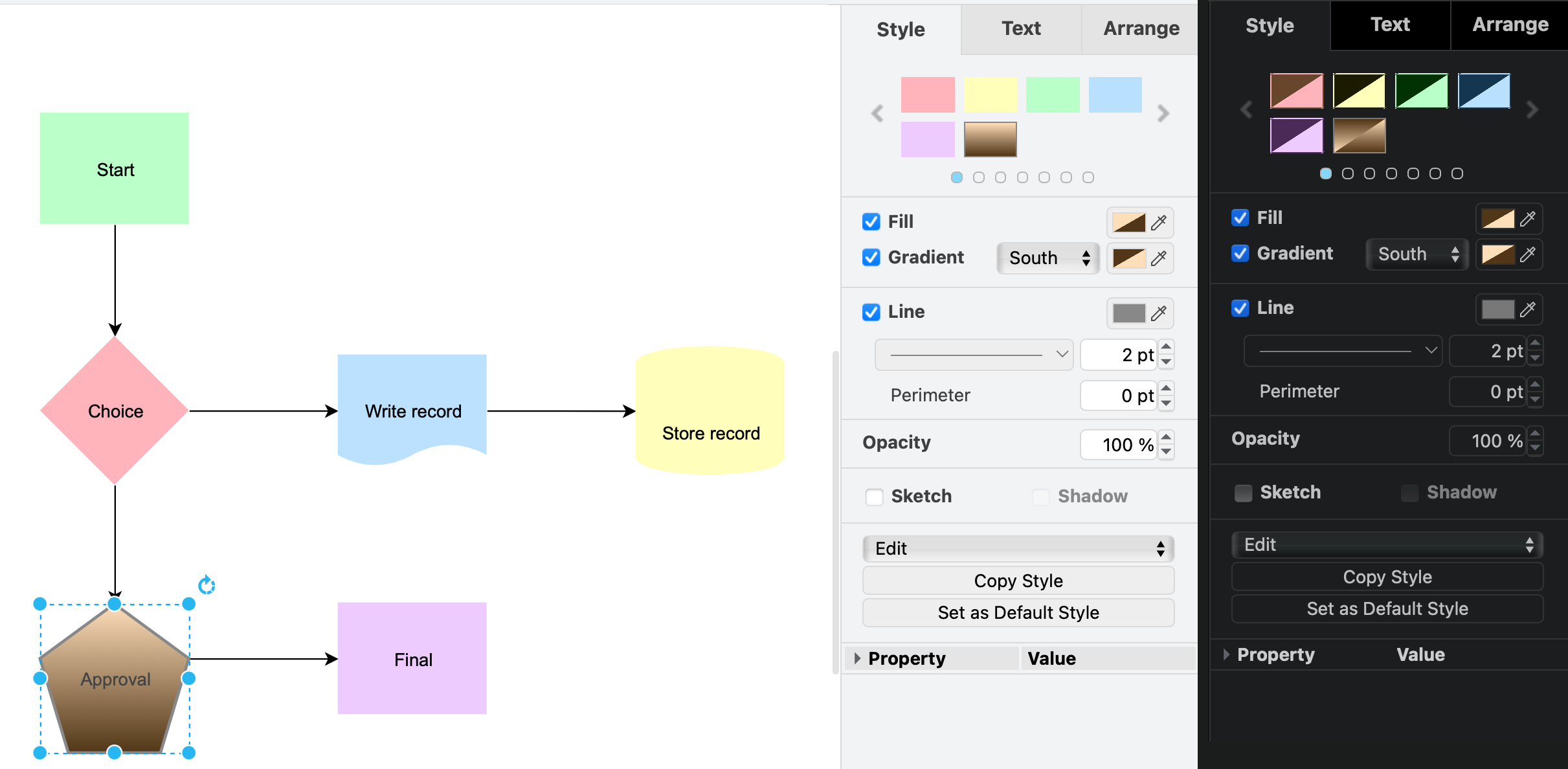
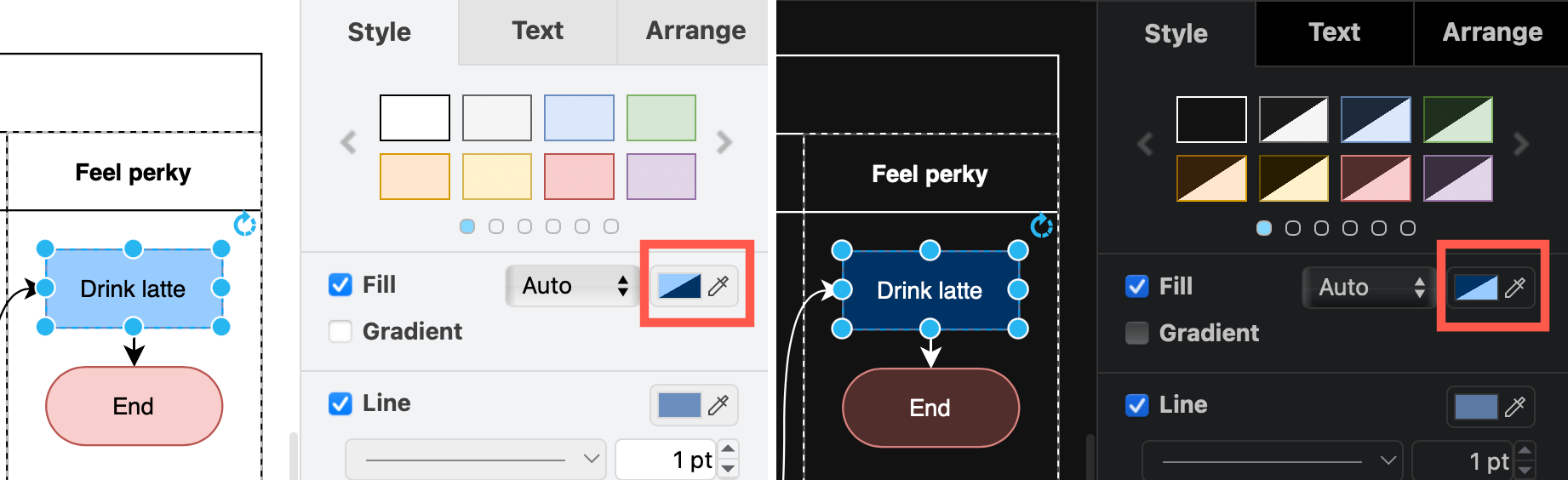
When you change from light to dark mode in draw.io, the colours automatically switch intensity so that your diagram and its labels are easy to read. You can set now specific colours for shapes, connectors, text and the diagram page background for both light and dark modes via the updated colour palette.
An additional custom colour scheme has been added to the style palette in draw.io

Adaptive colours are important when part of your team prefers to work in dark mode, and the rest prefers light mode.

Colour style - use a specific dark and light colour

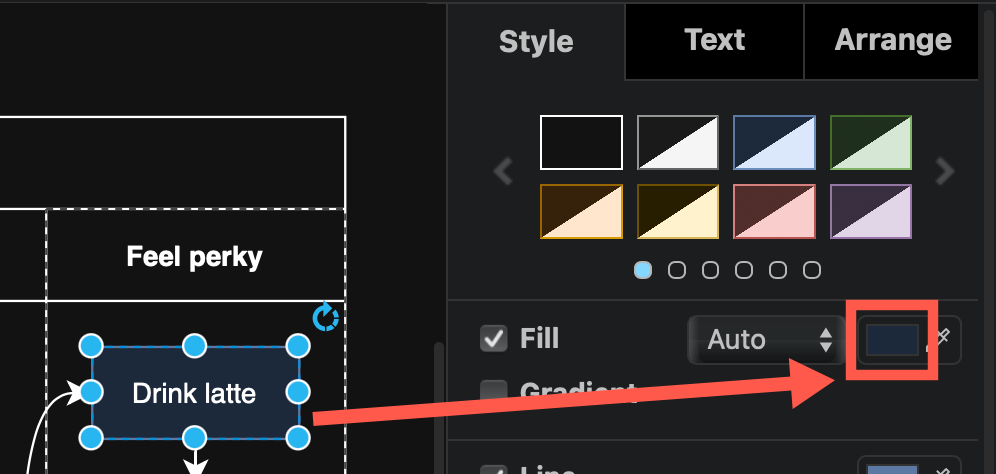
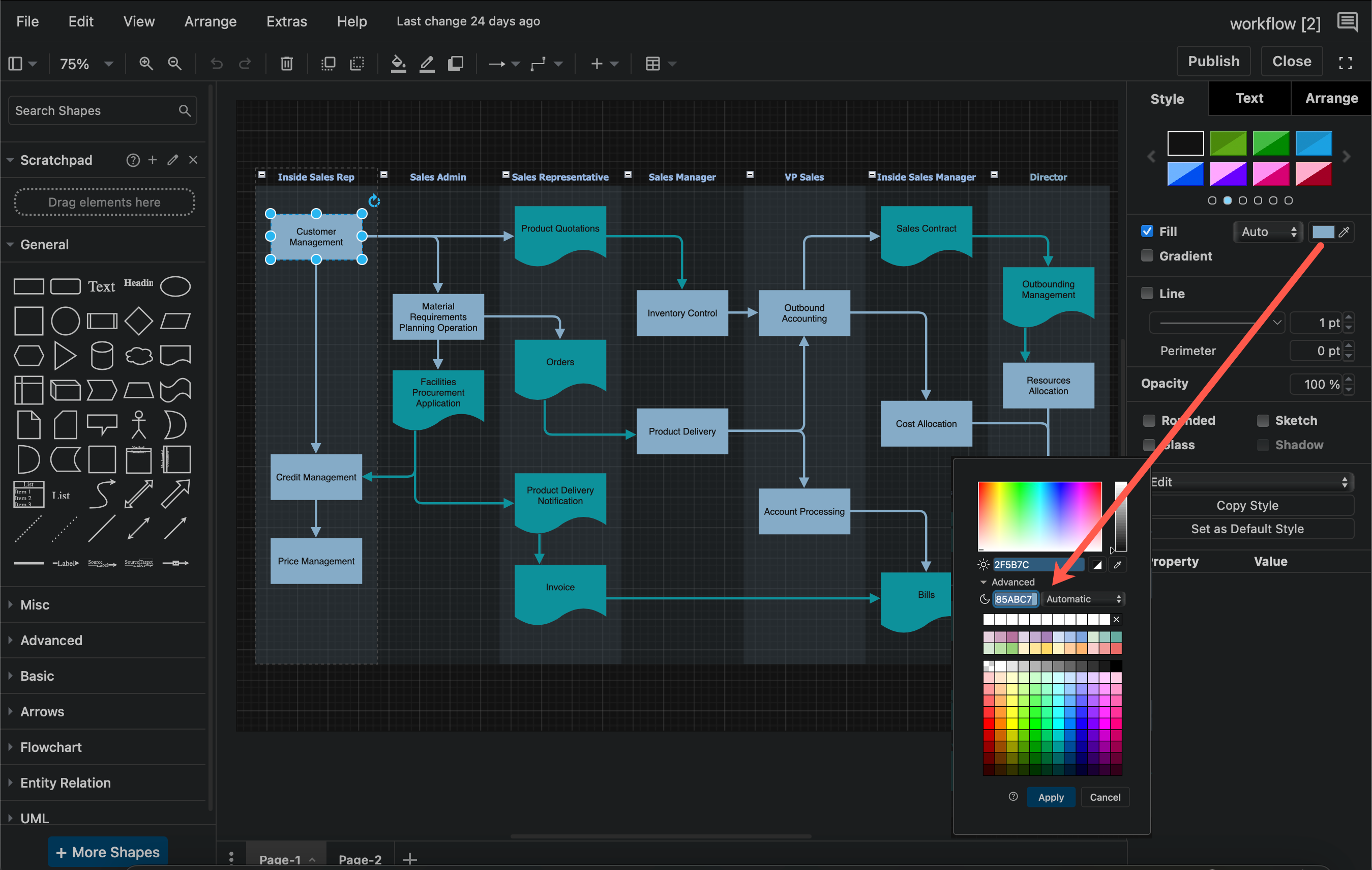
  1. Select one or more shapes, connectors, text labels, or the diagram background, then click on a colour block to open the colour palette, for example, the Fill colour of a shape.
    Select one or more shapes and open the colour palette
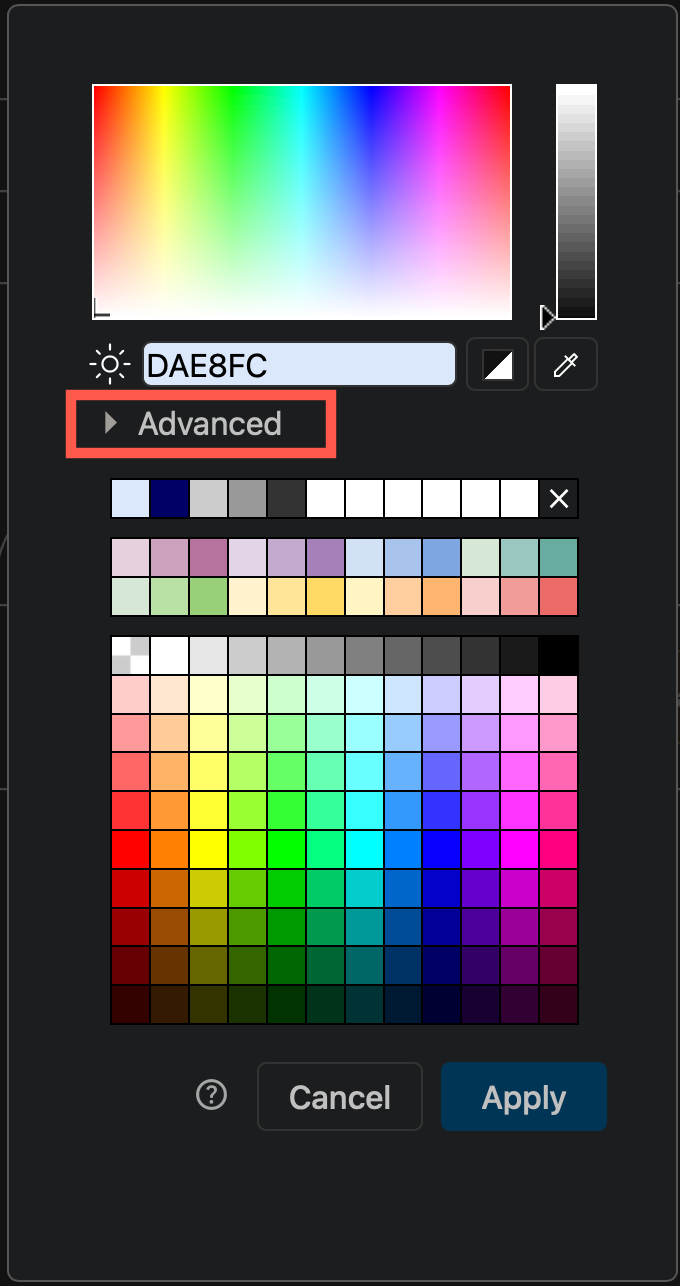
  2. Click Advanced to see the dark mode colour settings in the palette.
    Select one or more shapes and open the colour palette
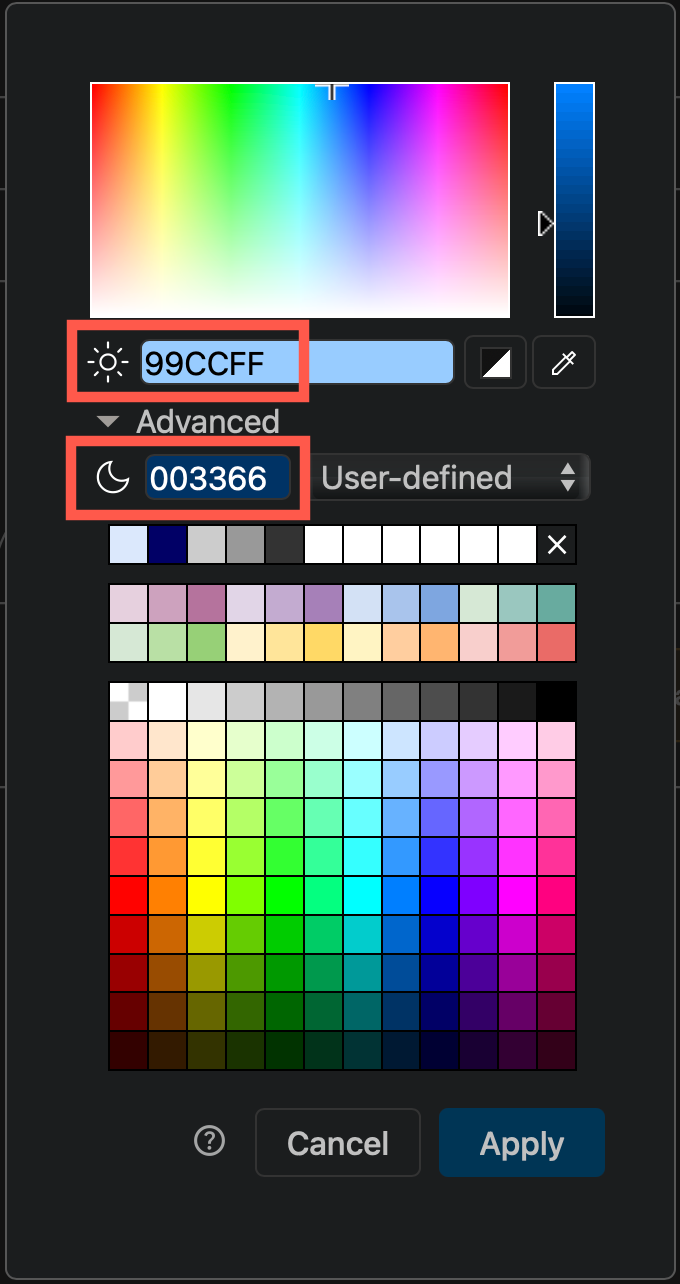
  3. Enter a colour value in the Light mode field (sun). The dark mode value will update automatically to its inverse if you are using the Automatic adaptive colour setting.
  4. To use a specific dark mode colour instead, enter a different colour value in the Dark mode field (moon). This colour is now User-defined.
    Select one or more shapes and open the colour palette
  5. Click Apply to save the colour style to your selected shapes, connectors, text or diagram page background.

You'll notice that the colour block now has two triangles, in both dark and light mode.
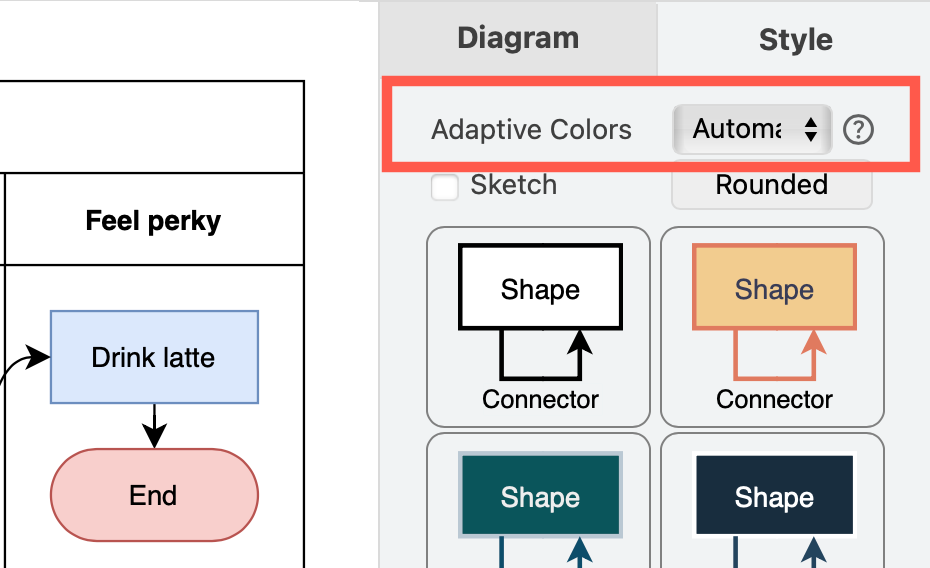
Change the adaptive colours settings on a diagram in draw.io via the Extras menu or the Style tab in the format panel when nothing is selected

Tip: To use the same colour in dark and light modes, enter the same value in both fields.

Adaptive colour settings

Each page in a multi-page diagram has its own adaptive colour setting.

With nothing selected in your diagram page, click on the diagram Style tab. Change the Adaptive Colors setting. Alternatively, select Extras > Adaptive Colors from the menu.
Change the adaptive colours settings on a diagram in draw.io via the Extras menu or the Style tab in the format panel when nothing is selected

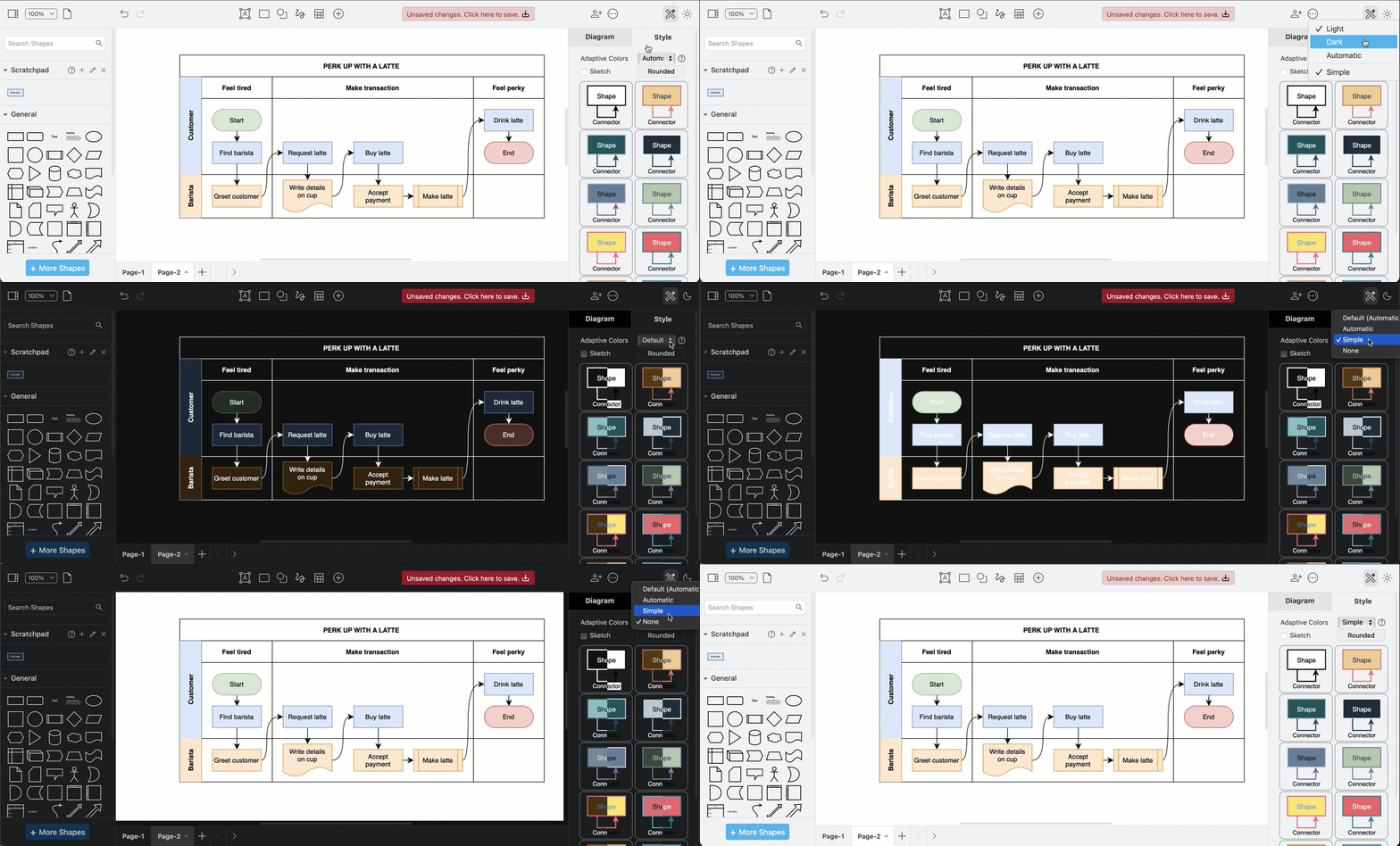
  • Automatic: Changes the intensity to enhance the contrast of all coloured elements in a diagram. This is set by default.
  • Simple: Improves the contrast of only the black and white elements, and retains all other colours. Thus the same palette can be used in dark and light modes.
  • None: Disables adaptive colours in dark mode completely. Diagrams will appear as they would in light mode even if you enable dark mode in the draw.io editor.
Change the adaptive colours settings on a diagram in draw.io via the Extras menu or the Style tab in the format panel when nothing is selected

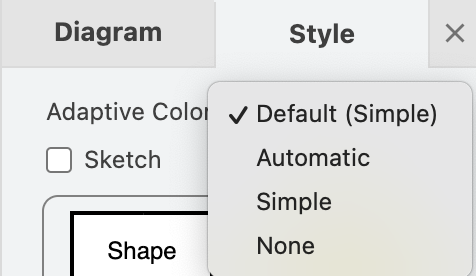
Set defaultAdaptiveColors in the draw.io configuration to simple or none when you want your diagram colours to stay the same in light and dark modes.
Select one or more shapes and open the colour palette

Step by step: Configure default adaptive colours

Sharing diagrams with adaptive colours

The adaptive colour settings are saved in the diagram file. When you share your diagram file, a URL link with the diagram or HTML code with the diagram embedded, when it is reopened in the editor, the diagram will display with the adaptive colour settings it was saved with.

Diagrams pose a particular challenge when automatically adjusting colours for readability in dark mode.

If you want to reset a diagram to automatically adapt to dark mode, you can remove all the user-defined dark-mode colours.

See how to set custom dark-mode colours in the style and colour palettes with the light-dark function for each color definition.

Learn more about how adaptive colours work when you export to an SVG image.

draw.io app Editions for Atlassian Confluence Cloud (early access program)

· 2 min read
draw.io
draw.io Team

App editions for Atlassian Confluence Cloud will soon be available for customers who sign up for Atlassian's early-access program. App editions is a new Atlassian Marketplace feature introduced with Forge, and draw.io will be available in Standard and Advanced editions.

If you are not in the early access program, your draw.io Confluence Cloud app will continue to receive regular updates and support as in your current subscription, and of course, the full features of the draw.io diagram editor, including AI-generated diagrams.

If you sign up for the new early access programme for app Editions in the Atlassian Marketplace, draw.io will be available in the following two editions for Confluence Cloud.

  • The Standard edition includes all the diagramming features of the draw.io editor, including AI-generated diagrams. When you need support, your Confluence Cloud administrators can submit support tickets and receive the standard level of support (9/5 business hours).
  • The Advanced edition of draw.io for Atlassian Cloud products is for large enterprise customers who require advanced support and stricter data security. Along with the fully featured draw.io app from the Standard edition, you will receive the following additional support:

    • Extended support hours and shorter initial response times.
    • A dedicated account manager as your single point of contact for enquiries.
    • Custom security reviews for compliance submissions.
    • Access to development feature previews.
    • In-depth and targeted training materials.
    • A zero-egress switch that can disable all data egress except for Atlassian API calls in the draw.io Forge app version.

See how to use draw.io in Confluence with diagram files stored in Google Drive.

Administrators can configure the draw.io app in Confluence Cloud in the Advanced edition to enable the lockdown option.
You can diagram offline with the draw.io desktop app if you need to work in a highly secure environment.

We are fully committed to data security and privacy - learn more about data protection while diagramming and using draw.io.

More updated networking and cloud shape libraries

· 5 min read
draw.io
draw.io Team

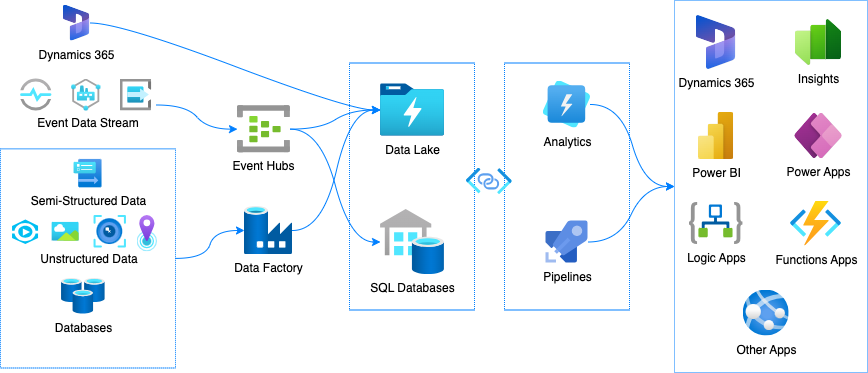
In addition to updating the main AWS and Azure shape libraries in draw.io, several new networking and cloud shape libraries have been added, including shapes for Alibaba Cloud, Dynamics365 and OpenStack.
Several new cloud infrastructure libraries have been added, and the Azure and AWS shape libraries have been updated in draw.io

Open cloud infrastructure shape libraries

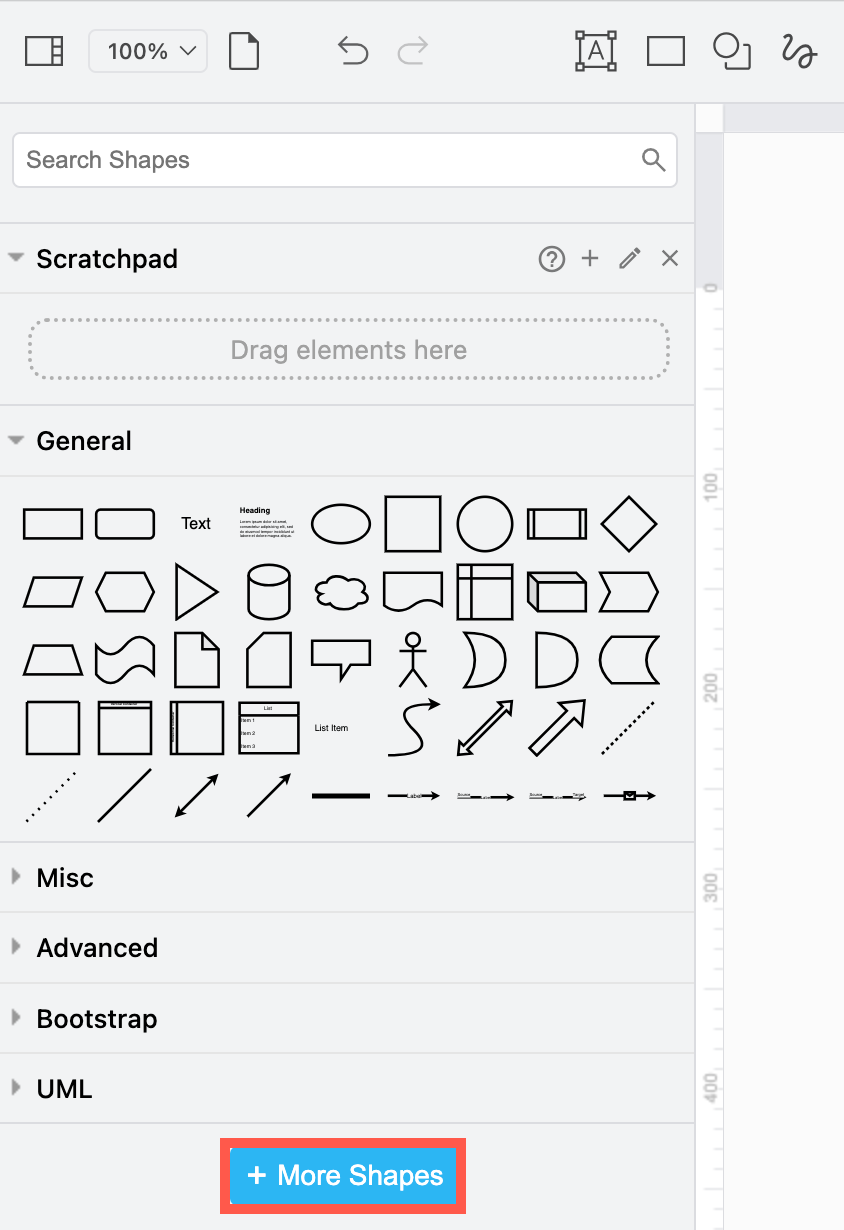
  1. Click on More Shapes at the bottom of the shapes panel on the left.
    Click on More Shapes in the shapes panel to open the shape library collection in draw.io
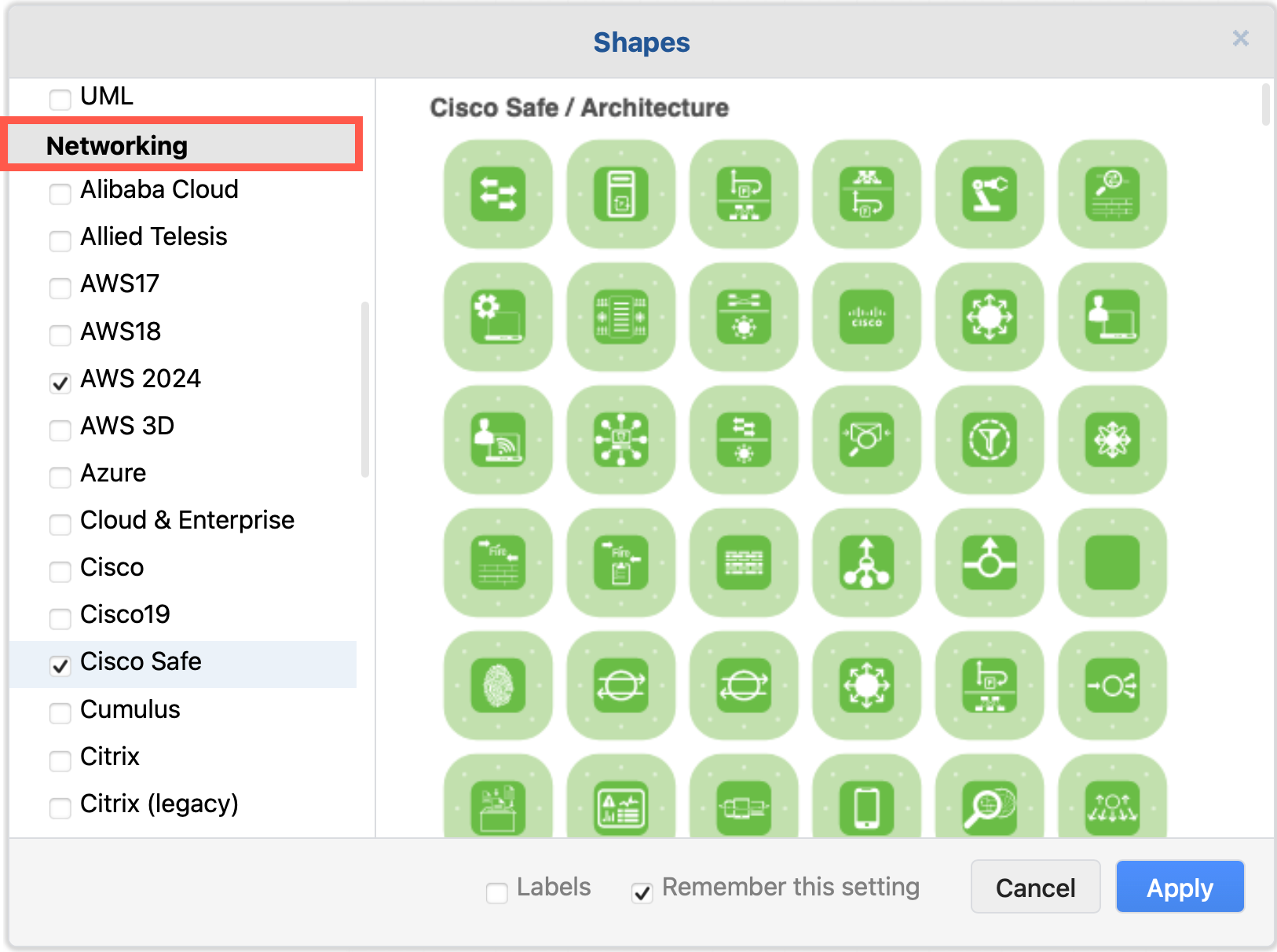
  2. Scroll down to the Networking section and enable the shape libraries you want to use.
    Enable the cloud infrastructure libraries you want to use in draw.io
  3. Click Apply to open them in the shapes panel next to the drawing canvas.

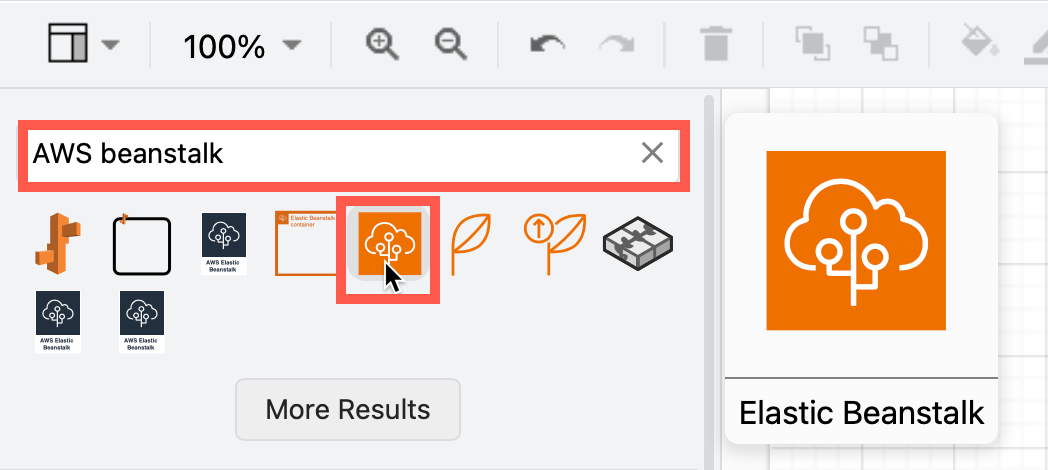
Tip: Alternatively, you can always search for a shape if you know its name. For example, searching for "AWS beanstalk" will show all the shapes from the various AWS libraries that have both "AWS" and "beanstalk" in their shape names, even if you don't have the AWS shape libraries open. Hover over any of the shapes to see a larger preview.
Search for any cloud infrastructure shape by its name to see all related shapes, even if you don't have the shape libraries open in draw.io

Azure Power Platform and Dynamics 365

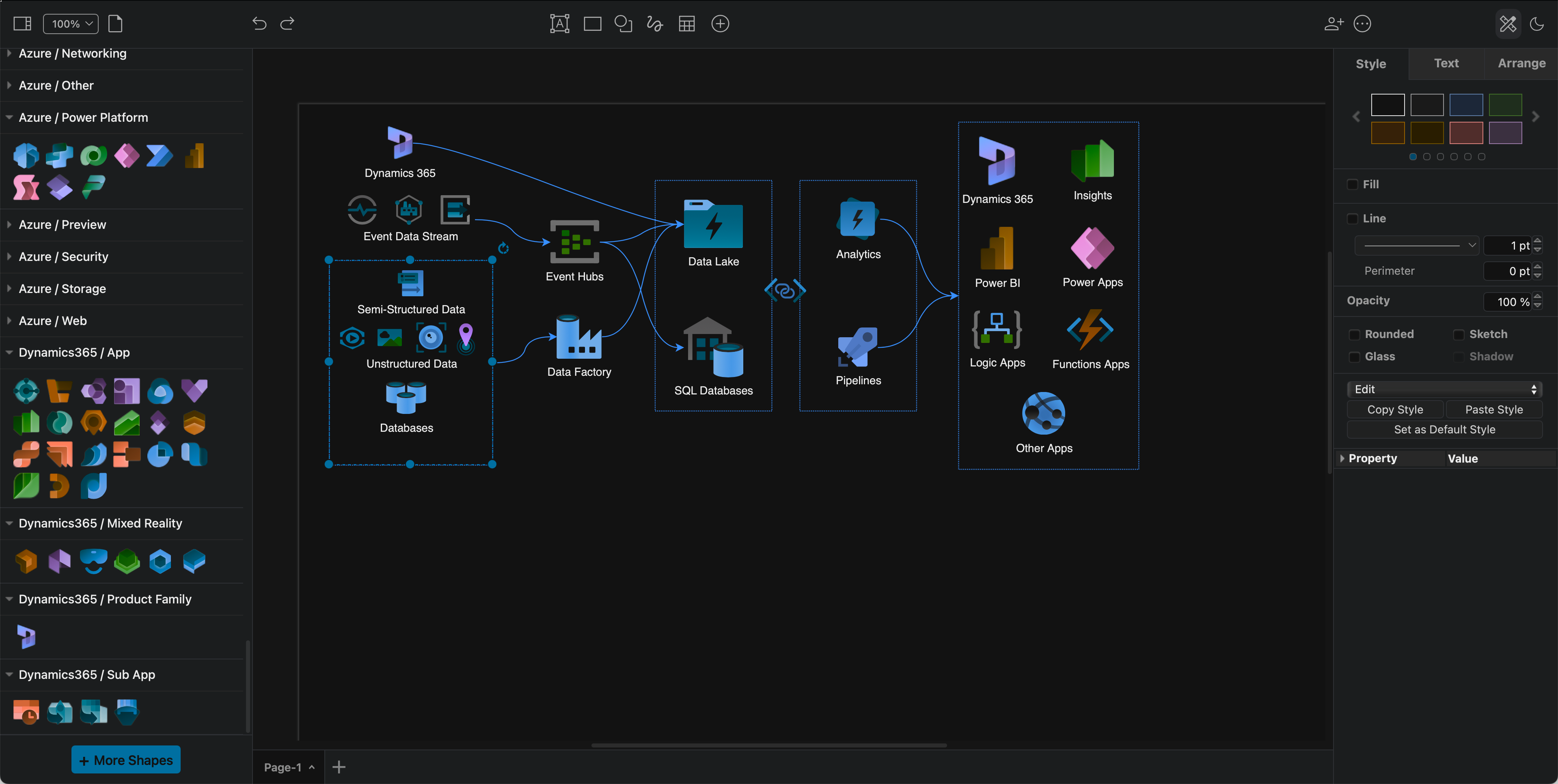
The Power Platform shapes have been added to the Azure shape library. These components are often combined with Dynamics365 services and applications in cloud infrastructures.

Tip:* If you prefer to diagram in dark mode, the Azure and Dynamics365 shapes and their labels will automatically change colours to remain readable when you switch between dark and light modes.
Several new cloud infrastructure libraries have been added, and the Azure and AWS shape libraries have been updated in draw.io

OpenStack shapes= library

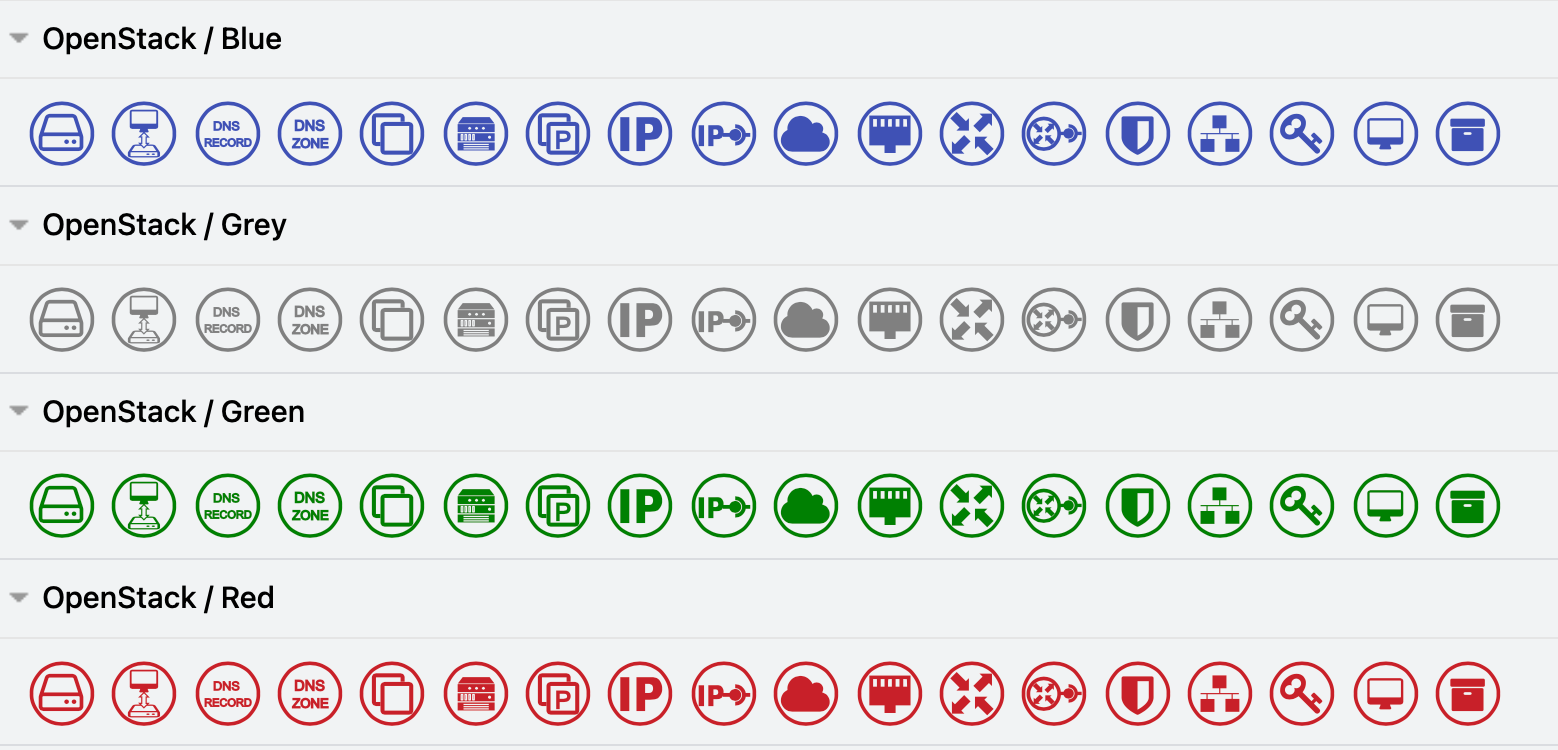
OpenStack services and apps are common components of Citrix, GCP, IBM and other large hybrid cloud infrastructures. To clearly indicate which components are provided by OpenStack in your infrastructure diagrams, enable the OpenStack shape library.
Use the OpenStack shapes in your hybrid multi-cloud infrastructure diagrams

Alibaba Cloud shape library

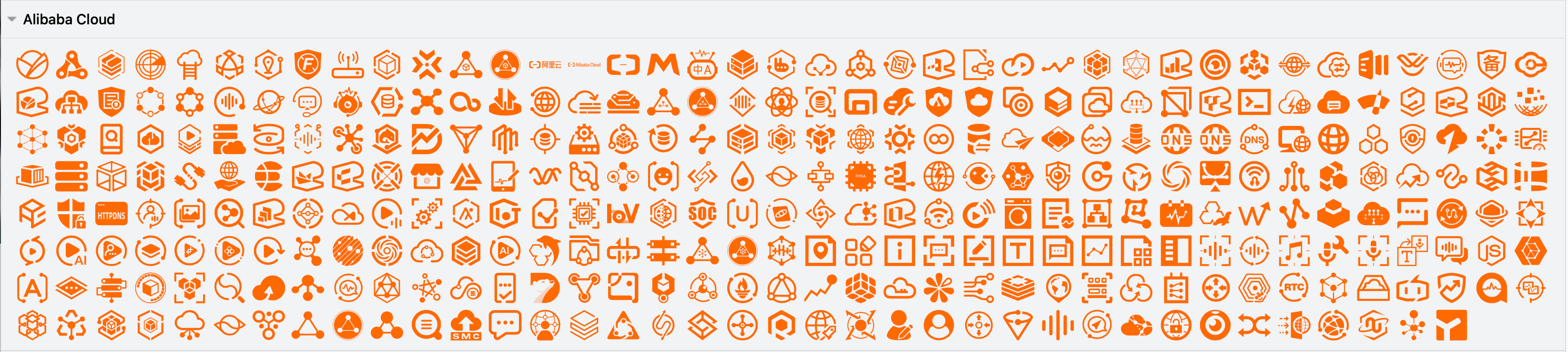
Enable the Alibaba Cloud shape library to document your infrastructure in Alibaba Cloud platform. These shapes cover a wide range of apps and services.
Use the Alibaba shapes to document your Alibaba Cloud infrastructure

Most of the infrastructure shapes don't have labels by default, as designers tend to rely on logo-recognition for their infrastructure components.
Add and style shape labels so your Alibaba Cloud infrastructure diagram is readable and consistent

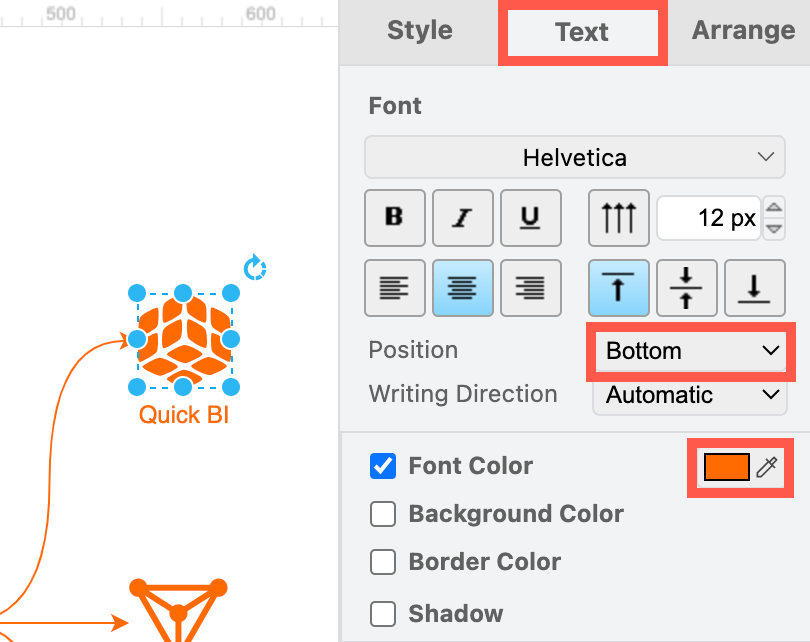
To make your diagram more accessible, select a shape and start typing to add a label. In the Text tab of the format panel, select the Bottom position, and update the Font Colour to match the colour of the Alibaba shape so it is consistent.

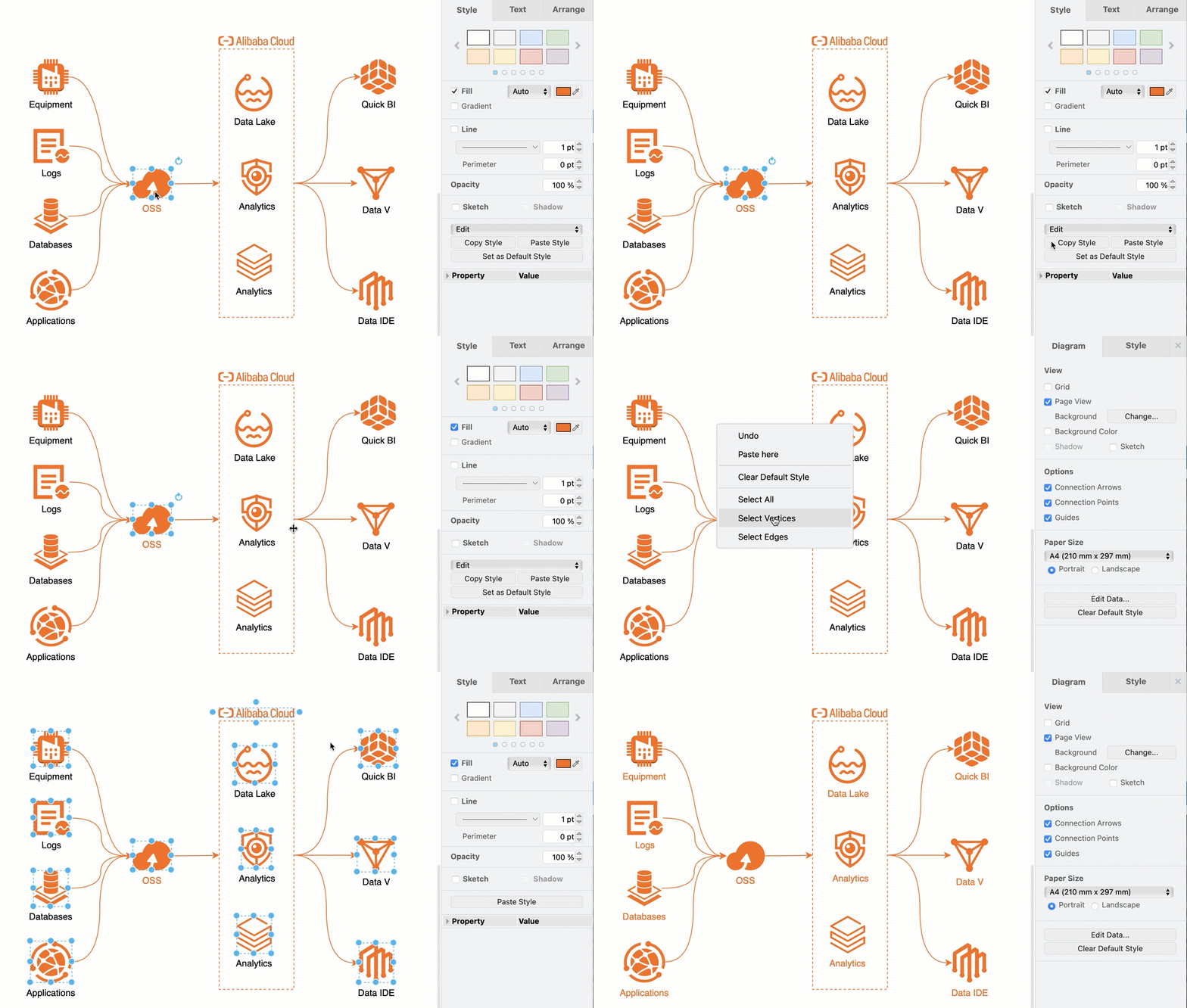
Tip: Format one shape and click on Copy Style in the Style tab of the format panel. Then, right-click on the canvas and choose Select Vertices, deselect any regions you may have added, and then click on Paste Style in the Style tab to copy the style onto all of the selected shapes.
Copy and paste shape styles to make your diagram labels and colours consistent

Learn more about drawing various types of network and infrastructure diagrams.

Other cloud platform shape libraries in draw.io include Salesforce, Citrix, Google GCP, Amazon AWS, IBM, and more.

Export AWS diagrams generated from your actual deployed infrastructure to the .drawio format from Cloudockit and Cloudcraft.

New IBM Cloud shape library for technical diagrams

· 6 min read
draw.io
draw.io Team

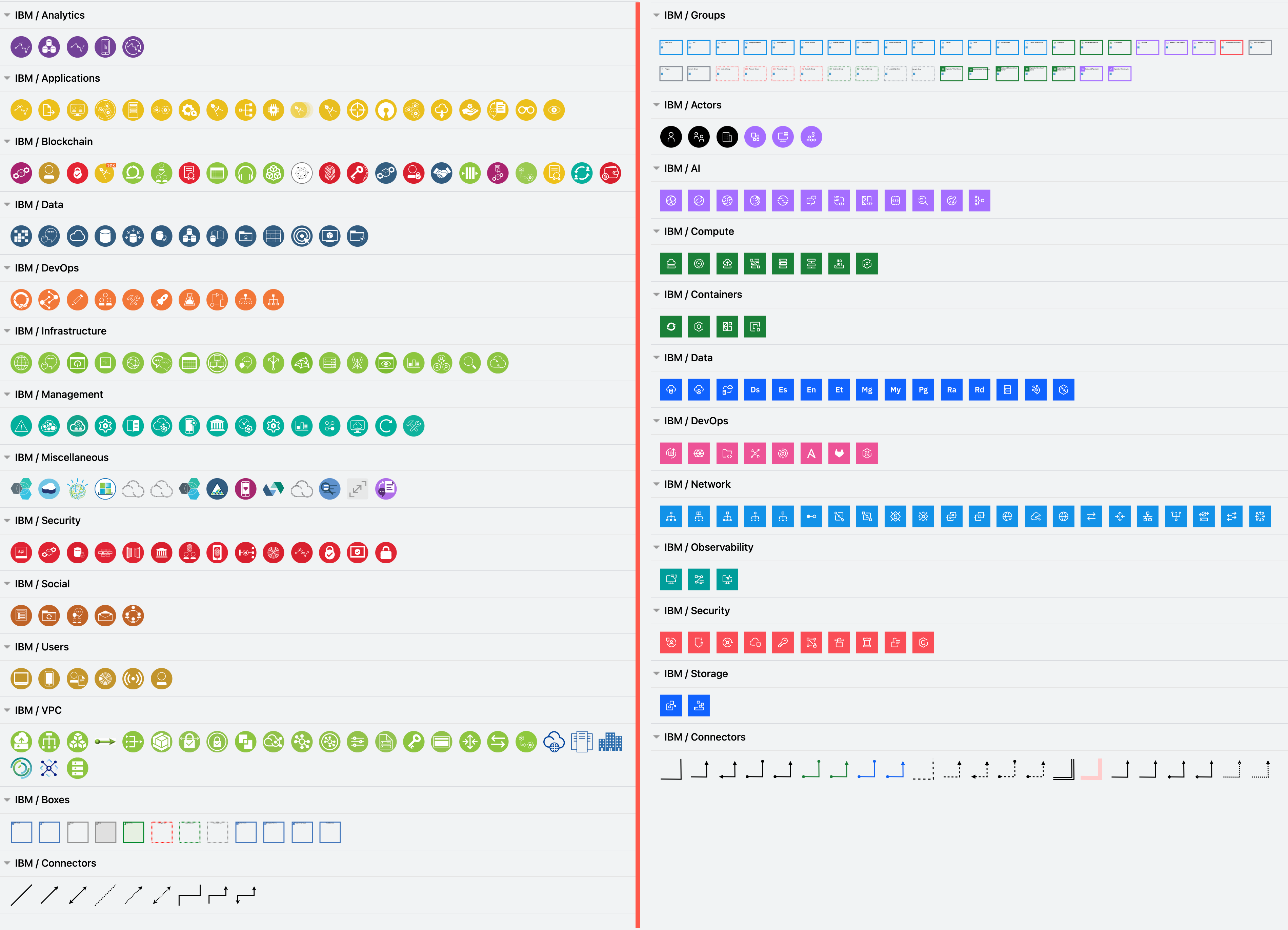
The new IBM Cloud shape library in draw.io (right) reflects IBM's updated design language, and extends the existing IBM shape library (left) with a wide range of additional groups, connectors and infrastructure components.
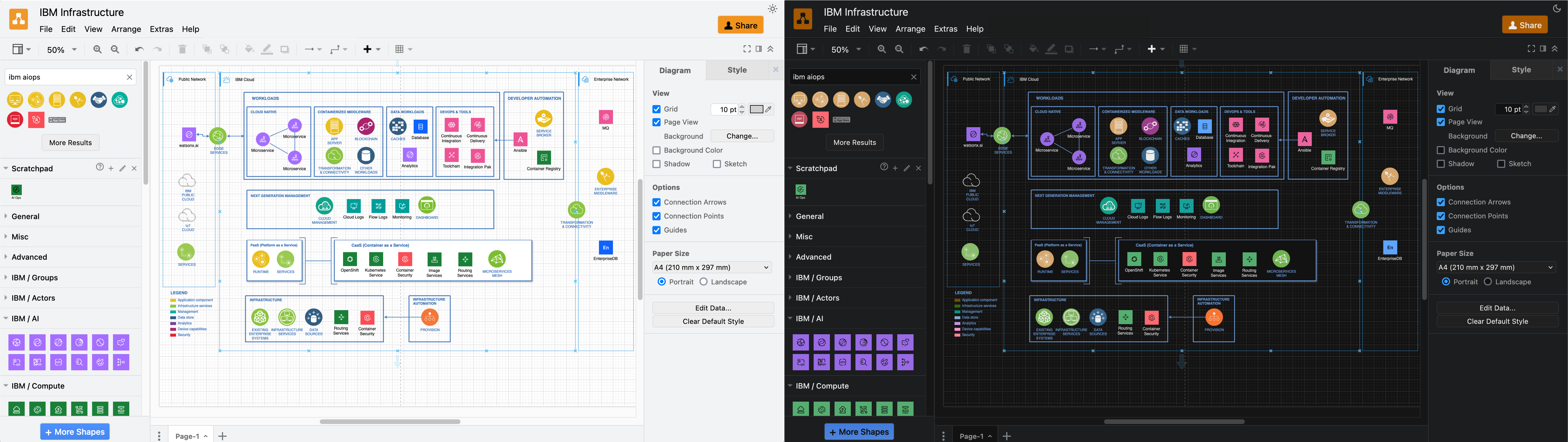
Enable the new IBM and IBM shape libraries to draw IBM infrastructure diagrams

IBM has provided their updated shapes for the new IBM Cloud shape library in draw.io. Please refer to their documentation for their design language style guide, where they explain how shapes and icons should be used in a wide variety of technical diagrams.

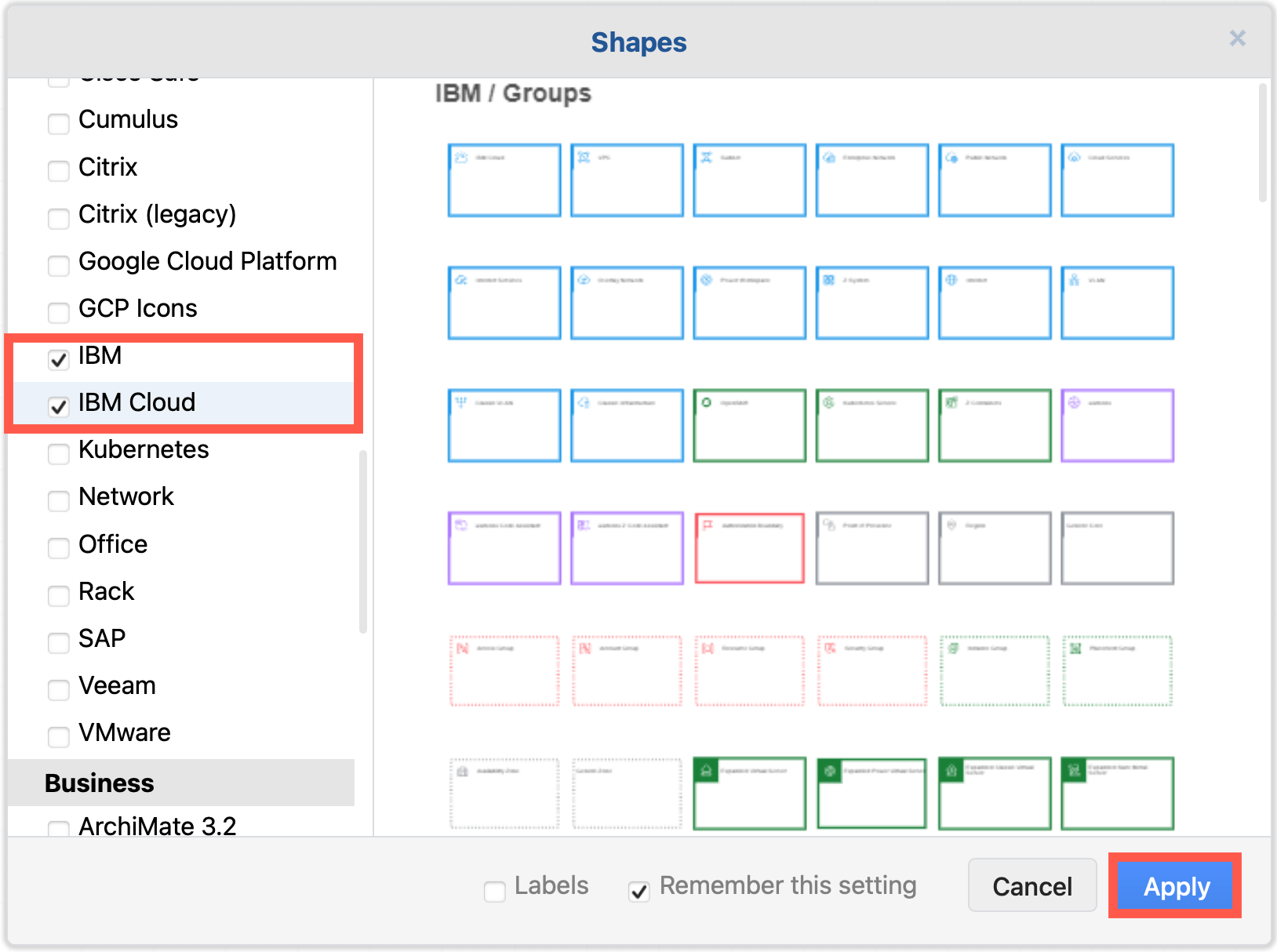
Enable the IBM shape libraries in draw.io

  1. Click on More Shapes at the bottom of the shapes panel in draw.io.
  2. Enable the checkbox next to the SAP shape library in the Networking section and click Apply.
    Enable the IBM shape libraries to draw IBM infrastructure diagrams

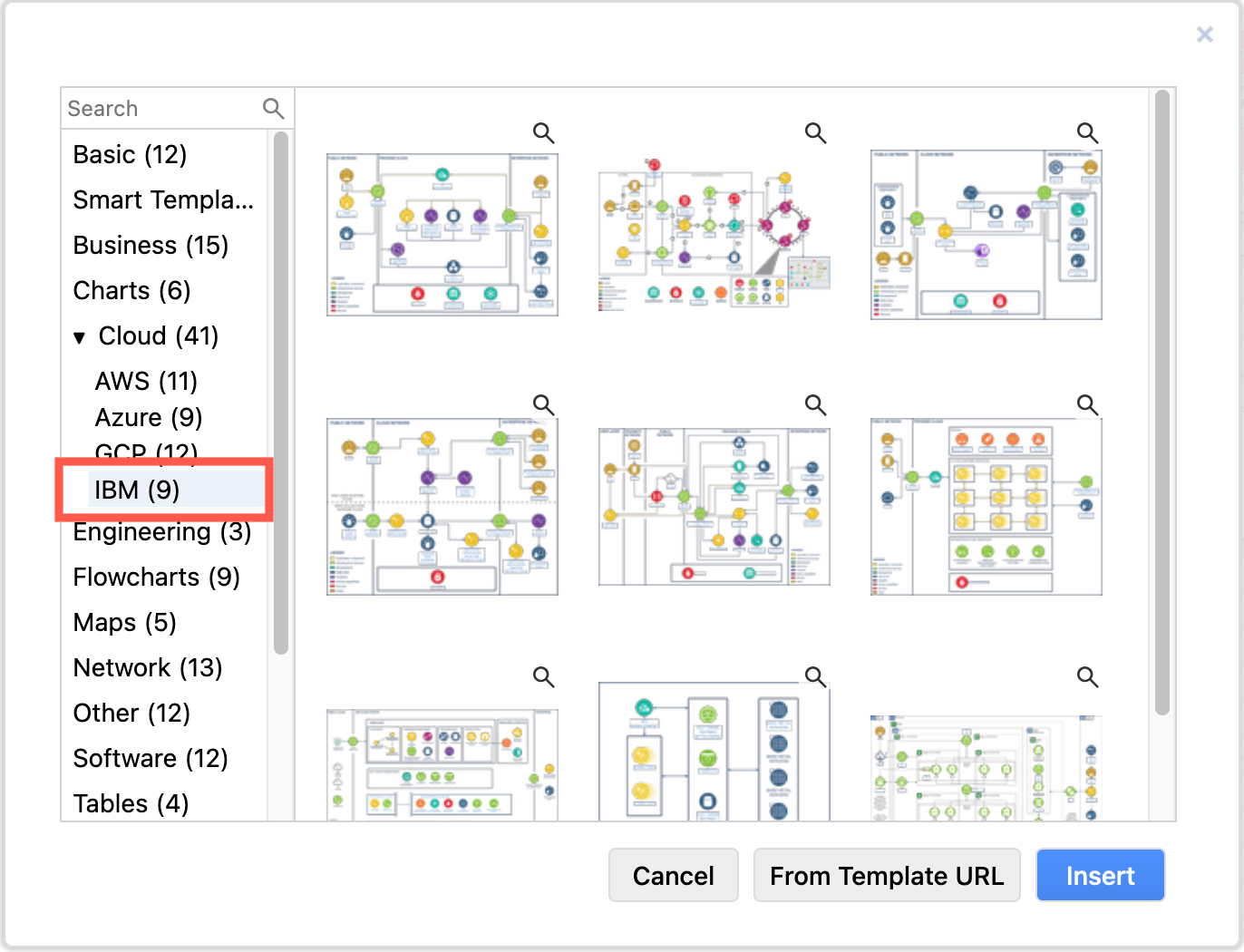
Tip: There are also several IBM infrastructures in the template library. Select Arrange > Insert > Template from the menu or + > Template in the toolbar, and look in the Cloud > IBM category.
draw.io has several example IBM infrastructures in the template library

Using old and new IBM shapes in one diagram

The new IBM Cloud shapes are compound shapes - a coloured background shape and an icon on top in the centre. This gives you more flexibility in styling your diagram as you can change the two shapes' fill colours independently.

The older shapes are round with a white icon and blue text label, while the new IBM Cloud shapes are square with a white icon and text (in light mode) or black icon and text (in dark mode).

There is also a larger and more varied set of groups (region shapes) in the new IBM Cloud shape library.
The new IBM Cloud shapes work well with the older IBM shape library in draw.io
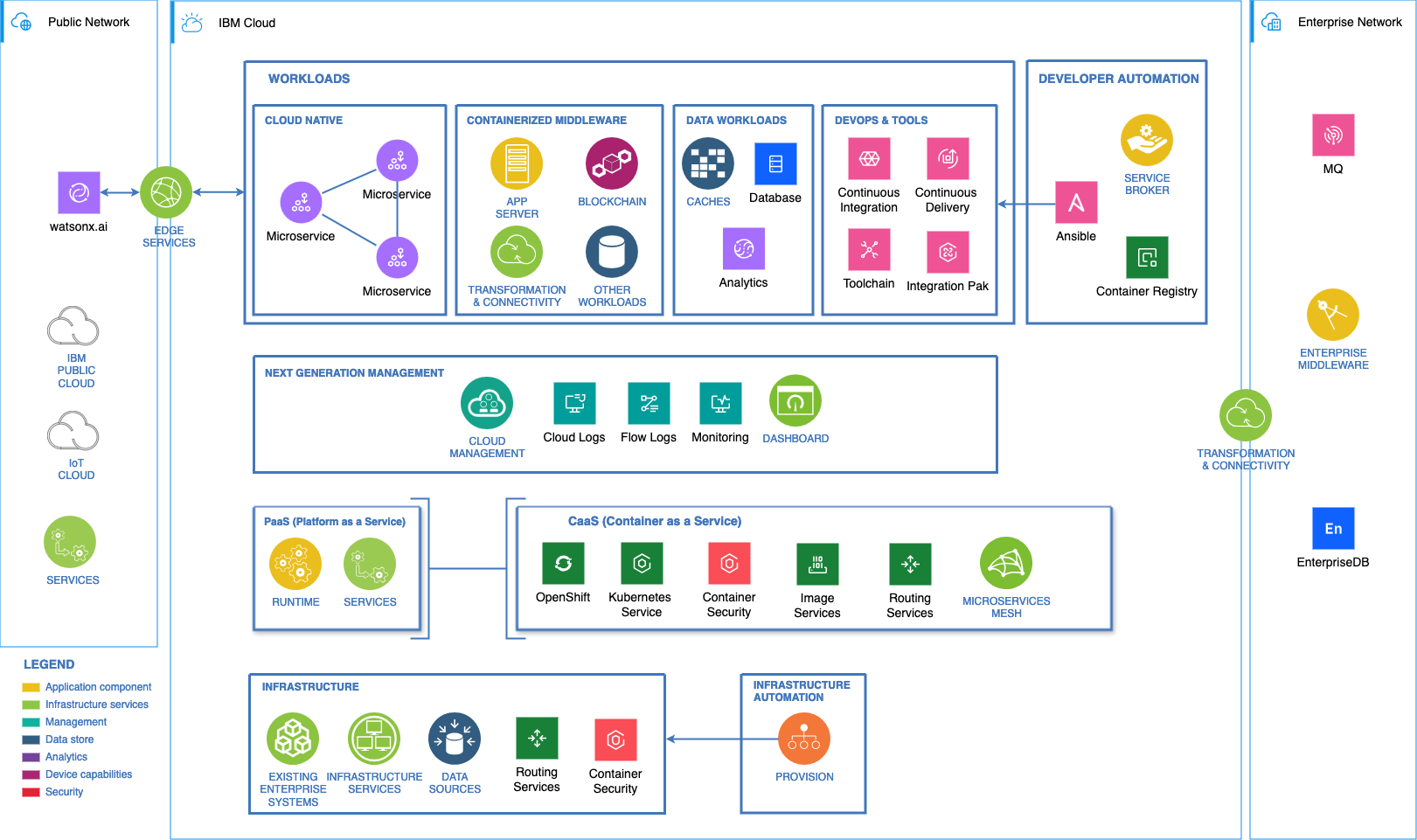
The example above is one of the IBM templates available in draw.io with the new IBM Cloud shapes replacing some older components.

Both sets of shapes work well when diagramming in dark mode - the new shapes will switch icon and label colours automatically to remain readable.
The new IBM Cloud shapes automatically swap colours to remain readable in dark and light mode in draw.io

Tip: To make the labels look the same on all of your IBM and IBM Cloud shapes, you'll need to edit the text labels to ensure their case matches and the Font Color in the Text tab of the format panel.

However, mixing shapes from the two shape libraries and using their default label styles shows which components of your infrastructure are more recent at a glance, such as for IBM's newer cloud and Watson AI services.

Make your own IBM shapes

The shapes in both the IBM and IBM Cloud shape libraries represent only part of the constantly expanding IBM Design Language.

You can easily make your own IBM shapes in draw.io using the black IBM .svg icons.

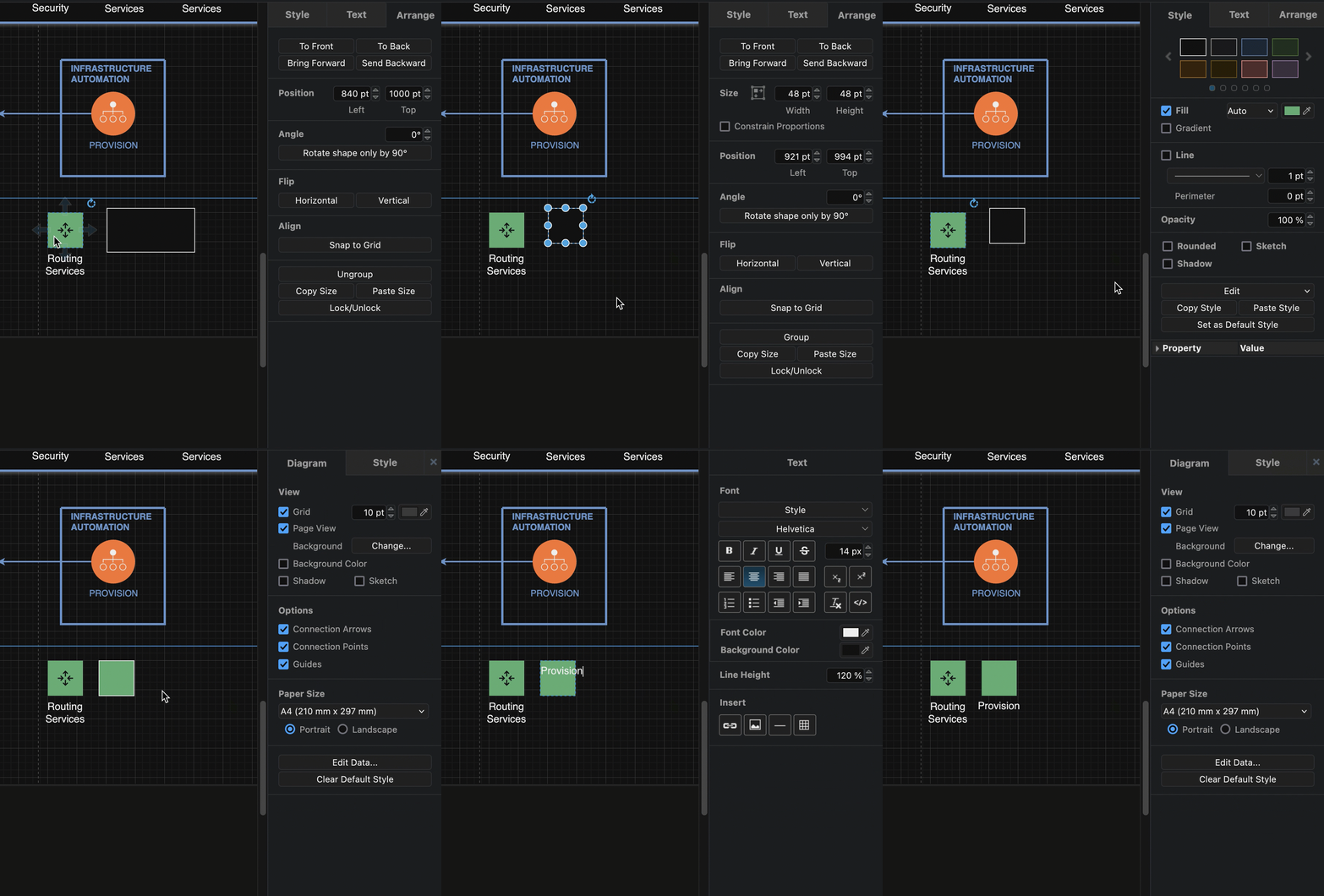
  1. Add one of the IBM Cloud shapes that matches the colour you want to use to the drawing canvas to serve as a template for your new shape.
  2. Add a simple rectangle from the General shape library.
  3. Select the IBM Cloud shape on the drawing canvas and select then select Copy Size in the Arrange tab of the format panel. Select the rectangle and click on Paste Size.
  4. Select the IBM Cloud shape again, then select Copy Style in the Style tab of the format panel. Select the rectangle again and click on Paste Style.
    Make your own IBM shape using an existing IBM Cloud shape as a template for style and size
  5. You may need to deselect the Line checkbox in the Style tab, but your shape background should now look correct.
  6. Add a label, and move its Position to the Bottom via the Text tab of the format panel.
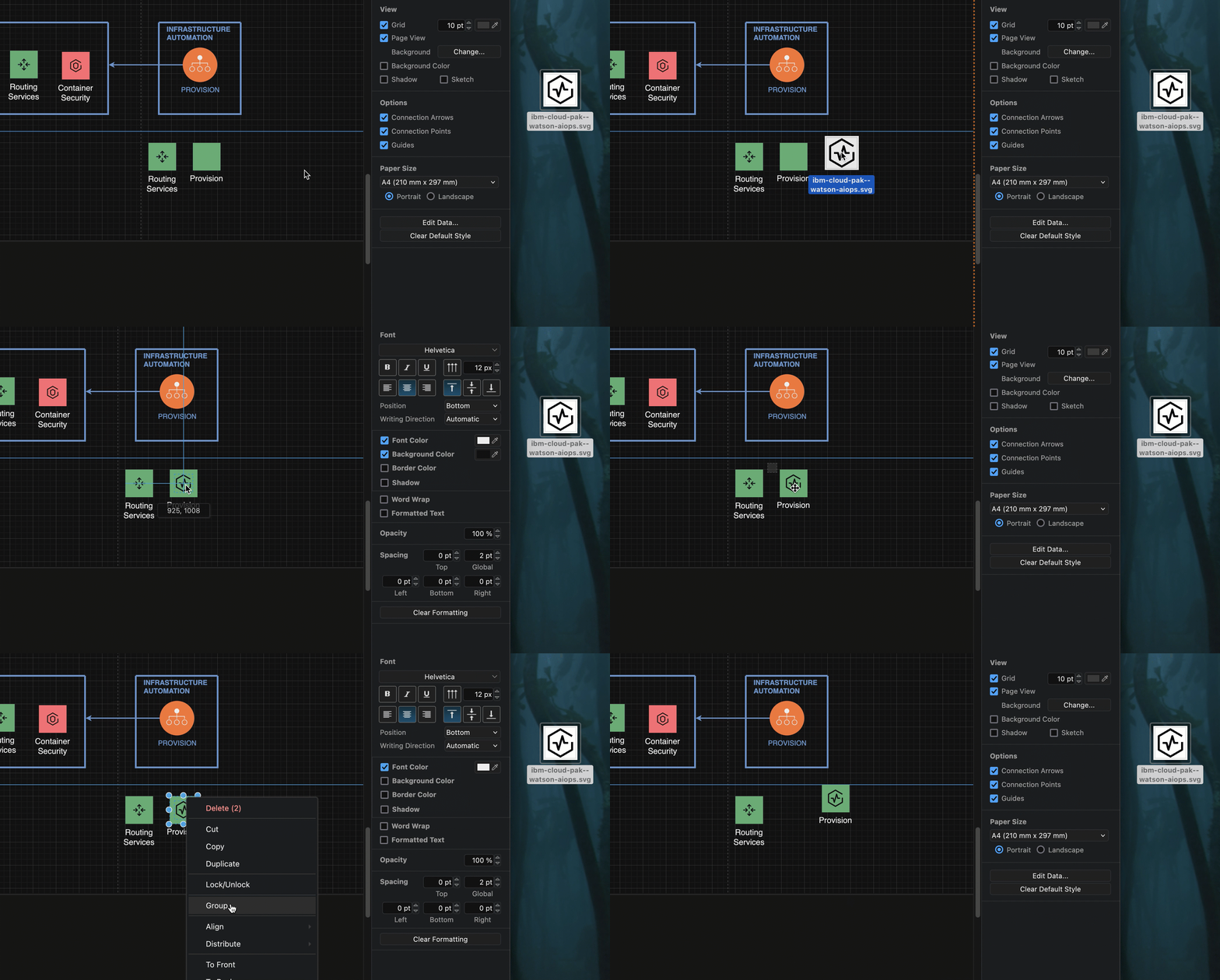
  7. Now, make the compound icon. Drag the .svg file of the UI icon from the UI Icons list in the IBM Design Language - either from the webpage directly, or from your device - onto the drawing canvas to import it. Then drag it over the centre of the background square.
  8. Finally, drag a selection box around the new compound shape, right click and select Group from the context menu.
    Make your own IBM shape using an existing IBM Cloud shape as a template for style and size

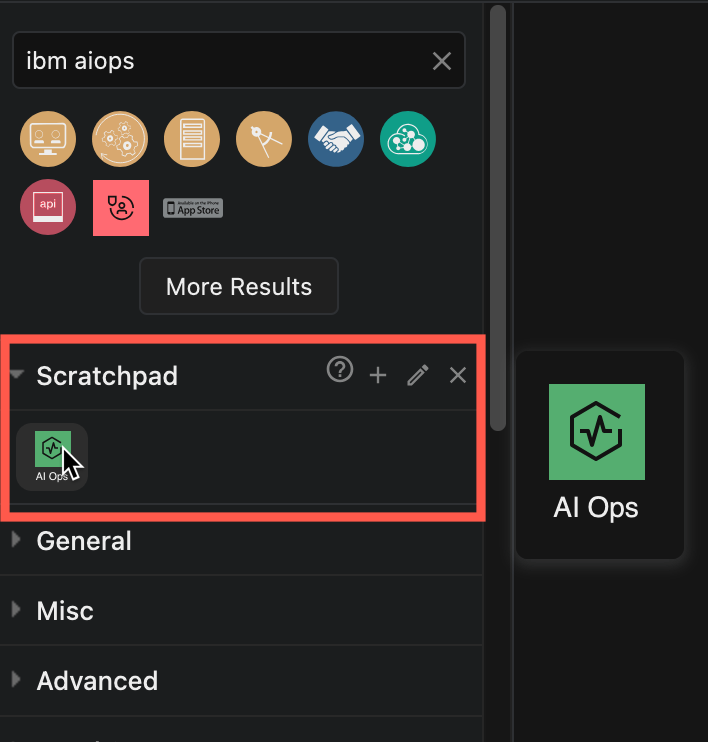
Tip: To use this new shape in multiple diagrams, drag the group onto the Scratchpad in the shapes panel.
Make your own IBM shape and save it in the draw.io scratchpad

You can also save the Scratchpad with your custom shapes to share them with your colleagues.

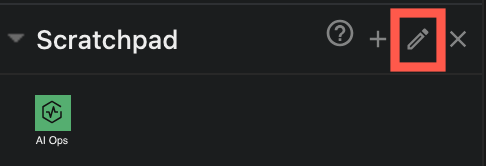
  1. Click on the pencil to the right of the Scratchpad library.
    Edit the draw.io scratchpad and export the shapes in it to a custom shape library
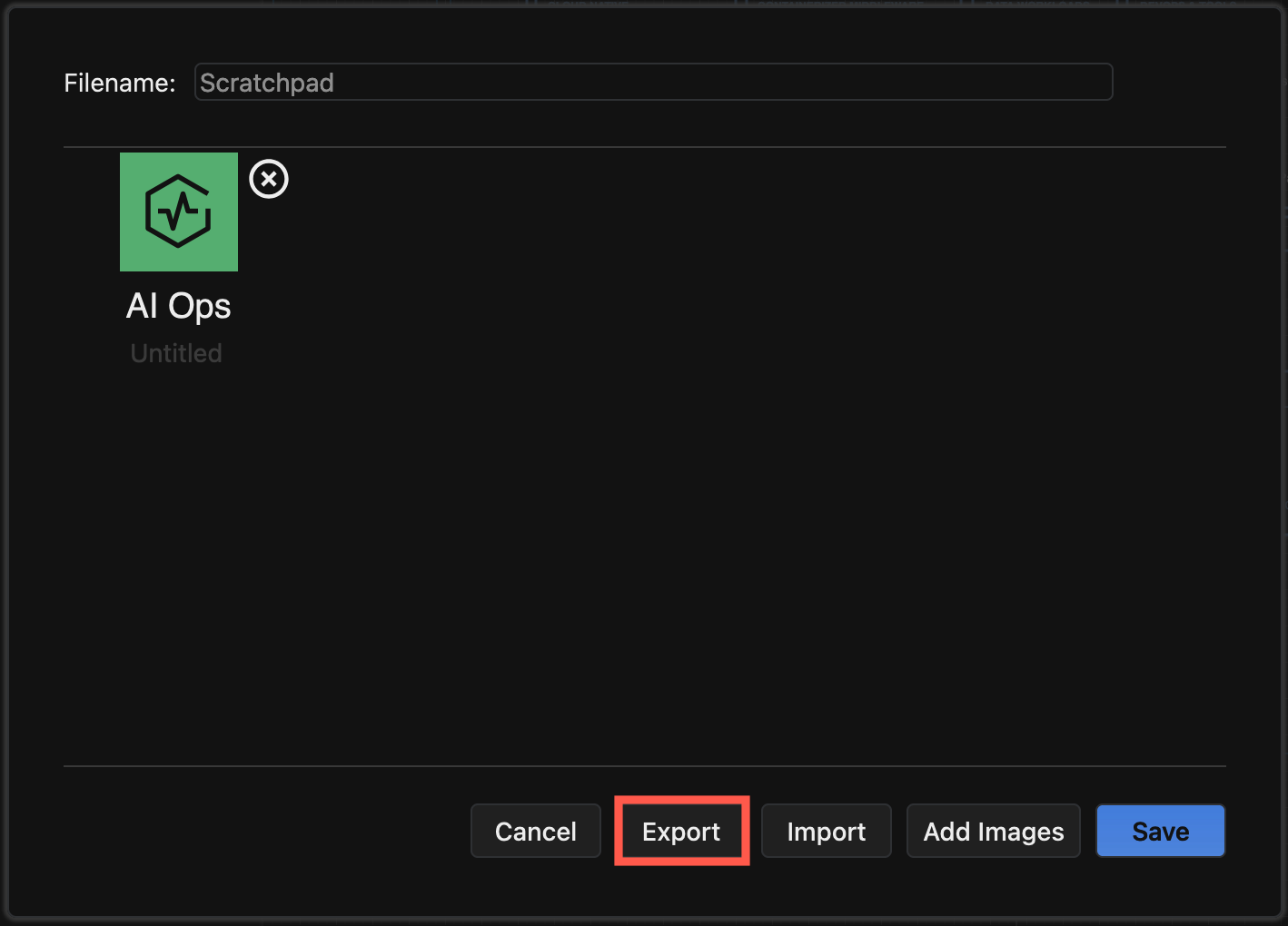
  2. Select Export to save all the shapes in the Scratchpad to a custom shape library.
    Edit the draw.io scratchpad and export the shapes in it to a custom shape library
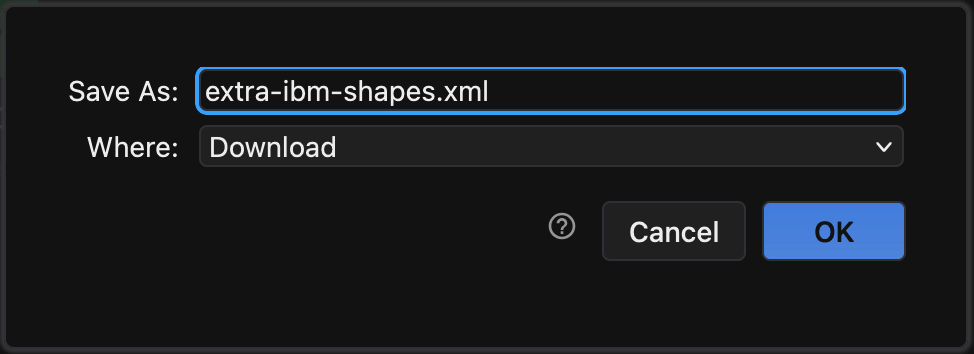
  3. Enter a filename, select where to save the custom shape library file and click OK.
    Edit the draw.io scratchpad and export the shapes in it to a custom shape library

Learn more about custom shape libraries

Updated Citrix shape library for clean infrastructure diagrams

· 5 min read
draw.io
draw.io Team

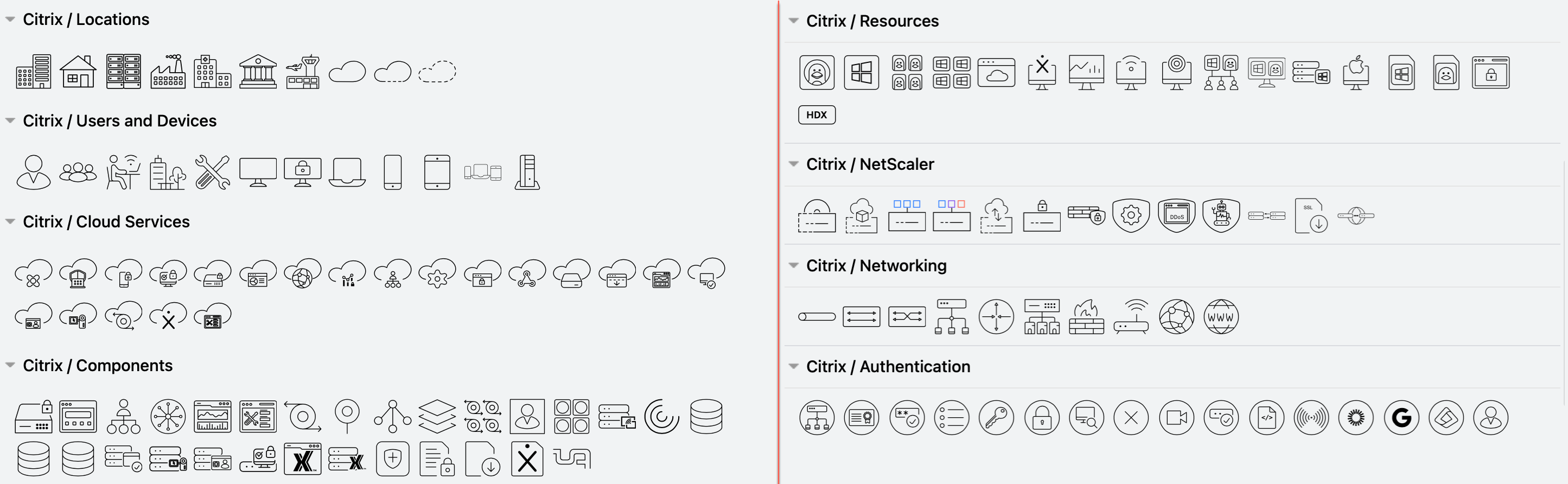
The new Citrix shape library helps you to draw Citrix diagrams of complex infrastructures that are easier to read. The older 3D shapes are still available in the Citrix (legacy) shape library.
Enable the new Citrix shape library to draw Citrix infrastructure and network diagrams

Citrix is a popular secure centralised platform for deploying applications, desktops and virtual solutions to devices in large enterprises with locations distributed worldwide, especially where high availability and scalability is required.

Learn more about drawing infrastructure and network diagrams

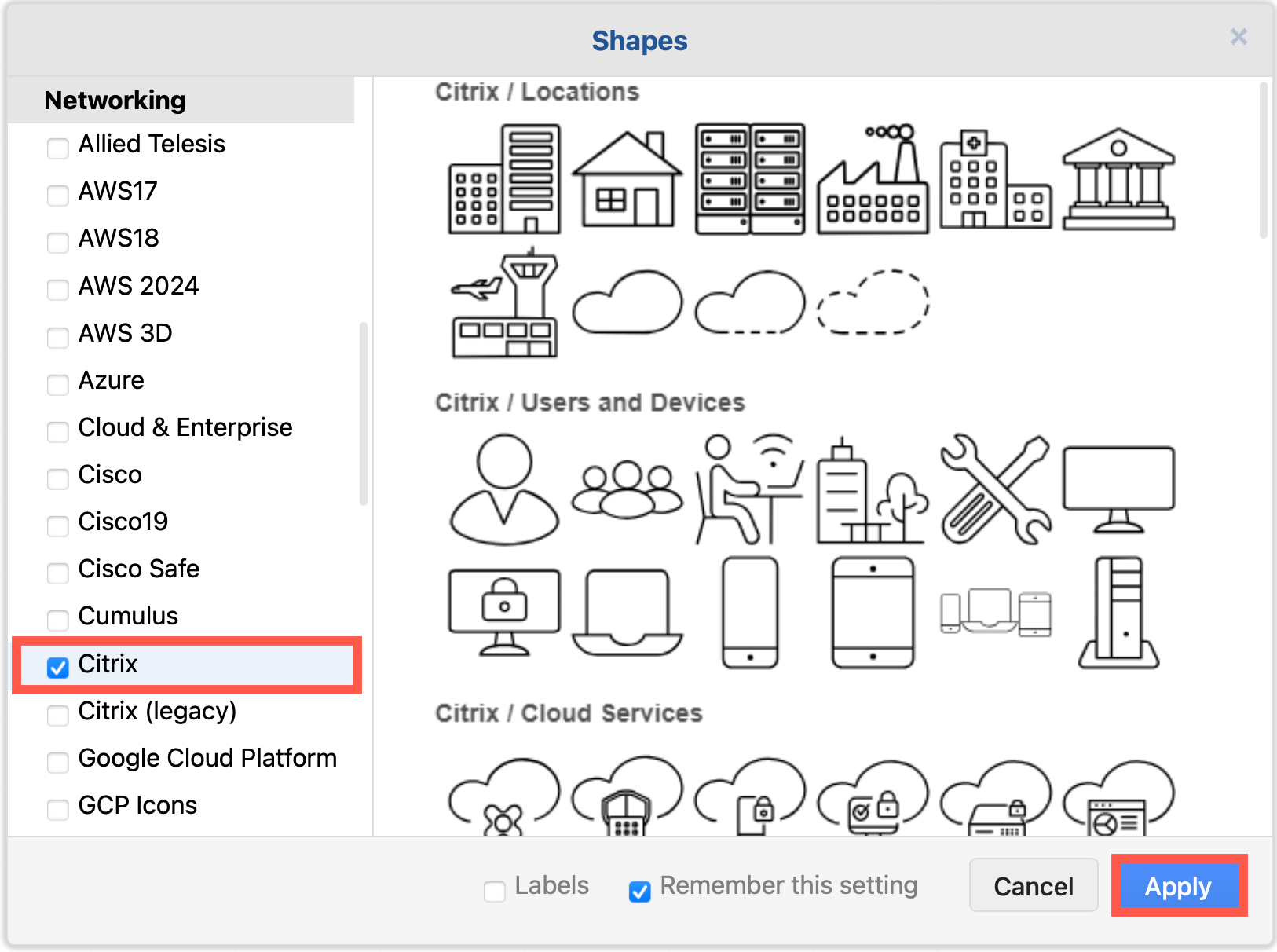
Enable the new Citrix shape library in draw.io

  1. Click on More Shapes at the bottom of the shapes panel in draw.io.
  2. Enable the checkbox next to the SAP shape library in the Networking section and click Apply.
    Enable the new Citrix shape library to draw Citrix infrastructure diagrams

Citrix infrastructure diagram tips

  • Use regions to visually group segments, security zones, and workloads. A simple rectangle placed behind a group of systems or services is the simplest option. You could also use collapsible container shapes or AWS groups.
    Use rectangles with different fill colours and line styles

  • Use shape fill colours and outline styles consistently to visually indicate regions, types and grouping of services or tools, or show which teams are responsible for maintaining those infrastructure areas.

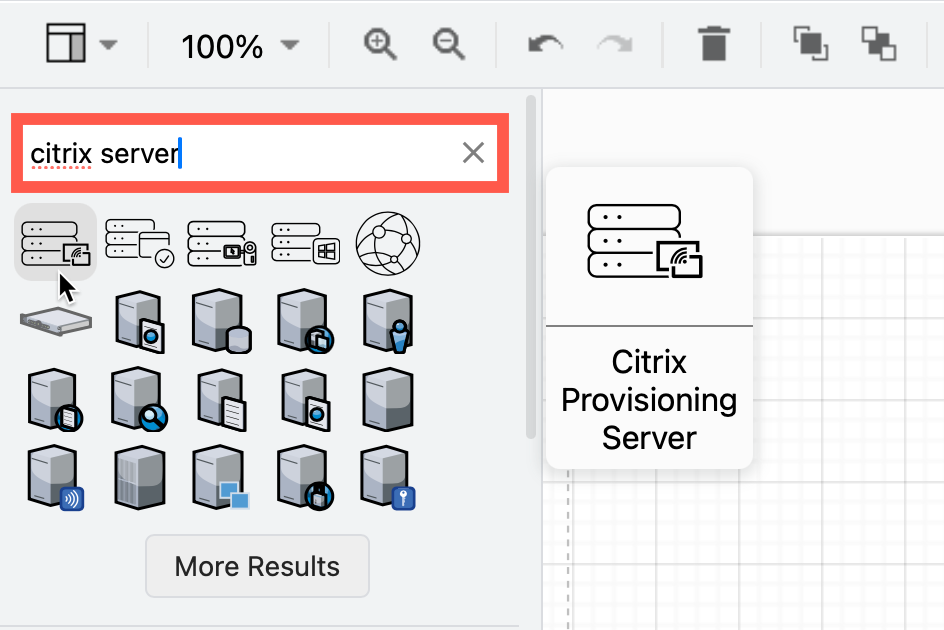
  • Use application, device and platform logos where possible. Search for these by name in the top left of the shapes panel in draw.io. Hover over any shape to see a larger preview.
    Search for infrastructure shapes and tool logos using their names

  • Add a legend if necessary. This is especially important when working with external parties, as they may not be familiar with all the components in your infrastructure.

  • Align shapes using the blue guidelines that appear as you move them around the drawing canvas.
    Align shapes using the snap to grid and guideline tools for neat diagrams

  • To group shapes once you have drawn a subsystem and placed it in a region, drag a selection box around all the shapes, right-click and select Group from the context menu. Now you can move the group without losing its internal layout.

Draw multi-platform infrastructure diagrams

Enable the AWS, Google Cloud Platform and Azure shape libraries in draw.io to document your multi-environment infrastructure.

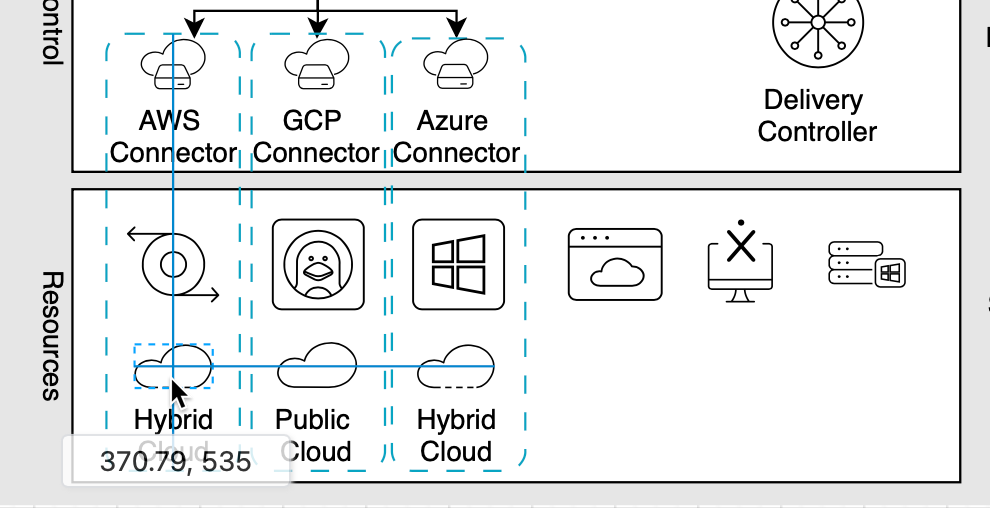
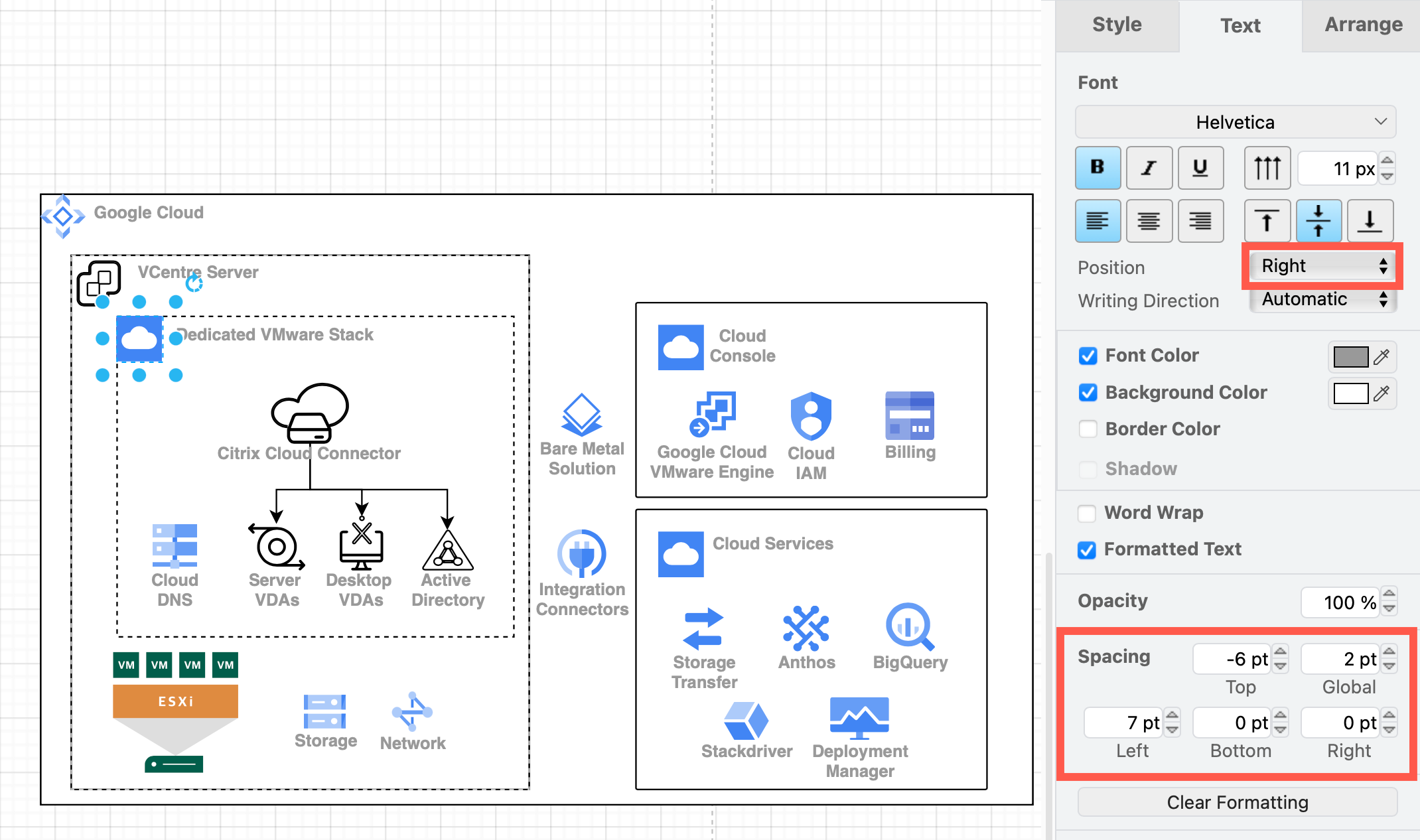
You can use the up-to-date shapes in the AWS groups, GCP Zones and cards from the Google Cloud Platform libraries to indicate different regions. Alternatively, place an identifying shape in the top left corner of a basic rectangle shape, move the shape label to the right and position it neatly with custom spacing.
Align shapes using the snap to grid and guideline tools for neat diagrams

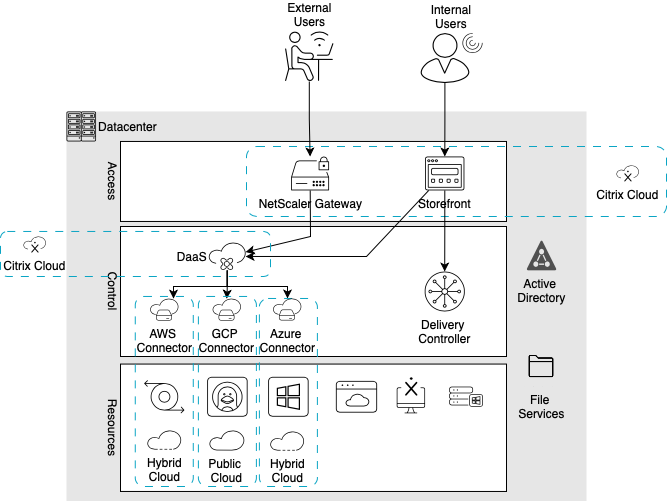
This will let you show how sub-systems are isolated and confined to each region in your cloud platforms and how loads are distributed when using the Citrix Hybrid Multi-Cloud.
Use rectangles with different fill colours and line styles
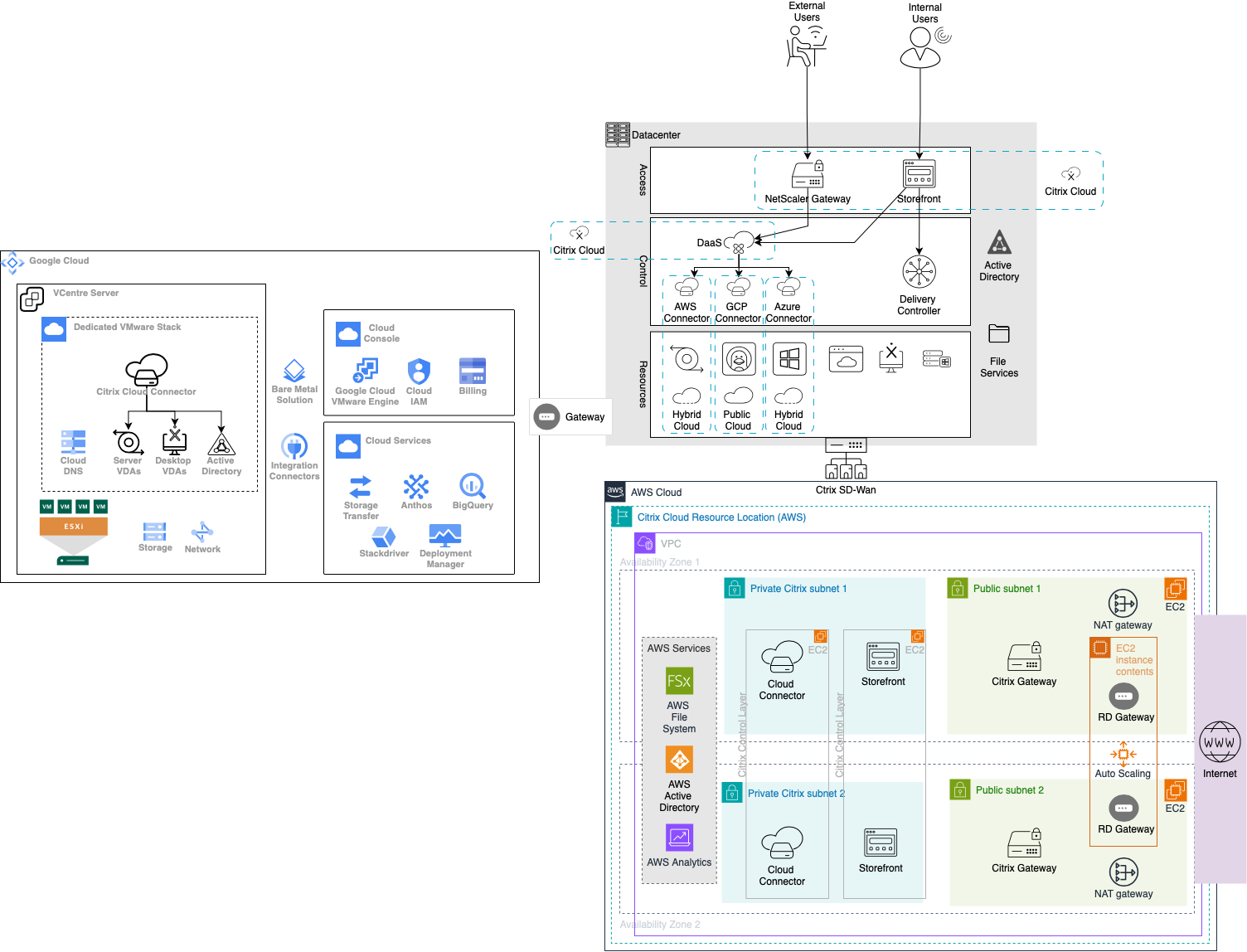
Open this example in the diagram viewer

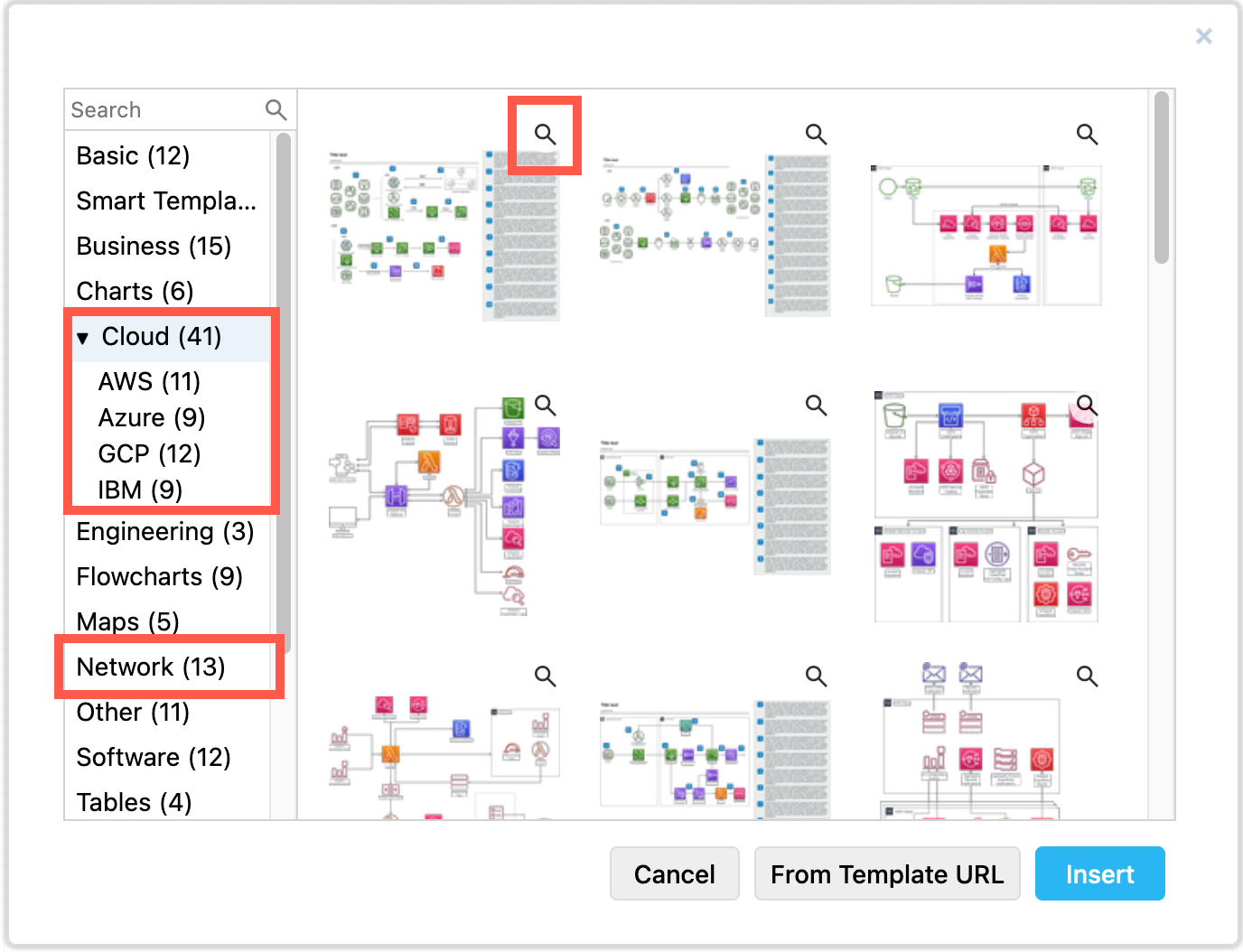
Basic infrastructure templates are under Cloud and Network in the template library. Select Arrange > Insert > Template from the menu or click + > Template in the toolbar.
Example infrastructure diagrams using various platforms are available in the template library

Additional examples are in the drawio-diagrams repository on GitHub. Check for cloud and network templates, and more detailed examples. You can import a diagram into draw.io as a template using its raw GitHub URL.

Some platforms can automatically generate AWS, GCP or Azure diagrams of your implemented infrastructure. Cloudcraft and Cloudockit can export to the .drawio or .vsd formats. Select File > Import from or drag and drop this file onto the drawing canvas to import the diagram of that sub-infrastructure.

draw.io updated for Atlassian Jira Software 10.0

· 3 min read
draw.io
draw.io Team

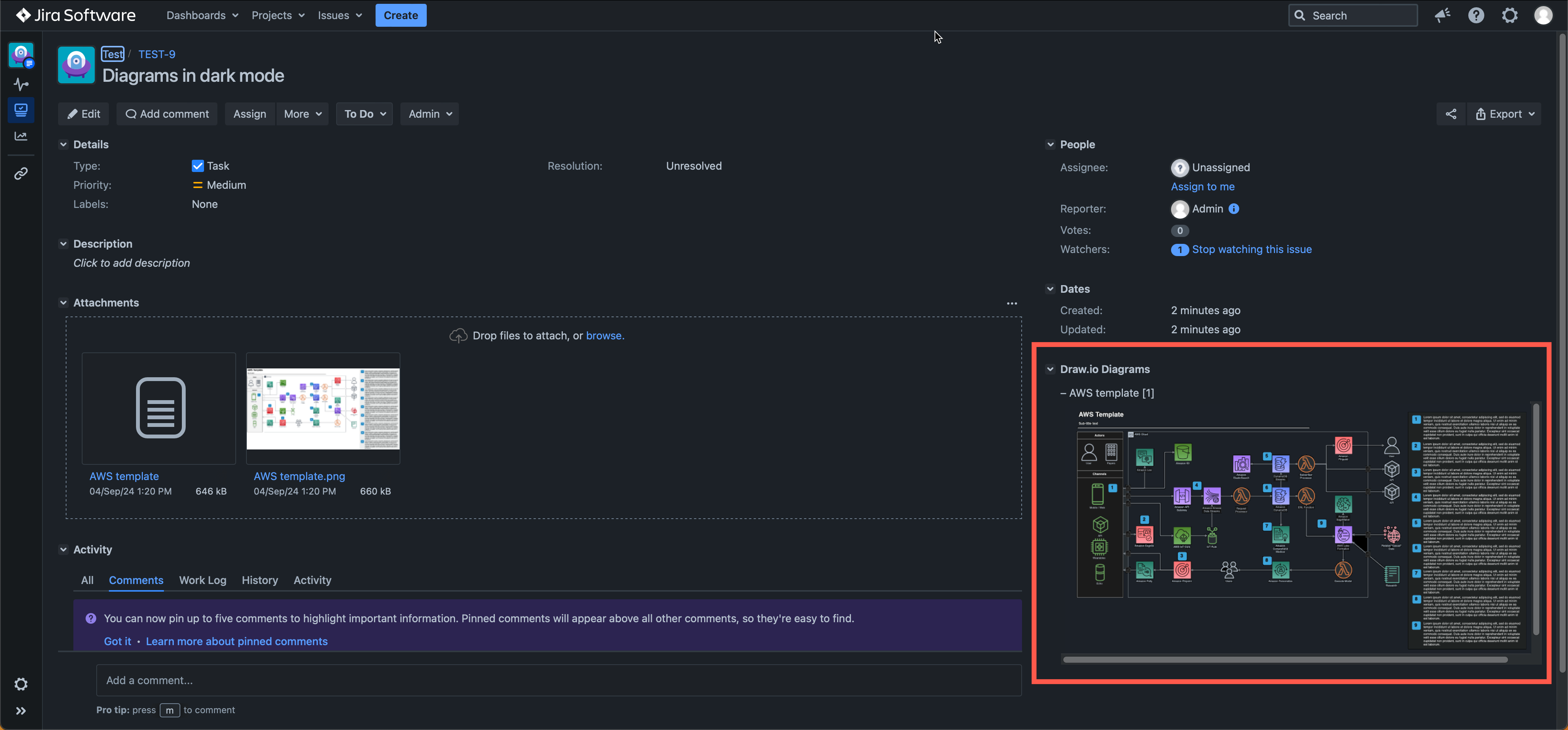
Atlassian has recently released Jira Software 10.0 and Data Center Platform 7, which includes a large collection of security and automation improvements. The draw.io app has been updated to support Jira Software 10.0 and its long awaited dark theme - your diagrams will switch to dark mode automatically to match your Jira user settings.
draw.io diagrams in Jira DC 10.0 will automatically switch to a dark mode palette when you use the new Jira Dark theme

Important

If you are planning to upgrade to Jira 10.0, Atlassian recommends you update all Marketplace apps that support the new version - like draw.io does - beforehand.

Dark theme Jira issues and diagrams

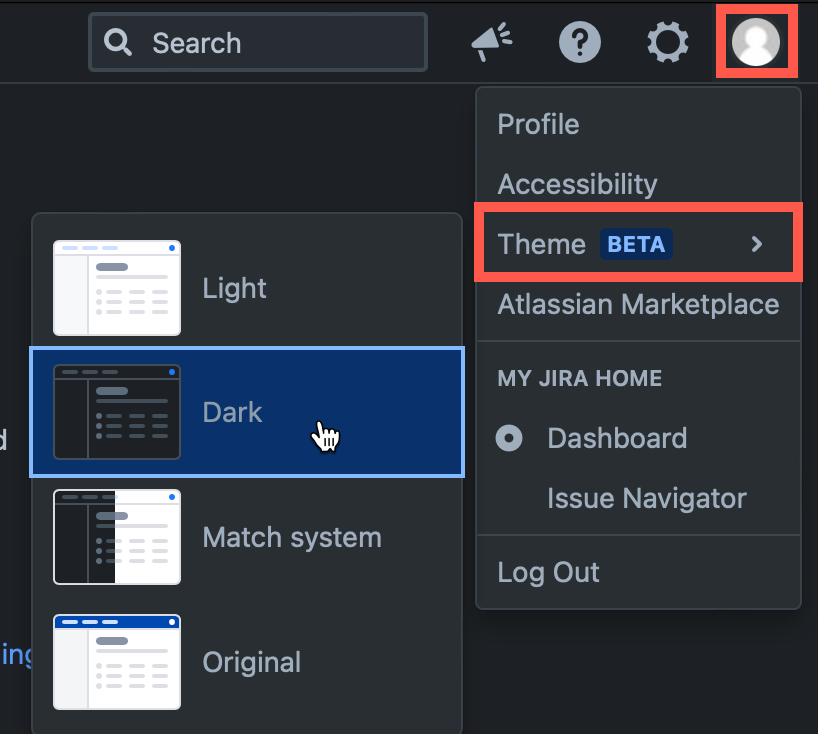
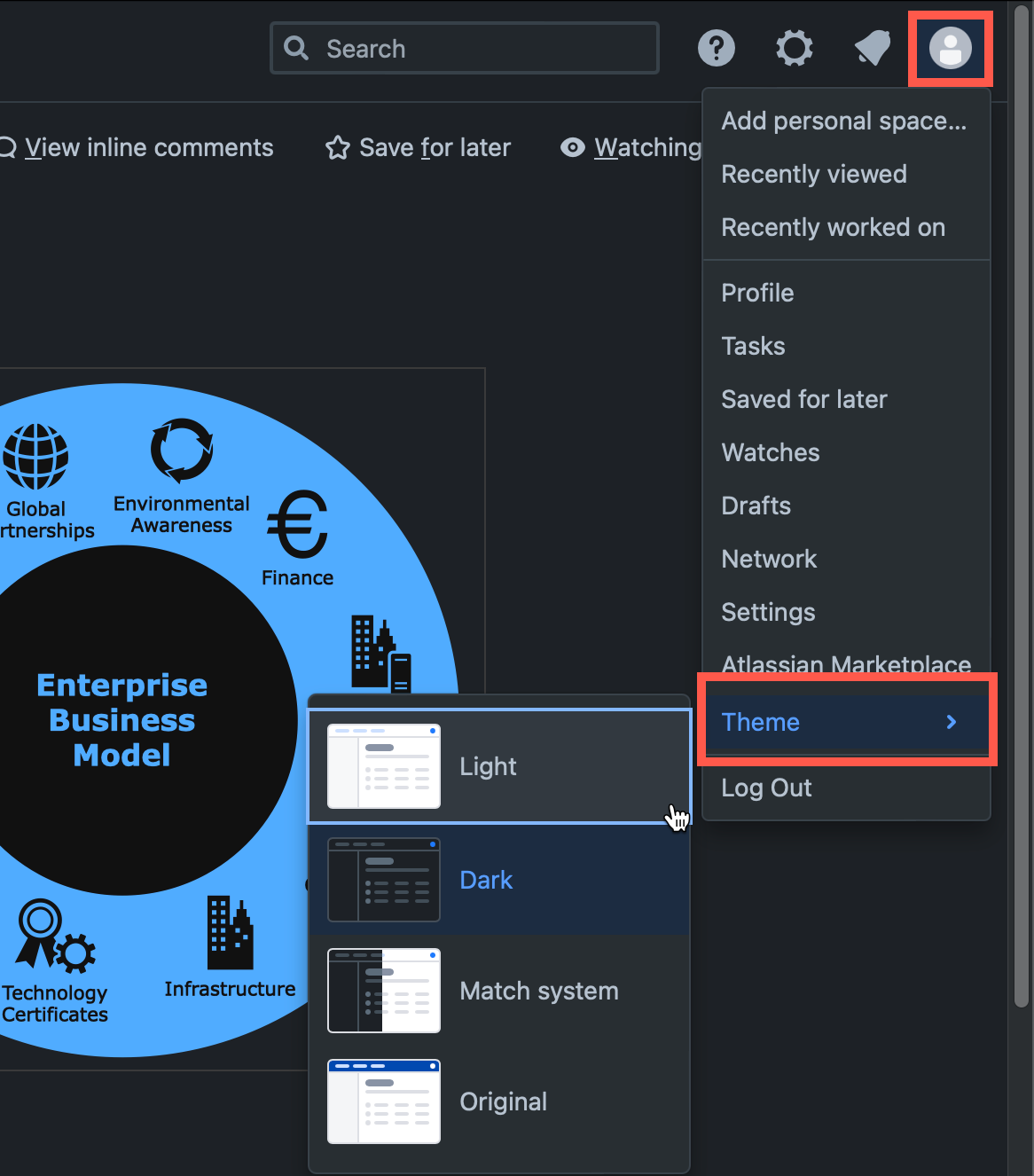
  1. In Jira, click on your user profile image in the top right, then select Theme.
  2. Choose Dark theme, Light theme, or to Match System to match your operating system's theme.
    draw.io diagrams in Jira DC 10.0 will automatically switch to a dark mode palette when you use the new Jira Dark theme

To add a new diagram to a Jira issue, click on More > Add draw.io Diagram to open the draw.io editor.

Once you have saved your diagram to the issue, the Draw.io Diagrams section will be added in the right column.

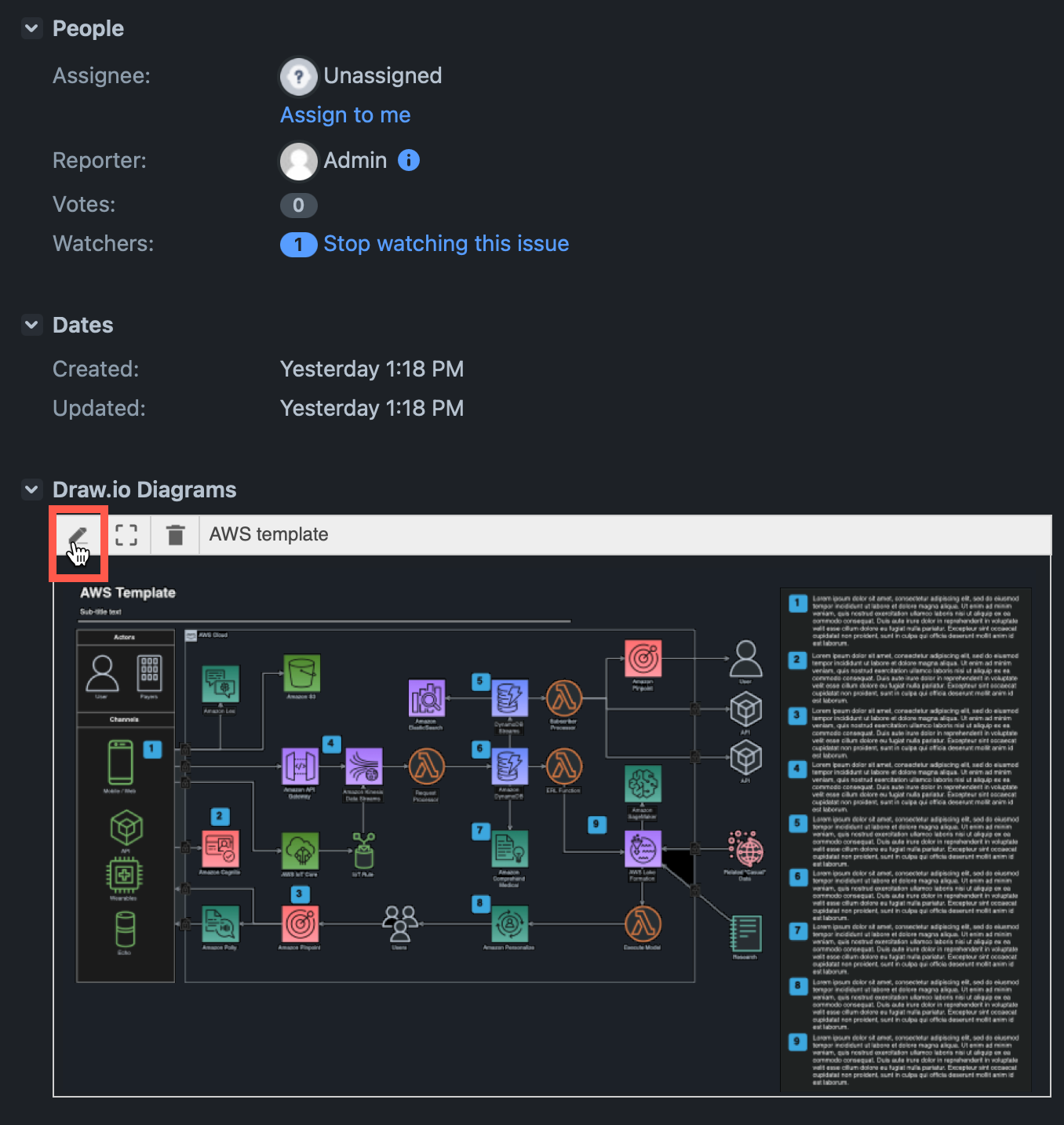
Diagrams in the Draw.io Diagrams section will be displayed in whichever theme you selected in Jira automatically.

Note: The draw.io diagram in the Attachments section of the Jira issue is saved and shown as if it were light mode. To edit or open a larger version of the diagram, click on the diagram in the Draw.io Diagrams section of the issue.

Hover over the diagram and click on the edit pencil to open it in the draw.io editor.
draw.io diagrams in Jira DC 10.0 will automatically switch to a dark mode palette when you use the new Jira Dark theme

Using draw.io in Jira DC

draw.io for Confluence Data Center 9.0

· 4 min read
draw.io
draw.io Team

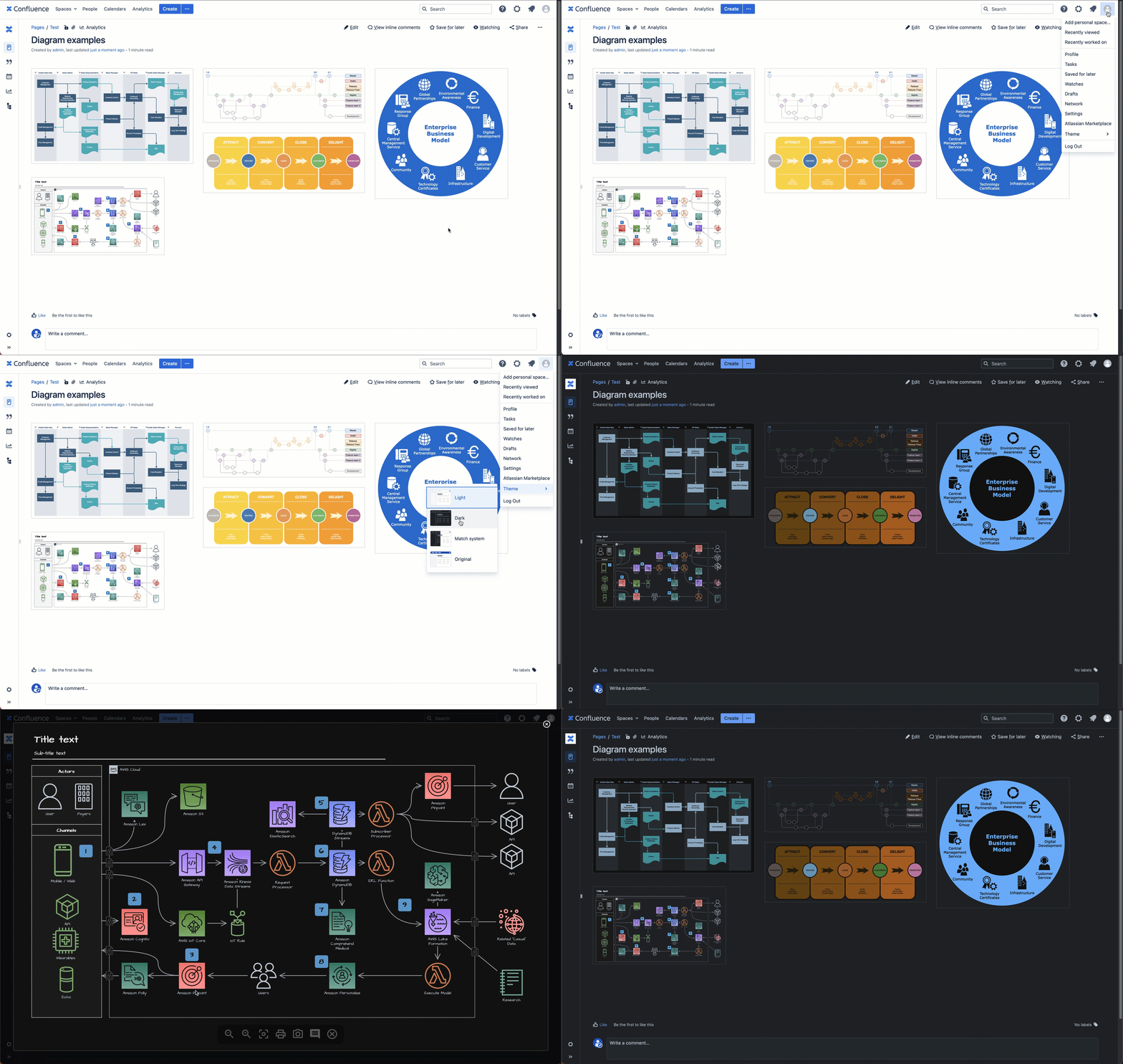
Atlassian has just released Confluence Data Center 9.0, with a wide range of security improvements and user-friendly updates. The draw.io app is fully compatible with Confluence DC 9.0 - when you use the new Dark theme in your Confluence instance, you'll automatically see draw.io diagrams in dark mode.
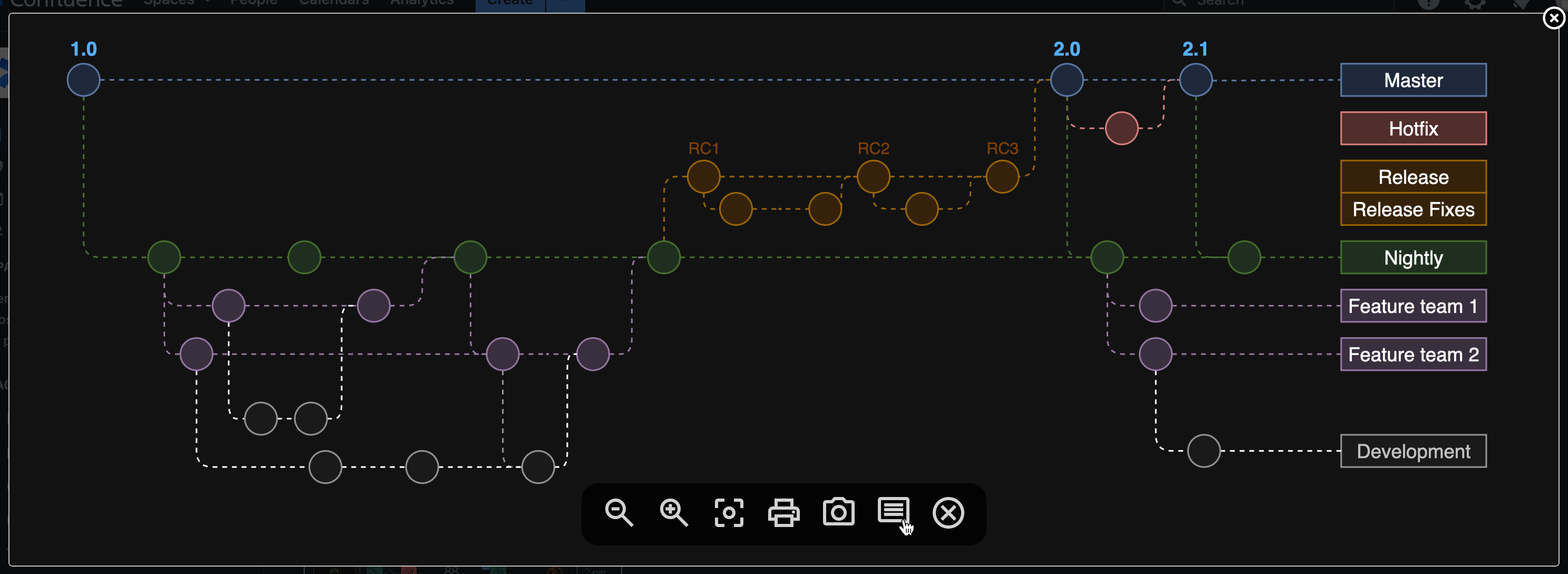
draw.io diagrams in Confluence DC 9.0 will automatically switch to a dark mode palette when you use the new Confluence Dark theme

Dark mode diagrams in Confluence DC

Just as Confluence has updated their colour palette for accessibility contrast to ensure text page content remains readable on a dark background, draw.io automatically switches to an enhanced dark-mode palette.

Dark mode colours with improved contrast are automatically applied to the diagram previews when you look at any Confluence DC 9.0 page, and also when you click on the diagram to open it in the draw.io lightbox viewer.
When you open a draw.io diagram from a Confluence DC 9.0 page into the lightbox, it will automatically apply your light or dark theme and change the diagram colours to stay readable

Edit draw.io diagrams in dark mode

If you use the Confluence Dark theme, draw.io diagram macros and draw.io board macros will open the draw.io editor automatically in dark mode.

Improved contrast dark mode palette by default

The draw.io dark mode palette in Confluence DC 9.0 uses improved contrast colours by default, ensuring maximum readability of your diagrams when viewed in both dark and light modes.
The dark mode palette in draw.io for Confluence DC 9.0 is designed for the best readability

draw.io board macro in dark mode

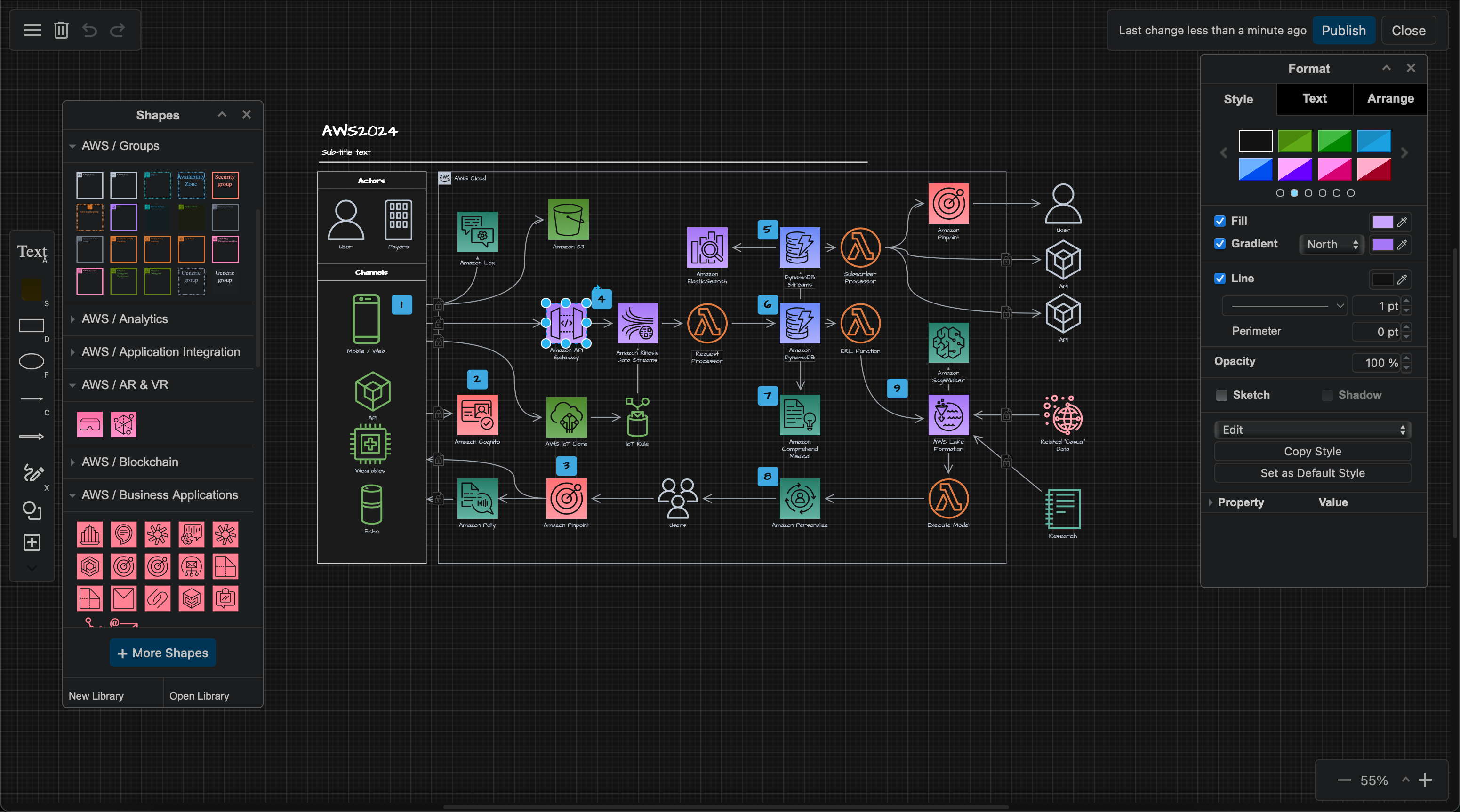
The whiteboard-like simple interface of the draw.io board macro also uses dark mode automatically when you have enabled Dark theme in Confluence DC 9.0.
Dark mode is used for the draw.io board editor automatically when you use Dark theme inConfluence DC 9.0

Switch to light mode

To edit a diagram in light mode, change your Confluence Theme to Light first. Select your user icon in the top right, then select Theme > Light from the menu.
To edit a diagram in light mode, switch your Confluence theme to light mode first.

Search for diagrams with OpenSearch

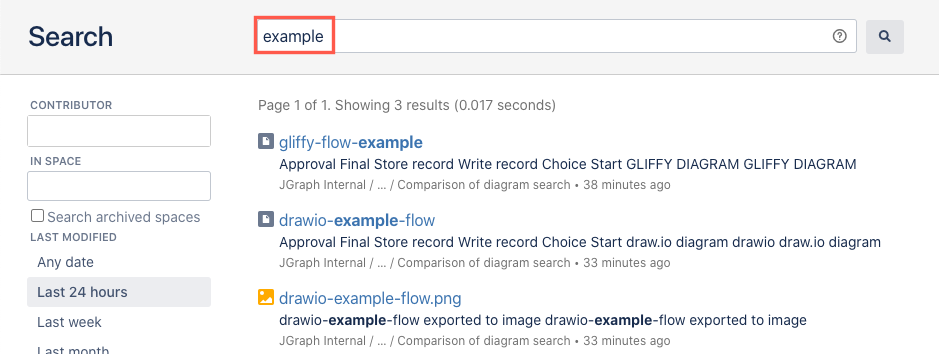
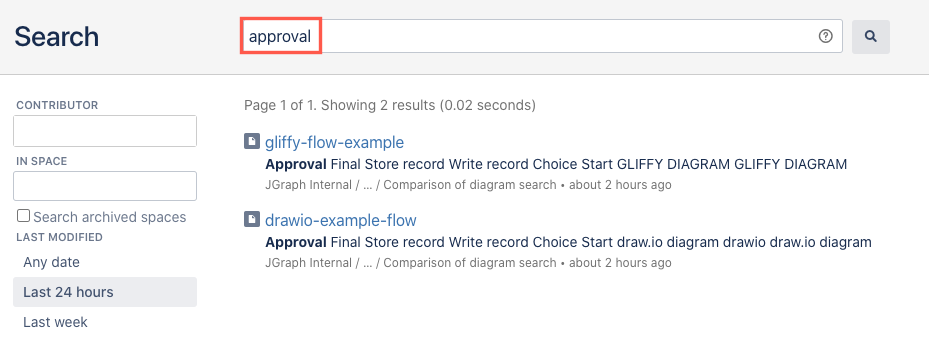
The new integration of OpenSearch will find draw.io diagrams in the same way the built-in Confluence search does - your diagrams are fully searchable via the Confluence search.

draw.io provides the file names and diagram label text to the Confluence search index used by both the built-in basic and advanced search functionality and OpenSearch.

See how searching for diagrams in Confluence Cloud and Data Center works and compare it with other diagramming tools.
FilenameLabel text
Search for a diagram filename in Confluence ServerSearch for label text inside a diagram in Confluence Server

To set up your Confluence DC 9.0 instance to use the new optional search integration, please refer to Atlassian's OpenSearch documentation.

See all the security and usability updates available in Confluence DC 9.0.