4 posts tagged with "shape-libraries"

View All Tags

Shape library updates for multi-colour shapes

· 4 min read
draw.io
draw.io Team

There are many shapes in the draw.io shape libraries that use more than one line or fill colour. These shapes are being updated so you can change each of the colours and style your diagram with more flexibility.

The updated AWS shapes allow you to customise all of the colours in the shapes

As the collection of shape libraries is rather large in draw.io, it will take some time to update all of those that contain multi-coloured shapes. The first two libraries that have been updated are Mockups and the AWS 3D shapes.

Each shape still contains a Fill and a Line (outline) colour that typically forms the background colour and the outer line colour of the shape. The additional colours are defined with new, customisable style settings.

For example, the Mockup Map shape has a white background and black outline, but also internal areas with different fill colours and a different internal outline colour.
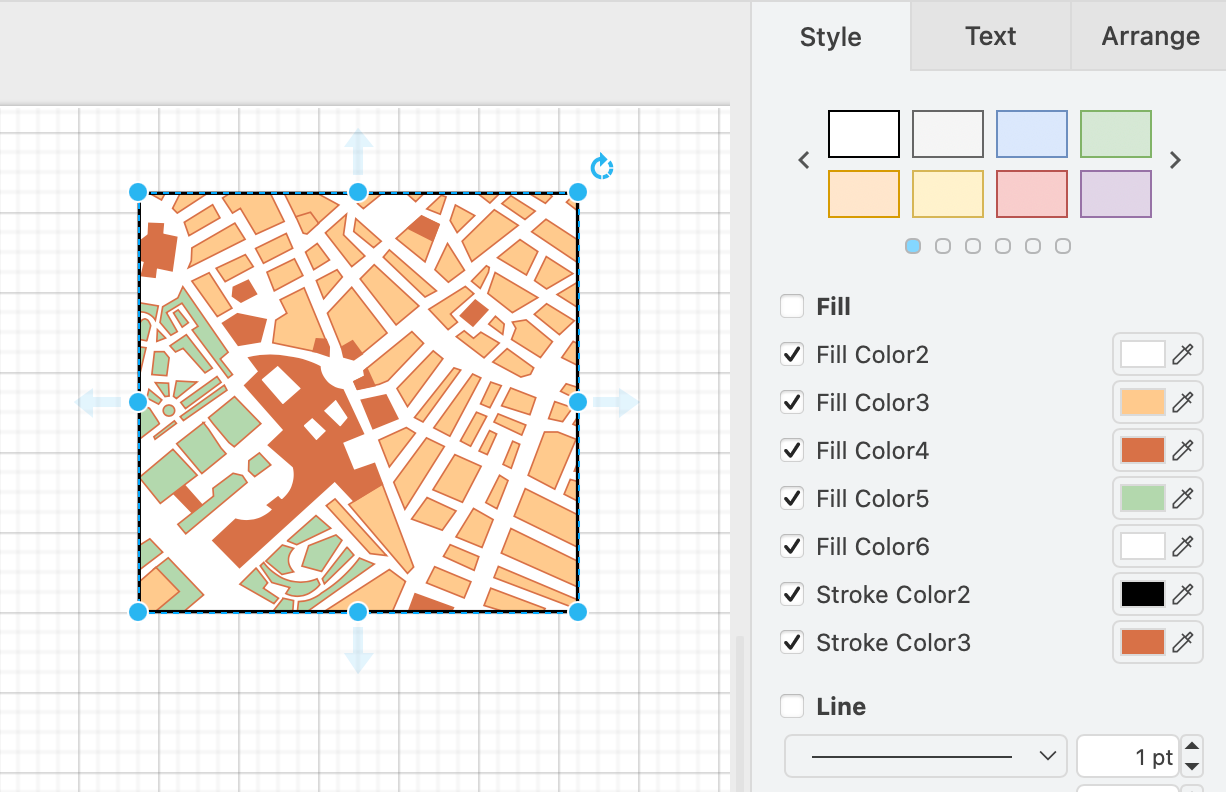
The updated Mockups Map shape has many customisable internal fill and outline colours

The list of fill and outline colours will be different for each shape.
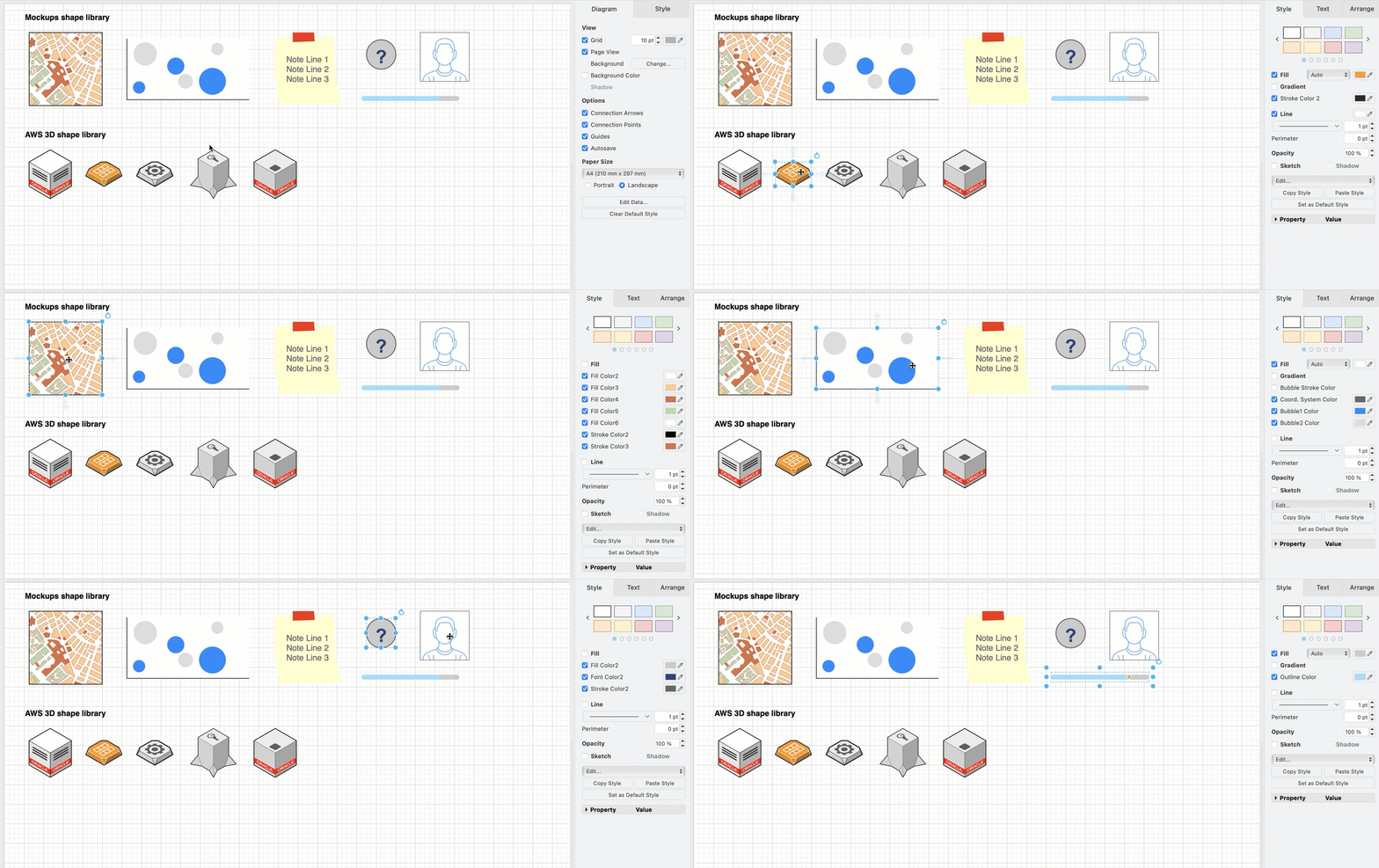
The updated Mockups and AWS 3D shape libraries allow you to customise multi-colour shapes

How it works

A default attribute was introduced for the fillcolor and strokecolor attributes.

Each shape has a list of defaultFillColors and defaultStrokeColors attributes which are used to show the customisable colours in multi-colour shapes. These are comma-separated lists that define the default colours in the fillColorStyles and strokeColorStyles attributes within a shape.

Right click on a shape, then edit the colour style attributes, then click Apply.
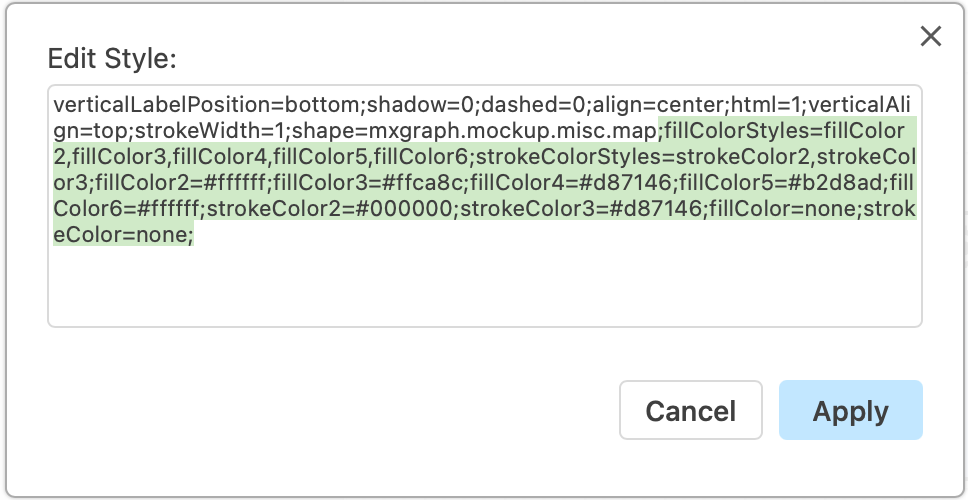
Right click on a shape and select Edit Style to change the colours of the shape directly

Which libraries have been updated?

The updated AWS 3D and Mockups shape libraries are available now in the current version of the web-based draw.io editor. The Cloud and IT shape libraries are in the process of being updated to this new, more flexible system of colours. Multi-colour shapes in other shape libraries will be updated after the IT shapes are finished.

Go to app.diagrams.net/clear.html to ensure you are using the most recent version of the online draw.io editor.

Gradients with multi-coloured shapes

The gradient option in the Style tab of the format panel will use the main background fill colour. The gradient does not apply to any of the other additional colour styles within the multi-colour shape.
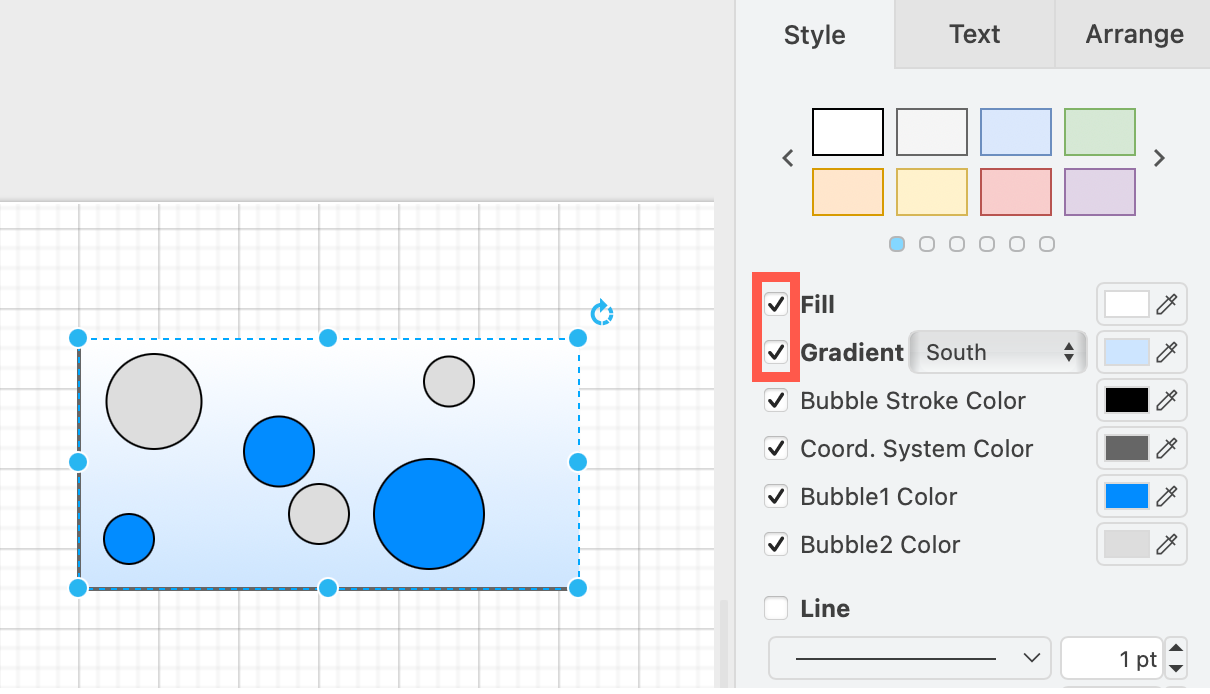
The updated Mockups Map shape has many customisable internal fill and outline colours

Reset to the original colour styles

To revert to the original colour, the easiest is to copy the original style from an unstyled shape and apply it to the customised shape.

  1. Select the unstyled shape. In the Style tab, click Copy Style.
  2. Select the customised shape. In the Style tab, click Paste Style.
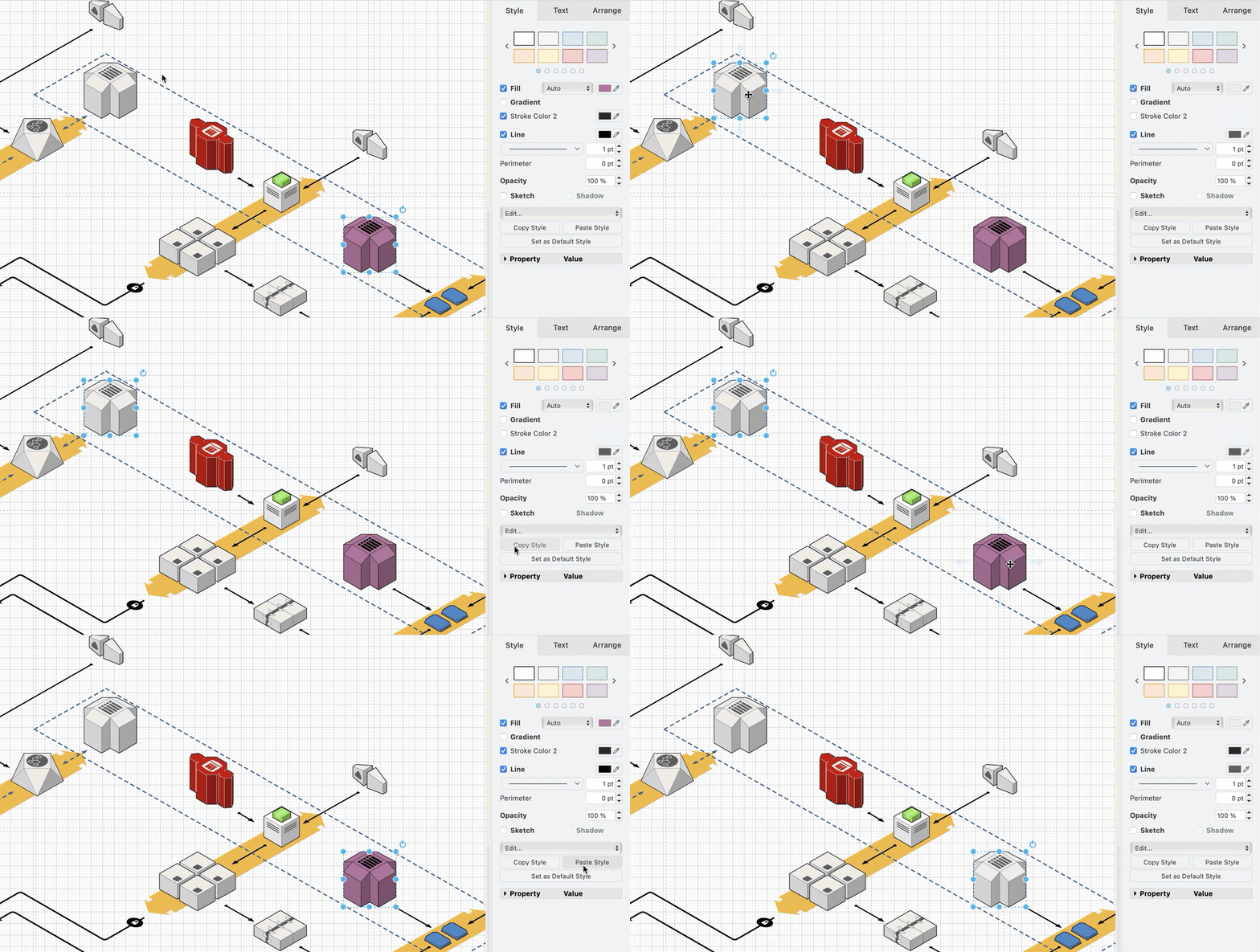
    The updated Mockups and AWS 3D shape libraries allow you to customise multi-colour shapes

Learn more about styling shapes

More updated networking and cloud shape libraries

· 5 min read
draw.io
draw.io Team

In addition to updating the main AWS and Azure shape libraries in draw.io, several new networking and cloud shape libraries have been added, including shapes for Alibaba Cloud, Dynamics365 and OpenStack.
Several new cloud infrastructure libraries have been added, and the Azure and AWS shape libraries have been updated in draw.io

Open cloud infrastructure shape libraries

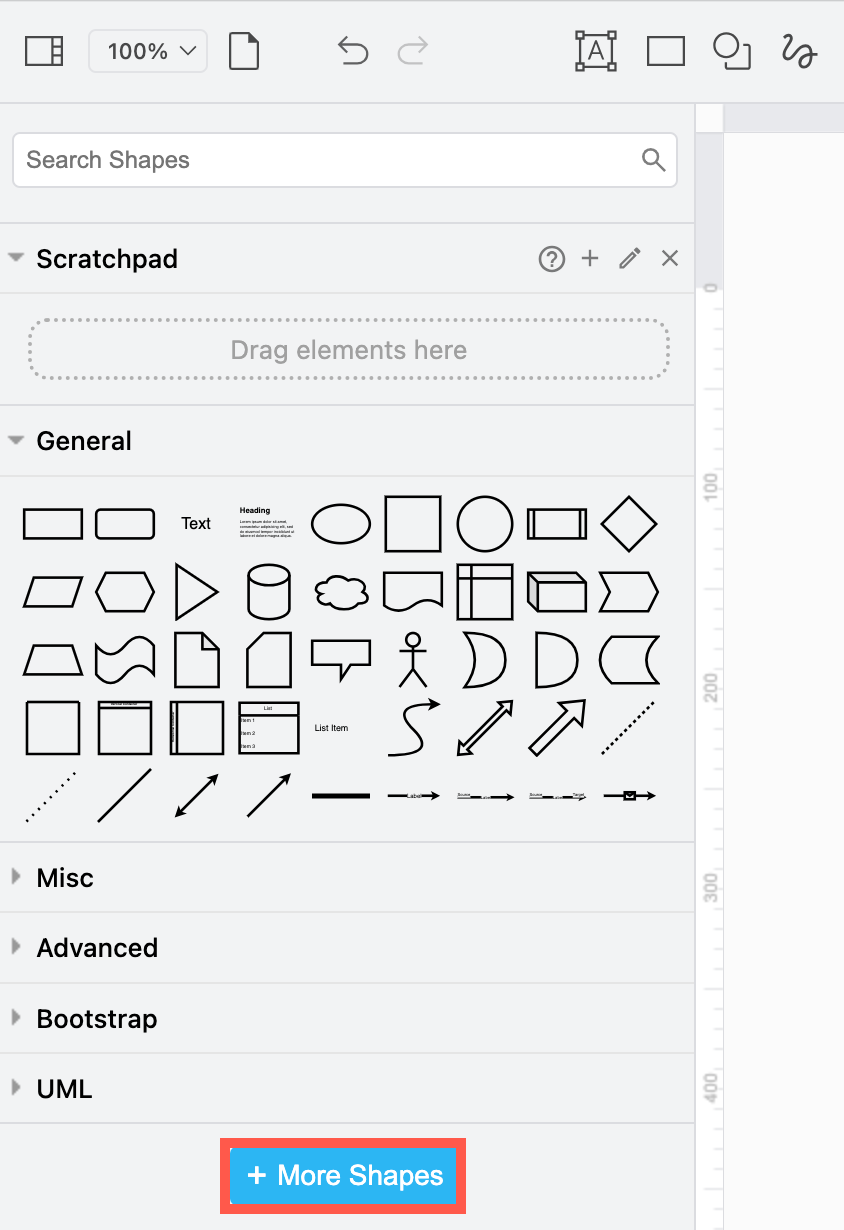
  1. Click on More Shapes at the bottom of the shapes panel on the left.
    Click on More Shapes in the shapes panel to open the shape library collection in draw.io
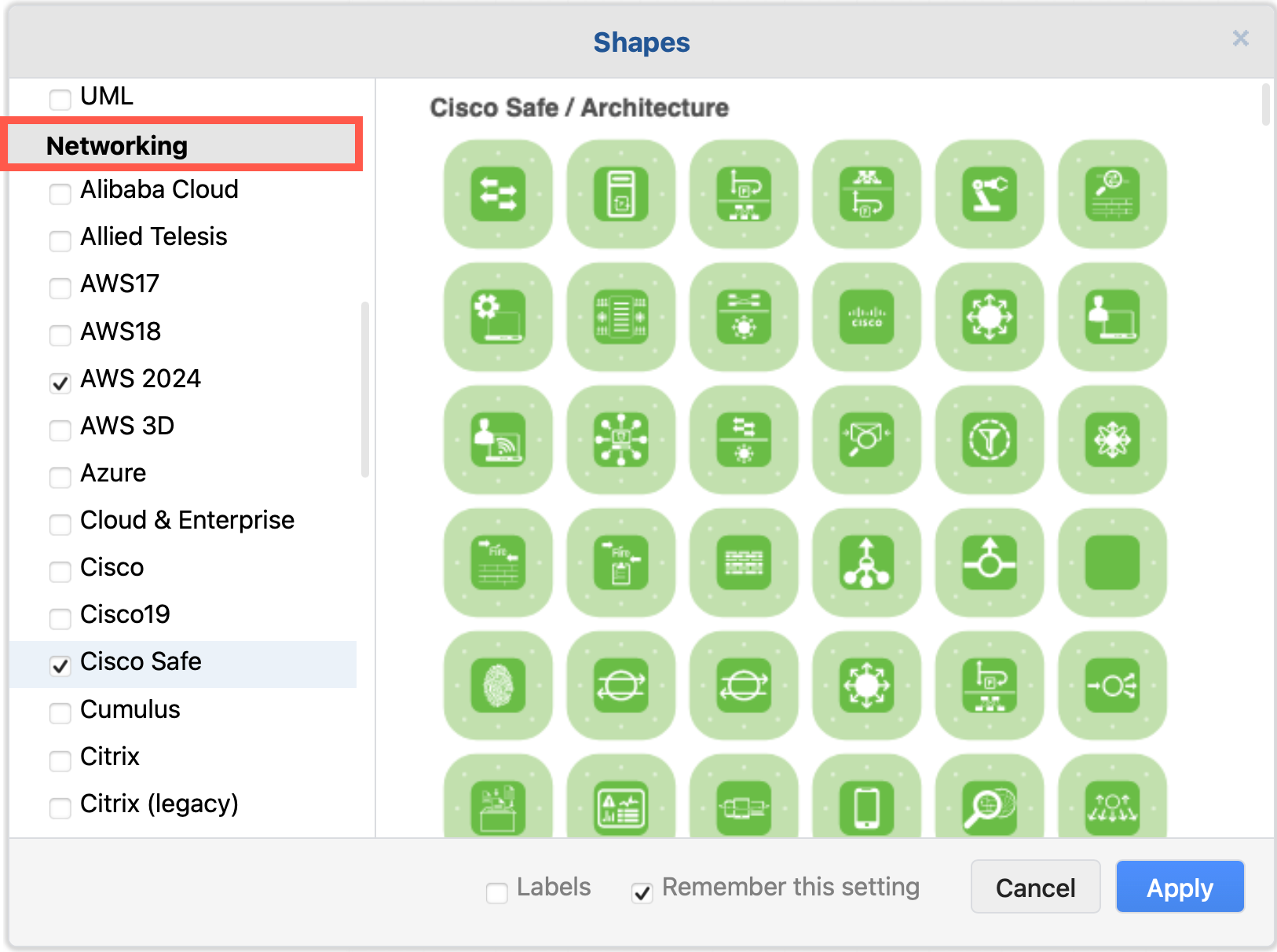
  2. Scroll down to the Networking section and enable the shape libraries you want to use.
    Enable the cloud infrastructure libraries you want to use in draw.io
  3. Click Apply to open them in the shapes panel next to the drawing canvas.

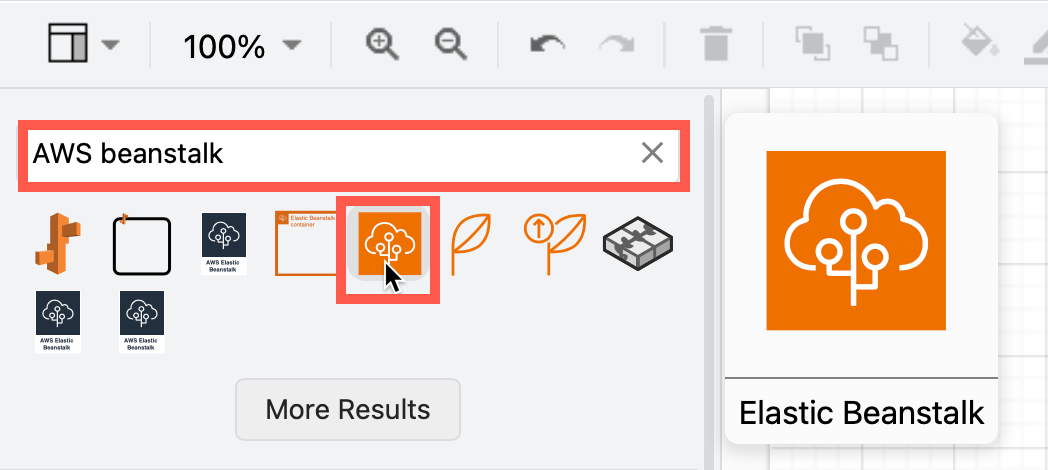
Tip: Alternatively, you can always search for a shape if you know its name. For example, searching for "AWS beanstalk" will show all the shapes from the various AWS libraries that have both "AWS" and "beanstalk" in their shape names, even if you don't have the AWS shape libraries open. Hover over any of the shapes to see a larger preview.
Search for any cloud infrastructure shape by its name to see all related shapes, even if you don't have the shape libraries open in draw.io

Azure Power Platform and Dynamics 365

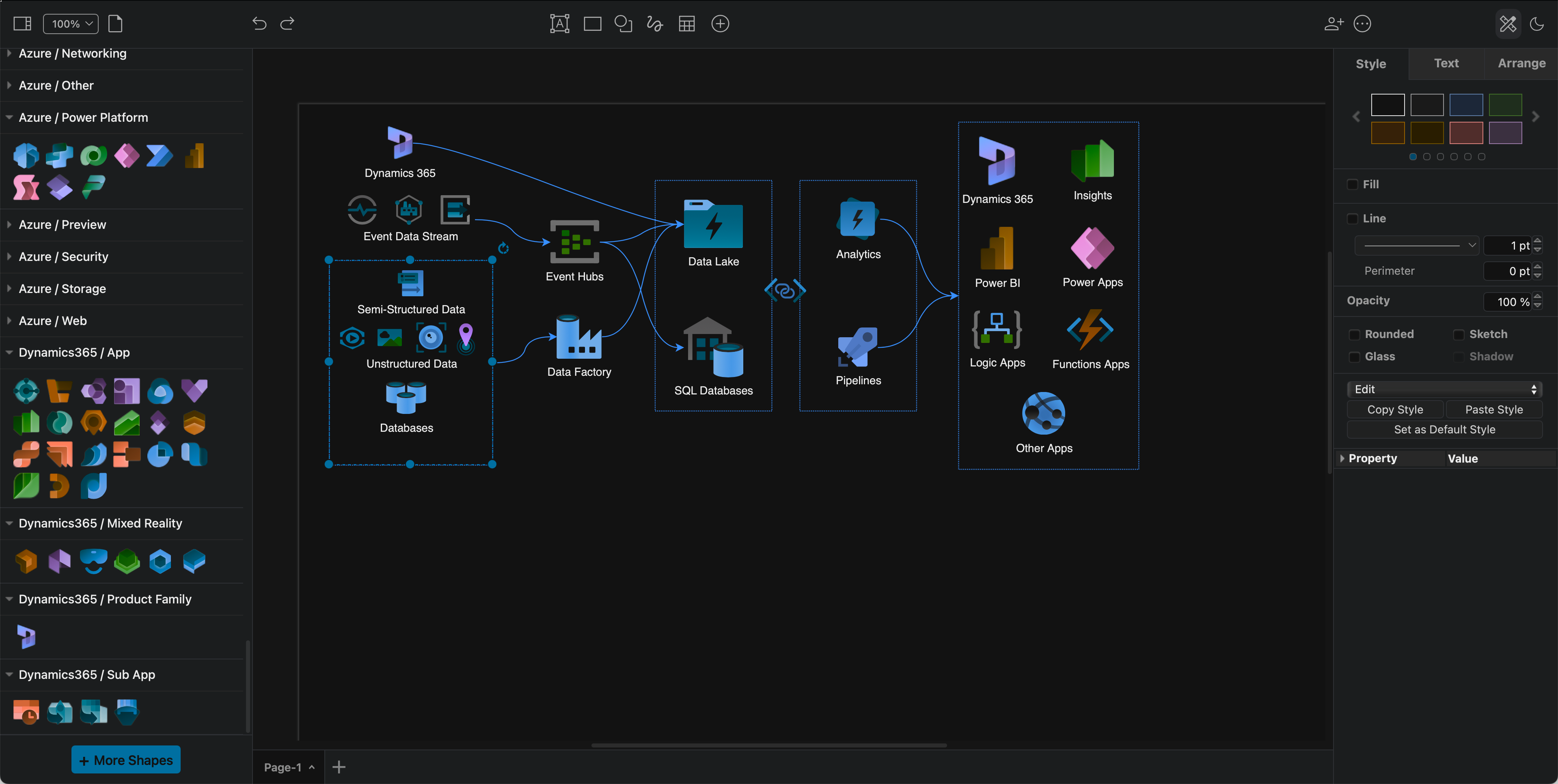
The Power Platform shapes have been added to the Azure shape library. These components are often combined with Dynamics365 services and applications in cloud infrastructures.

Tip:* If you prefer to diagram in dark mode, the Azure and Dynamics365 shapes and their labels will automatically change colours to remain readable when you switch between dark and light modes.
Several new cloud infrastructure libraries have been added, and the Azure and AWS shape libraries have been updated in draw.io

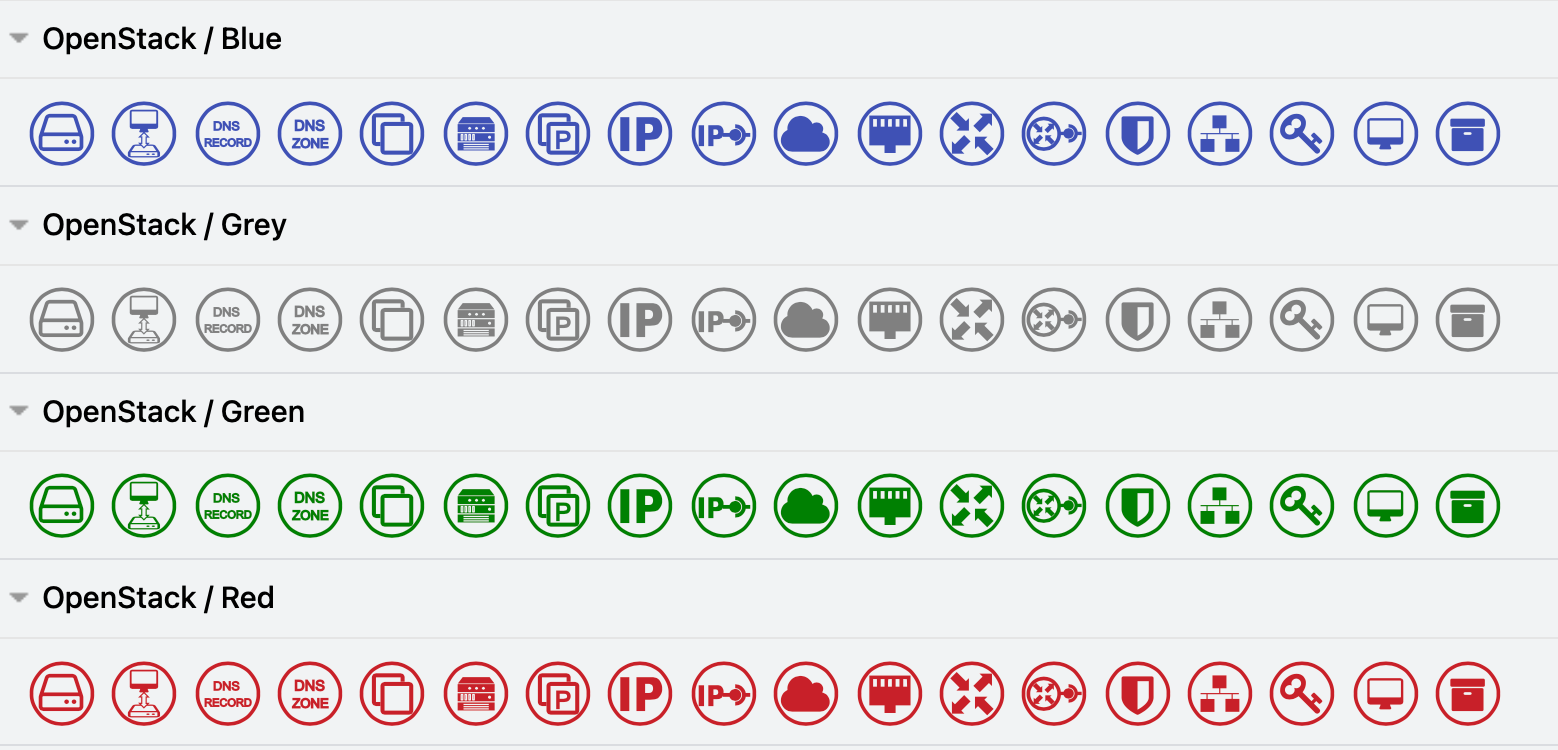
OpenStack shapes= library

OpenStack services and apps are common components of Citrix, GCP, IBM and other large hybrid cloud infrastructures. To clearly indicate which components are provided by OpenStack in your infrastructure diagrams, enable the OpenStack shape library.
Use the OpenStack shapes in your hybrid multi-cloud infrastructure diagrams

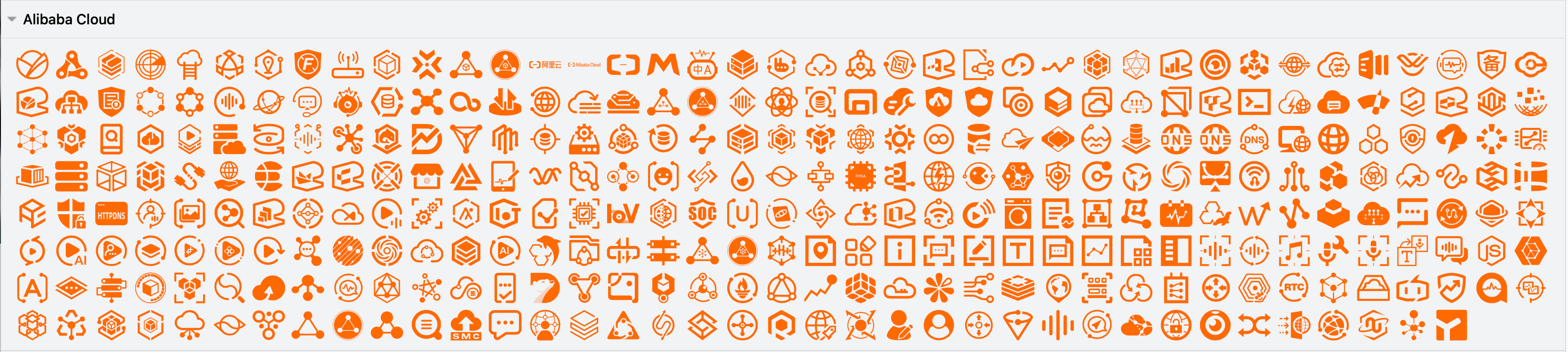
Alibaba Cloud shape library

Enable the Alibaba Cloud shape library to document your infrastructure in Alibaba Cloud platform. These shapes cover a wide range of apps and services.
Use the Alibaba shapes to document your Alibaba Cloud infrastructure

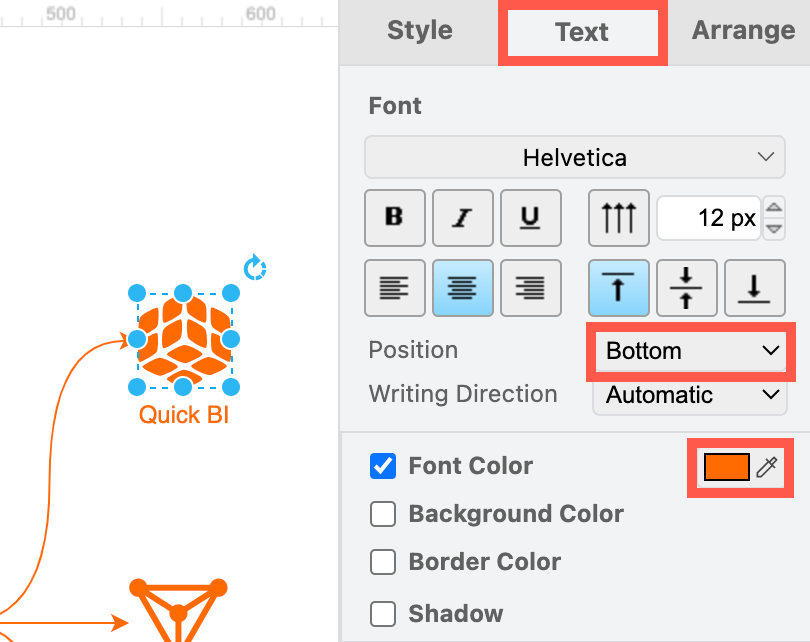
Most of the infrastructure shapes don't have labels by default, as designers tend to rely on logo-recognition for their infrastructure components.
Add and style shape labels so your Alibaba Cloud infrastructure diagram is readable and consistent

To make your diagram more accessible, select a shape and start typing to add a label. In the Text tab of the format panel, select the Bottom position, and update the Font Colour to match the colour of the Alibaba shape so it is consistent.

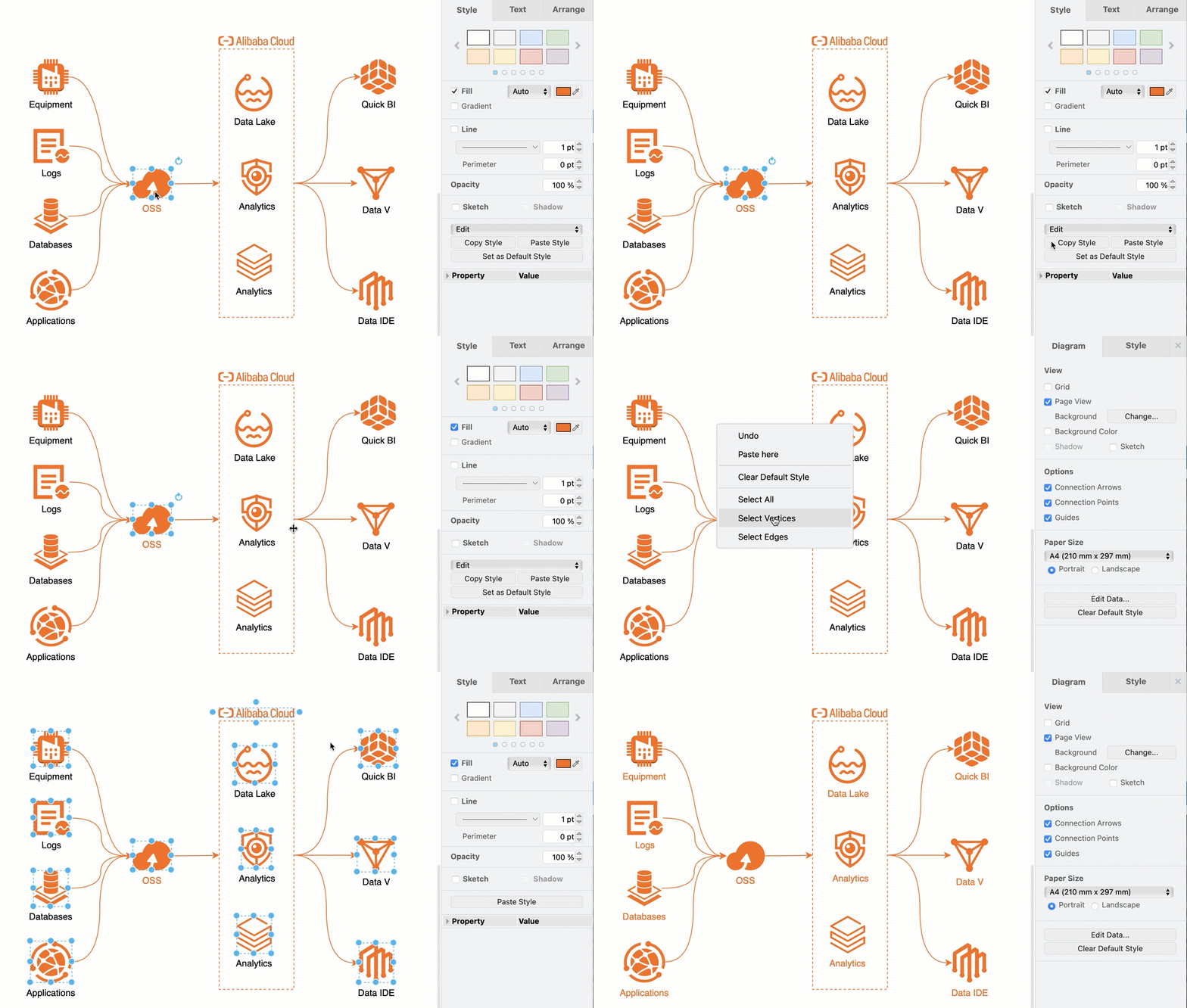
Tip: Format one shape and click on Copy Style in the Style tab of the format panel. Then, right-click on the canvas and choose Select Vertices, deselect any regions you may have added, and then click on Paste Style in the Style tab to copy the style onto all of the selected shapes.
Copy and paste shape styles to make your diagram labels and colours consistent

Learn more about drawing various types of network and infrastructure diagrams.

Other cloud platform shape libraries in draw.io include Salesforce, Citrix, Google GCP, Amazon AWS, IBM, and more.

Export AWS diagrams generated from your actual deployed infrastructure to the .drawio format from Cloudockit and Cloudcraft.

New IBM Cloud shape library for technical diagrams

· 6 min read
draw.io
draw.io Team

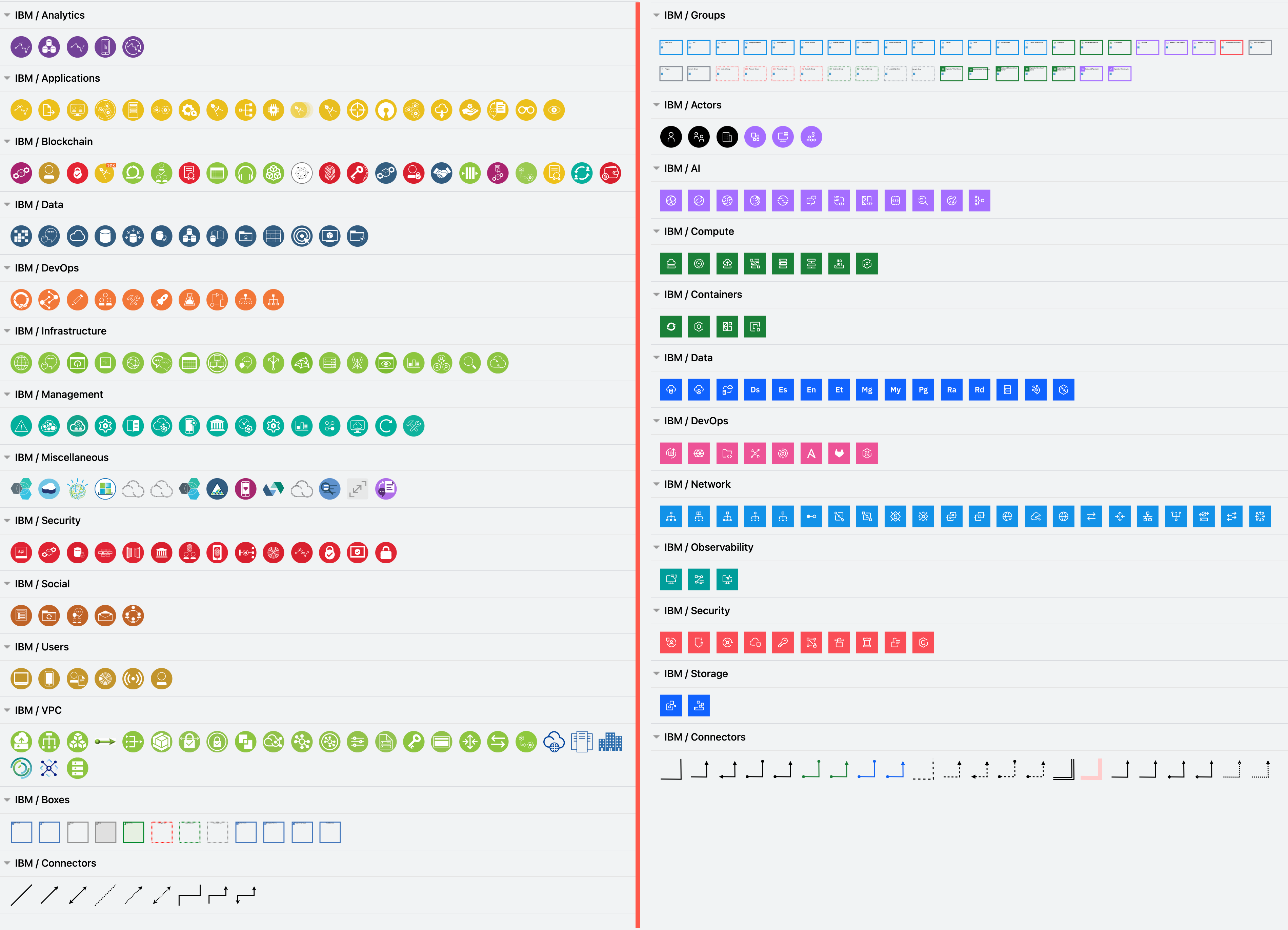
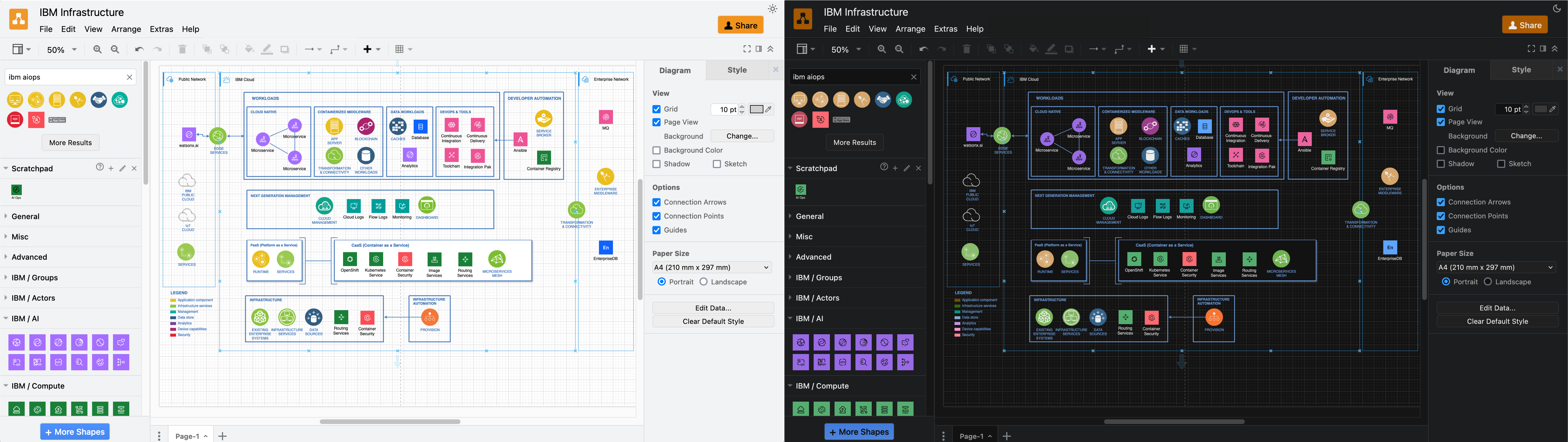
The new IBM Cloud shape library in draw.io (right) reflects IBM's updated design language, and extends the existing IBM shape library (left) with a wide range of additional groups, connectors and infrastructure components.
Enable the new IBM and IBM shape libraries to draw IBM infrastructure diagrams

IBM has provided their updated shapes for the new IBM Cloud shape library in draw.io. Please refer to their documentation for their design language style guide, where they explain how shapes and icons should be used in a wide variety of technical diagrams.

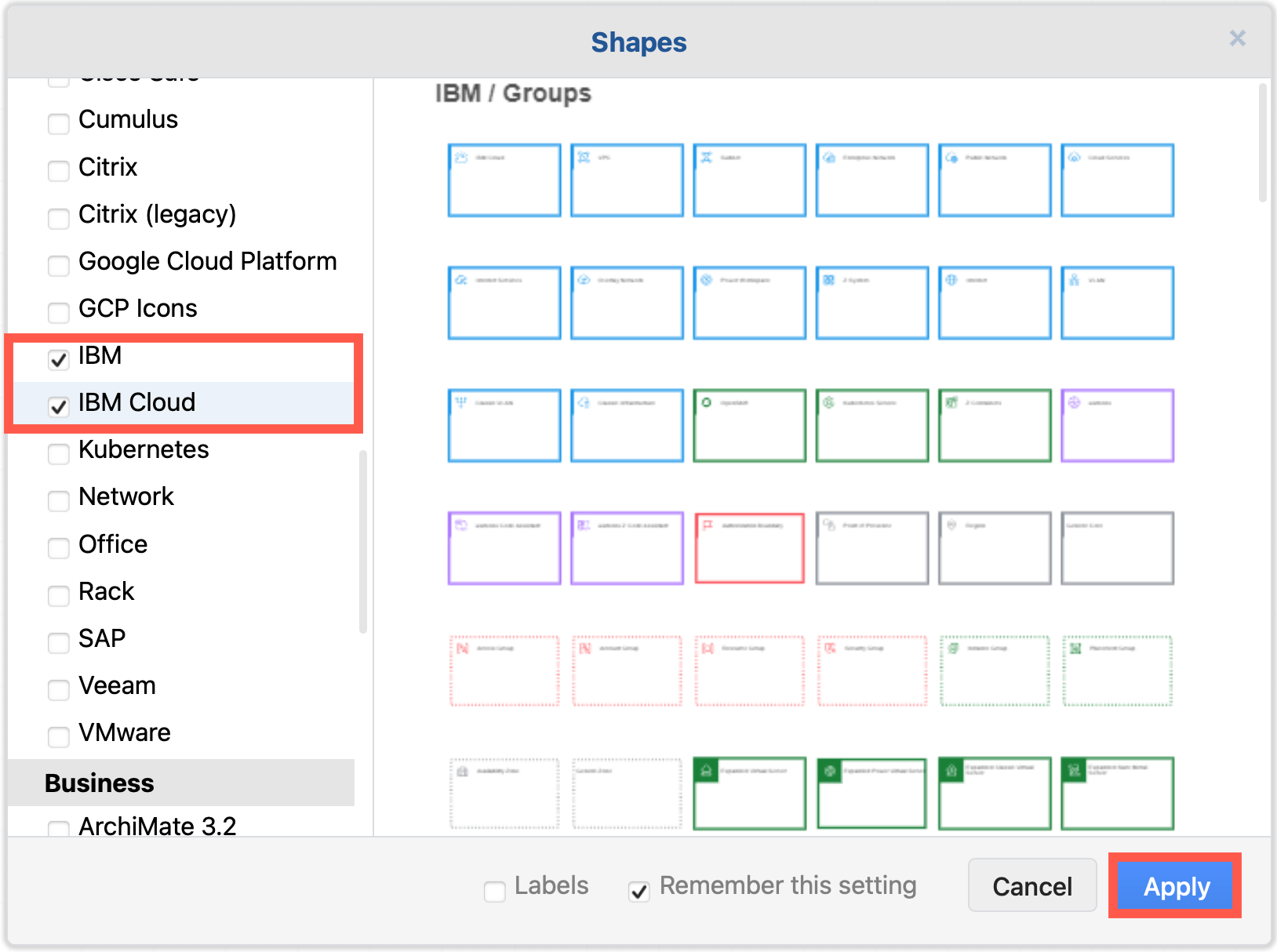
Enable the IBM shape libraries in draw.io

  1. Click on More Shapes at the bottom of the shapes panel in draw.io.
  2. Enable the checkbox next to the SAP shape library in the Networking section and click Apply.
    Enable the IBM shape libraries to draw IBM infrastructure diagrams

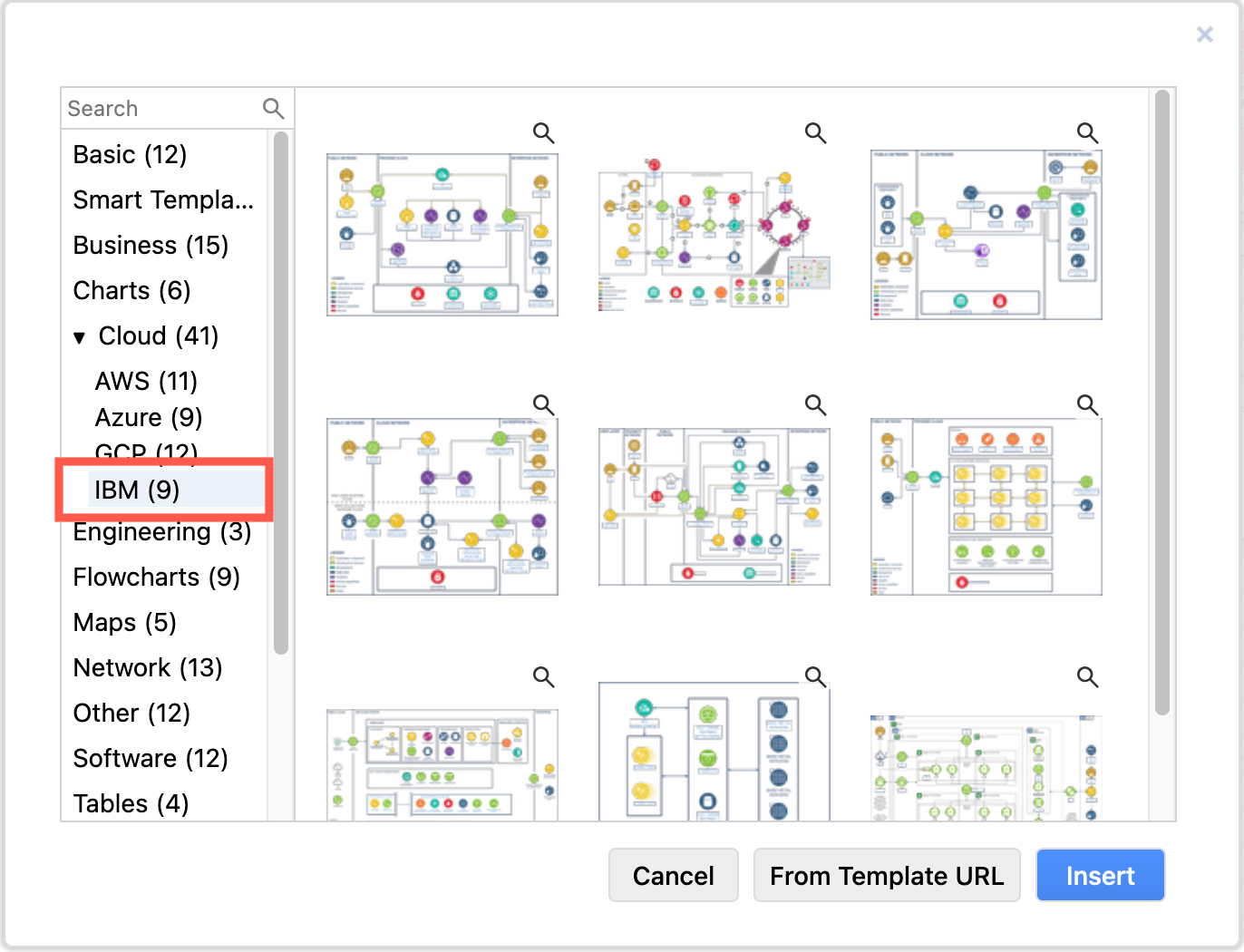
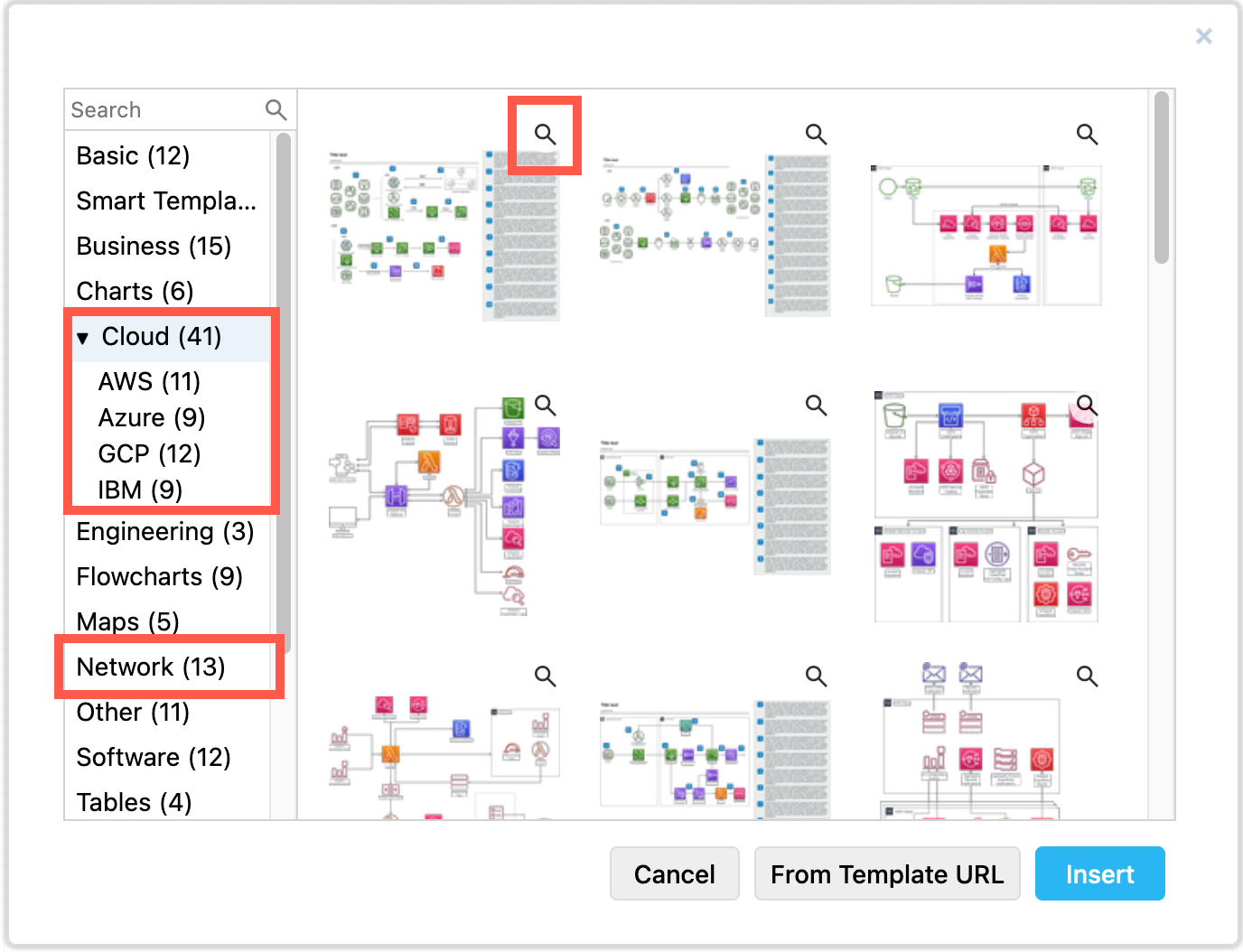
Tip: There are also several IBM infrastructures in the template library. Select Arrange > Insert > Template from the menu or + > Template in the toolbar, and look in the Cloud > IBM category.
draw.io has several example IBM infrastructures in the template library

Using old and new IBM shapes in one diagram

The new IBM Cloud shapes are compound shapes - a coloured background shape and an icon on top in the centre. This gives you more flexibility in styling your diagram as you can change the two shapes' fill colours independently.

The older shapes are round with a white icon and blue text label, while the new IBM Cloud shapes are square with a white icon and text (in light mode) or black icon and text (in dark mode).

There is also a larger and more varied set of groups (region shapes) in the new IBM Cloud shape library.
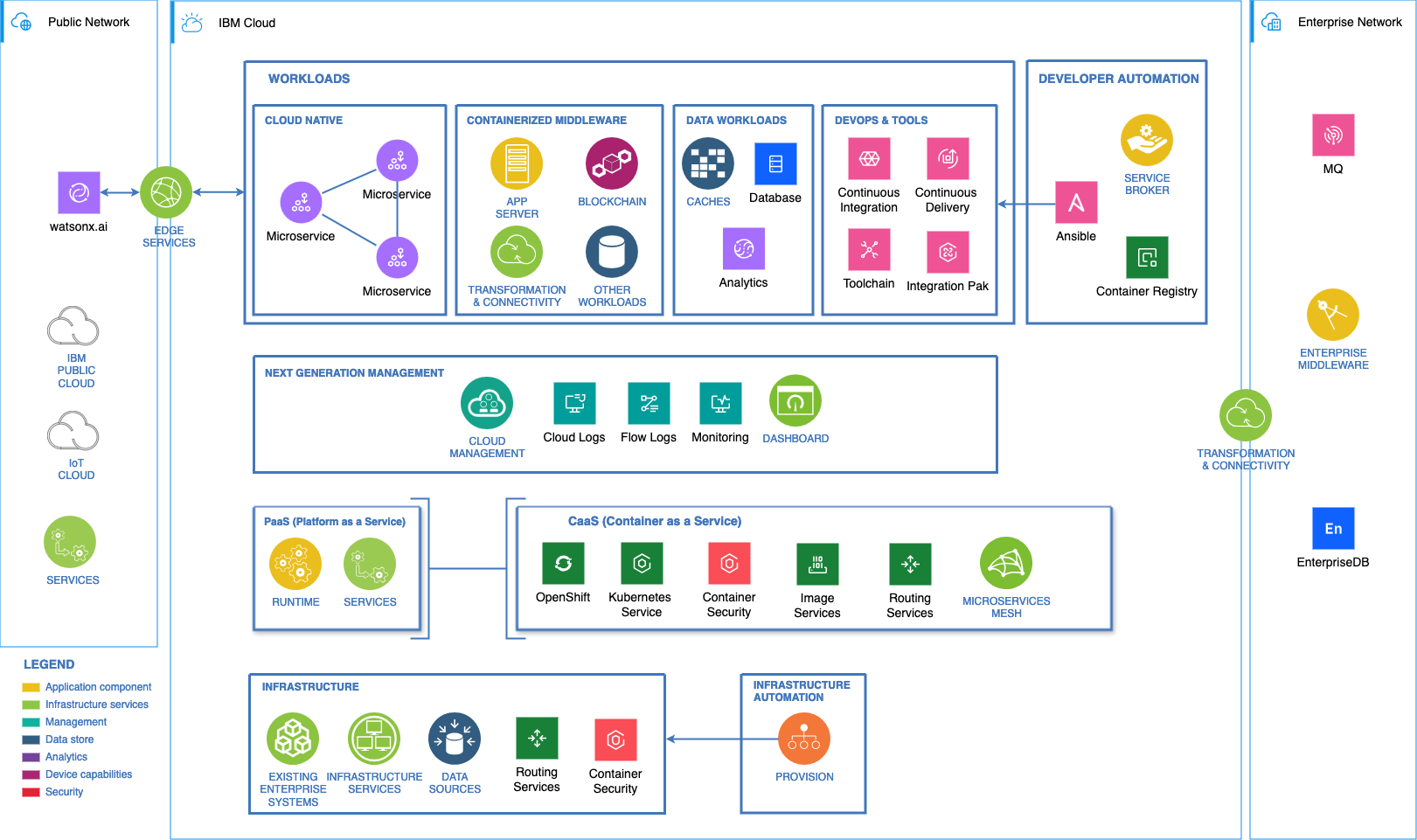
The new IBM Cloud shapes work well with the older IBM shape library in draw.io
The example above is one of the IBM templates available in draw.io with the new IBM Cloud shapes replacing some older components.

Both sets of shapes work well when diagramming in dark mode - the new shapes will switch icon and label colours automatically to remain readable.
The new IBM Cloud shapes automatically swap colours to remain readable in dark and light mode in draw.io

Tip: To make the labels look the same on all of your IBM and IBM Cloud shapes, you'll need to edit the text labels to ensure their case matches and the Font Color in the Text tab of the format panel.

However, mixing shapes from the two shape libraries and using their default label styles shows which components of your infrastructure are more recent at a glance, such as for IBM's newer cloud and Watson AI services.

Make your own IBM shapes

The shapes in both the IBM and IBM Cloud shape libraries represent only part of the constantly expanding IBM Design Language.

You can easily make your own IBM shapes in draw.io using the black IBM .svg icons.

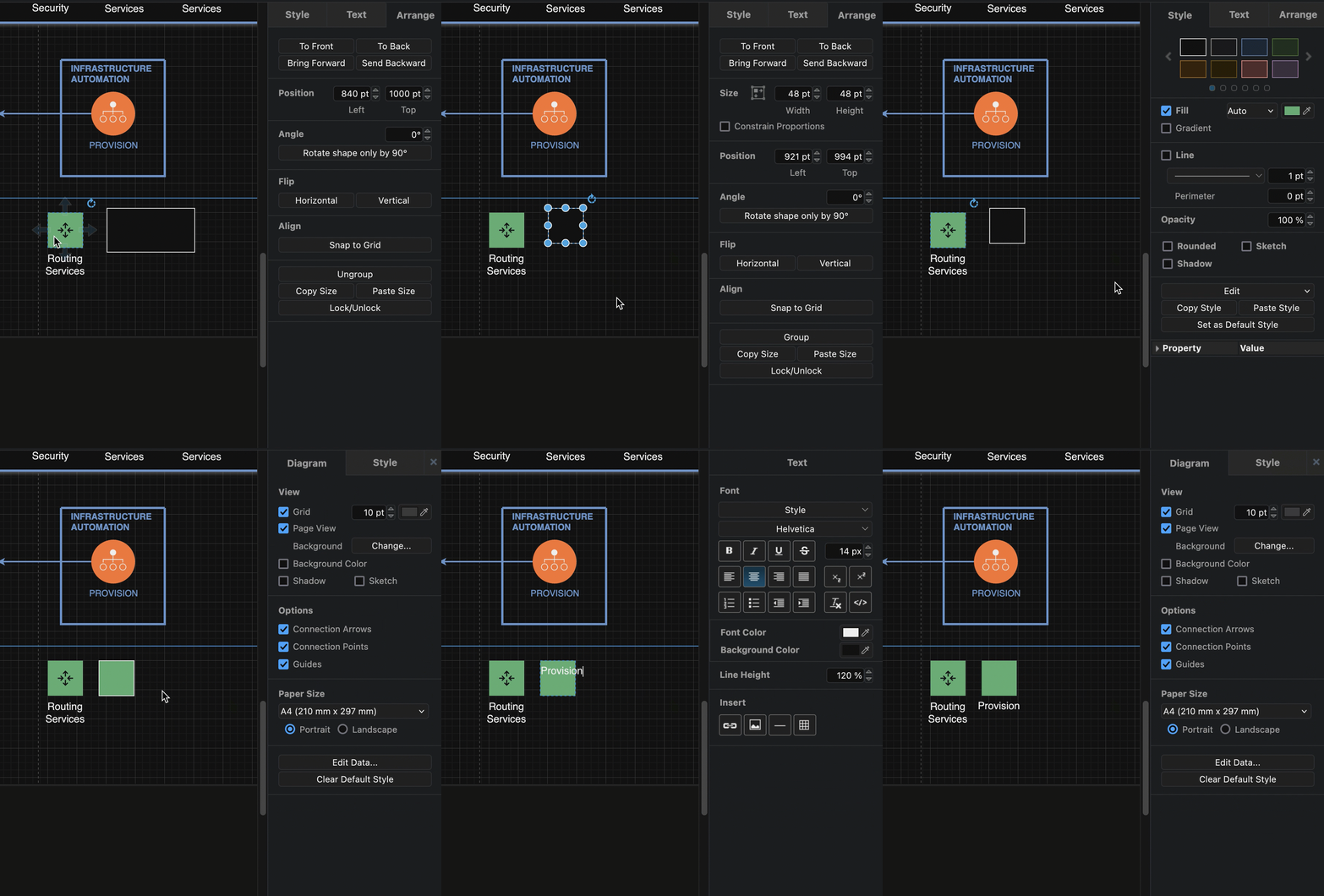
  1. Add one of the IBM Cloud shapes that matches the colour you want to use to the drawing canvas to serve as a template for your new shape.
  2. Add a simple rectangle from the General shape library.
  3. Select the IBM Cloud shape on the drawing canvas and select then select Copy Size in the Arrange tab of the format panel. Select the rectangle and click on Paste Size.
  4. Select the IBM Cloud shape again, then select Copy Style in the Style tab of the format panel. Select the rectangle again and click on Paste Style.
    Make your own IBM shape using an existing IBM Cloud shape as a template for style and size
  5. You may need to deselect the Line checkbox in the Style tab, but your shape background should now look correct.
  6. Add a label, and move its Position to the Bottom via the Text tab of the format panel.
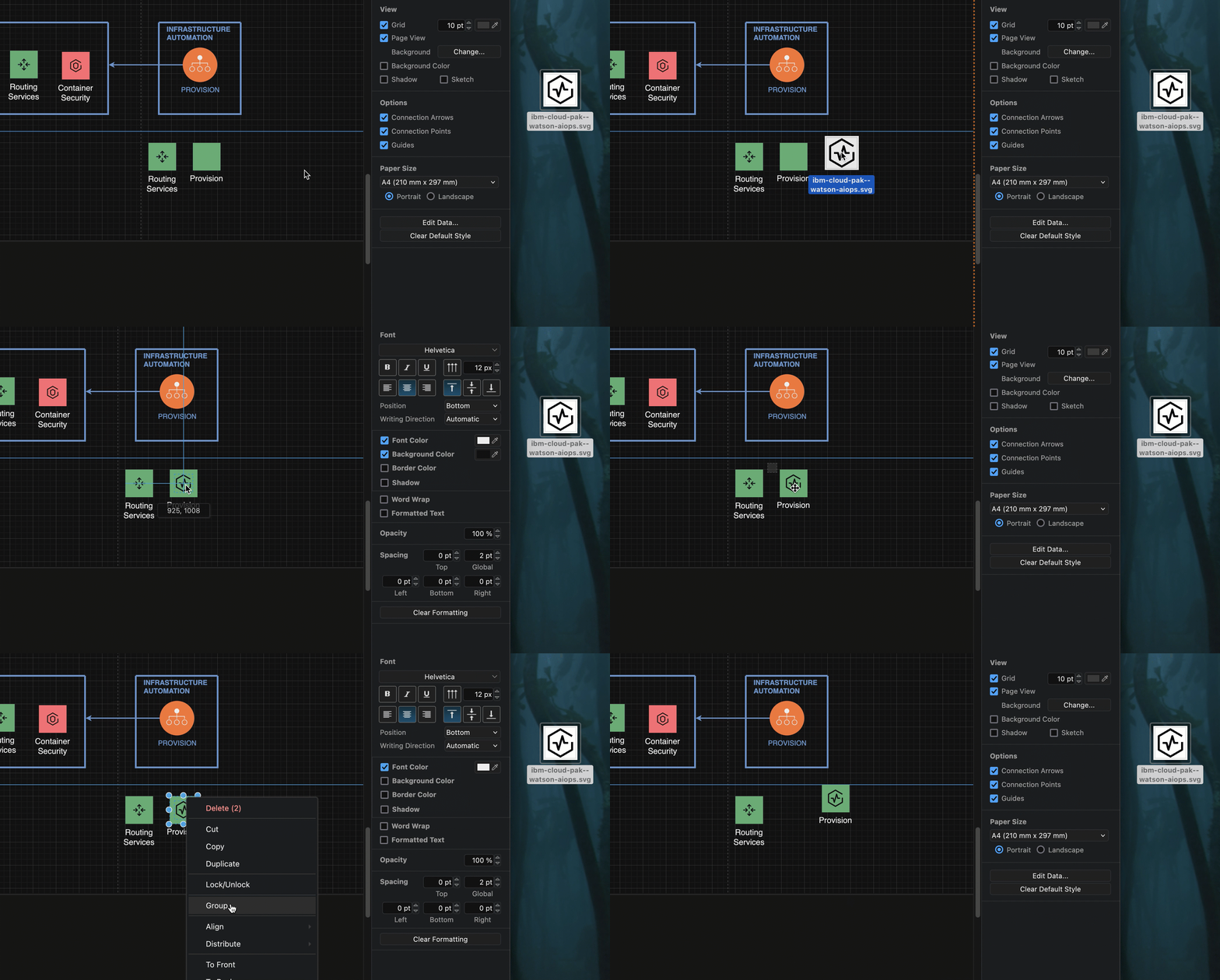
  7. Now, make the compound icon. Drag the .svg file of the UI icon from the UI Icons list in the IBM Design Language - either from the webpage directly, or from your device - onto the drawing canvas to import it. Then drag it over the centre of the background square.
  8. Finally, drag a selection box around the new compound shape, right click and select Group from the context menu.
    Make your own IBM shape using an existing IBM Cloud shape as a template for style and size

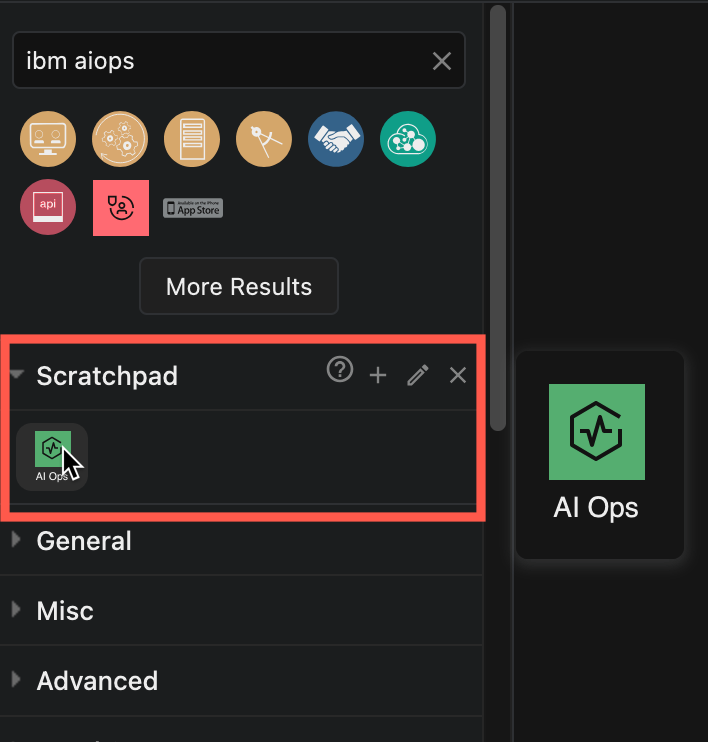
Tip: To use this new shape in multiple diagrams, drag the group onto the Scratchpad in the shapes panel.
Make your own IBM shape and save it in the draw.io scratchpad

You can also save the Scratchpad with your custom shapes to share them with your colleagues.

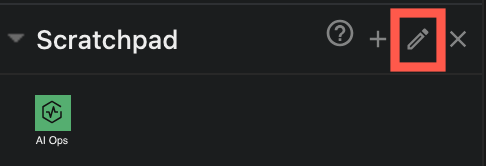
  1. Click on the pencil to the right of the Scratchpad library.
    Edit the draw.io scratchpad and export the shapes in it to a custom shape library
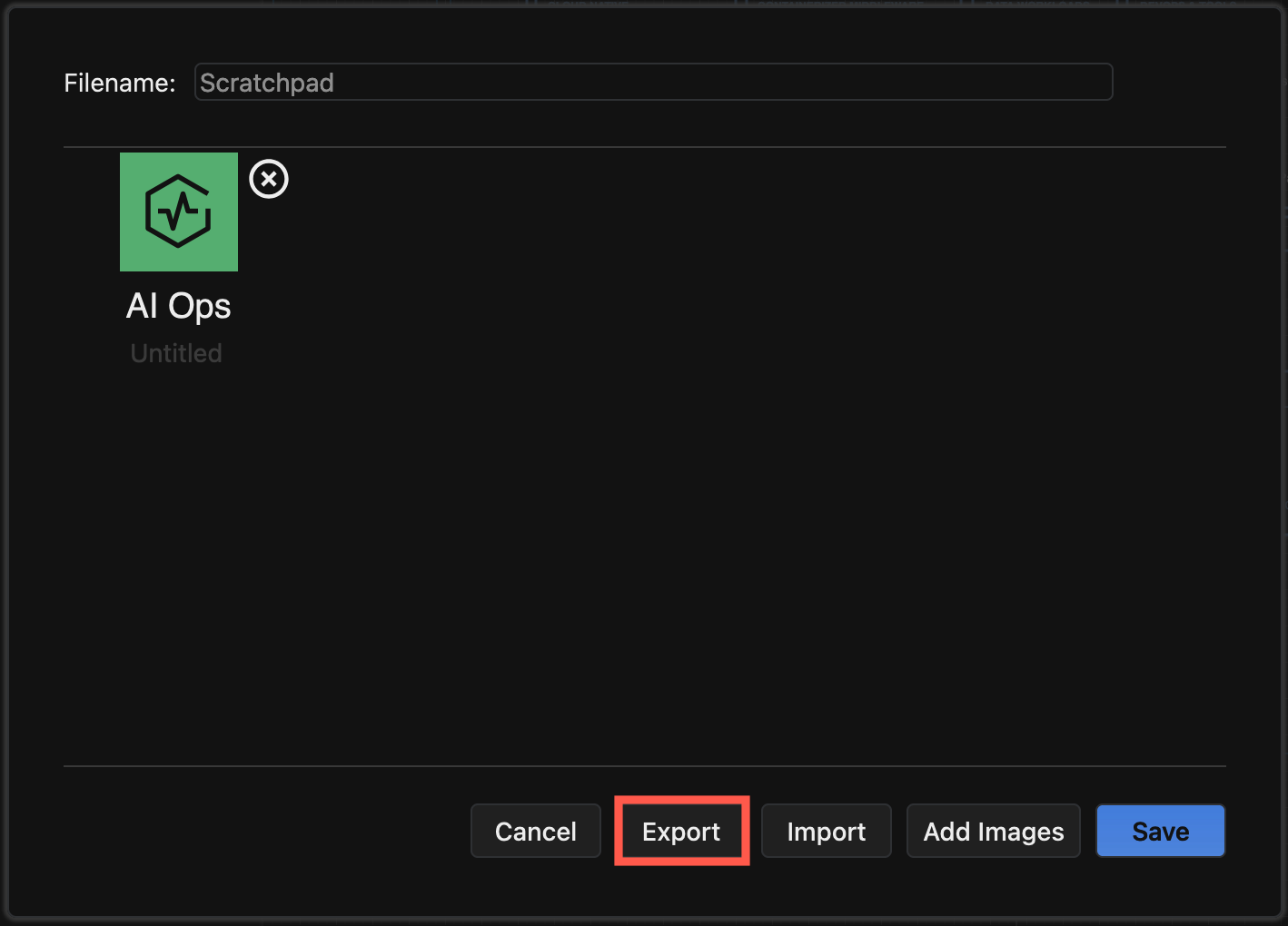
  2. Select Export to save all the shapes in the Scratchpad to a custom shape library.
    Edit the draw.io scratchpad and export the shapes in it to a custom shape library
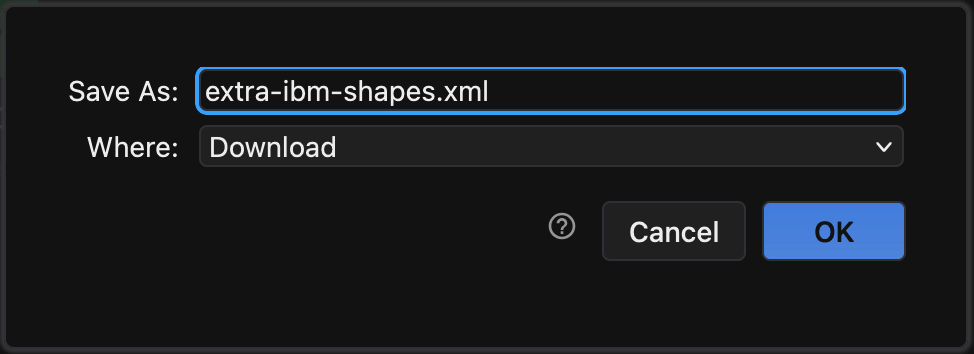
  3. Enter a filename, select where to save the custom shape library file and click OK.
    Edit the draw.io scratchpad and export the shapes in it to a custom shape library

Learn more about custom shape libraries

Updated Citrix shape library for clean infrastructure diagrams

· 5 min read
draw.io
draw.io Team

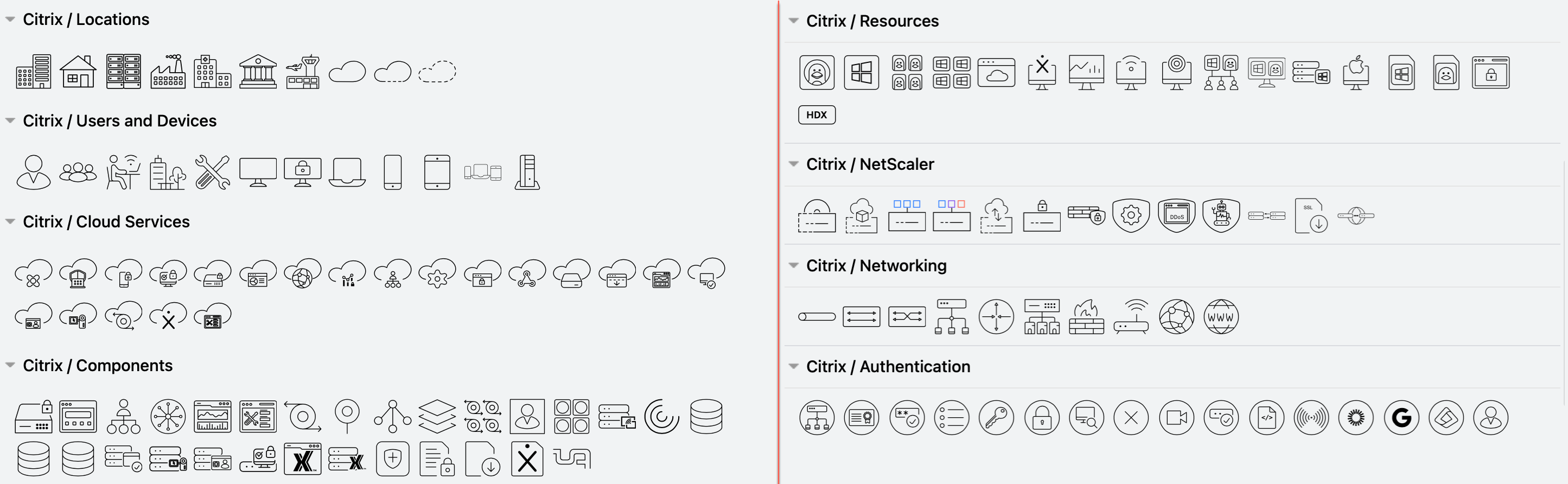
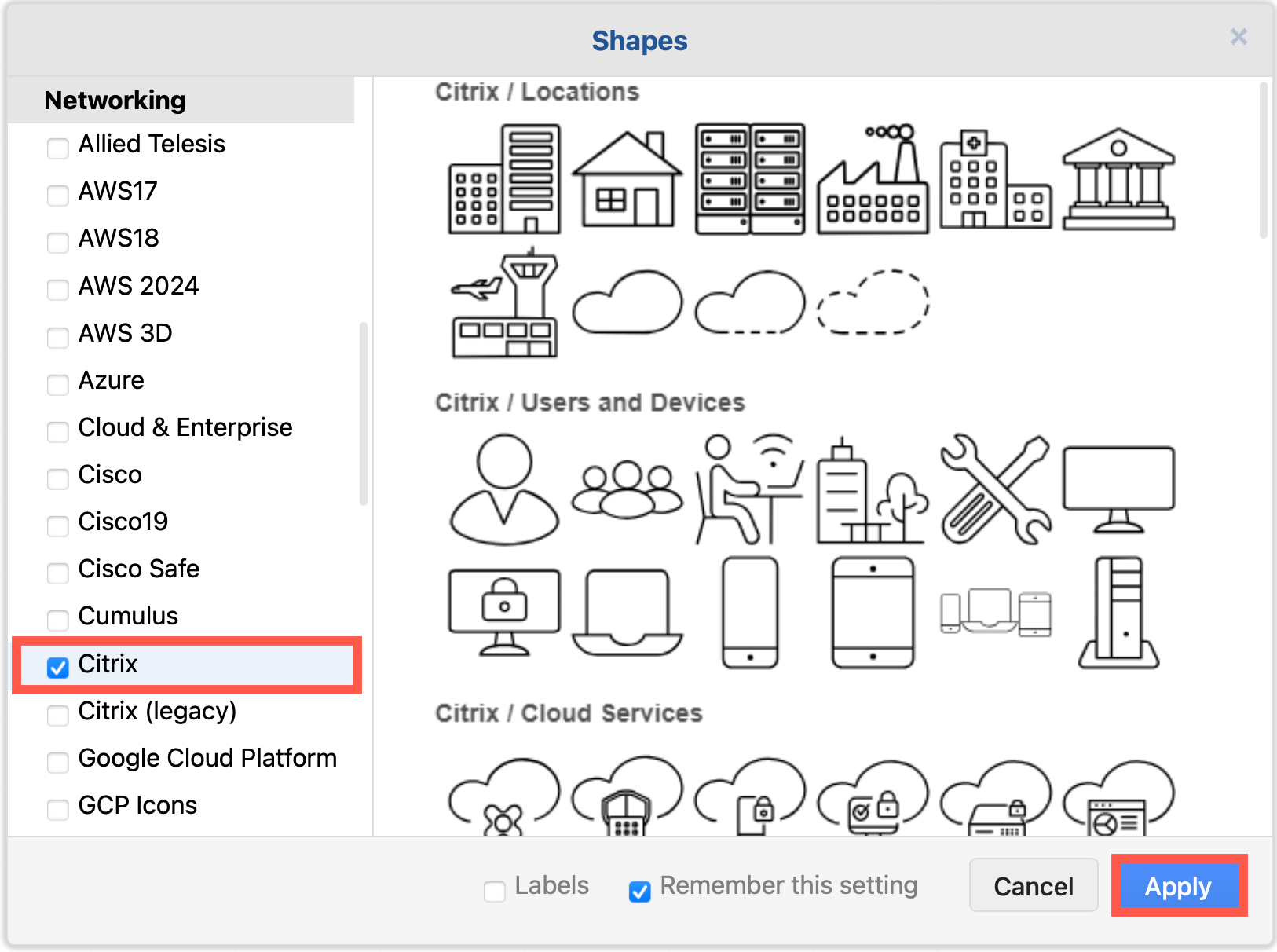
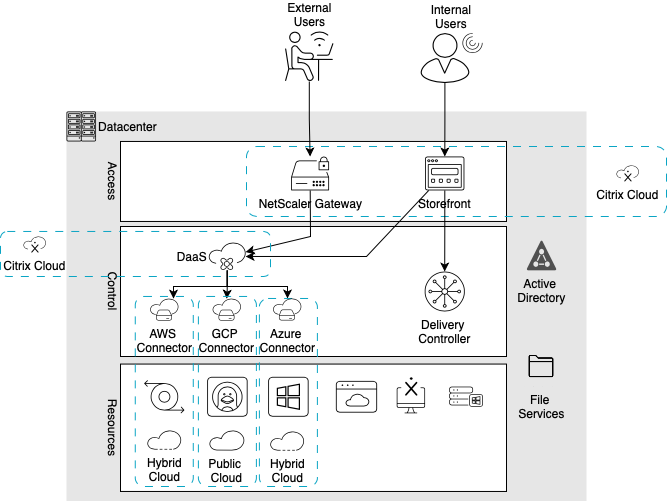
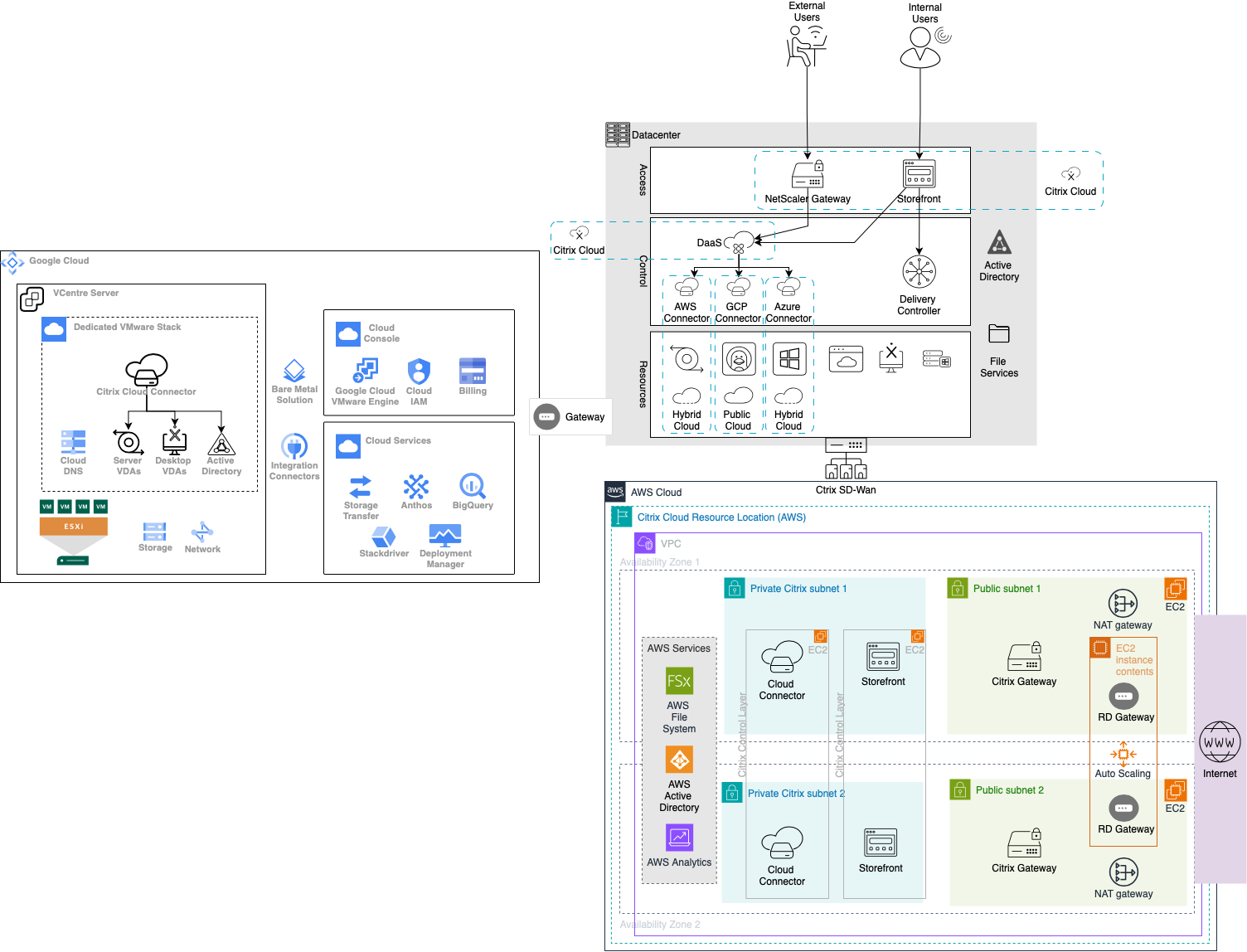
The new Citrix shape library helps you to draw Citrix diagrams of complex infrastructures that are easier to read. The older 3D shapes are still available in the Citrix (legacy) shape library.
Enable the new Citrix shape library to draw Citrix infrastructure and network diagrams

Citrix is a popular secure centralised platform for deploying applications, desktops and virtual solutions to devices in large enterprises with locations distributed worldwide, especially where high availability and scalability is required.

Learn more about drawing infrastructure and network diagrams

Enable the new Citrix shape library in draw.io

  1. Click on More Shapes at the bottom of the shapes panel in draw.io.
  2. Enable the checkbox next to the SAP shape library in the Networking section and click Apply.
    Enable the new Citrix shape library to draw Citrix infrastructure diagrams

Citrix infrastructure diagram tips

  • Use regions to visually group segments, security zones, and workloads. A simple rectangle placed behind a group of systems or services is the simplest option. You could also use collapsible container shapes or AWS groups.
    Use rectangles with different fill colours and line styles

  • Use shape fill colours and outline styles consistently to visually indicate regions, types and grouping of services or tools, or show which teams are responsible for maintaining those infrastructure areas.

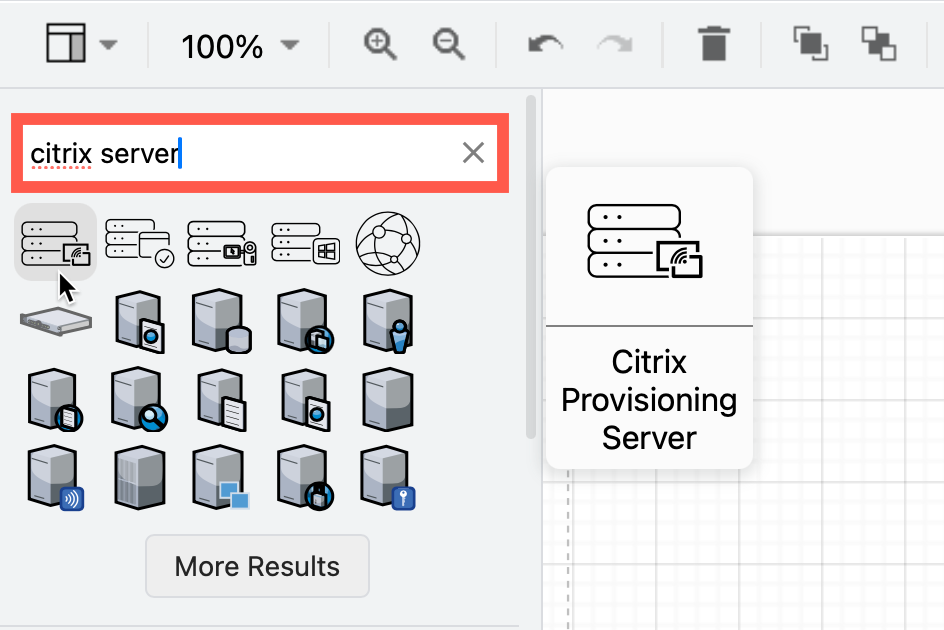
  • Use application, device and platform logos where possible. Search for these by name in the top left of the shapes panel in draw.io. Hover over any shape to see a larger preview.
    Search for infrastructure shapes and tool logos using their names

  • Add a legend if necessary. This is especially important when working with external parties, as they may not be familiar with all the components in your infrastructure.

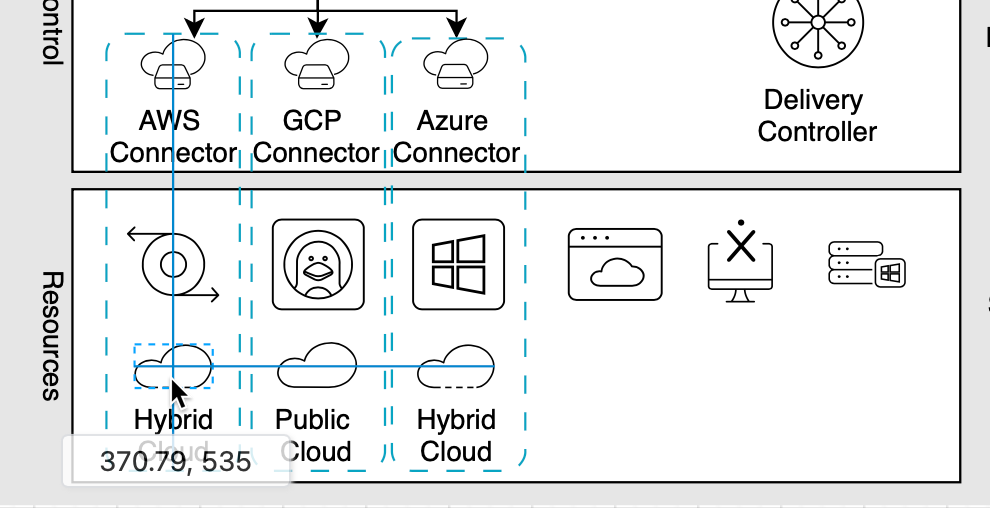
  • Align shapes using the blue guidelines that appear as you move them around the drawing canvas.
    Align shapes using the snap to grid and guideline tools for neat diagrams

  • To group shapes once you have drawn a subsystem and placed it in a region, drag a selection box around all the shapes, right-click and select Group from the context menu. Now you can move the group without losing its internal layout.

Draw multi-platform infrastructure diagrams

Enable the AWS, Google Cloud Platform and Azure shape libraries in draw.io to document your multi-environment infrastructure.

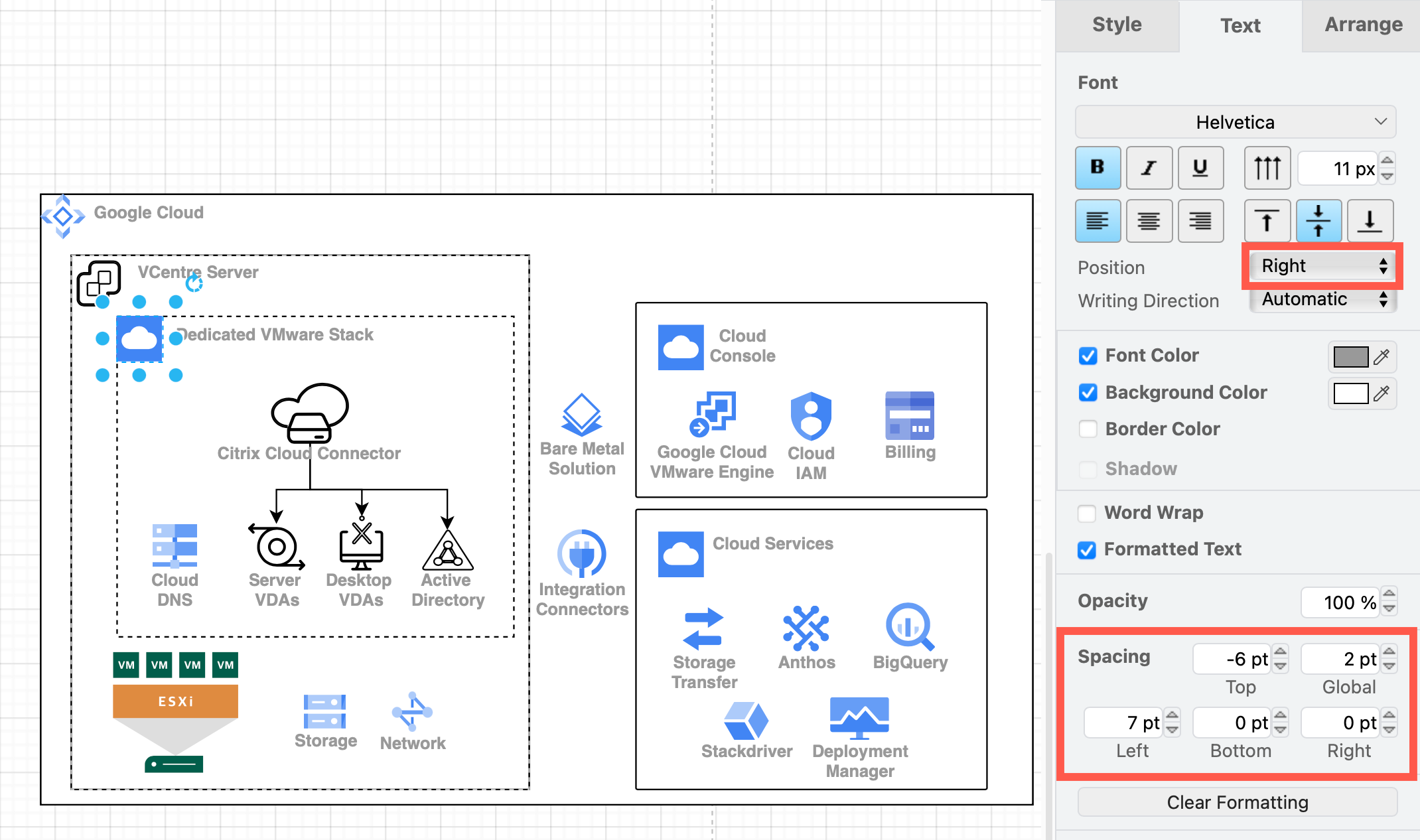
You can use the up-to-date shapes in the AWS groups, GCP Zones and cards from the Google Cloud Platform libraries to indicate different regions. Alternatively, place an identifying shape in the top left corner of a basic rectangle shape, move the shape label to the right and position it neatly with custom spacing.
Align shapes using the snap to grid and guideline tools for neat diagrams

This will let you show how sub-systems are isolated and confined to each region in your cloud platforms and how loads are distributed when using the Citrix Hybrid Multi-Cloud.
Use rectangles with different fill colours and line styles
Open this example in the diagram viewer

Basic infrastructure templates are under Cloud and Network in the template library. Select Arrange > Insert > Template from the menu or click + > Template in the toolbar.
Example infrastructure diagrams using various platforms are available in the template library

Additional examples are in the drawio-diagrams repository on GitHub. Check for cloud and network templates, and more detailed examples. You can import a diagram into draw.io as a template using its raw GitHub URL.

Some platforms can automatically generate AWS, GCP or Azure diagrams of your implemented infrastructure. Cloudcraft and Cloudockit can export to the .drawio or .vsd formats. Select File > Import from or drag and drop this file onto the drawing canvas to import the diagram of that sub-infrastructure.