15 posts tagged with "atlassian"

View All Tags

The draw.io app for Confluence Cloud transitions to Forge-only

· 4 min read
draw.io
draw.io Team

Atlassian has encouraged all Connect apps to transition to Forge where their modernised Forge architecture can provide increased data security, updated integrated tools and UIs and other useful features. Our hybrid Connect/Forge draw.io app is currently migrating to be fully Forge-only, allowing for enough time to troubleshoot before the first migration deadline in January 2026, should any problems arise.

You should see no difference in functionality - the diagram editor is not changing, and your existing diagrams and draw.io macros will not be changed through this transition.

No full-screen custom macro UI on Forge

We, like many other app developers, delayed moving draw.io to Forge as Atlassian has not yet implemented the full-screen custom UI dialog that is widely used by many Marketplace apps.

A reduced diagram editor size may impact productivity or cause distractions as it does not fully cover the page behind. Some have also reported related display issues with dialogs not appearing correctly on mobile devices in the Forge-only apps.

While we reported this issue back in November 2021, it is currently scheduled by Atlassian to be implemented in FY26Q2 (although, it is not yet included in the Connect-Forge capability equivalence roadmap).
The Forge-only draw.io app cannot run in full screen as Atlassian does not currently support full screen apps in their Forge UI suite - if this is an issue, please add a comment to Atlassian's FRGE-557 or ECO-195 bug reports

If full-screen diagramming or mobile diagramming is a priority for your teams, or if you are an app developer that is affected by this bug, please do comment on the original FRGE-557 issue and the more recent ECO-195 issue.

As soon as this issue has been implemented by Atlassian, the draw.io macros in your Confluence Cloud instance will once again work in full screen.

Updating your draw.io app

Atlassian may choose to rollout these updated Forge-only apps automatically, or your administrator may need to manually update the draw.io app.

If your teams require the full-screen app functionality as described above, we recommend not updating the draw.io app until Atlassian has resolved this issue.

Note: No diagrams or macros will be removed from any pages in which they are used or edited in any way. There is no danger of losing data on this update.

Migrating from DC to Cloud?

Atlassian has also recently announced the end of life for Data Center, with a three-year staged transition period starting in March 2026.

If you are migrating from Confluence DC to Cloud because of this, or to take advantage of the enhanced security features of Atlassian's modernised Forge architecture, migrate your draw.io diagrams in Confluence using the PageID method that preserves in-diagram links and embedded diagrams.

Which draw.io app for Confluence Cloud?

The draw.io for Confluence Cloud app that is transitioning to Forge is available in two editions - Standard and Advanced. The diagramming features of these two editions are the same.

The Advanced edition of the draw.io app includes premium support, custom security reviews, and additional data security options.

The draw.io Zero Egress app is already Forge-only, and provides strict data security, ensuring no diagram data leaves your Confluence instance (zero egress). For customers with such strict data security requirements, Atlassian plans to offer a single tenant Isolated Cloud and their Atlassian Government Cloud. The draw.io Zero Egress app is designed to work with Atlassian's new secure Cloud offerings.

Read more about the differences between the draw.io apps for Confluence Cloud
Using draw.io with attachment retention rules in Confluence Data Center

· 4 min read
draw.io
draw.io Team

Retention rules in Confluence Data Center allow you to automatically delete historical versions of pages and attachments that you no longer need. draw.io diagrams are stored as page attachments. Therefore, the data retention settings you choose will apply to older versions of those diagrams.

To implement a retention strategy, Confluence DC administrators need to set several rules.

  • Apply global rules to all spaces in your Confluence instance, including archived and personal spaces.
  • Apply different rules for pages and for attachments.
  • Set exemptions and individual rules for spaces with longer data history requirements.
  • Set permissions that allow space administrators to set their own retention rules in their spaces.
  • Set a global rule or space exemptions for purging any manually deleted items that are in the trash.

Important: Historical draw.io diagram versions, pages and other attachments that are deleted using these retention rules cannot be restored. Make sure your backup strategy takes this into account.

Set the coverage level to Advanced or higher to ensure the audit log records all deletions and purges.

Why use retention rules?

When collaborating on a draw.io diagram in Confluence DC, diagram attachment versions will be saved regularly to record everyone's contributions. If those diagrams include many embedded images, the size of those attachments can become quite large. Diagram versions will accumulate quickly during collaboration.

Setting automatic deletion of old versions will reduce the size of the Confluence database and attachment directory, and thus speed up backups and upgrades.

Note: One of the main considerations for your data retention strategy is where teams are required to keep records of their work for compliance and auditing purposes.

Which retention approach is best for diagrams?

Retention rules apply to all page attachments, not just attached diagrams. Choose rules that are appropriate for all attached content.

Important: The order in which you set rules is important - when you set a global rule, it will be implemented immediately.

Choose one of these retention strategies:

  • Set the global rule to keep all for both page and attachment versions, then set space exemptions to clean up specific spaces.

  • Add space exemptions to keep all in spaces where you must retain the version history, then set a global rule to clean up all remaining non-critical spaces. This is useful when audits are required only on documentation in specific spaces.

The default retention setting is to keep all pages and attachments and not purge the trash automatically.

If you find your instance is growing too large and slow, choose which versions of pages and attachments that you want to keep.

  • keep by age
  • keep by version number, where the most recent x versions are kept

The second approach is likely more useful if you need to see how a diagram was developed and by whom.

Refer to Atlassian's documentation to see how to set retention rules as an administrator.

The latest versions are never deleted even if that version is older than the retention rule - only the historical versions are deleted.

When are old versions deleted?

A scheduled job will run every 10 minutes to permanently delete a small batch of outdated versions so as not to overwhelm your instance.

As an administrator, you can manually run the 'hard' job which will delete all outdated versions. Only do this when your instance is not busy.

Migrating to Cloud - set retention rules before migration

Purge older versions of pages and attachments before you start migrating so there will be much less data that needs to be copied and ensure your migration happens more quickly.

See how to update pageIDs to migrate with draw.io from Confluence DC to Cloud

draw.io app Editions for Atlassian Confluence Cloud (early access program)

· 2 min read
draw.io
draw.io Team

App editions for Atlassian Confluence Cloud will soon be available for customers who sign up for Atlassian's early-access program. App editions is a new Atlassian Marketplace feature introduced with Forge, and draw.io will be available in Standard and Advanced editions.

If you are not in the early access program, your draw.io Confluence Cloud app will continue to receive regular updates and support as in your current subscription, and of course, the full features of the draw.io diagram editor, including AI-generated diagrams.

If you sign up for the new early access programme for app Editions in the Atlassian Marketplace, draw.io will be available in the following two editions for Confluence Cloud.

  • The Standard edition includes all the diagramming features of the draw.io editor, including AI-generated diagrams. When you need support, your Confluence Cloud administrators can submit support tickets and receive the standard level of support (9/5 business hours).

  • The Advanced edition of draw.io for Atlassian Cloud products is for large enterprise customers who require advanced support and stricter data security. Along with the fully featured draw.io app from the Standard edition, you will receive the following additional support:

    • Extended support hours and shorter initial response times.
    • A dedicated account manager as your single point of contact for enquiries.
    • Custom security reviews for compliance submissions.
    • Access to development feature previews.
    • In-depth and targeted training materials.
    • A zero-egress switch that can disable all data egress except for Atlassian API calls in the draw.io Forge app version.

See how to use draw.io in Confluence with diagram files stored in Google Drive.

Administrators can configure the draw.io app in Confluence Cloud in the Advanced edition to enable the lockdown option.

You can diagram offline with the draw.io desktop app if you need to work in a highly secure environment.

We are fully committed to data security and privacy - learn more about data protection while diagramming and using draw.io.

draw.io updated for Atlassian Jira Software 10.0

· 3 min read
draw.io
draw.io Team

Atlassian has recently released Jira Software 10.0 and Data Center Platform 7, which includes a large collection of security and automation improvements. The draw.io app has been updated to support Jira Software 10.0 and its long awaited dark theme - your diagrams will switch to dark mode automatically to match your Jira user settings.
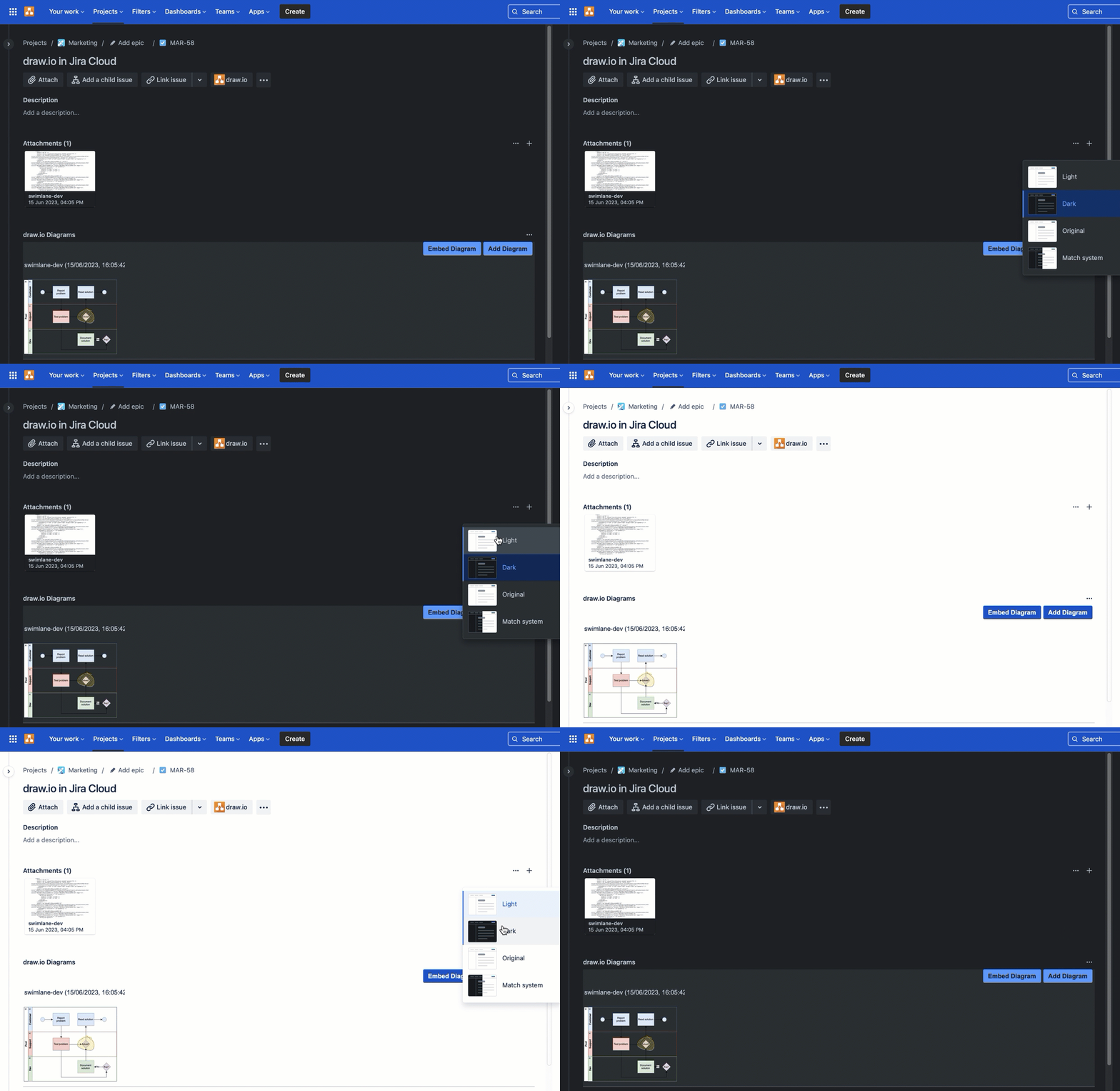
draw.io diagrams in Jira DC 10.0 will automatically switch to a dark mode palette when you use the new Jira Dark theme

Important

If you are planning to upgrade to Jira 10.0, Atlassian recommends you update all Marketplace apps that support the new version - like draw.io does - beforehand.

Dark theme Jira issues and diagrams

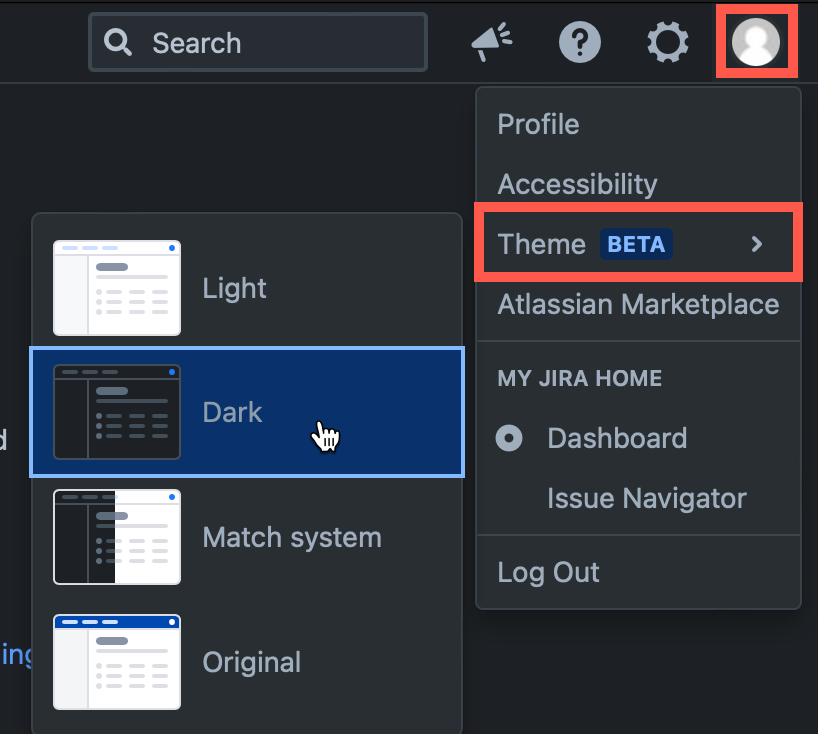
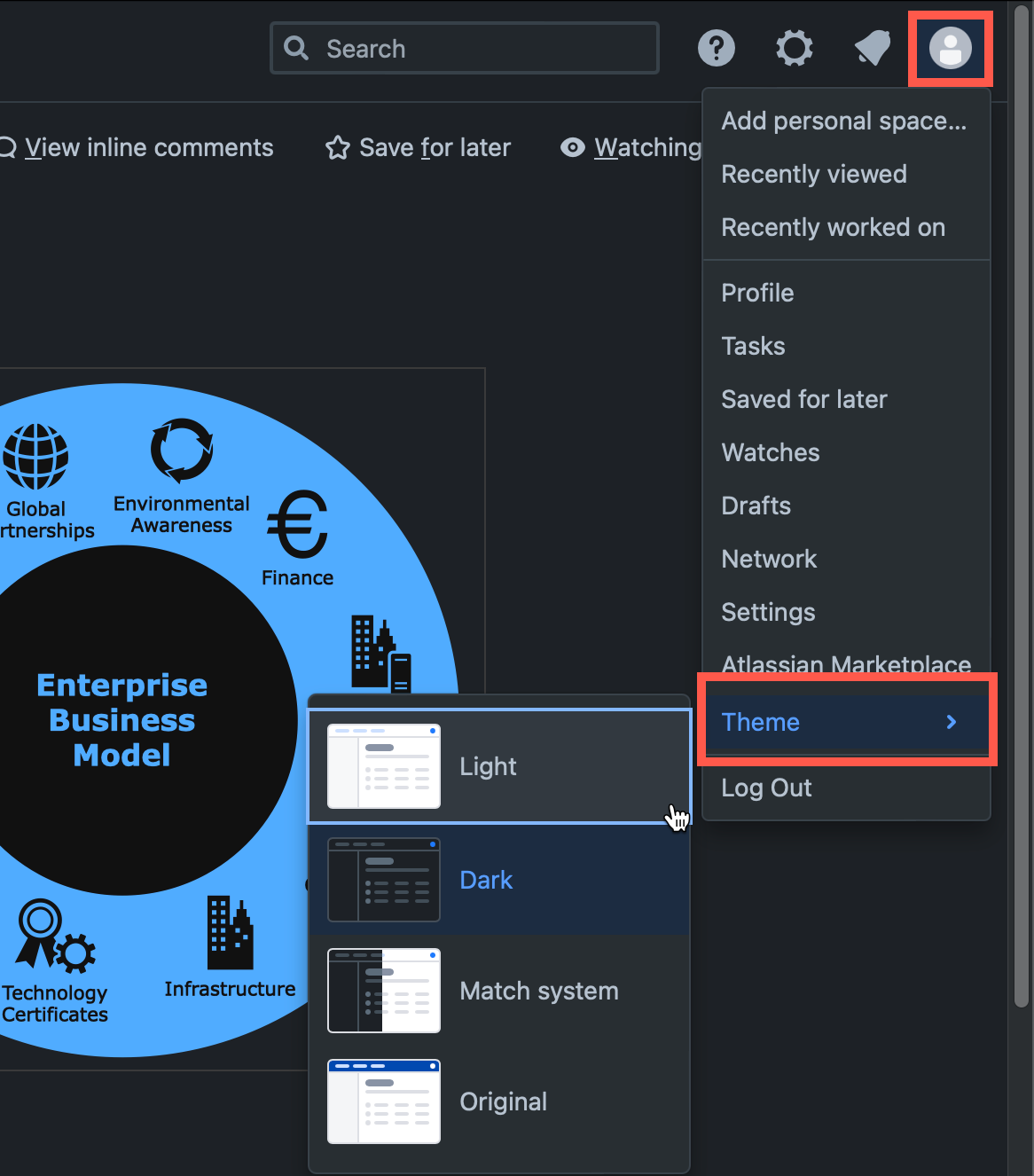
  1. In Jira, click on your user profile image in the top right, then select Theme.
  2. Choose Dark theme, Light theme, or to Match System to match your operating system's theme.
    draw.io diagrams in Jira DC 10.0 will automatically switch to a dark mode palette when you use the new Jira Dark theme

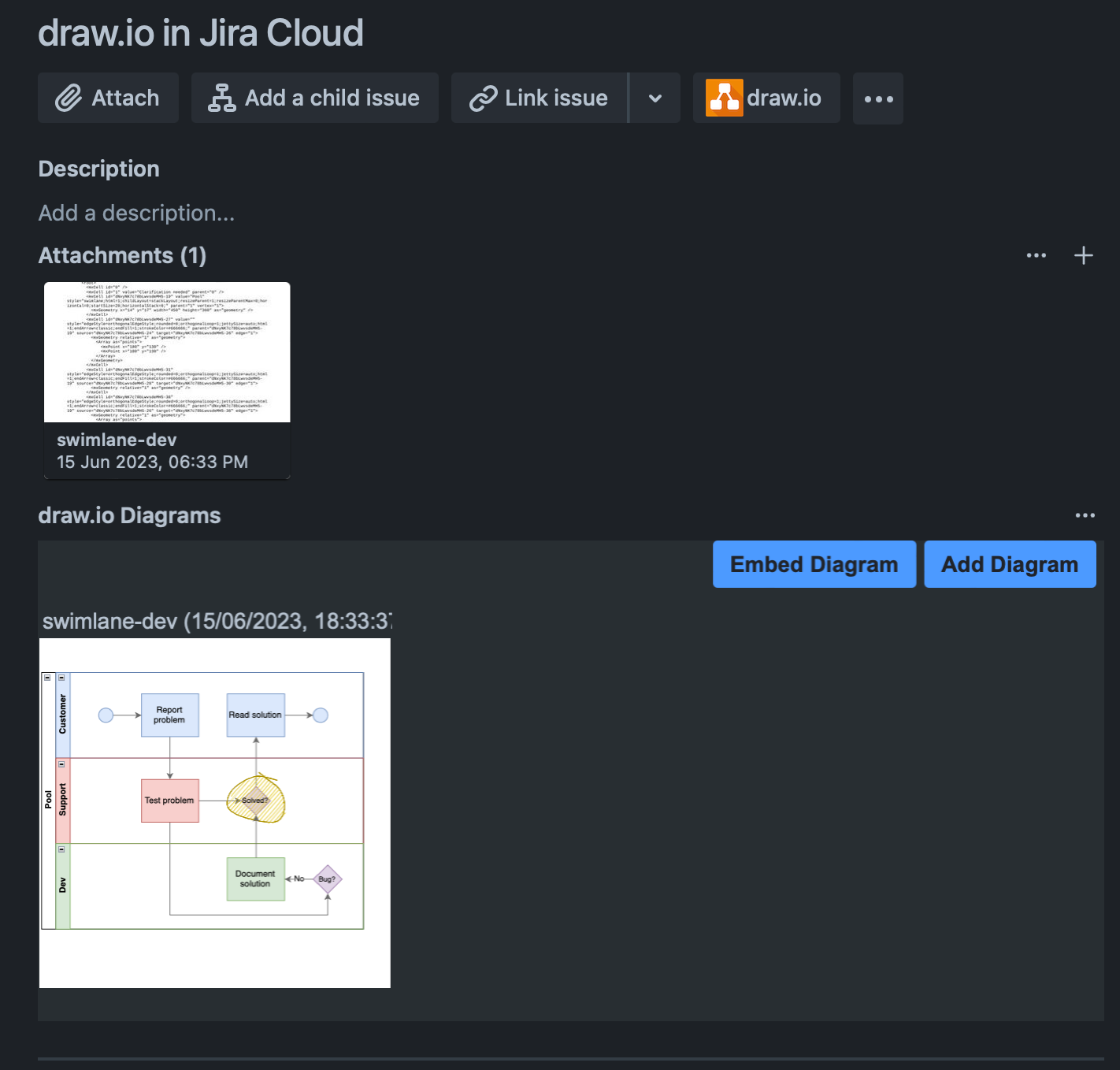
To add a new diagram to a Jira issue, click on More > Add draw.io Diagram to open the draw.io editor.

Once you have saved your diagram to the issue, the Draw.io Diagrams section will be added in the right column.

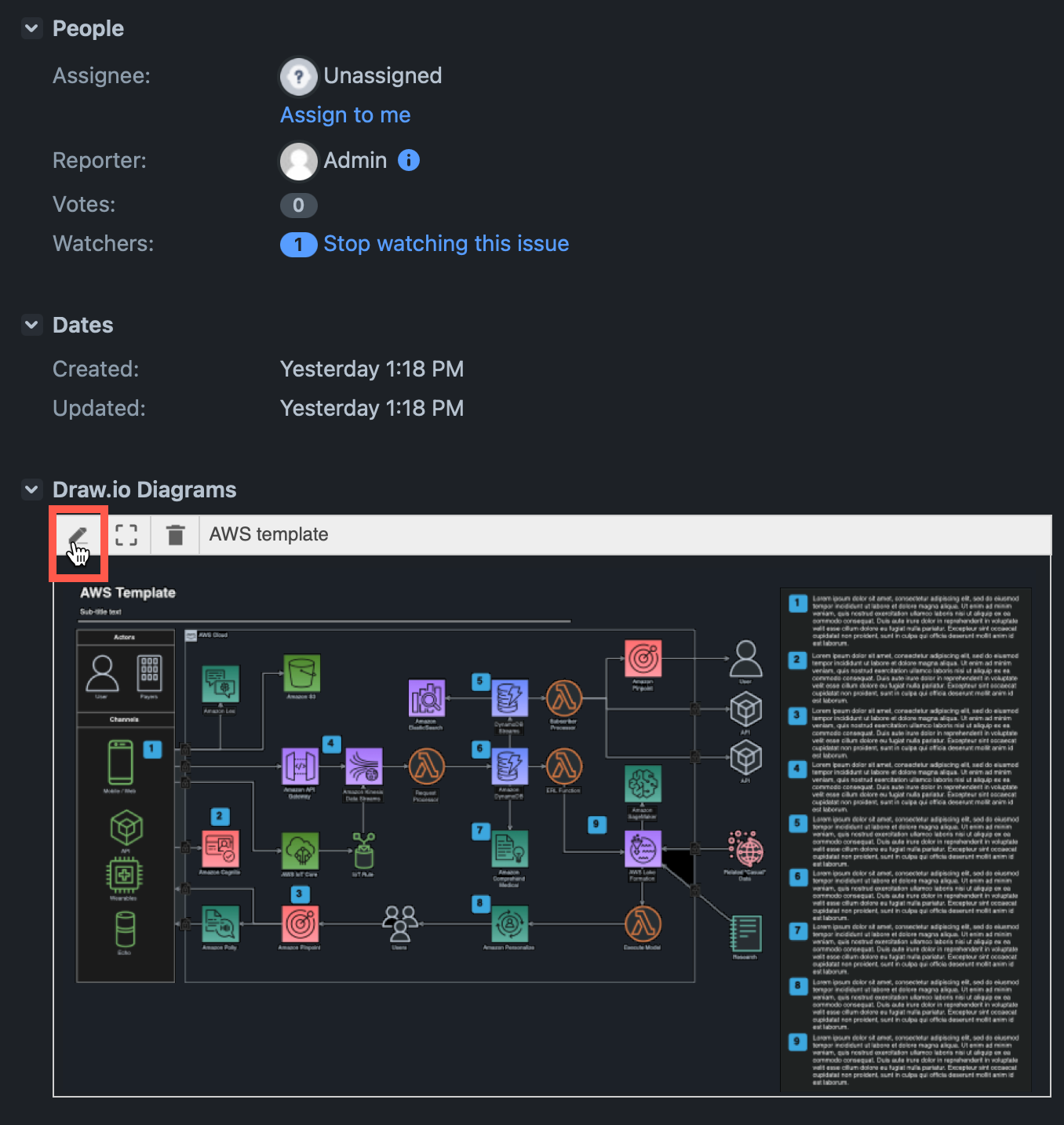
Diagrams in the Draw.io Diagrams section will be displayed in whichever theme you selected in Jira automatically.

Note: The draw.io diagram in the Attachments section of the Jira issue is saved and shown as if it were light mode. To edit or open a larger version of the diagram, click on the diagram in the Draw.io Diagrams section of the issue.

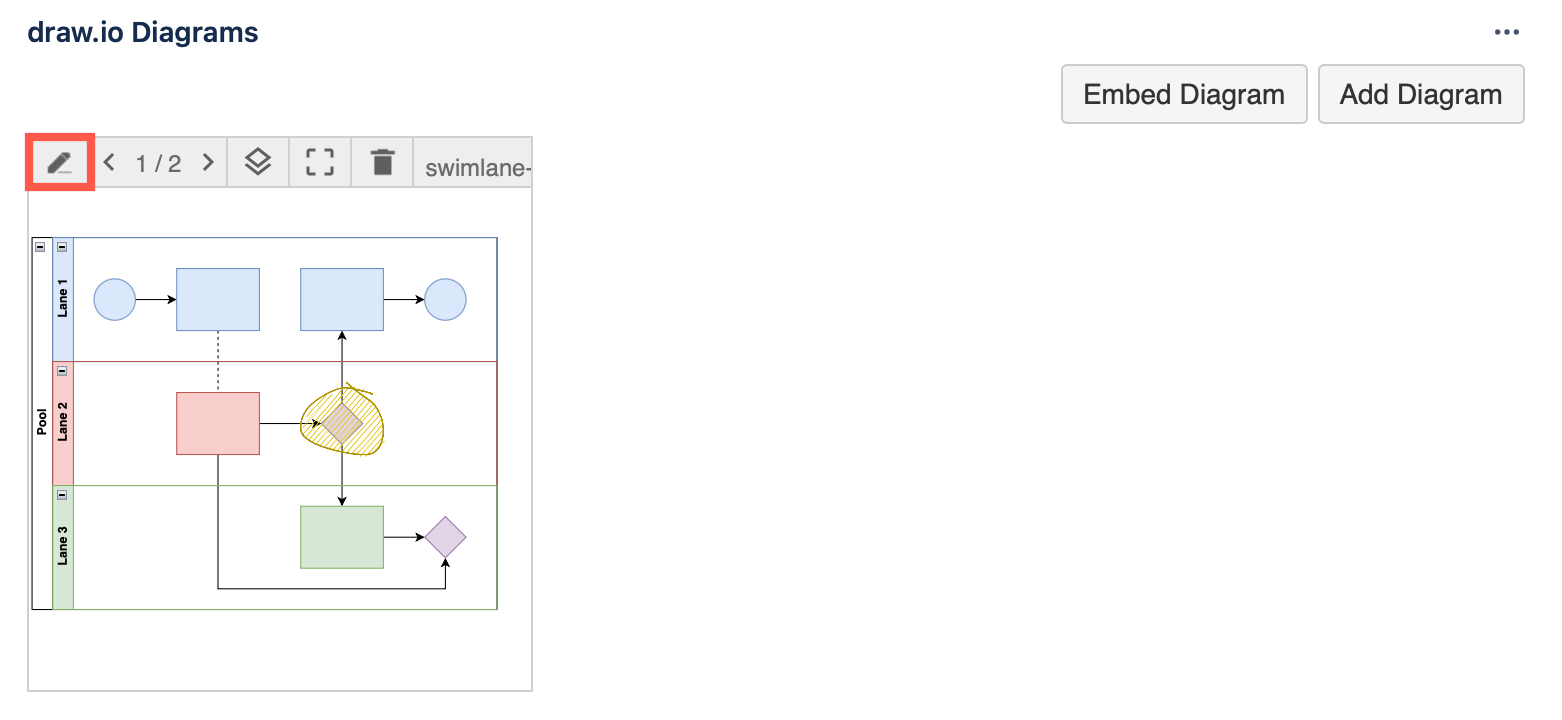
Hover over the diagram and click on the edit pencil to open it in the draw.io editor.
draw.io diagrams in Jira DC 10.0 will automatically switch to a dark mode palette when you use the new Jira Dark theme

Using draw.io in Jira DC

draw.io for Confluence Data Center 9.0

· 4 min read
draw.io
draw.io Team

Atlassian has just released Confluence Data Center 9.0, with a wide range of security improvements and user-friendly updates. The draw.io app is fully compatible with Confluence DC 9.0 - when you use the new Dark theme in your Confluence instance, you'll automatically see draw.io diagrams in dark mode.
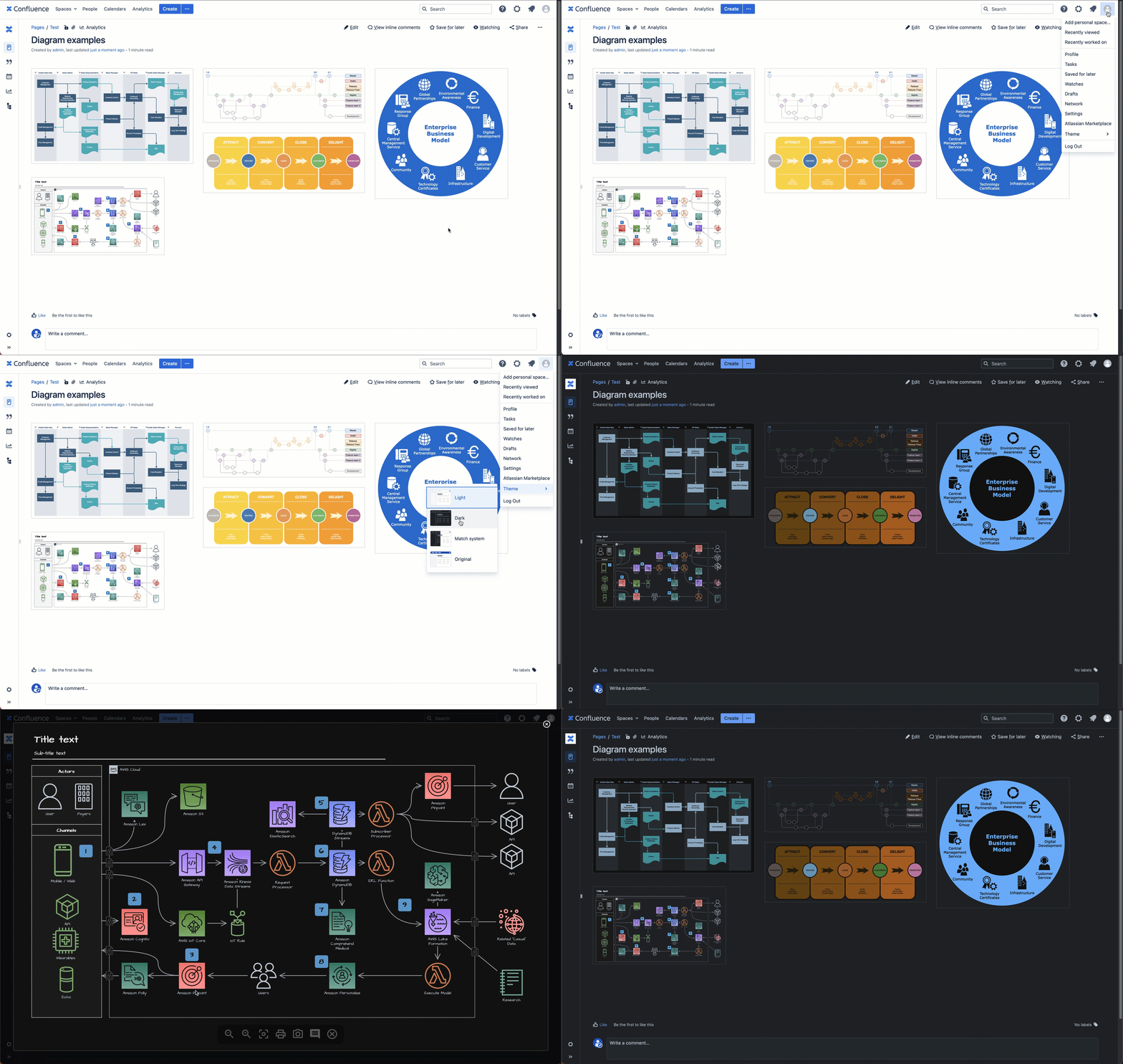
draw.io diagrams in Confluence DC 9.0 will automatically switch to a dark mode palette when you use the new Confluence Dark theme

Dark mode diagrams in Confluence DC

Just as Confluence has updated their colour palette for accessibility contrast to ensure text page content remains readable on a dark background, draw.io automatically switches to an enhanced dark-mode palette.

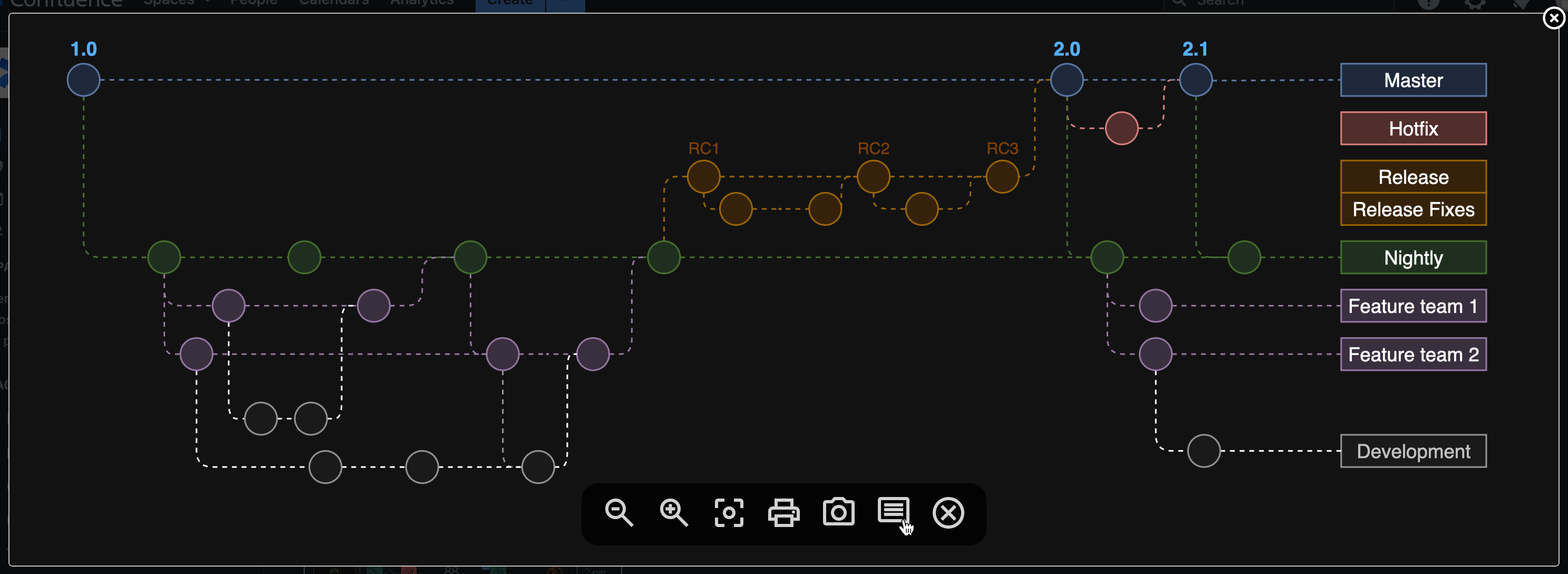
Dark mode colours with improved contrast are automatically applied to the diagram previews when you look at any Confluence DC 9.0 page, and also when you click on the diagram to open it in the draw.io lightbox viewer.
When you open a draw.io diagram from a Confluence DC 9.0 page into the lightbox, it will automatically apply your light or dark theme and change the diagram colours to stay readable

Edit draw.io diagrams in dark mode

If you use the Confluence Dark theme, draw.io diagram macros and draw.io board macros will open the draw.io editor automatically in dark mode.

Improved contrast dark mode palette by default

The draw.io dark mode palette in Confluence DC 9.0 uses improved contrast colours by default, ensuring maximum readability of your diagrams when viewed in both dark and light modes.
The dark mode palette in draw.io for Confluence DC 9.0 is designed for the best readability

draw.io board macro in dark mode

The whiteboard-like simple interface of the draw.io board macro also uses dark mode automatically when you have enabled Dark theme in Confluence DC 9.0.
Dark mode is used for the draw.io board editor automatically when you use Dark theme inConfluence DC 9.0

Switch to light mode

To edit a diagram in light mode, change your Confluence Theme to Light first. Select your user icon in the top right, then select Theme > Light from the menu.
To edit a diagram in light mode, switch your Confluence theme to light mode first.

Search for diagrams with OpenSearch

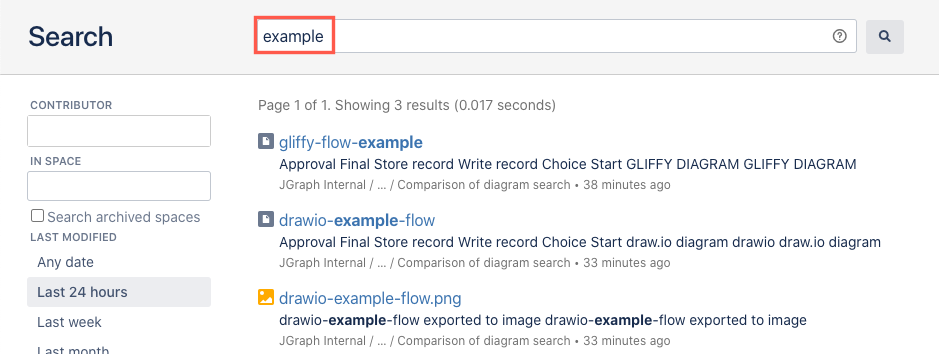
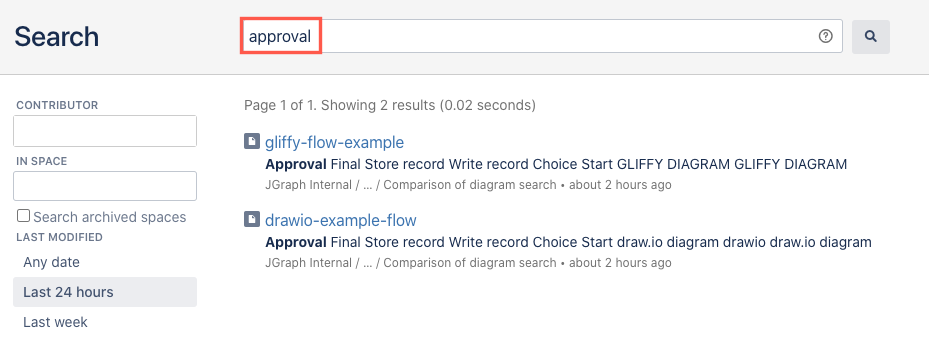
The new integration of OpenSearch will find draw.io diagrams in the same way the built-in Confluence search does - your diagrams are fully searchable via the Confluence search.

draw.io provides the file names and diagram label text to the Confluence search index used by both the built-in basic and advanced search functionality and OpenSearch.

See how searching for diagrams in Confluence Cloud and Data Center works and compare it with other diagramming tools.

FilenameLabel text
Search for a diagram filename in Confluence ServerSearch for label text inside a diagram in Confluence Server

To set up your Confluence DC 9.0 instance to use the new optional search integration, please refer to Atlassian's OpenSearch documentation.

See all the security and usability updates available in Confluence DC 9.0.

Collaborative editing in draw.io in Confluence DC

· 4 min read
draw.io
draw.io Team

Collaborative editing has long been possible in draw.io for Confluence Cloud. From the draw.io for Confluence DC release 13.0, you and your team will be able to edit the same diagram and see each other's changes.
Collaborative editing is available in draw.io for Confluence DC (version 8.x)

Collaborative editing works in both the draw.io Diagram macro and the draw.io Board macro in Confluence DC. Note the collaboration isn't real-time, we need to ensure a slower update rate is stable and causes no performance issues in the first release.

Real-time multi-user diagramming

Just like in draw.io for Confluence Cloud, the new collaborative editing feature in draw.io for Confluence DC uses the built-in auto-save feature.

  1. When you make a change to a draw.io diagram - add, style, or delete shapes, text and connectors, the diagram will be automatically saved to the Confluence page attachments.
  2. The draw.io diagram editor regularly polls the Confluence DC instance to see if any changes were made by other users, then loads these changes into your editor.

You don't need to manually save or synchronise the diagrams - changes will automatically appear in the draw.io editor for everyone editing the diagram.

No shared cursors?

As Confluence DC is not a cloud service with web sockets, there is no way to share and synchronise users' cursors as they work inside the diagram editor.

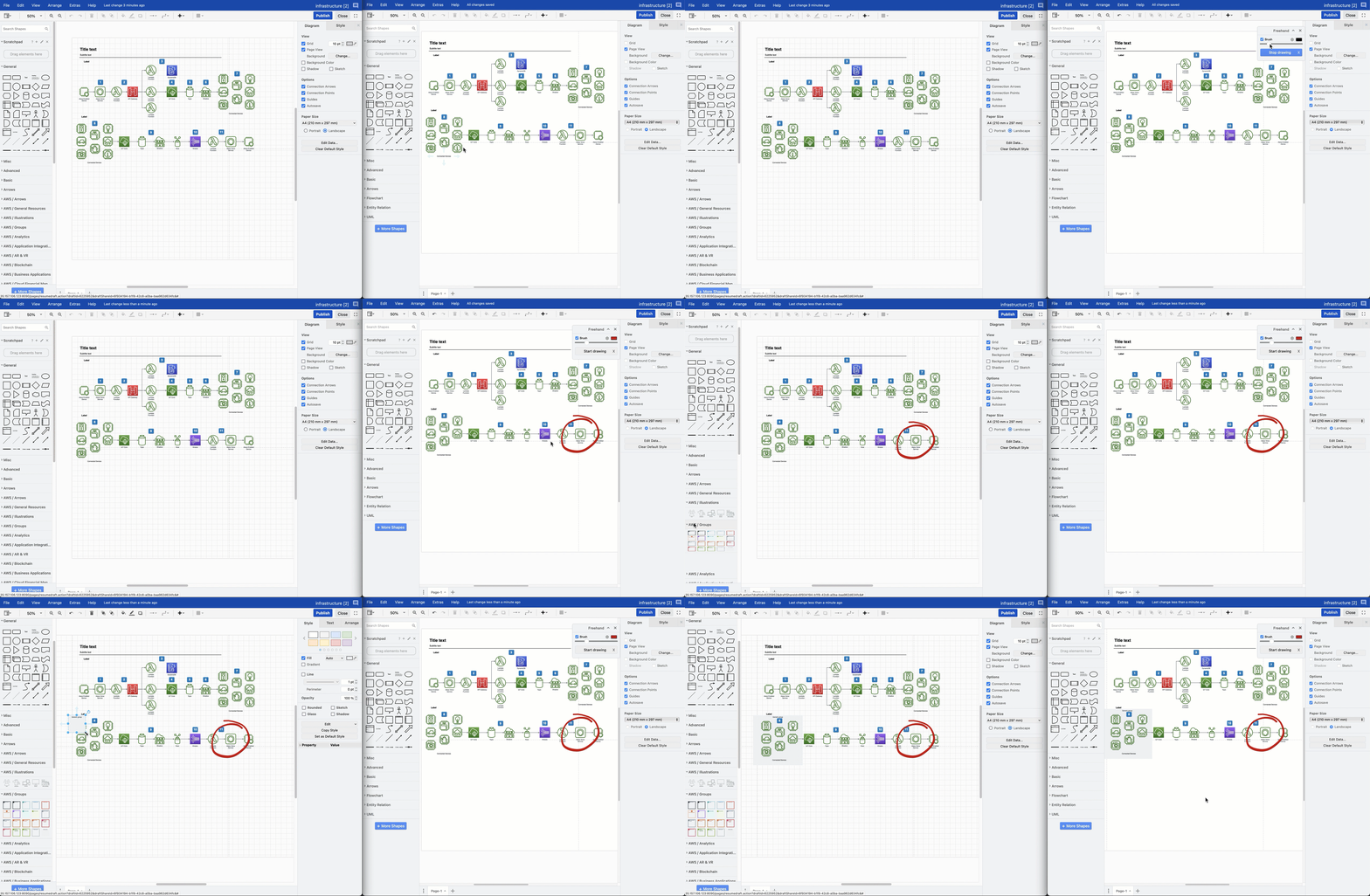
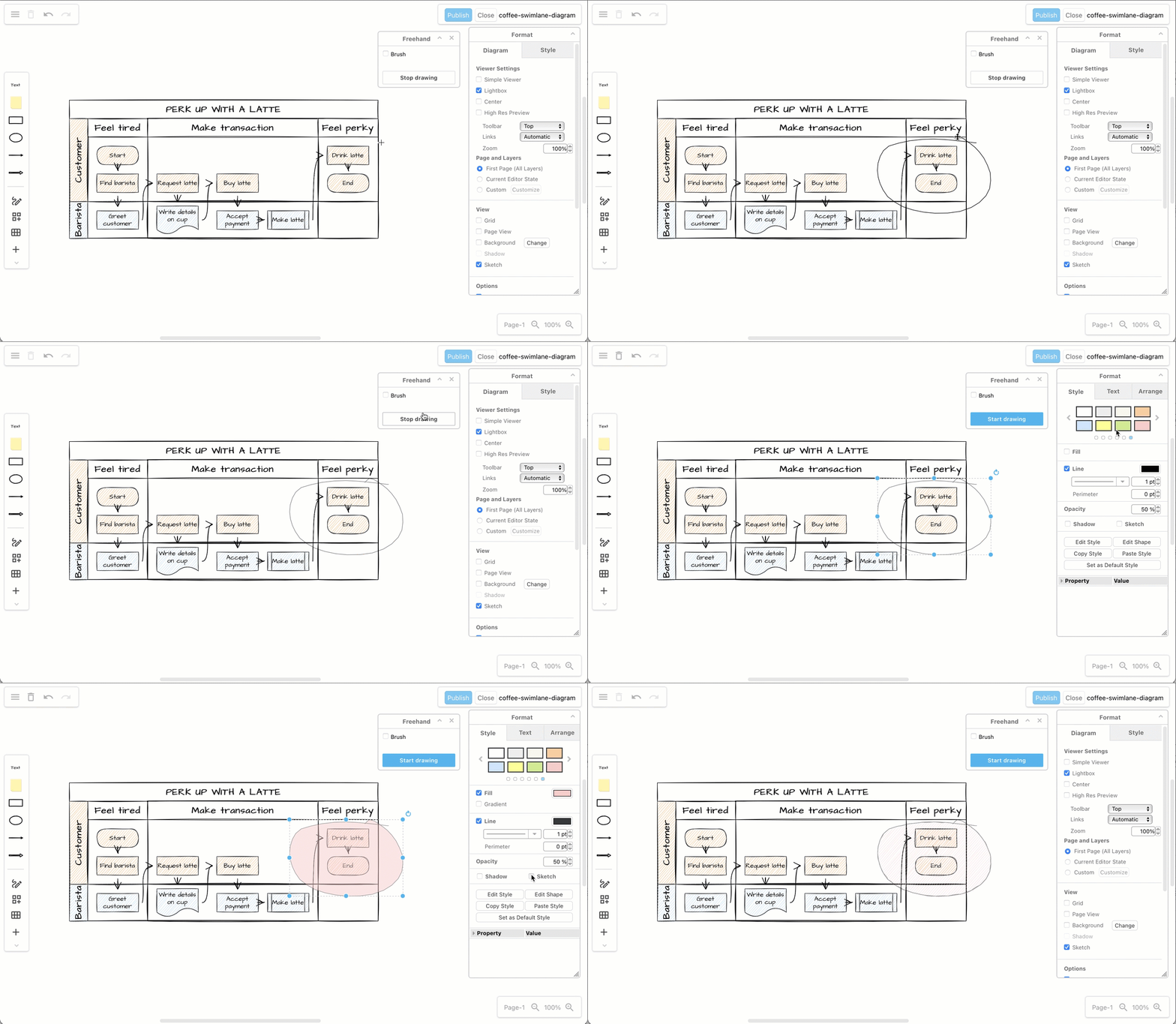
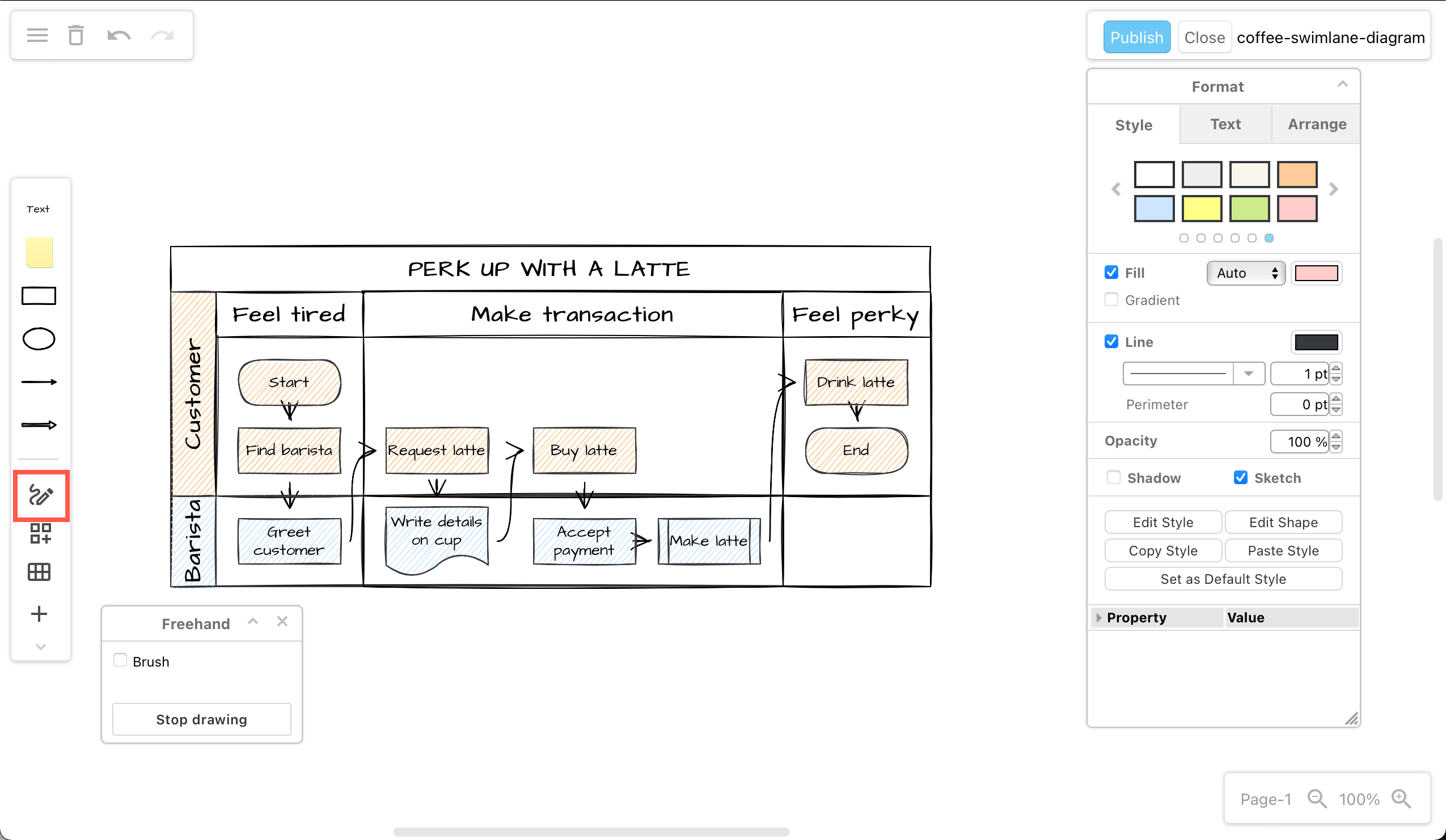
You can still make gestures on the diagram with the freehand brush to discuss a draw.io diagram in online meetings with your team - the freehand shape will appear in the other users' draw.io editor shortly after you draw it.

Collaborative editing is available in draw.io for Confluence DC (version 8.x)

Changes are merged from multiple users

If several users add shapes to the same location on a diagram, draw.io will take all those shapes and simply overlap them.

If one user adds and connects a new shape to an existing shape, but another user deletes the existing shape, both user's changes are saved:

  • The child shape will appear to stand alone as its parent was deleted.
  • The existing parent shape and any connectors from it to new shapes added by other users will be deleted.

This is the same process followed by the collaborative editing function in draw.io for Confluence Cloud.

Because draw.io merges all the changes made to a diagram, and does not overwrite the attachment with the most recent saved state from one user, you won't lose any data when you are editing a diagram as a team.

Change the synchronisation speed and auto-save interval

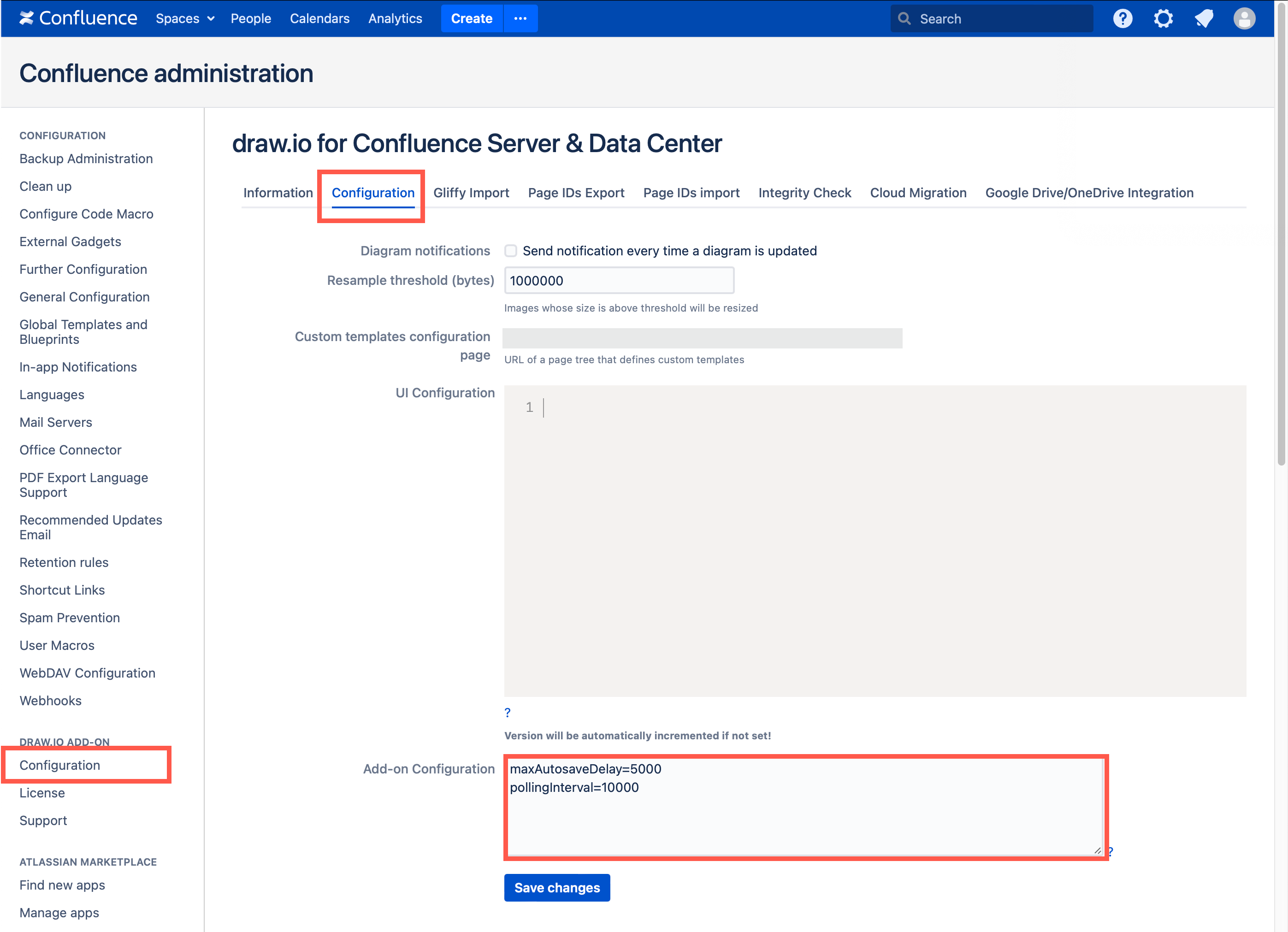
If your Confluence DC users find that changes appear in diagrams they are editing together too slowly, an administrator can increase the polling speed in the draw.io app configuration, by specifying the number of seconds between each poll in the Add-on Configuration field.

Also, you can shorten the time between auto-saving the diagram. A shorter interval will mean more attachment versions of diagrams will be created and added to a Confluence page.

  1. Go to the administration area of your Confluence DC instance.
  2. Go to the Configuration tab in the draw.io Add-on Configuration section.
  3. Add the following lines to the Add-on Configuration text field: pollingInterval=10000 and maxAutosaveDelay=5000
  4. Click Save changes to update the draw.io configuration.
    Set a faster polling interval for collaborative editing in Confluence DC 8.x via the app configuration in your Confluence administration

In the example above, we have set the polling interval to 10 seconds (which is 10,000 milliseconds).

Note: If you collaborate on extremely large and complex diagrams, you may need to set a longer polling interval.

See how to configure the draw.io editor for Confluence DC

draw.io in Confluence DC - full version support and regular updates

· 5 min read
draw.io
draw.io Team

The draw.io app for Confluence Data Center provides you with a secure and fully featured diagramming tool for visual documentation, along with a simpler whiteboard macro that also includes everything you need to draw complex technical diagrams.

Works on all supported DC versions

draw.io works on all supported versions of Confluence Data Center, 7.x and later.

Regular updates are released for all supported DC versions, such as updated technical icon sets (shape libraries), new and improved features, and of course bug fixes and optimisations.
The draw.io desktop app has all the same shape libraries and tools as draw.io in Confluence DC - collaborate securely with your external partners using our offline app

Focused on security

While many organisations have opted to move to Confluence Cloud now that Confluence Server has reached its end of life, you may have found that Confluence Data Center is a better fit for your needs, especially if you are in a regulated industry like finance or healthcare.

draw.io is engineered differently to other diagramming apps - we take data security seriously so you can keep your diagram data secure. We participate in Atlassian's bug bounty program and release regular updates for all supported versions of Data Center.

Secure desktop app for external partners

When you do need to collaborate confidentially with external partners, your partners can edit draw.io diagram files securely with the free draw.io desktop app, which keeps the diagram data isolated on their computer. The desktop app has the same shape libraries, templates, and tools, and is designed to work fully offline on Windows, macOS and Linux.
The draw.io desktop app has all the same shape libraries and tools as draw.io in Confluence DC - collaborate securely with your external partners using our offline app

Technical diagrams plus an online whiteboard

draw.io has a wide range of shape libraries with up-to-date icon sets, and a large collection of templates for many different types of technical diagrams.

Even when using the simple draw.io board macro in Confluence, you have access to all the shape libraries, features, and tools. You can use draw.io in meetings and for brainstorming, as well as to document your complex infrastructures and business procedures in great detail.
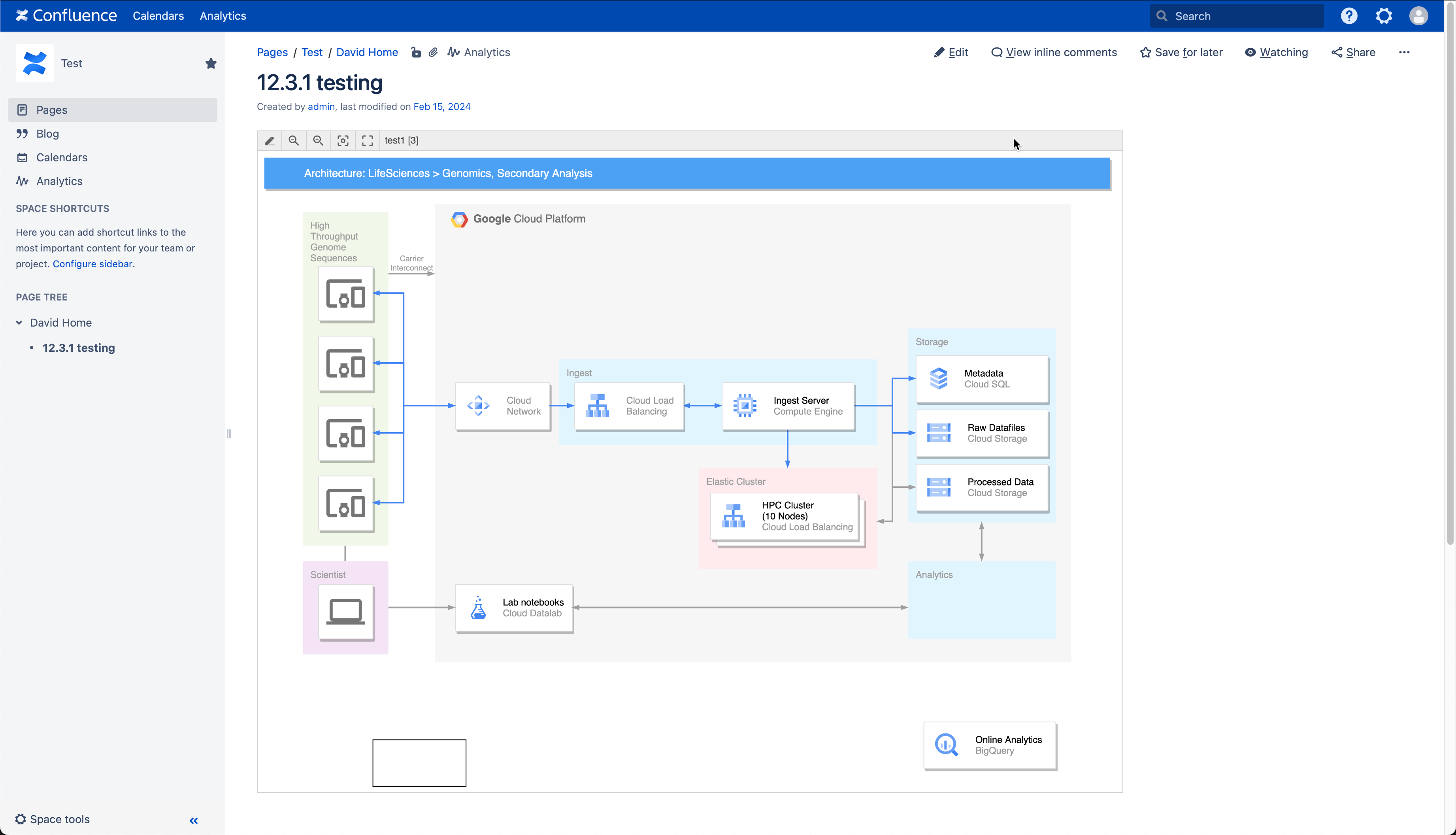
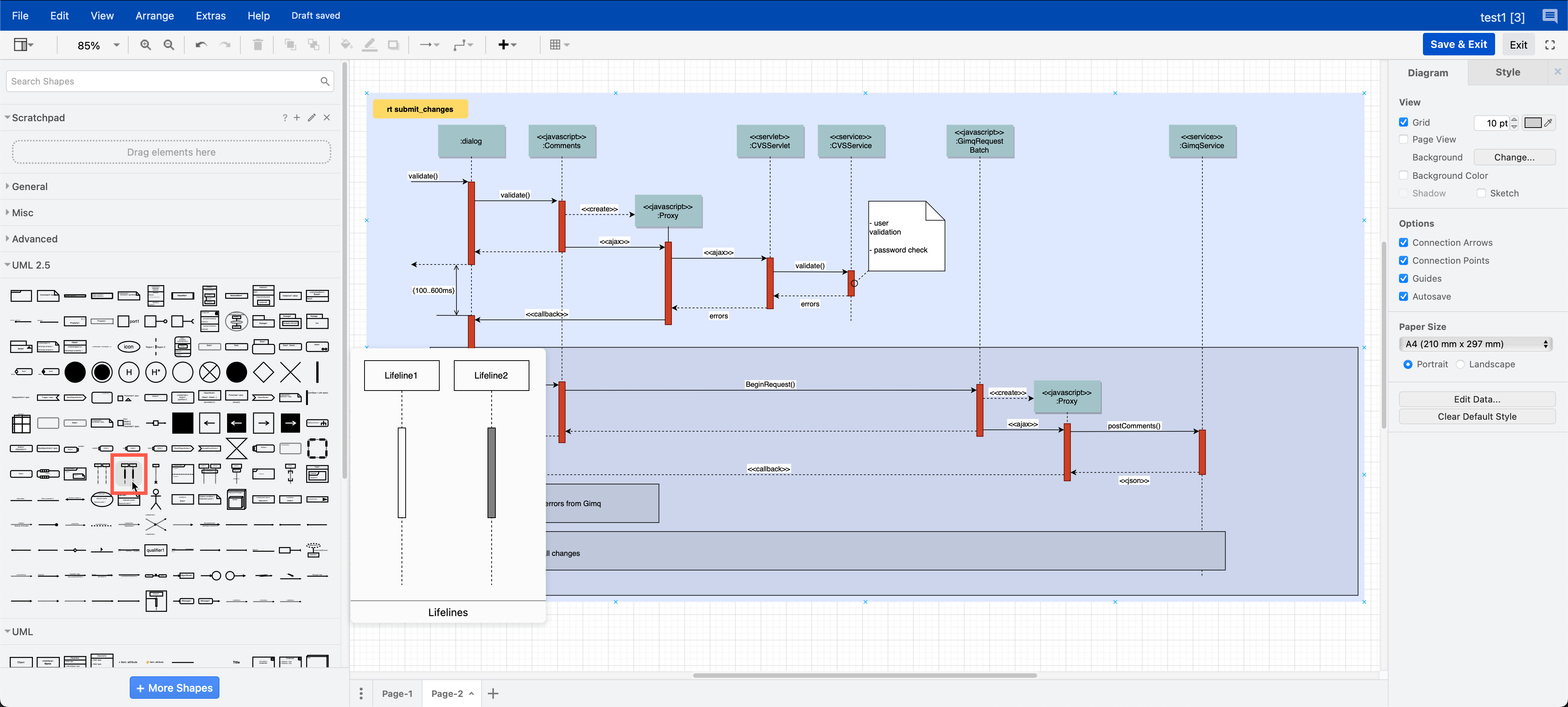
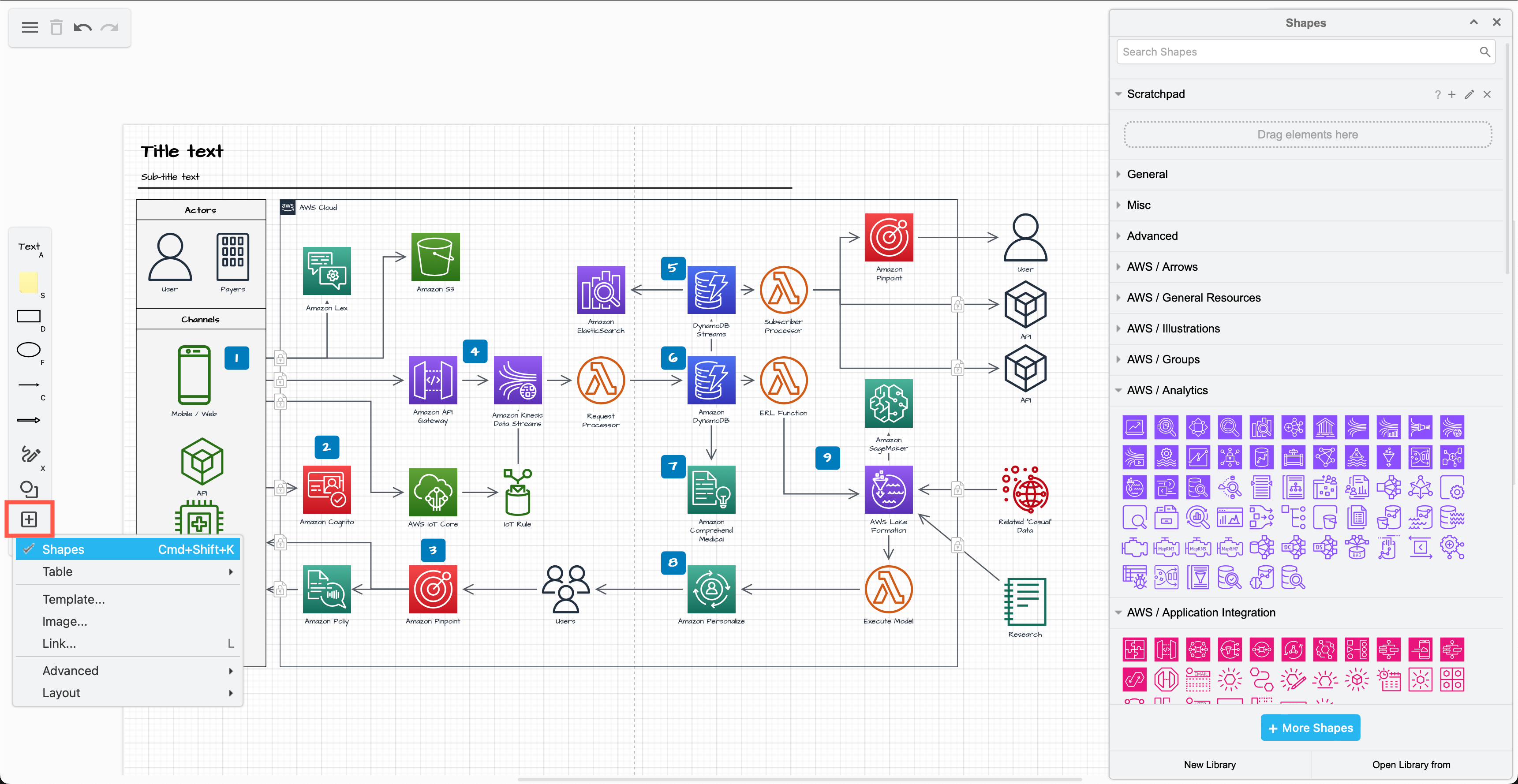
Access all the technical diagramming shape libraries, templates and tools via + in the toolbar in the draw.io macro for Confluence DC

Migration and import tools

If you choose at some point to migrate to Cloud from DC/Server, to maintain diagram links and embedded diagrams we recommend using the PageID export/import method, now that Atlassian supports 'mass permission change'.

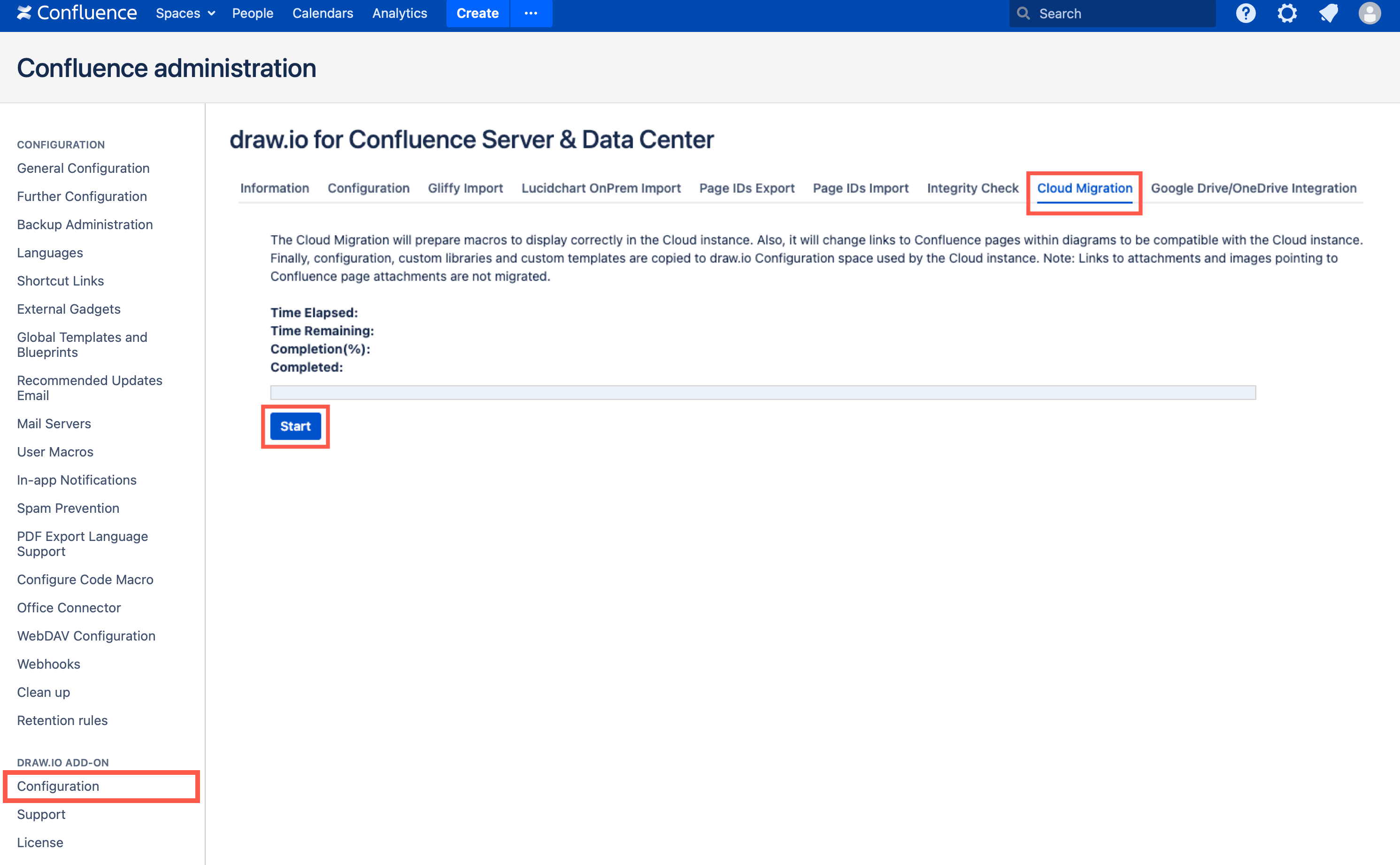
You may find the new draw.io migration tool more convenient to use in your old DC instance, but it may have issues if you rename pages during the migration process.
Start the Confluence DC/Server to Cloud migration preparation for draw.io diagrams in the administration area via draw.io add-on /> Configuration > Cloud Migration

draw.io makes it easy to migrate and import from other diagramming tools in Confluence DC.

Configure the diagram editor and draw.io settings

As an administrator, you can configure the draw.io backend in Confluence Data Center via the app administration and set up custom diagram templates and shape libraries.

If your technical diagramming team always use a set palette of colours or shape styles, you can also configure this for everyone in your instance.
Configure default colours and styles in the draw.io configuration in Confluence Data Center for all users in your instance

draw.io automatically applies your Jira Cloud theme to diagram thumbnails

· 4 min read
draw.io
draw.io Team

Atlassian has just released a dark theme for Jira Cloud for users who don't like working on light backgrounds. With Jira's new dark theme, draw.io diagram thumbnails in a Jira issue now automatically reflect your selected theme.
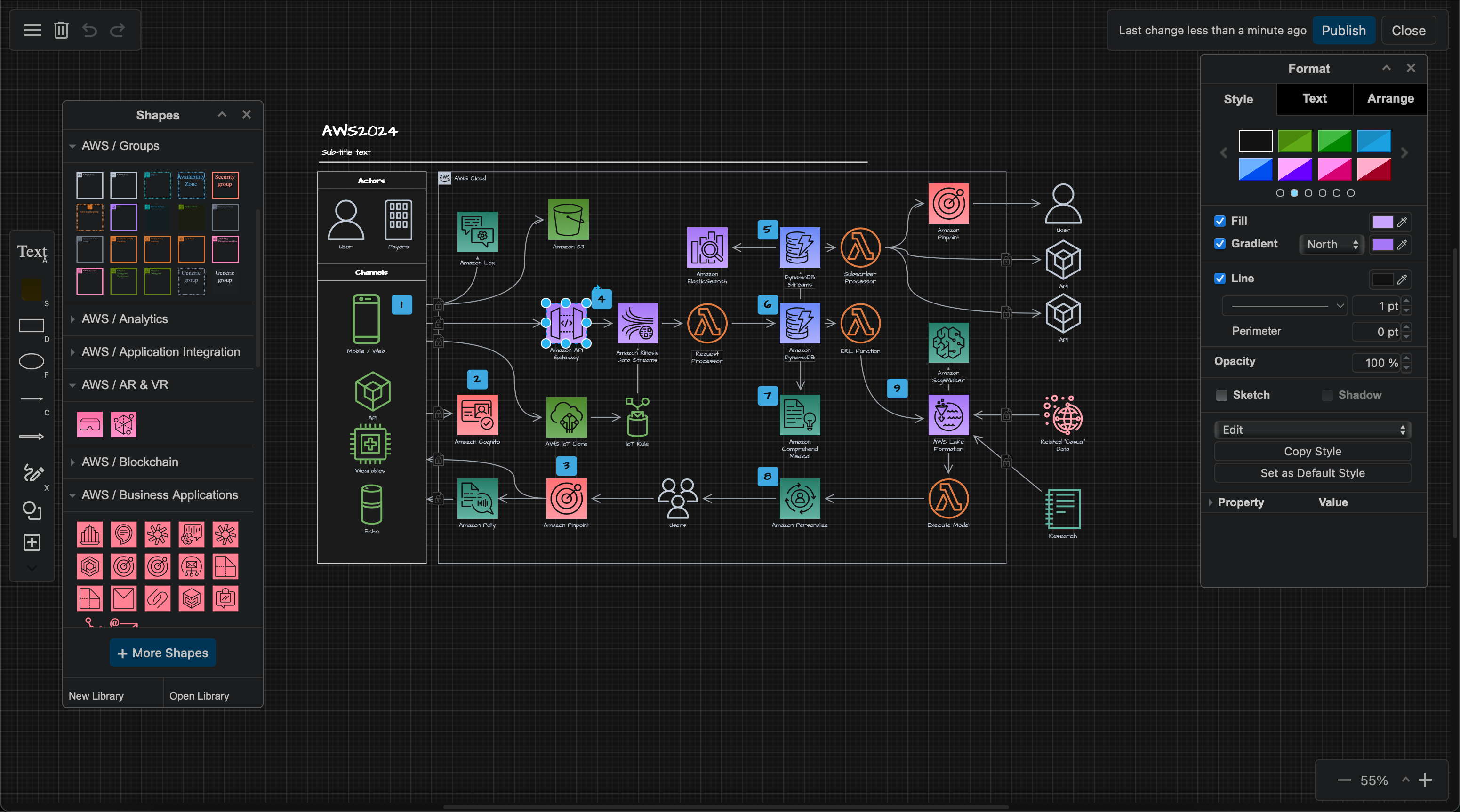
draw.io automatically changes the colours in your diagrams to match your Jira Cloud dark or light theme

draw.io has had a dark mode for some time, but diagrams attached to Jira issues displayed on a light background, whether or not you were using the dark mode in the draw.io editor.

Learn more about diagramming with draw.io in Jira

Diagrams on dark backgrounds

draw.io makes an intelligent guess about text and shape fill colours to keep your diagrams readable when you switch between dark and light.

As your team members can use their preferred dark or light theme, and the diagram thumbnail will match their theme, it's best to double check that your diagram is easy to read in both dark and light mode.

  1. Click on the Edit pencil in the toolbar when you hover over diagram thumbnail in a Jira issue to edit it with draw.io. If you don't see this section, click on the draw.io section at the top.
    Click on the edit button when hovering over a diagram in a Jira issue to open it in draw.io
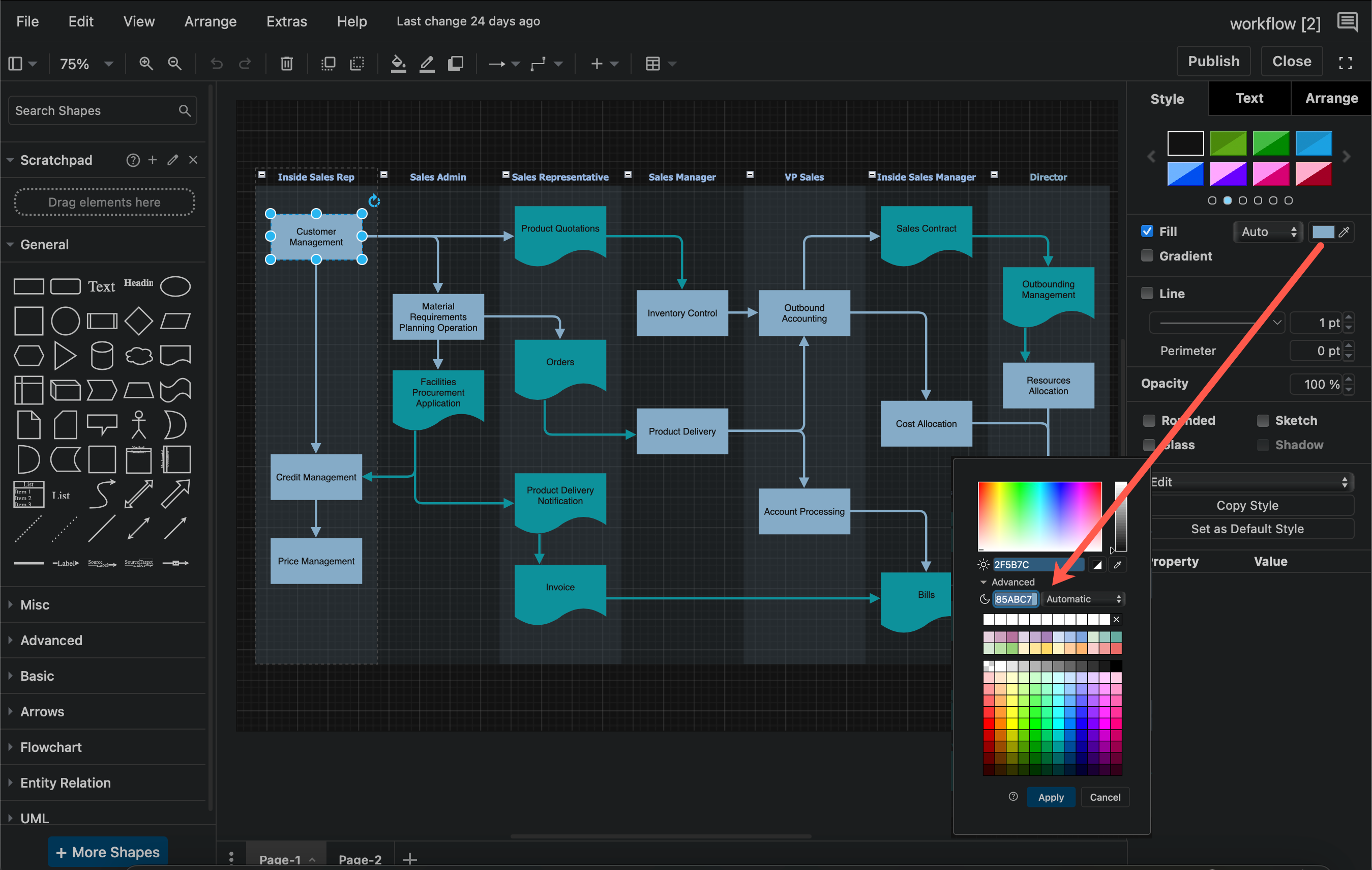
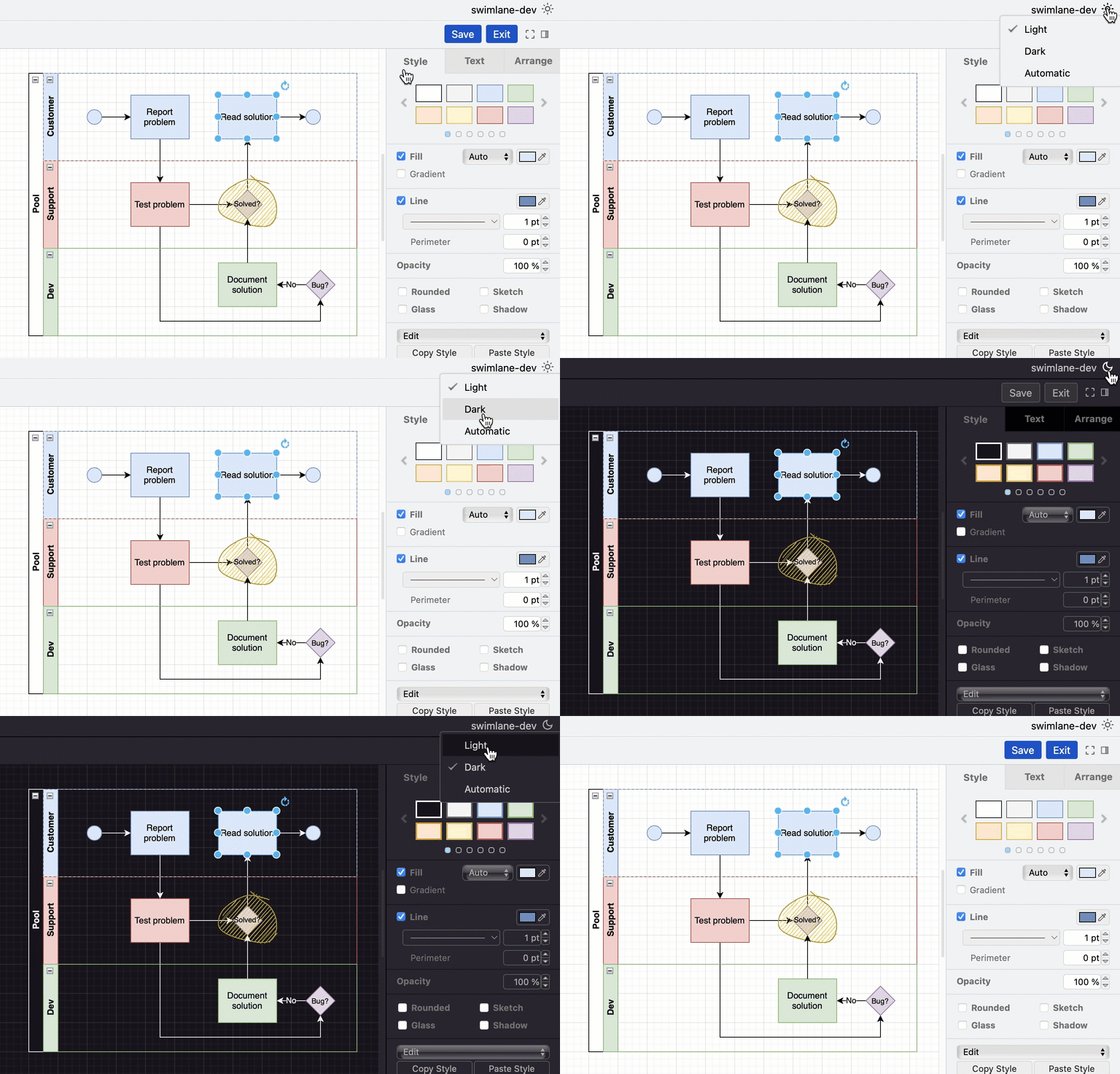
  2. Click on the sun or moon in the top right to switch to the opposite theme - either Dark or Light_ - and check that your diagram is still readable on that background.
    Click on the sun or moon in the top right of the draw.io editor to change the editor mode to dark or light

Choose Automatic to make the draw.io editor automatically match your operating system's mode (dark mode or light mode).

Note: Switching to dark or light mode in the draw.io editor will not affect the thumbnail on the Jira issue - whether it appears on a dark or light background is based on the Jira theme that the user looking at the issue has chosen.

To use draw.io in dark mode on the web, go to app.diagrams.net/?splash=0&ui=dark, or switch modes via the sun/moon icon in the top right or via the draw.io menu.

Set specific colours in a diagram

Colours in certain types of diagrams may have specific meanings - if you change their colours when adapting to dark mode, the diagram might not make sense.

If you want your diagram to only ever be on a dark or a light background and not automatically adapt colours to match the user's Jira Cloud theme, you'll need to set a background colour, as well as a specific colours for both light and dark modes on the shapes, connectors and text in your diagram.

  1. Open the diagram from the Jira issue in the draw.io editor.
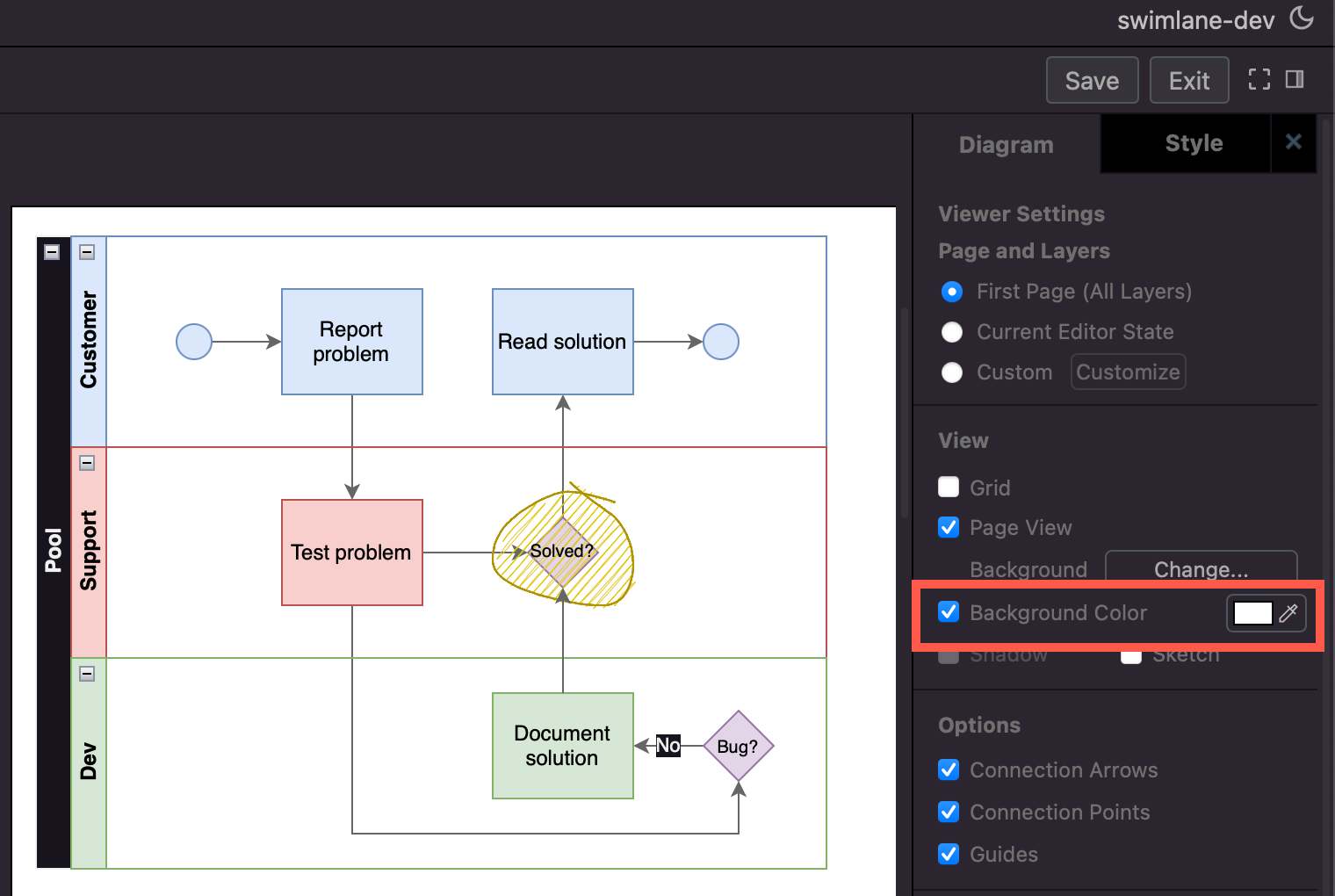
  2. Make sure nothing is selected in your diagram, then enable the Background checkbox in the Diagram tab in the format panel.
  3. Click on the colour button, select a colour from the palette or enter a colour code, and click Apply. Open the Advanced drop down and set the same colour as the dark mode background colour.
    Adding a diagram background ensures your diagram looks the same in both Jira's light and dark themes
  4. Style the shapes and connectors via the Fill and Line colours in the Style tab. Make sure you set both the light colour at the top, and the dark mode colour (under Advanced). Style all text labels via the Text tab.

Now, your diagram will use your defined colours in both dark and light mode.
Adding a diagram background ensures your diagram looks the same in both Jira's light and dark themes

Keep a draw.io diagram out of the recent diagrams list and search results with a sensitive label

· 3 min read
draw.io
draw.io Team

When you apply a sensitive label to a draw.io diagram in Confluence Server/Data Center, it will not be listed as a recent diagram or in the diagram search results when creating a new diagram or embedding a diagram.

Note: This is a new feature for draw.io in Confluence Server/Data Center version 8.x. It is not yet available in draw.io for earlier versions of Confluence Server/Data Center or in Confluence Cloud.

Why is this useful?

Use the sensitive label to ensure that draft diagrams are not copied or embedded until they are finalised or approved, and the label on the diagram file attachment is removed.

Mark a new diagram as sensitive

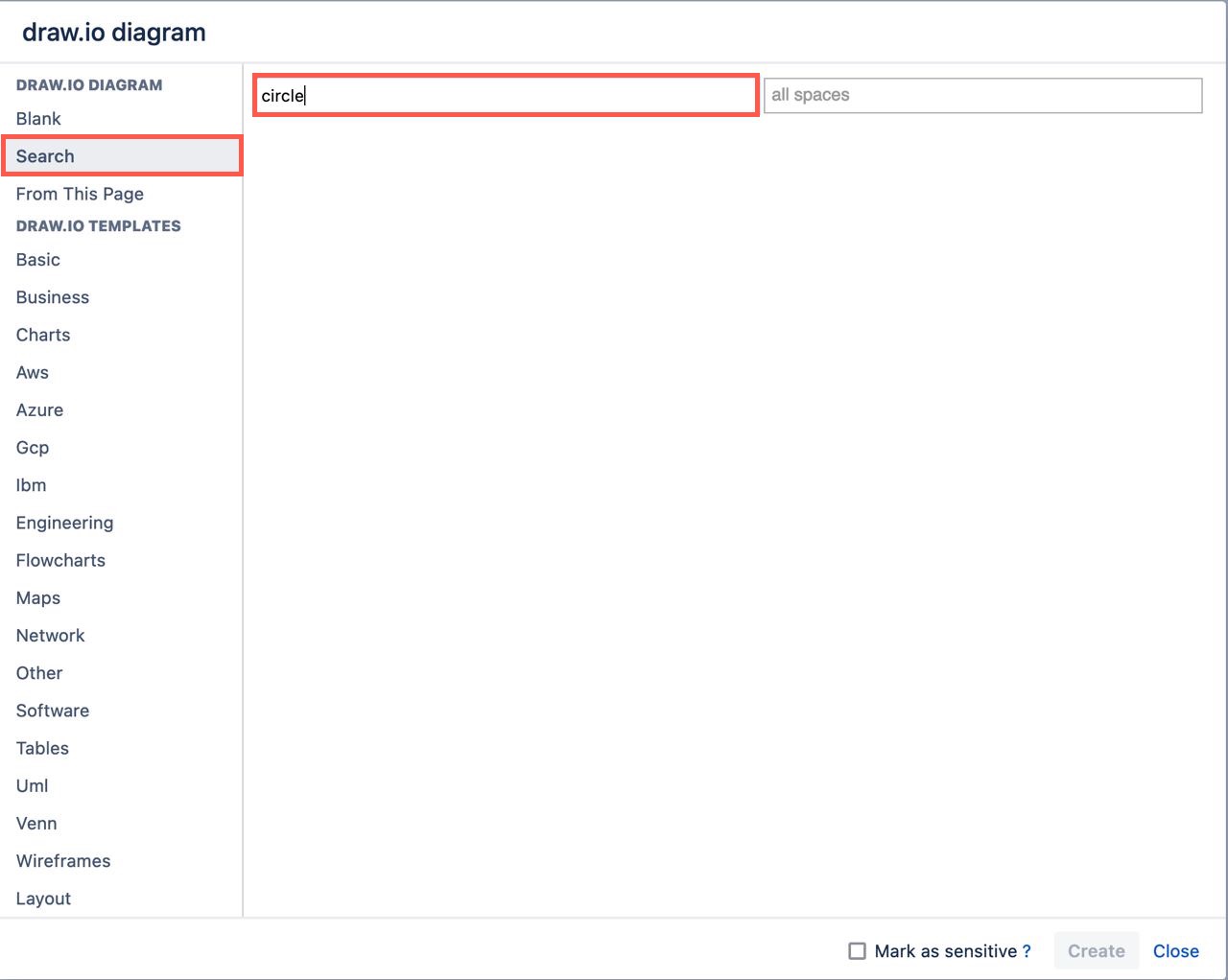
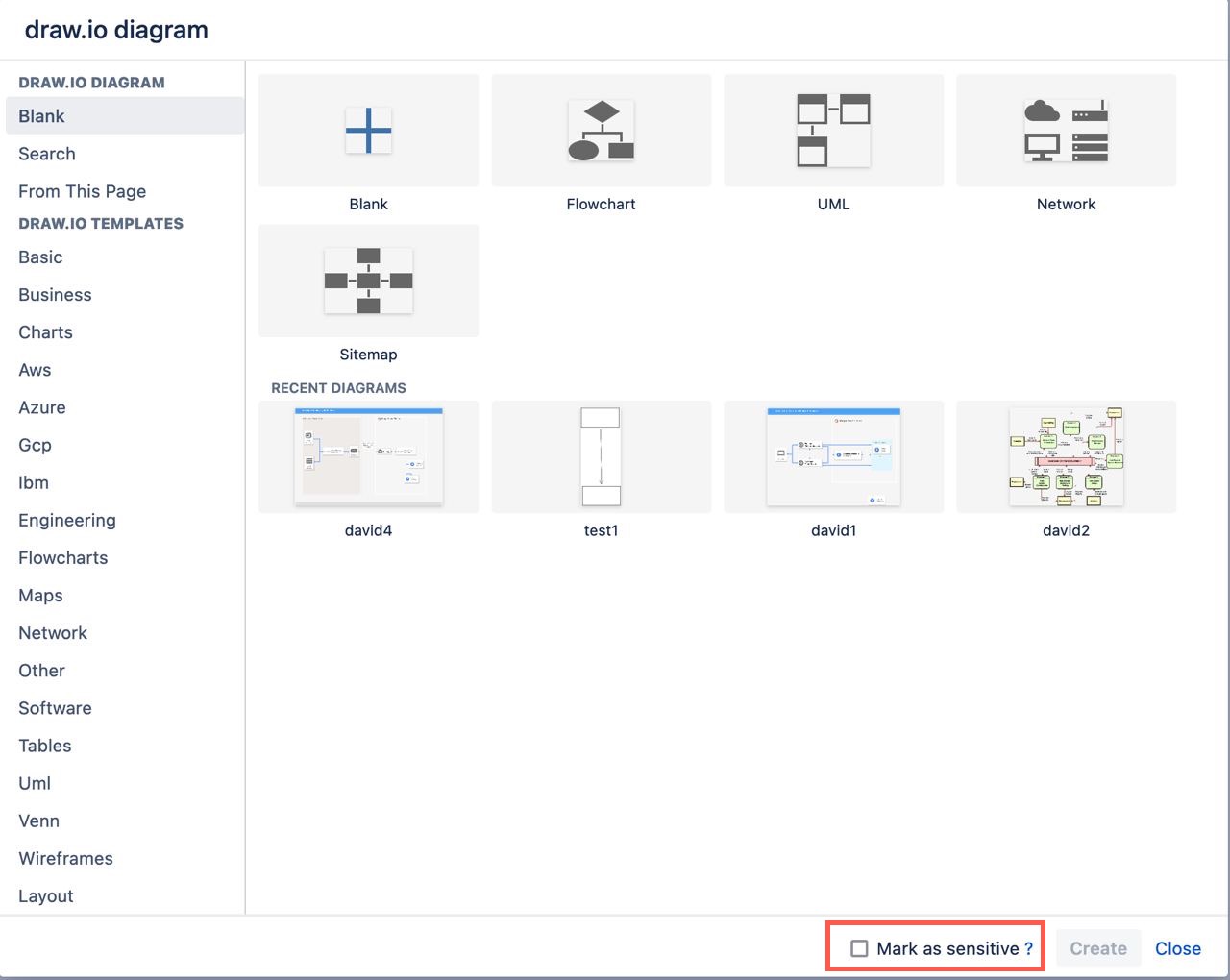
At the bottom of the new diagram dialog, enable the Mark as sensitive checkbox.
Mark a new diagram as sensitive when you create it to hide it from the recent diagrams list and search results

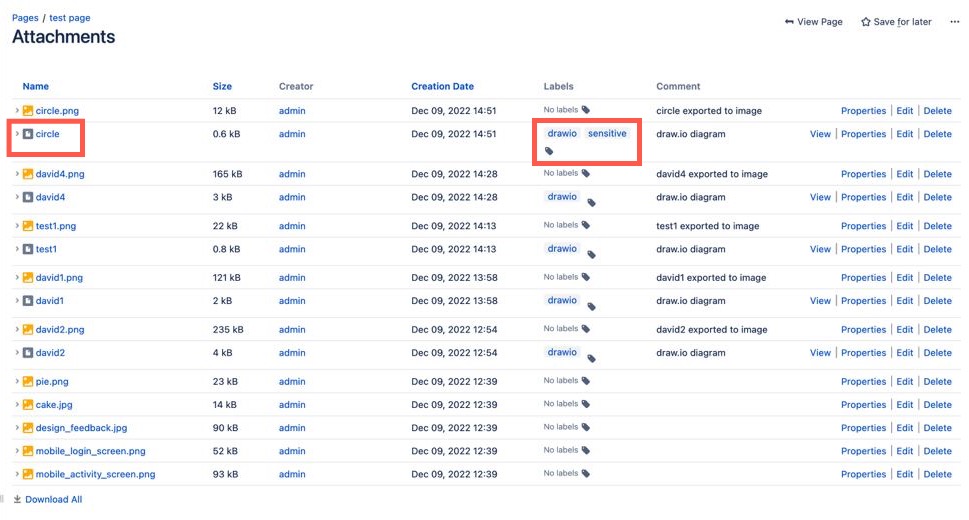
For example, the circle diagram on this page was marked as sensitive. You can see this via the labels in the page attachments list.
Confluence page attachments where the circle diagram file has two labels - drawio and sensitive

Now when you create a new diagram or embed an existing diagram, you won't see this sensitive diagram in the recent diagram list. It will also not be shown when you search for the diagram's filename.
Diagram files that have the sensitive label will not be shown in the search results, even when you search for their exact filename

Add a sensitive label to an existing diagram

All draw.io diagram attachments on a Confluence page are given the drawio label by default. You can add a sensitive label to an existing diagram via the Confluence Server/Data Center page attachments.

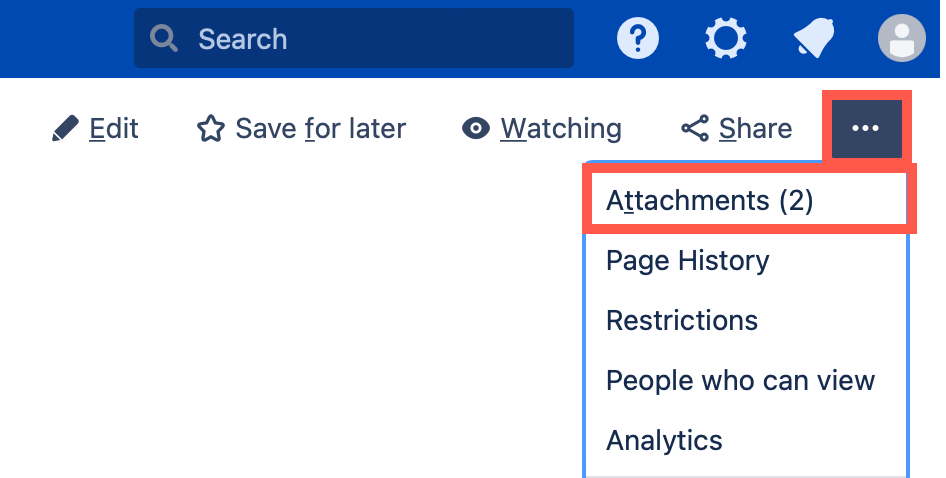
  1. On the page that contains the diagram file, click on the three dots to open the menu and select Attachments.
    Open the page attachments on a Confluence Server/Data Center page to see all the diagram files attached to that page
  2. Find the name of the diagram file you want to mark, click on the label icon next to the existing drawio label.
    Click on the label icon next to the diagram file you want to mark as sensitive on the Confluence Server/Data Center page
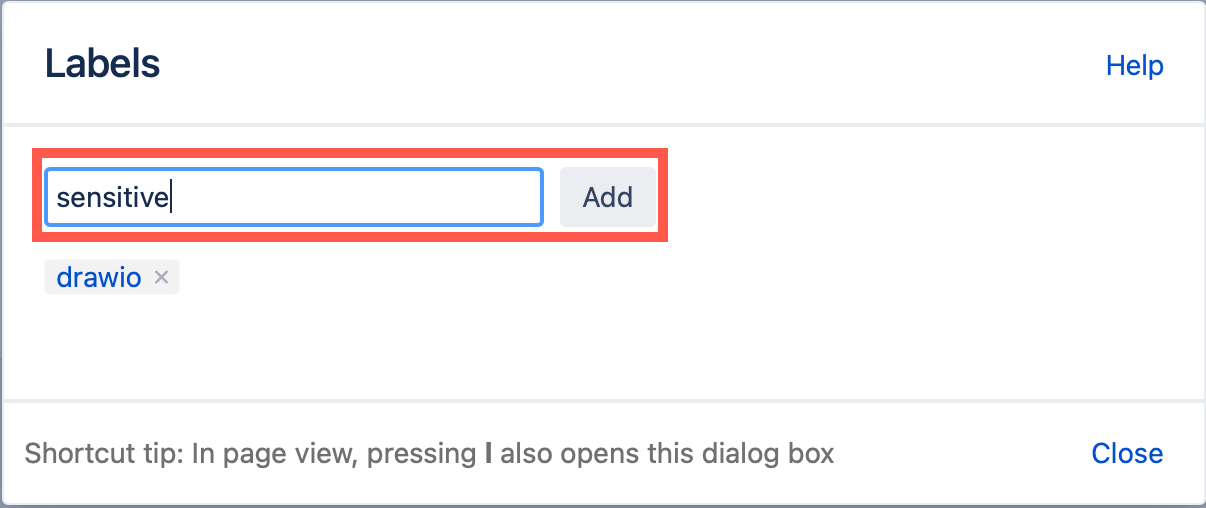
  3. Type sensitive and click Add, then click Close.
    Type the new label 'sensitive' in the text box and click Add to add the new label to that attachment on the Confluence Server/Data Center page

Remove the sensitive label from a diagram

  1. Open the page attachments in the same way as above.
  2. Find the name of the diagram file, and click on its label icon.
  3. Click on the little cross next that is on the sensitive label to delete it.

Gliffy vs draw.io - concurrent editing

· 4 min read
draw.io
draw.io Team

TL;DR : Gliffy on Confluence Cloud saves with last write wins, you lose data concurrently editing. draw.io supports real-time collaborative editing with shared cursors.

Gliffy vs draw.io for Confluence

When comparing diagramming apps, you'll see lists of standard Confluence-supported features - sharing, import and export, search, version history, customisation, security - and, of course, pricing.

Unlike Gliffy, draw.io has concurrent diagram editing. All team members' changes are merged and synchronised - visible to each other in the diagram editor.

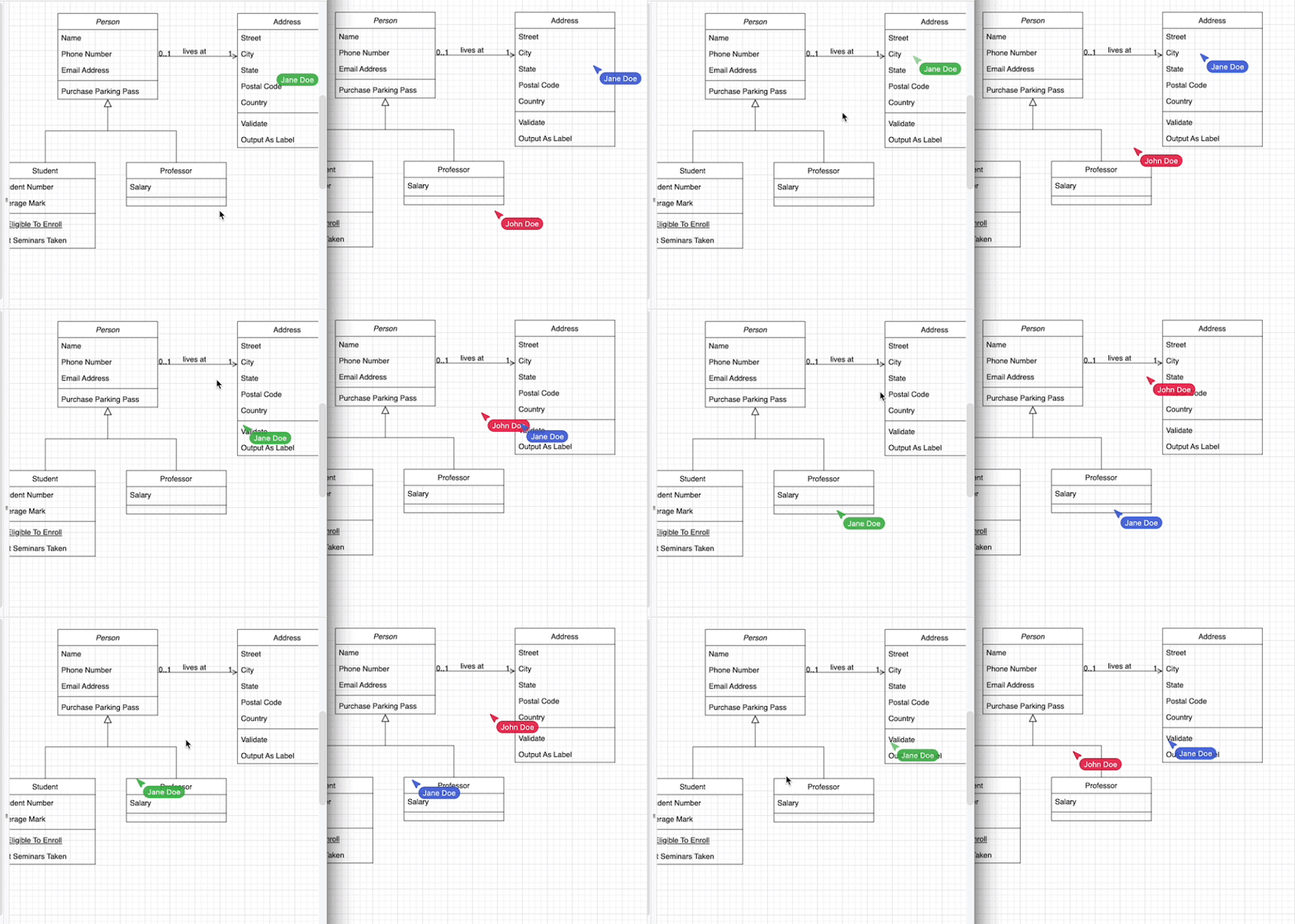
When you choose to show your cursor, your team will see where you move your mouse and what you select, all in real-time.

Shared cursors mean better collaboration in draw.io for Confluence

Each person who is editing a draw.io diagram in Confluence is assigned a colour. Cursors are shared by default - you'll see everyone's name with their mouse pointer as they move around and edit the diagram.
Share your mouse cursor with others who are editing the same draw.io diagram in Confluence Cloud

Additionally, when you select a shape everyone else will see it highlighted in your colour.

Don't lose diagram data - use draw.io

More importantly than seeing a mouse cursor in real time, you don't want to lose any changes as you collaboratively edit a diagram.

That's why draw.io merges and synchronises the changes while you are editing. You don't even have to publish the diagram to Confluence to see everyone's changes in the editor - draw.io saves and synchronises automatically.
When multiple people edit draw.io diagrams in Confluence, share cursors to see their mouse movements and selection. As changes as they are made, they are saved and synchronised to your editor.
Recorded using two different devices, both editing the same draw.io diagram file in Confluence Cloud. Changes are constantly merged and the draw.io diagram is updated in the editor in real time.

Now, let's contrast the collaborative editing process in draw.io the animation above with editing a diagram in Gliffy.

Gliffy vs draw.io - when a team edits a diagram

The following example shows that you can't see the changes made by others while editing the same Gliffy diagram in Confluence, and that Gliffy follows a last-write-wins approach.

1: Person A adds a shape and publishes the edited Gliffy diagram, then returns to Confluence to view it.
2: Person B was already editing the Gliffy diagram file, so doesn't see the added shape, or that any changes were made by another person.
3: Person B deletes an existing shape and publishes their version, returning to Confluence to view it.
4: Because Person B's Gliffy diagram was the last to be published, it overwrites and ignores the changes made by Person A.

Recorded using two browser windows, both editing the same Gliffy diagram file in a Confluence Cloud instance

Person A must now manually refresh their browser tab to see the updated Gliffy diagram. Only then will they see that their changes have been overwritten by Person B.

Person B remains unaware that another person had edited the Gliffy diagram.

Use draw.io to avoid this problem - share your cursor and let others see you collaboratively edit a diagram in Confluence.

Diagramming in a free Confluence Cloud instance

· 7 min read
draw.io
draw.io Team

draw.io and the draw.io branded Atlassian integrations are the leading solution for web based sketching and diagramming functionality. The article describes the draw.io integration for Confluence that we, draw.io Ltd., build, deliver and maintain alongside the online version of our editor at app.diagrams.net, our draw.io desktop application.

Confluence Cloud is a popular tool for team productivity suitable for both small and large organisations. Atlassian provides customers with free instances, as long as the instance has ten users or fewer, and you can diagram in these instances with our draw.io Confluence Cloud integration.

Diagram freely

With the draw.io app installed in your free Confluence Cloud instance, you and your small team can draw a wide range of diagrams:

The draw.io diagram editor is easy to use and powerful. The draw.io app in Confluence Cloud is also secure and private - Your data stays in the browser while you are editing a diagram and is stored only in your Confluence Cloud instance when you use the draw.io app.

  • Attach unlimited diagrams to pages with the draw.io macros.
  • Use and connect shapes from an extensive collection of shape libraries.
  • Style shapes, connectors and text labels.
  • Draw freehand shapes and create custom shapes.
  • Use a template from the template library to start diagramming quickly.
  • Switch to various editor styles, including a simpler draw.io Board macro, ideal for brainstorming.
    Use the freehand drawing tool in a draw.io Board diagram to markup diagrams or draw shapes with your mouse

Install draw.io in a free Confluence Cloud instance

  1. Set up a new Confluence Cloud instance, choosing the Free tier of up to 10 users on Atlassian's Confluence Cloud pricing page.
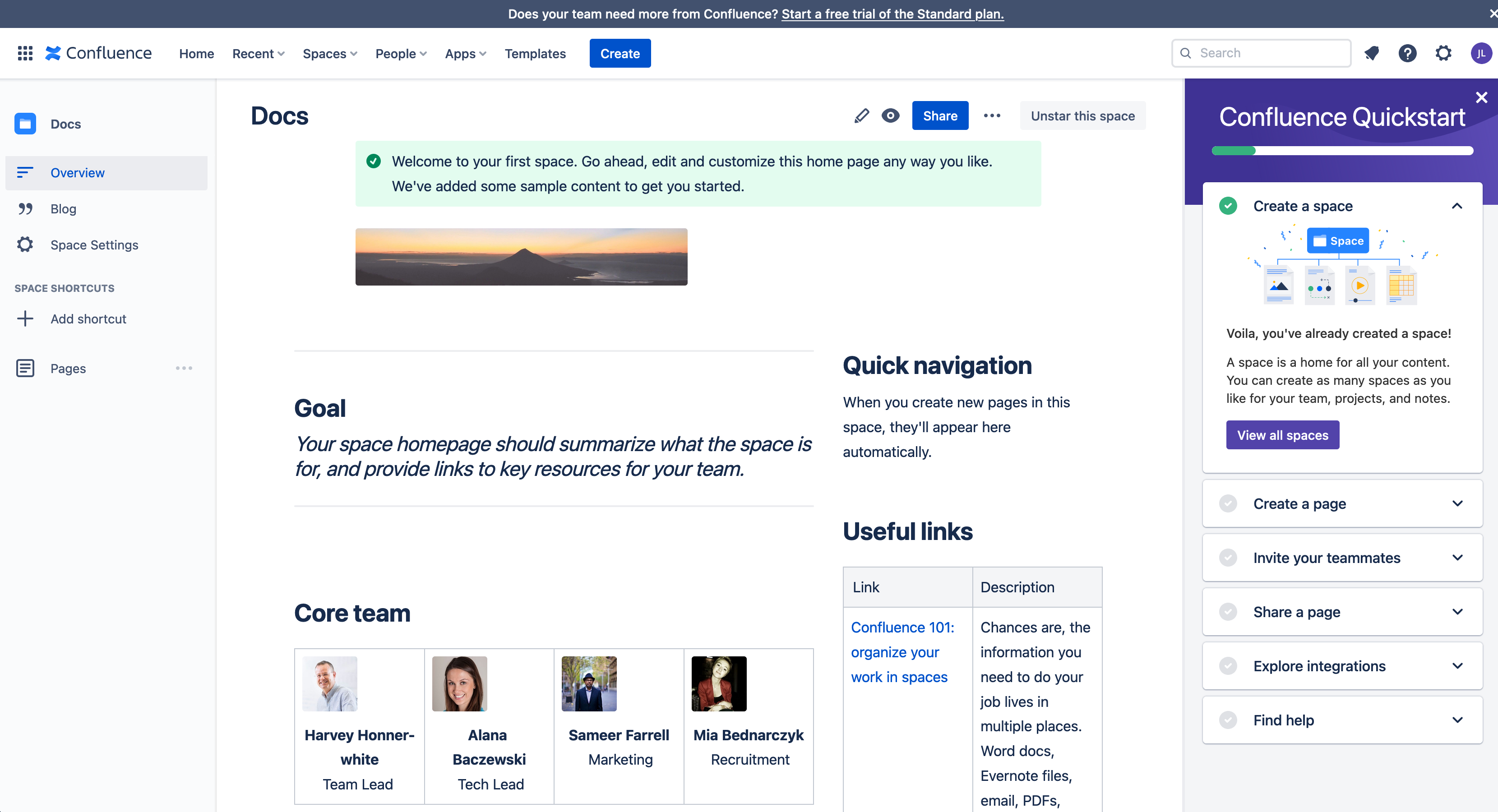
  2. Step through the installation and setup until you see the space landing page and Confluence Quickstart tutorial.
    Confluence Cloud will step you through the setup of a new instance and space

Install the draw.io app for Confluence Cloud
  1. Click on the gear icon in the top right, next to your user initials to open the Confluence Cloud administration settings.
  2. Under the Atlassian Marketplace section, click on Find new apps. Search for draw.io and click on it to see details about the draw.io app for Confluence Cloud.
    Alternatively, go to the draw.io app on the Atlassian Marketplace website.
    Install the draw.io app in your Confluence Cloud instance
  3. Install the draw.io app in your Confluence Cloud instance. Note: If you have a team of users larger than 10, start a free trial - when the license expires, you'll still be able to create all types of diagrams, but some advanced features are limited to the licensed version in larger Confluence Cloud instances.

draw.io as an online whiteboard

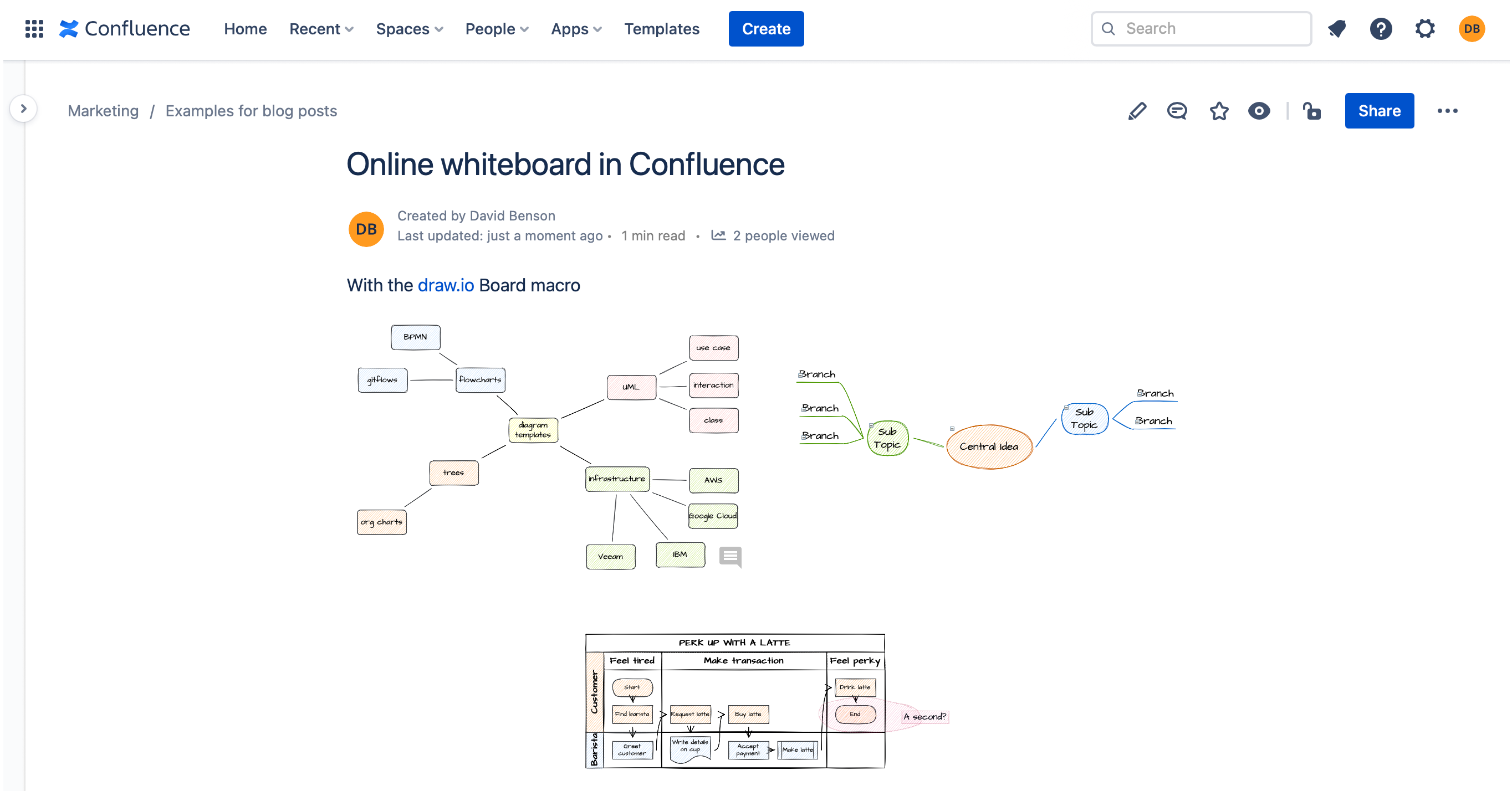
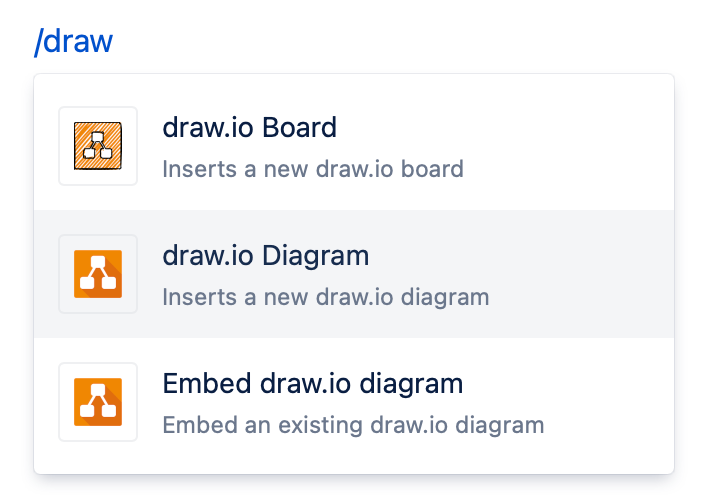
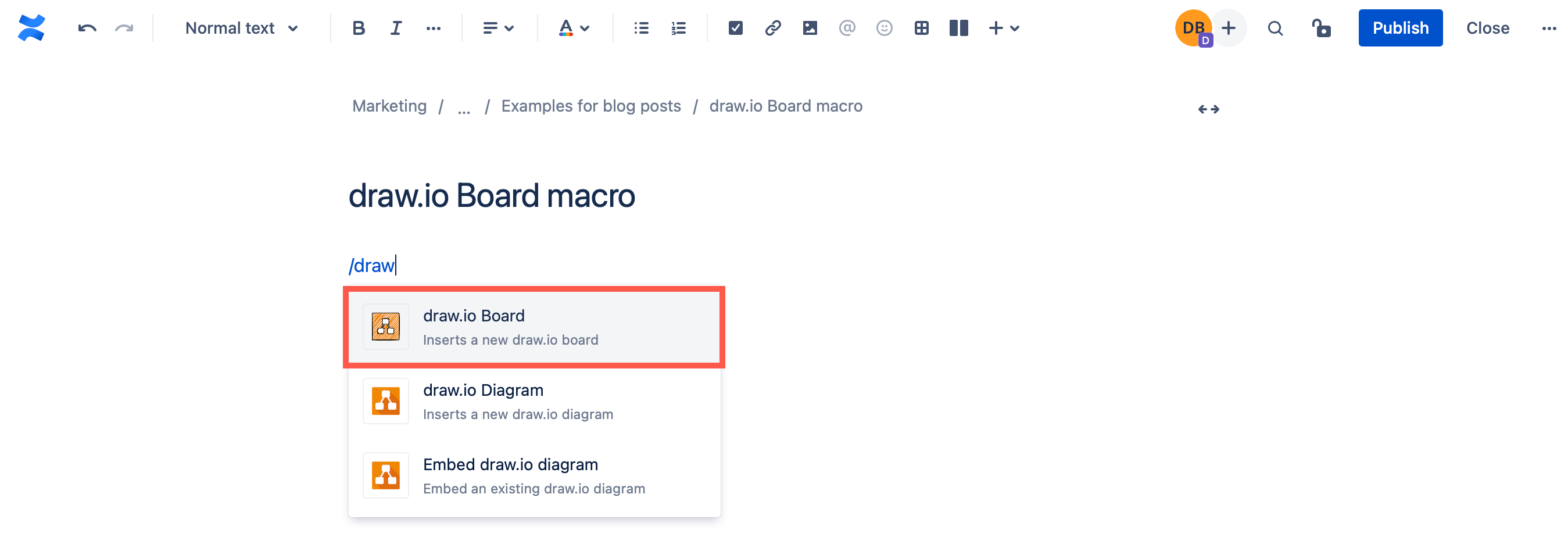
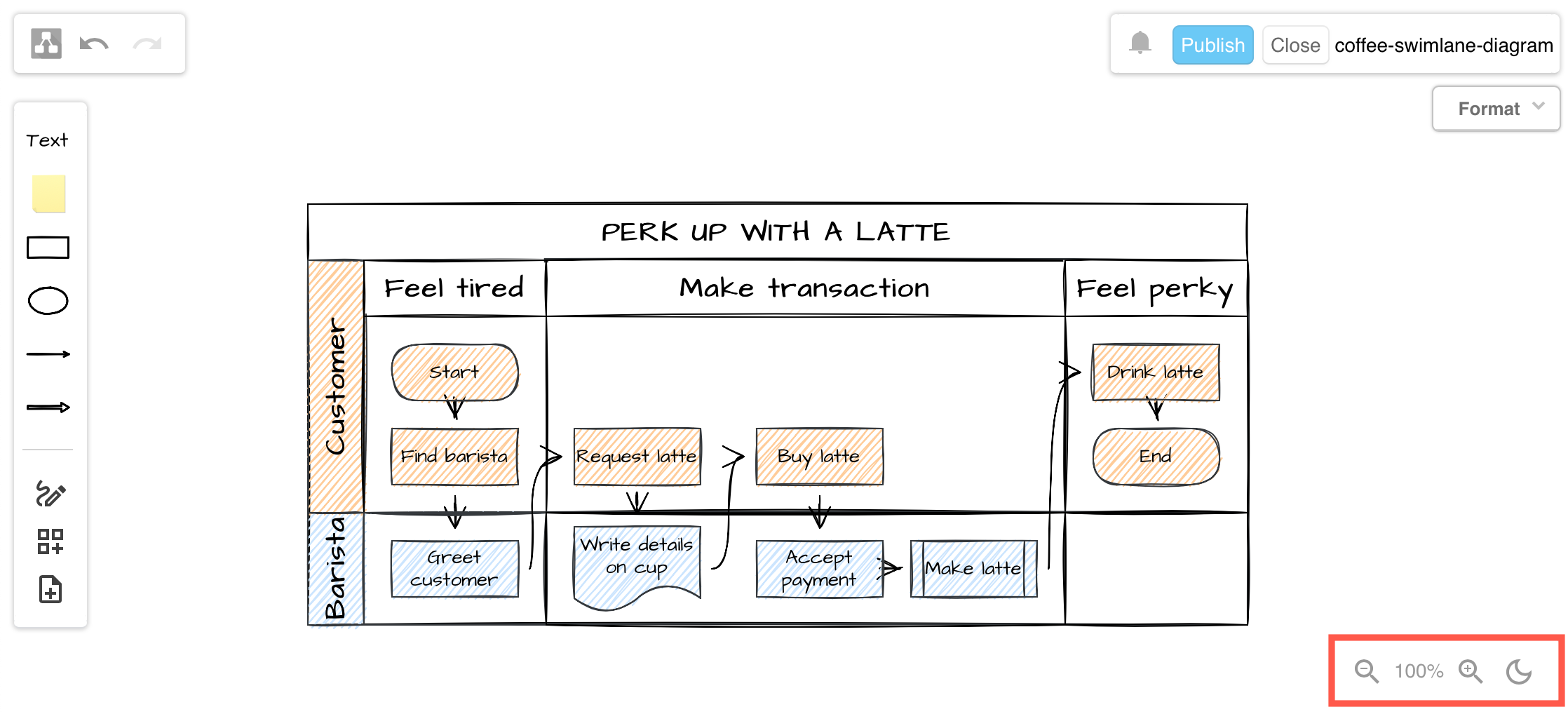
  1. Edit a Confluence page, type /draw.io and insert the draw.io Board macro. The simple whiteboard-like editor will open.
  2. Save your diagram and page so that your remote team members can collaborate on the draw.io Board drawing with you.

Learn more about using draw.io as an online whiteboard in Confluence
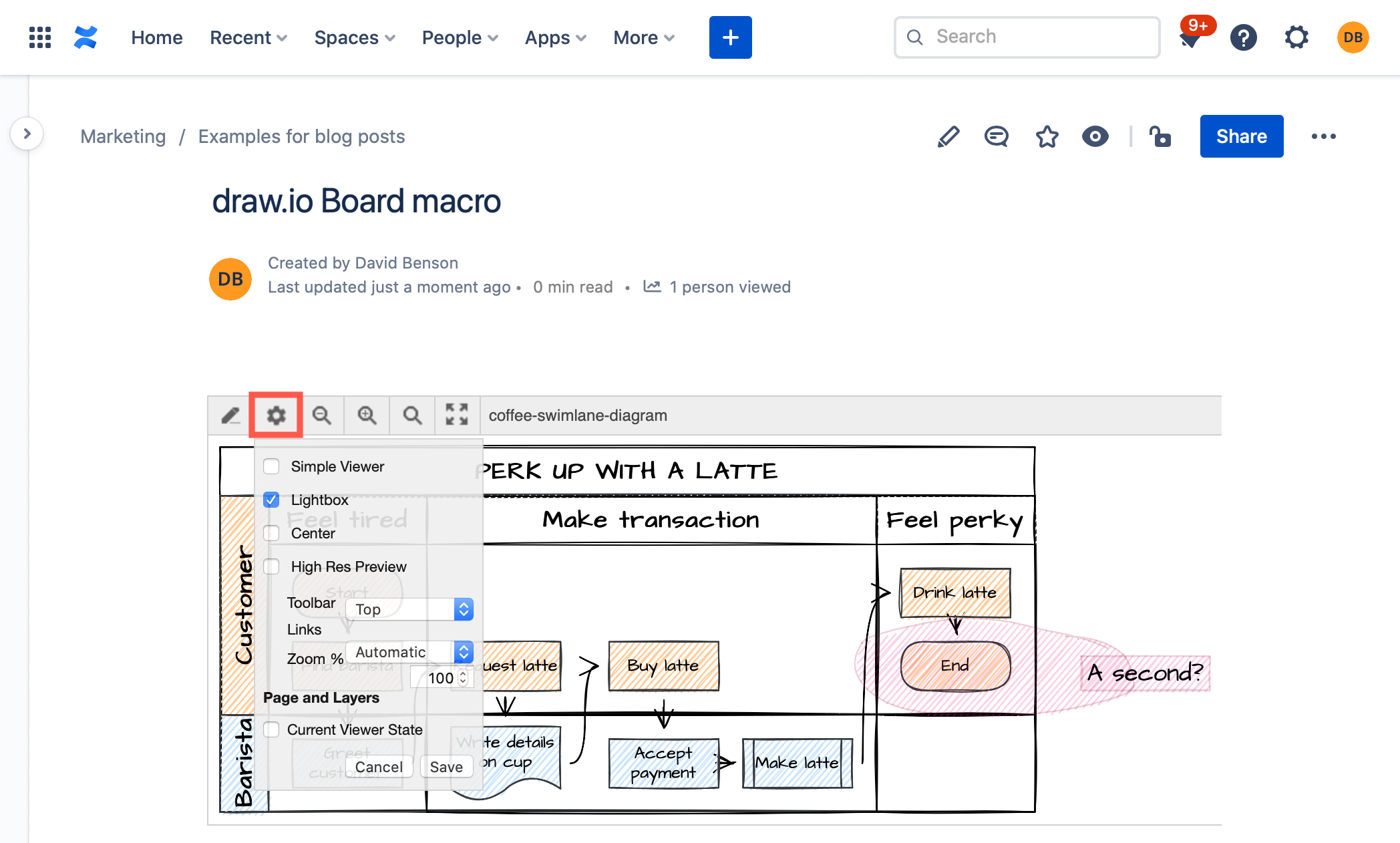
With the draw.io Board macro, you have a fully featured online whiteboard inside Confluence Cloud

Learn the draw.io diagram editor

  1. Edit a Confluence page, then type /draw.io and insert the draw.io Diagram macro. This will open the draw.io editor.
    Add the draw.io Diagram macro to insert a diagram into Confluence Cloud
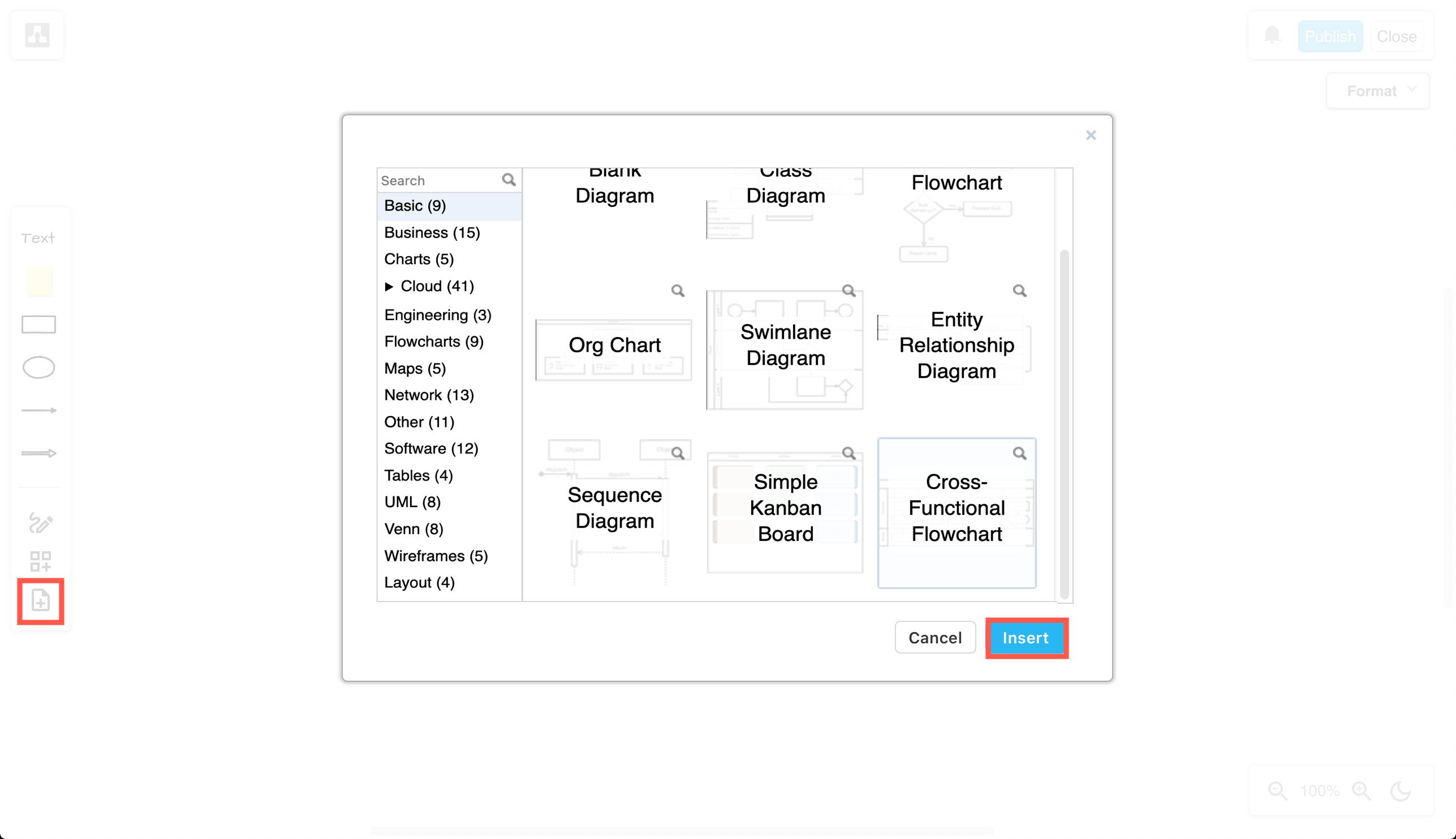
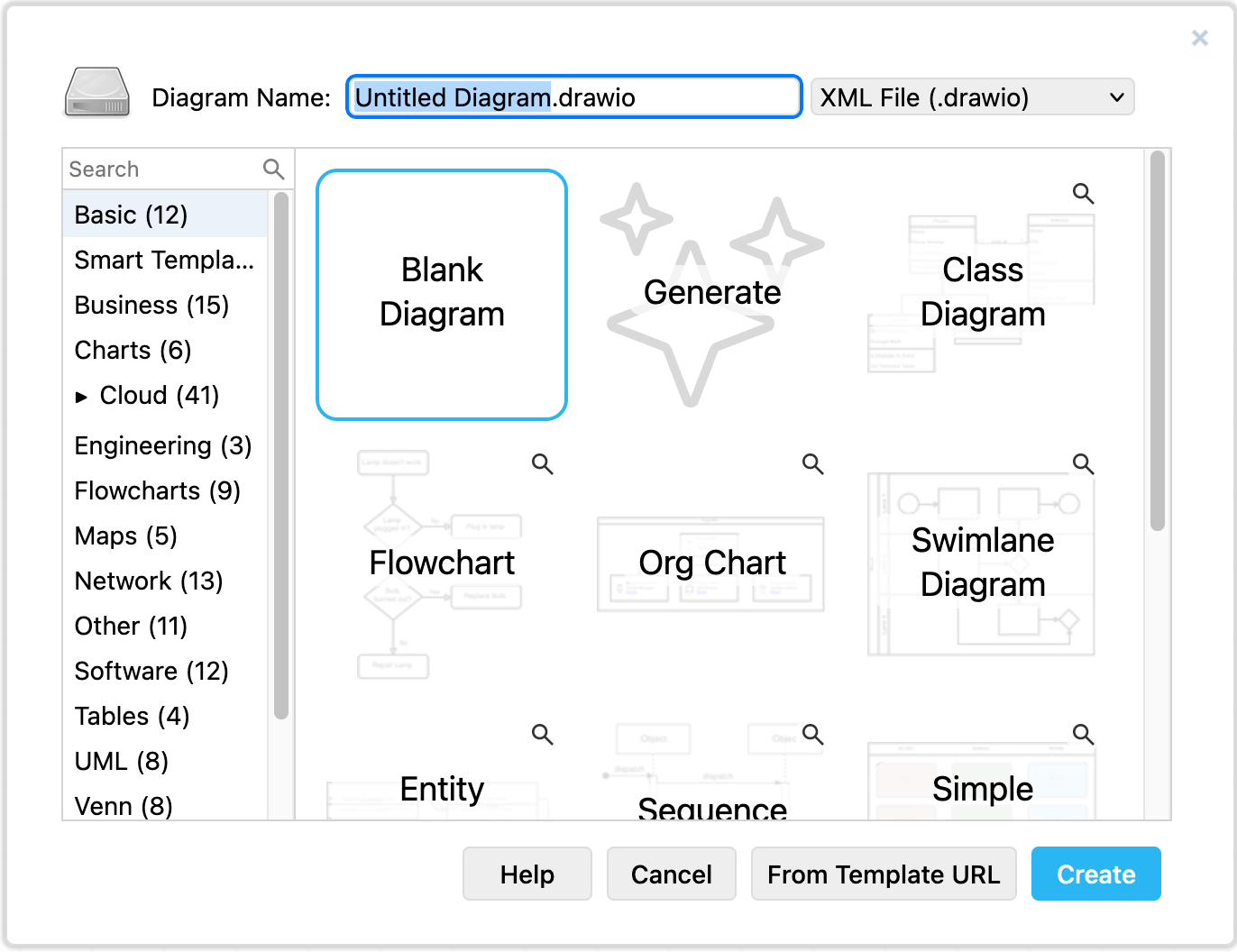
  2. Select the Blank Diagram template, enter a filename for your diagram, and click Create.
    Choose a diagram template when you create a new diagram in draw.io
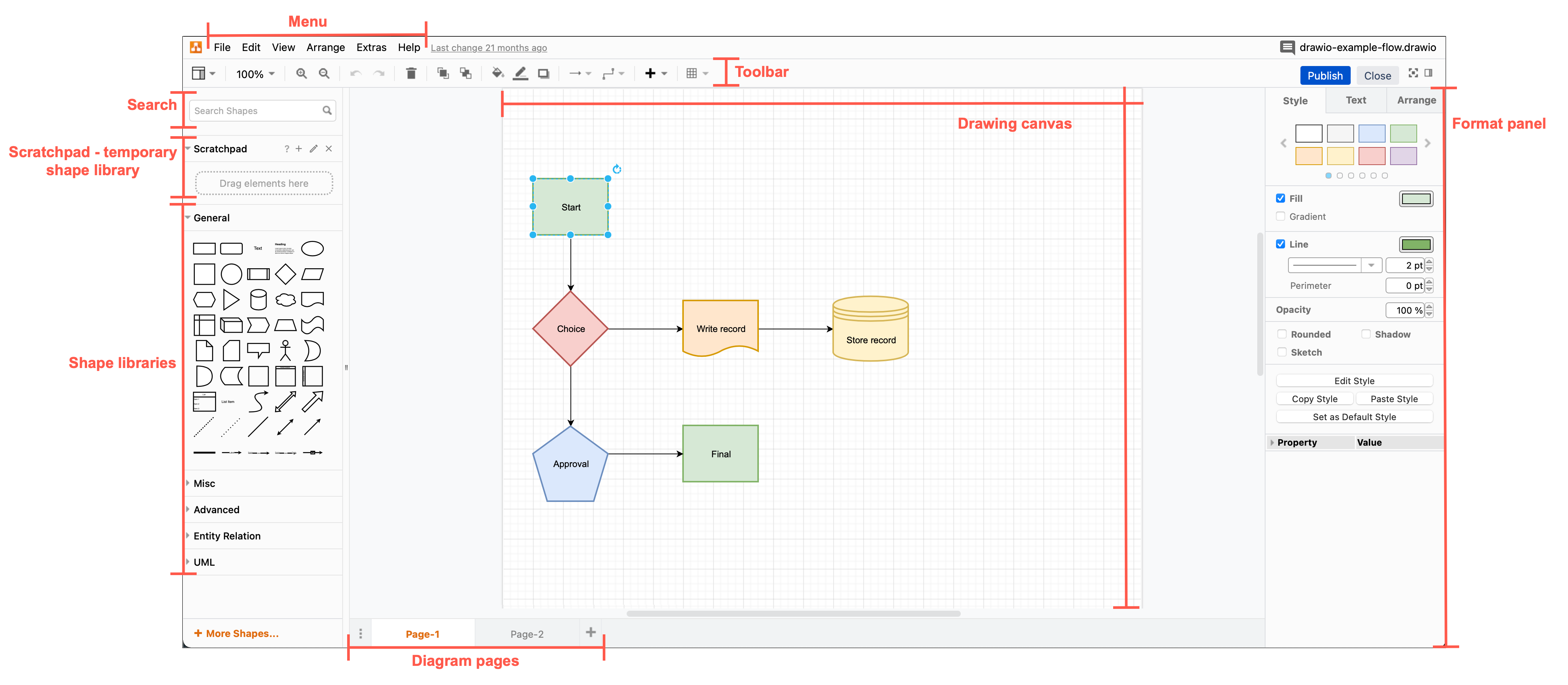
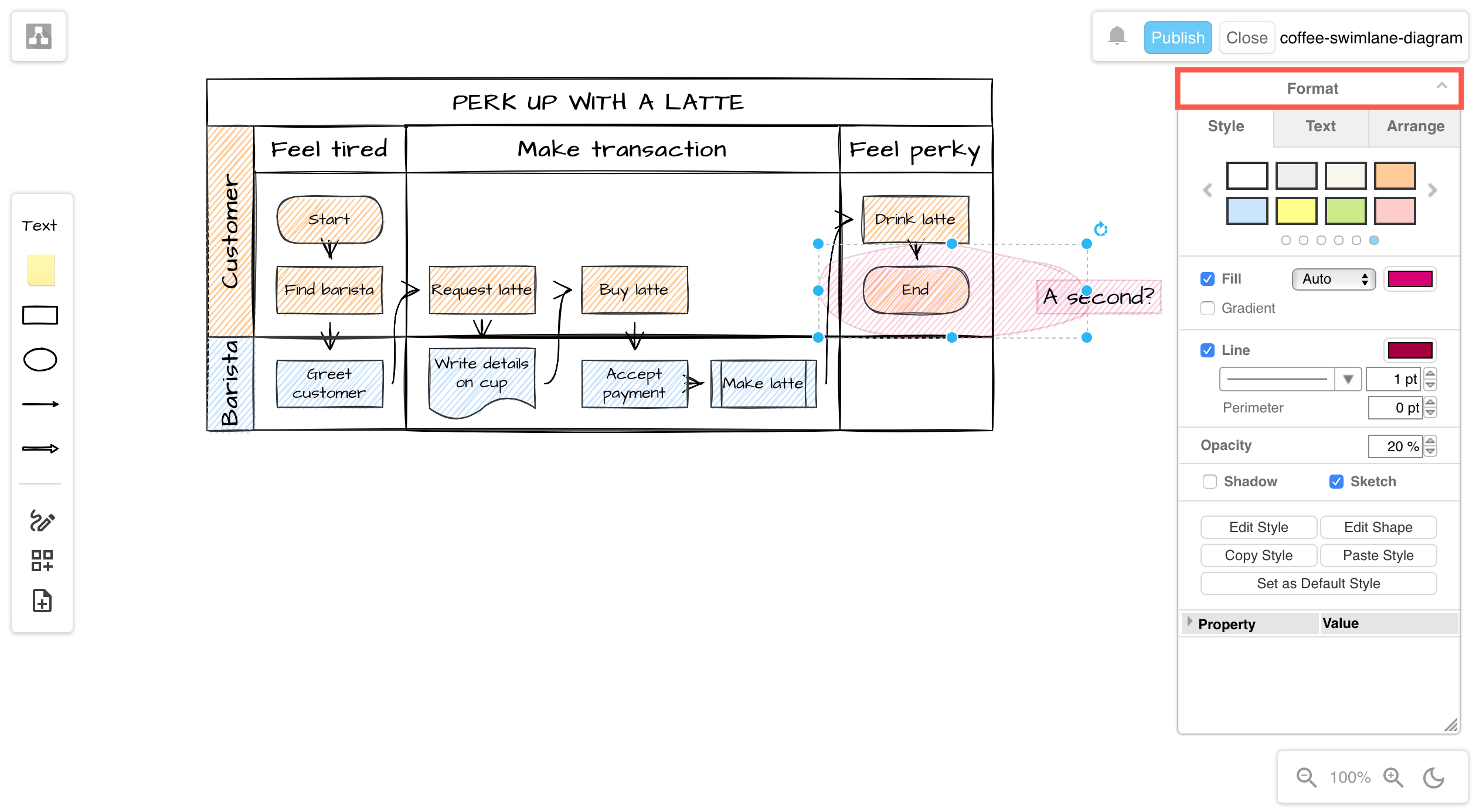
  3. Get to know the layout of the diagram editor: the shape and format panels, the toolbar, menus and drawing canvas. The default layout is the same as at app.diagrams.net.
    The draw.io editor, its tools and panels
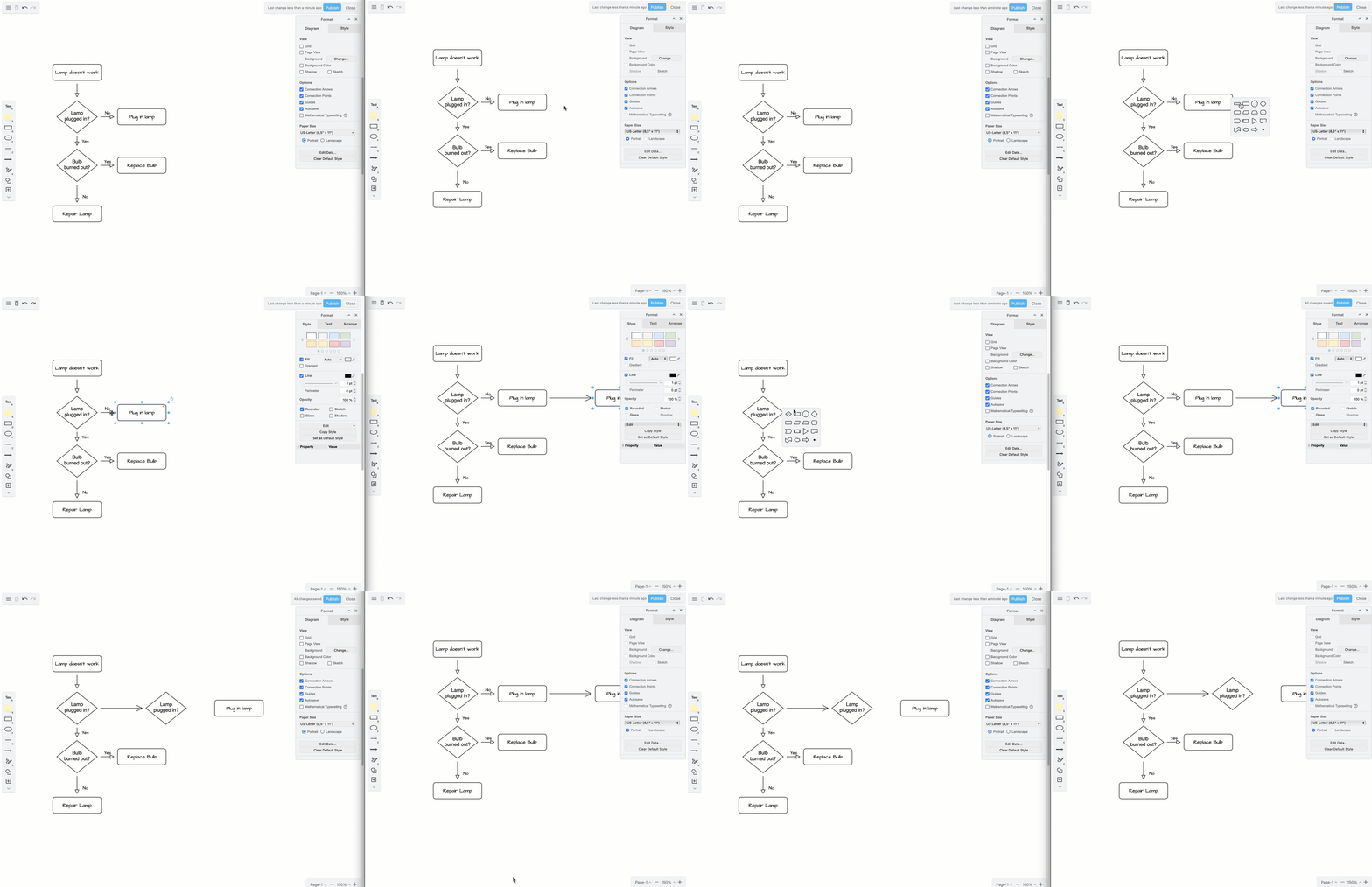
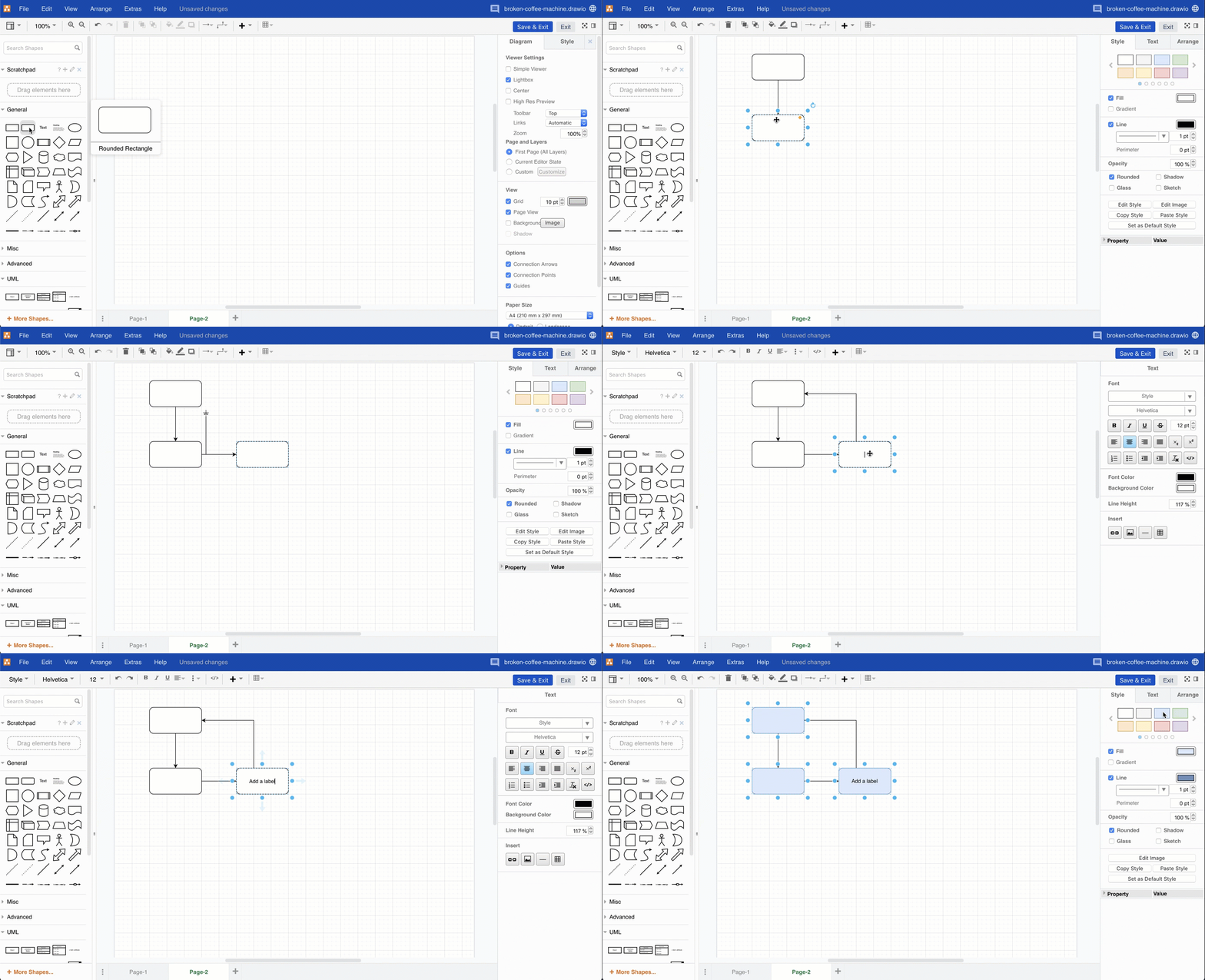
  4. Step through the tutorial to draw a basic flowchart in the draw.io editor.
    • add and connect shapes using the shape libraries on the left
    • add labels to the shapes and connectors on the drawing canvas
    • style your diagram using the tools in the format panel on the right.
      Create your diagram from shapes, connectors and text, and add styles
  5. Instead of exporting your diagram, click Publish to save your new diagram, or Save & Exit to save an existing diagram, then publish your Confluence page.

License draw.io for larger teams

The price of the draw.io app is very affordable in Confluence Cloud. See the tier-price comparison when migrating from Confluence Server to Confluence Cloud with draw.io.

If you have started a free trial in your team of more than 10 users and let the license expire, you will need to purchase draw.io to continue diagramming in your instance.

Licensing the draw.io app for your larger Confluence Cloud instance allows you to receive product support and use all of draw.io's features, including those listed below.

  • Import and export .vsdx files.
  • Drag and drop diagram files into the editor.
  • Add multiple pages to a diagram.
  • Export to PDF files and print diagrams.
  • Use math typesetting.
  • Set up and use custom shape libraries.
  • Customise the draw.io editor and set global corporate styles with JSON configuration options.
  • Use the search feature to find shapes.
  • Use the collaborative editing functionality to simultaneously edit a diagram with your teammates.
  • Work with the diagram file's revision history.
  • Display an older version of the diagram when viewing a page.
  • Import Mermaid code to automatically create a diagram.
  • Import CSV data with formatting options to automatically create a diagram.
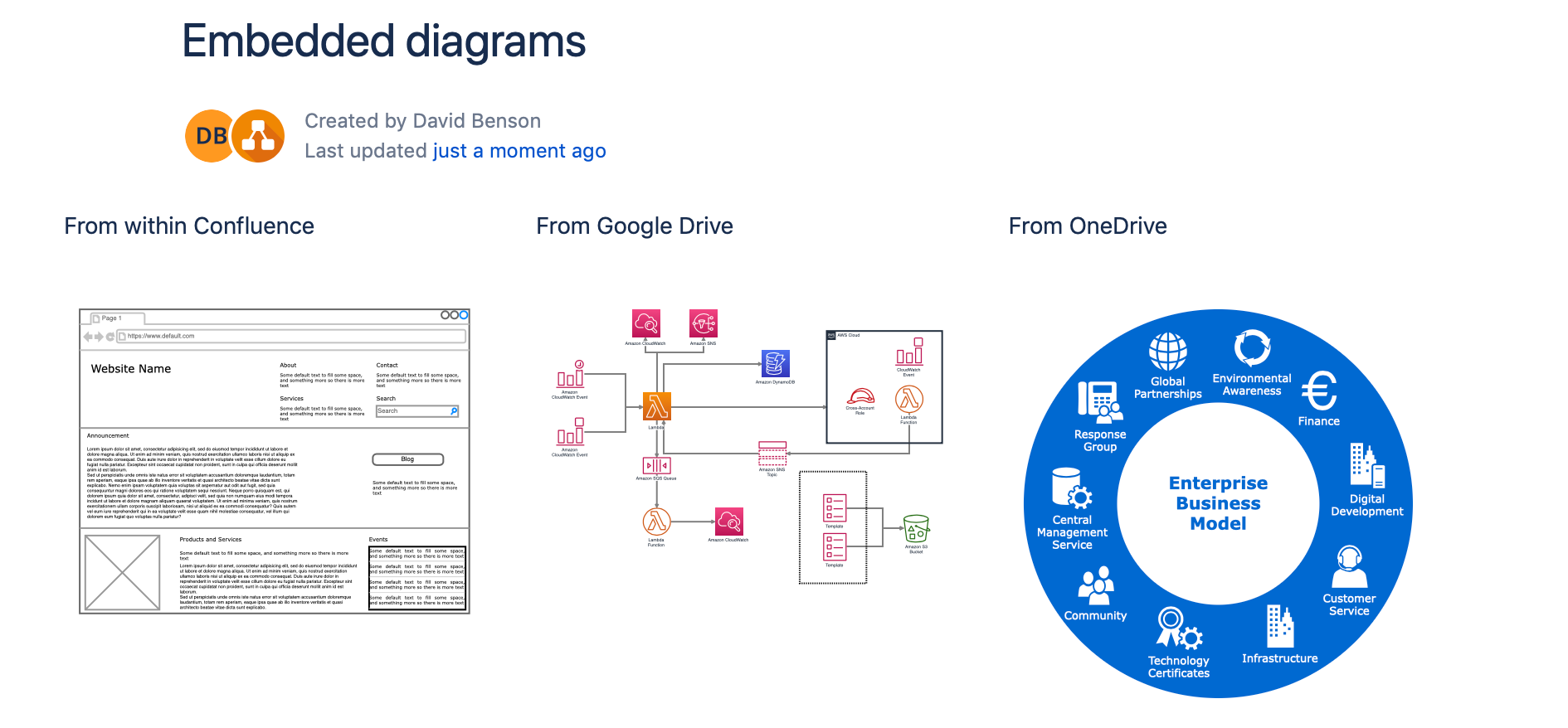
  • Embed diagrams from cloud storage platforms (Google Drive and Microsoft OneDrive).
    Embedded diagrams in draw.io for Confluence Cloud
Small teams with up to 10 Confluence Cloud users can use all of the features of the draw.io app for free.

Embed Confluence diagrams in Jira Cloud with the draw.io app

· 5 min read
draw.io
draw.io Team

You can now embed draw.io diagrams stored in Confluence Cloud in your Jira Cloud issues. This is a new feature for our integration with Confluence Cloud, delivered as part of our draw.io brand.

Visual documentation for systems, processes and software is typically stored in a central knowledge base like Confluence, where all the teams that are involved can access and collaborate on the diagrams.

You also often need to refer to those diagrams in projects and tasks in Jira.

With single-sign-on (SSO) for draw.io between Jira Cloud and Confluence Cloud now implemented, you can search for diagrams that you have stored on Confluence Cloud pages and attach them to Jira issues.

Authorise access to your Confluence Cloud instance

You need to tell the draw.io app for Jira Cloud which Confluence Cloud instance you want to embed a diagram from. That requires you to authorise it via Atlassian's Cloud.

  1. Open an issue in your Jira Cloud instance.
  2. If you don't see the draw.io Diagrams section, click on the draw.io logo just under the issue title, then click on Embed Diagram.
    Embed a draw.io diagram from a Confluence Cloud instance to a Jira Cloud issue
  3. Select the Confluence tab, then click on Authorise draw.io to access Confluence and log into your Atlassian Cloud account.
    Before you can embed a draw.io diagram into a Jira Cloud issue, you must authorise draw.io to access your Confluence Cloud instance
  4. If you need to, allow your browser to store all cookies. Select the Confluence instance you want to Authorise, then click Accept.
    Before you can embed a draw.io diagram into a Jira Cloud issue, you must select the Confluence Cloud instance and authorise draw.io to access it

Troubleshoot: If you find you have problems during this authorisation process, make sure you have configured your browser to allow third-party cookies and allow cross-site tracking as this SSO spans multiple Atlassian systems, or use an alternative browser.

Update: Atlassian changed their authorisation method recently. If you can't see previously embedded diagrams in your Jira issues or embed new diagrams, clear your browsers' locally saved site data and cookies, and reauthorise the connection between your Jira Cloud and Confluence instances.

Embed a diagram from Confluence Cloud to Jira

  1. Search for the name of the draw.io diagram you want to embed from Confluence Cloud.
  2. Select a diagram on the left to see a larger preview, then click the tick or check mark in the top right to embed it in your Jira issue.
    Search for a draw.io diagram stored in your Confluence Cloud instance, select it, and embed it

View an embedded diagram

Click on the draw.io diagram in your Jira Cloud issue to expand the diagram to the size of your browser window. Alternatively, click on Show in the embedded diagram's toolbar.
Hover over an embedded draw.io diagram in a Jira Cloud issue to view the toolbar and click on Show to see the full-size diagram

Delete an embedded diagram

Hover over the embedded diagram in the Jira Cloud issue to see the toolbar, then click on Delete (rubbish bin icon).

Using draw.io in Confluence Cloud

The draw.io app for Confluence Cloud offers some additional useful features:
Embed a whiteboard-style diagram with the draw.io Board macro for quick meeting notes, team brainstorming, mockups, remote kanban boards, and more.
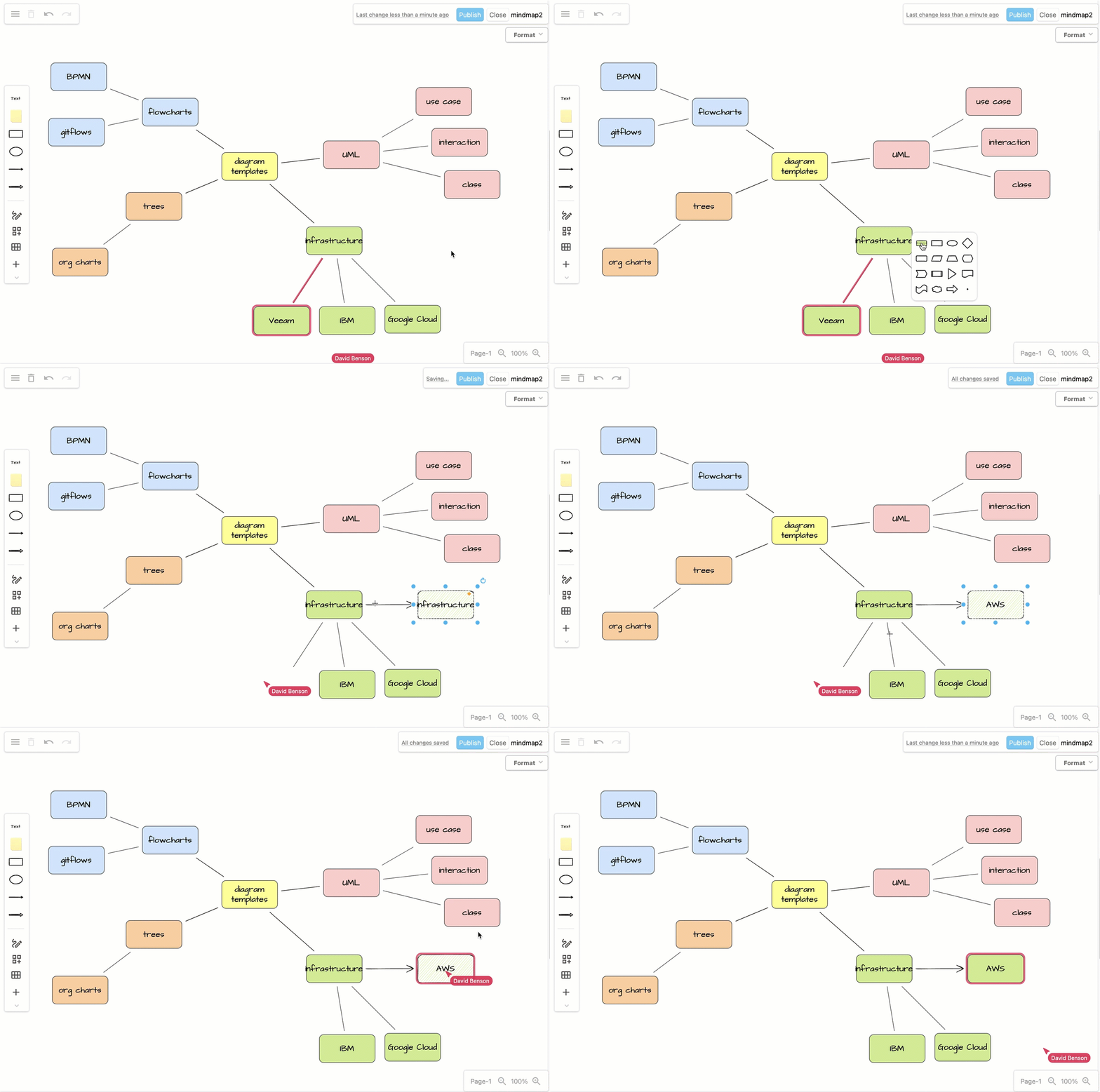
Double click on the drawing canvas to add a shape, or click on a direction arrow, or drag a new connection to a shape in another position in the draw.io editor

Customise the draw.io diagram editor for Confluence Cloud to use specific or custom shape libraries, templates, and corporate styles. You can also customise draw.io to use a different diagram editor style by default - Kennedy, Dark, Minimal, or Sketch.
Search for diagrams in your Confluence Cloud instance by filename, label text or the name of a shape.
Set your data residency region to choose where your data or in-scope product content resides at rest in your Confluence Cloud instance (advanced edition only), in addition to setting data governance rules centrally for all users on your Confluence instance.
Mass import all of the Gliffy diagrams in your Confluence Cloud instance to draw.io in one step.
Log of the Gliffy mass import to draw.io in Confluence Cloud
Getting started with draw.io diagrams
The draw.io editor, its tools and panels