15 posts tagged with "atlassian"

View All Tags

New draw.io Board macro for whiteboard-style diagrams in Confluence Cloud

· 7 min read
draw.io
draw.io Team

Embed whiteboard-style diagrams in Confluence Cloud pages with the new draw.io Board macro. The Board macro is a new feature for our integration with Confluence Cloud, delivered as part of our draw.io brand.

When you add or edit a diagram using the draw.io Board macro, it uses the Sketch editor theme, with the rough sketch shape and connector styles set as the default global style. The diagram editor has a a white non-paginated background and no grid lines so it feels more like a whiteboard.

A discussion thread on the GitHub draw.io project is open if you have any questions or suggestions.

Add the draw.io Board macro to a Confluence Cloud page

  1. Edit the page and type /draw to see a list of macros you can embed.
  2. Select the draw.io Board macro from the list to open the diagram editor.
    Add the draw.io Board macro to a Confluence Cloud page

Diagram in Confluence Cloud using the draw.io Board macro

The draw.io Board macro uses a simplified editor theme, where the diagramming tools are reduced to the essentials. The panels you are used to seeing in draw.io are minimised to make it feel more like a whiteboard.

You can display panels and use the menus at any time to use the full functionality of the draw.io editor in the draw.io Board macro.

Zoom: To zoom in and out, click on the magnifying glass tools in the bottom right. Click on the number in the center to reset the zoom to 100%.

Dark mode: To switch between the default light theme and a dark theme (dark background and interface), click on the moon/sun tool in the bottom right.
Zoom in and out and switch the editor into a dark mode with the tools in the bottom right in a draw.io Board diagram

Open the menu in the draw.io Board macro

Click on the draw.io logo in the top left to open the menu.
Click on the draw.io logo to open the menu when using the draw.io Board macro

Undo and redo: Click on the undo and redo arrows next to the menu icon to undo and redo the most recent changes. These will not be shown unless you have edited the diagram.

Work with shapes in the draw.io Board macro

Add shapes: Double click on a blank space on the drawing canvas and select a shape.
Double click on the drawing canvas to add a shape, or click on a direction arrow, or drag a new connection to a shape in another position in the draw.io editor

Connect shapes: Hover over shapes to see direction arrows.

  • Click on the direction arrow to add a new shape in that direction.
  • Click and drag a new connector from the source shape and drop it on another shape to connect them.

Alternatively, click on or drag the text, sticky notes, basic shapes and connectors in the top half of the toolbar on the left to add them to the drawing canvas.
Click on the shapes or drag them from the toolbar onto the drawing canvas

Use shape libraries in the draw.io Board macro

To see the shape libraries and use a greater variety of shapes, click on Shapes in the toolbar to open the Shapes panel.

  • Search for shapes by entering a search term and press enter.
  • Drag shapes or groups of shapes from the drawing canvas to the scratchpad.
  • Enable more shape libraries: Click on More Shapes toward the bottom of the shape library, select the shape library, then click Apply.
    Click on the Shapes tool to open the Shapes panel and access all the shapes in the shape library

Draw a freehand shape in the draw.io Board macro

You can draw images with a transparent background with your mouse.

  1. Click on the Freehand tool in the toolbar.
    Click on the shapes or drag them from the toolbar onto the drawing canvas
  2. Click Start Drawing in the Freehand panel.
  3. Click and hold to draw a freehand line on the drawing canvas. You can add multiple separate lines in your freehand drawing.
  4. Click Stop Drawing when you are finished, to save it as an image with a transparent background.
    Use the freehand drawing tool in a draw.io Board diagram to markup diagrams or draw shapes with your mouse

Learn more about drawing and styling freehand shapes

Tip: Use the Style tools in the format panel on the right to change your freehand shape's style, just as you would a shape from the shape libraries.

Style shapes in the draw.io Board macro

To access the format panel, click on the minimised heading. The tools and options that are available in the format panel will depend on what you have selected in your diagram.
Click on the Format panel's title to open it and style shapes, text and connectors in a draw.io Board diagram

Insert a template in the draw.io Board macro

Click on the Template tool to select and use a diagram template from the template library. Click on the magnifying glass in the top right of a template to see a larger preview of it.
Select a diagram template and click Insert to add it to the drawing canvas in a draw.io Board diagram in Confluence Cloud

Save the draw.io Board to Confluence Cloud

  1. Click Publish in the top right to save your diagram.
  2. Enter a filename if it is a new diagram, and click Save.
    Publish your diagram to save it and return to the Confluence Cloud page editor

You will return to the Confluence page and see a preview of your diagram in the draw.io Board macro.

Finally, publish your Confluence page.

Change the draw.io Board macro viewer settings

There are two methods to change how your diagram appears to viewers:

When viewing the Confluence page, hover over the diagram, click on the gear icon in the toolbar, change the viewer settings then click Save.
Set the viewer options to change how your diagram appears on the Confluence page
Note: If the diagram uses the Simple Viewer, you will not see the toolbar

Alternatively, from within the draw.io diagram editor, make sure nothing in your diagram is selected, then open the Format panel. The Viewer options are available at the top of the Diagram tab of the format panel.
Set the viewer options within the draw.io Board editor to change how your diagram appears on the Confluence page

Manage your budget moving to Confluence Cloud

· 3 min read
draw.io
draw.io Team

draw.io and our Atlassian integrations are the leading solution for web based sketching and diagramming functionality. The article describes the draw.io integrations for Confluence that we, draw.io Ltd., build, deliver and maintain alongside the online app.diagrams.net and the offline draw.io Desktop application.

Atlassian recently deprecated their Confluence Server range. As the software market evolves, accelerating the move to Cloud is the next natural step in Atlassian's strategy.

Users able to move to Cloud have seen an overall cost saving due to reduced maintenance and downtime, as well as benefiting from Atlassian's scalability and security record. There are various mechanisms in place to smooth the road to Cloud, including free Cloud licenses while you migrate away from Server.

At smaller tiers Confluence Cloud is the clear winner, at higher tiers the cost outlay is greater (excluding the benefits). You can see a comparison between Confluence Server and Confluence Cloud at various tiers below (pricing as per the July 2021 price list, annual renewal in USD):

Users   Conf Server  Conf Cloud
101,300Free
251,3001,250
503,0002,500
1005,5005,000
25010,90012,500
50016,40018,500
2,00020,10061,000
10,00025,200256,000

For under 500 users, the cost is largely the same. But that isn't the whole picture, as you're likely to have apps installed, also.

Taking the top selling Confluence app, Gliffy, let's see how the price changes as you move to Cloud and compare it to draw.io on Cloud:

Users   Gliffy Server   Gliffy Cloud   draw.io Cloud
10510010
25301950187.50
506301,900375
1001,1783,800750
2502,4068,0001,500
5003,12510,2502,000
2,0006,56623,7504,500
10,0009,43095,75016,500

In fact, up to 4k users, you will save money on your Gliffy Server renewal by using draw.io on Confluence Cloud. With 10k users, you will pay 75% more for draw.io on Cloud compared to Gliffy on Server. However, if you have 10k users switching to Cloud and keep Gliffy, you pay over ten times (x10) the Server price.

There is a rich selection of apps in the Atlassian ecosystem and it's worth evaluating alternatives when migrating from Confluence Server to Cloud. Some apps, like draw.io with its one-click Gliffy mass importer, make it easy to switch whilst saving you money. Of course, you save that amount every year after you have switched.
Diagrams attached to Jira Server issues are now versioned

· 4 min read
draw.io
draw.io Team

Versioning is built into Confluence, and diagrams attached to pages using the draw.io app for Confluence takes advantage of this. When you edit a diagram, the draw.io app creates a new page version so you can easily restore an older version of your diagram.

If you are using draw.io for Jira Cloud, we recommend that you embed diagrams stored in your Confluence instance to take advantage of its versioning and real-time-collaboration tools.

If you are using diagrams attached to issues in Jira Server, these are now also versioned, but in a different way.

The draw.io app now adds a compressed zip file to your Jira Server issues containing multiple diagram files. When you open the attached diagram file from the right panel, you can access the revision history of your diagram via the menu.

Add a diagram to an issue on Jira Server

Once you have installed the draw.io app into your Jira Server instance, you can create diagrams in your issues.

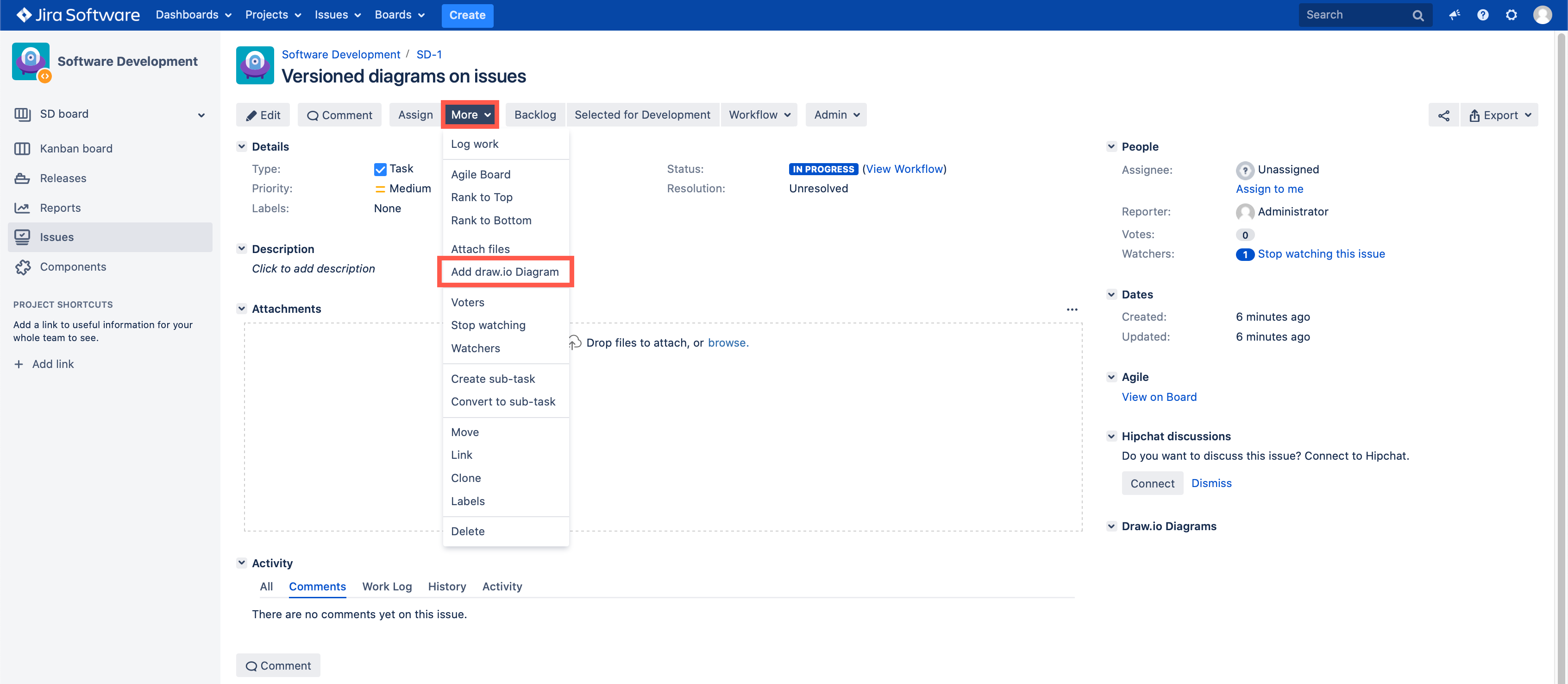
  1. Click on More in the issue toolbar, then select Add draw.io Diagram from the menu.
    Add a draw.io diagram to a Jira Server issue via the issue toolbar
  2. The draw.io diagram editor will open. Create your diagram. When you are finished, click on the Save & Exit button in the top right.
  3. Add a filename, then click Save.

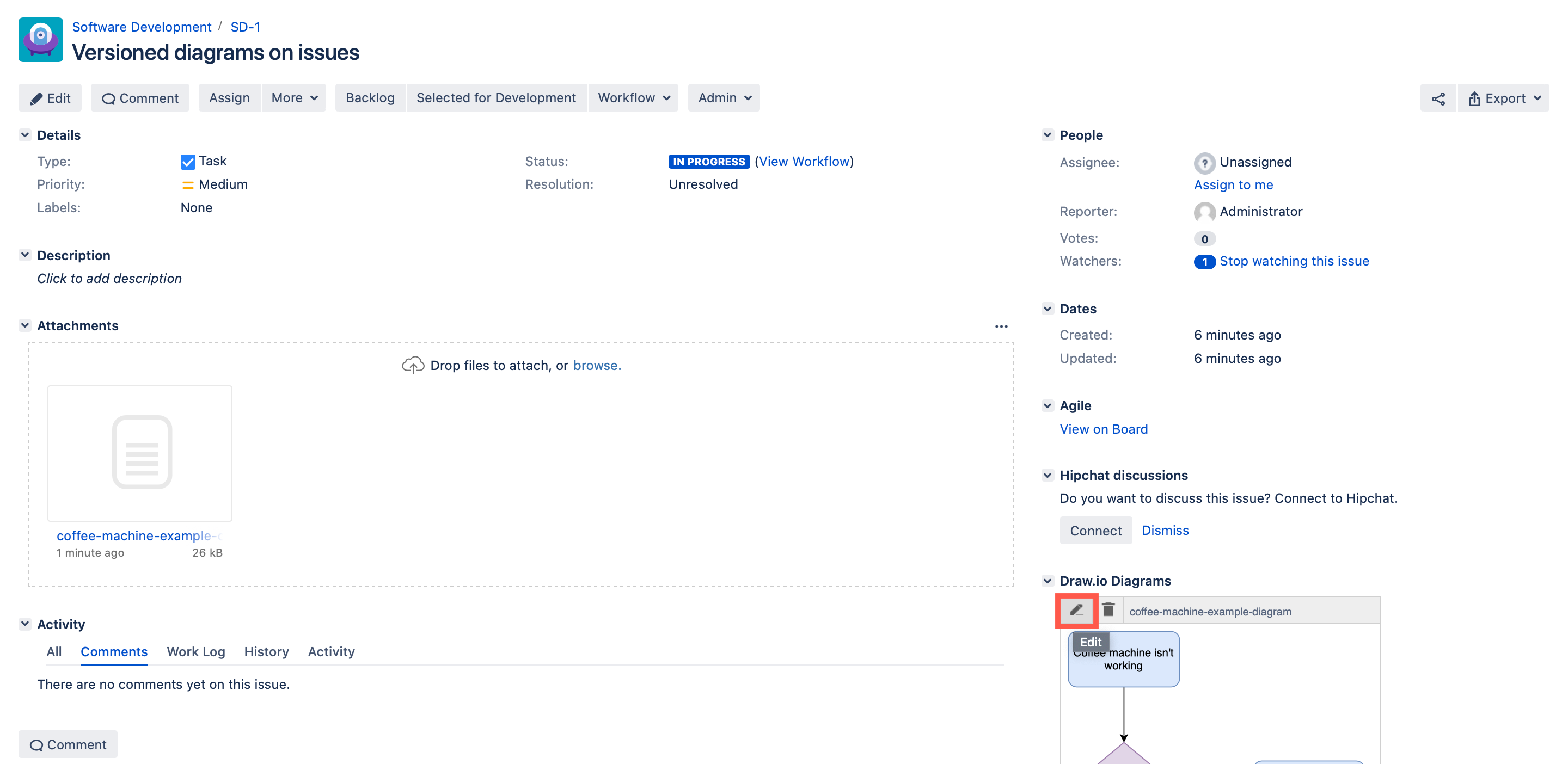
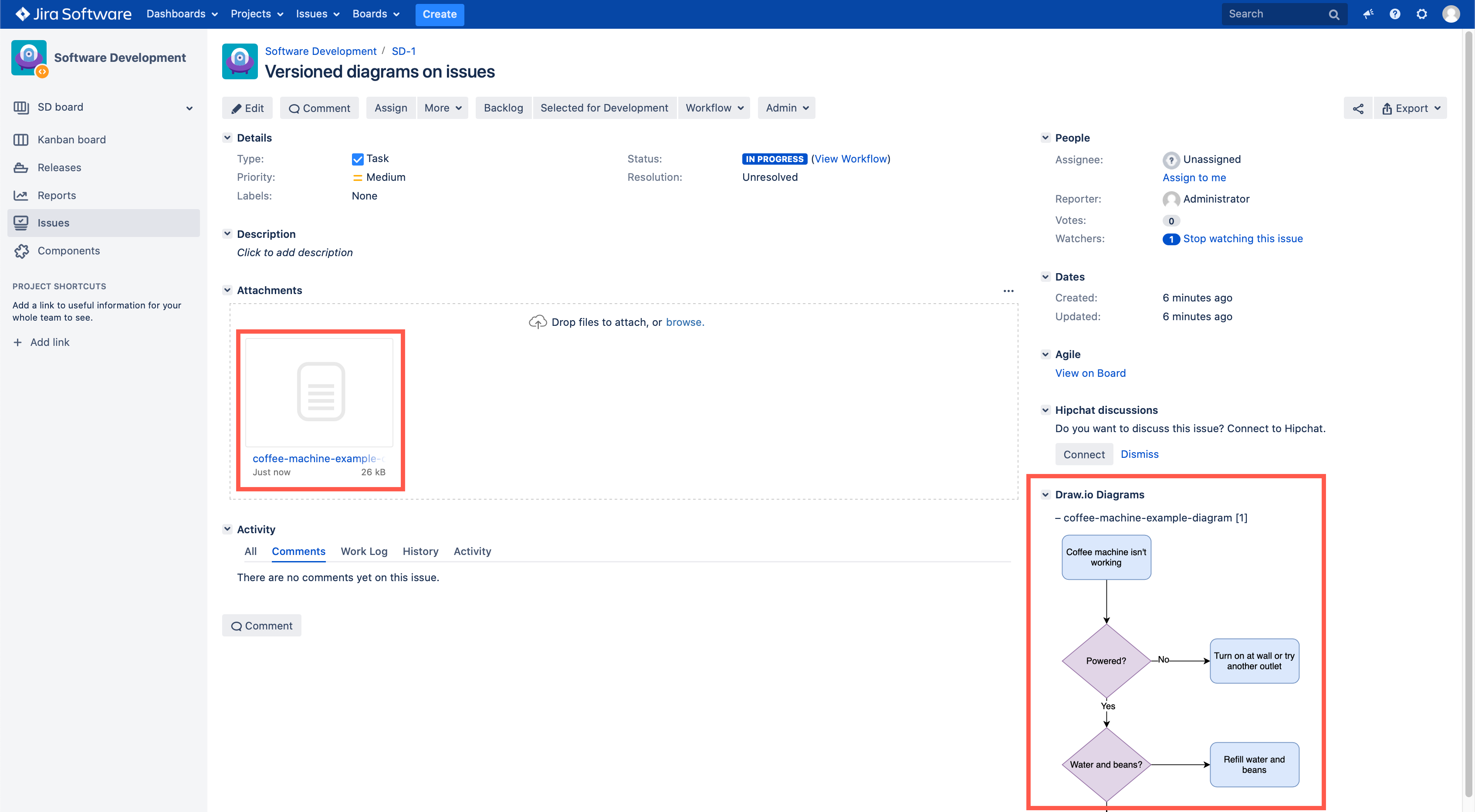
Your diagram will be displayed in the right panel of the issue in the draw.io Diagrams section, and the file will appear in the Attachments section. You can immediately see which version the diagram is by the number in square brackets after the name of the file above the preview on the right.

The draw.io diagram is displayed on the right of your Jira Server issue

Restore a diagram revision in draw.io

  1. Hover over the diagram preview on the right, and click on the pencil icon to edit your diagram.
    Edit an existing draw.io diagram attached to a Jira Server issue
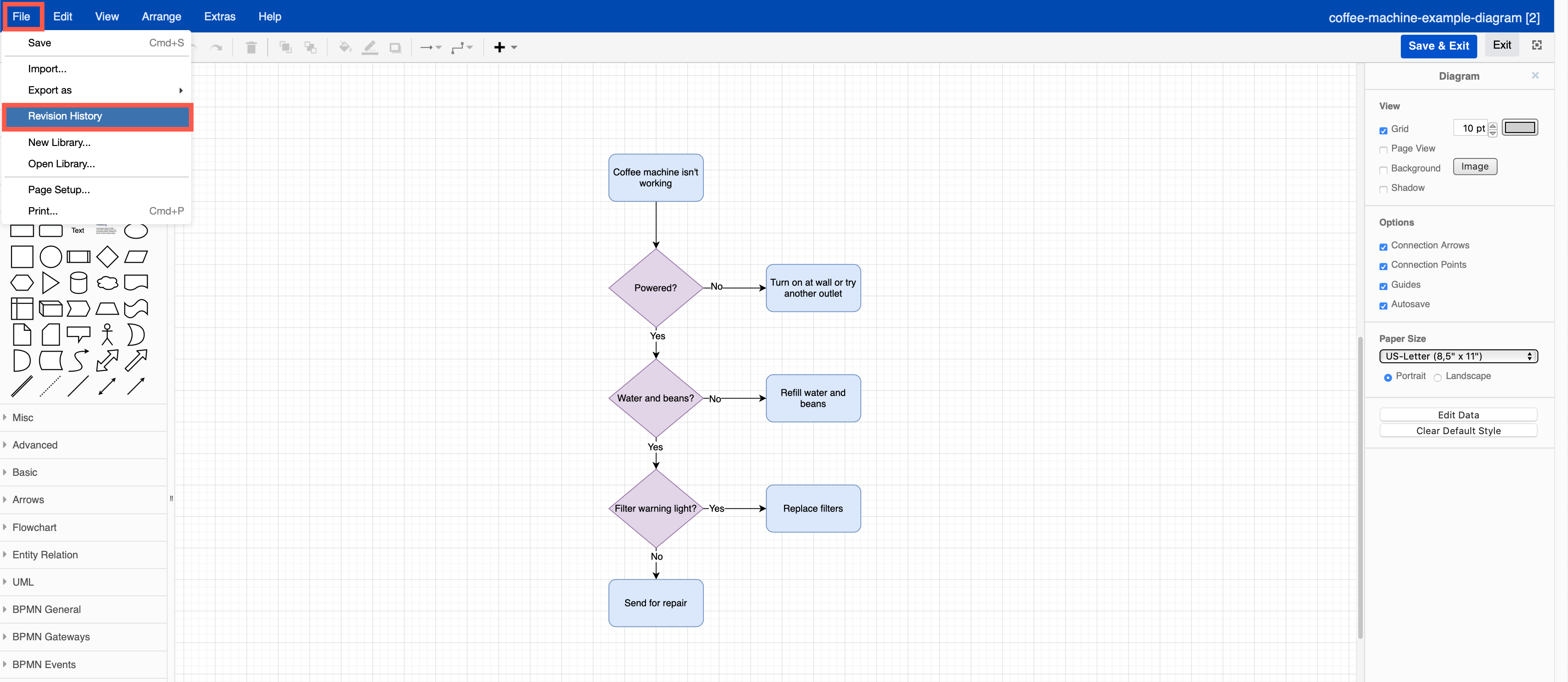
  2. In the editor, select File > Revision History from the menu to open dialog with a list of diagram versions.
    Edit an existing draw.io diagram attached to a Jira Server issue
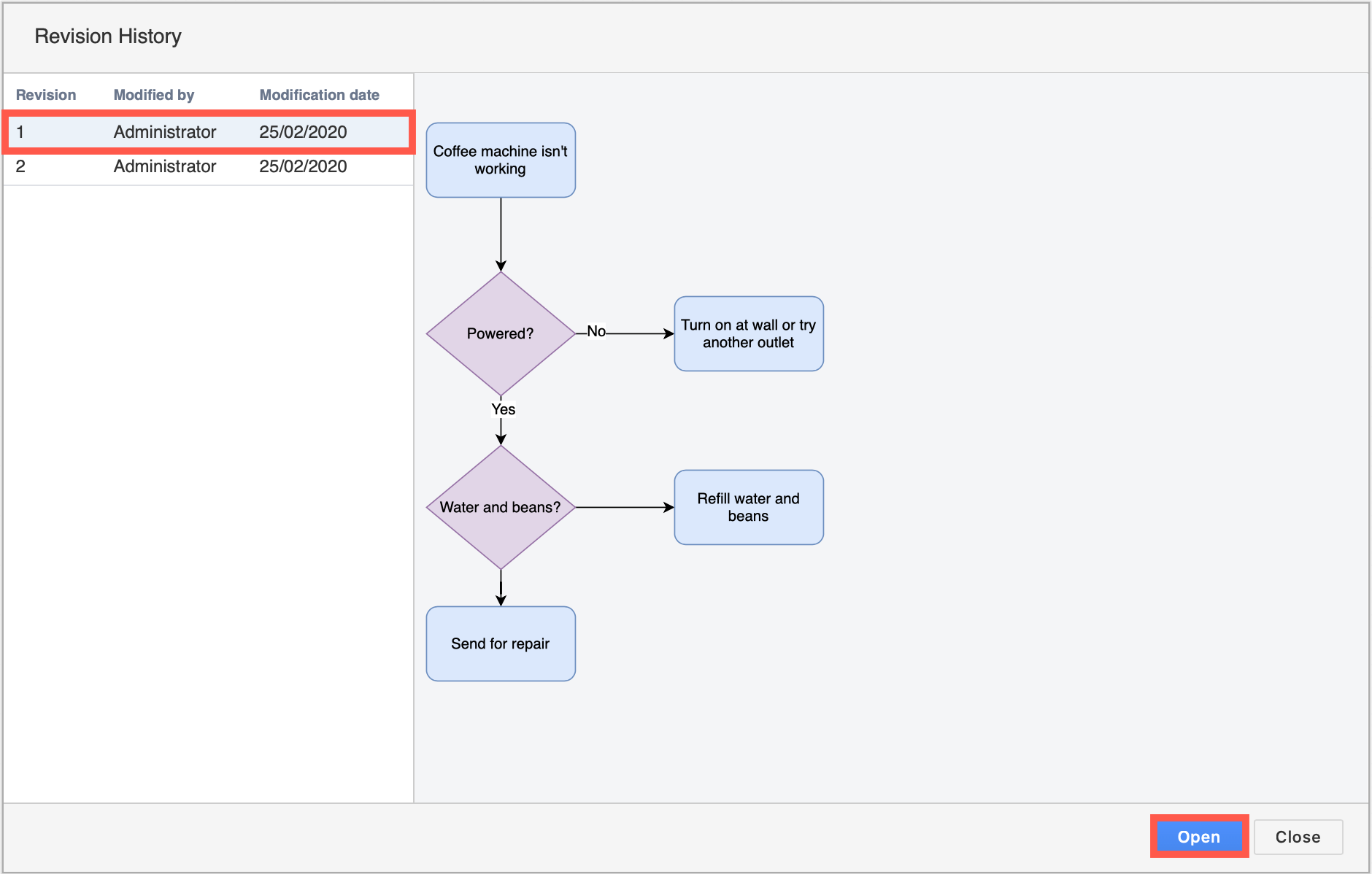
  3. Each revision shows you who modified it, and when it was modified. Click on a version to see a preview of the diagram. If you want to restore a particular version, click on it, then click Open.
    Restoring an older version of your draw.io diagram in Jira Server creates a new version - no information is lost

This creates a new version of the diagram and adds it to the attached file - no changes are lost.

Tip: To delete a draw.io diagram from your Jira Server issue, hover over the diagram on the right panel of your issue and click on the trash can icon (delete).

See diagram revisions inside the attached file

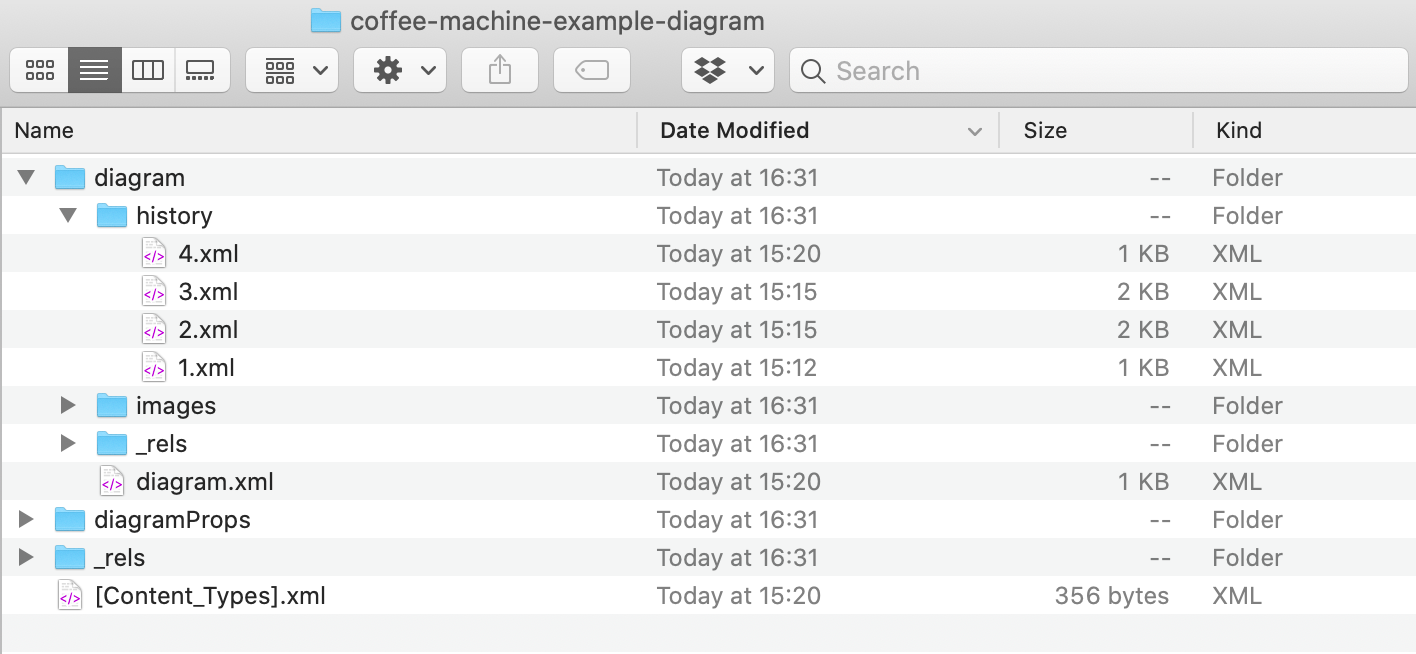
As the attached diagram is a compressed zip file containing multiple diagram files and some metadata, you can open it on your computer and look at each diagram individually. You can also open the attachment file or any of the included XML diagram files in our online draw.io editor.

  1. Download the attachment to your computer and unzip it using your favourite decompression tool.
  2. The most recent diagram version can be seen in the diagram folder, and older versions under the history folder.
    The file structure within a versioned draw.io attachment from Jira Server