New keyboard shortcuts in draw.io

As new features are added to draw.io and the menu is refined, new keyboard shortcuts are also built into the editor. Here are some of the new and useful shortcuts for diagramming in draw.io.
Move selected shapes and connectors
First, select the shape you want to move, then hold Shift+Alt+drag and drag the cursor to reposition them. You can move shapes, connectors, or multiple selected shapes and connectors this way.
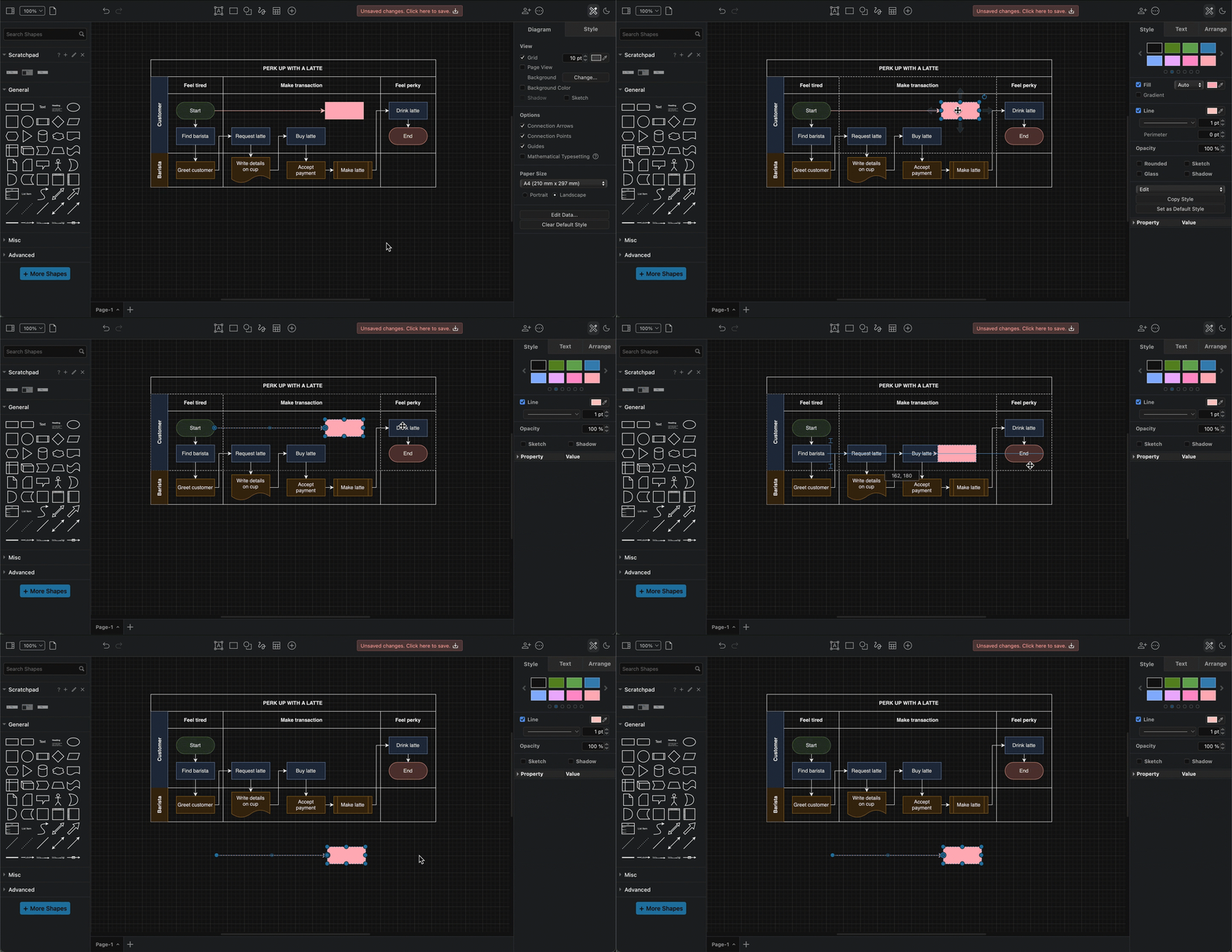
This shortcut will always move the selected elements, even if they are not currently under the cursor when you drag it.
Note: When you move a connector this way, it will de-attach itself from the source and target shapes, unless they are moved with the connector.
Increase/decrease font size
Select a shape or connector or label, and press Ctrl+Shift +/- (NumPad) to increase or decrease the text size.
This only works with the + and - keys on the number pad.
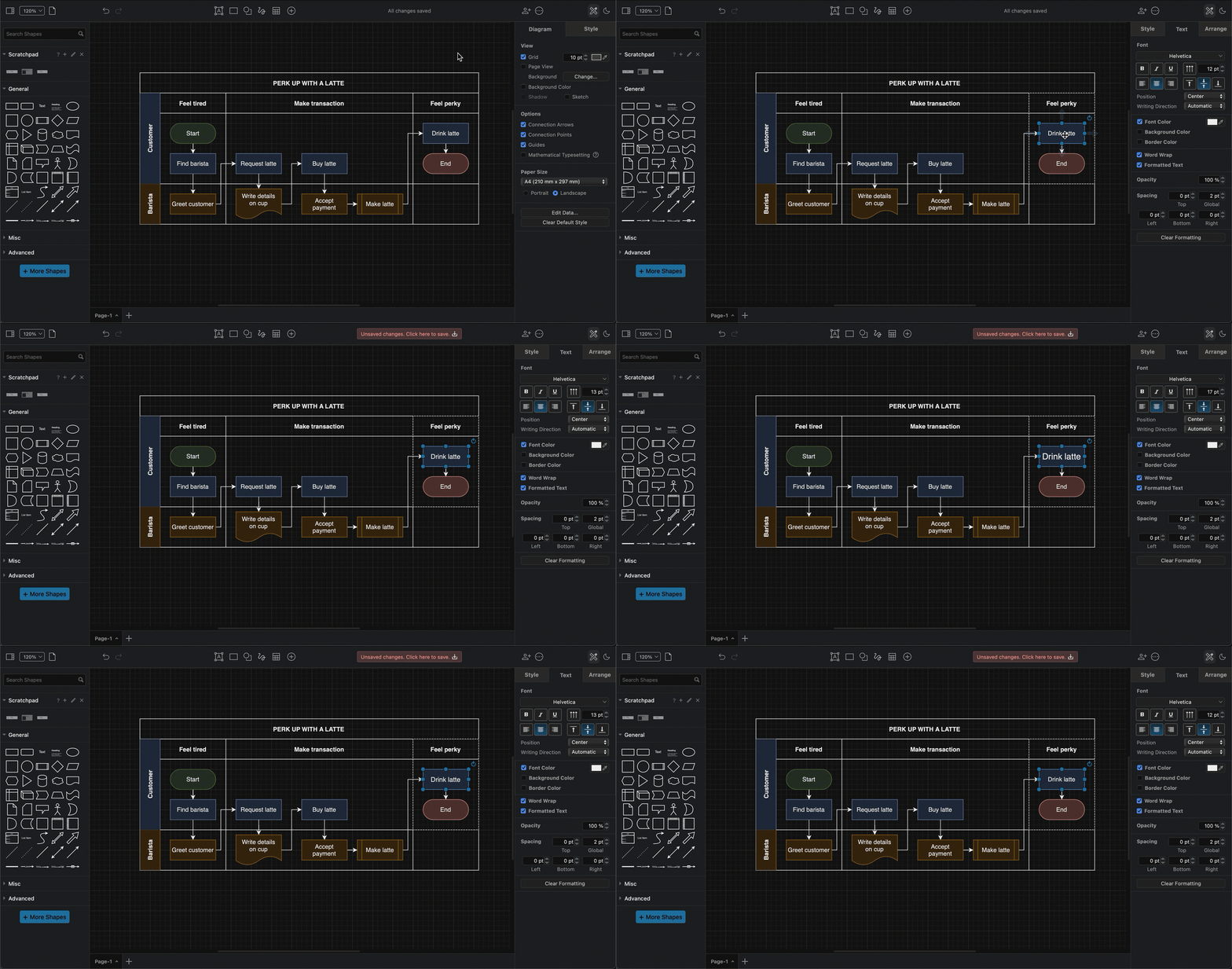
Alternatively, change the font size in the Text tab of the format panel.
Note: This keyboard shortcut will always change the text size of the entire label, even if you have selected only some text inside a label.
Increase/decrease shape size
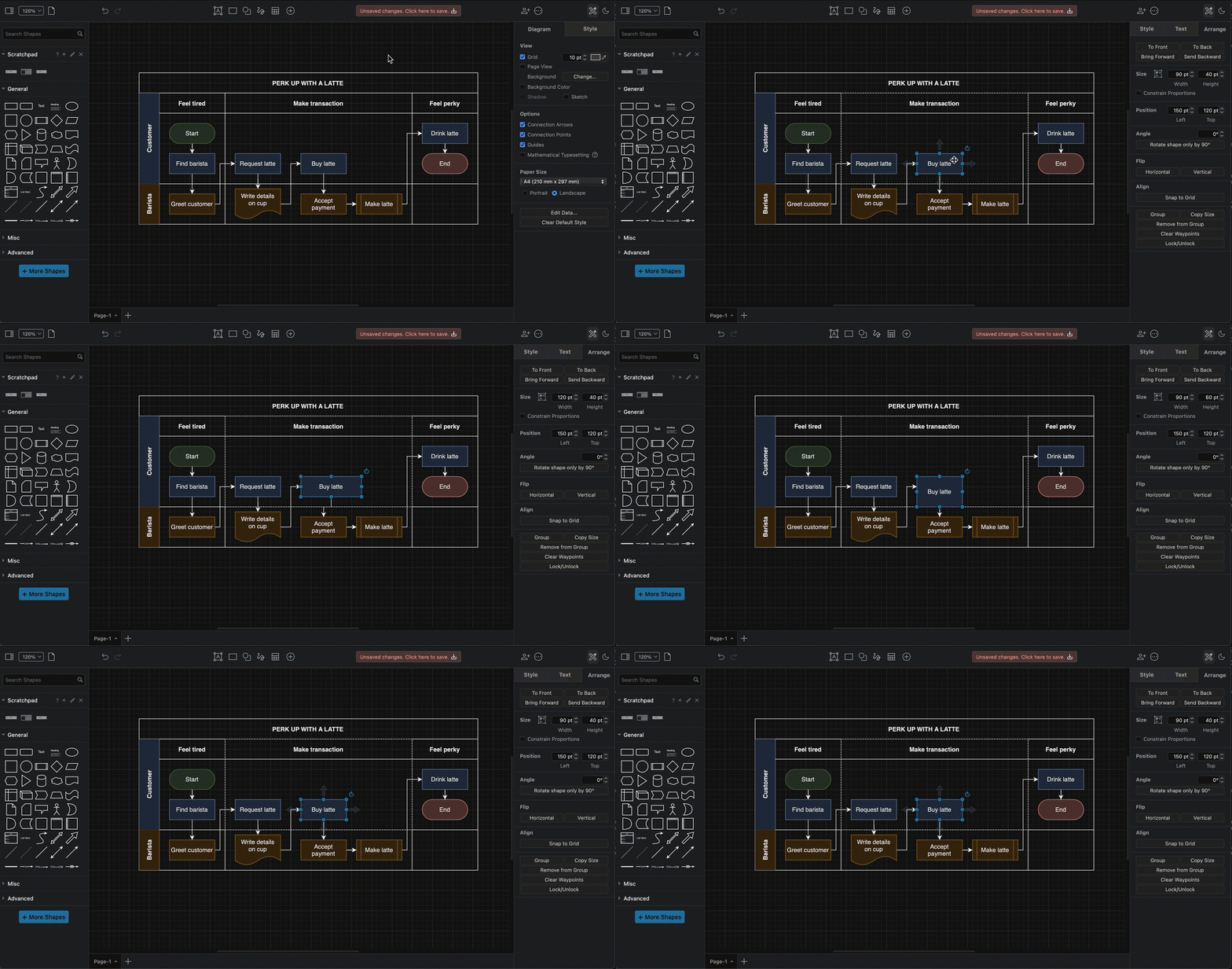
Select a shape, and press Ctrl+Shift+arrow key to increase or decrease the right or lower edge of the shape. This increases or decreases the Height or Width of the shape (in the Arrange tab of the format panel).
Clear all extra waypoints on a connector
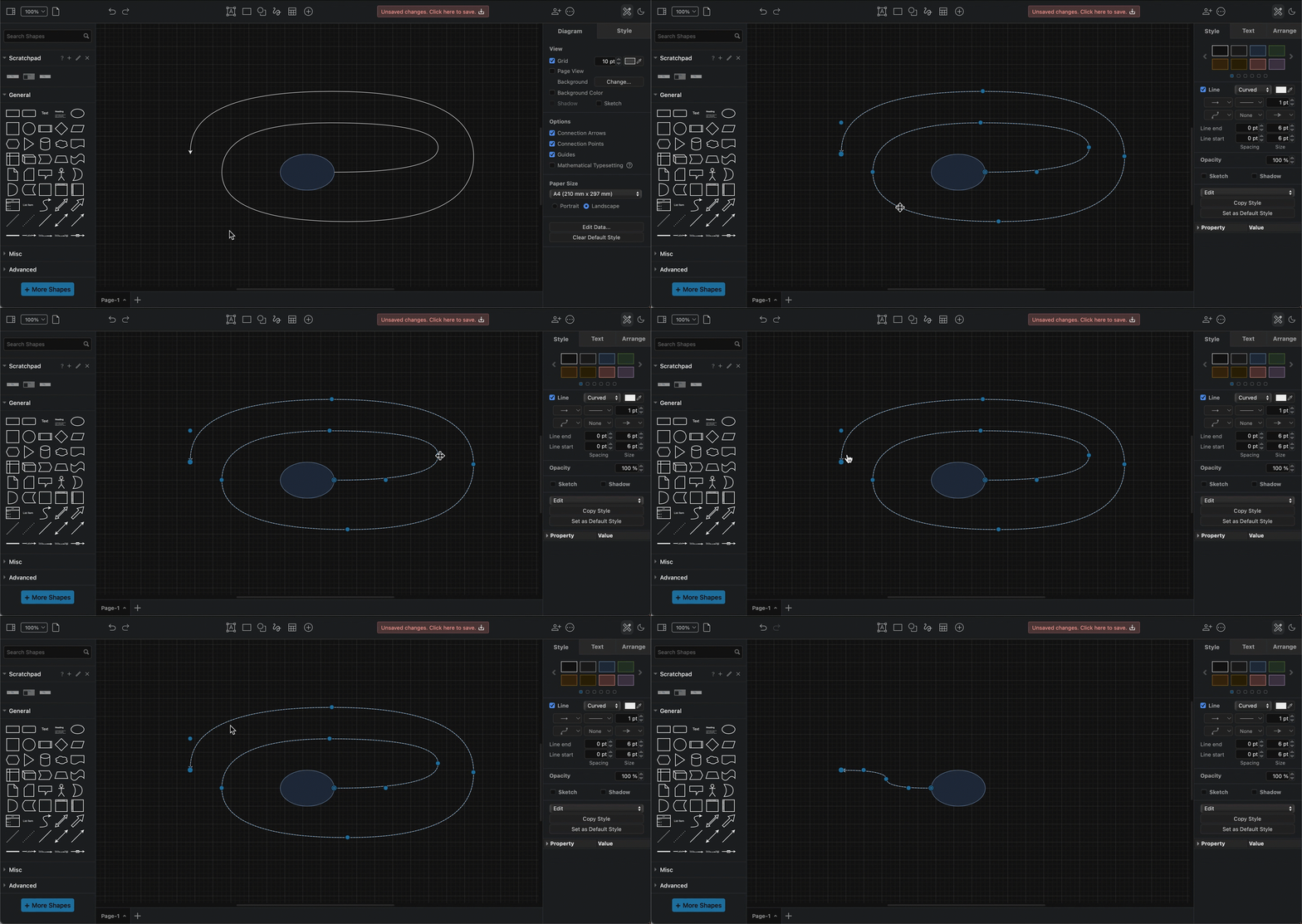
Waypoints are used in connectors to change its path. Sometimes you may want to remove all of them quickly.
Select a connector and press Alt+Shift+R to reset the waypoints back to the default path.
More keyboard shortcuts in draw.io
There are many other mouse + keyboard shortcut combinations in draw.io to help you diagram faster, as well as many keyboard shortcuts described in previous posts.
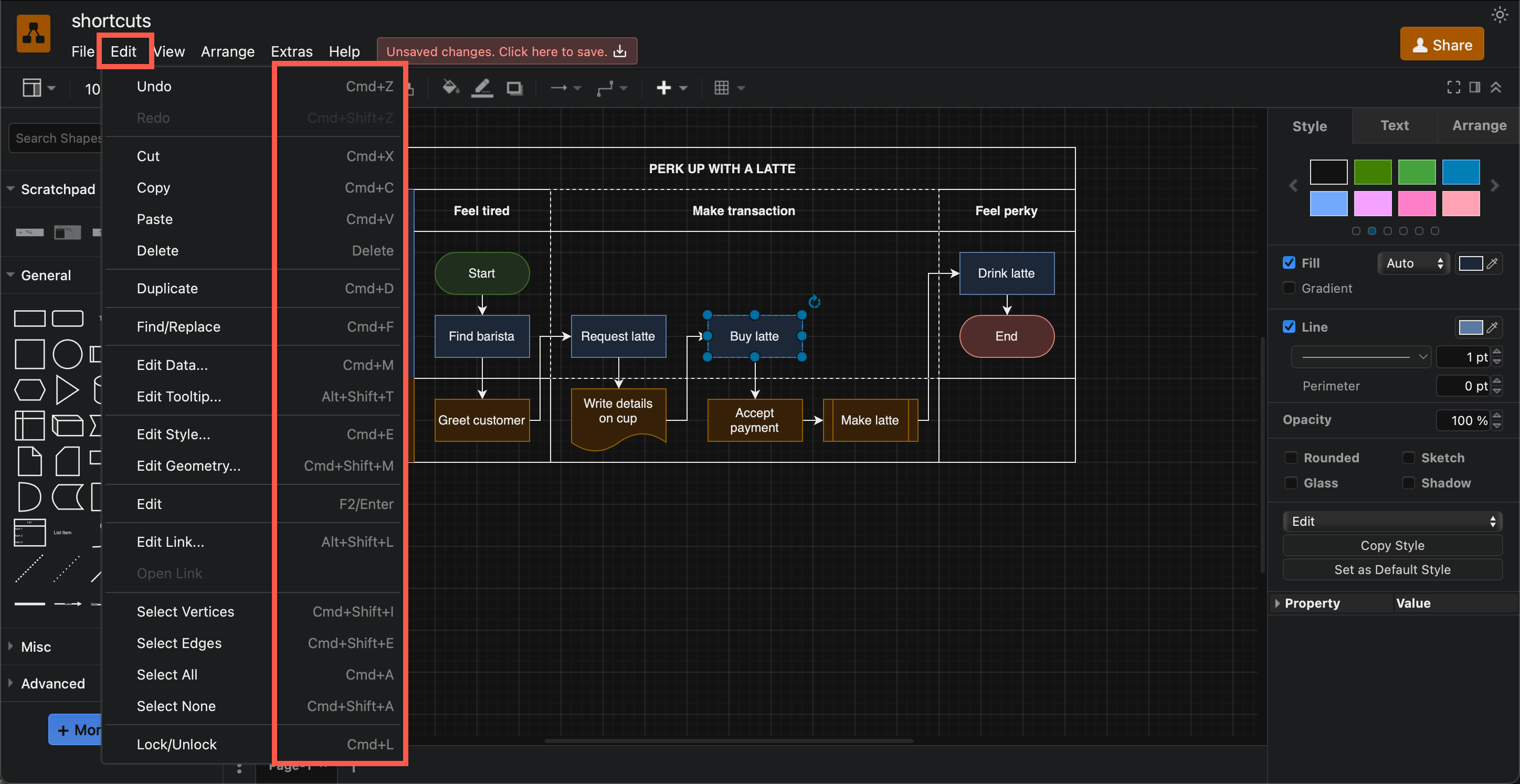
Next time you go through the draw.io menu, or right-click and open the context menu, check and see if there is a keyboard shortcut next to the command you want to use.
Here's a one-page reference sheet that you can print out containing the most common and useful keyboard shortcuts in draw.io.