Find which layer a shape is on
To find which layer a shape is on, you need to have the Layers dialog open.
- Select View > Layers to open the Layers dialog, if it isn't already open.
- Select the shape and a dot to the right of the layer name will indicate which layer the selected shape is on.
- Alternatively, in the Layers dialog menu, select Move Selection to - the layer with the check mark next to it is the layer that the shape is on.
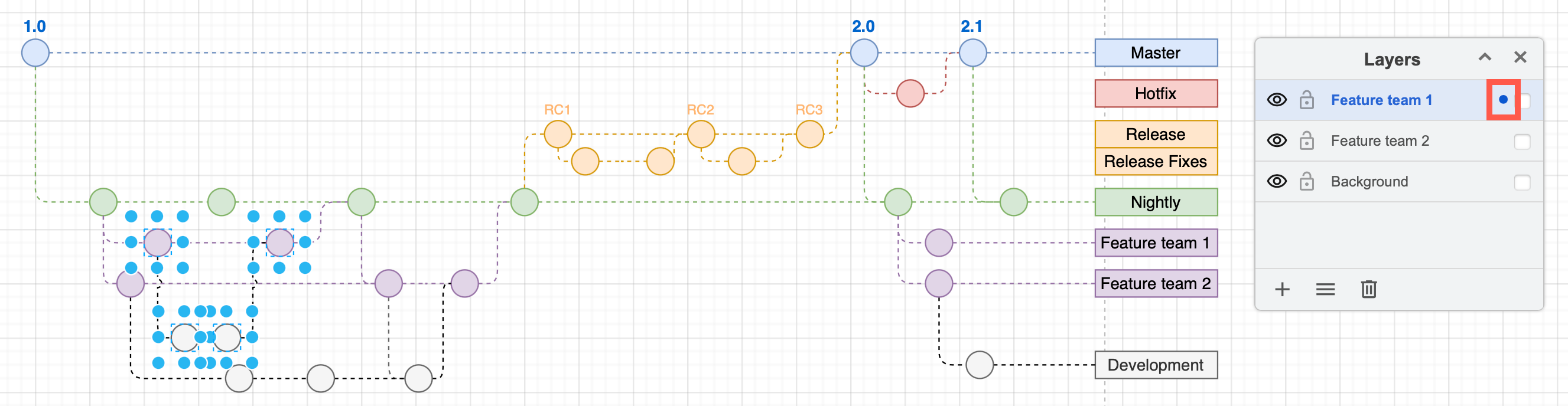
Note: If you have selected multiple shapes from different layers, no dot will appear in the Layers dialog, and no check mark in the Move Selection to list in the Layers dialog menu.