Customise draw.io for Confluence Cloud
As an administrator, you can customise draw.io in Confluence Cloud to make it easier and faster for your users to create diagrams by making custom shape libraries, templates, and plugins available by default.
You can also customise default colours, style palettes, fonts and even the draw.io UI in Confluence Cloud.
Custom shape libraries
Custom shape libraries let you add the shapes, images, clipart, groups of shapes, custom shapes, and even entire diagrams to your own shape library to make diagramming faster and easier.
If an entire team needs to work with the same shape library, you can add it to the draw.io Configuration section of your Confluence Cloud settings.
Add a custom shape library to Confluence Cloud
- Go to the Custom Libraries tab in the draw.io Configuration section of your Confluence Cloud settings, then click on Add Library.
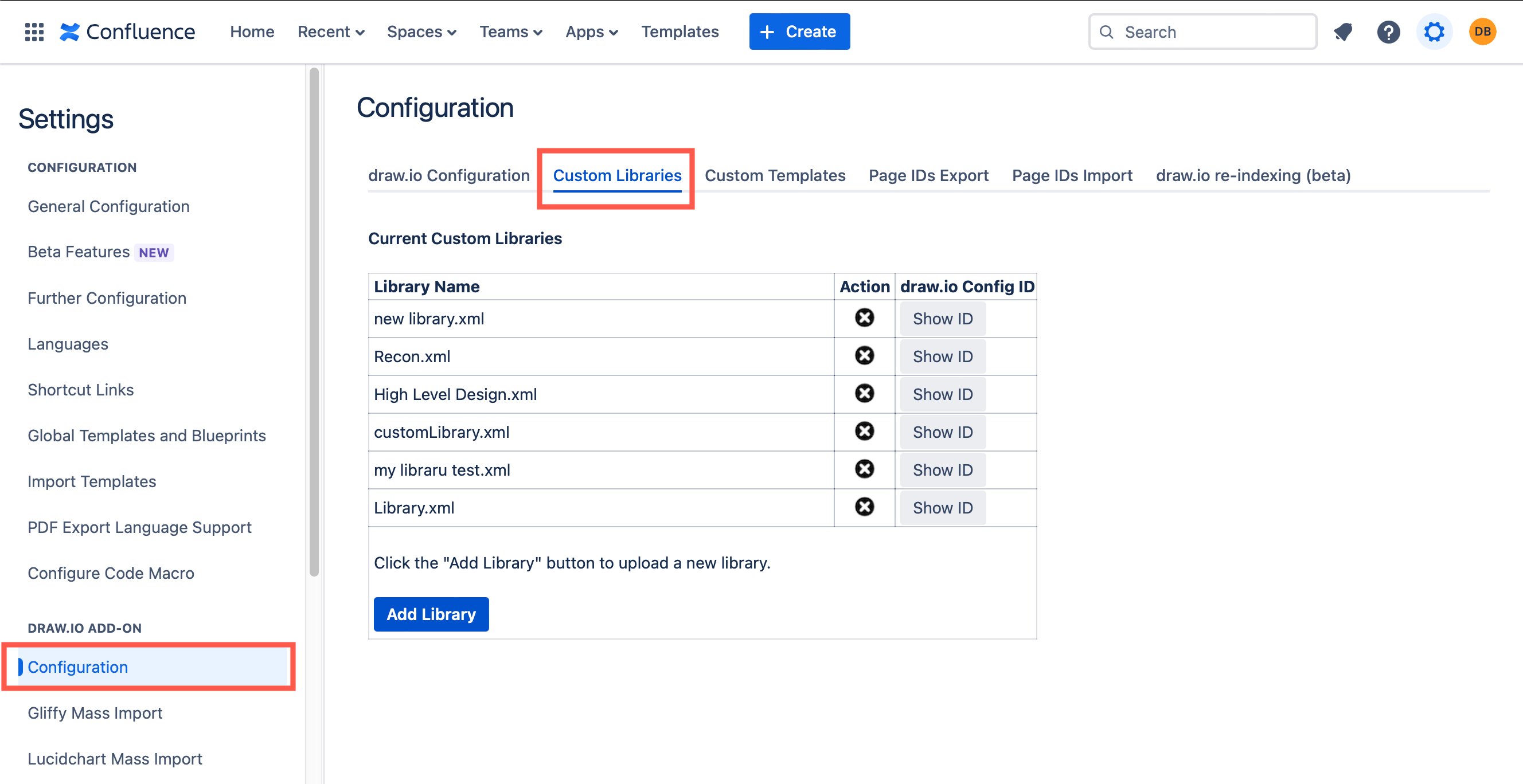
- Navigate to the custom library file on your device, select it, then click Choose.
Now users can open the shared custom library you just stored in Confluence Cloud.
Set shape libraries to open by default
As an administrator, you can also set which shape libraries are opened by default by adding a line to the draw.io configuration.
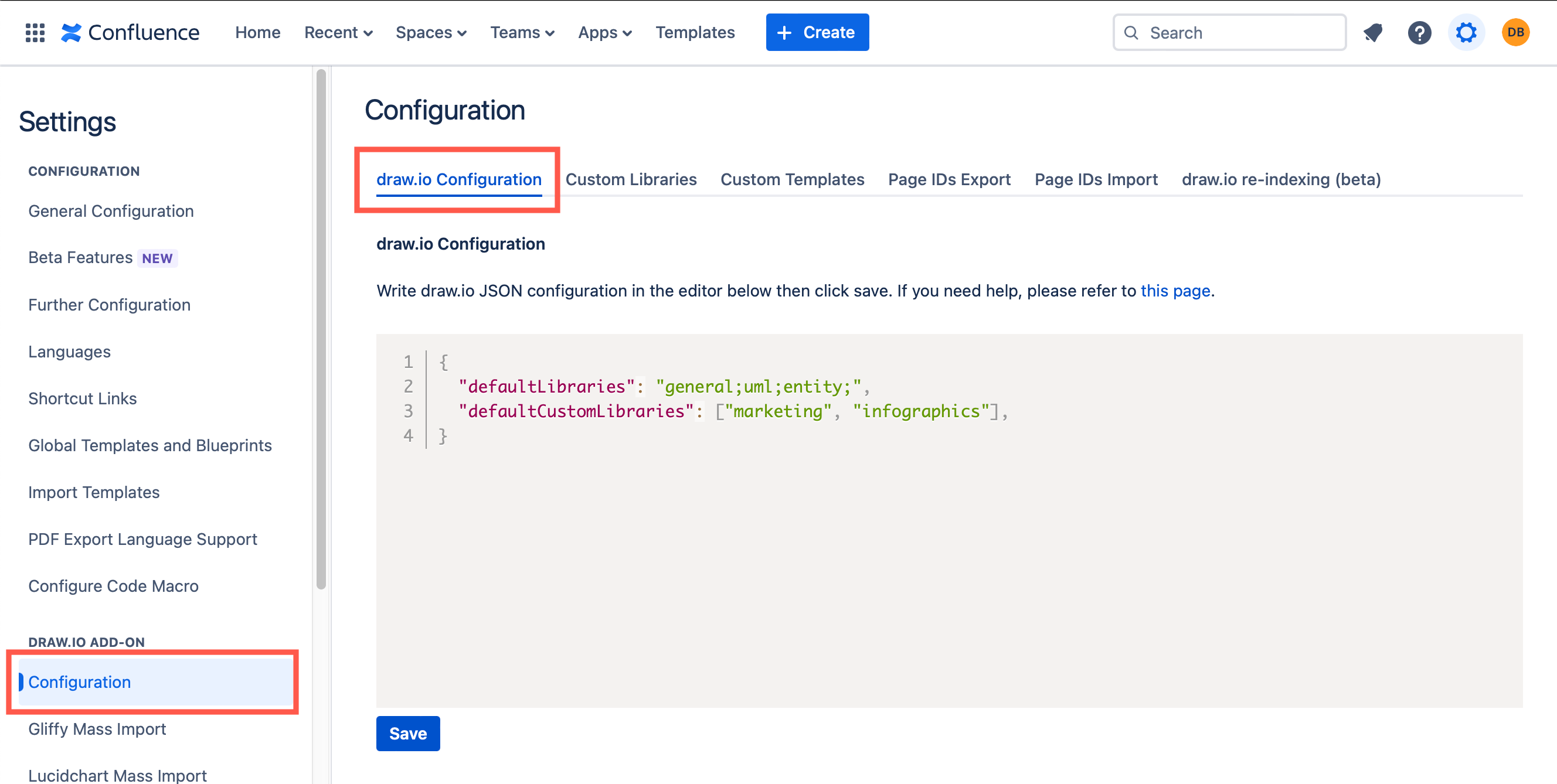
- Go to the draw.io Configuration section in the Confluence Cloud settings.
- Edit the JSON code to include the
defaultLibrariesoption and list which libraries you want to open by default. - If you want to have a custom library open by default, add the
defaultCustomLibrariesoption and list the libraries in the same way.
{ "defaultLibraries": "general;uml;entity;",
  "defaultCustomLibraries": ["marketing", "infographics"], }
- Click Save when you are finished with the draw.io configuration.
See how to use custom shape libraries in Confluence Cloud
Custom templates
Create libraries of custom template diagrams for different purposes - floor plans for HR, infographic foundations for marketing, BPMN layouts for internal documentation, UML representations of existing databases or code for developers, etc.
Custom templates are stored in the draw.io Configuration section of your Confluence Cloud settings.
Share custom templates in Confluence Cloud
- Go to the Custom Templates tab in the draw.io Configuration section of your Confluence Cloud settings, and click on the Templates page link.
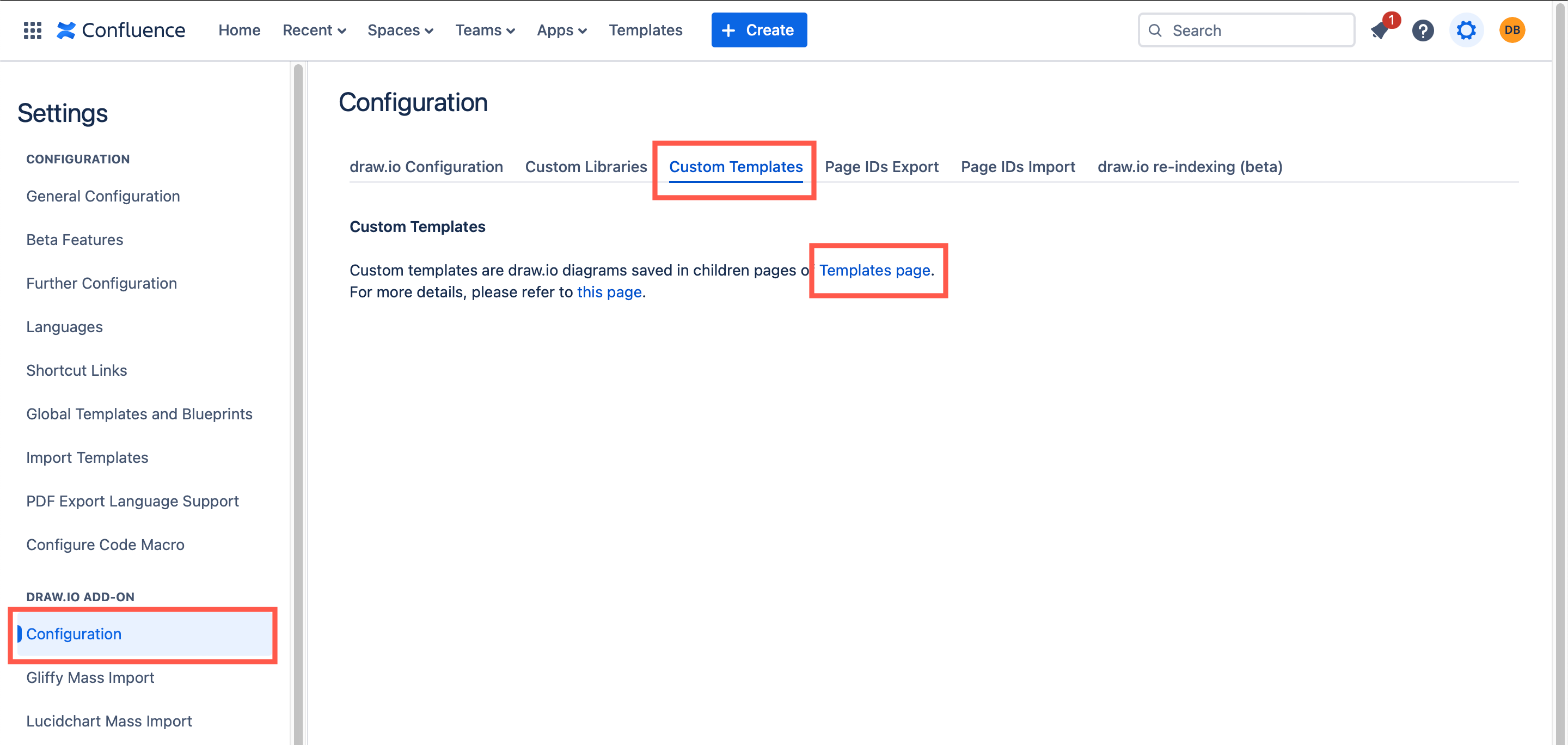
- Add a child page underneath the Templates page to create a new template category, or edit an existing child page to add a new template to that category. Make sure draw.io Configurations is selected in the drop down list to ensure your template is available to everyone. Then click Create.
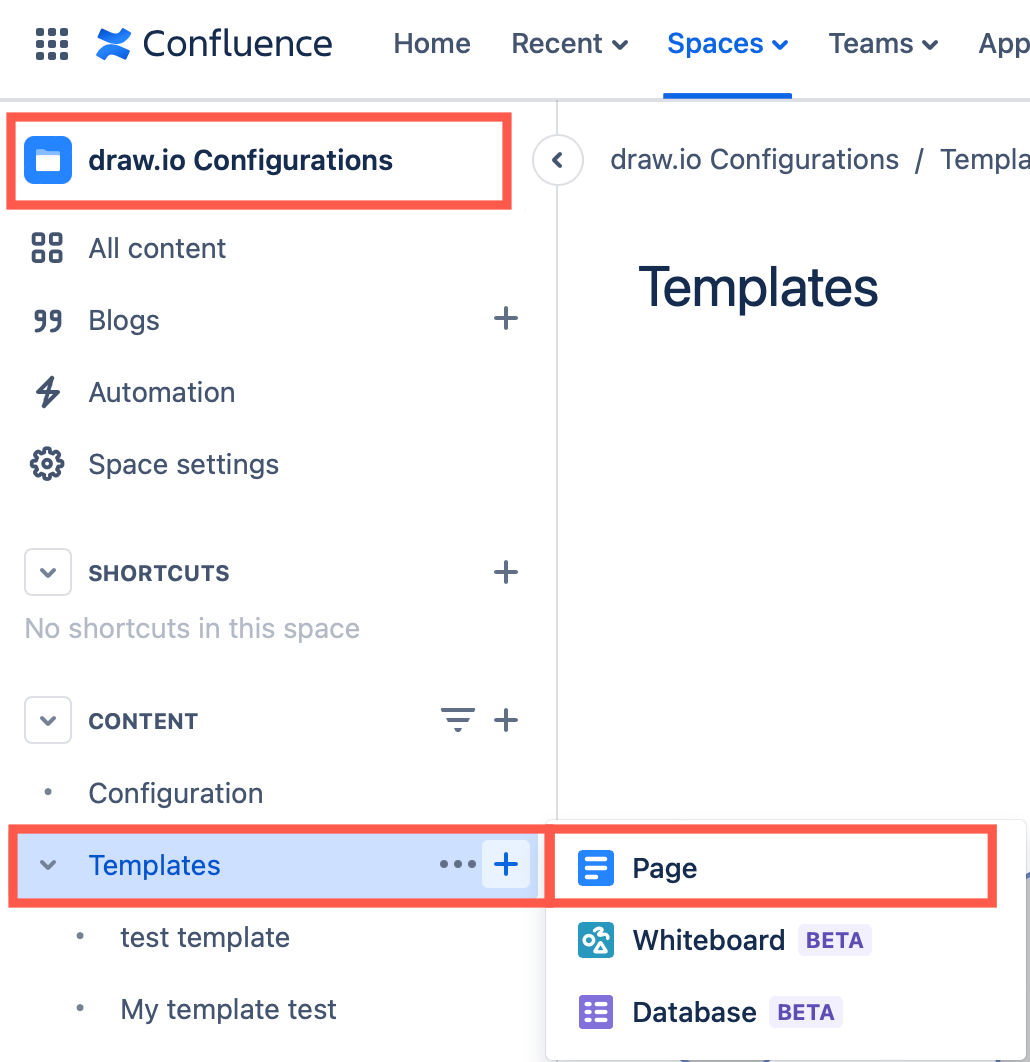
- Add your template diagrams to this new page and save it.
There may be a small delay before the new templates are available in the template library.
When you add a new draw.io diagram or insert a diagram from a template, your custom templates will be shown at the top of the template library dialog.
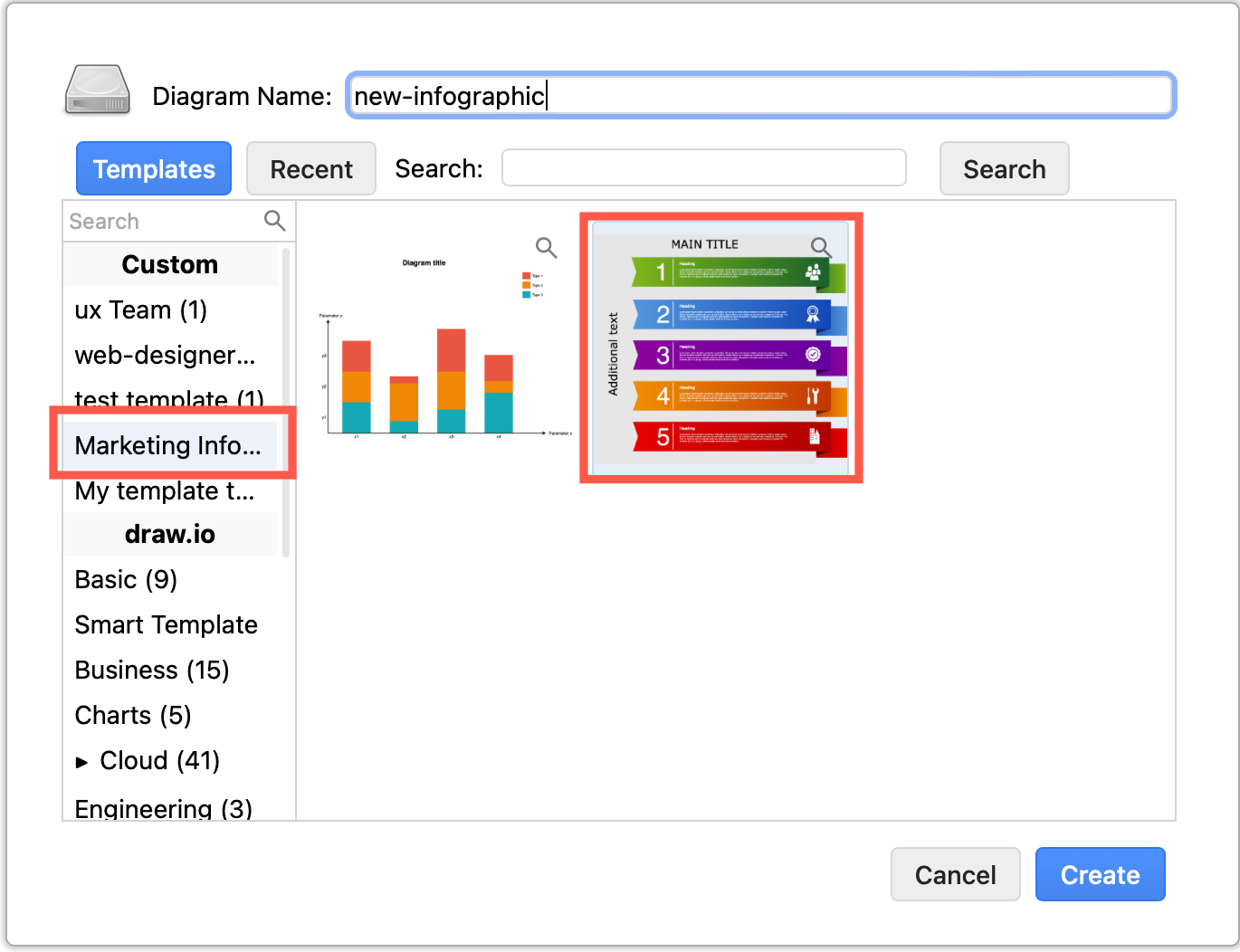
Learn how to use custom templates in Confluence Cloud
Custom default draw.io plugins
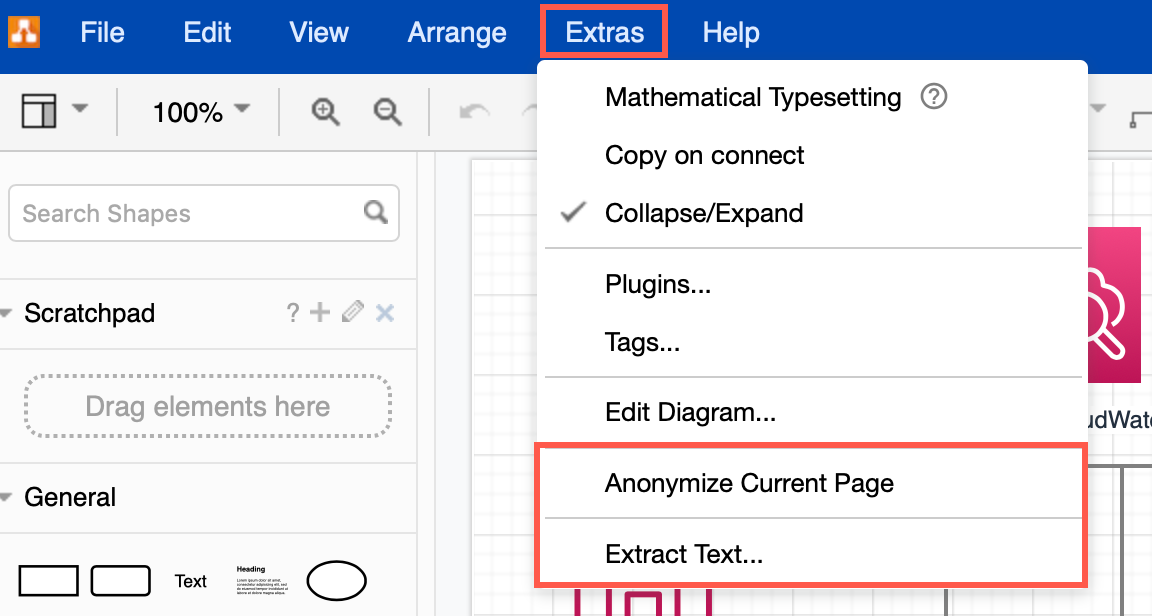
An administrator can configure draw.io to enable one of the official draw.io plugins by default so that all diagram creators can access it via the draw.io menu.
- Go to the draw.io Configuration tab in the draw.io Configuration section of your Confluence Cloud settings.
- Add the short name for the plugin you want to load by default to the
pluginsoption. Add multiple plugins separated by a semicolon. - Click Save when you are done.
{ "plugins": ["anon;text"] }
Now, your plugins will be available in the menu.