Embed Confluence diagrams in Jira Cloud
Visual documentation for systems, processes and software is typically stored in a central knowledge base like Confluence, where all the teams that are involved can access and collaborate on the diagrams.
You also often need to refer to those diagrams in projects and tasks in Jira.
The draw.io app for Jira Cloud can search the diagrams stored on your Confluence Cloud pages and embed them in your Jira issues.
Install both draw.io apps
draw.io for Confluence and draw.io for Jira are two separate Marketplace apps. They are installed separately, trialled separately and licensed separately. To embed a Confluence diagram in a Jira issue, you need both.
- Install draw.io for Confluence Cloud on your Confluence site. This app creates, stores and displays the diagrams on your Confluence pages.
- Install draw.io Diagrams for Jira on your Jira site.
- Connect the Jira app to your Confluence site. Open the app management pages, select draw.io Diagrams for Jira, and check that Confluence is listed under Connected to. If it is not, click Manage connections and add your Confluence site.
The Jira app uses that connection to read diagrams from your Confluence pages. It adds nothing to Confluence itself, so you will not see it in the Confluence sidebar or in the Confluence settings. Everything you see in Confluence comes from the draw.io for Confluence app.
Note: If you use both apps, see how to license draw.io for both Confluence and Jira Cloud.
Embed a diagram from Confluence Cloud in a Jira issue
- Open an issue in your Jira Cloud instance.
- If you don't see the draw.io Diagrams section, click on the draw.io logo just under the issue title, then click on Embed Diagram.

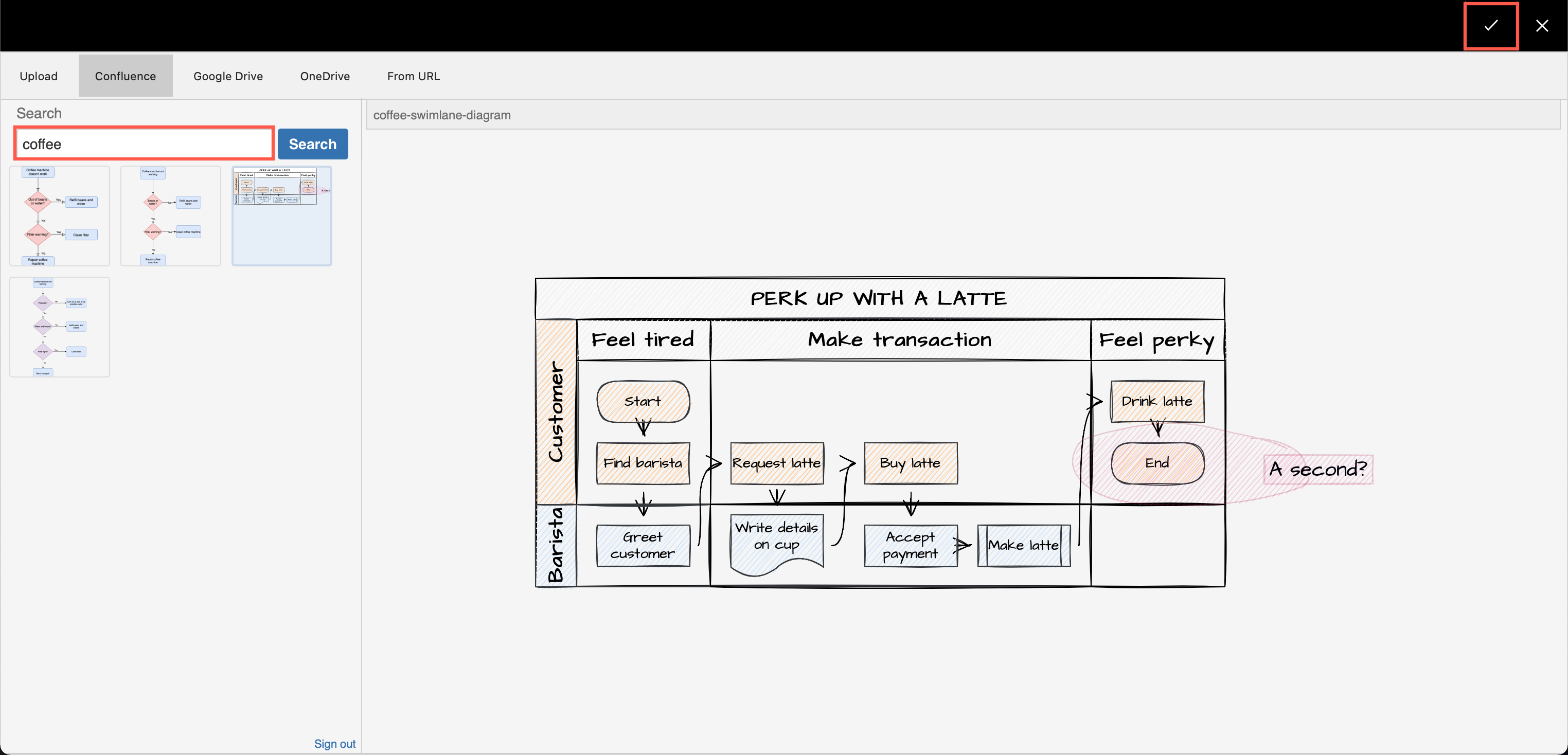
- Select the Confluence tab, then search for the name of the draw.io diagram you want to embed. Leave the search box empty to list the diagrams changed in the last seven days.
- Select a diagram on the left to see a larger preview, then click the tick or check mark in the top right to embed it in your Jira issue.
The diagram will be embedded in the Jira issue. It is still stored on the Confluence page, so any change made there will update the diagram in the Jira issue.
View an embedded diagram
Click on the draw.io diagram in your Jira Cloud issue to expand the diagram to the size of your browser window. Alternatively, click on Show in the embedded diagram's toolbar.

Delete an embedded diagram
Hover over the embedded diagram in the Jira Cloud issue to see the toolbar, then click on Delete (rubbish bin icon).
Only the copy in the Jira issue is removed. The diagram on the Confluence page is not changed.
Troubleshoot the Confluence search
Please install/connect this App in Confluence to be able to access the diagrams: the Jira app is not connected to your Confluence site. Add the connection in the app management pages, as described above.
draw.io diagrams Confluence App is not installed: the Jira app reached your Confluence site, but draw.io for Confluence is not installed there. Install it from the Marketplace listing linked above.
No diagrams are found: only diagrams created by draw.io for Confluence are listed. Diagrams attached to a Confluence page as plain image files, and diagrams embedded into a Confluence page from another source, are not listed.