An overview of draw.io's features
The draw.io diagram editor on all platforms and integrations looks the same and offers the same main features no matter where you are using it. You can open a diagram created in one integration in another.
Secure your diagram data
All of the draw.io applications and integrations with various platforms, as well as our free online diagram editor at app.diagrams.net do not store your diagram data - draw.io is a unique security-first diagramming tool.
- Set data governance options for fine control over extended features.
- Install our offline desktop app, available on Windows, MacOS and Linux.
Store diagram files wherever you want
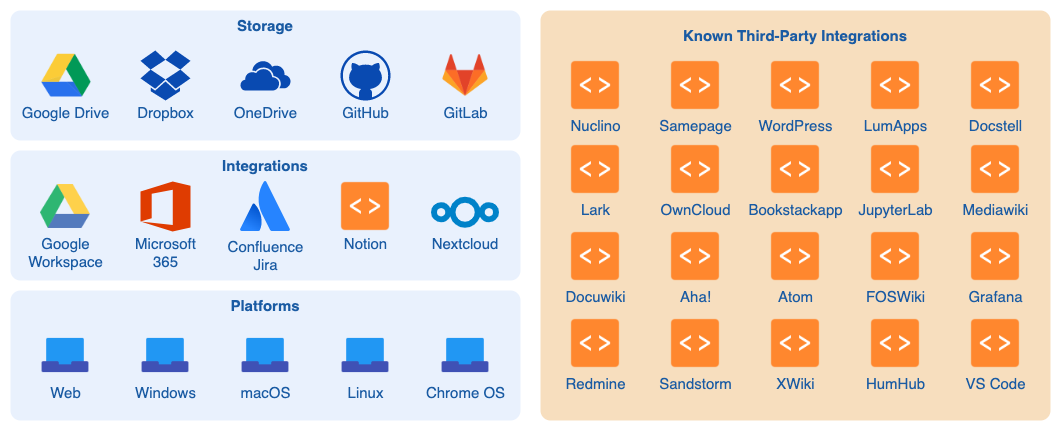
Use whichever cloud platform you prefer to store your diagram files: Google Drive, Microsoft OneDrive, DropBox, GitHub/GitLab, in your browser, or on your device.
No account needed - your diagrams are not locked behind an account.
Use our free online editor in your browser and on mobile and touchscreen devices.
Integrate diagrams with other software
Store and work with draw.io diagrams in Atlassian Confluence and Jira. External collaborators don't need to join your instance, they can view and edit diagram files that you share with them using our online editor - no account or diagram format conversion is needed.
Use draw.io add-ons with Microsoft OneDrive, Google Drive which works with Google Workplace and Google Classroom, and Notion. You can also use draw.io with many third party integrations
Advanced: See how to embed the draw.io editor in your own application.
Collaborate in real-time with shared cursors
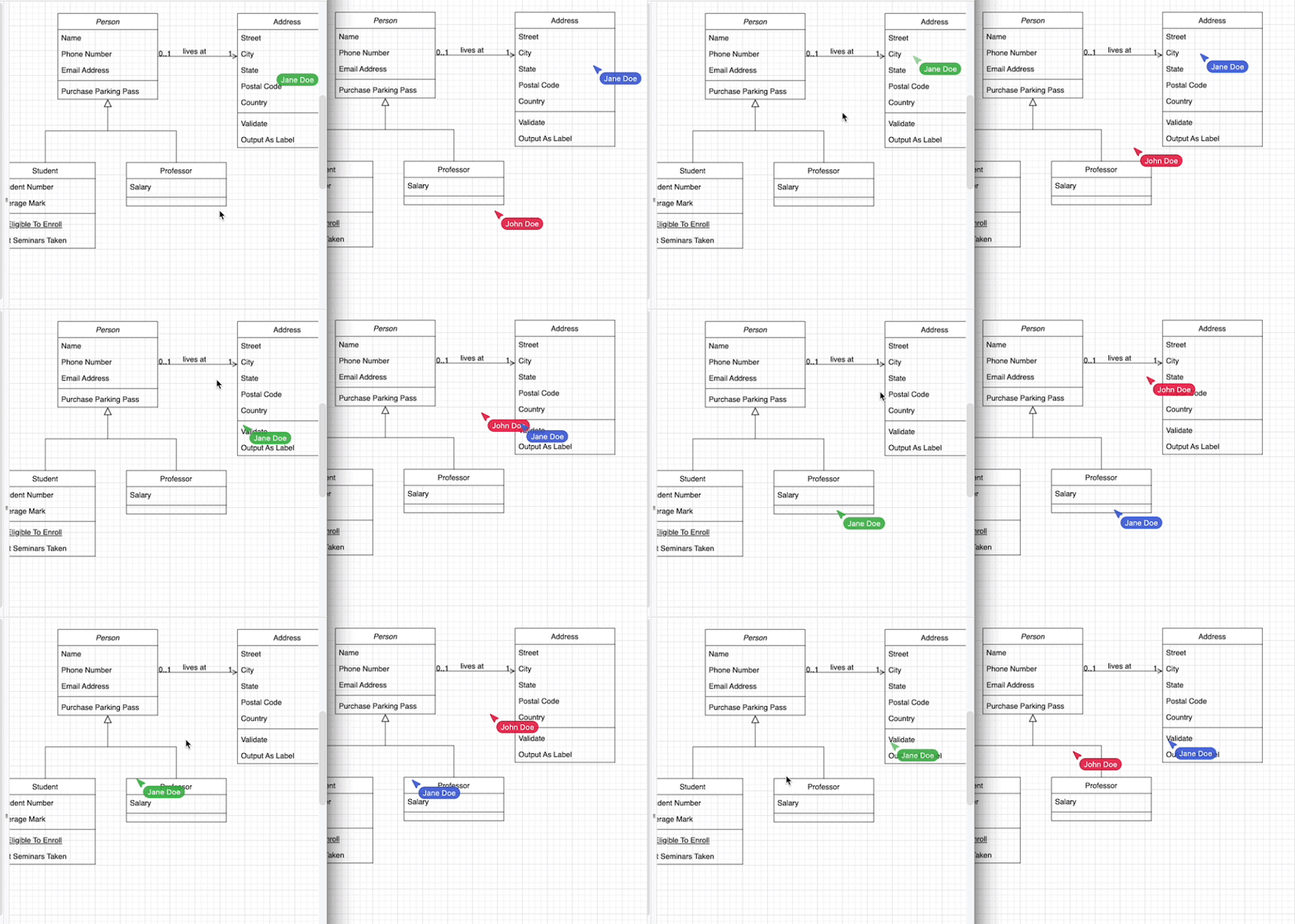
Multiple people editing a diagram can see each others' changes synchronised in real time using Google Drive, Microsoft OneDrive, DropBox, and draw.io in Confluence.
Easy-to-use diagram editor
The draw.io apps work just like the office and drawing tools you are familiar with.
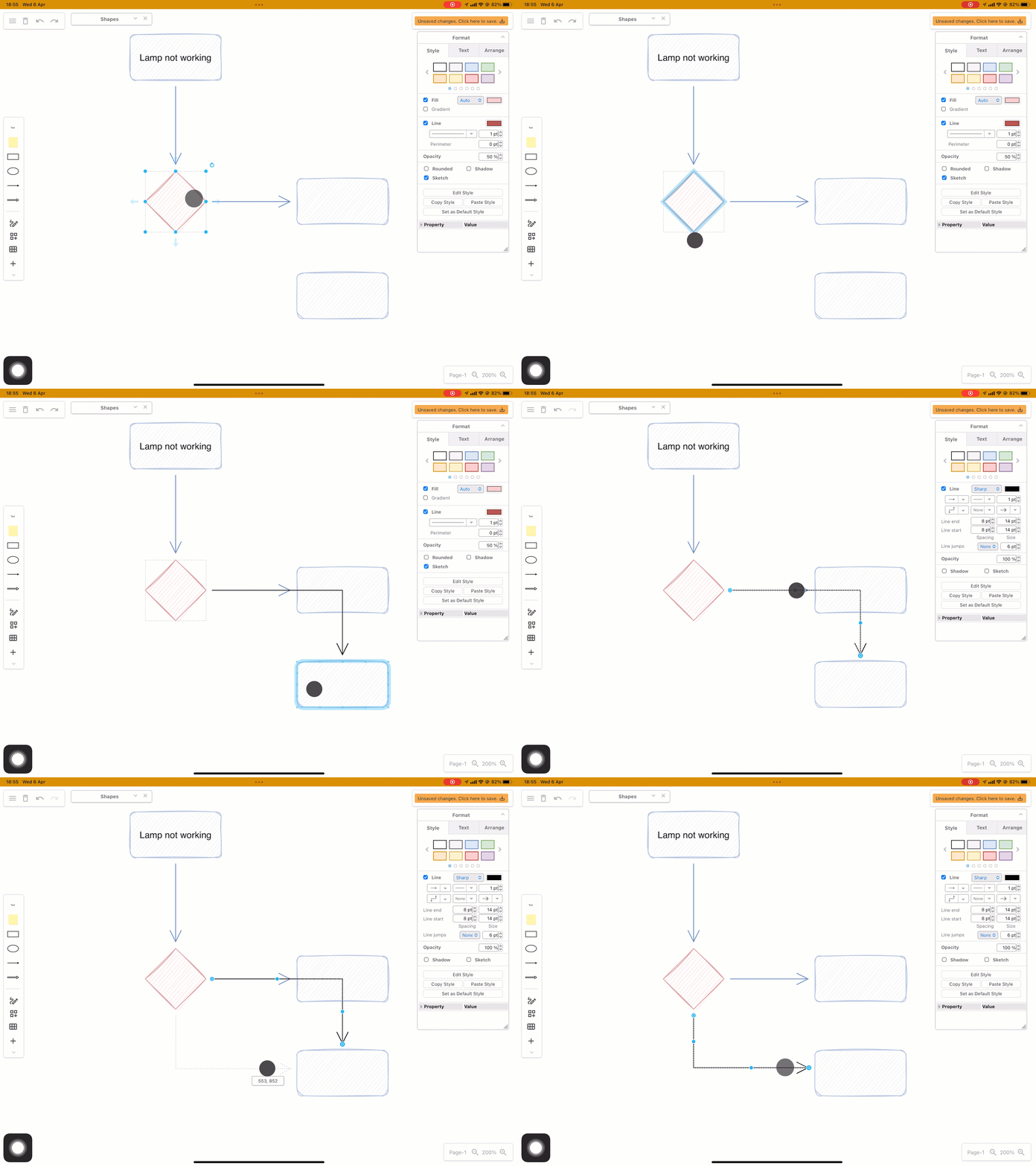
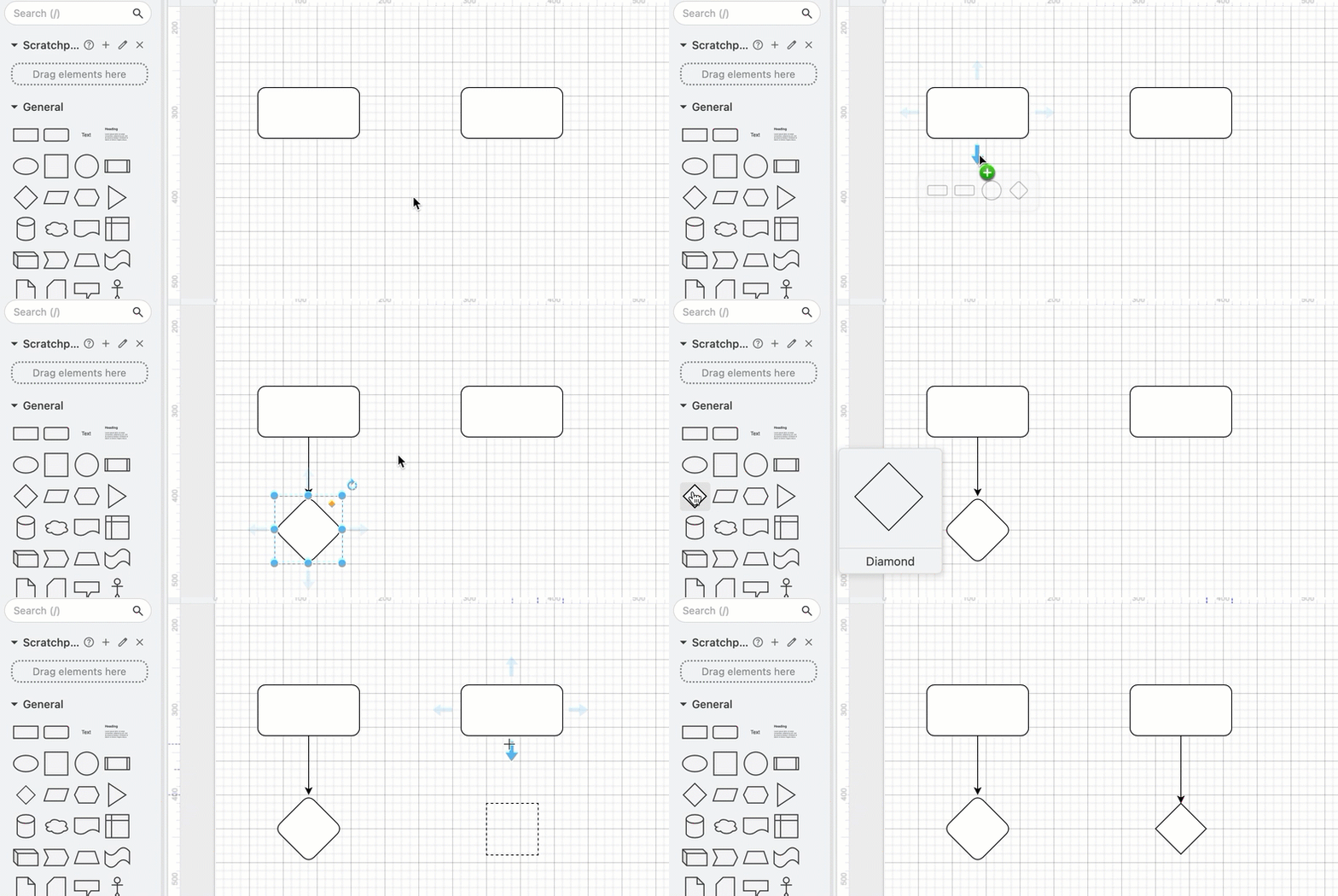
- Drag and drop shapes from the shape libraries and drag to draw connectors between them.
- Drag connectors to change their path manually or let them reroute automatically.
- Double click and start typing to add a label to anything.
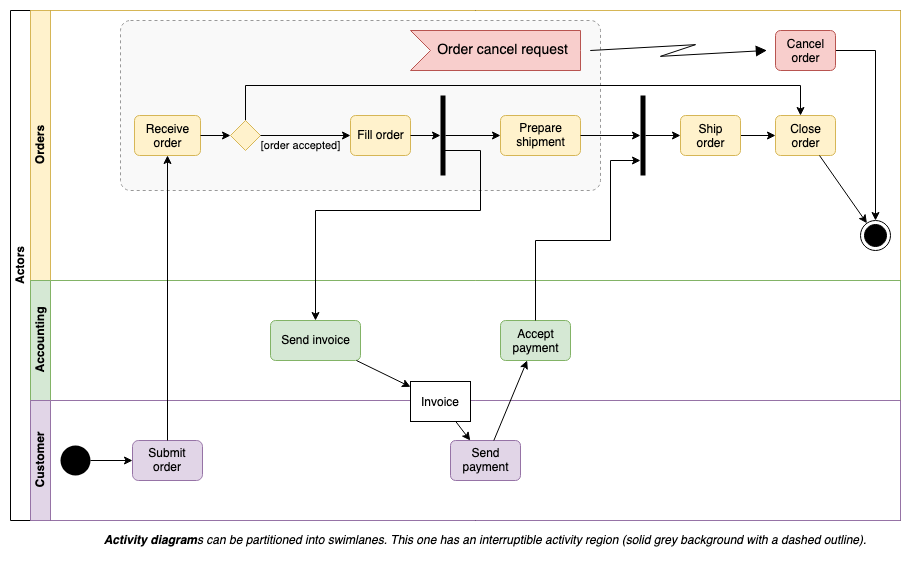
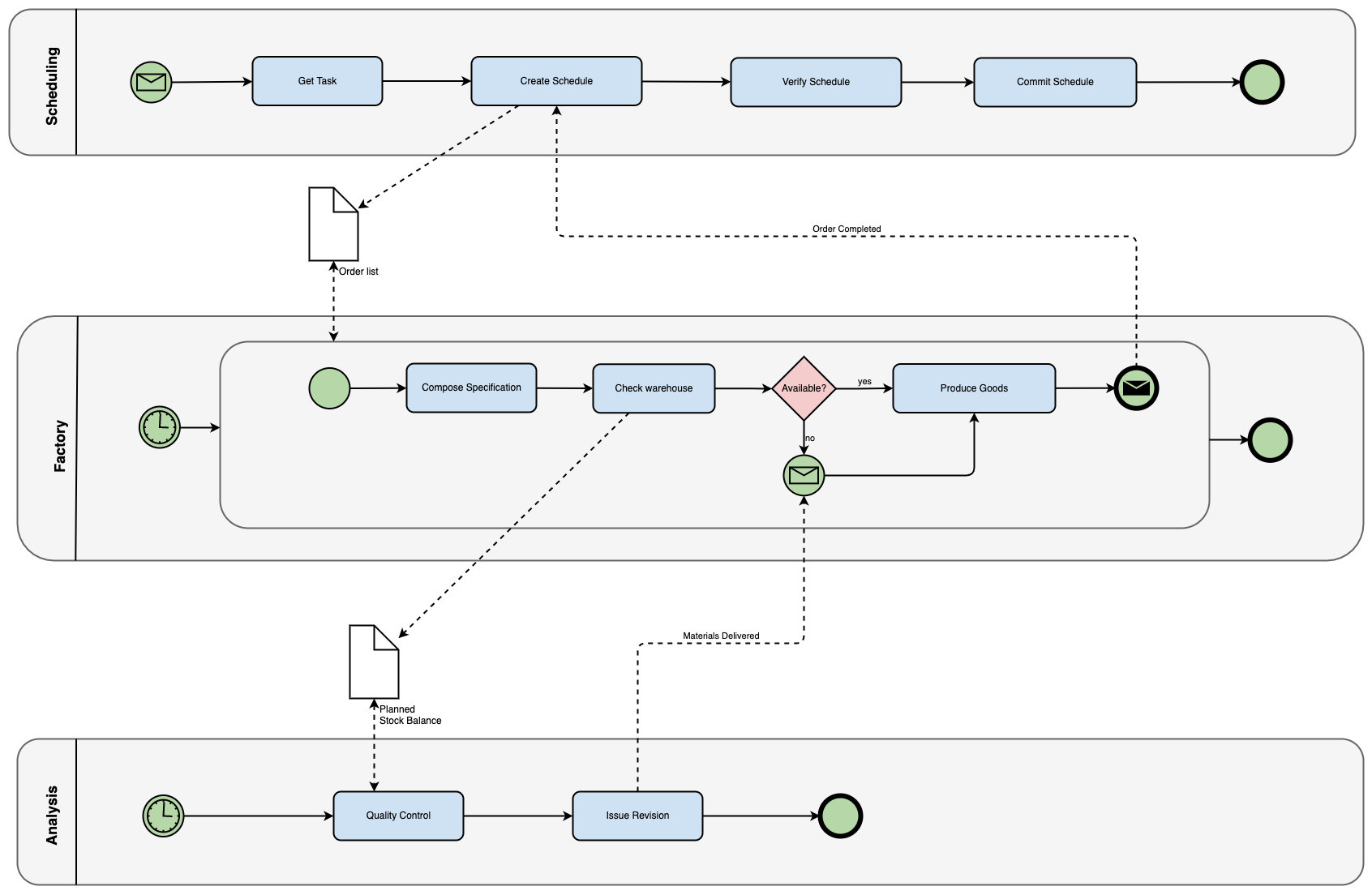
- Create tables and swimlane flows with a familiar tool.
- Style shapes and connectors with customisable palettes, fill styles, fonts and text formatting.
- Search for shapes, including in open-source icon libraries.
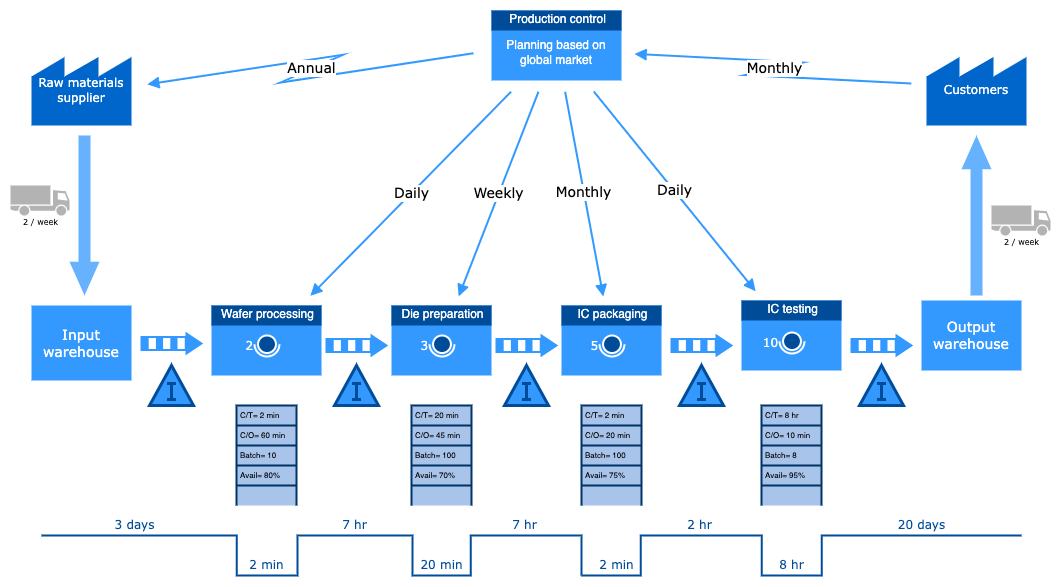
- Use our vast libraries of shapes and templates to create a range of technical diagrams and infographics.
- Enter a text description and let an AI tool generate the diagram.
- Diagram faster with keyboard shortcuts.
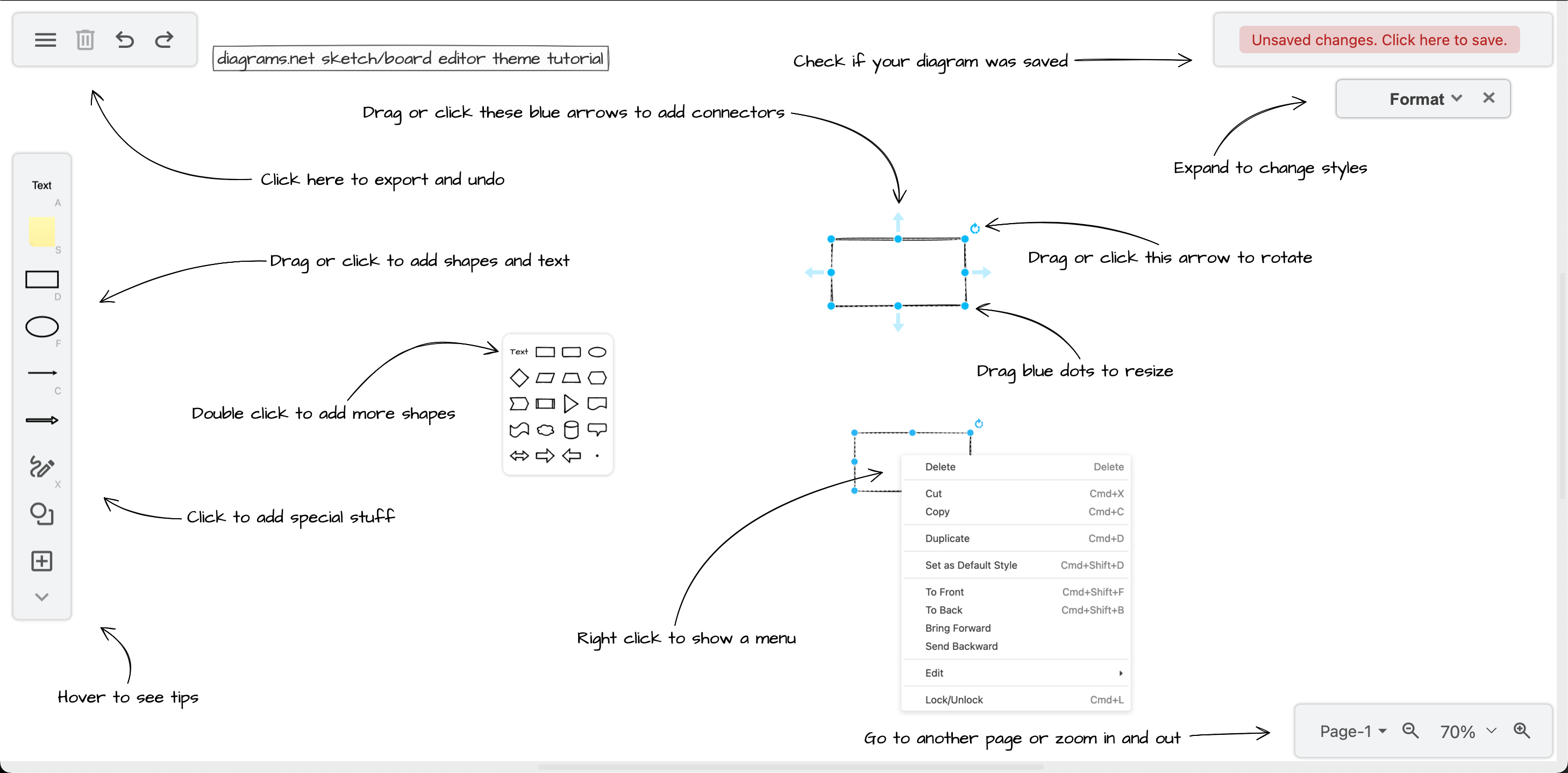
Customise the draw.io editor
Find your favourite editor theme - a simple online whiteboard, floating tool panels, or the standard editor layout. You can also switch the editor to use your language.
Import and export many formats
Drag and drop a file to import a diagram, including many other diagram formats and continue editing. Publish and export to many formats.
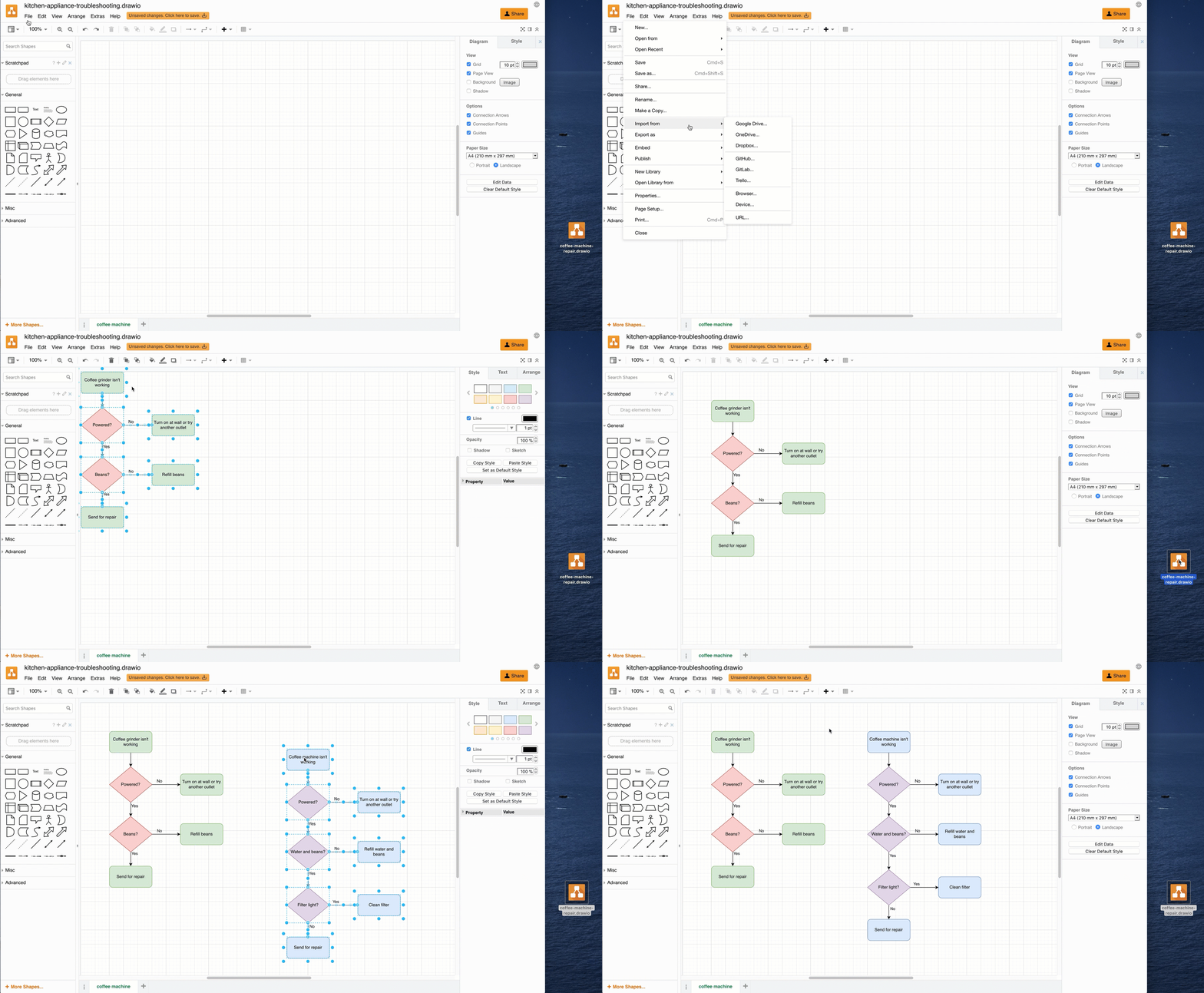
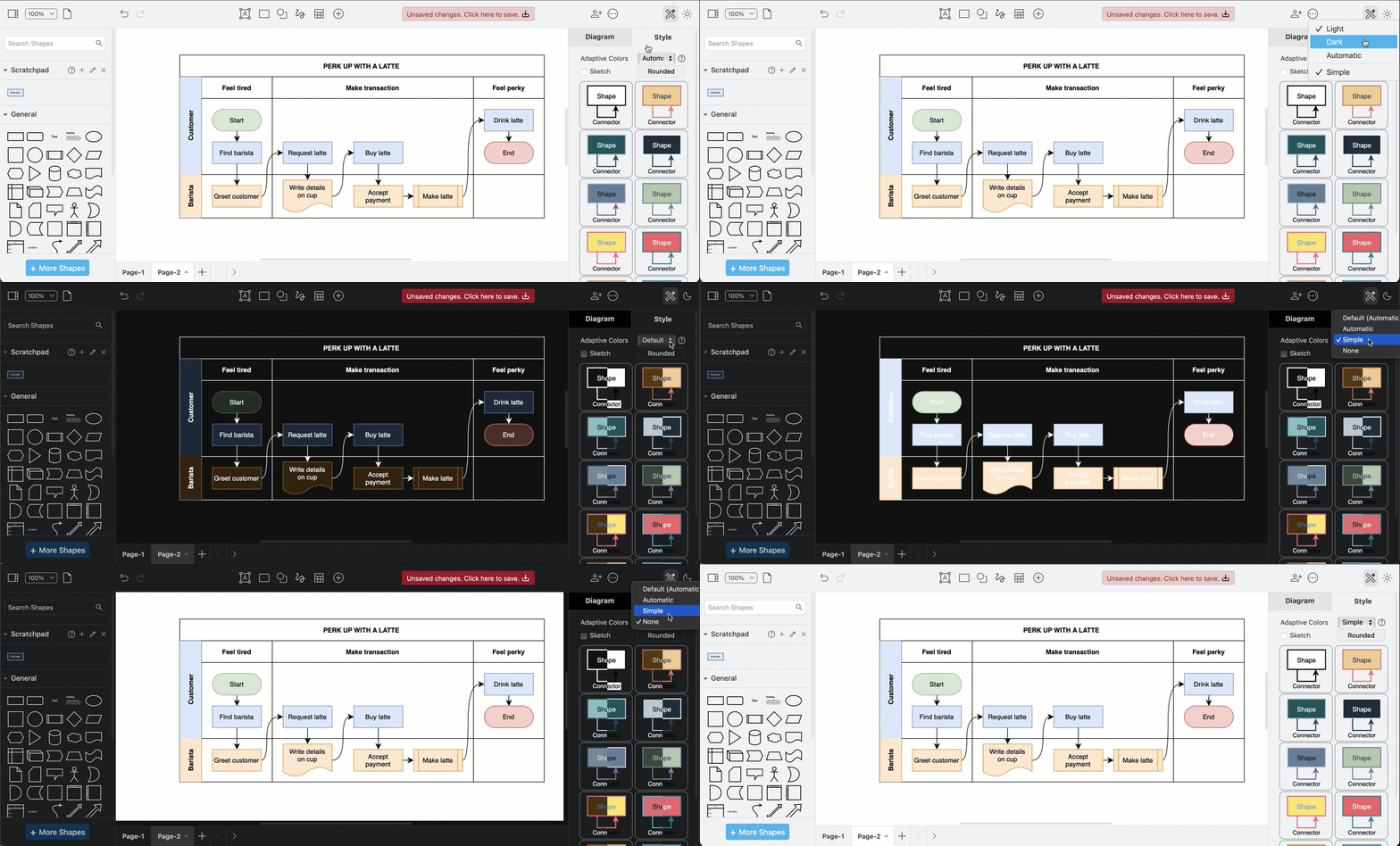
Diagram in dark mode
The draw.io editor can automatically adjust the colours and brightness to make sure you diagram is readable when you use dark mode. You can set user-defined colours to override the automatic dark-mode colours, or disable adaptive colours in the editor to have the editor panels in dark mode, but the diagram always in light mode.
Advanced diagramming tools
Many advanced and helpful tools are built into the diagram editor.
- Use the infinite canvas, rulers, customisable grid and positioning guidelines to help you diagram faster.
- Let auto-layouts format flowcharts and tree diagrams for you.
- Organise your diagram with layers and tags. Set shape properties, metadata and placeholders to add translations, tooltips, links, and interactive actions.
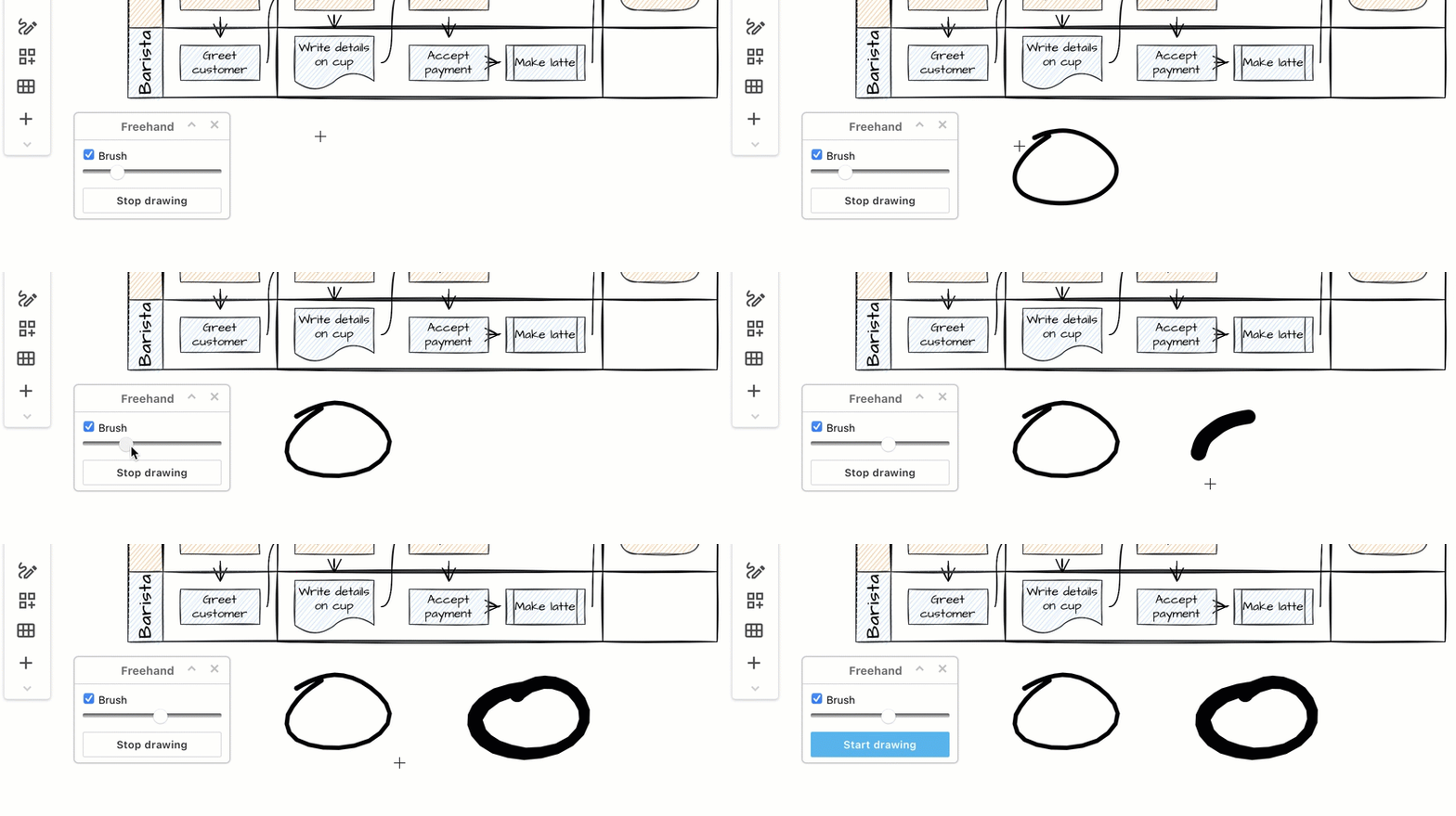
- Sketch and comment with freehand shapes.
- Create your own custom shapes and custom shape libraries.
- Format text with HTML and use mathematics typesetting in labels.
- Generate diagrams text using Mermaid code, CSV spreadsheet data and formatting information, or SQL code.
- Customise the editor to set a specific palette, custom fonts, templates, shape libraries, and more.
Tip: If you use draw.io in Confluence, administrators can mass import all the Gliffy diagrams in your instance in one step.
Create a wide range of technical diagrams
Our shape libraries let you create whatever type of diagram you need:
- floorplans, org charts, process flows and network infrastructures
- infographics, story maps and timelines
- UML diagrams, kanban boards, entity relationship models and fishbone diagrams
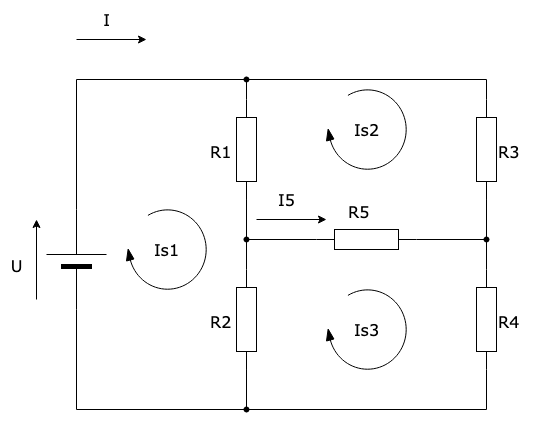
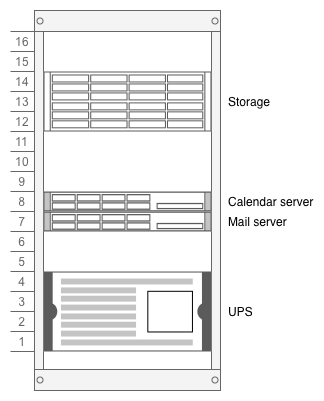
- circuit diagrams, rack diagrams, attack trees and dependency graphs
- ... and many more