Mouse + keyboard shortcuts
There are many combination mouse plus keyboard shortcuts in draw.io that will speed up your drawing. You can select and deselect multiple shapes, resize grouped shapes in various ways, connect and clone shapes quickly.
You are probably familiar with the copy & paste keyboard shortcut (Ctrl+C and Ctrl+V) as they are used in almost all applications.
Combination or modifier keyboard shortcuts are when you press keys on your keyboard and it modifies a mouse action that you do at the same time.
All of the current modifier keyboard shortcuts in draw.io are described below. Use the navigation on the right to jump to the shortcut you need.
Note: macOS users should use Cmd instead of Ctrl, and Option instead of Alt in the shortcuts below.
Several modifier keyboard shortcuts work directly with or on the drawing canvas.
Open a diagram file
Hold Shift while you drag a diagram file onto the drawing canvas. Your diagram file will be opened in a new tab if you are using diagrams.net in your browser, instead of being pasted into your current diagram.
If you are using the draw.io Desktop app, and had previously made changes to an open diagram, you will be prompted to Save or Discard Changes before the editor opens the file you dropped on the canvas.
Open the context menu
Hold Ctrl and left-click on the drawing canvas.
Zoom in and out
Hold Alt or Ctrl+Shift and scroll the mouse wheel to zoom the drawing canvas in and out.
Scroll horizontally
Hold Shift and scroll the mouse wheel to move the drawing canvas horizontally.
Pan drawing canvas
Hold Space or right-click or click and hold the mouse wheel and drag the drawing canvas around.
Deselect/reselect shapes
Hold Shift or Ctrl and click on a shapes, or drag a selection box around multiple shapes you want to deselect or reselect.
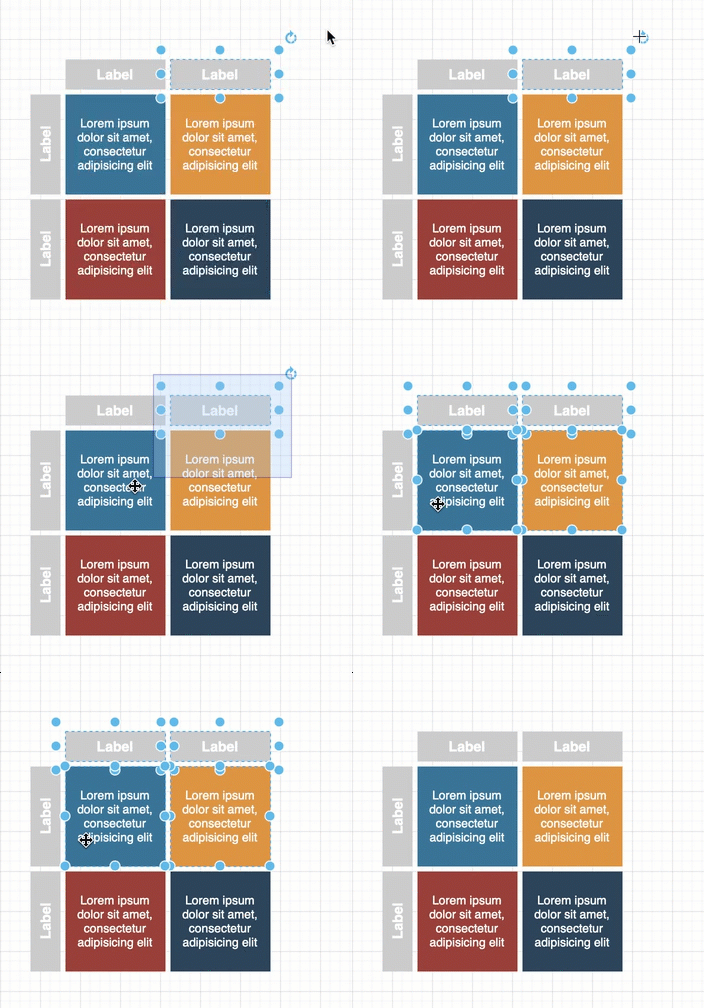
Force a selection box
Hold Alt and start dragging to force a selection box, no matter what is selected or what what shapes are under your mouse. This will ignore all handles on shapes and connectors under the mouse (rotate, resize, and connection points).
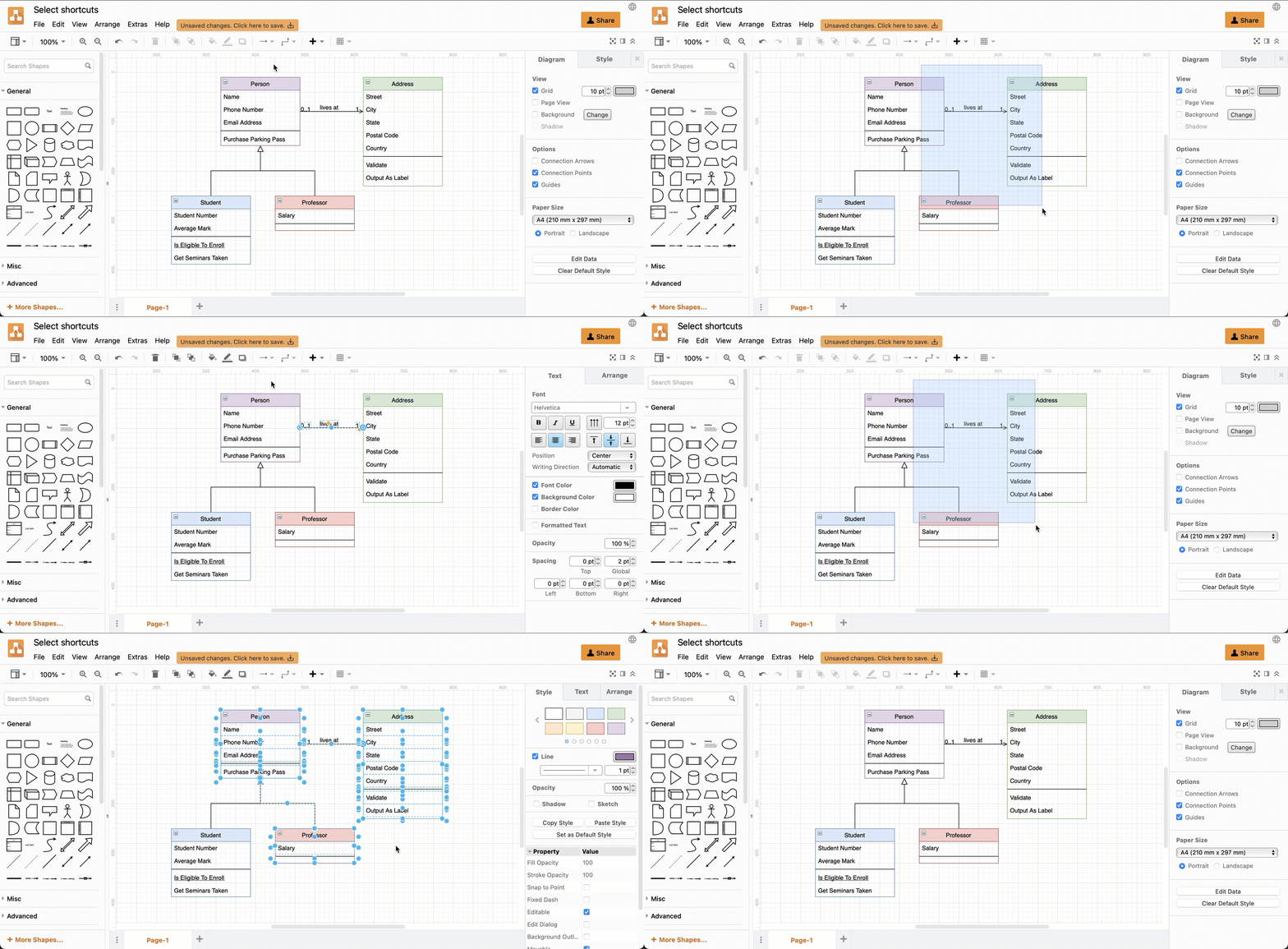
Select intersecting shapes
Hold Alt as you finish dragging a selection box to select all the shapes and connectors that are fully and partially inside the selection box. This includes individual shapes that are part of a group.
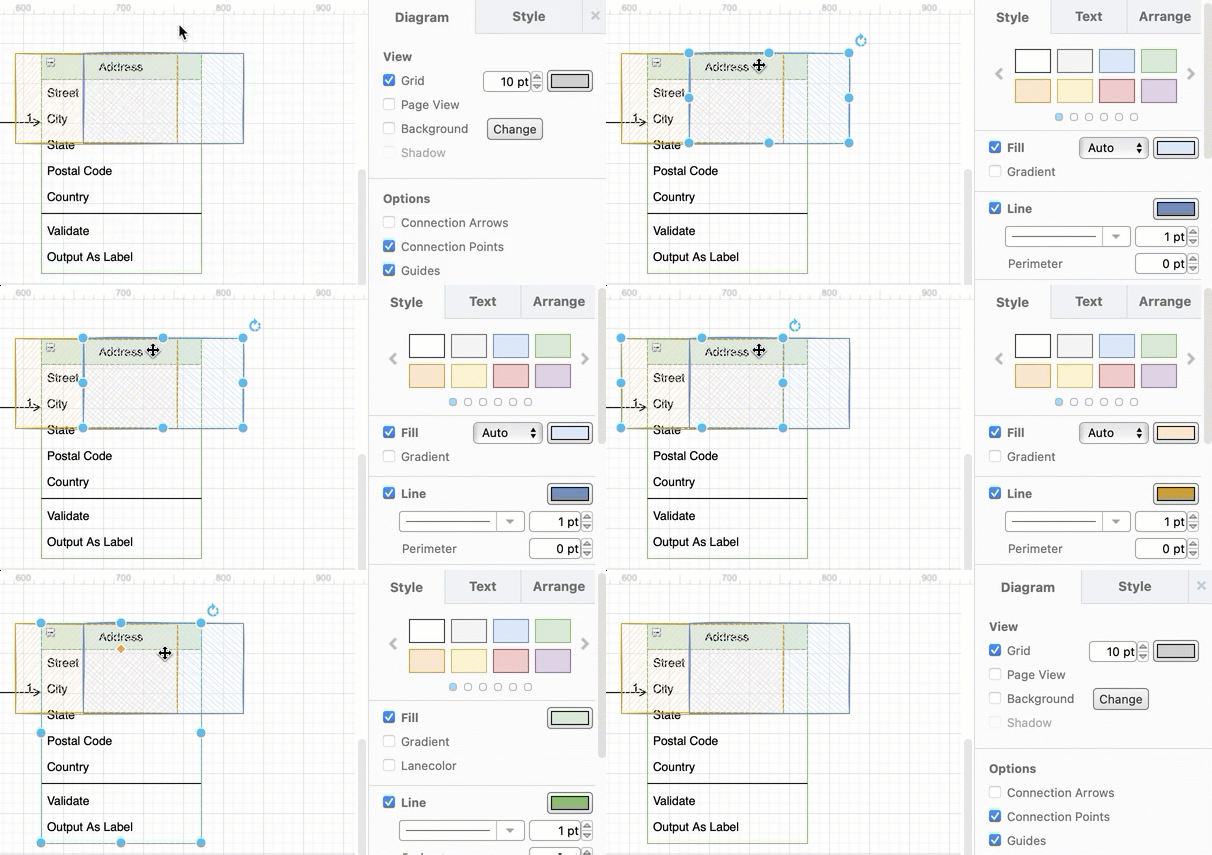
Select the shape or connector underneath
When you have shapes or connectors stacked on top of each other, hold Alt and click on the shape to select the next shape down the z-order stack, behind the currently selected shape.
More keyboard-only shortcuts for selecting shapes
You can use mouse + keyboard shortcuts to work with shapes that are already on the drawing canvas.
Clone a shape
Hold Ctrl and drag a shape that is already on the drawing canvas to clone (duplicate) it. This shortcut can also clone multiple selected shapes and connectors.
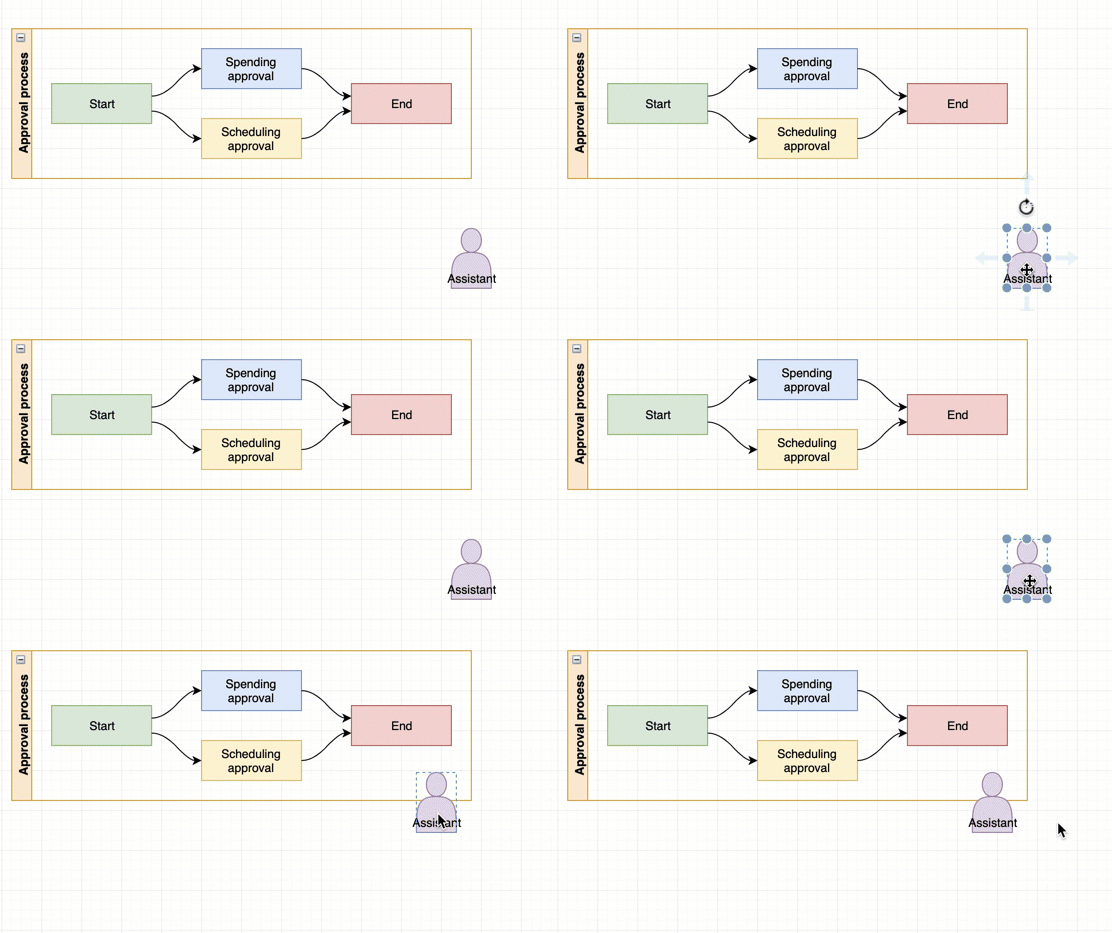
Overlay shapes on containers
Hold Alt then drag and drop a shape over a container shape to overlap the two shapes instead of adding them to the container shape.
Move or resize shape and ignore grid
Hold Alt as you move or resize a shape or group of shapes on the drawing canvas to move it smoothly and not 'snap' it to an exact alignment based on the editor grid.
Insert space and move shapes
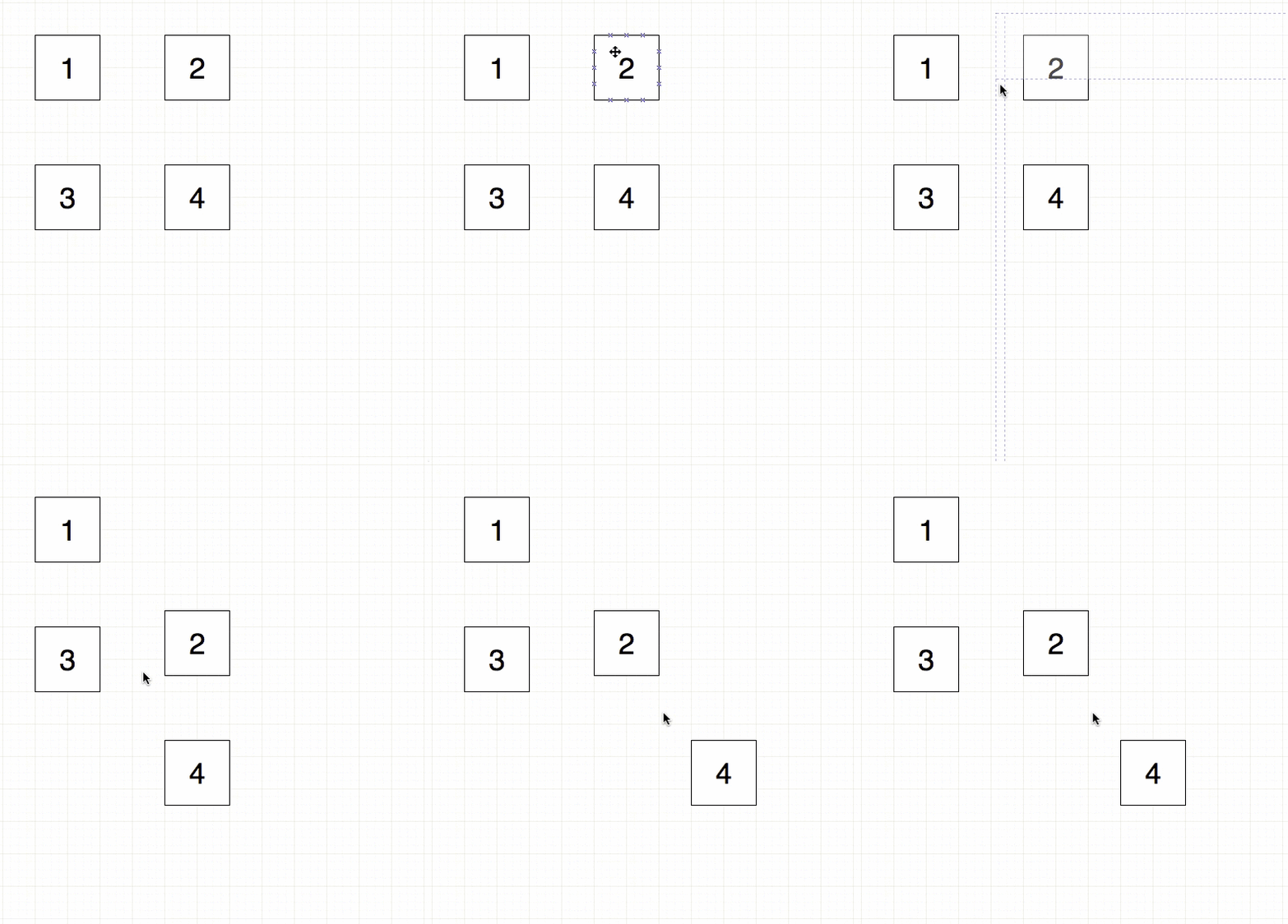
Hold Alt+Ctrl+Shift and drag the mouse from a blank section on the drawing canvas to insert horizontal and vertical space and move the nearby existing shapes.
Maintain proportions on resize
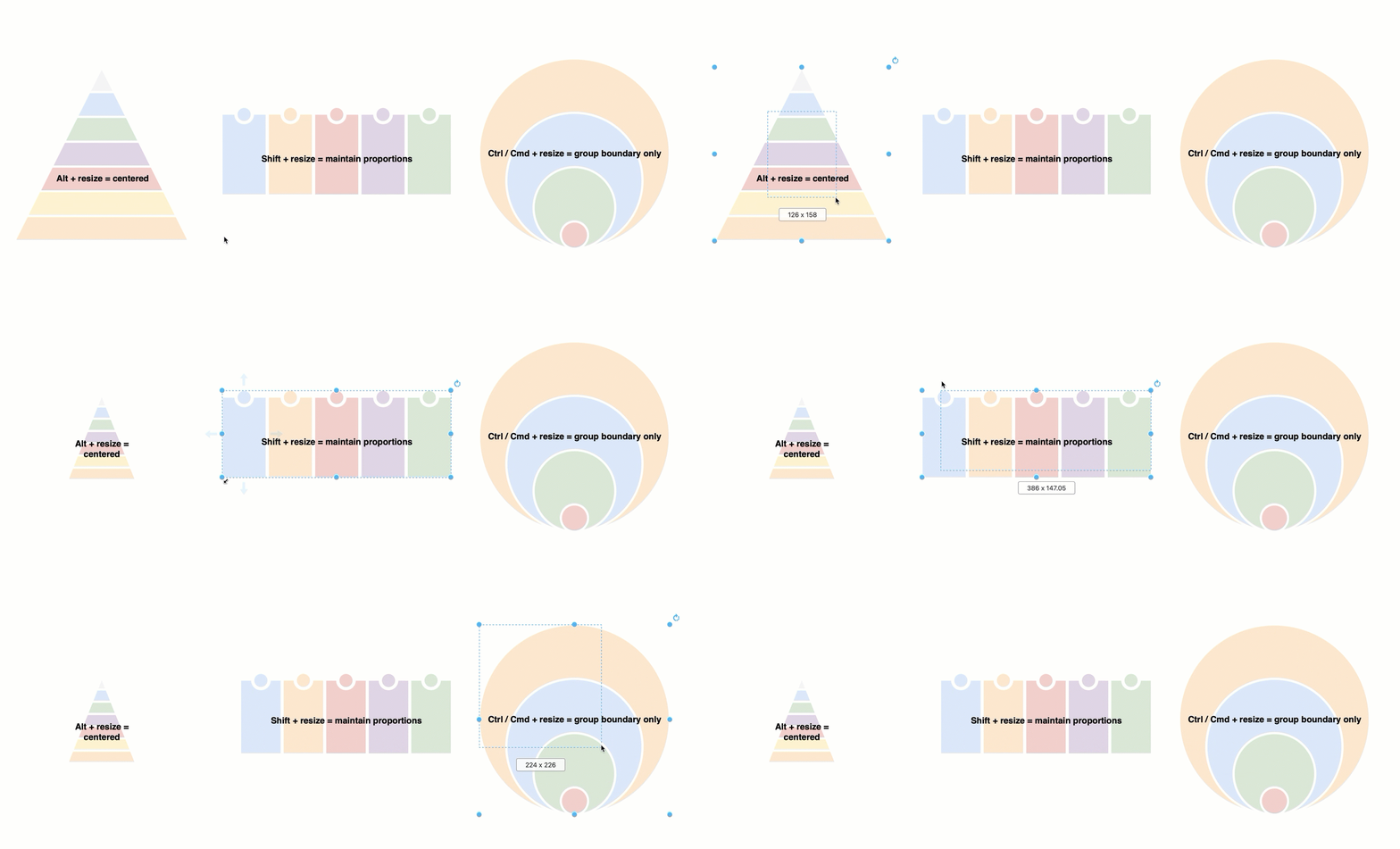
Hold Shift and drag the grab handles on a shape to resize it while keeping the height and width relative to the shape's original proportions.
Resize only the group's outer boundary
Hold Ctrl and resize a group with your mouse. The outer boundary of the group will be resized, but the shapes inside the group will not. This is called a non-recursive group resize.
Centered group resize
Hold Alt and resize a group with your mouse to resize both the group and all of its shapes around its central point.
Ignore shape on connect
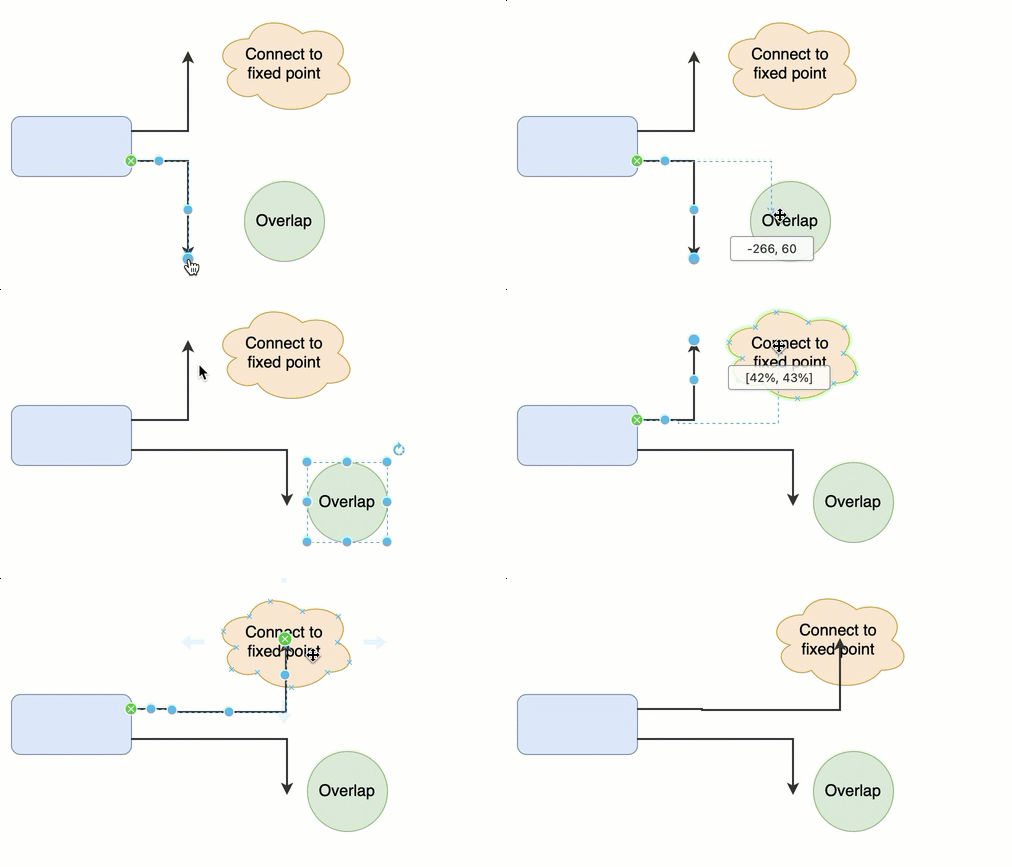
Hold Alt then drag and drop the end of a connector to overlap it on a shape without connecting to the shape.
Connect to a fixed point
Hold Shift as you drag the end of a connector and hover over a shape to display only the fixed connection points. Drop the connector on a connection point or at any point inside the boundary of the shape to connect it to that fixed point.
Some mouse + keyboard shortcuts let you work quickly with shapes from the shape libraries.
Ignore current default style
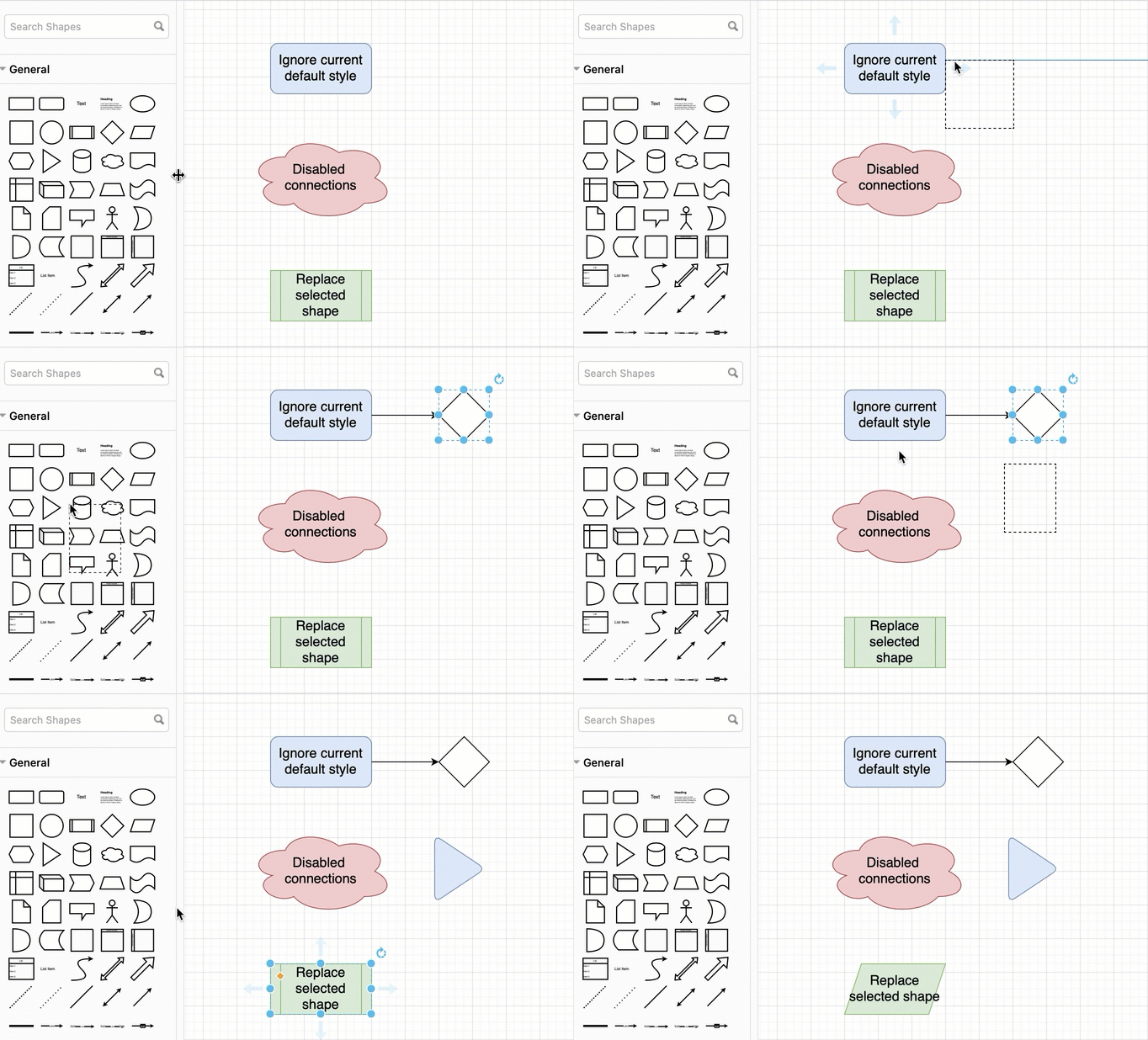
Hold Shift and click on or drag a shape from the shape libraries. The new shape will have a white fill and a black outline, as per the original draw.io default style for shapes and not a custom default style that you have set.
Disable connections on drop
Hold Alt and drag a shape from the library to disable the direction or connection arrows on the existing shapes on the drawing canvas. When you drop the shape, the editor will not try to auto-connect it.
Replace shape
Select a shape on the drawing canvas, hold Shift and click on a shape in the shape library to replace the selected shape. This is faster than dragging a new shape from the shape library over an existing shape to replace it.
Insert a new shape at the bottom left
Hold Alt and click on a shape in the shape library to add it to the drawing canvas at the bottom left of your diagram, underneath all other shapes. Normally, when you click on something in the shape libraries, it will be added to the center of your diagram, overlapping any existing shapes at that position.
Insert and connect a shape
Select the shape on the drawing canvas that you want to connect a new shape to, then hold Alt+Shift or Alt+Ctrl and click on a shape in the shape library.
More diagramming keyboard shortcuts
There are many more keyboard shortcuts in draw.io.

Print these keyboard shortcuts cheat sheet for quick reference