Mass import Gliffy diagrams
As an administrator, you can convert all of the Gliffy diagrams in your Confluence Cloud instance into draw.io diagrams quickly and easily.
Perform a Dry Run to test-import all Gliffy diagrams in the selected instances. Dry runs do not make any changes to page or diagram content - they let you identify and troubleshoot problems before you run the mass conversion.
Important
- Keep your browser tab open while the dry run and import is in progress - the diagram conversion is done in your browser.
- The time required for the dry run and conversion depends on how many Gliffy diagrams are in your Confluence Cloud instance.
- The dry run analysis and conversion will not affect the performance of your Confluence instance. To minimise user confusion however, it's best to mass import Gliffy diagrams when as few users are active as possible.
Step 1: Scan and scope
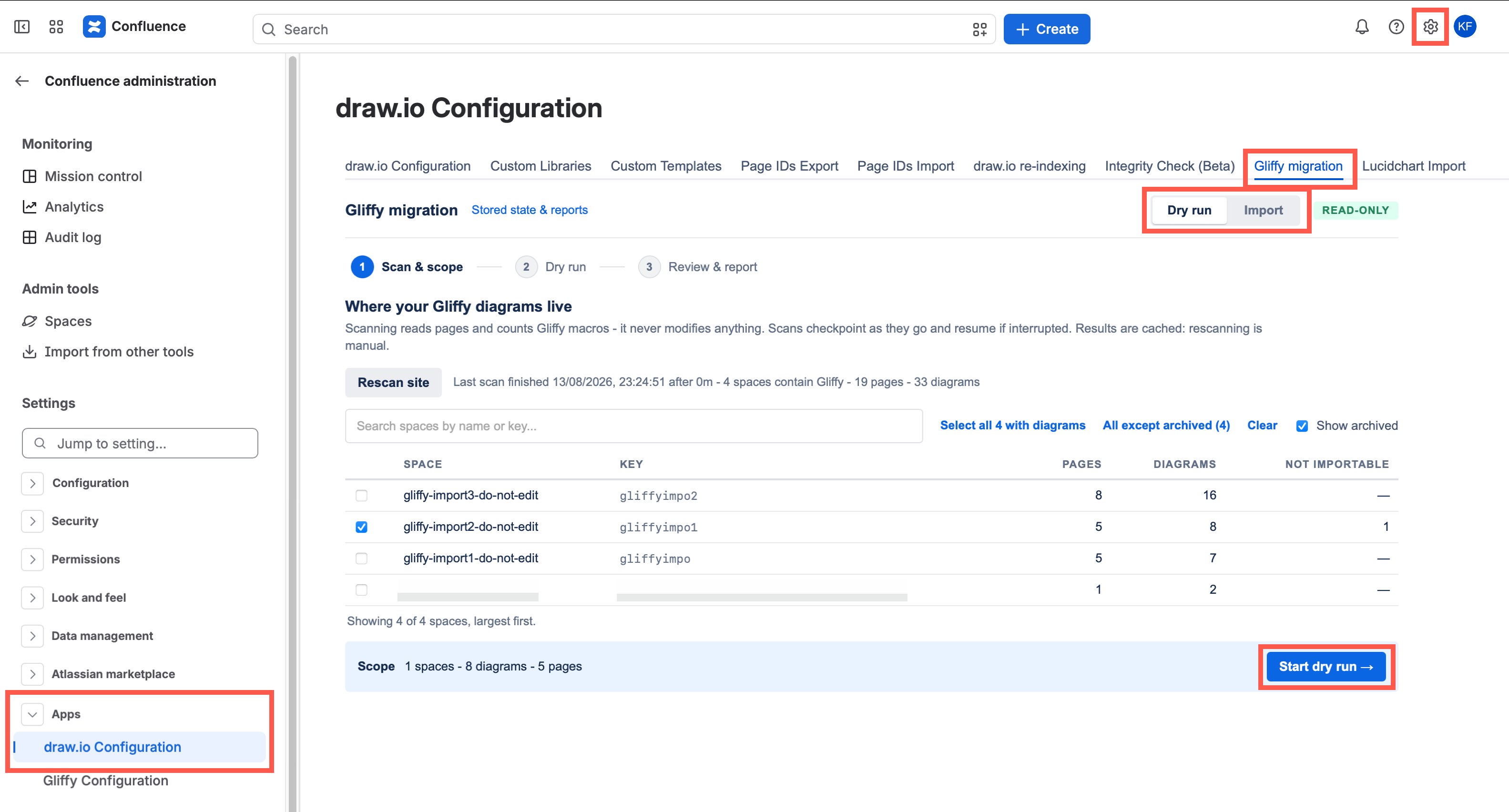
- Go to the draw.io add-on > Gliffy Migration in your Cloud instance administration.
- Make sure the toggle is switched to Dry Run - a green READ-ONLY tag will be next to it.
- Click Rescan site to discover which instances contain Gliffy diagrams.
Step 2: Do a dry run test import
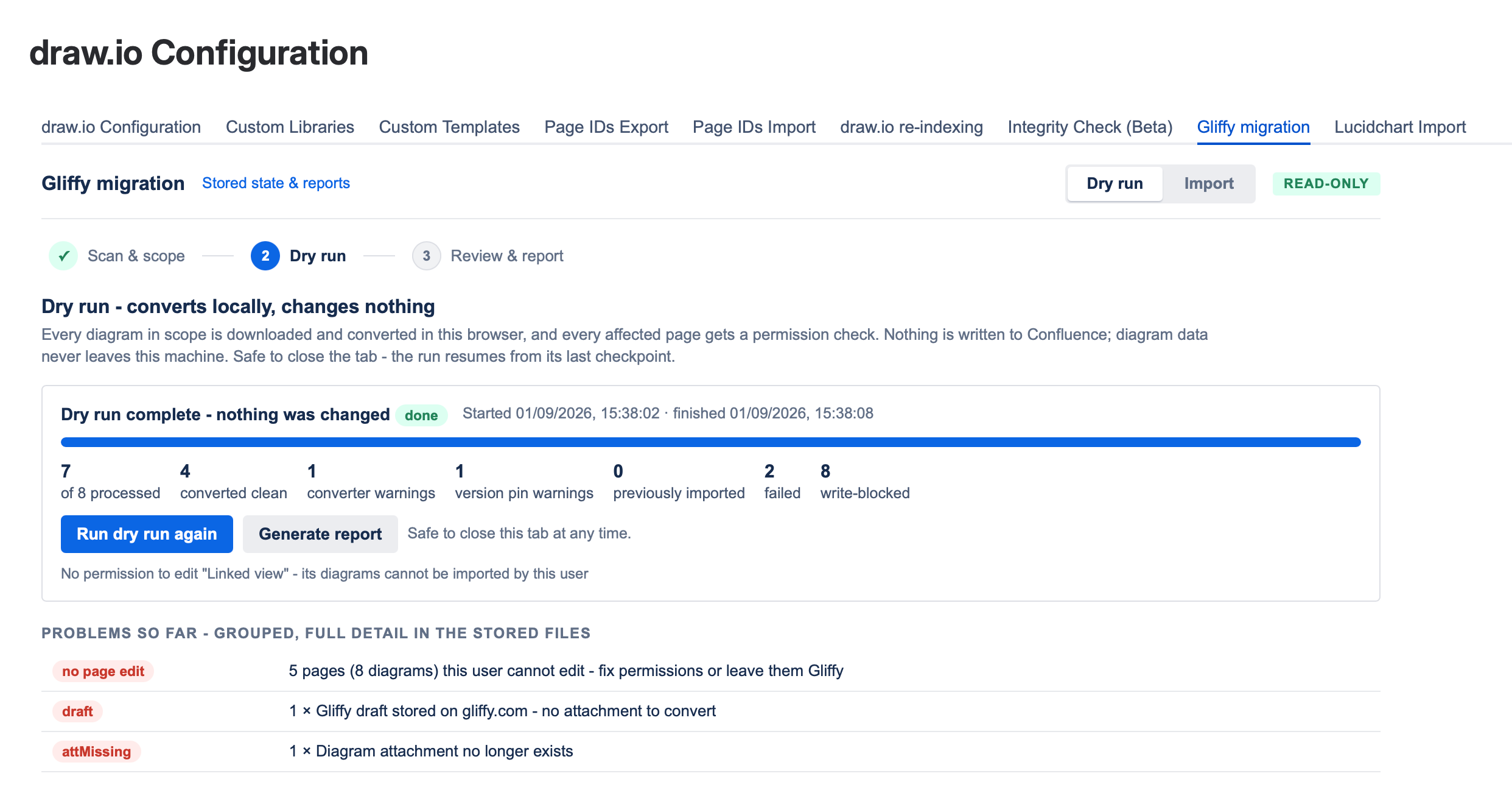
Once the scan has completed, select the instances you want to test conversion on, and click Start dry run.
Problems with conversion, page published state or permissions are listed at the bottom, underneath the progress bar and statistics.
Step 3: Resolve problems
Note: Doing a side-by-side comparison of Gliffy diagram previews and their converted draw.io equivalents is only possible when both apps have valid licenses and preview Gliffy image exists.
- After finising the dry run, click on the Review and report step inside the Gliffy Migration tab. This will randomly select a sample of the diagrams converted during the dry run. You can change the sample size (percent) and filter the selected diagrams to the Random sample, Unreviewed diagrams, Flagged diagrams or Failed conversions.
- Step through the diagrams at the bottom of the page and rate the conversion as a Match, as having Minor differences, or Major differences. Add a note if you want to include this in the report.
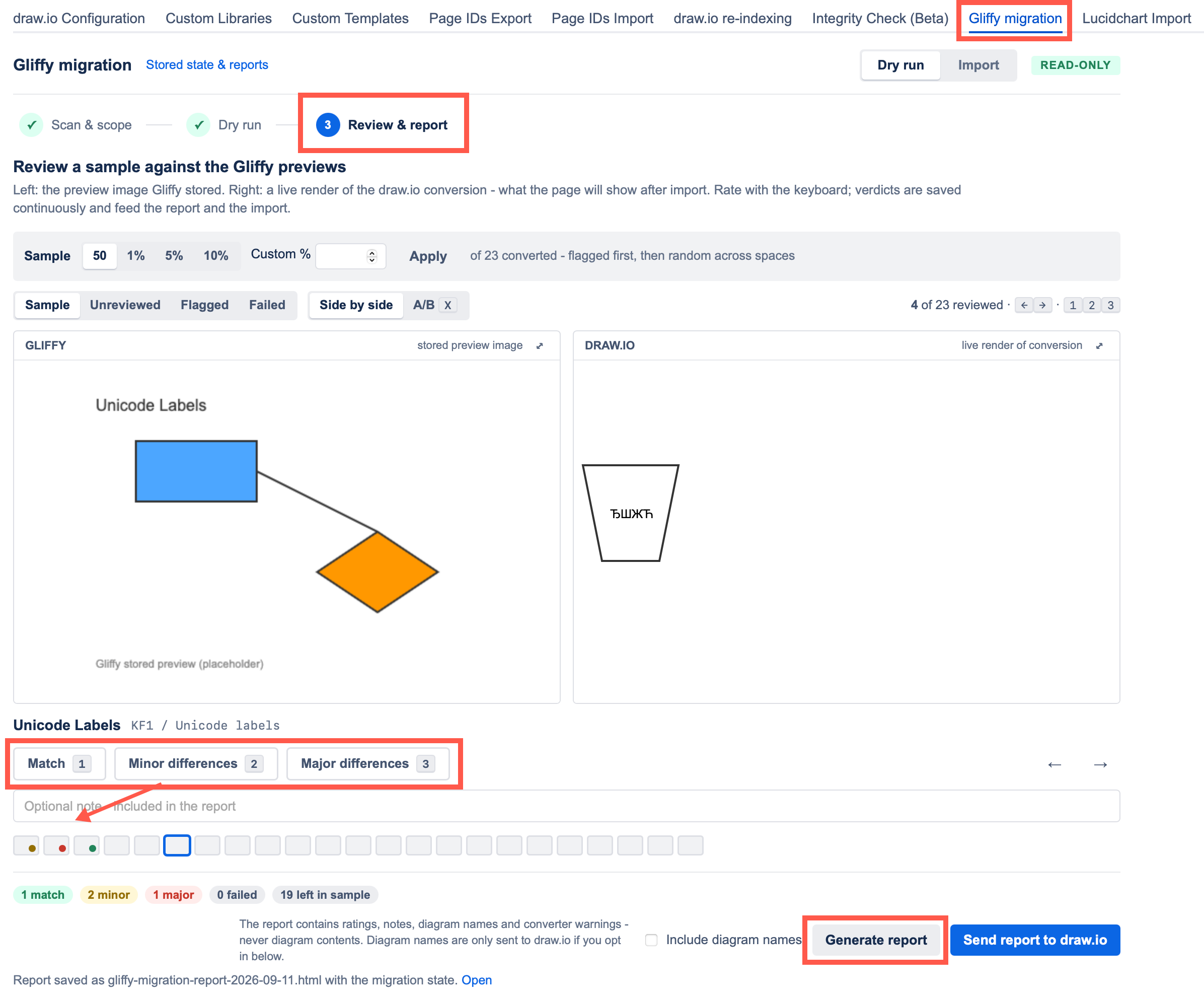
- Click Generate report to save it to the draw.io configuration space. If you have been asked to do so by our support team, click on Send report to draw.io.
Step 4: Import Gliffy diagrams
No Gliffy diagram data is altered or deleted. The Gliffy diagram is read into a new draw.io diagram file, and the Confluence page content is edited to replace the Gliffy macro with a new draw.io Diagram macro and saved to create a new page version.
Note: Previously imported diagrams will not be counted or imported again.
The import will run on (only) the selected spaces that you have already performed a dry run on.
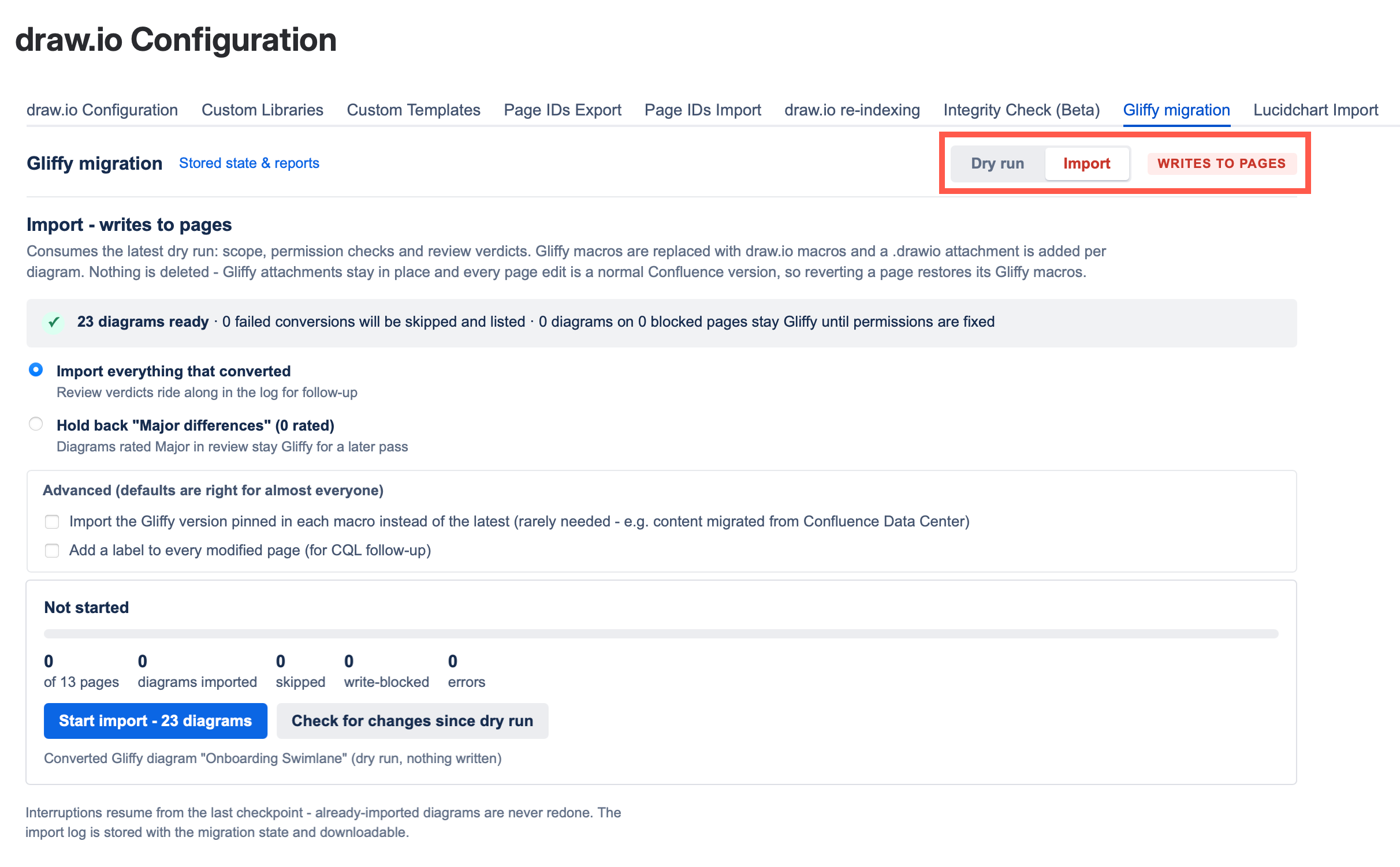
- Switch the toggle to Import - a red WRITES TO PAGES tag will appear next to it.
- If it has been some time since the dry run, you can Check for updates since dry run to scan the previously selected spaces again.
- Choose whether to import all convertable Gliffy diagrams, including those that were flagged during the review above. Click on Advanced to choose whether to import the most recent or pinned Gliffy diagram, and to add a label to every modified page if you want to manually review changes.
- Click Start import and wait for the import process to finish. This can take time if there are many diagrams.
Do not delete the Gliffy files attached to the Confluence pages - these are required to maintain the page revision history.
From the user's point of view, they will see the diagram in the page just as before, only now it is a draw.io diagram instead of a Gliffy diagram.
Useful logs and reports
The logs for both the dry run test imports and the completed Gliffy import processes, along with reports of problems with permissions and/or diagram conversions will be available in the draw.io Configuration space attached to the Gliffy migration page after each dry run or import process has finished.
Click on the i (Show Details) in the lower right of the page, then on the Attachments link to access the files.
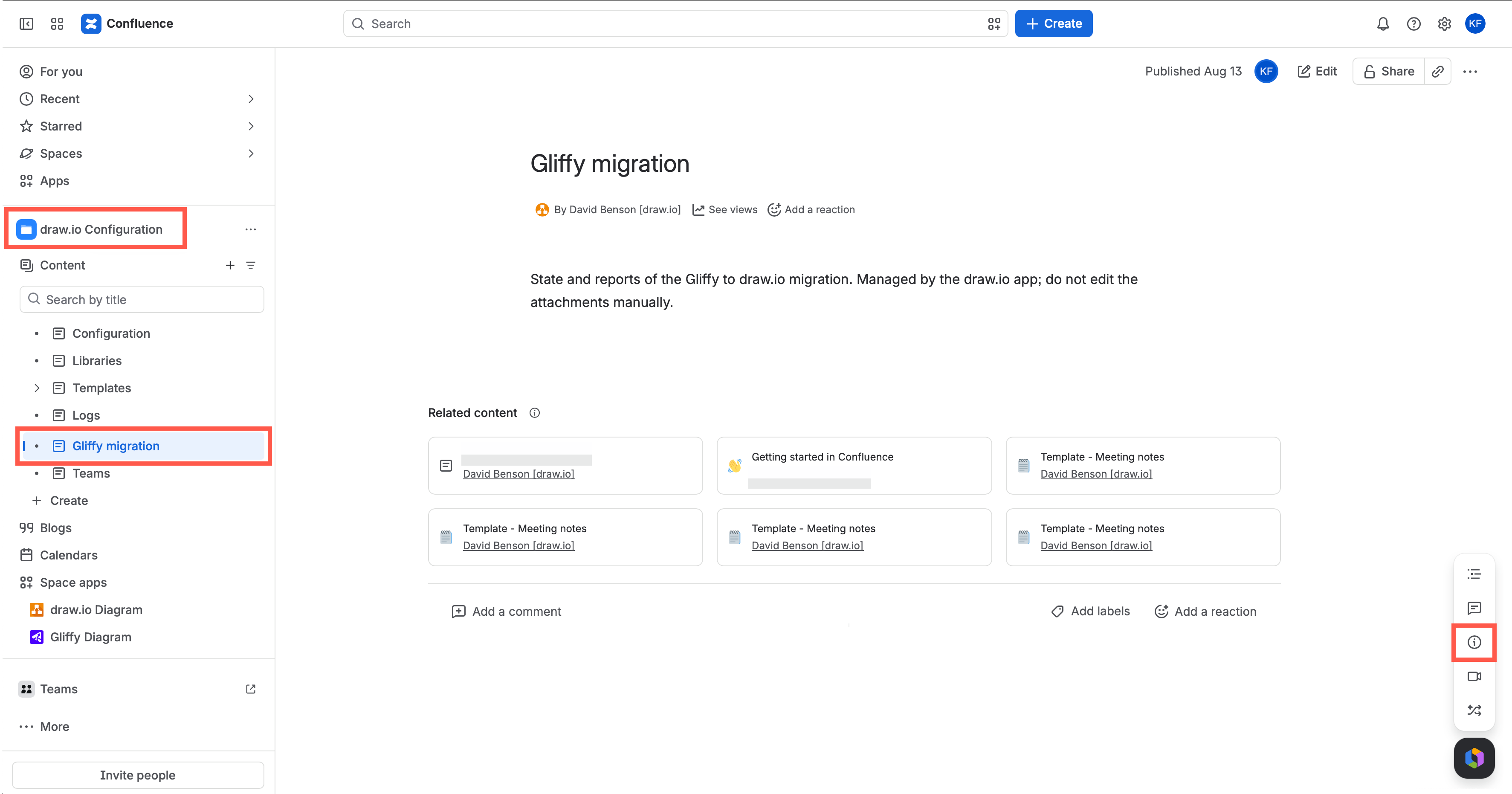
Several files are created to help administrators quickly identify and locate problematic conversions. Filenames with "-dryrun-" are generated during dry runs, and several files are created during imports (outlined in red below).
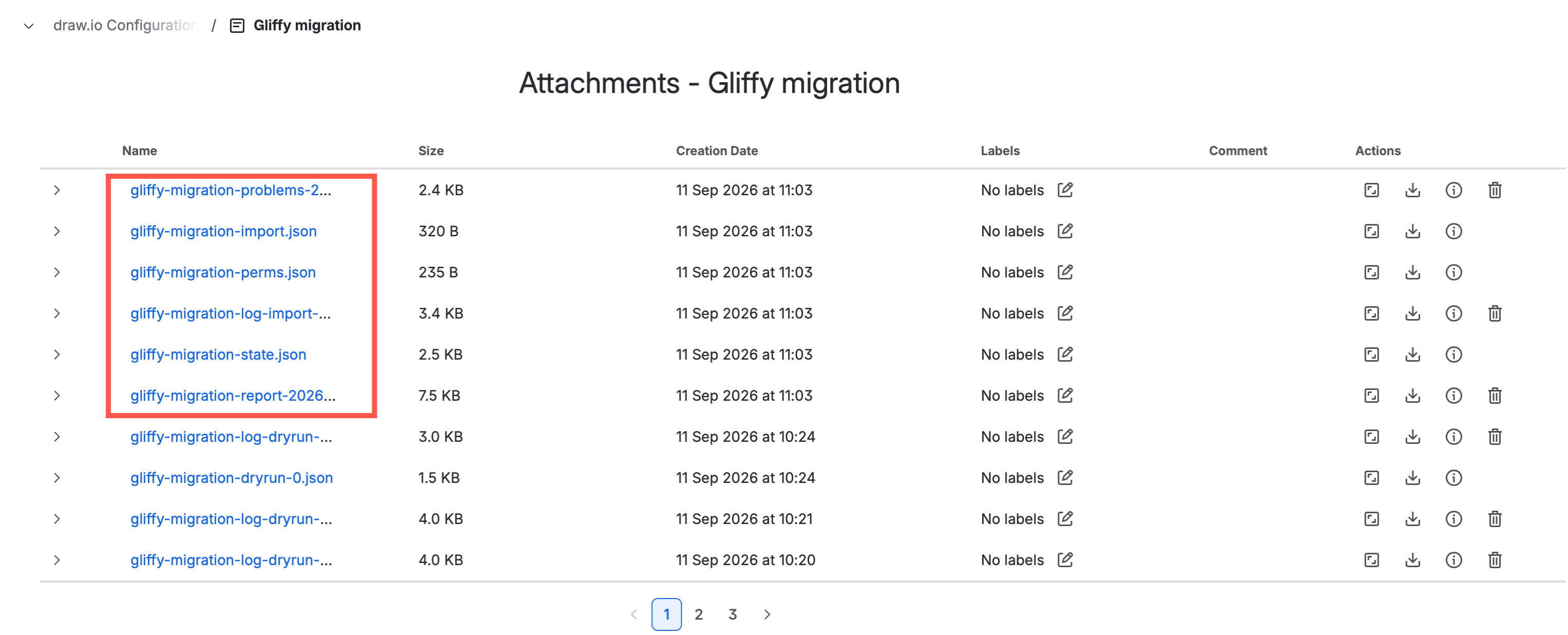
For debugging purposes, the following log files will be useful:
- Write or read permission problems:
gliffy-migration-perms.json - Diagram conversion issues:
gliffy-migration-problems-year-month-day.csv - Full report including links to problem pages:
gliffy-migration-report-year-month-day.html
Note: The original Gliffy attachment on the page is still there and unchanged. Restore the original Gliffy diagram by rolling back to an earlier Confluence page version.
Gliffy mass import FAQs
When to perform the import
Perform the conversion outside of your company's normal usage hours of the Confluence instance. It's best to carry out the whole operation when few changes are being made to pages containing diagrams.
We recommend that after you have reviewed and resolved all identified conversion issues, you remove the Gliffy license so that users do not start editing Gliffy diagrams while the process is running. Without a license, the Gliffy diagrams are effectively read-only. Please notify your users in advance.
Diagram backups
draw.io automatically creates a new page revision of every page that contains a Gliffy diagram. You can always revert pages to their previous versions as no Gliffy data is deleted.
Uninstalling Gliffy
Most Confluence Cloud administrators prefer to unambiguously recommend users diagram with on diagram editor and so uninstall the Gliffy app after migrating to draw.io. If Gliffy is already uninstalled, the mass Gliffy to draw.io import will still work, as the original diagram files are still attached to their pages.
It's best to uninstall Gliffy after the mass import is completed and after you have checked the result.
Permissions
Ensure the administrator who runs the mass import has full write permissions across all spaces in your Confluence Cloud instance.
If no such user exists, you will need to temporarily elevate an administrator to have those permissions for the duration of the import.
This is the most common cause of 403 errors.
Troubleshooting
Make sure you always do the dry run and test the mass Gliffy import on a test instance with your production data first. If you encounter any issues during this mass import, please email support@draw.io and add the generated report as an attachment to your email or send it to us through the Confluence app administration.