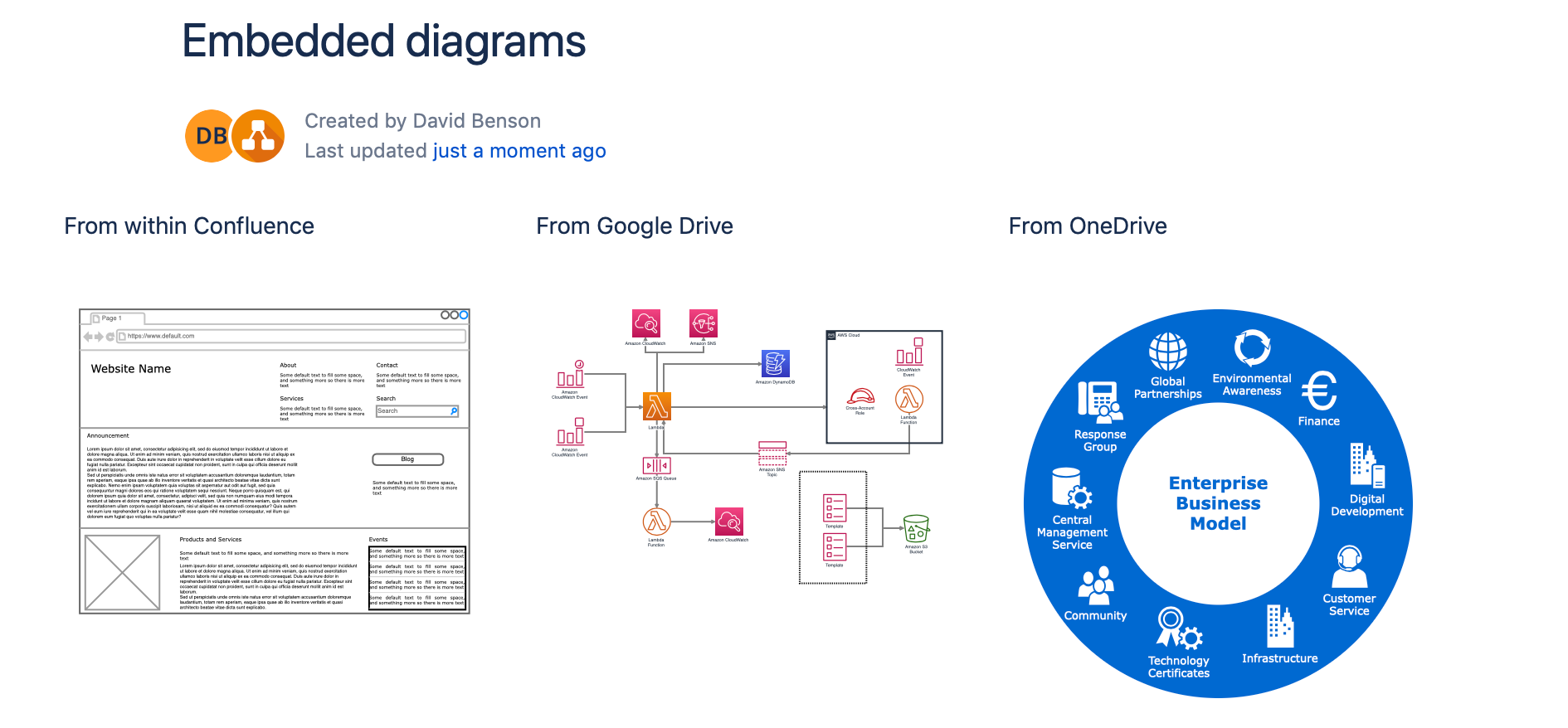
Embed a draw.io diagram from Google Drive into Confluence Cloud
Use the Embed draw.io diagram macro to connect to Google Drive and embed a .drawio diagram file hosted there.
- Edit the Confluence page on which you want to embed your diagram, then type
/drawto insert a macro. Select Embed draw.io diagram.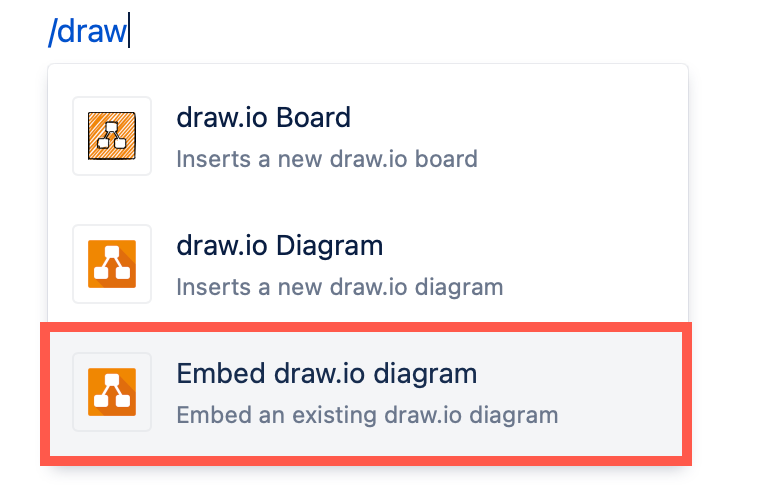
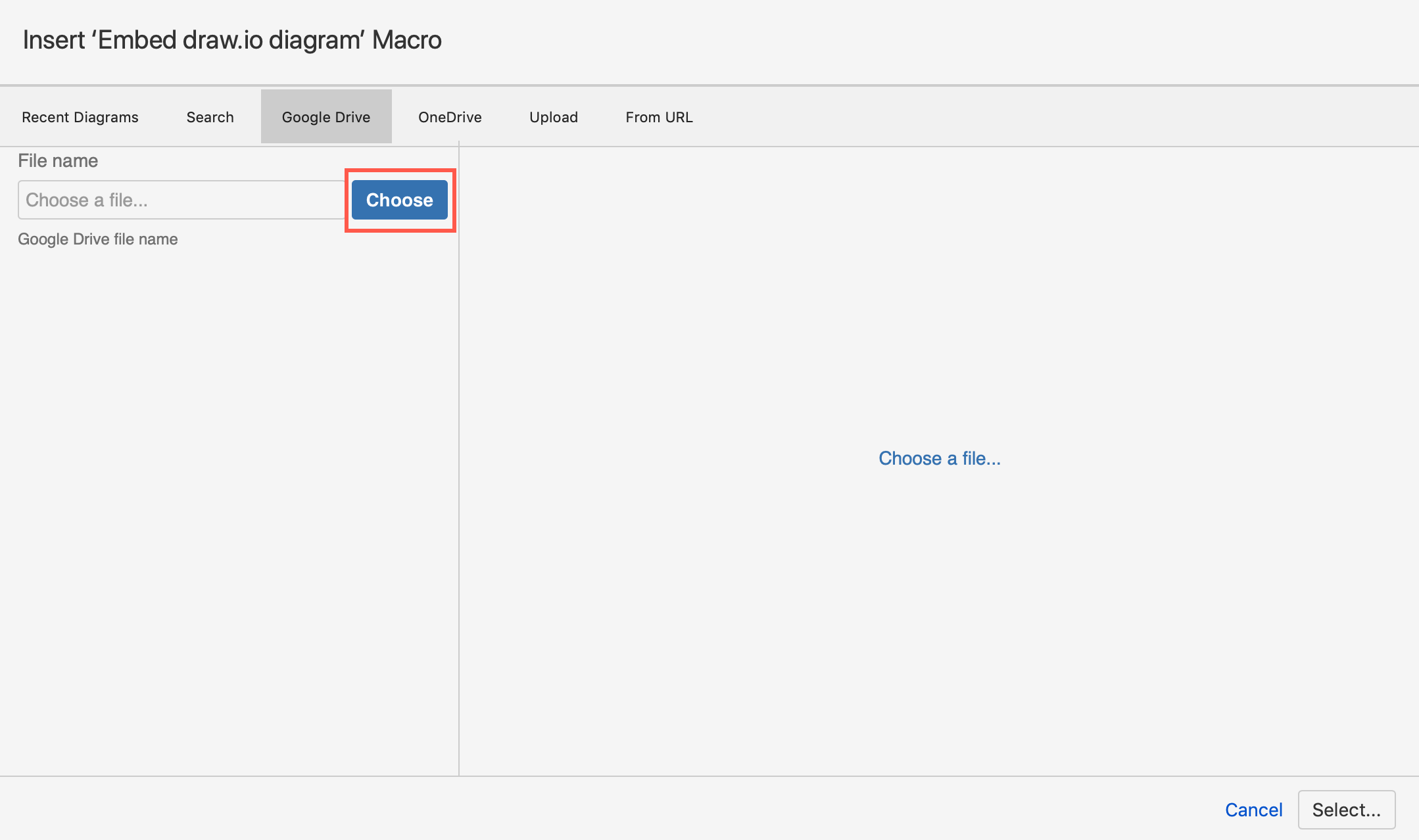
- Click the Google Drive tab. If you haven't allowed draw.io to access your files on Google Drive, click the blue Authorize button, and follow the prompts to allow access.
- When you return to the file picker, click Choose.
- Double click a folder to open it. A single click only selects it. The list only shows folders and the file types draw.io can open, so a folder that holds nothing but Google Docs or Office files looks empty.
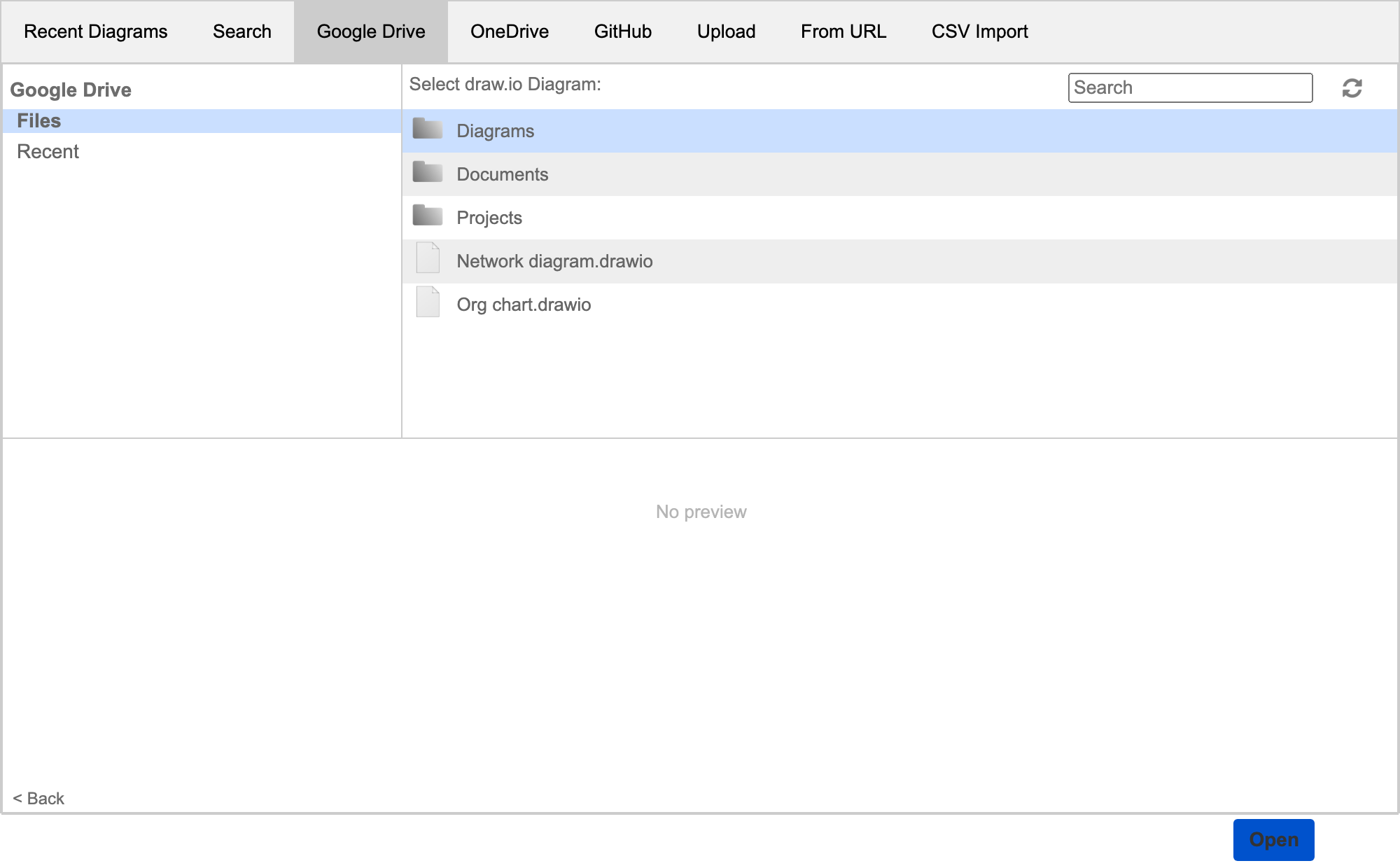
- Click the .drawio diagram file you want to embed, then click Open.
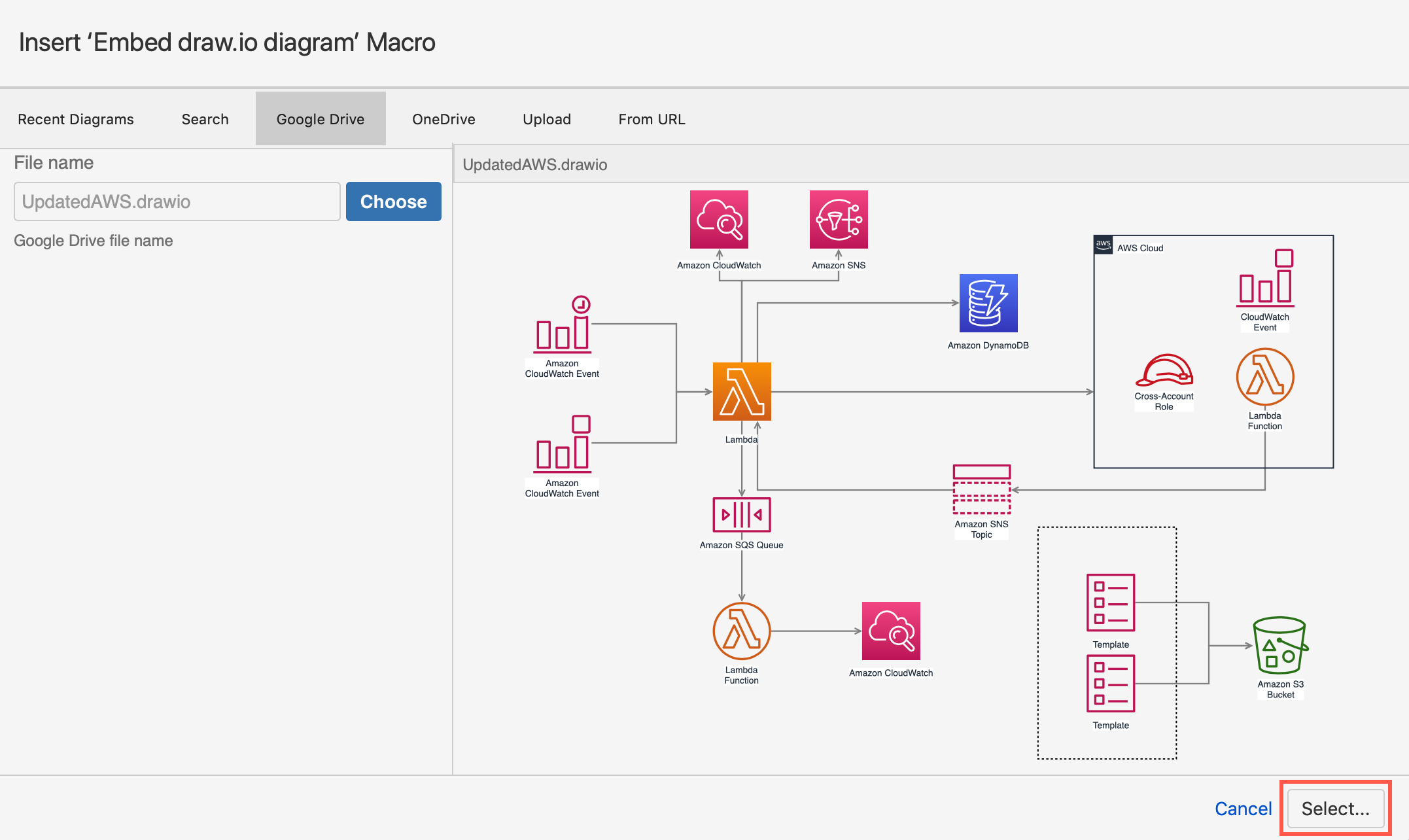
- Check the preview to make sure you have the right diagram, then click Select.
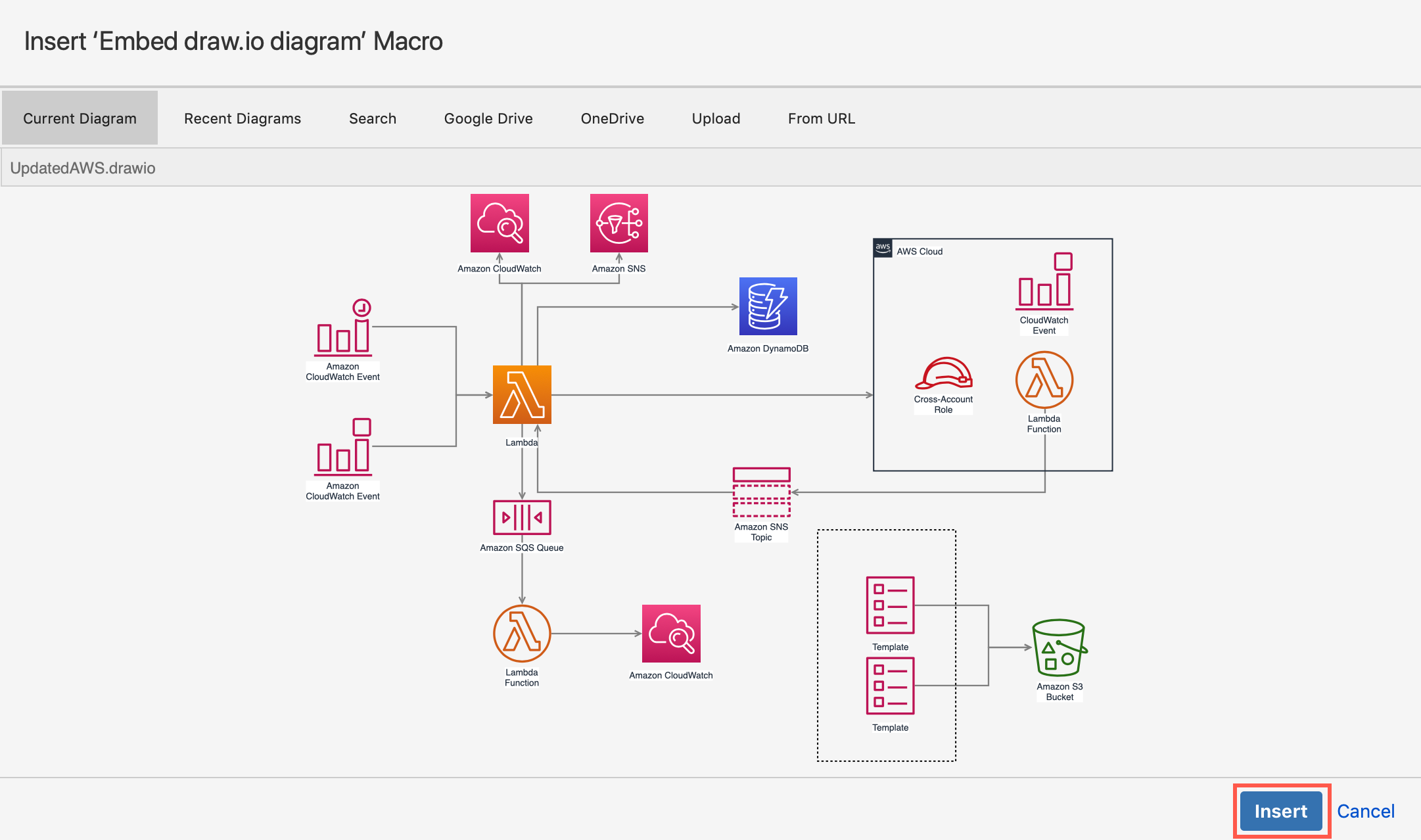
- Finally, click Insert to embed your diagram file from Google Drive into your Confluence Cloud page.
What happens to embedded diagrams if draw.io is uninstalled?
The embedded diagrams and files in Confluence will no longer be able to be displayed. This will be displayed as if the macro is broken (no macros are deleted though). Of course, no data on Google Drive is deleted!
When you reinstall the draw.io app for Confluence Cloud, as long as the connection with Google Drive is still authorised, your diagrams and files will be displayed again, no further steps necessary.
Tip: You can also embed diagrams from OneDrive, from other Confluence pages, and from Google Drive in Jira issues