Using layers in draw.io
Layers add structure and organisation to your diagrams. When you interact with a complex diagram to display or hide its various layers, you can understand the diagram more easily.
Each shape (or group) can only be placed on one layer - it can't belong to multiple layers. Learn more about how layers work in draw.io.
Connectors can connect source and target shapes on different layers.
Tip: Open an example gitflow with layers in the draw.io editor - use the linked documentation below to learn how to work with these layers in a diagram.
Open the Layers dialog
Select View > Layers or press Ctrl+Shift+L / Cmd+Shift+L to display or hide the Layers dialog.
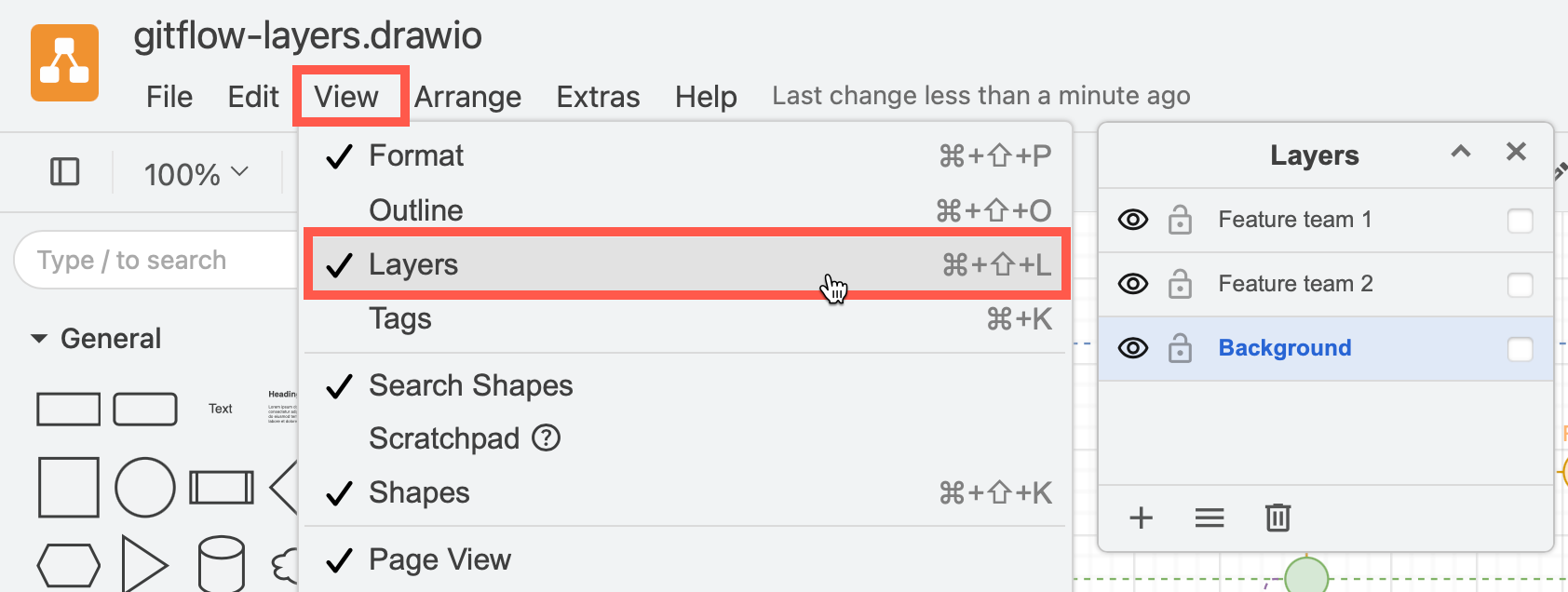
By default, a new diagram has a single Background layer, to which all shapes, connectors and text are added.
From the Layers dialog, you can:
- add new and duplicate layers
- rename layers
- delete existing layers
- move selected shapes to a layer
- select all shapes and connectors on one layer
- display and hide layers to display or hide all the shapes, connectors and text that are on those layers
- lock layers to ensure you can't make any inadvertent changes
- rearrange layers to move shapes forward or backward
Tip: Make sure you select the layer you want to add shapes to in the layers dialog first, before you add shapes and connectors.
How do layers work?
Shapes are arranged in the order you added them to the drawing canvas, within the layer you added them. Shapes and connectors placed on a higher layer can not go behind shapes on a lower layer - they can only be arranged from front to back within their layer.
Learn more about how layers work in draw.io.
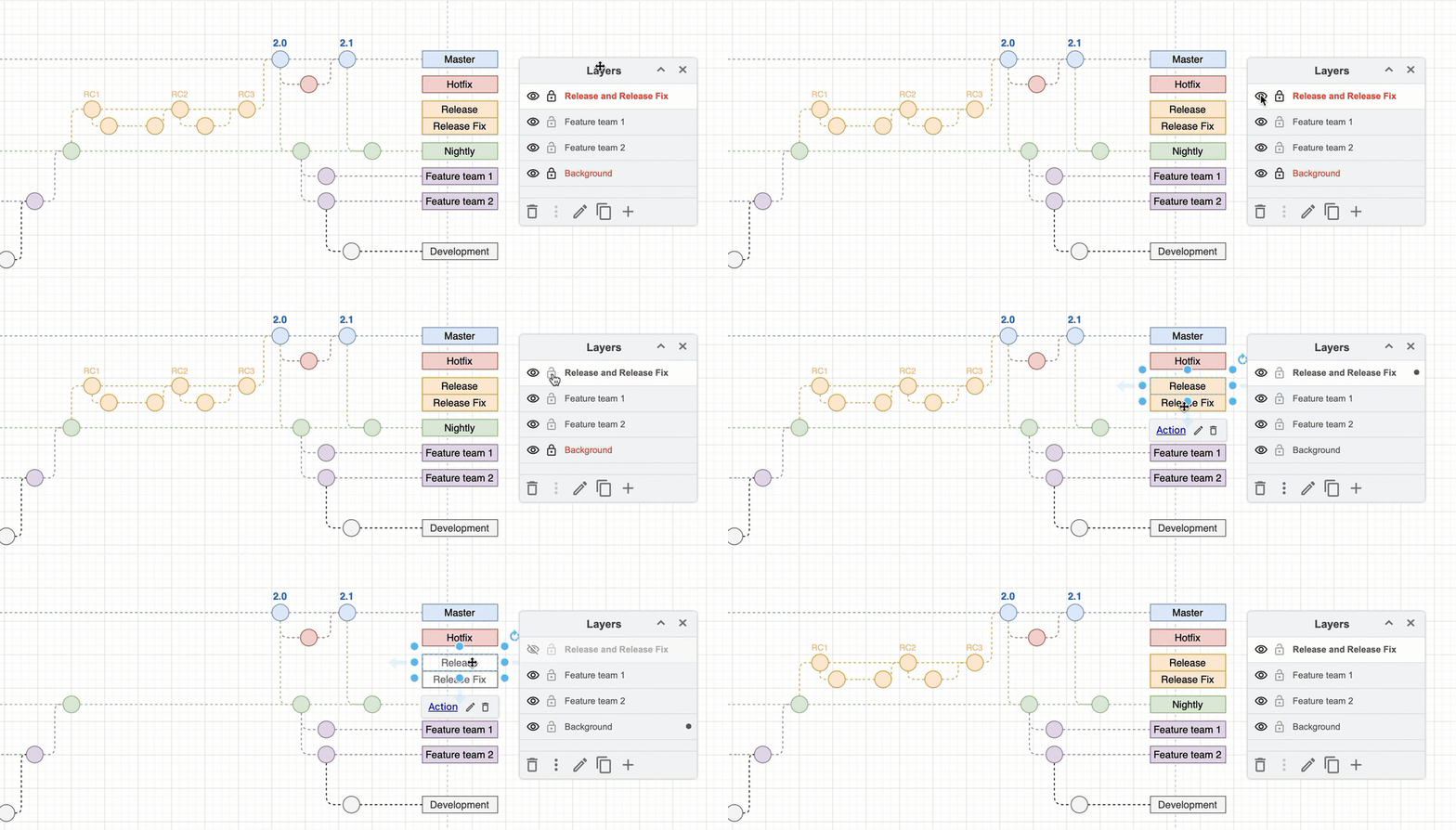
With layers and custom links you can add interactivity - click on a shape with a custom link your diagram to hide or display layers.
Diagrams that work well with layers
- Floor plans - Add furniture, appliances or IT devices, fixtures, and decorations on separate layers.
- Network diagrams - Place areas behind firewalls or on different subnets on different layers.
- Gitflow diagrams - Separate team or feature branches onto their own layers. Open this example gitflow diagram with layers in the lightbox viewer.