Get started with draw.io Diagram Editor for SharePoint
draw.io Diagram Editor is the draw.io app for SharePoint. It is free in the Microsoft Marketplace, and adds a draw.io web part that displays and edits diagrams directly on your SharePoint pages. Your diagrams are stored as files in your SharePoint document libraries, and you edit them with the same draw.io editor as in all of the other draw.io integrations.
Note: A SharePoint administrator must install draw.io Diagram Editor in your organisation before the web part can be added to a page.
Add the draw.io web part to a page
- Go to the SharePoint page where you want to show a diagram, and click Edit at the top right of the page.
- Hover over the page where you want the diagram to appear, and click the plus (+) button to add a new web part.
- Search for
draw.ioand select the draw.io web part.
The web part will be added to your page. New web parts must be configured before they can display a diagram.
Note: If the draw.io web part is not listed, the app has not been added to your site. Click the Settings gear icon at the top right of the page, select Add an app, then add draw.io Diagram Editor from the My apps page.
Pick a diagram file to display
- Select the web part, then click the pencil icon (Edit web part) to its left.
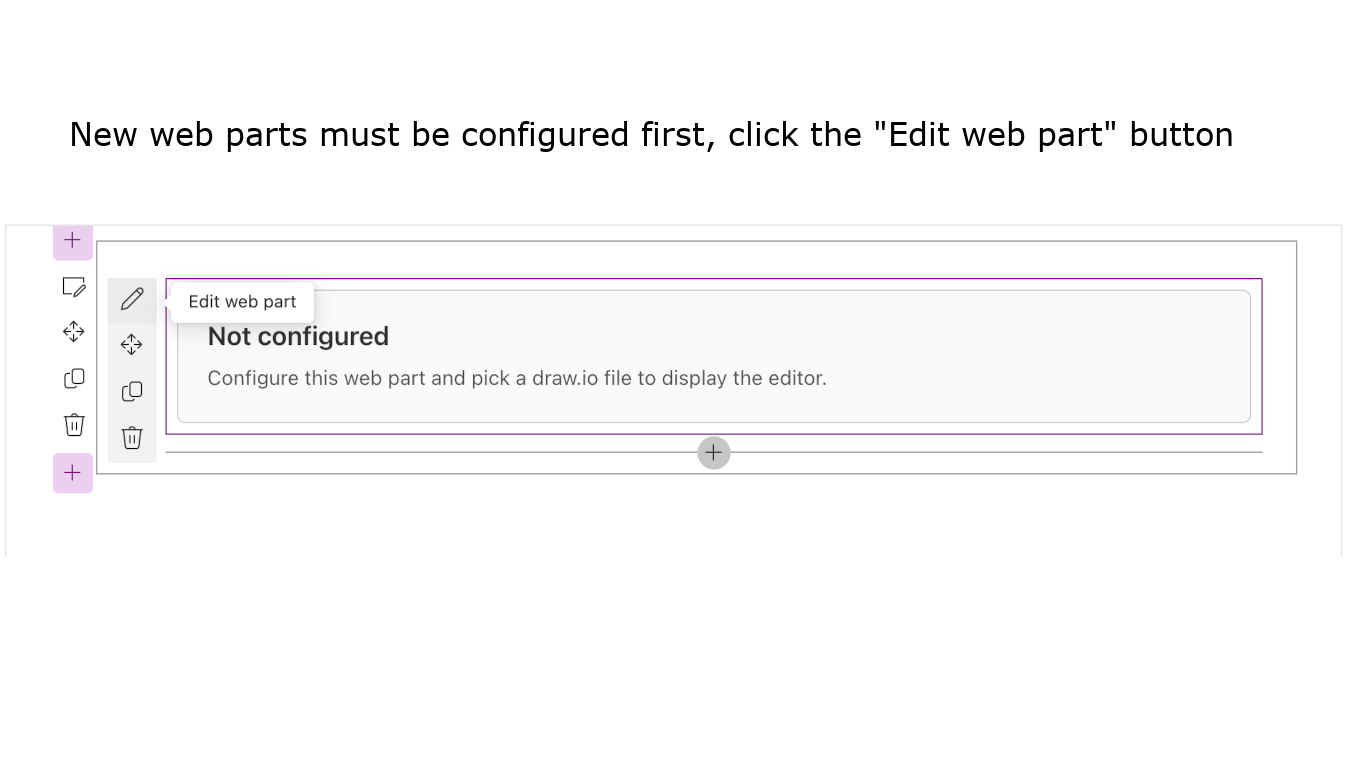
- In the configuration panel, click Pick File.
- Select a draw.io diagram file from a document library, then click Select.
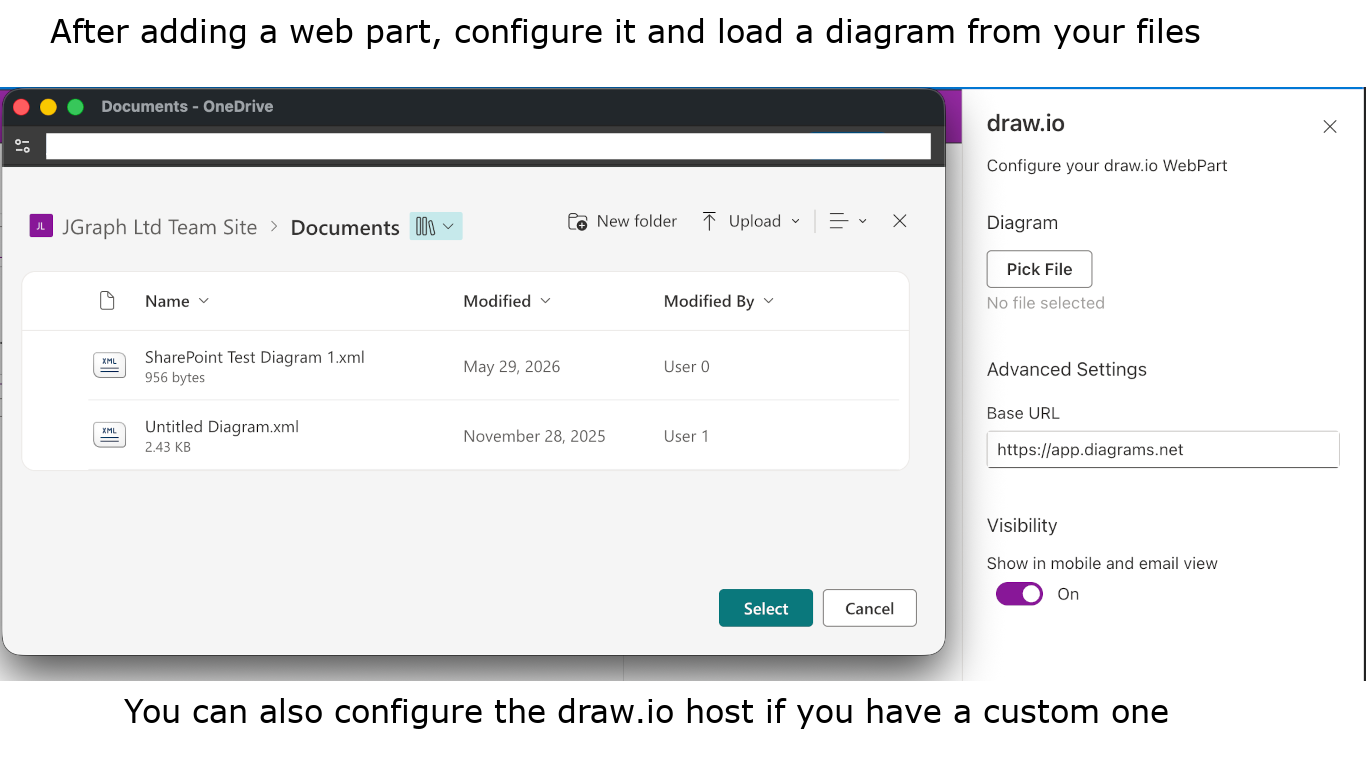
The diagram will be loaded and displayed in the web part on your page. The name of the selected file is shown in the configuration panel - click it to open the file in its document library.
The first time you open a diagram, the editor will ask you to authorise access to your files. Click Authorize, then sign in with your Microsoft 365 account in the window that opens. The editor opens and saves diagram files with your own permissions, so you can only display diagrams that you are allowed to open.
Note: The file picker and the sign-in window open in new browser windows. If they don't appear, allow pop-up windows for your SharePoint site in your browser.
Note: The web part accepts draw.io files in XML format, usually with a .drawio extension. Files in your personal OneDrive are not shown in the file picker - copy them to a document library first. Diagrams saved as .drawio.png or .drawio.svg files can't be selected - open the file in draw.io and save it as a .drawio file to use it in the web part.
Create a new diagram
- Select the web part, then click the pencil icon (Edit web part) to its left.
- In the configuration panel, click New Diagram.
- Select the document library or folder where you want to store the new diagram, then click Select.
- Enter a name for the new diagram, then click OK.
A blank diagram file with a .drawio extension will be created in that folder and loaded into the web part. If a file with that name already exists in the folder, you will be asked to choose a different name.
Note: If you select a file instead of a folder, the new diagram will be created in the same folder as that file.
Advanced settings
- Base URL - the URL of the draw.io editor loaded by the web part,
https://app.diagrams.netby default. If your organisation runs its own draw.io server, enter its URL here. - Visibility > Show in mobile and email view - turn this off if the diagram should not be shown in the mobile and email views of your page.
Edit a diagram on your page
When your SharePoint page is in edit mode, the web part displays the diagram in the full draw.io editor, and you can edit the diagram in place.
- Changes are saved to the diagram file automatically - All changes saved is displayed in the editor toolbar when your latest changes have been stored.
- You can collaborate with other users who are working on the same diagram file at the same time.
- The editor uses the colour theme of your SharePoint site - on a site with a dark theme, the editor is displayed in dark mode.
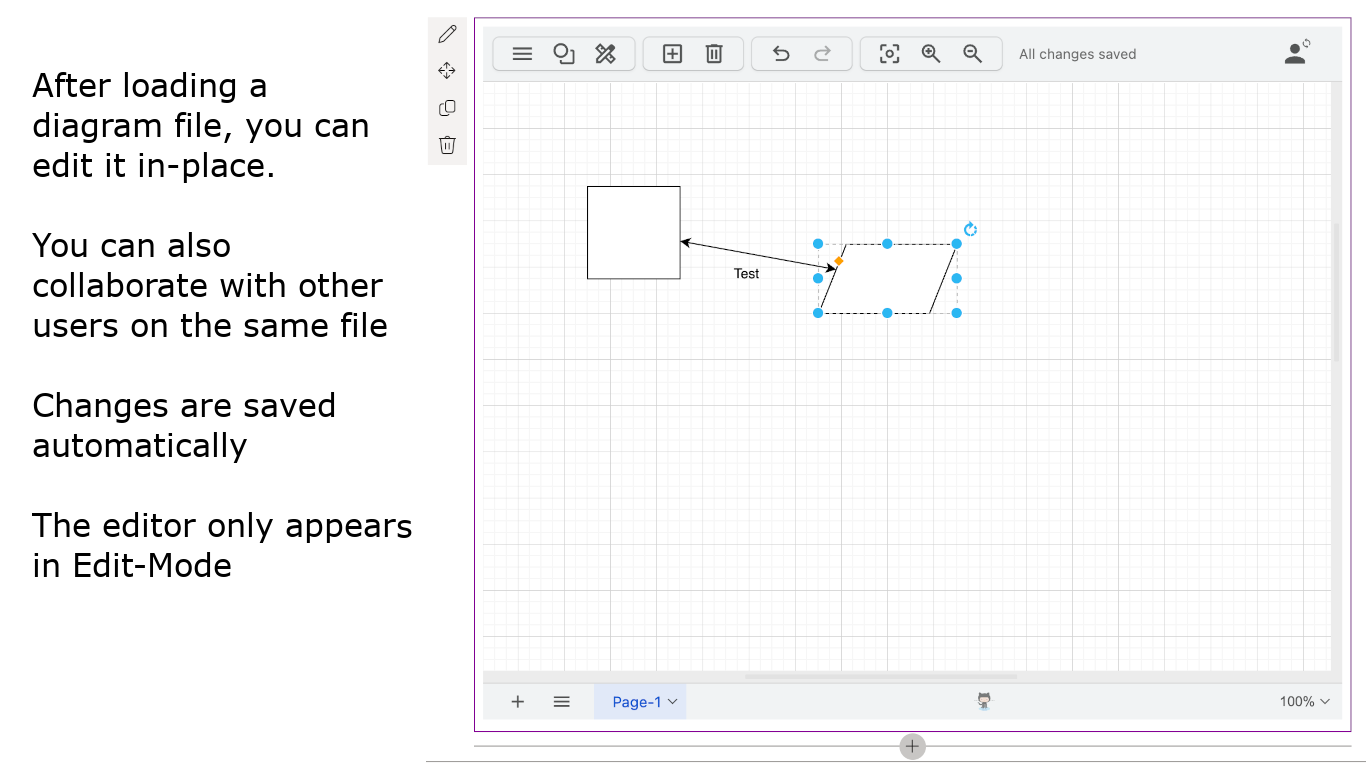
Note: The draw.io editor is only displayed while the page is in edit mode. In view mode, only the diagram is displayed.
Note: The web part has a fixed height on the page. Zoom and scroll inside the editor to work on larger diagrams.
View a diagram
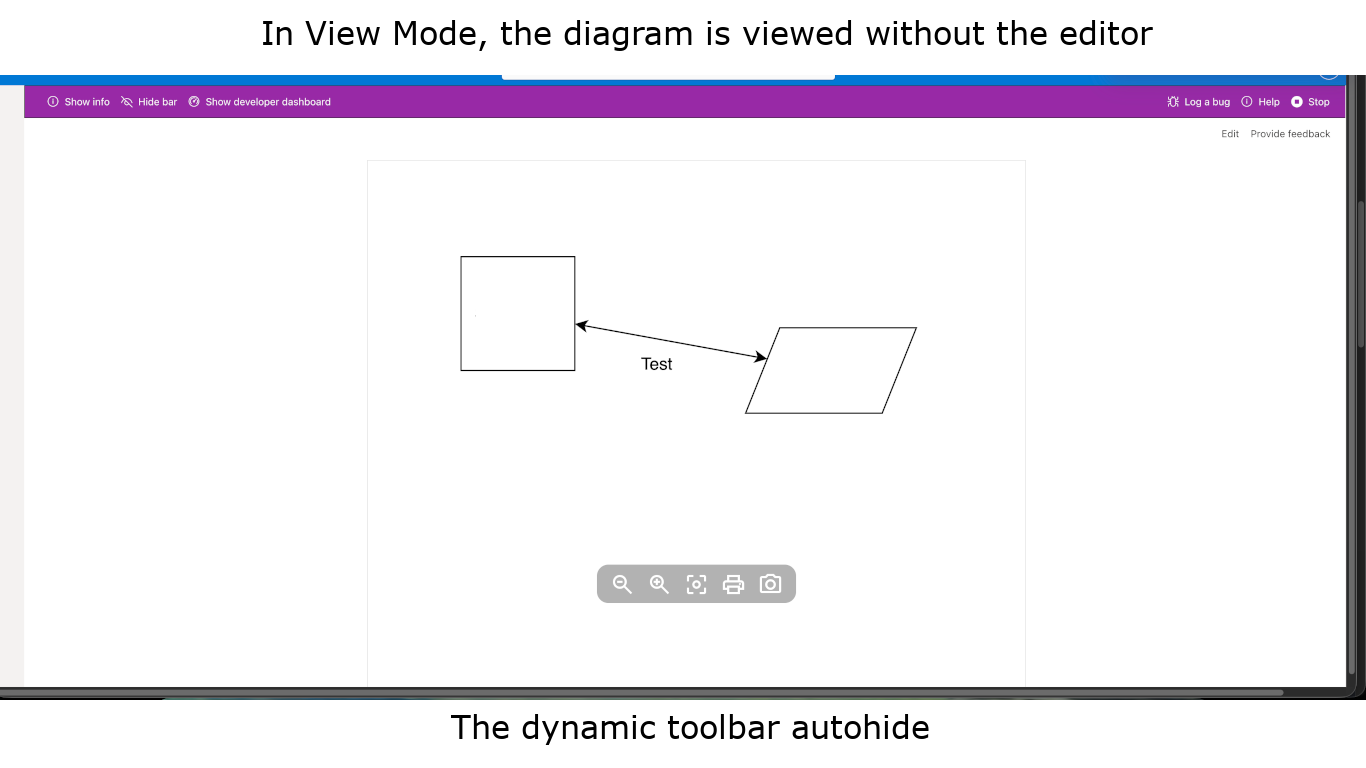
When your page is in view mode, the diagram is displayed without the editor. A toolbar appears over the diagram when you move your mouse over it, with tools to zoom in and out, reset the view, print the diagram, and step through the pages of a multi-page diagram. The toolbar hides itself automatically.
Use draw.io Diagram Editor as a full-page app
draw.io Diagram Editor can also fill a whole page. A full-page app page has a locked layout, so it contains only the diagram.
- Go to your site, click New at the top of the page, then select Page.
- Select Apps in the page template picker, select draw.io, then click Create page.
- Configure the web part as described above, then publish the page.