Create draw.io diagrams in Claude, ChatGPT, VS Code and Cursor

When you ask an AI assistant to draw a diagram, use the draw.io connector or plugin for your assistant so it draws fully editable diagrams and shows them directly in your conversation.
- Zoom, pan, hide or show layers, or open the generated diagram in full screen without leaving your AI chat.
- Ask your assistant to edit the diagram or change its style.
- When you are happy with it, either open the diagram in the draw.io editor to continue editing it yourself, or save it as a
.drawiofile in your preferred location.
This works in Claude, ChatGPT, GitHub Copilot in VS Code, and Cursor.

Add draw.io to your AI assistant
- Claude: Open the draw.io connector in the connectors directory and click Connect.
- ChatGPT: Add draw.io from the plugin directory.
- VS Code, Cursor and other assistants: Add
https://mcp.draw.io/mcpas a remote MCP server. Follow the setup instructions for your particular assistant.
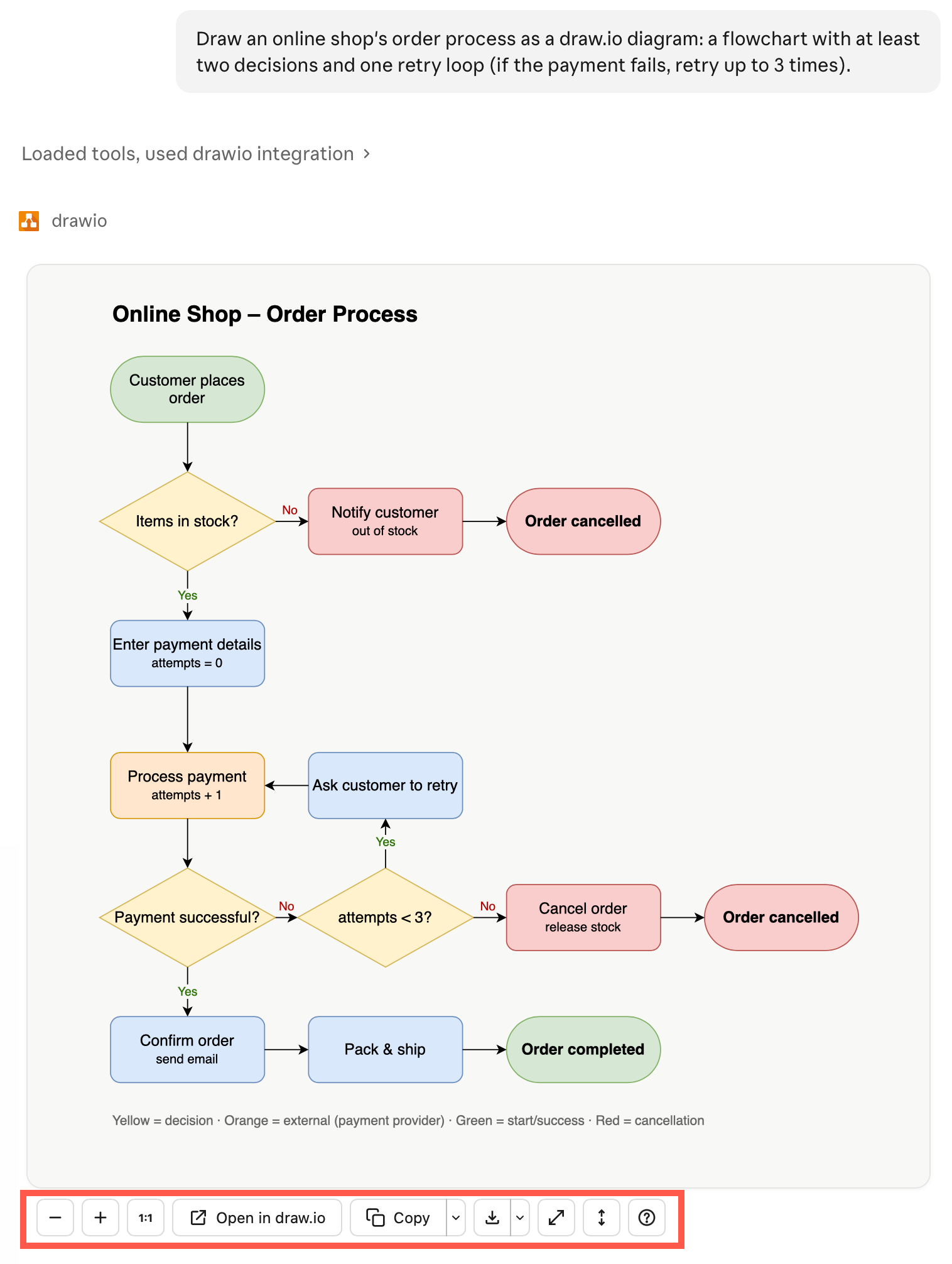
Then describe the diagram you need, and the diagram will be drawn right inside the conversation. Use the zoom at the bottom of the preview, drag the preview around to pan, or open it in full screen mode.
Example: "Draw an online shop's order process as a diagram: a flowchart with at least two decisions and one retry loop (if the payment fails, retry up to 3 times)"
Note: AI assistants that run in a terminal, such as Claude Code, can't display the diagram in the conversation text. They will answer with a link that opens the diagram in the free online draw.io editor instead.
Use draw.io without an account
You can use the draw.io editor and connectors inside your AI assistants without an account. draw.io receives only what it needs to draw the diagram. As it doesn't need an account, it can't access your files or the conversation with your AI assistant.
You choose where to save the diagram file. draw.io doesn't store your diagrams.
Read the privacy policy for AI assistants for details.
Draw diagrams of every kind
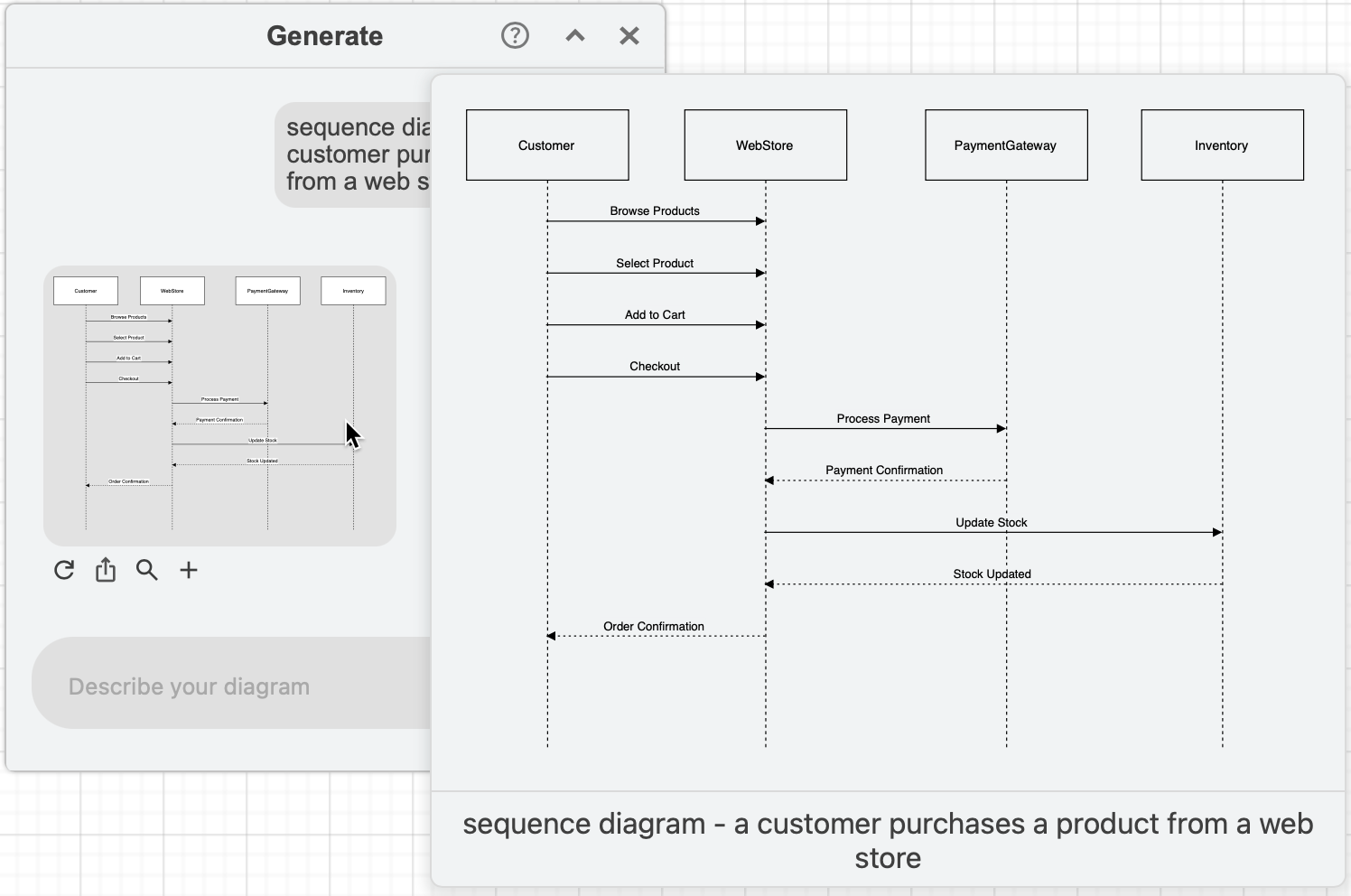
Describe what you need in your own words: flowcharts, sequence and class diagrams, entity relationship diagrams, org charts, mind maps, timelines, Gantt charts and more.
When you need to use specific shapes, specify the standard that you want to use, and draw.io will look up the matching symbols in its shape libraries.
There are more than 10,000 shapes in the libraries, covering a wide range of diagramming fields and standards. You can ask your assistant to draw AWS, Azure, Google Cloud, Kubernetes, Cisco, network, electrical, BPMN, UML, Salesforce and process control diagrams, and include popular brand logos and icons.
draw.io lays out the diagram for you and routes connectors neatly around shapes automatically.
Example: "Draw a wireframe of a mobile app login screen: logo, email and password fields, a sign-in button, a forgot-password link and social login buttons."

Edit and save the diagram in draw.io
Ask your AI assistant to edit the diagram, add shapes, change the layout, or to make changes to its style. It will only change what you ask it to and keep the rest of the diagram the same.
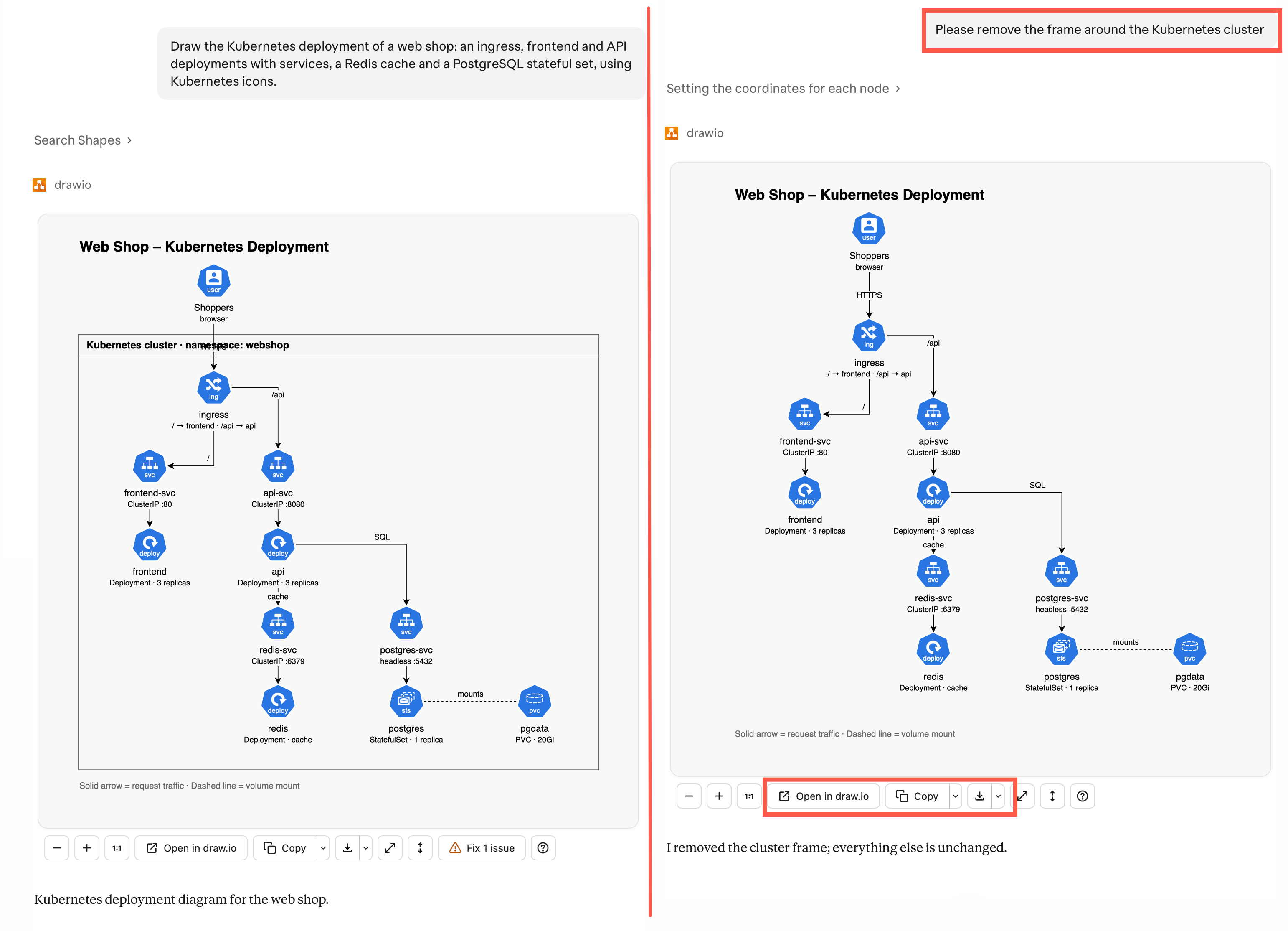
- Click Open in draw.io below the diagram.
The diagram will open in the draw.io editor in a new tab. Edit it as you would any other diagram, then save it to your device, Google Drive, OneDrive, GitHub or another storage location. If you close the tab before you save, draw.io will remind you that you have unsaved changes. - Click Copy to copy the diagram, then paste it into another draw.io diagram. Click the small arrow next to Copy and select Copy as PNG to copy it as an image.
- Click the Download icon (an arrow pointing down) to save the
.drawiodiagram file to your device. Click the small arrow next to it to download the diagram as a PNG or SVG image instead.
Change a diagram you already have
Attach a .drawio file to your message and describe what to change. The assistant will either update the XML directly in the .drawio diagram file and give you the new version to download, or show the updated diagram in the conversation, ready to open in the draw.io editor.
Example: "In the following Sankey .drawio diagram on the first diagram page (Sankey with connectors), please change the orange sketch regions to blue."
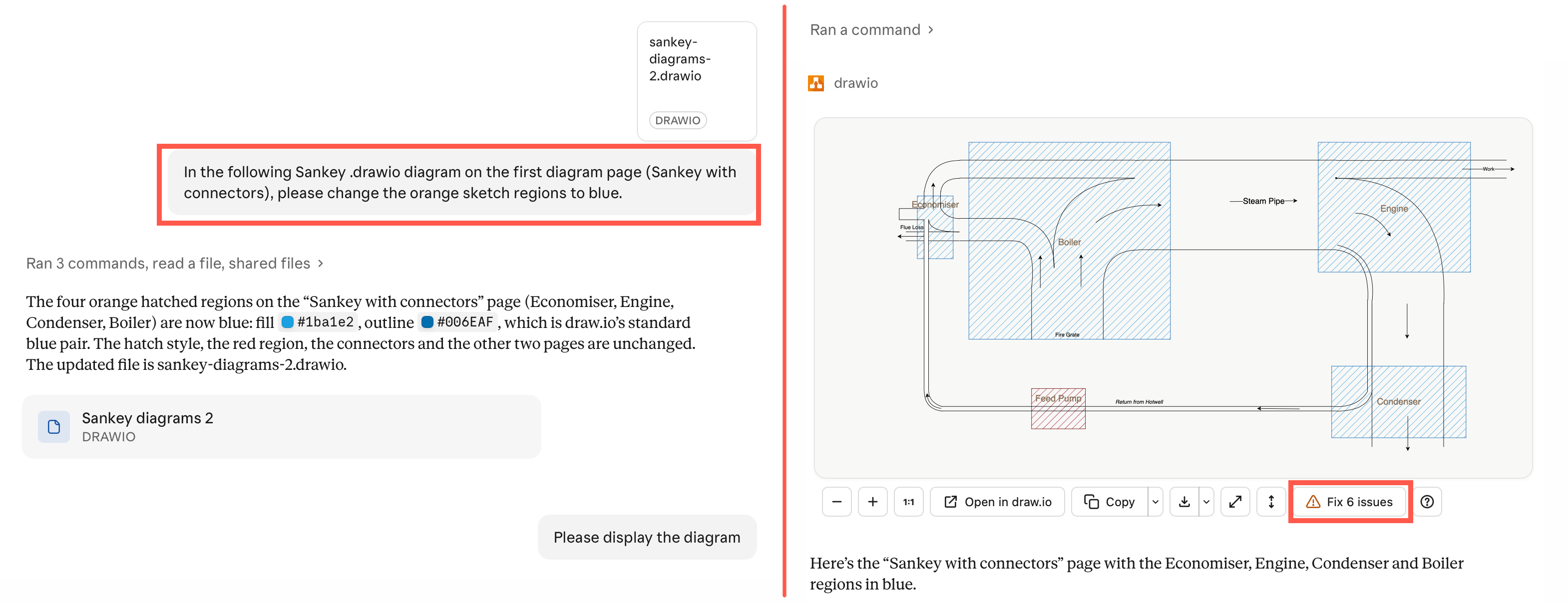
Tip: If your assistant provides you with the file to download, you can ask it to display it in the conversation instead.
Review existing diagrams for visual problems
Ask the assistant to review your diagram file for problems and it will identify if there are any overlapping labels, unreadable colours or poor layouts. Click Fix issues beneath the diagram preview to fix the listed issues in the diagram.
Create diagram files in coding assistants
In Claude Code, Codex CLI and GitHub Copilot CLI, install the draw.io plugin to create .drawio files in your project. Ask for a PNG, SVG or PDF file to export the diagram with the diagram data embedded, so it stays editable in draw.io. In VS Code, the draw.io extension will open these files in the editor.
Related
- Learn more about the draw.io MCP server.
- See how to generate diagrams with AI inside the draw.io editor.
- Review the many types of Mermaid diagrams that you can describe in text.