3 posts tagged with "layouts"

View All Tags

Editable diagrams from text

· 6 min read

When you insert a diagram from a text description via Arrange > Insert > Advanced > From Text, it is now placed inside a layout container. The text stays attached to the layout container, so you can re-edit it at any time and update the diagram.
Insert from text to draw a diagram in a layout container that you can re-edit as text in draw.io

Insert an editable diagram from text​

  1. Select Arrange > Insert > Advanced > From Text from the menu. Alternatively, click the + icon in the toolbar, then select Advanced > From Text.
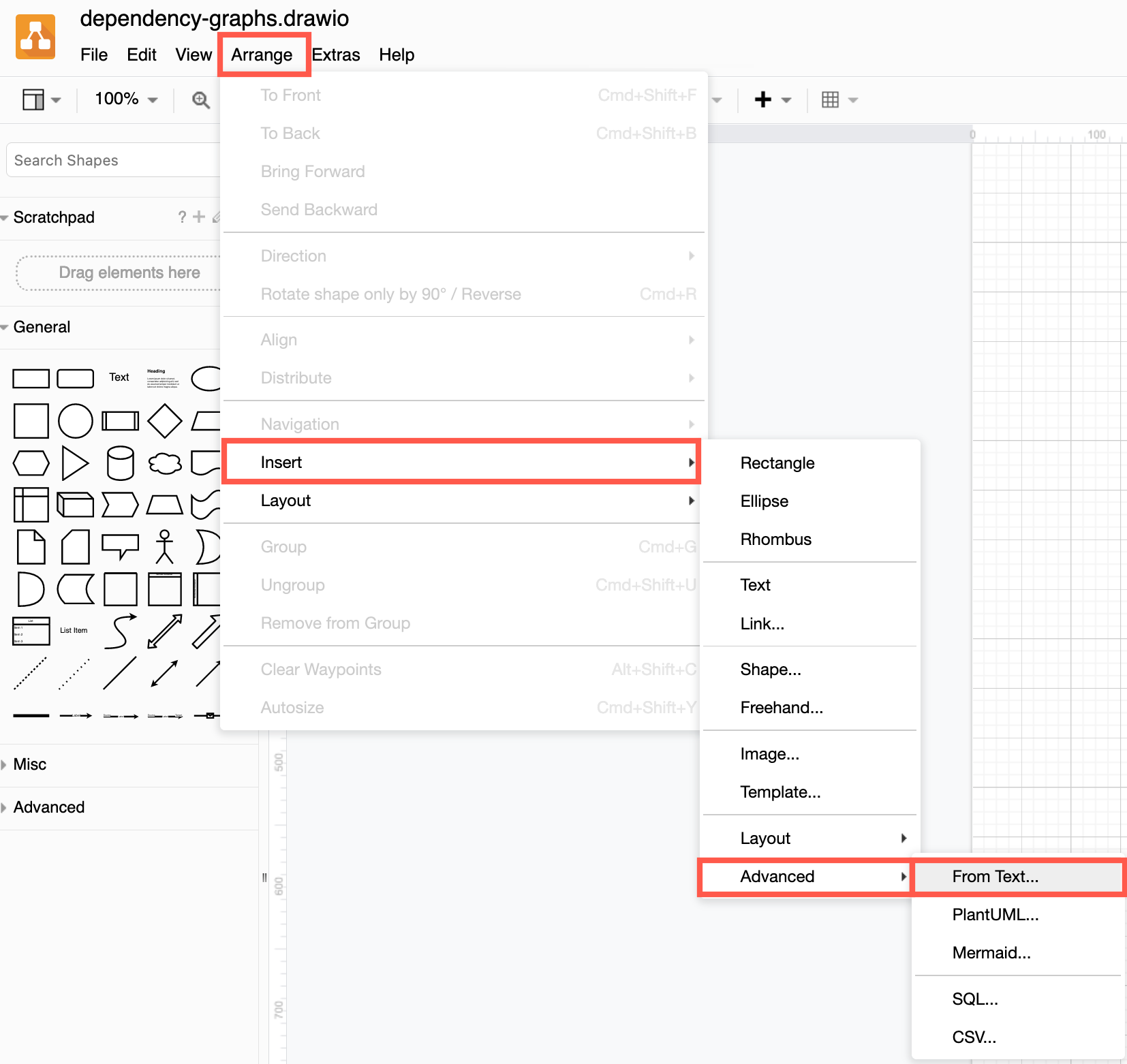
    Select Arrange > Insert > Advanced > From Text to open the From Text dialog
  2. Choose the type of diagram from the drop-down list at the bottom of the dialog.
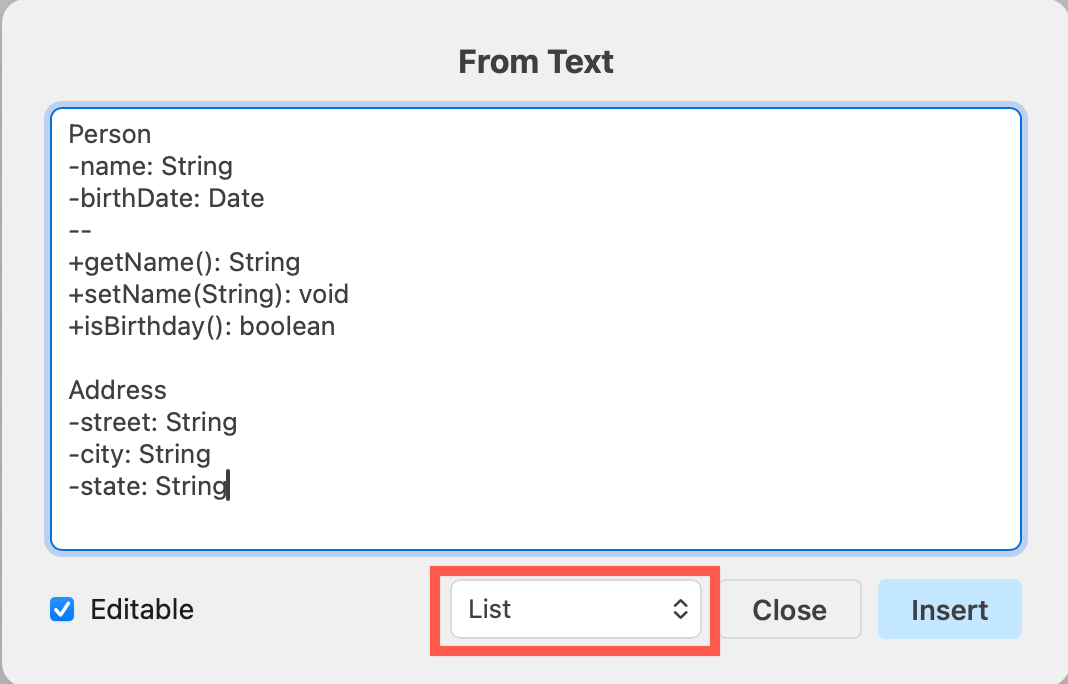
    Choose a diagram type from the drop-down list at the bottom of the From Text dialog to see its example text
  3. Different types of diagrams have different formatting. Follow the formatting of the example text and replace it with your own text description, then click Insert.

The diagram will be drawn, automatically laid out, and added to the drawing canvas in a transparent layout container.

Edit the text or the diagram​

Click the pencil icon in the top left of the layout container to re-edit the text.
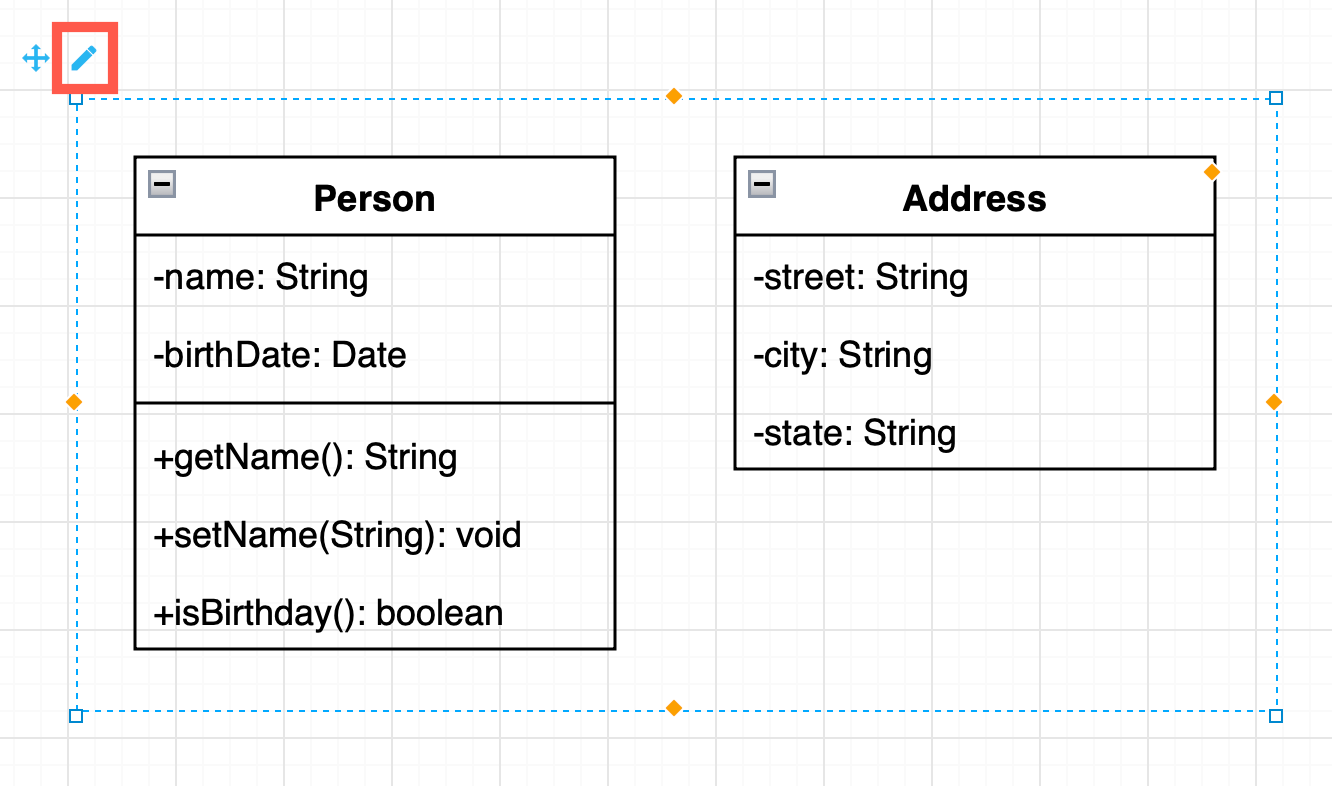
Click the pencil icon in the top left of the layout container to re-edit the text of the diagram

  • Change a line to change the label of its shape. The shape keeps its style and size.
  • Add a line to add a shape with the style of its siblings.
  • Delete a line to delete its shape and its connectors.

Edit the diagram shapes directly: When you add and connect new shapes inside the layout container, for example, adding more lines to an entity, or when you change the labels of the existing shapes, the text description of the diagram will be updated to reflect your changes.

Apply styles inside the layout container: Style elements inside the layout container as you would style shapes, connectors and text normally in draw.io. When you next edit the text and update the diagram, these styles are kept.
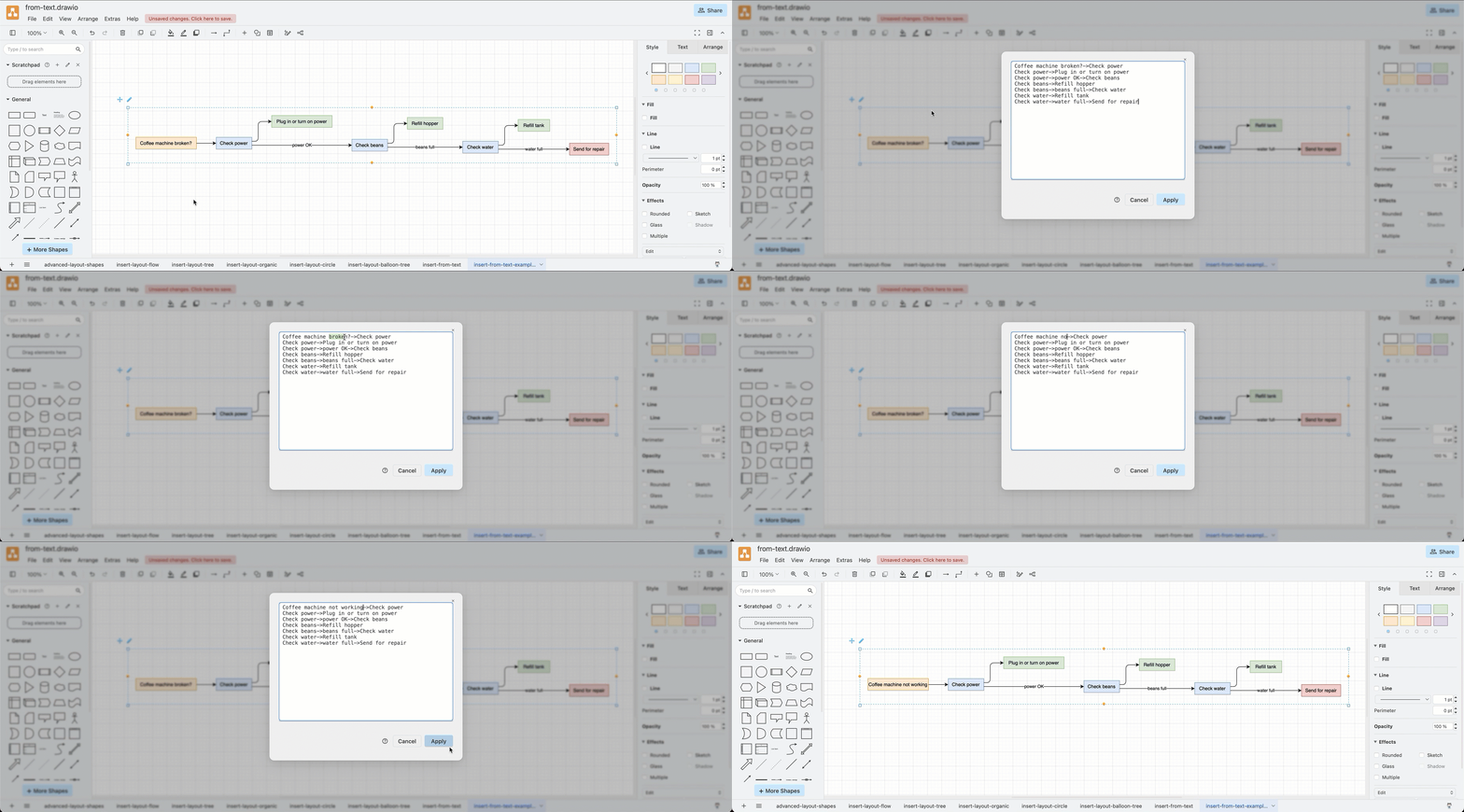
Edit the text of a diagram in a layout container - the shapes keep their styles and their labels are updated

When you add an indented child to the text of any of the tree diagrams or a mindmap, the new children will take their style from their parent.

Style the layout container itself just as you would style a shape on the drawing canvas. By default, the layout container is transparent with no outline.
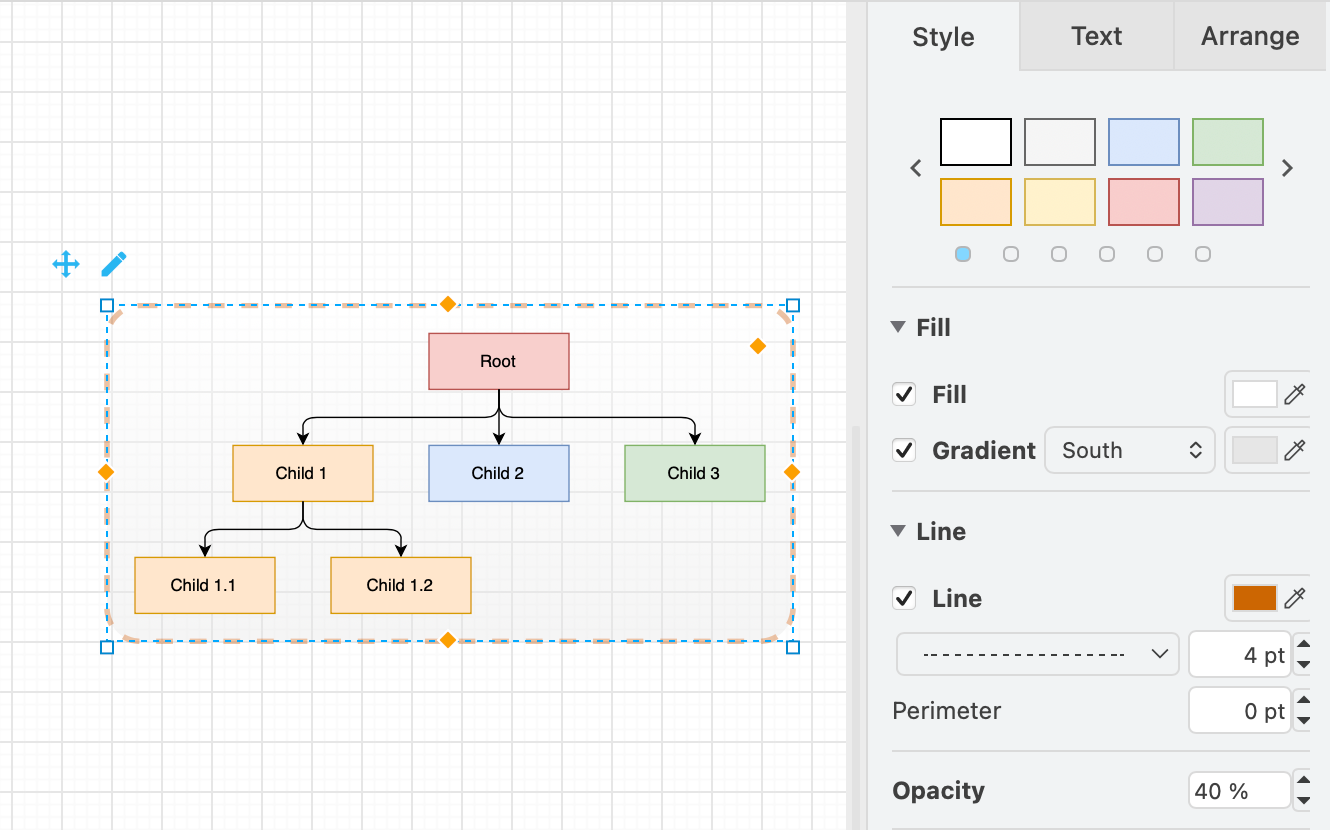
Add a border and fill colour to the layout container when you insert from text in the same way as you would style any other shape on the drawing canvas

Move the layout container on the drawing canvas: Drag the arrows in the top left or the frame of the layout container to move the diagram on the drawing canvas. Click a blank space inside the layout container to deselect it. You can then drag a selection box around the shapes inside it.
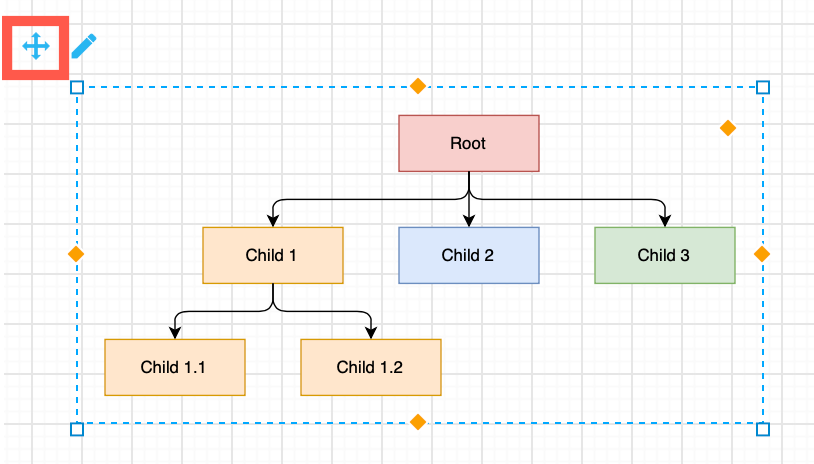
Move the layout container on the drawing canvas by dragging the arrows in the top left

What diagrams can you describe as text?​

You can create lists for entity relationship diagrams, flowcharts and directed graphs with an arrow between each pair of nodes, as well as vertical, horizontal, radial and balloon trees, and mindmaps from indented outlines.

For example, the horizontal flowchart below is described in text as:

Coffee machine not working->Check power
Check power->Plug in or turn on power
Check power->power OK->Check beans
Check beans->Refill hopper
Check beans->beans full->Check water
Check water->Refill tank
Check water->water full->Send for repair

A horizontal flowchart for troubleshooting a coffee machine, inserted from text in a layout container

See more examples that were inserted from text in the user manual.

Insert a diagram from text without a layout container​

To use the older non-editable style, deselect the Editable checkbox in the From Text dialog before you insert the diagram.
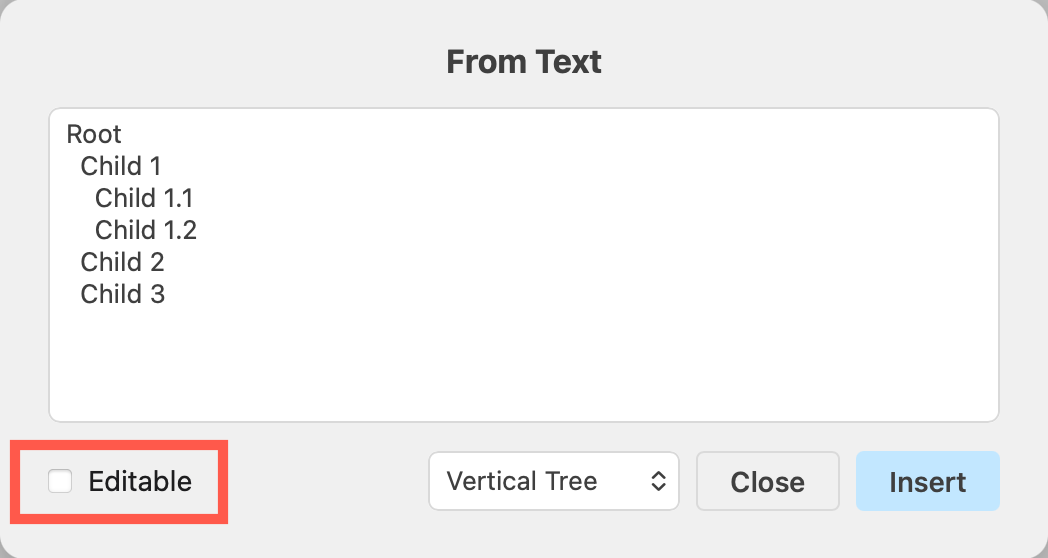
Deselect the Editable checkbox to insert from text without a layout container - you won't be able to re-edit the text of this diagram

The shapes and connectors for your diagram will be placed directly on the drawing canvas. Choose this option when you want a diagram you can edit and rearrange freely without needing to conform to a particular diagram type.
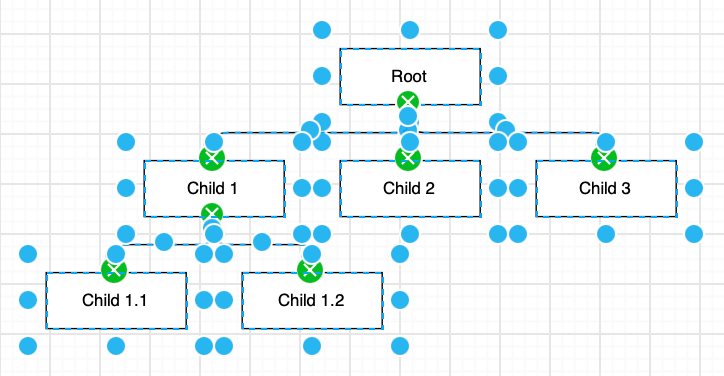
When you insert from text and deselect the Editable checkbox, your diagram will be placed as shapes directly on the drawing canvas, without a layout container

Convert older diagrams inserted from text: Older diagrams that were inserted from text can't be automatically converted to the new layout containers, because their text was not saved in the diagram data. To make one editable, describe it in text again and insert it as a new diagram in a layout container, then delete the old diagram.

Do more with diagrams from text​

Apply a different layout: Select the layout container, then select Arrange > Layout and choose a different layout. The shapes will be rearranged and the layout container will be automatically resized to fit.

Generate the text for a diagram with AI: Ask your preferred LLM tool for an indented outline or a list of connections, then paste it into the From Text dialog. To skip the copy and paste step, install the draw.io connector in your AI tool so it can generate editable diagrams for you directly.

Advanced layout shapes and layout containers

· 3 min read

The advanced shape library contains several automatic layout shapes that let you quickly build flowcharts, trees and mindmaps without needing to worry about manually rearranging shapes.
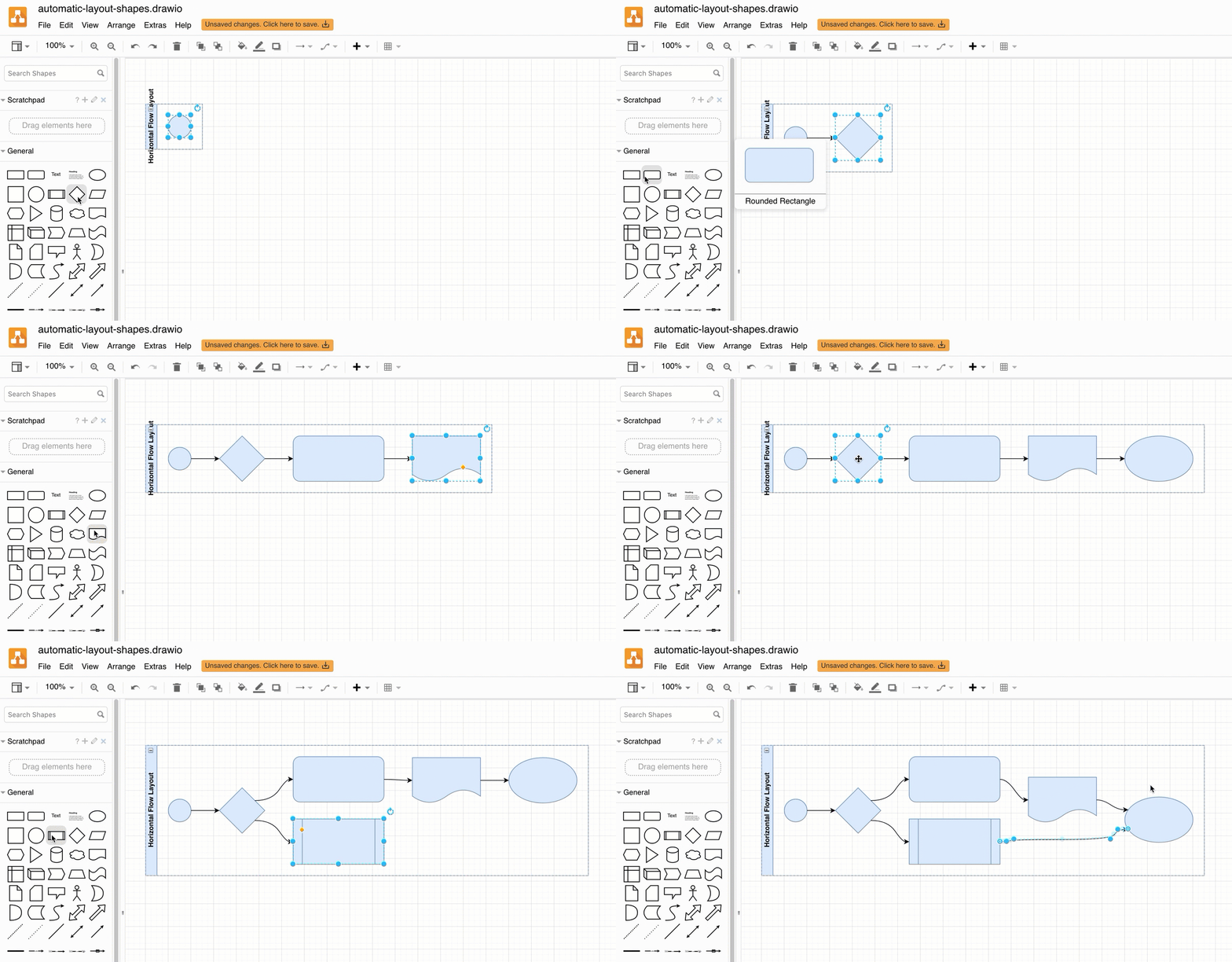
Hold down alt as you click on shapes in the shape library to add and connect them inside a automatic flow layout shape

Add an advanced layout shape​

Advanced shape library: Click on More Shapes at the bottom of the left panel, select the General shape library, and click Apply.

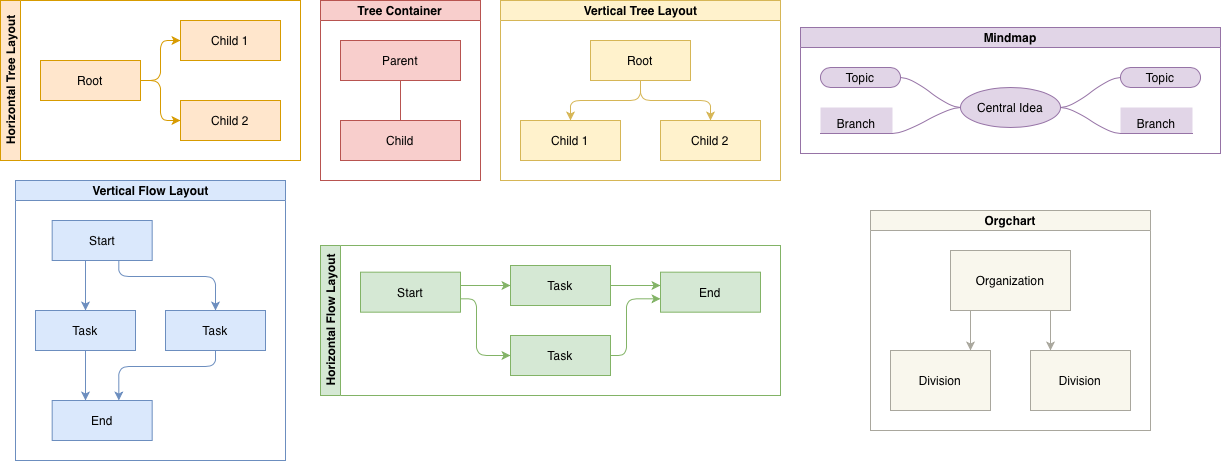
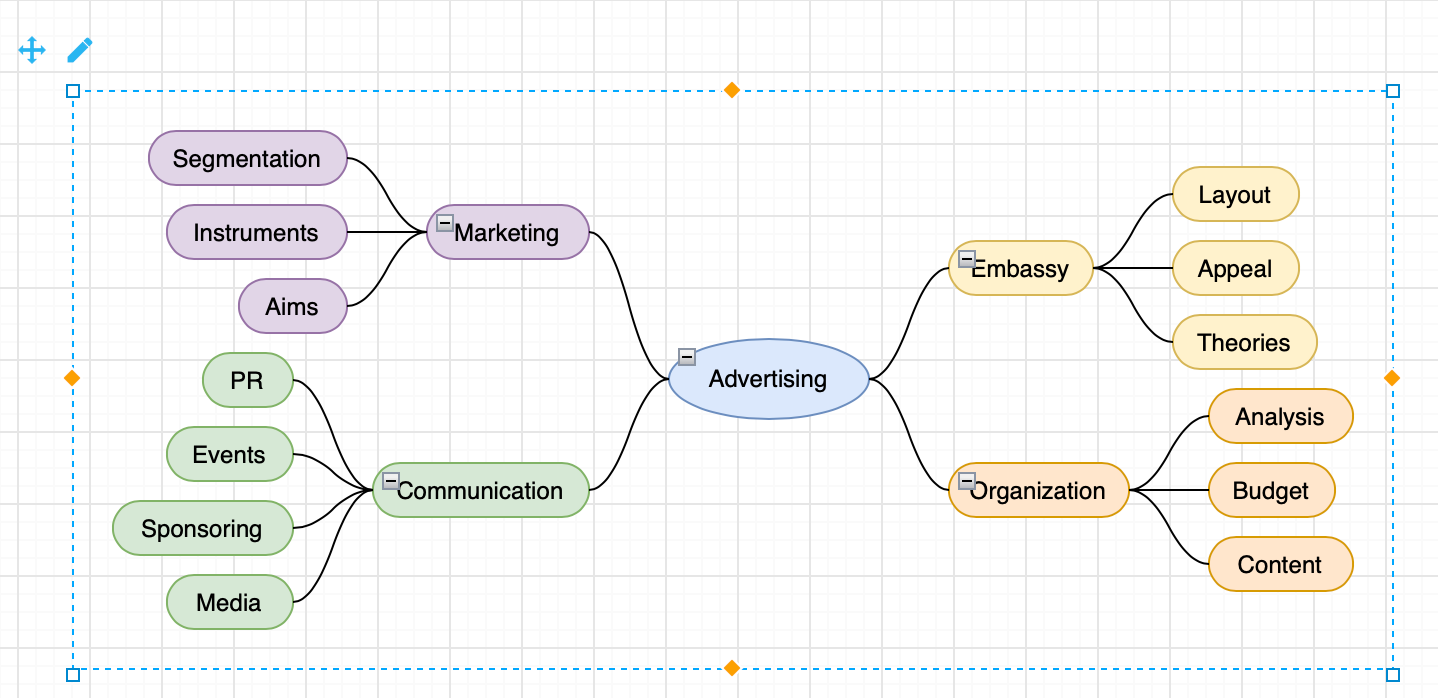
The layout shapes in the Advanced shape library include vertical and horizontal trees, vertical and horizontal flows, mindmaps and org charts. The Tree Container, mindmap and org chart layout shapes have expand/collapse functions in the top left of their shapes.
The Advanced shape library contains a number of automatic layout shapes surrounded by a swimlane shape

Add more shapes to your layout shape​

The diagram inside the layout shape will automatically rearrange to fit any new connected shape that you add or delete. Be careful not to delete all of the shapes inside though - when you delete the last contained shape, the entire layout shape is also deleted.

  • Drag and drop a shape from the shape library onto one of the direction arrows of the shapes inside the layout shape.
  • Hold Alt and click on a shape in the shape library to automatically add and connect it to the selected shape inside the layout shape as in the example at the top of the page. This selection will move on to the newly added shape, so you can quickly build your diagram inside the layout shape.
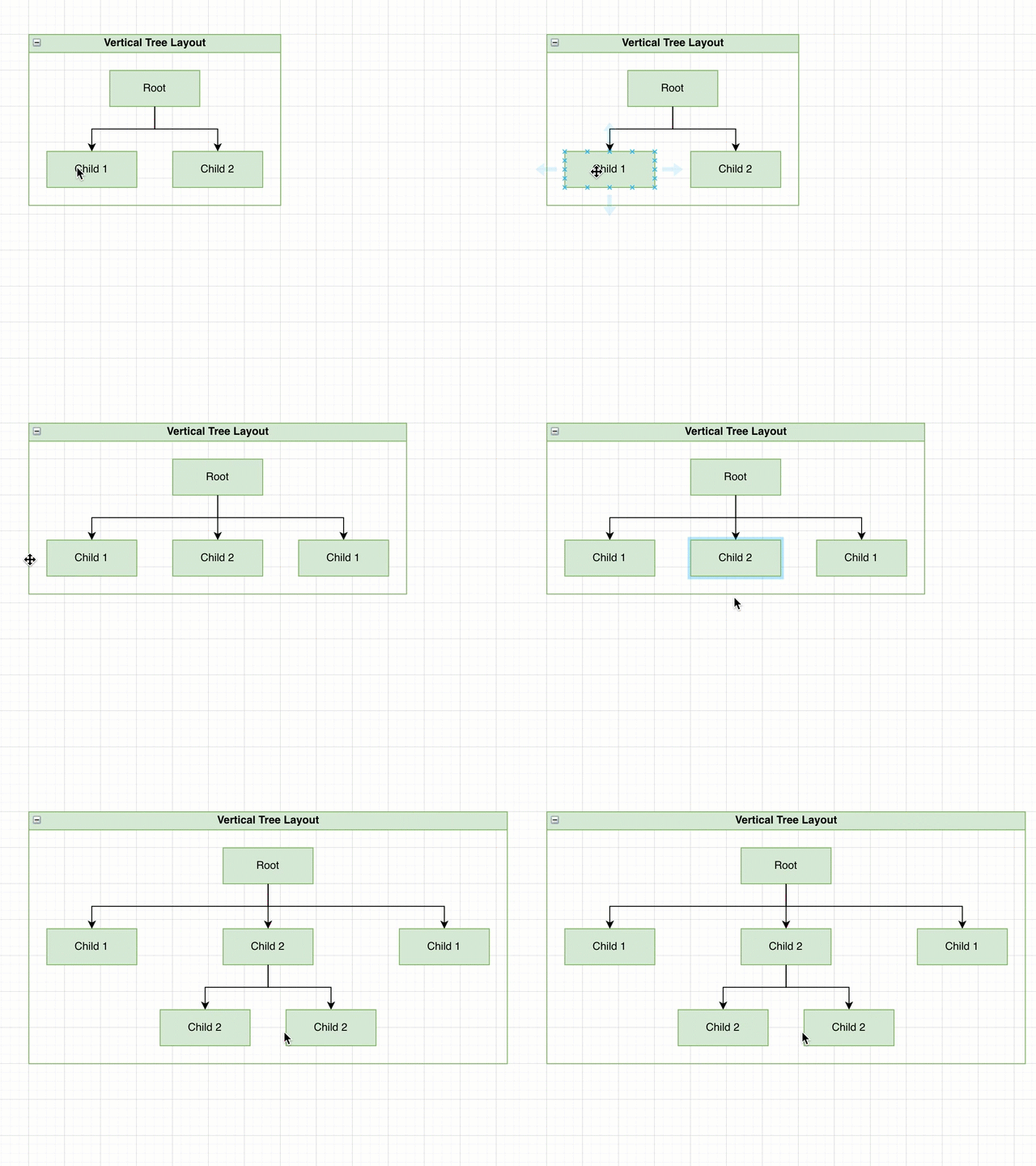
  • In the tree layout shapes, click on the left and right direction arrows to quickl add sibling nodes and connect it to the same parent node.
    Click on the directional arrows that appear when you hover over a shape to clone and connect a new shape inside of a container layout shape

Insert a layout container​

While the layout shapes from the Advanced shape library are surrounded via a swimlane shape that you can connect to and from, when you insert a layout container via Arrange > Insert > Layout or via the toolbar + > Layout it will have an invisible/transparent border.
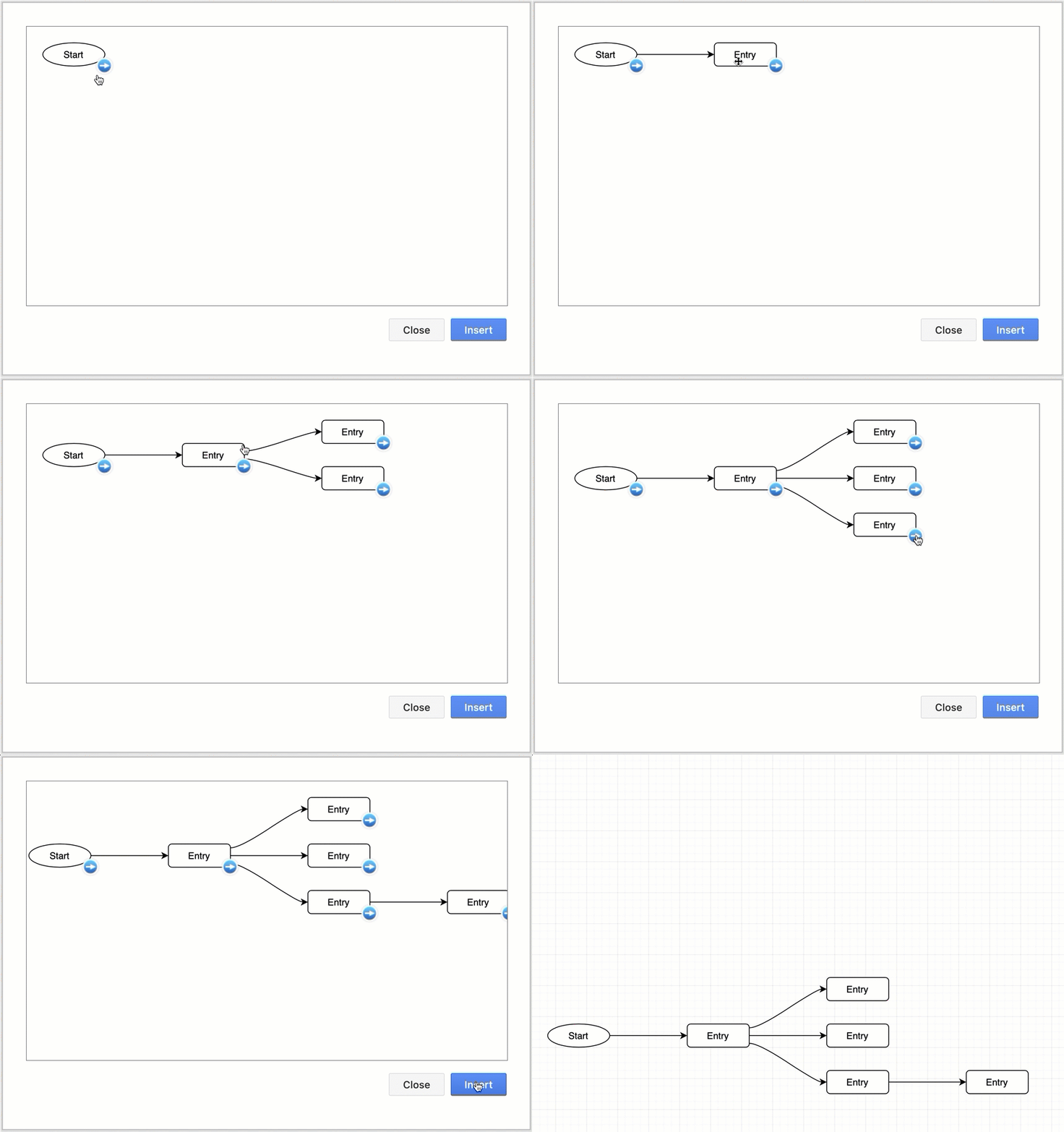
Quickly click together a horizontal flow in draw.io

Note: You can not connect to the border of these layout containers, only to the shapes inside.

The layout algorithms for both the Advanced layout shapes and these layout containers is the same. Add and remove shapes just as you would one of the Advanced layout shapes. Similarly, when you delete the last remaining shape inside a layout container, the layout container itself will also be deleted.

Do diagram layouts apply to layout containers?​

No. If your diagram has layout containers (from the Advanced shape library or via Arrange > Insert > Layout), the shapes and connectors inside those layout containers will not be rearranged when you apply a diagram layout from Arrange > Layout. While the layout container shapes follow the same algorithms, they are treated as a single shape when applying a diagram-wide layout.
Rearrange your diagram quickly by applying a layout - select Arrange > Layout from the menu

Better automatic layouts with ELK

· 3 min read

The new version of the automatic layout dialogs in draw.io now use the Eclipse Layout Kernel (ELK) and its layering algorithms to automatically rearrange the shapes in your diagram.

Use these automatic layout presets to build neat flow charts, trees, org charts and other common diagram layouts quickly.

Rearrange your diagram quickly by applying a layout - select Arrange > Layout from the menu

Change layout options​

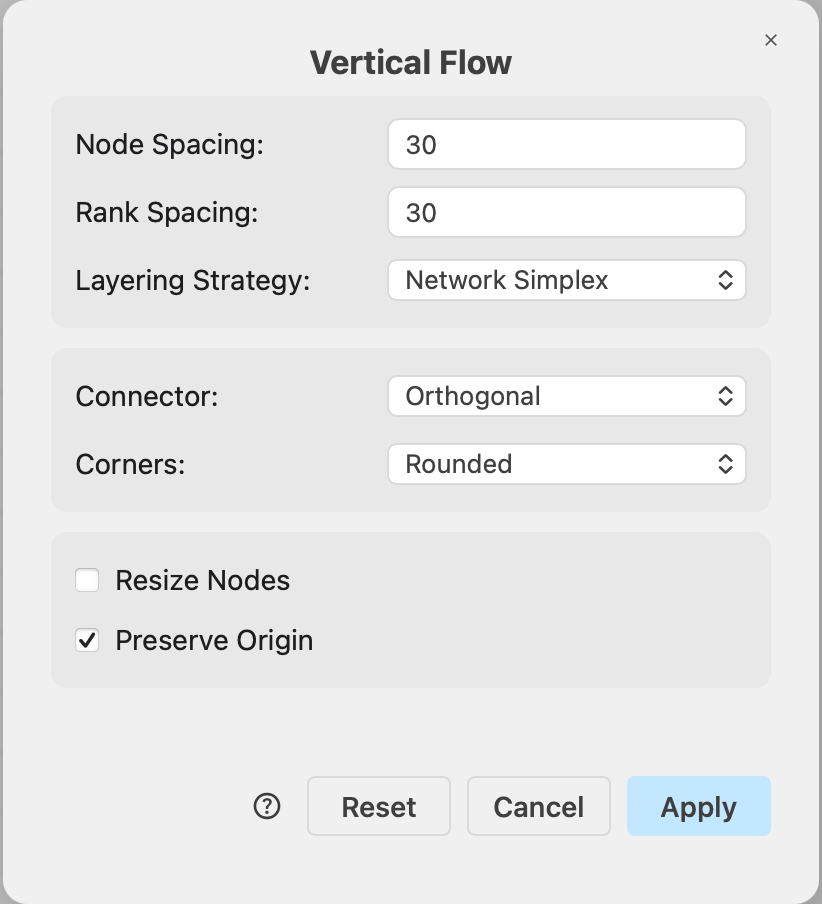
In most of the preset layouts via the Arrange > Layout menu you can customise the spacing, direction and connector behaviour.

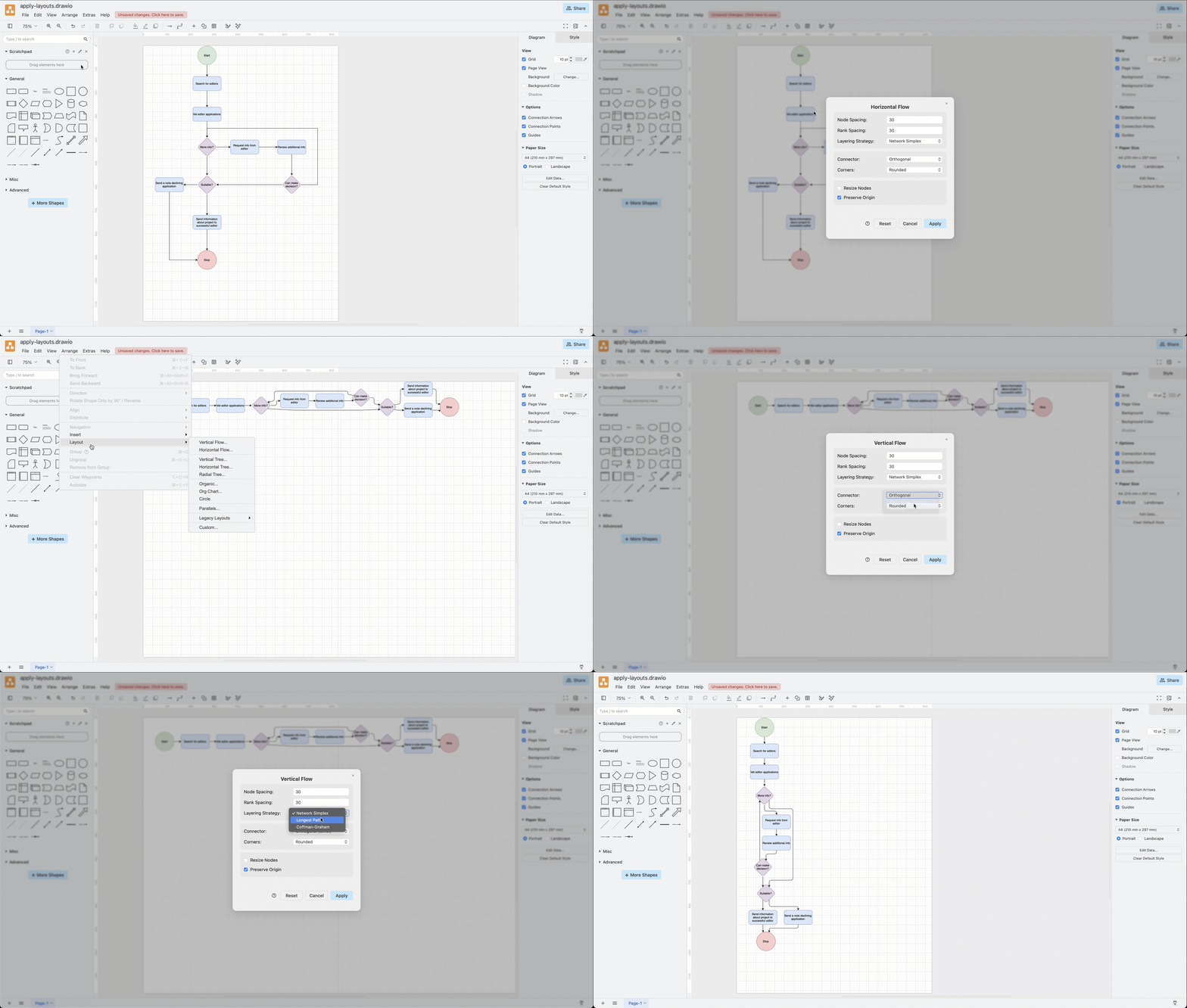
  1. Select Arrange > Layout from the menu, or click + > Layout in the toolbar, then choose the layout preset that suits your diagram best.
  2. Change the layout options if you need to, then click Apply.
    Rearrange your diagram quickly by applying a layout - select Arrange > Layout from the menu

The diagram will be automatically rearranged.

Rearrange your diagram quickly by applying a layout - select Arrange > Layout from the menu

Undo the automatic layout: If you don't like this auto-layout, click Undo in the toolbar or press Ctrl+Z/Cmd+Z to revert to the diagram before it was auto-arranged.

The Flow, Tree, Radial Tree, and Organic layout dialogs store their last-used values in your browser, separately for each layout that you have applied.

Reset defaults: Click Reset in the layout dialog to discard the stored values and reopen the dialog with that preset's defaults.

Use a custom layout​

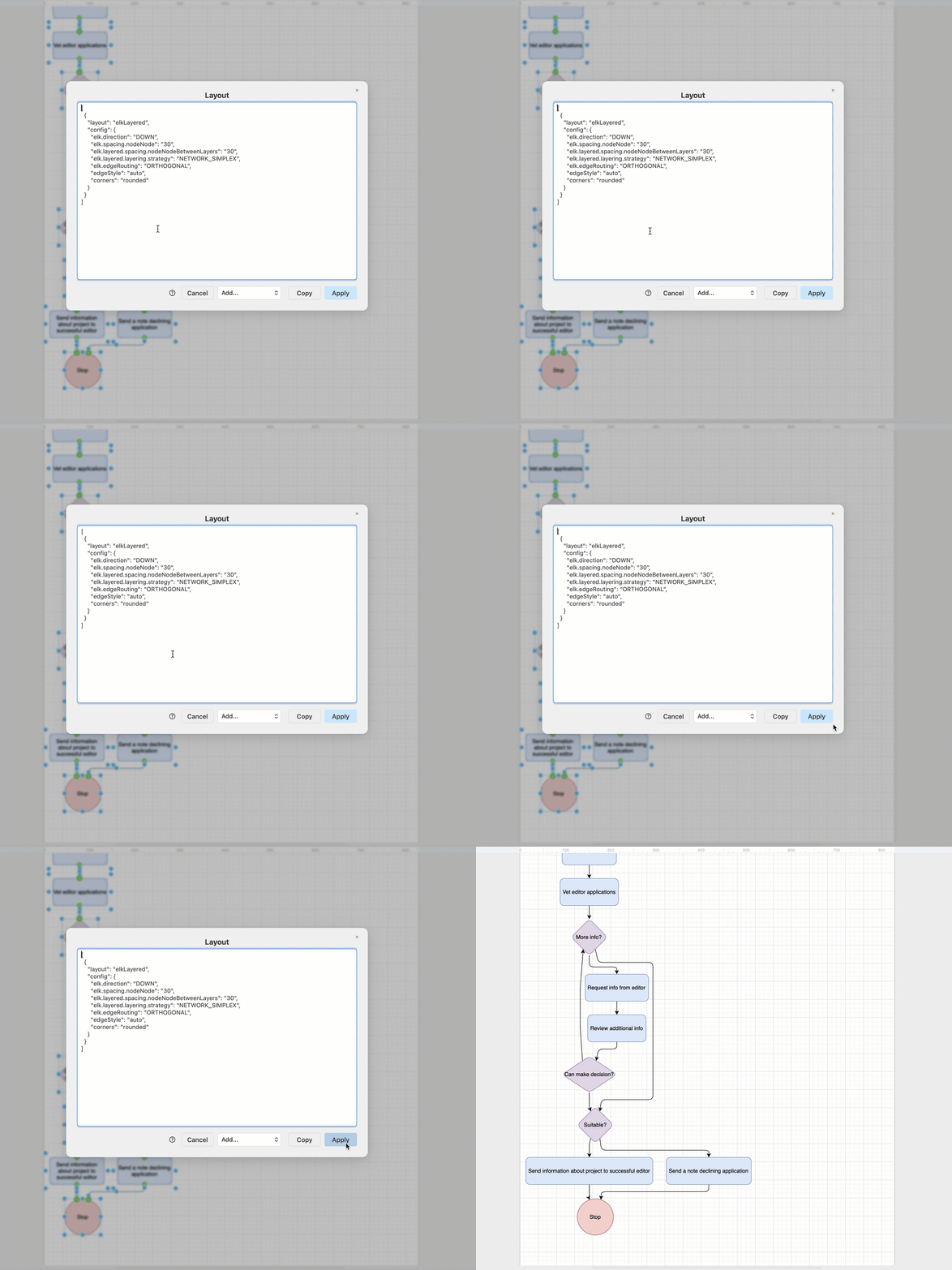
You can further customise the layout algorithm with JSON configuration options via Arrange > Layout > Custom in the draw.io menu, or + > Layout > Custom in the toolbar. Your custom configuration is appended to the JSON definition for that layout preset instead of running the preset immediately on your diagram.
Change the layout algorithm with custom JSON configuration code

Refer to the JSON layout specification for the full documentation of each layout preset.

Tip: This JSON layout specification can also be used to automatically layout imported diagram data from a CSV file.

Legacy layouts​

The legacy layouts are still available via the menu Arrange > Layouts > Legacy Layouts.

You can customise the ELK layout settings by entering a JSON configuration string.

These layout algorithms are also used in arranging the shapes inside the layout shapes from the Advanced shape library and layout containers. When you apply one of the diagram-wide layouts to one of these Advanced layout shapes or layout containers though, their internal elements will not be rearranged.
The Advanced shape library contains a number of automatic layout shapes surrounded by a swimlane shape