8 posts tagged with "use-cases"

View All Tags

Shape library updates for multi-colour shapes

· 4 min read

There are many shapes in the draw.io shape libraries that use more than one line or fill colour. These shapes are being updated so you can change each of the colours and style your diagram with more flexibility.
The updated AWS shapes allow you to customise all of the colours in the shapes

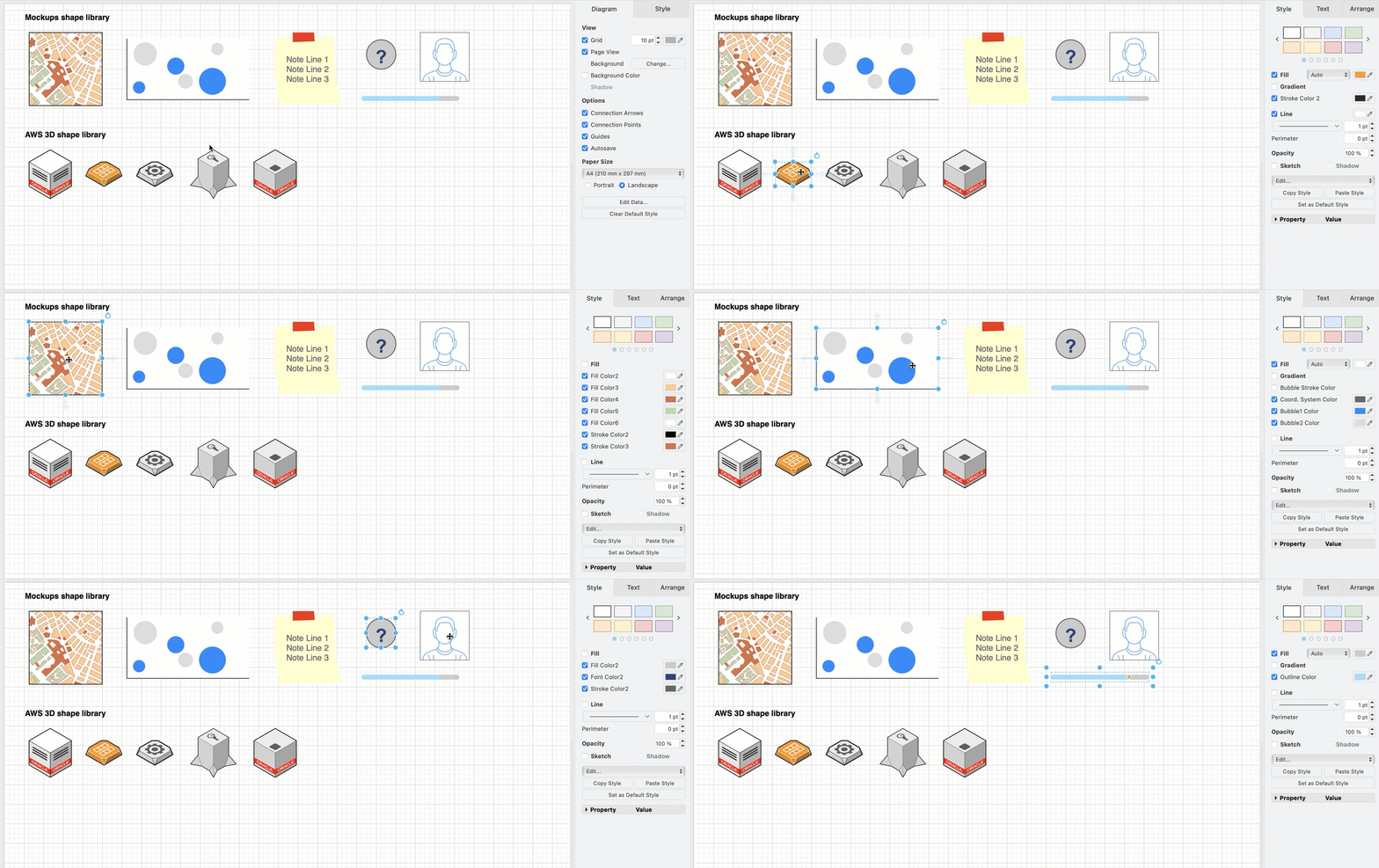
As the collection of shape libraries is rather large in draw.io, it will take some time to update all of those that contain multi-coloured shapes. The first two libraries that have been updated are Mockups and the AWS 3D shapes.

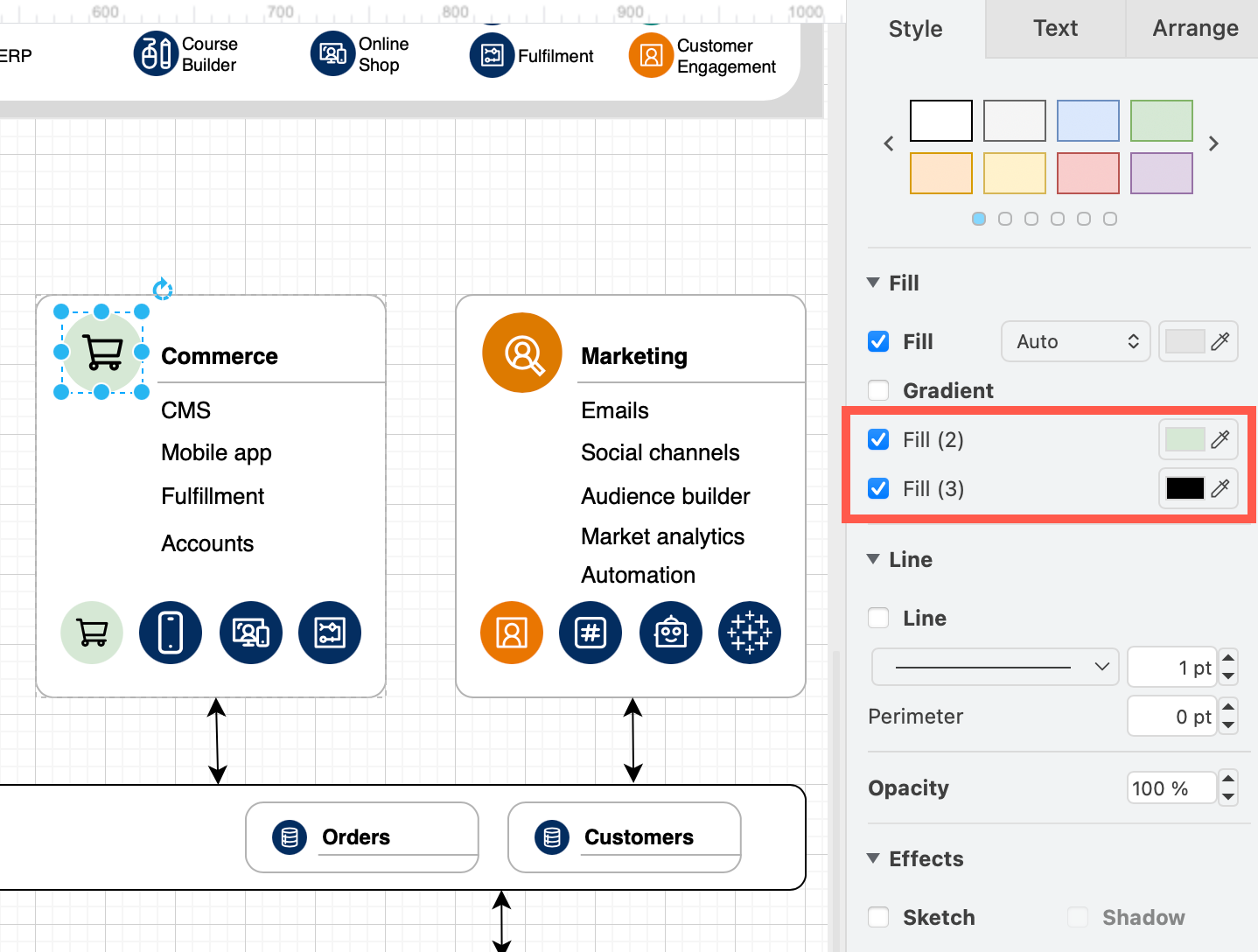
Each shape still contains a Fill and a Line (outline) colour that typically forms the background colour and the outer line colour of the shape. The additional colours are defined with new, customisable style settings.

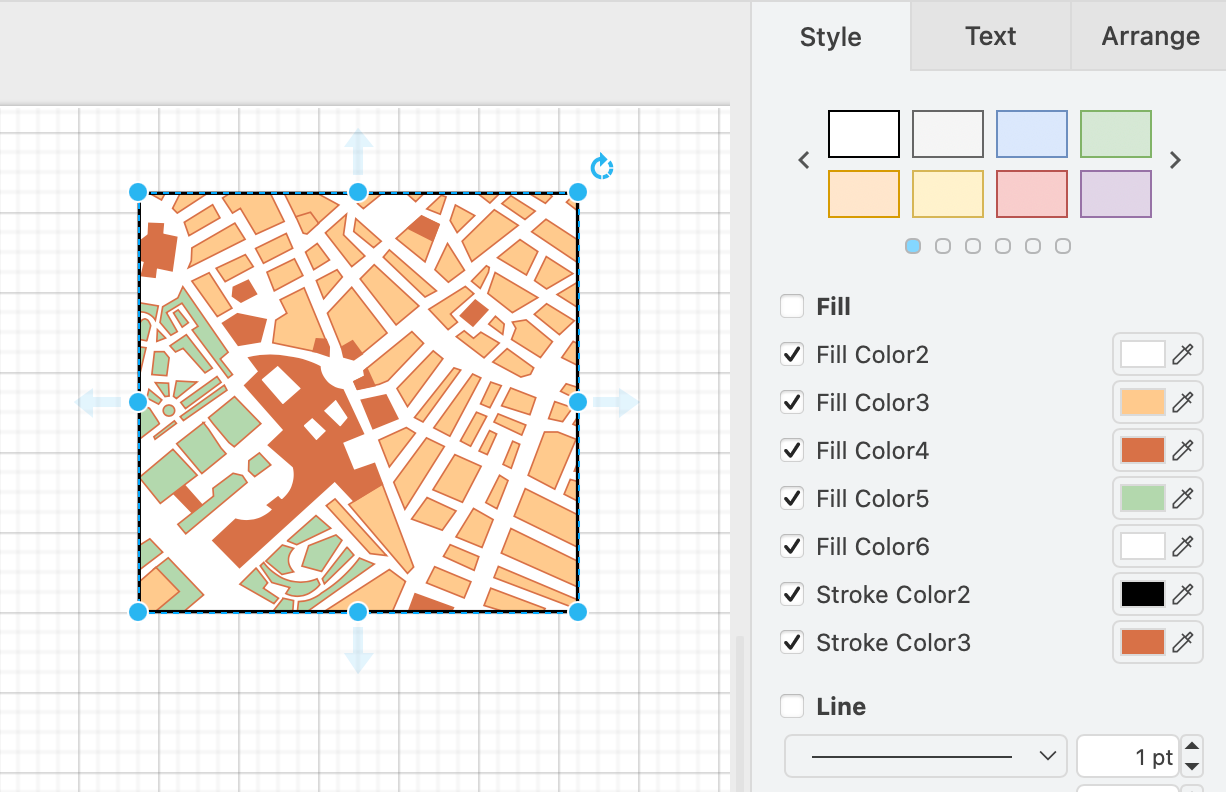
For example, the Mockup Map shape has a white background and black outline, but also internal areas with different fill colours and a different internal outline colour.
The updated Mockups Map shape has many customisable internal fill and outline colours

The list of fill and outline colours will be different for each shape.
The updated Mockups and AWS 3D shape libraries allow you to customise multi-colour shapes

How it works

A default attribute was introduced for the fillcolor and strokecolor attributes.

Each shape has a list of defaultFillColors and defaultStrokeColors attributes which are used to show the customisable colours in multi-colour shapes. These are comma-separated lists that define the default colours in the fillColorStyles and strokeColorStyles attributes within a shape.

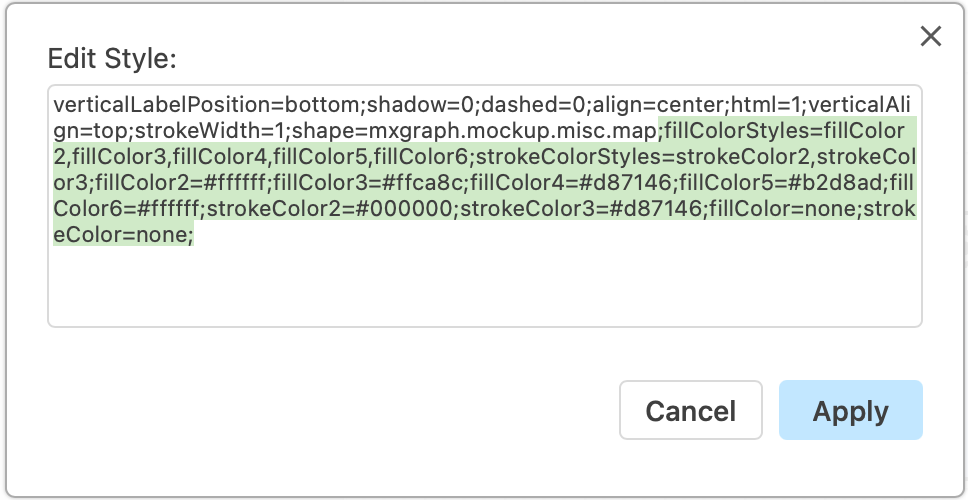
Right click on a shape, then edit the colour style attributes, then click Apply.
Right click on a shape and select Edit Style to change the colours of the shape directly

Which libraries have been updated?

The updated AWS 3D and Mockups shape libraries are available now in the current version of the web-based draw.io editor. The Cloud and IT shape libraries are in the process of being updated to this new, more flexible system of colours. Multi-colour shapes in other shape libraries will be updated after the IT shapes are finished.

Go to app.diagrams.net/clear.html to ensure you are using the most recent version of the online draw.io editor.

Gradients with multi-coloured shapes

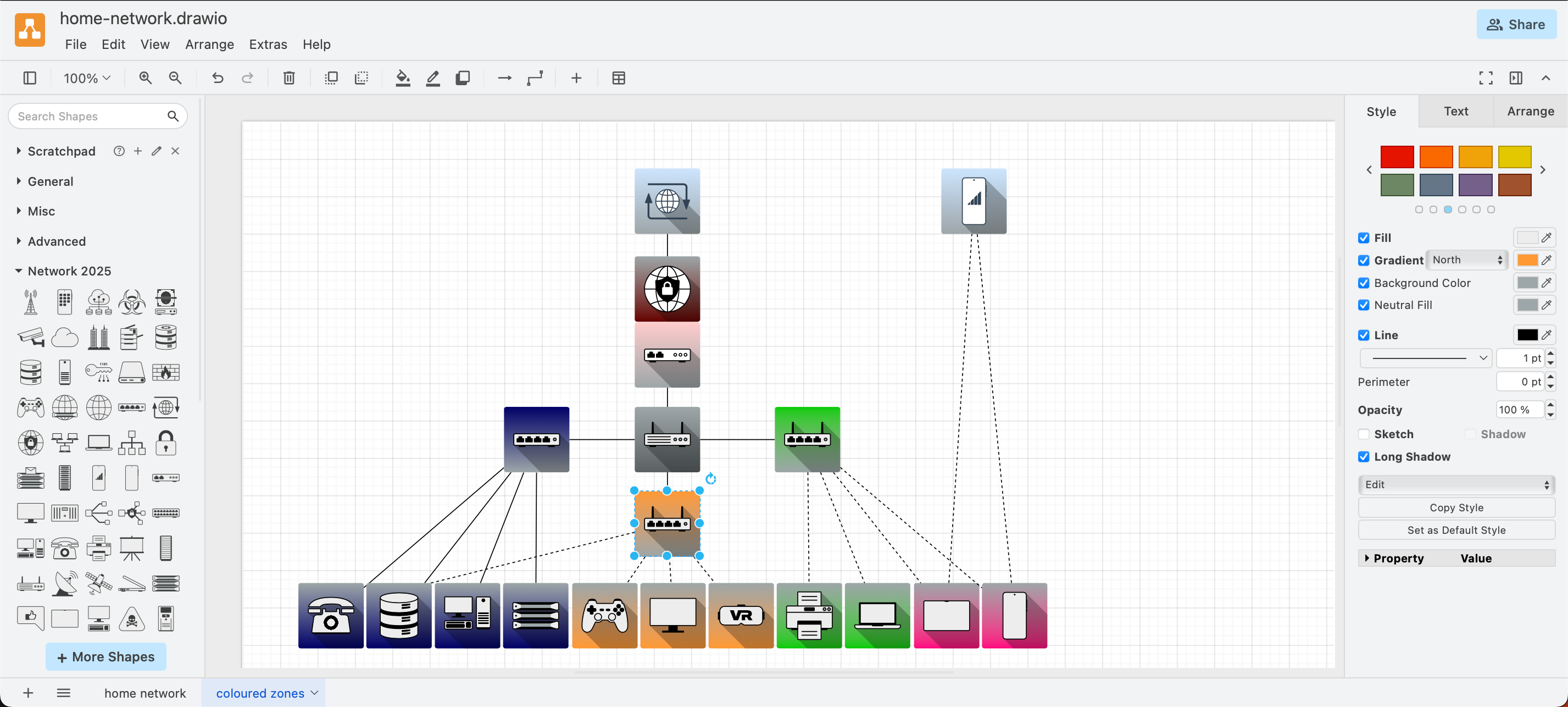
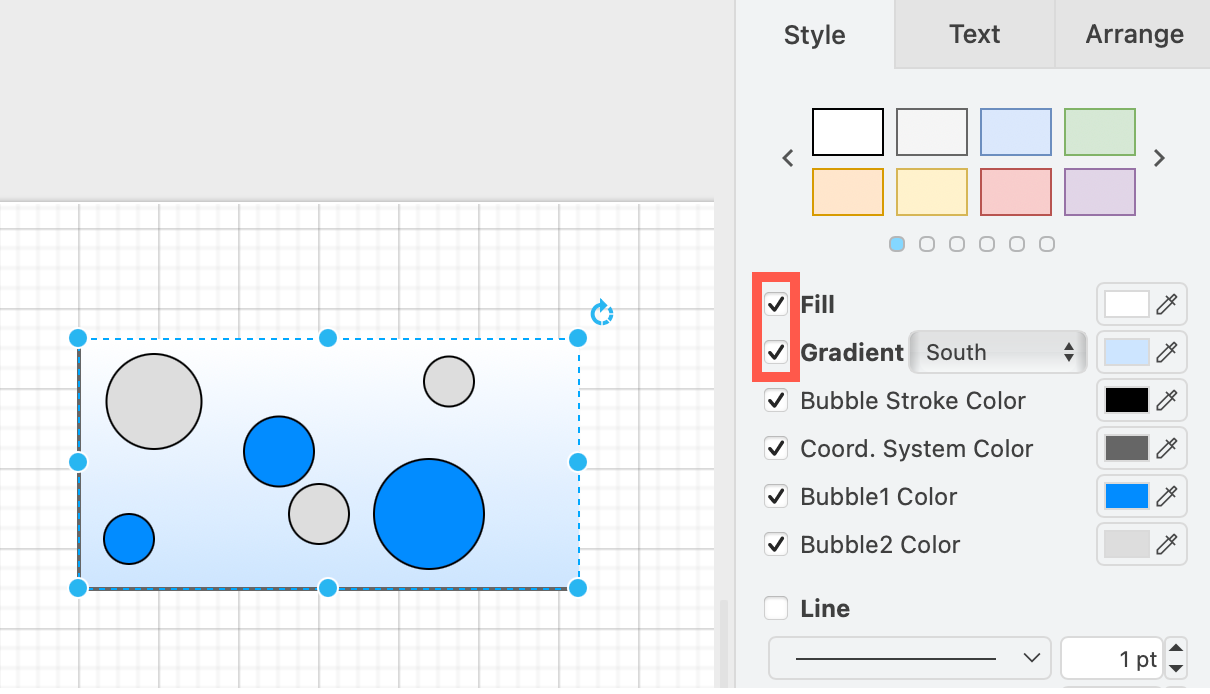
The gradient option in the Style tab of the format panel will use the main background fill colour. The gradient does not apply to any of the other additional colour styles within the multi-colour shape.
The updated Mockups Map shape has many customisable internal fill and outline colours

Reset to the original colour styles

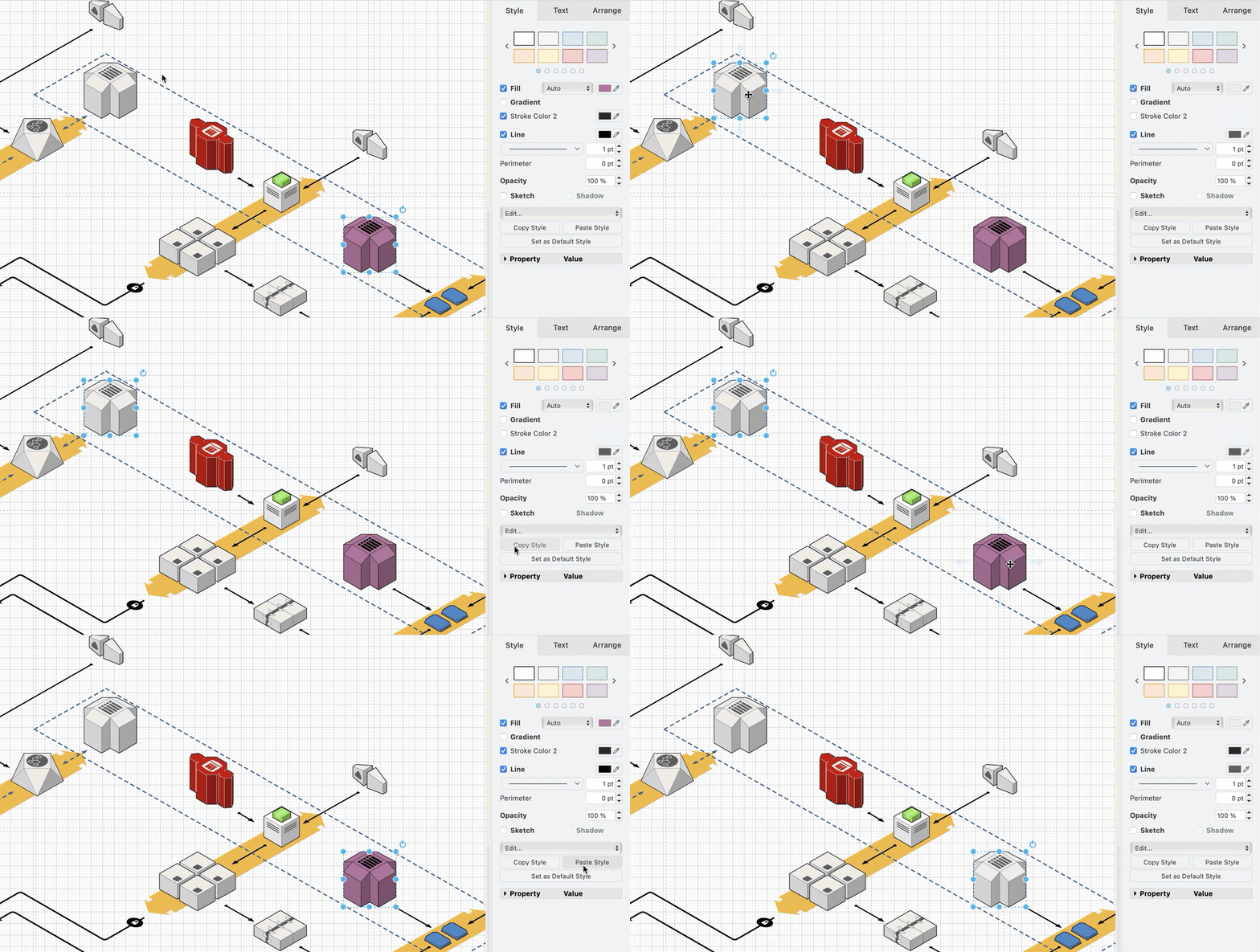
To revert to the original colour, the easiest is to copy the original style from an unstyled shape and apply it to the customised shape.

  1. Select the unstyled shape. In the Style tab, click Copy Style.
  2. Select the customised shape. In the Style tab, click Paste Style.
    The updated Mockups and AWS 3D shape libraries allow you to customise multi-colour shapes

Learn more about styling shapes

More updated networking and cloud shape libraries

· 4 min read

In addition to updating the main AWS and Azure shape libraries in draw.io, several new networking and cloud shape libraries have been added, including shapes for Alibaba Cloud, Dynamics365 and OpenStack.
Several new cloud infrastructure libraries have been added, and the Azure and AWS shape libraries have been updated in draw.io

Open cloud infrastructure shape libraries

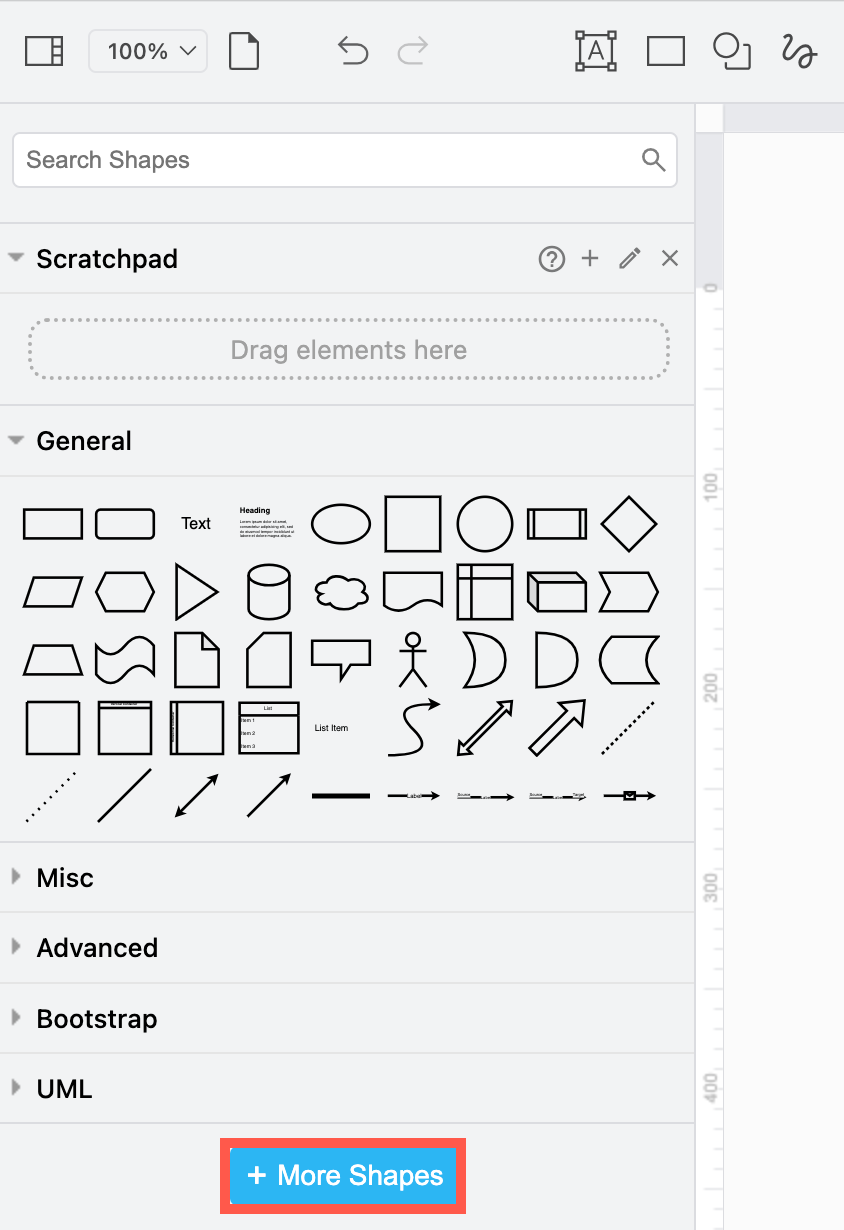
  1. Click on More Shapes at the bottom of the shapes panel on the left.
    Click on More Shapes in the shapes panel to open the shape library collection in draw.io
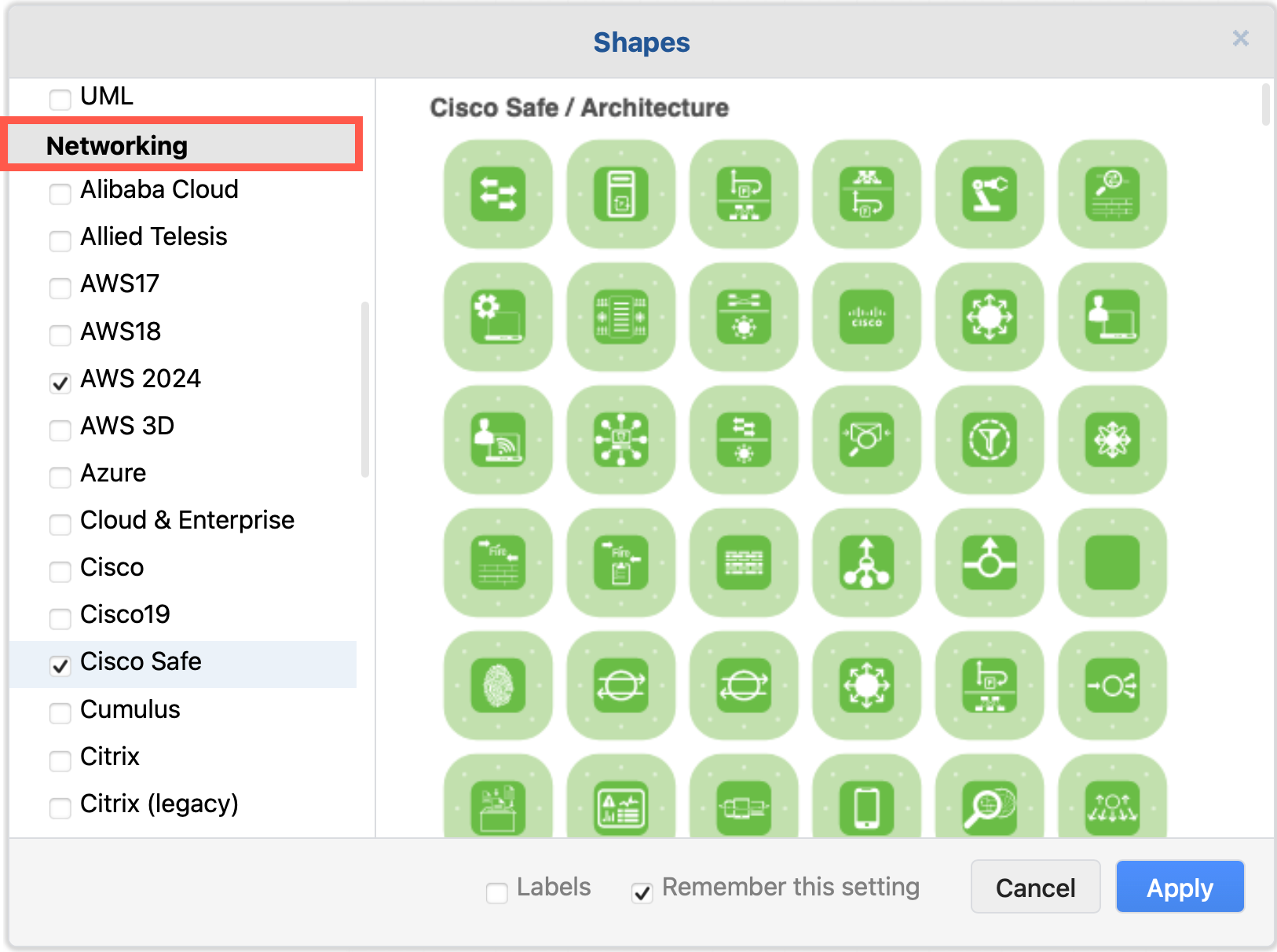
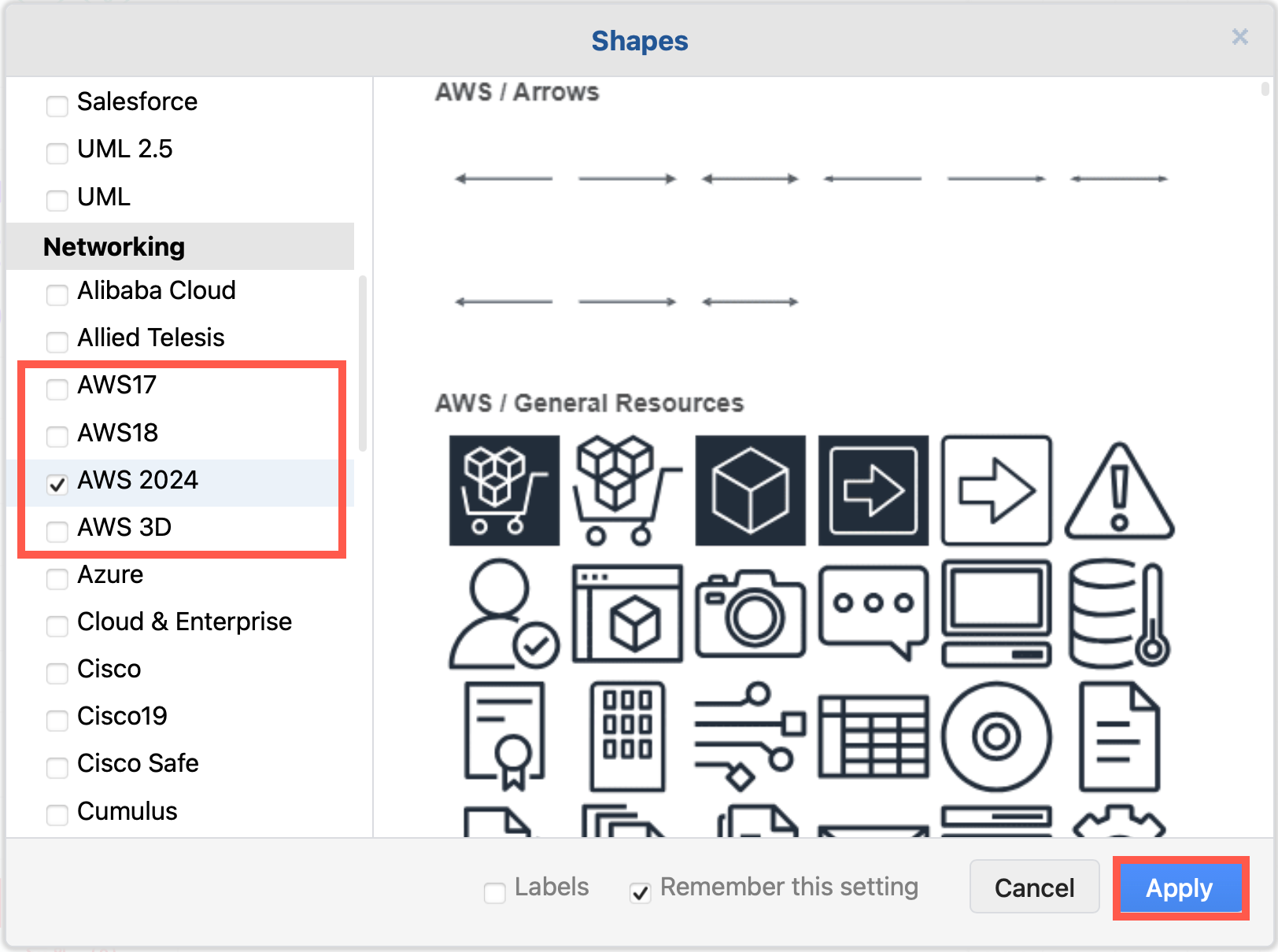
  2. Scroll down to the Networking section and enable the shape libraries you want to use.
    Enable the cloud infrastructure libraries you want to use in draw.io
  3. Click Apply to open them in the shapes panel next to the drawing canvas.

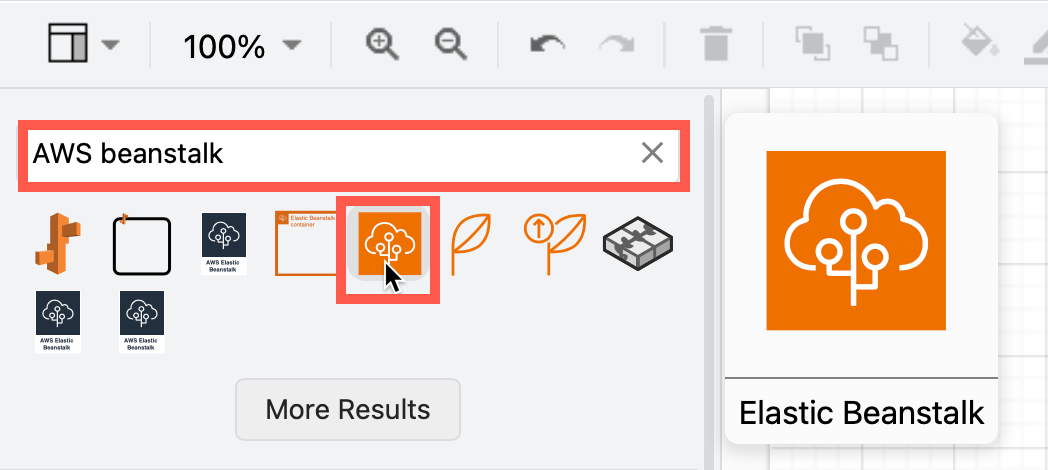
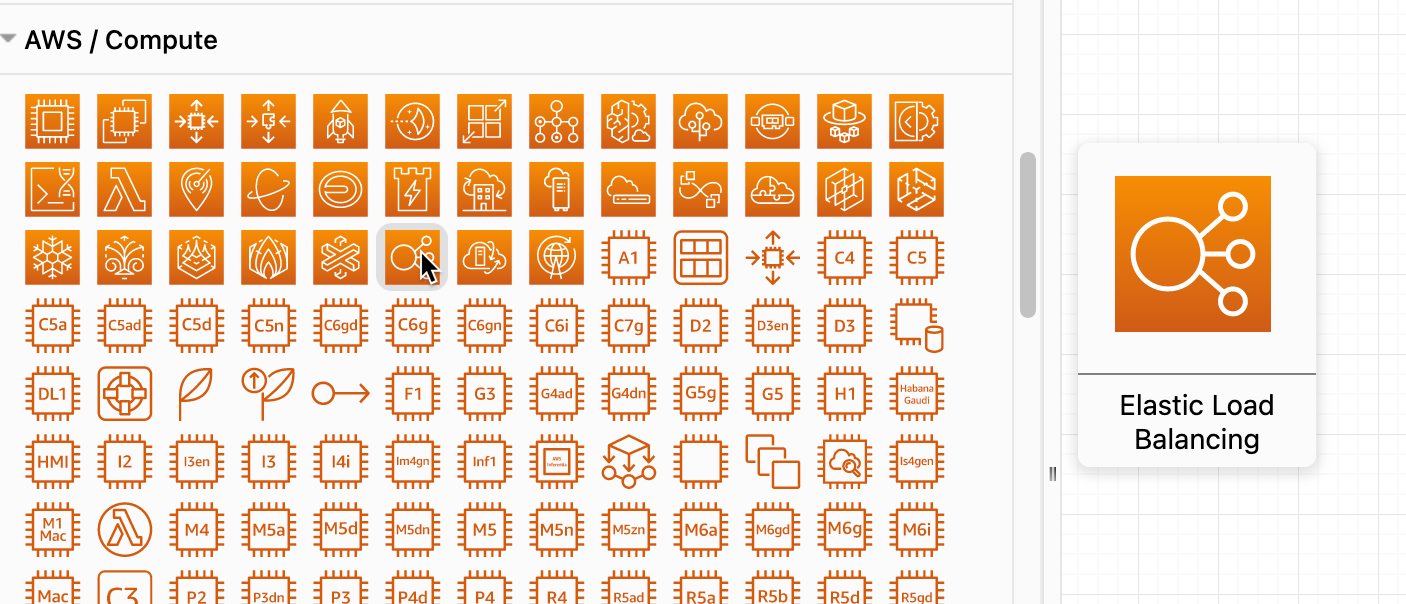
Tip: Alternatively, you can always search for a shape if you know its name. For example, searching for "AWS beanstalk" will show all the shapes from the various AWS libraries that have both "AWS" and "beanstalk" in their shape names, even if you don't have the AWS shape libraries open. Hover over any of the shapes to see a larger preview.
Search for any cloud infrastructure shape by its name to see all related shapes, even if you don't have the shape libraries open in draw.io

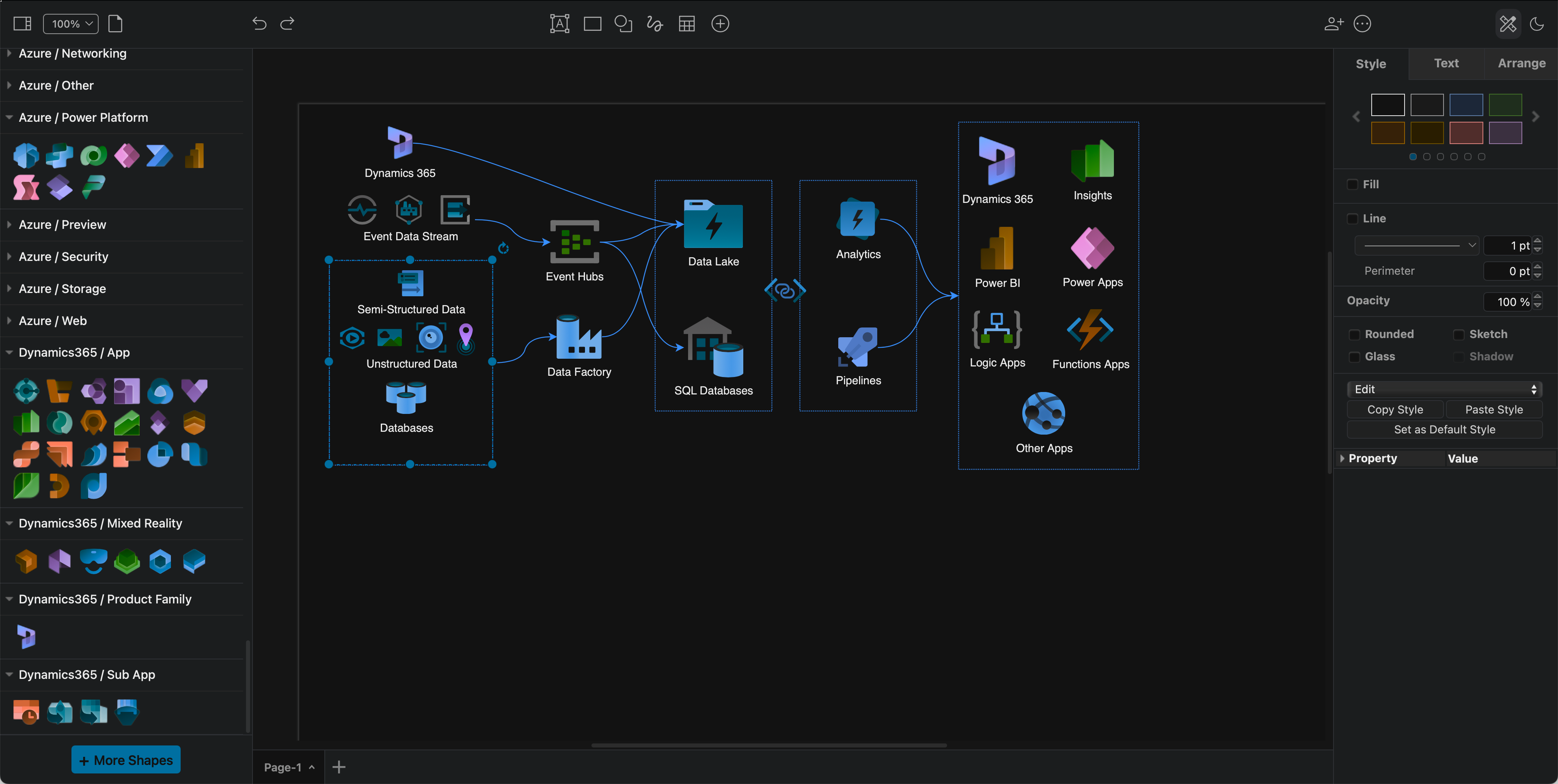
Azure Power Platform and Dynamics 365

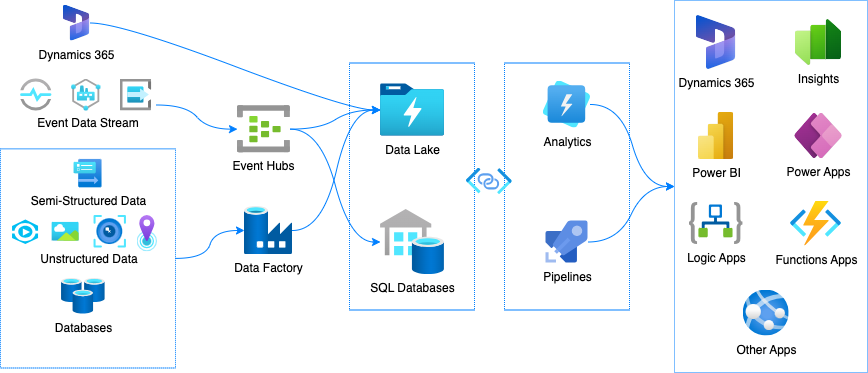
The Power Platform shapes have been added to the Azure shape library. These components are often combined with Dynamics365 services and applications in cloud infrastructures.

Tip:* If you prefer to diagram in dark mode, the Azure and Dynamics365 shapes and their labels will automatically change colours to remain readable when you switch between dark and light modes.
Several new cloud infrastructure libraries have been added, and the Azure and AWS shape libraries have been updated in draw.io

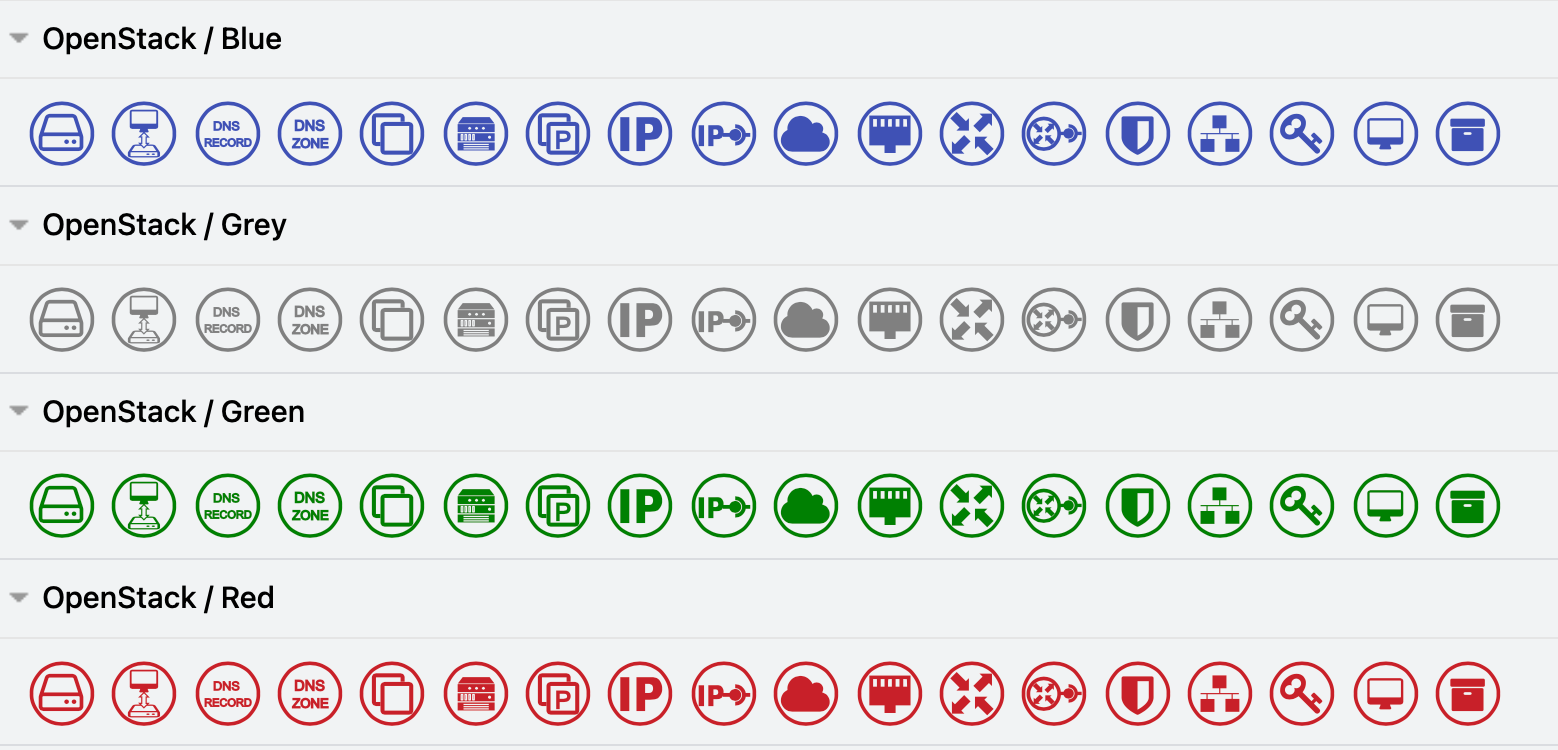
OpenStack shapes= library

OpenStack services and apps are common components of Citrix, GCP, IBM and other large hybrid cloud infrastructures. To clearly indicate which components are provided by OpenStack in your infrastructure diagrams, enable the OpenStack shape library.
Use the OpenStack shapes in your hybrid multi-cloud infrastructure diagrams

Alibaba Cloud shape library

Enable the Alibaba Cloud shape library to document your infrastructure in Alibaba Cloud platform. These shapes cover a wide range of apps and services.
Use the Alibaba shapes to document your Alibaba Cloud infrastructure

Most of the infrastructure shapes don't have labels by default, as designers tend to rely on logo-recognition for their infrastructure components.
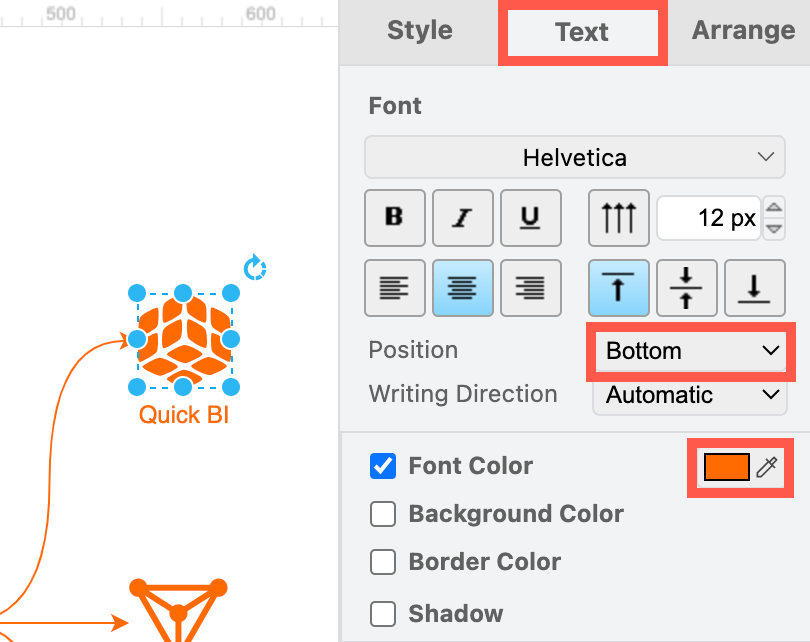
Add and style shape labels so your Alibaba Cloud infrastructure diagram is readable and consistent

To make your diagram more accessible, select a shape and start typing to add a label. In the Text tab of the format panel, select the Bottom position, and update the Font Colour to match the colour of the Alibaba shape so it is consistent.

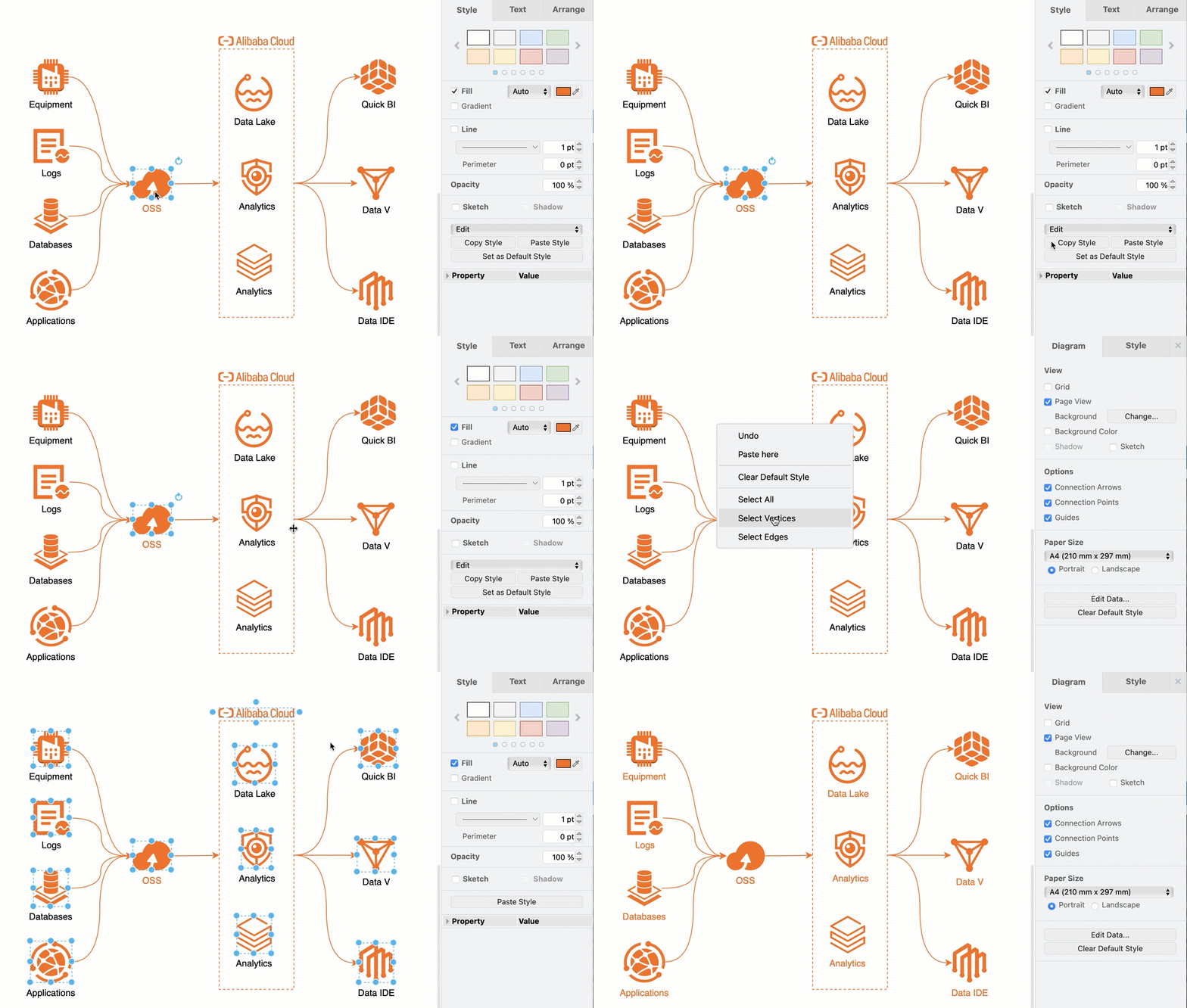
Tip: Format one shape and click on Copy Style in the Style tab of the format panel. Then, right-click on the canvas and choose Select Vertices, deselect any regions you may have added, and then click on Paste Style in the Style tab to copy the style onto all of the selected shapes.
Copy and paste shape styles to make your diagram labels and colours consistent

Learn more about drawing various types of network and infrastructure diagrams.

Other cloud platform shape libraries in draw.io include Salesforce, Citrix, Google GCP, Amazon AWS, IBM, and more.

Export AWS diagrams generated from your actual deployed infrastructure to the .drawio format from Cloudockit and Cloudcraft.

New IBM Cloud shape library for technical diagrams

· 6 min read

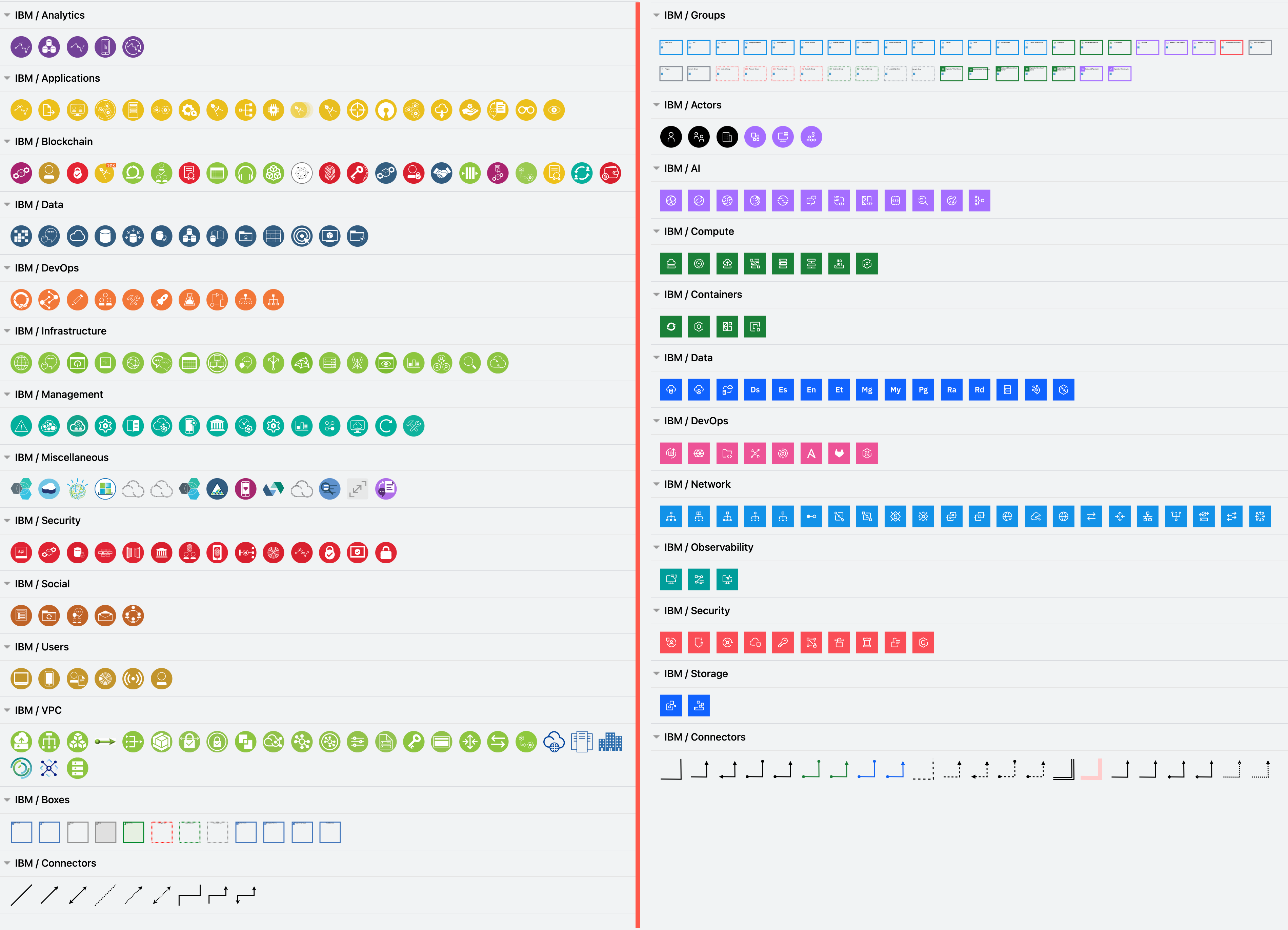
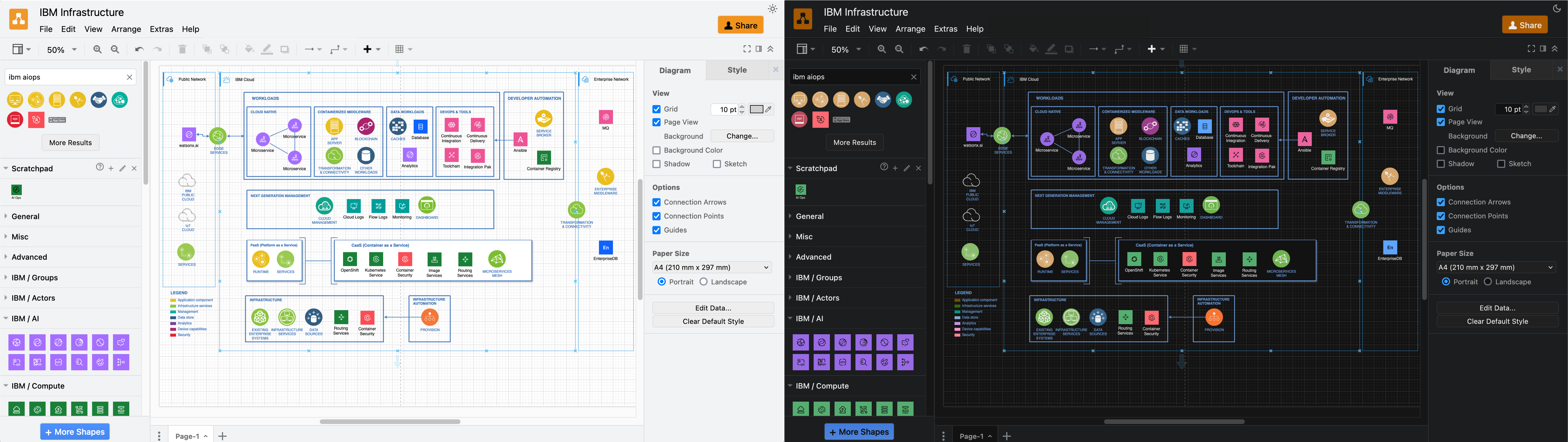
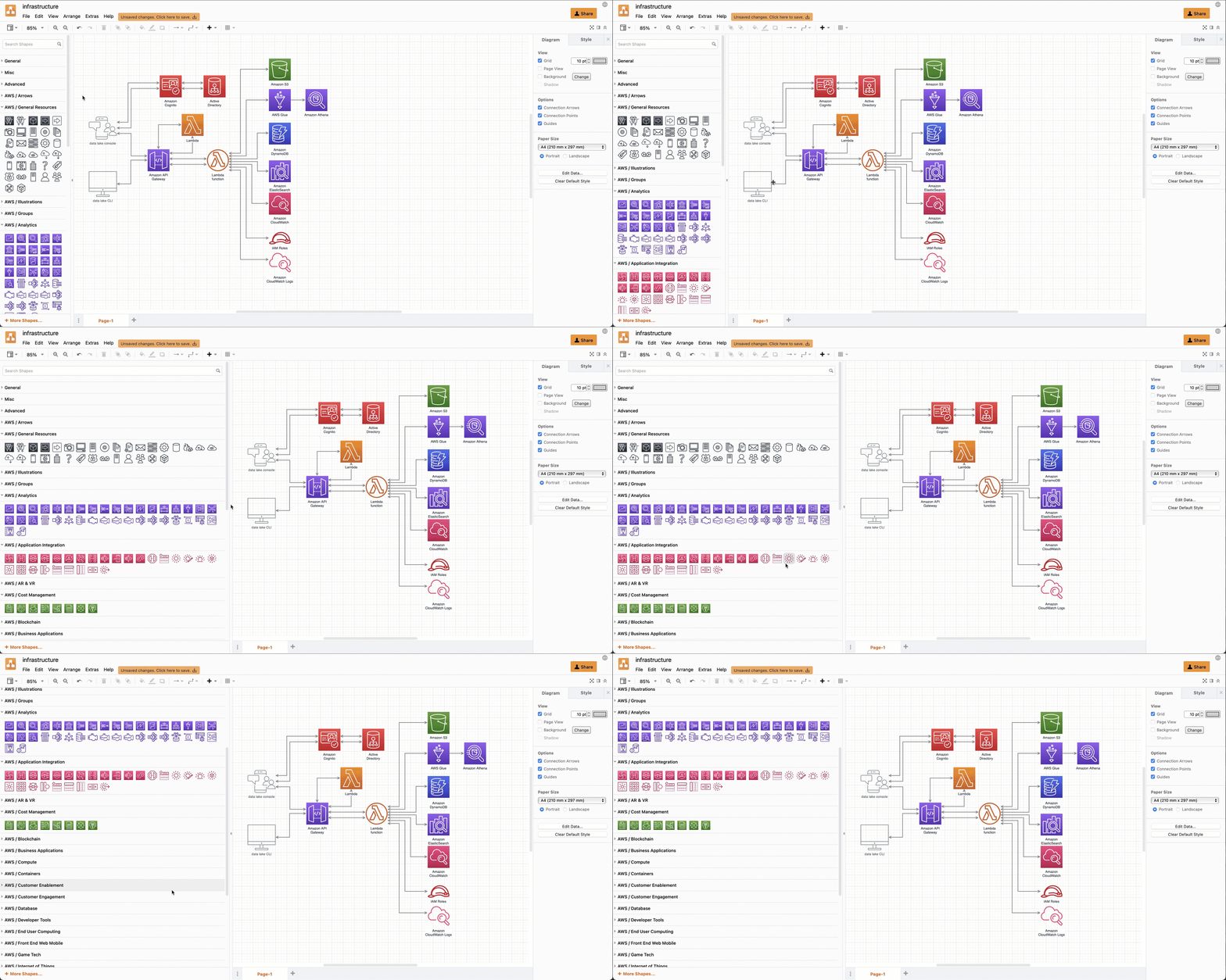
The new IBM Cloud shape library in draw.io (right) reflects IBM's updated design language, and extends the existing IBM shape library (left) with a wide range of additional groups, connectors and infrastructure components.
Enable the new IBM and IBM shape libraries to draw IBM infrastructure diagrams

IBM has provided their updated shapes for the new IBM Cloud shape library in draw.io. Please refer to their documentation for their design language style guide, where they explain how shapes and icons should be used in a wide variety of technical diagrams.

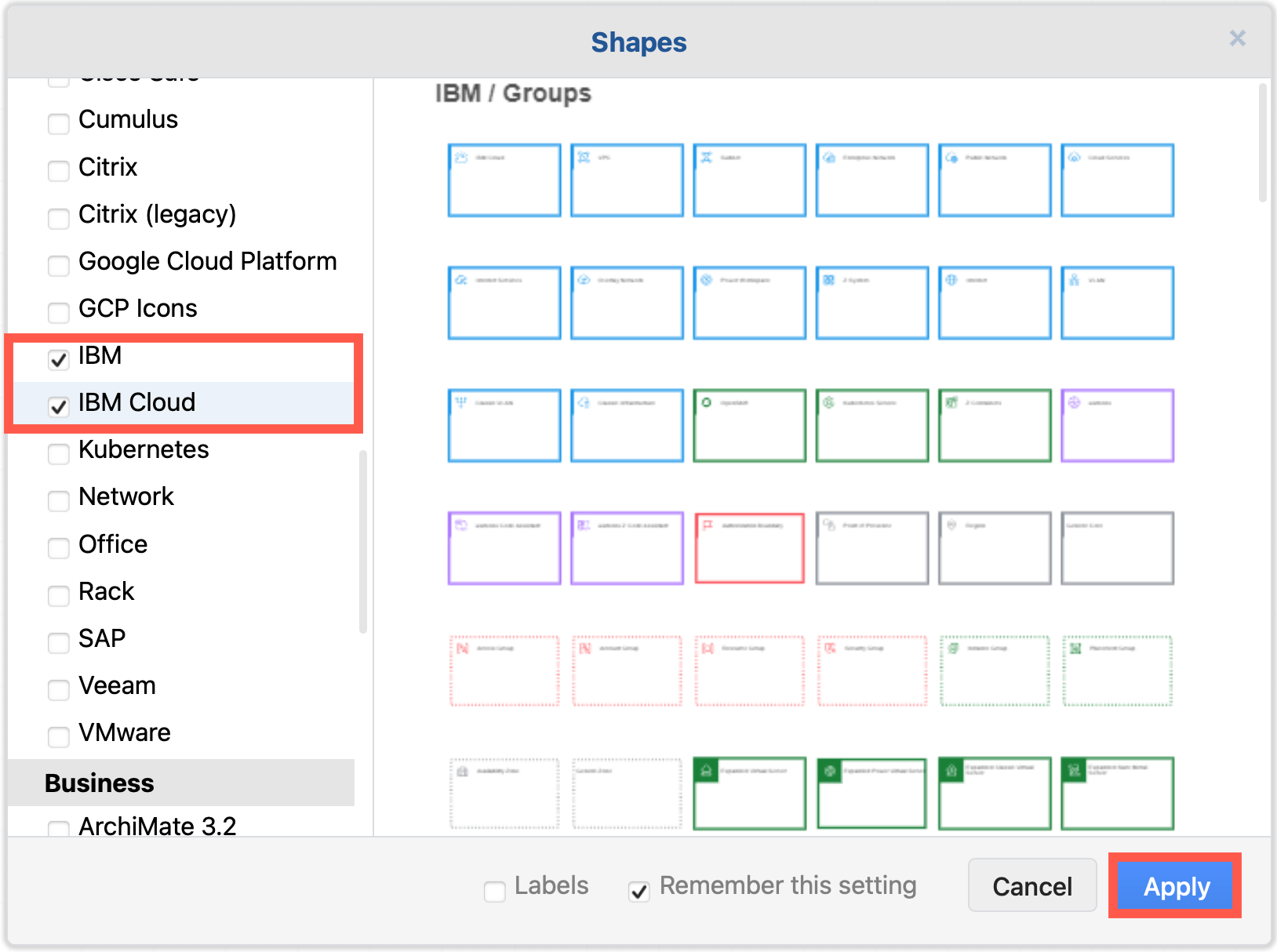
Enable the IBM shape libraries in draw.io

  1. Click on More Shapes at the bottom of the shapes panel in draw.io.
  2. Enable the checkbox next to the SAP shape library in the Networking section and click Apply.
    Enable the IBM shape libraries to draw IBM infrastructure diagrams

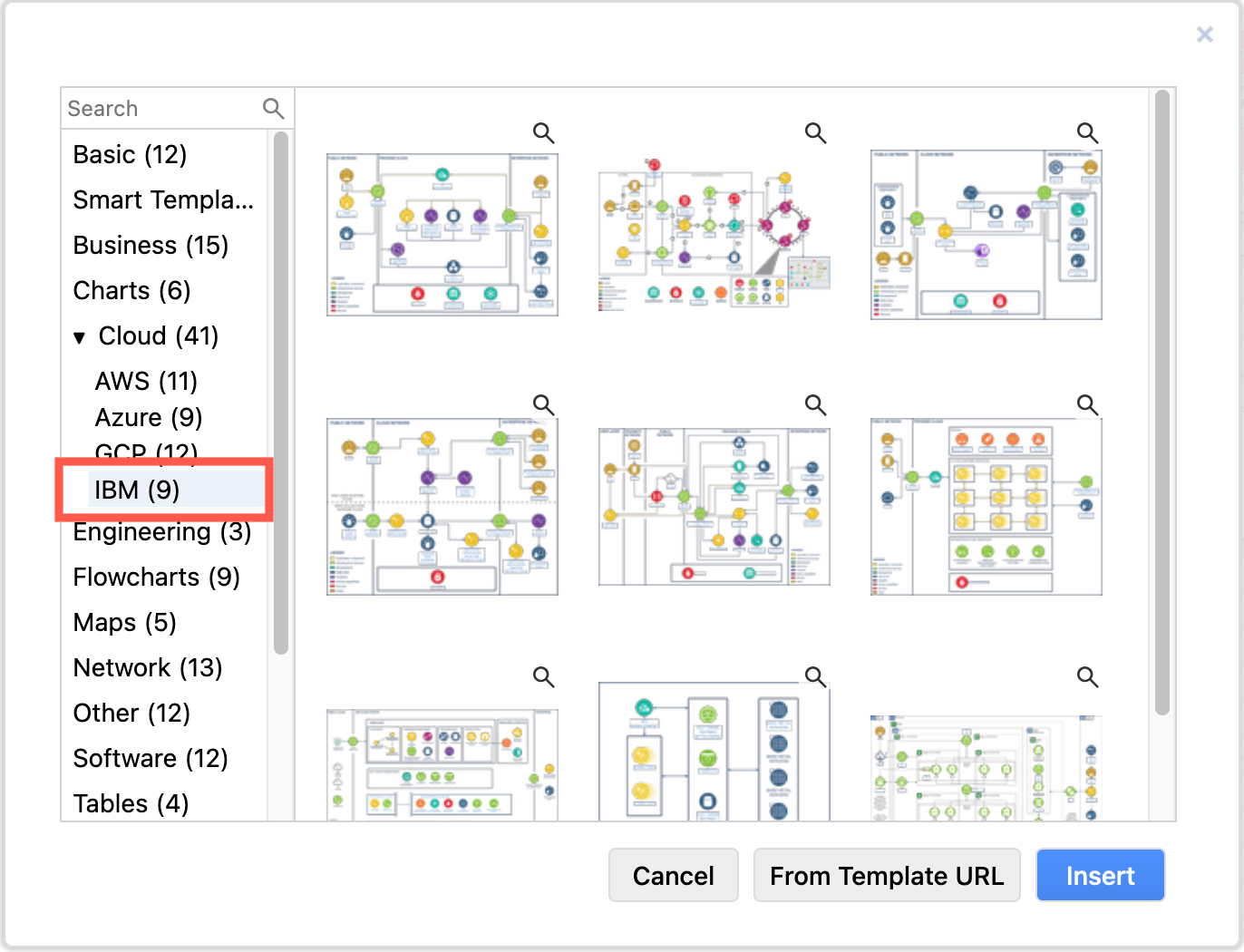
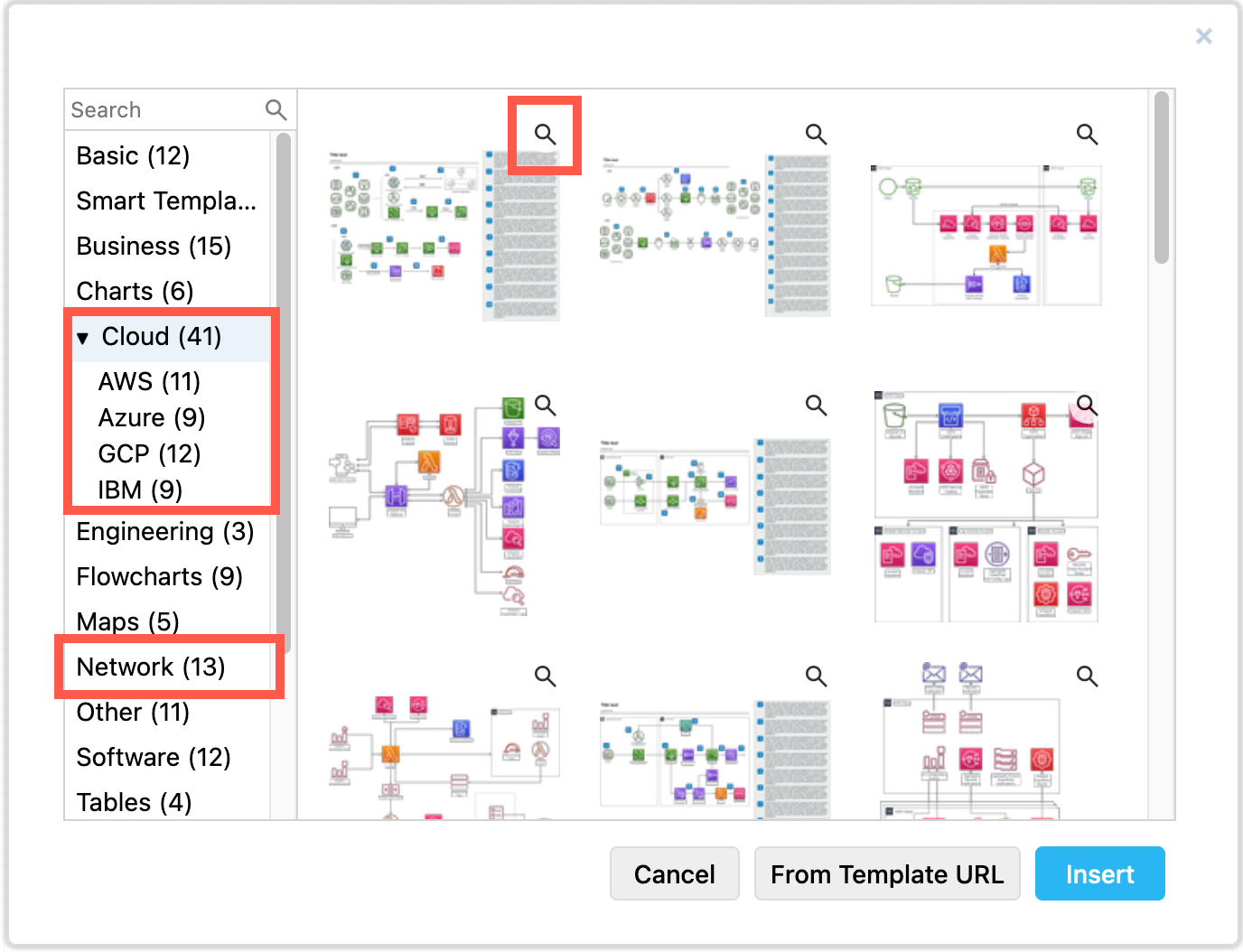
Tip: There are also several IBM infrastructures in the template library. Select Arrange > Insert > Template from the menu or + > Template in the toolbar, and look in the Cloud > IBM category.
draw.io has several example IBM infrastructures in the template library

Using old and new IBM shapes in one diagram

The new IBM Cloud shapes are compound shapes - a coloured background shape and an icon on top in the centre. This gives you more flexibility in styling your diagram as you can change the two shapes' fill colours independently.

The older shapes are round with a white icon and blue text label, while the new IBM Cloud shapes are square with a white icon and text (in light mode) or black icon and text (in dark mode).

There is also a larger and more varied set of groups (region shapes) in the new IBM Cloud shape library.
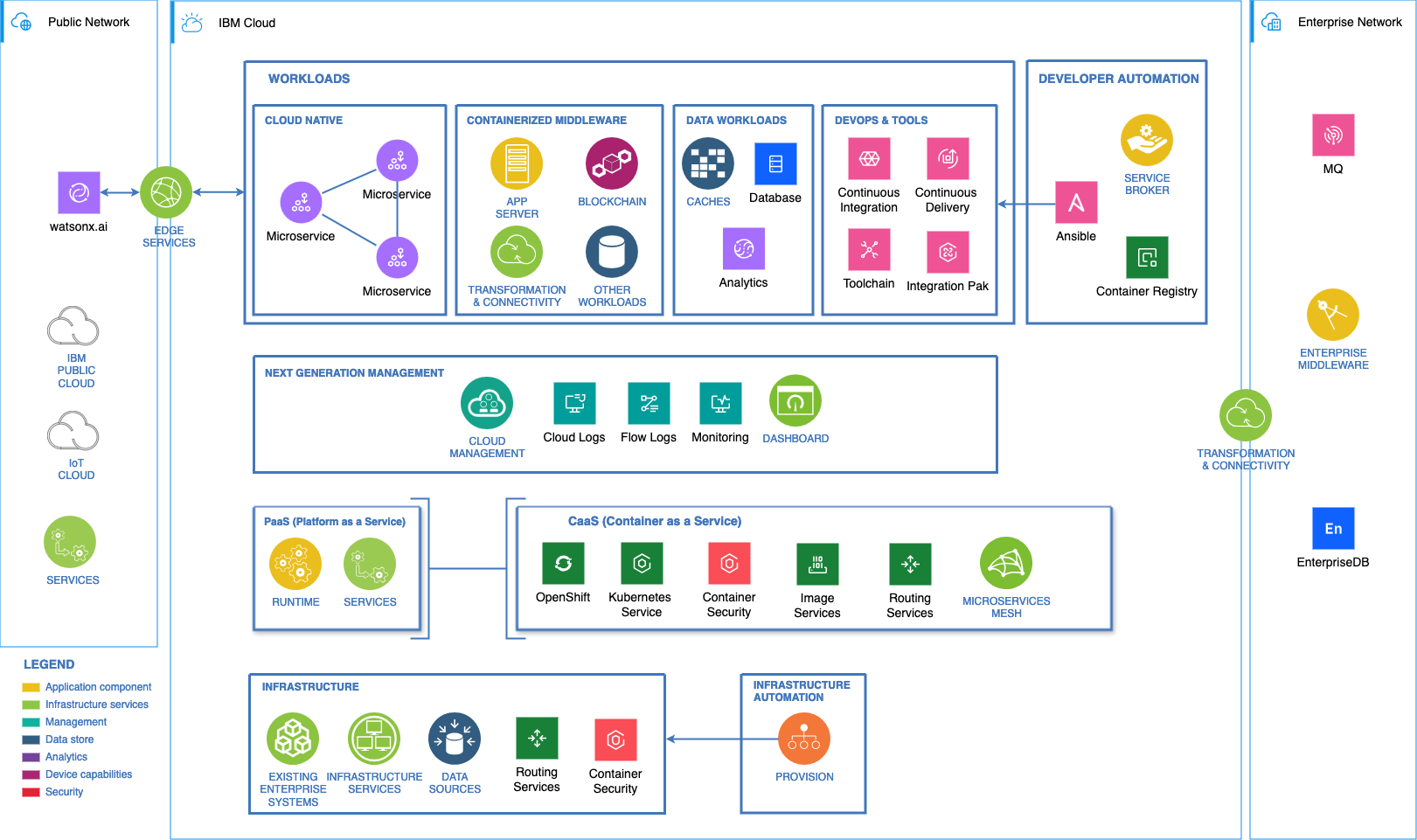
The new IBM Cloud shapes work well with the older IBM shape library in draw.io
The example above is one of the IBM templates available in draw.io with the new IBM Cloud shapes replacing some older components.

Both sets of shapes work well when diagramming in dark mode - the new shapes will switch icon and label colours automatically to remain readable.
The new IBM Cloud shapes automatically swap colours to remain readable in dark and light mode in draw.io

Tip: To make the labels look the same on all of your IBM and IBM Cloud shapes, you'll need to edit the text labels to ensure their case matches and the Font Color in the Text tab of the format panel.

However, mixing shapes from the two shape libraries and using their default label styles shows which components of your infrastructure are more recent at a glance, such as for IBM's newer cloud and Watson AI services.

Make your own IBM shapes

The shapes in both the IBM and IBM Cloud shape libraries represent only part of the constantly expanding IBM Design Language.

You can easily make your own IBM shapes in draw.io using the black IBM .svg icons.

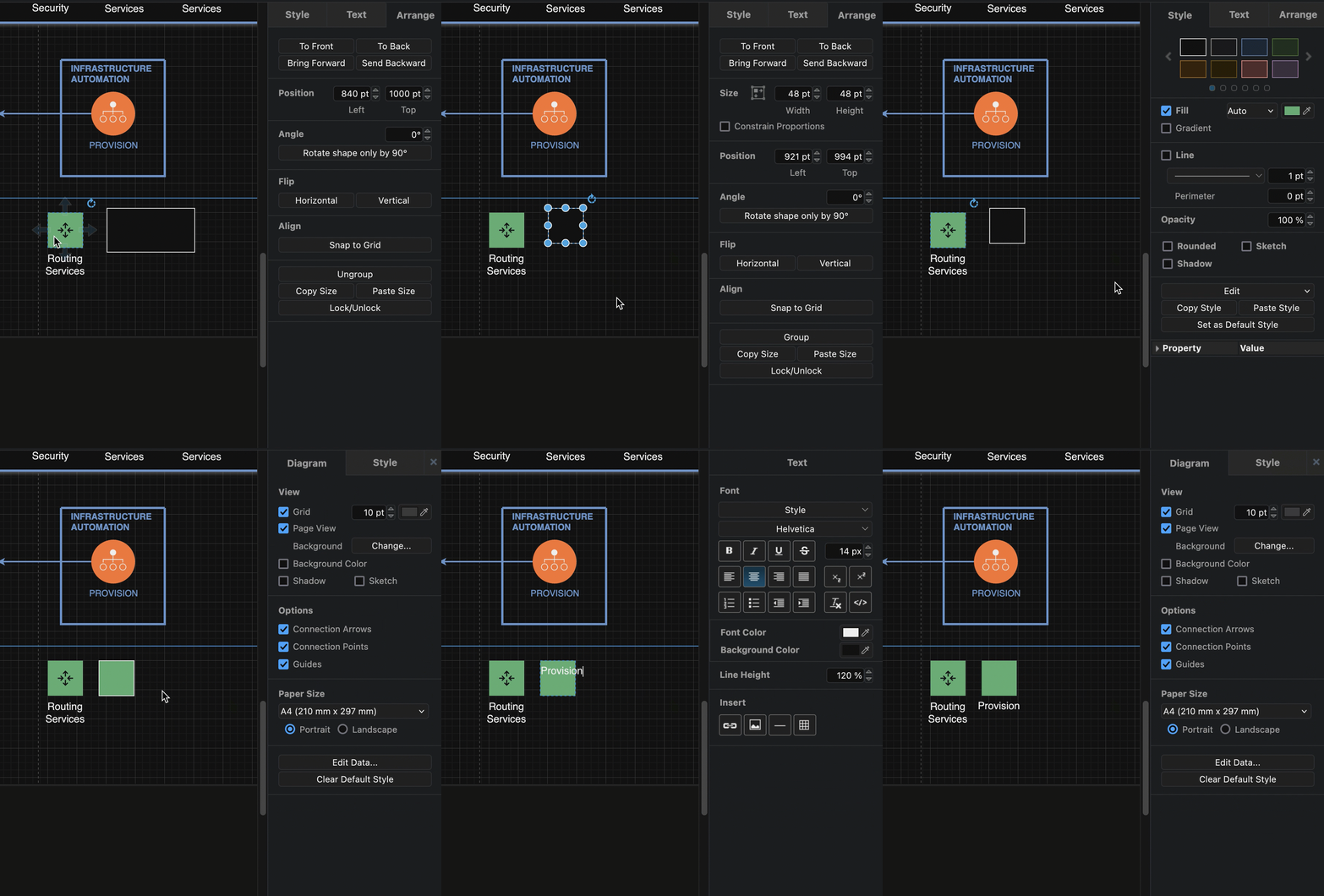
  1. Add one of the IBM Cloud shapes that matches the colour you want to use to the drawing canvas to serve as a template for your new shape.
  2. Add a simple rectangle from the General shape library.
  3. Select the IBM Cloud shape on the drawing canvas and select then select Copy Size in the Arrange tab of the format panel. Select the rectangle and click on Paste Size.
  4. Select the IBM Cloud shape again, then select Copy Style in the Style tab of the format panel. Select the rectangle again and click on Paste Style.
    Make your own IBM shape using an existing IBM Cloud shape as a template for style and size
  5. You may need to deselect the Line checkbox in the Style tab, but your shape background should now look correct.
  6. Add a label, and move its Position to the Bottom via the Text tab of the format panel.
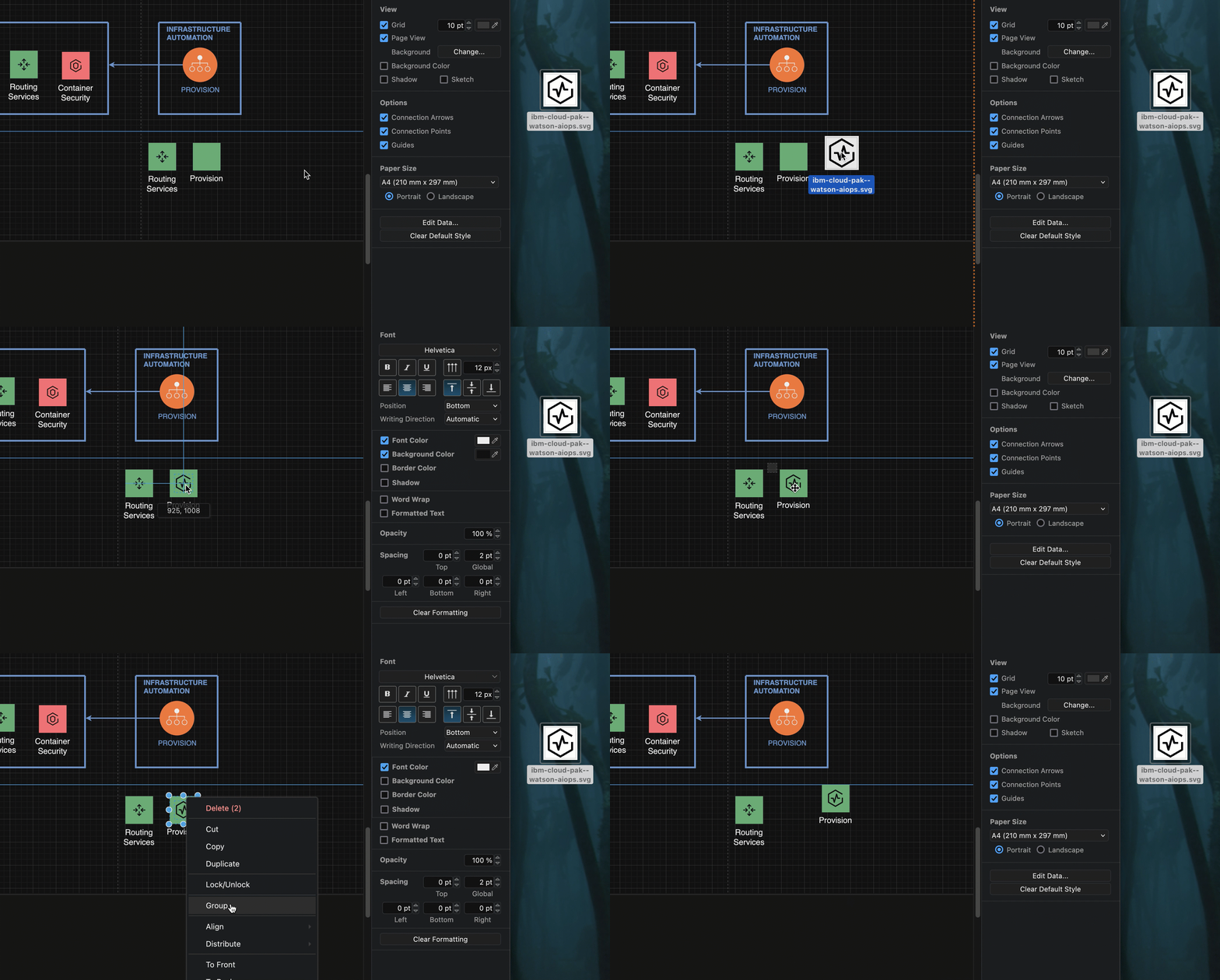
  7. Now, make the compound icon. Drag the .svg file of the UI icon from the UI Icons list in the IBM Design Language - either from the webpage directly, or from your device - onto the drawing canvas to import it. Then drag it over the centre of the background square.
  8. Finally, drag a selection box around the new compound shape, right click and select Group from the context menu.
    Make your own IBM shape using an existing IBM Cloud shape as a template for style and size

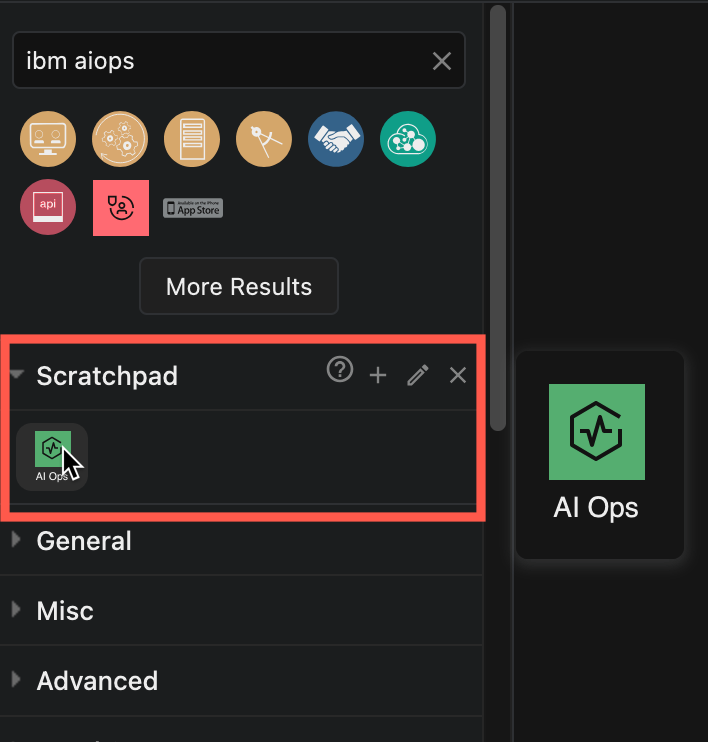
Tip: To use this new shape in multiple diagrams, drag the group onto the Scratchpad in the shapes panel.
Make your own IBM shape and save it in the draw.io scratchpad

You can also save the Scratchpad with your custom shapes to share them with your colleagues.

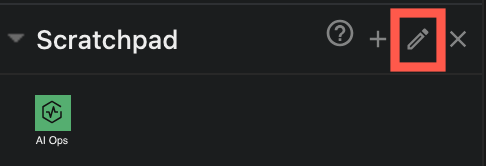
  1. Click on the pencil to the right of the Scratchpad library.
    Edit the draw.io scratchpad and export the shapes in it to a custom shape library
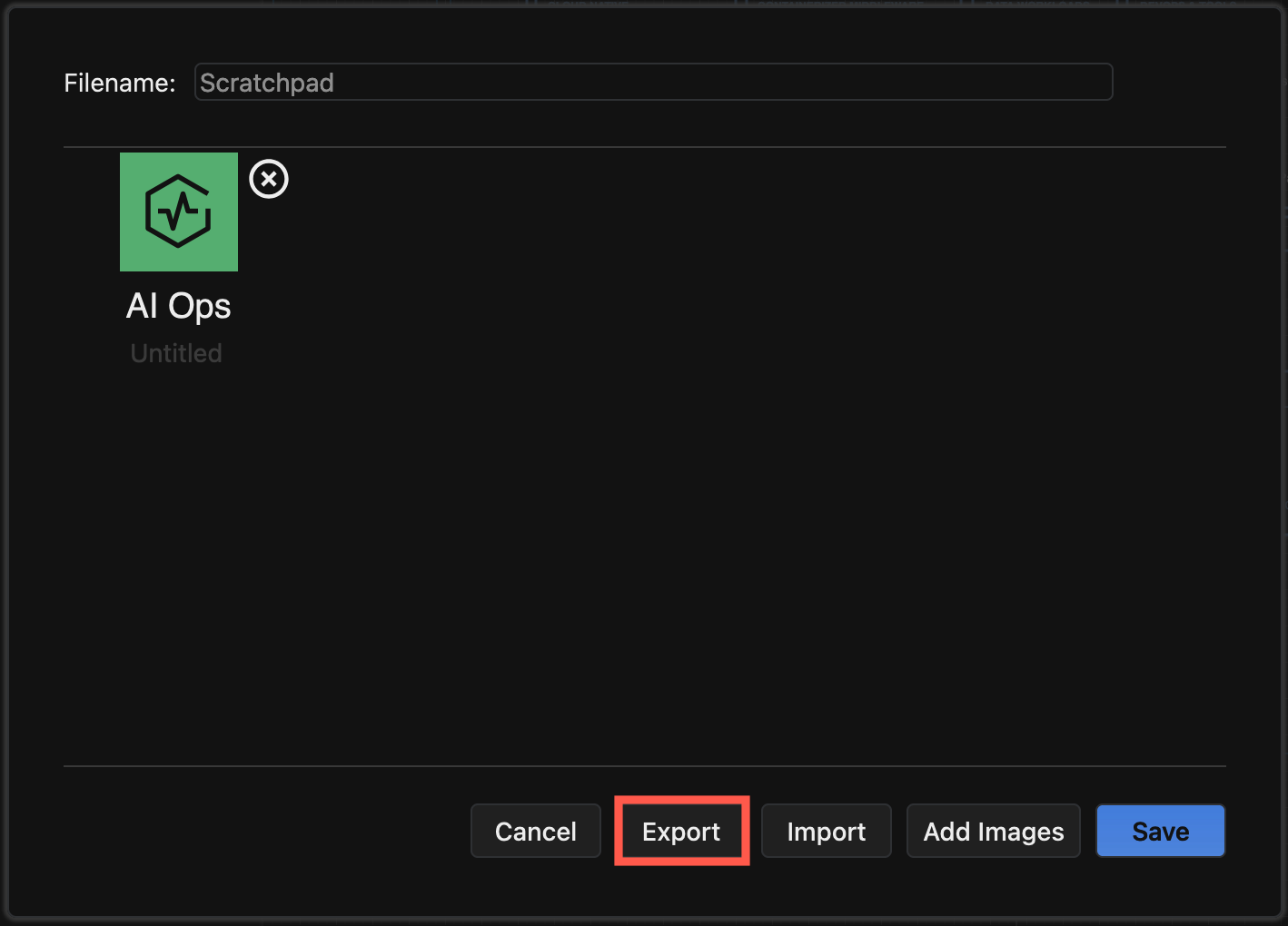
  2. Select Export to save all the shapes in the Scratchpad to a custom shape library.
    Edit the draw.io scratchpad and export the shapes in it to a custom shape library
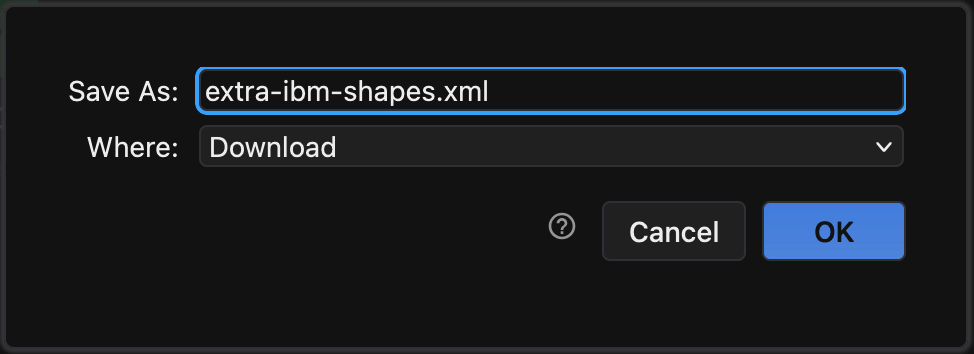
  3. Enter a filename, select where to save the custom shape library file and click OK.
    Edit the draw.io scratchpad and export the shapes in it to a custom shape library

Learn more about custom shape libraries

Mermaid in draw.io updated to support ELK layout

· 6 min read

Mermaid is a text-based syntax that you can use to describe a diagram, and automatically lay it out neatly on the diagram canvas. Enter your Mermaid diagram description in draw.io via Arrange > Insert > Mermaid in the draw.io menu or + > Mermaid from the toolbar. draw.io has updated to Mermaid version 10.9.1 to support the new ELK automatic layout.
Tell the Mermaid diagram generation tool to use the ELK layout option in your text diagram description

Text to diagram tools in draw.io

There are several text-to-diagram tools built into draw.io:
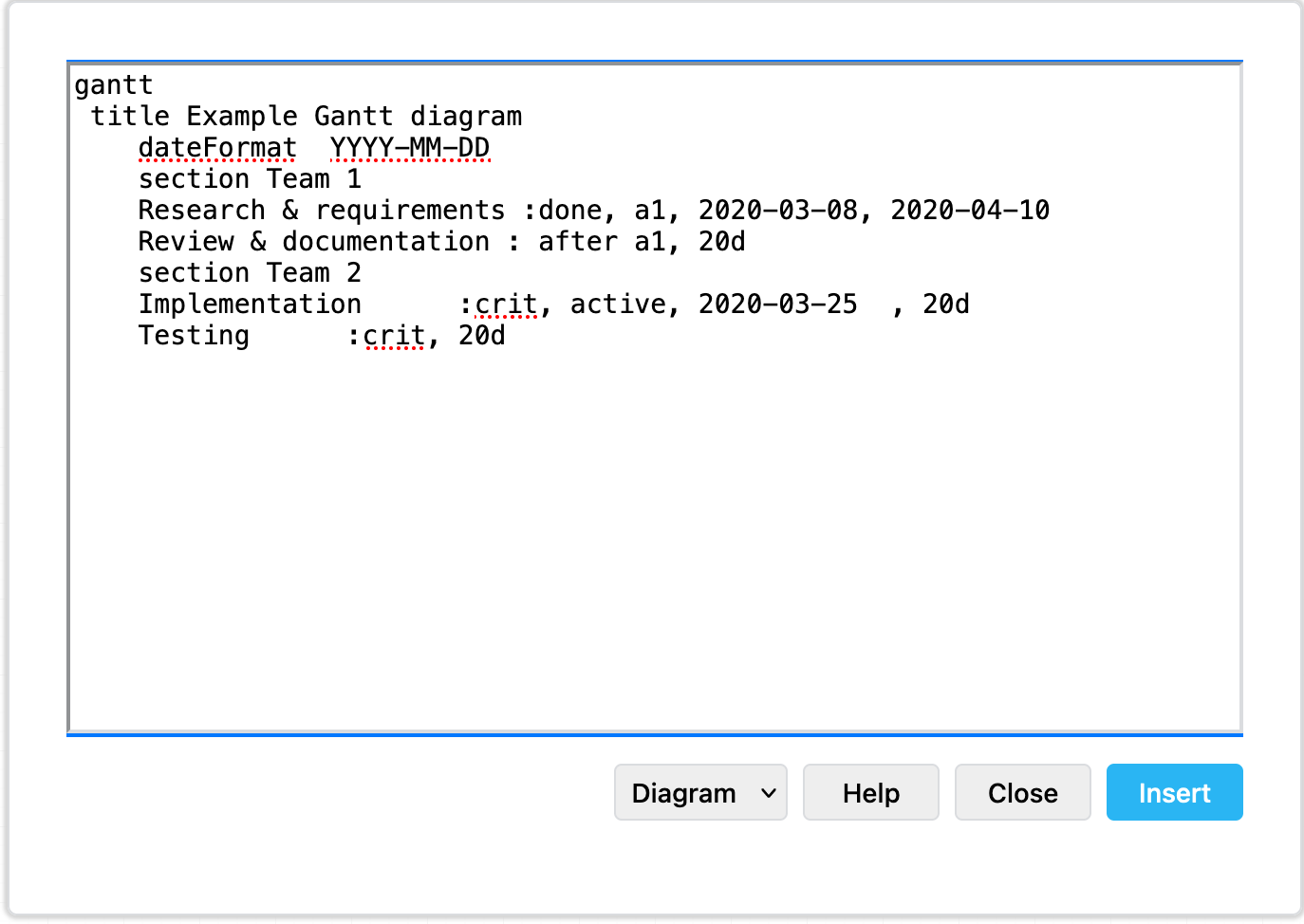
Paste the Mermaid syntax text version of your diagram and Insert it onto the draw.io canvas An example Gantt chart inserted from Mermaid code
Example Gantt chart generated from Mermaid syntax

Some of these text-to-diagram features generate a diagram as an image on the drawing canvas, and some use draw.io shapes to automatically layout your diagram and let you continue adding draw.io shapes and connectors to it.

You can choose your preferred output when you generate a diagram from Mermaid syntax, although some diagram types - like the Gantt chart above - will only generate to an image.

Insert a Mermaid diagram in draw.io

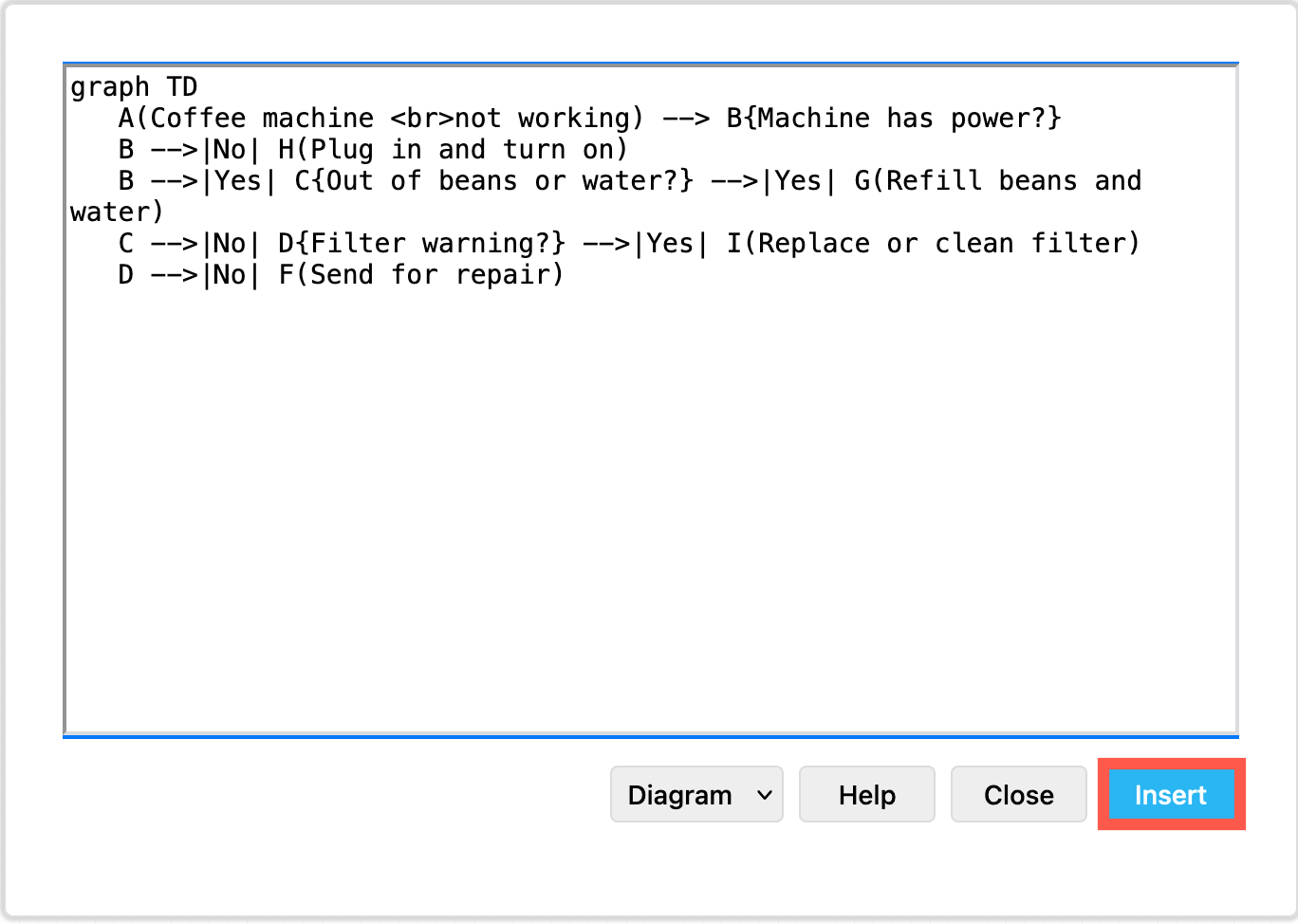
An example coffee machine debugging flow is described in Mermaid syntax below.

graph TD
A(Coffee machine <br />not working) --> B{Machine has power?}
B -->|No| H(Plug in and turn on)
B -->|Yes| C{Out of beans or water?} -->|Yes| G(Refill beans and water)
C -->|No| D{Filter warning?} -->|Yes| I(Replace or clean filter)
D -->|No| F(Send for repair)

Add this Mermaid diagram to draw.io.

  1. Select Arrange > Insert > Mermaid from the menu or + > Mermaid from the toolbar if you are using the Simple mode or the Sketch editor theme.
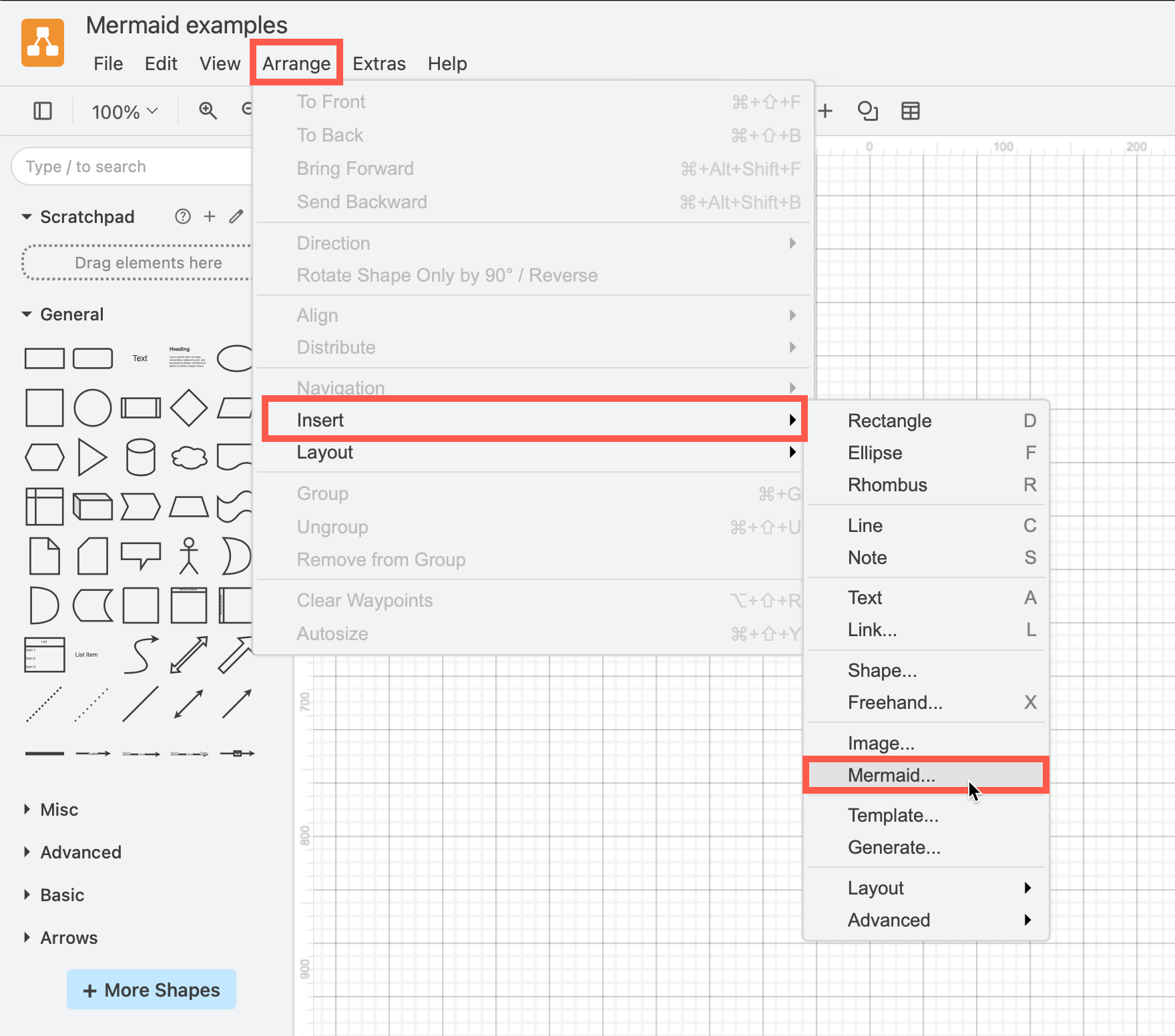
    Click Arrange /> Insert > Mermaid to create a diagram from Mermaid Markdown-inspired code
  2. Enter the text description of your diagram using Mermaid syntax in the large text box.
  3. From the drop-down list, select whether you want to insert the diagram with draw.io shapes (Diagram), or as a single image (Image), and click Insert.
    Paste the text in Mermaid syntax, then click Insert

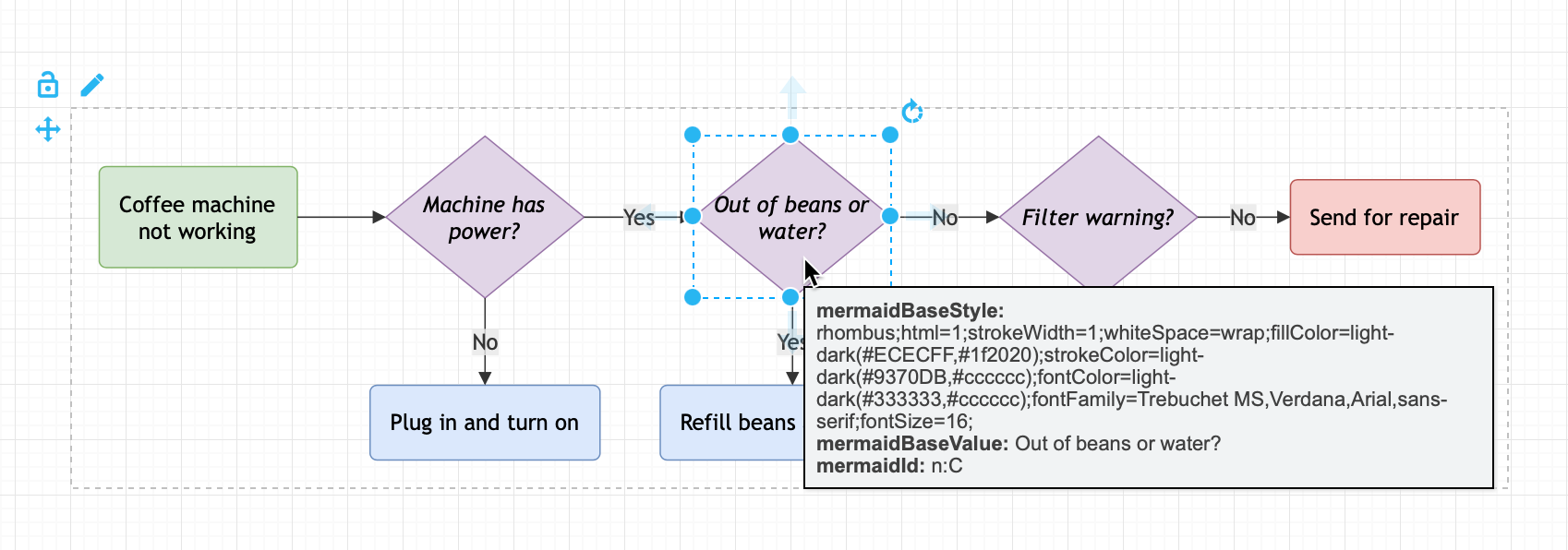
Diagram (default): When you insert the Mermaid diagram using the draw.io shapes, you can connect additional shapes and connectors and style your diagram. To change the original Mermaid syntax, first delete the previously inserted shapes, and re-enter the Mermaid description of your diagram by repeating the steps above.
By default, Mermaid diagrams are added to the drawing canvas with draw.io shapes so you can style and add to your diagram as needed

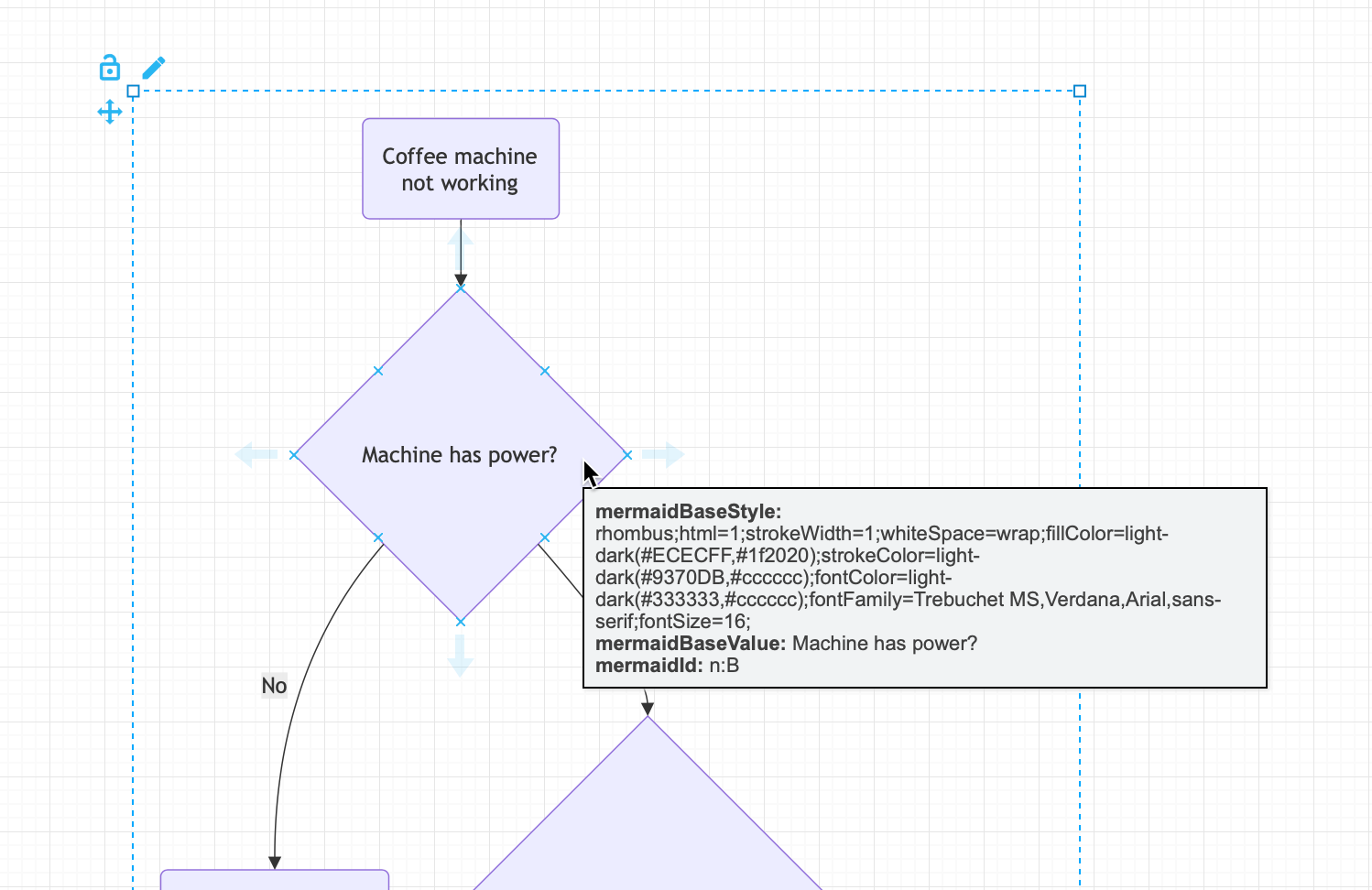
Image: To generate the Mermaid diagram as a single SVG image on the drawing canvas instead, select Image from the drop-down list before you Insert. If you hover over the SVG image, the Mermaid syntax is visible in the tooltip. Note that you can't edit or style the individual shapes or connectors in this SVG image version.
Hover over a Mermaid diagram image in draw.io to see the Mermaid syntax for that diagram in a tooltip

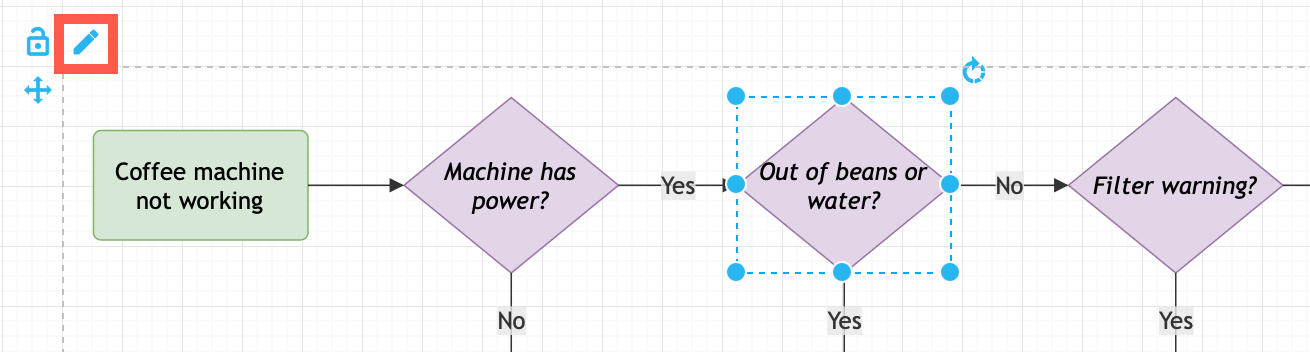
To change a Mermaid diagram added as an image, double click on the SVG on the drawing canvas and edit the Mermaid syntax to regenerate the image.

Please refer to the Mermaid documentation for the complete syntax and styling options.

New ELK layouts for large flowcharts

The new ELK layout option, introduced in Mermaid version 9.4, can generate compacter versions of large and complex flowcharts.

Add the following renderer directive to the top your Mermaid diagram text description:

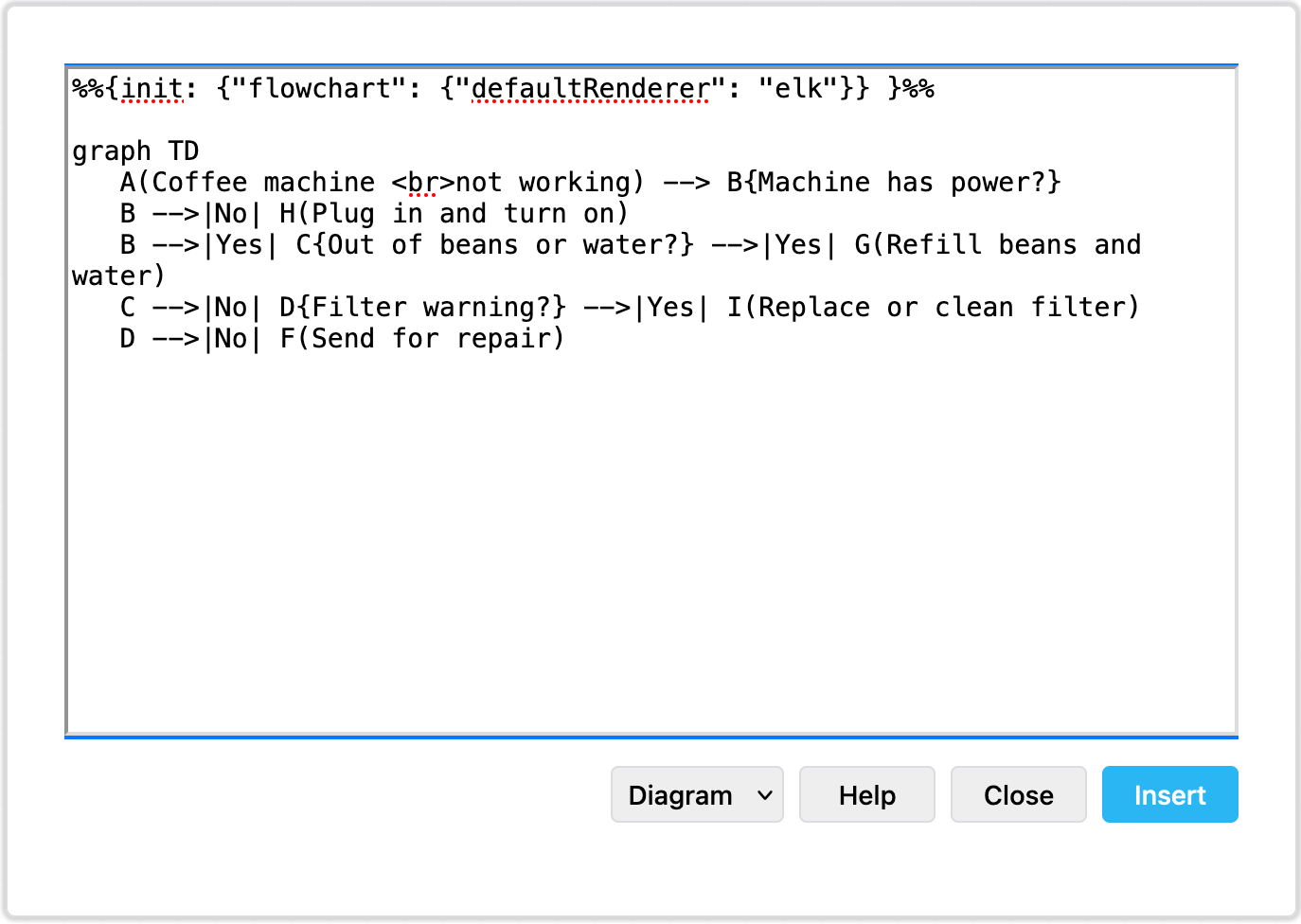
%%{init: {"flowchart": {"defaultRenderer": "elk"}} }%%

For example, to layout the example Mermaid graph shown above with the ELK renderer command, the insert Mermaid dialog looks as follows.
Tell the Mermaid diagram generation tool to use the ELK layout option in your text diagram description

Click Insert, and the Mermaid diagram will be generated ad drawn with draw.io shapes.
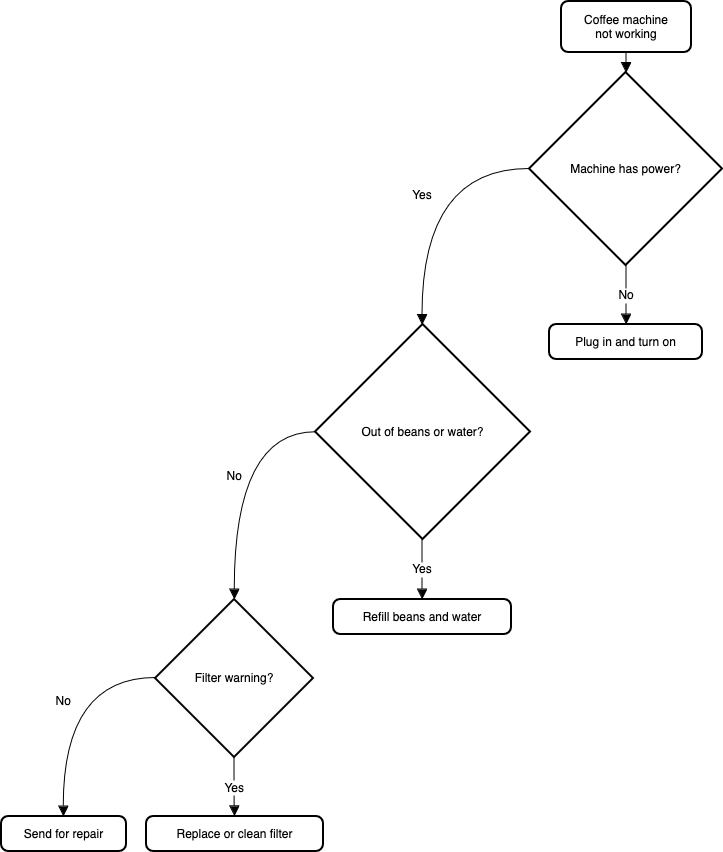
The ELK layout may be more suited for larger and more complex flows

While this example is small and simple, larger flows with complex decisions and many branches may be displayed better using this ELK renderer option.

Note: As this is an experimental feature from the Mermaid developers, it currently only supports the flowchart layout.

Large Mermaid flowchart with and without ELK

Below, one of the more complex draw.io flowchart templates has described in text using Mermaid syntax and inserted as an image. The more compact version on the left used the new ELK renderer directive, and the one on the right did not.
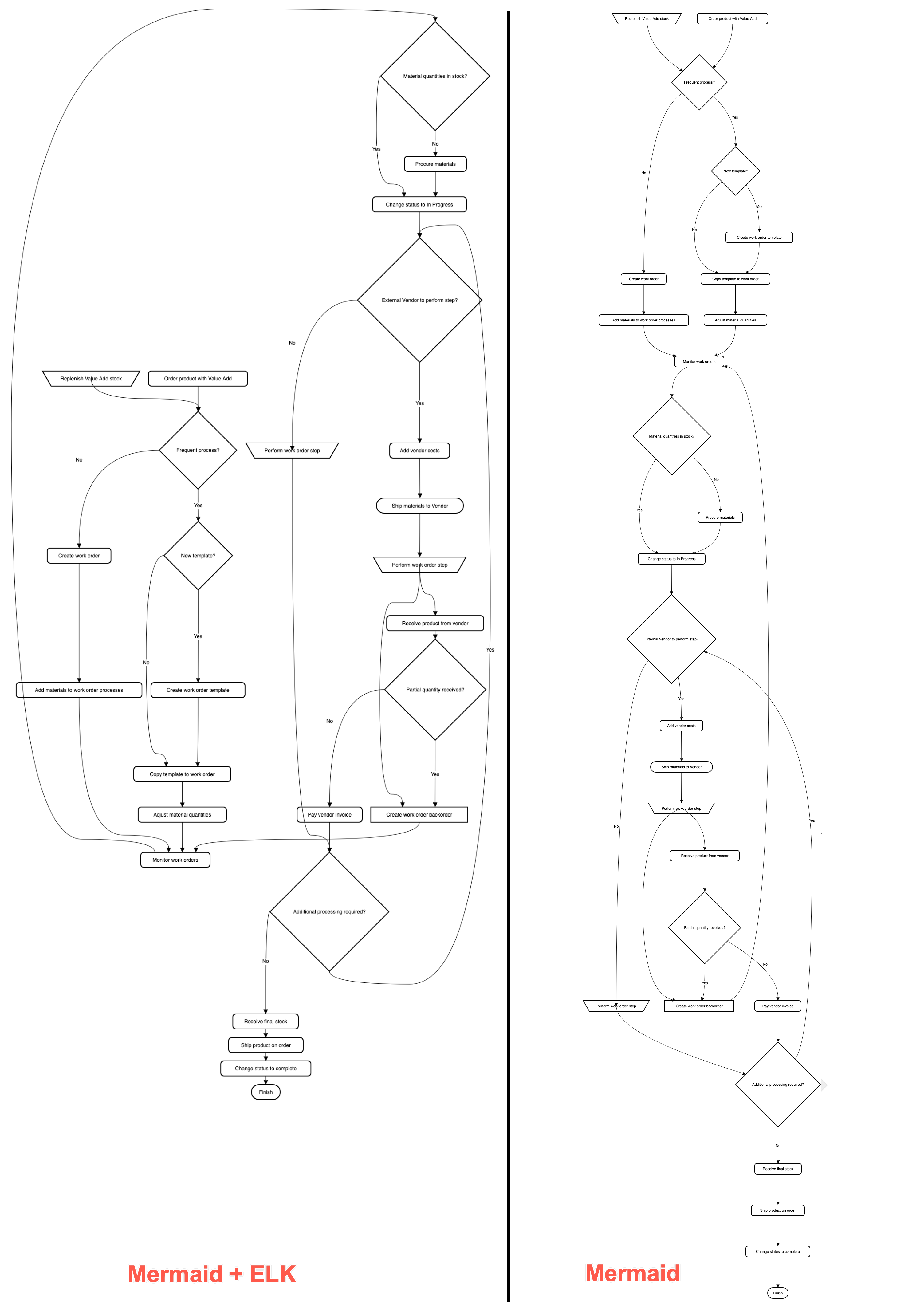
The ELK layout may be more suited for larger and more complex flows

With the ELK renderer directive, the Mermaid code for this flowchart looks as follows.

%%{init: {"flowchart": {"defaultRenderer": "elk"}} }%%

graph TD
A[\Replenish Value Add stock/] --->C
B(Order product with Value Add) --->C
C{Frequent process?} --->|Yes|D
C --->|No|F
D{New template?} --->|Yes|E
D --->|No|G
E(Create work order template) --->G
F(Create work order) --->H
G(Copy template to work order) --->I
H(Add materials to work order processes) --->J
I(Adjust material quantities) --->J
J(Monitor work orders) --->K
K{Material quantities in stock?} --->|No|L
K --->|Yes|M
L(Procure materials) --->M
M(Change status to In Progress) --->N
N{External Vendor to perform step?} --->|Yes|O
N --->|No|P
O(Add vendor costs) --->Q
P[\Perform work order step/] --->R
Q([Ship materials to Vendor]) --->S --->X
R{Additional processing required?} --->|Yes|N
R--->|No|T
S[\Perform work order step/] --->U
T(Receive final stock) --->V
U(Receive product from vendor) --->W
V(Ship product on order) --->Y
W{Partial quantity received?} --->|Yes|X
W --->|No|Z
X[Create work order backorder] ---> J
Y(Change status to complete) --->AA
Z(Pay vendor invoice) --->R
AA([Finish])

Using diagrams with GitLab

· 4 min read

draw.io will be available as an integration in the web-based GitLab Wiki editor on 22 March with the GitLab 15.10 release and product kickoff. When you add your diagram to a GitLab Wiki page while editing the source of that page, it will be saved as an SVG image containing the diagram code, and displayed in the page content.

Like all files in GitLab, the image with its embedded diagram is versioned, so all changes are tracked.

Note: As this integration is still under development until release, small changes may be made.

Diagram in the GitLab Wiki editor

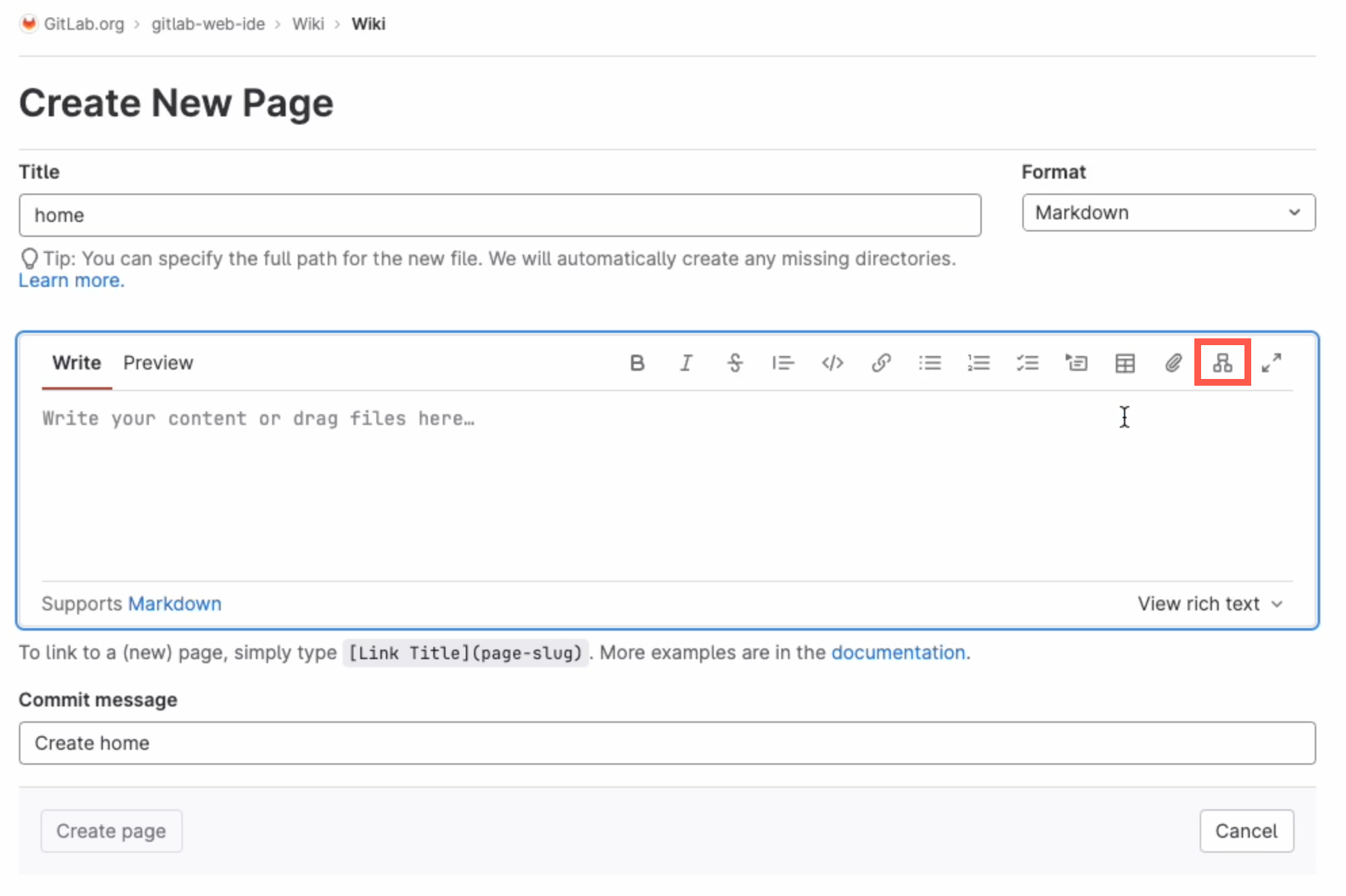
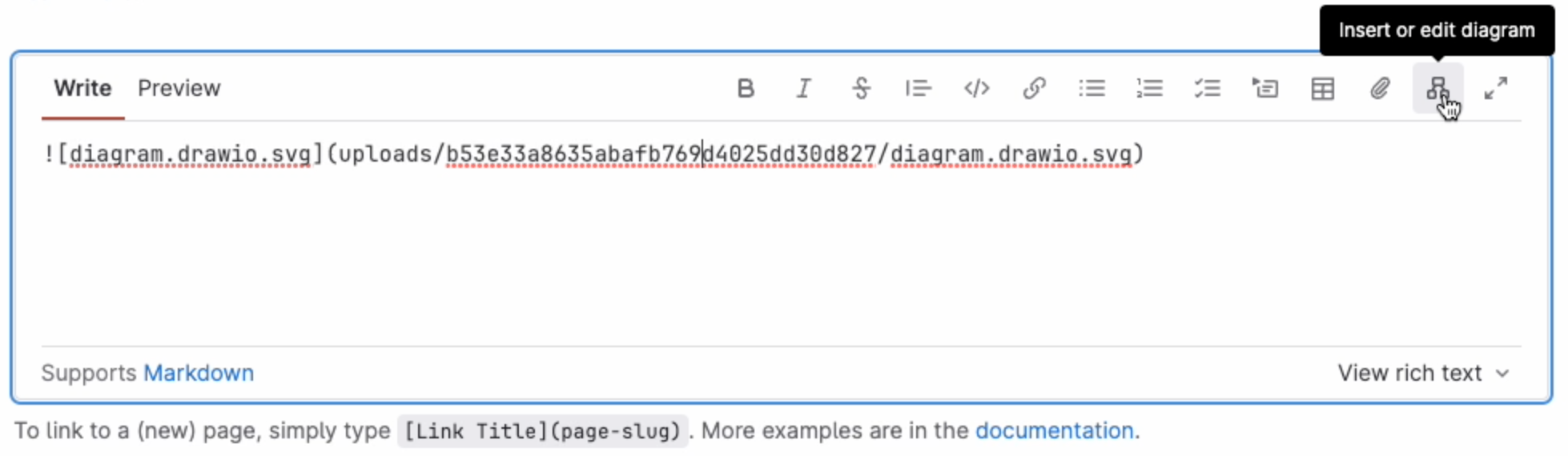
Add a new diagram: Click on Insert or edit diagram in the toolbar in the Markdown editor.
Add a diagram to GitLab in the Markdown editor

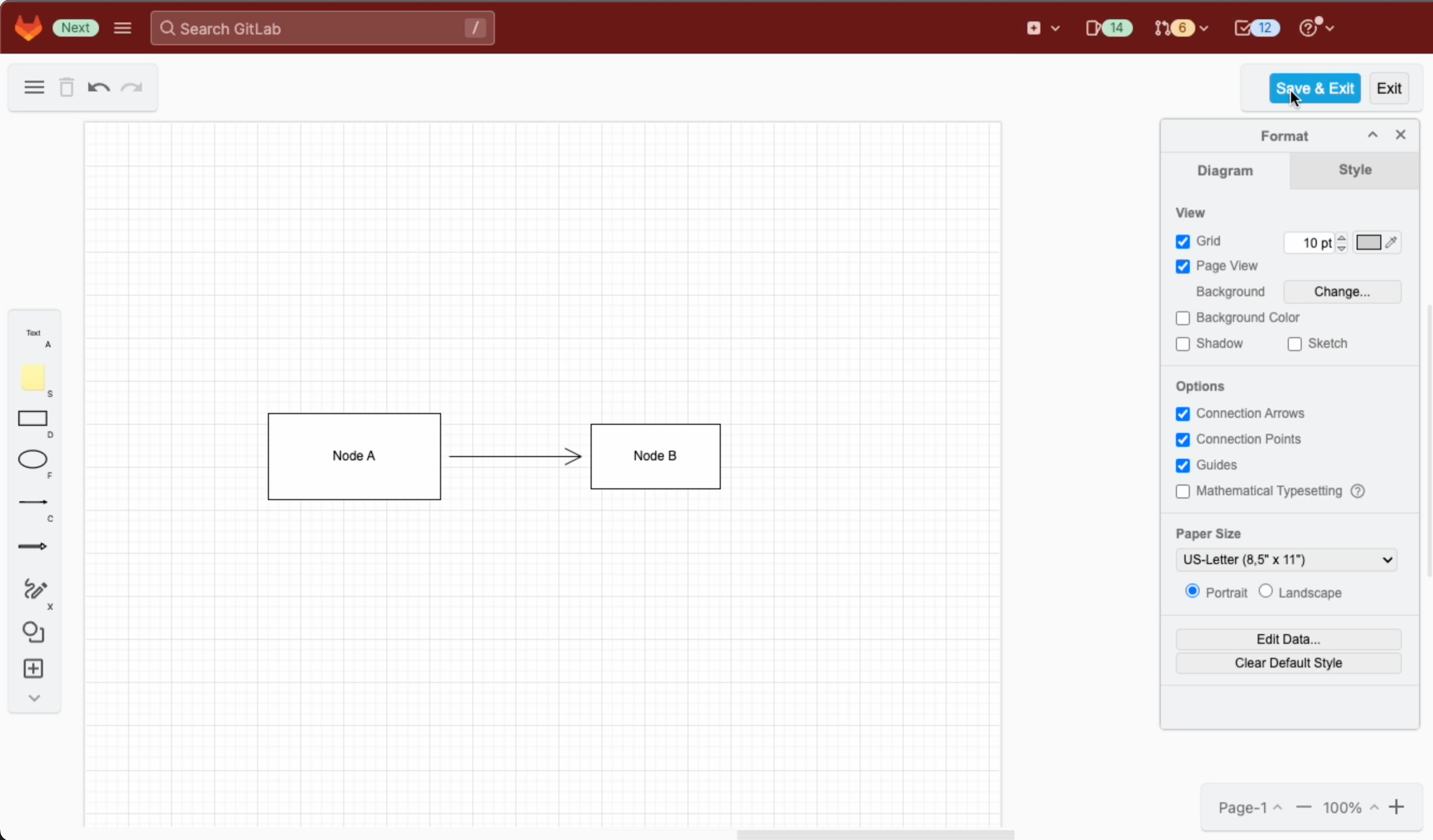
A blank diagram will be opened in the Sketch whiteboard-style editor theme. Use the diagramming toolbar on the left to access templates and shape libraries.
Create your diagram in the Sketch whiteboard-like editor, and save it to return to the GitLab Markdown editor

Save your diagram: It will be added to the page in Markdown as a .drawio.svg file.

Edit an existing diagram: Make sure your cursor is in the diagram file entry in the Markdown code, and select Insert or edit diagram.
Make sure the cursor is in the Markdown reference to the diagram file then edit the diagram in the GitLab Markdown editor

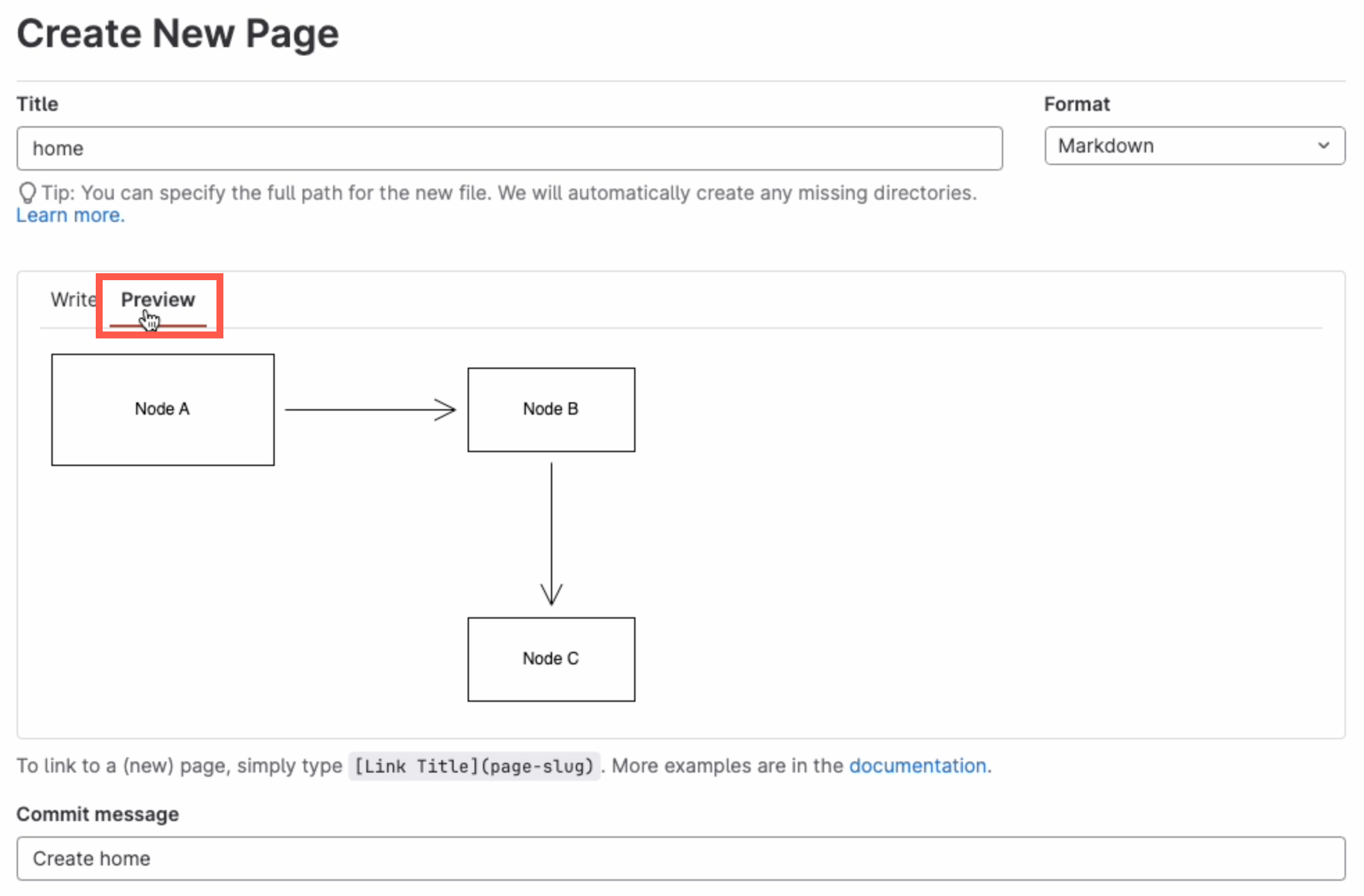
View a diagram in the page: Click on Preview to render the page containing the diagram.
Preview the page to see how the diagram is rendered along with the markdown text content of the GitLab Wiki page

Diagram with the GitLab rich text editor

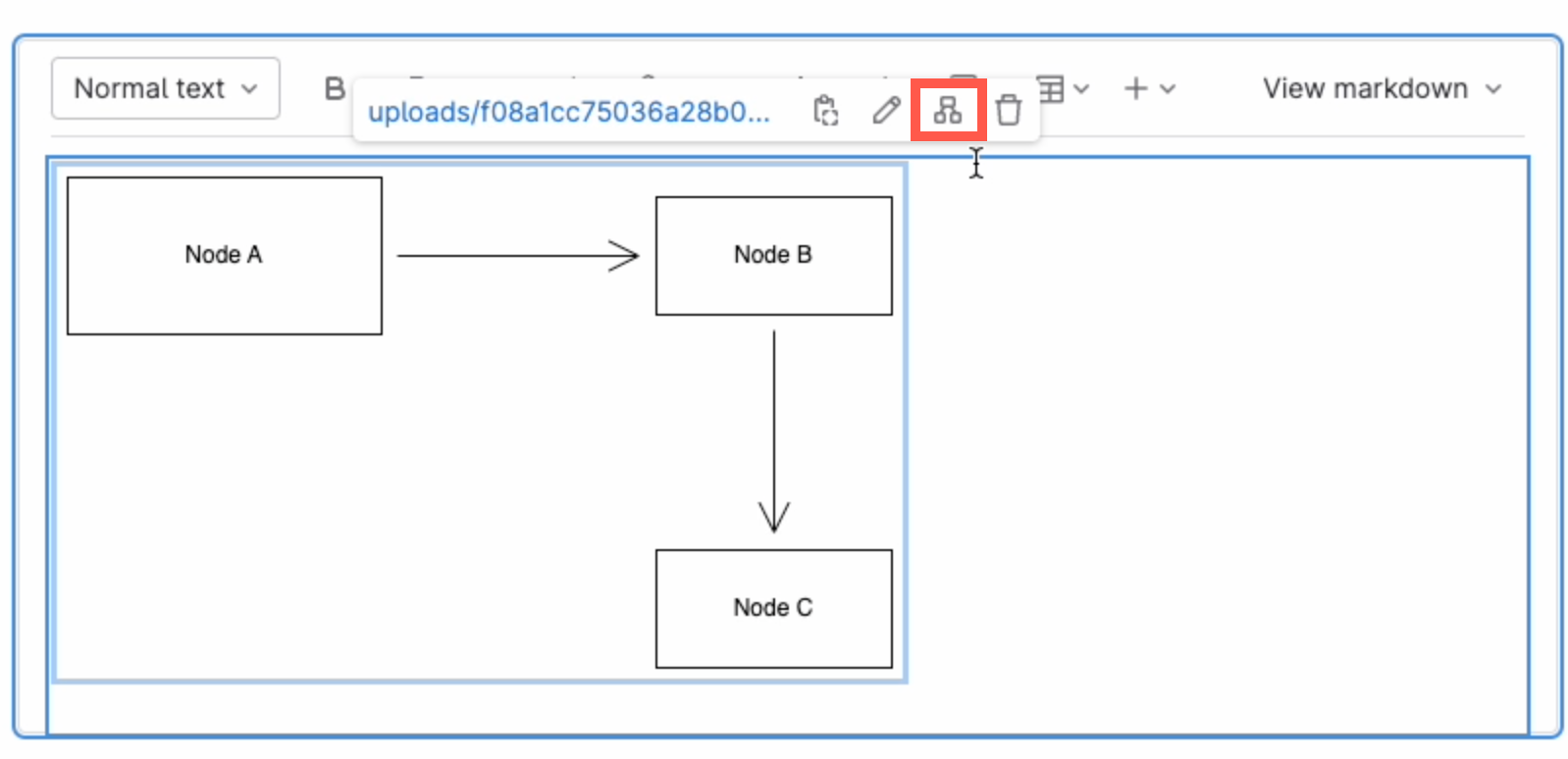
Edit a diagram: Select the diagram, and click on Edit diagram in the hover toolbar that appears above or below.
Click on a diagram and use the hover toolbar to edit it in the GitLab rich text editor

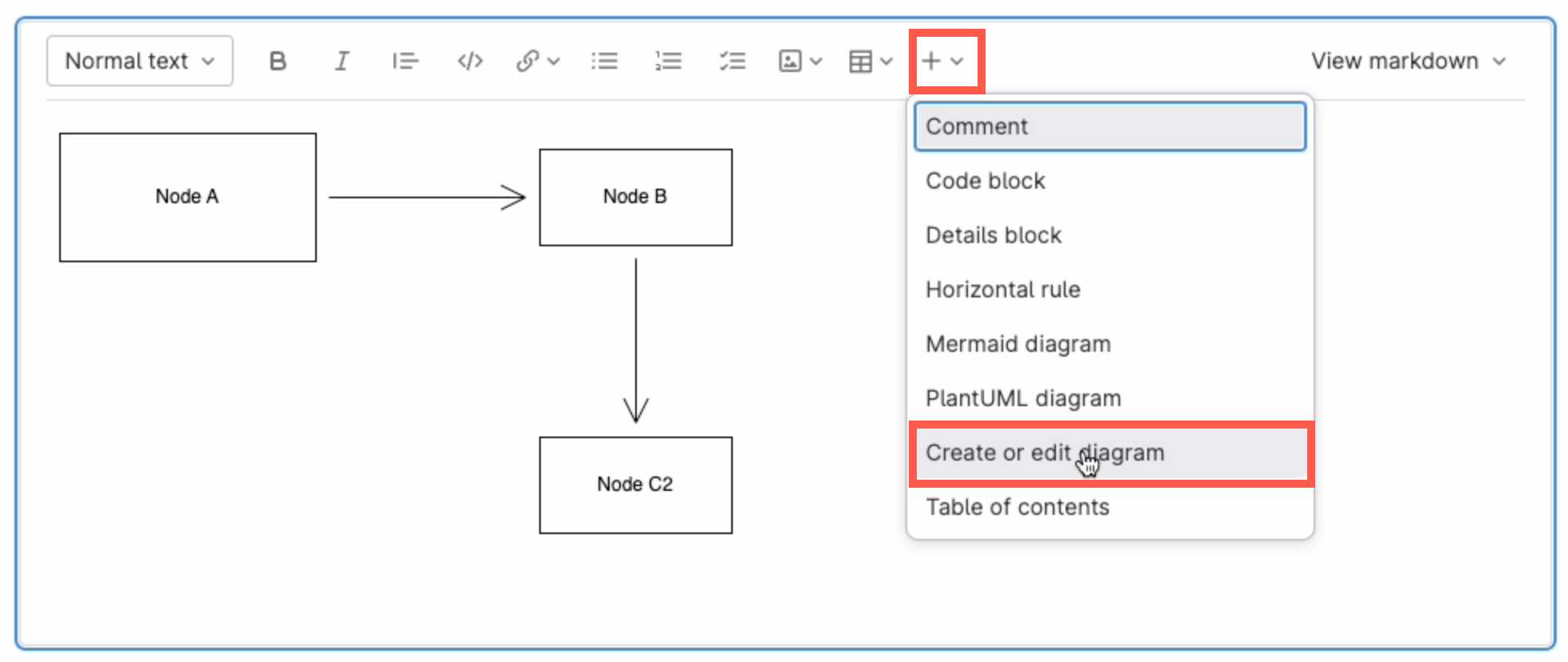
Add a new diagram: Make sure no other diagram is selected, then click on the + in the toolbar and select Create or edit diagram.
Make sure you have not selected any diagram, click on the + in the toolbar and select Create or edit diagram to add a new diagram in the GitLab rich text editor

Save individual diagram files to GitLab

You can also store your individual diagram files in GitLab. Select GitLab as the save file destination when you create a new diagram, or select Save as from the menu.
Select GitLab as the location where you want to store your files

Alternatively go to our online editor to start diagramming now using GitLab to store your diagrams.

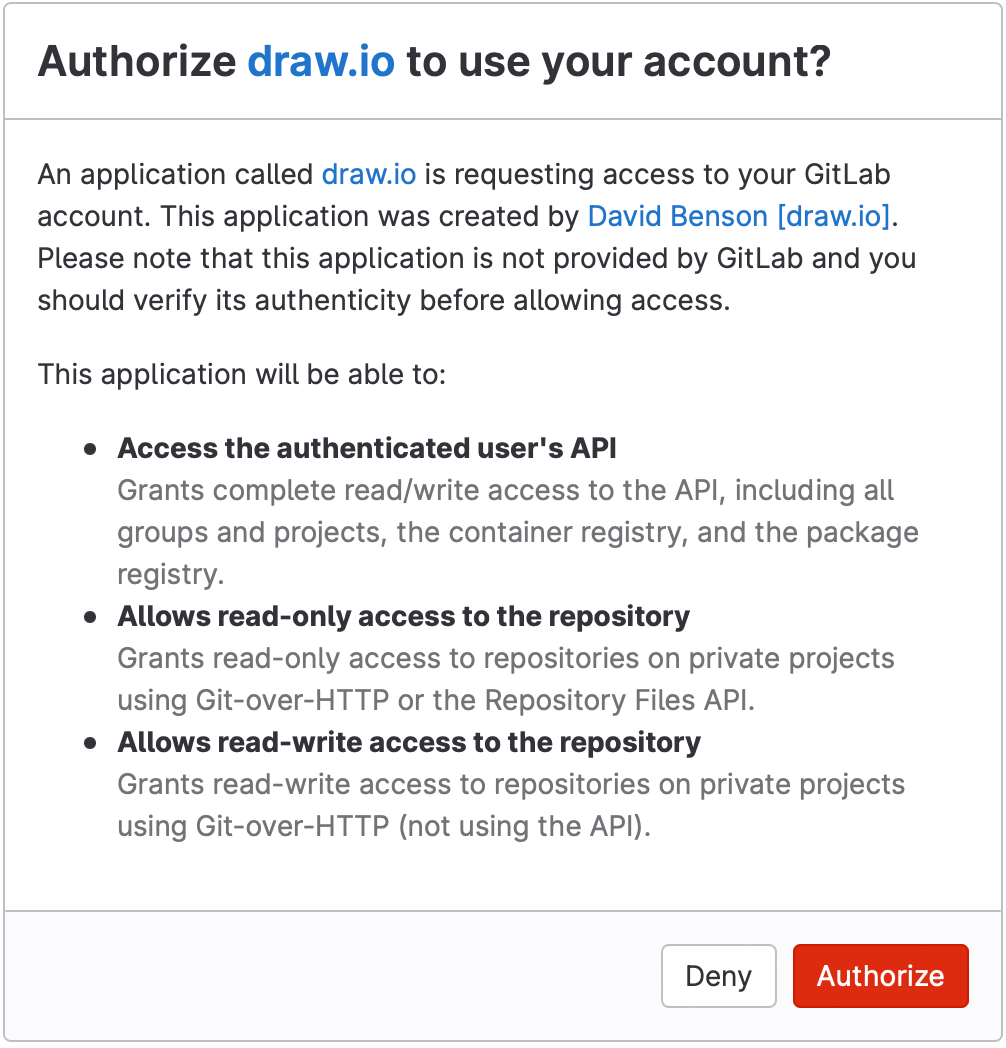
You'll need to authorise access to your GitLab repositories, if you haven't already done so.
Authorize GitLab to save diagram files to this location

Tip:i As draw.io uses secure direct client authorisation, your password is never shared.

Diagram in VSCode with GitLab

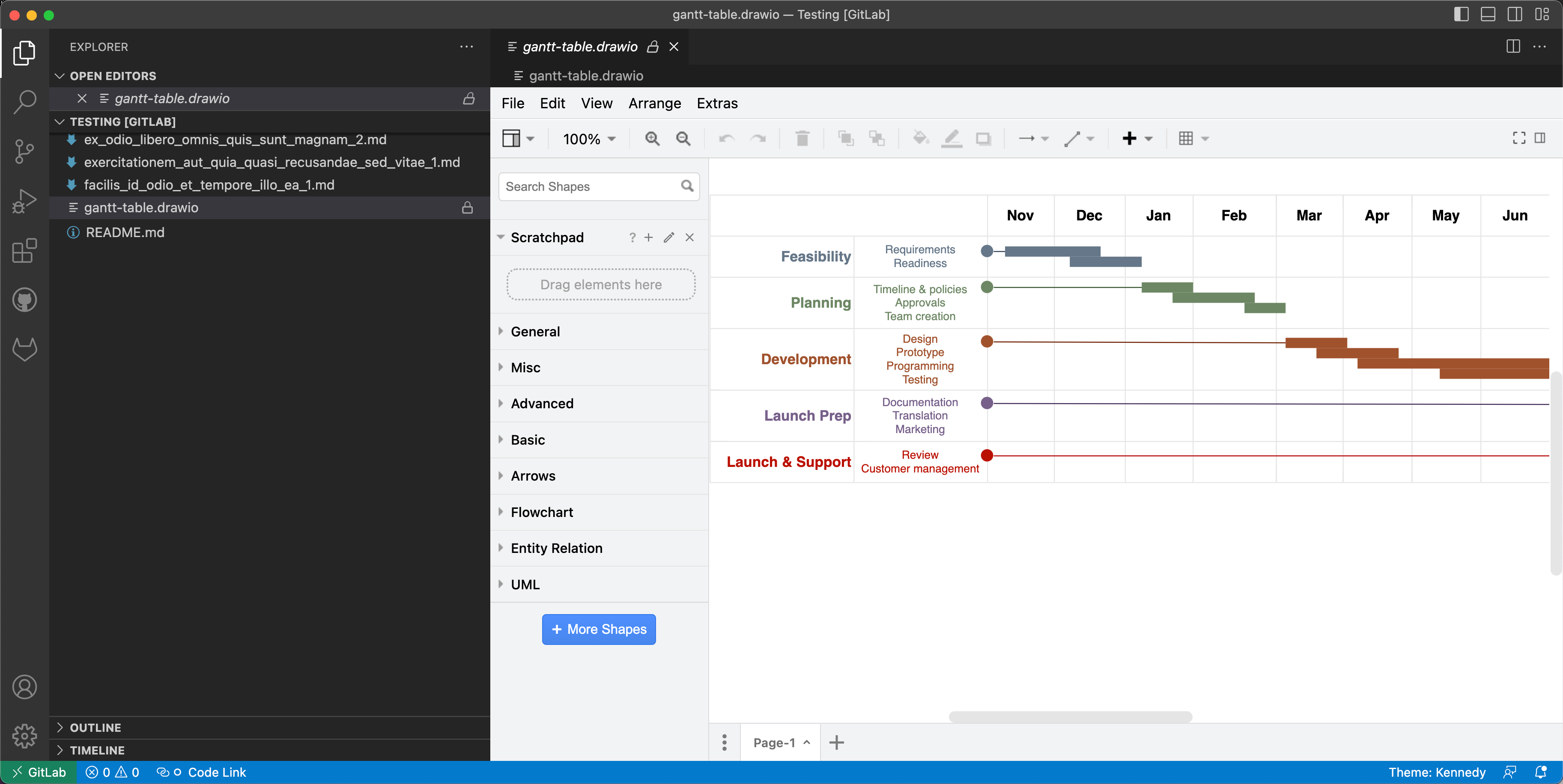
  1. Set up the GitLab Workflow extension for Visual Studio Code.
  2. Install Henning Dieterichs' unofficial draw.io extension for Visual Studio Code

The draw.io extension for VSCode lets you view and edit the .drawio diagram files stored in your repositories.
Use the unofficial draw.io extension for VSCode to edit .drawio files stored in a GitLab repository directly in the Visual Studio Code editor

See how this extension works in GitHub - it works in a similar way with GitLab inside VSCode.

Note: The extension only recognises files with the .drawio file extension.

Updated shapes for GCP and AWS network diagrams

· 4 min read

You can create network diagrams from scratch in draw.io using shapes that match the platform you are using - AWS, GCP, Veeam, Azure, Cisco, IBM and many more. Both the draw.io AWS19 and GCP Icon shape libraries for network and cloud architectures have been updated recently.

Open the updated network shape libraries

Both the Amazon Web Service and Google Cloud Platform shape libraries have been updated recently. Enable the shape libraries that you need to use in draw.io.

  1. Click on More Shapes in the left-hand panel.
  2. In the Networking section, click on the checkboxes next to the libraries you want to enable, then click Apply.
    Enable the AWS19 shape library for Amazon Web Services infrastructure diagrams in draw.io

If you want to see the shape names even when you aren't hovering over a shape in the shape libraries, click on the Labels checkbox in the shape library selection dialog.

Hover over any shape in the shape libraries on the left of the drawing canvas to see a preview and its name.
Hover over any shape to see a preview and its name in draw.io

Drag the shape library panel edge towards the drawing canvas to expand the panel and see more shapes.
Drag the edge of the shapes panel to make it larger

Updated AWS19 network shapes

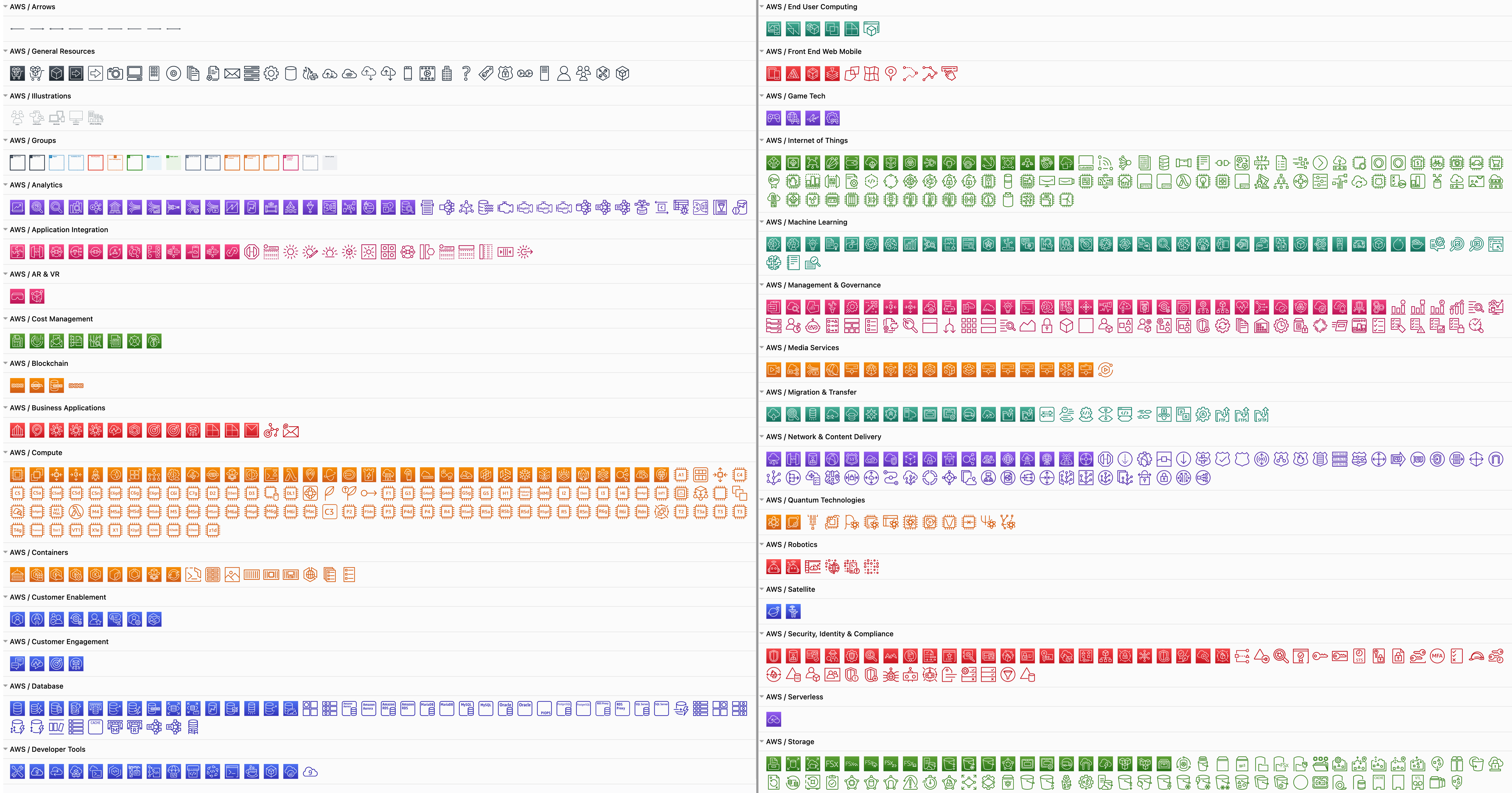
Enabling the AWS19 shape library will give you a large number of sub-libraries in the left panel, sorted into logical categories. Expand the categories that you need by clicking on the sub-library's title or the arrow next to it.

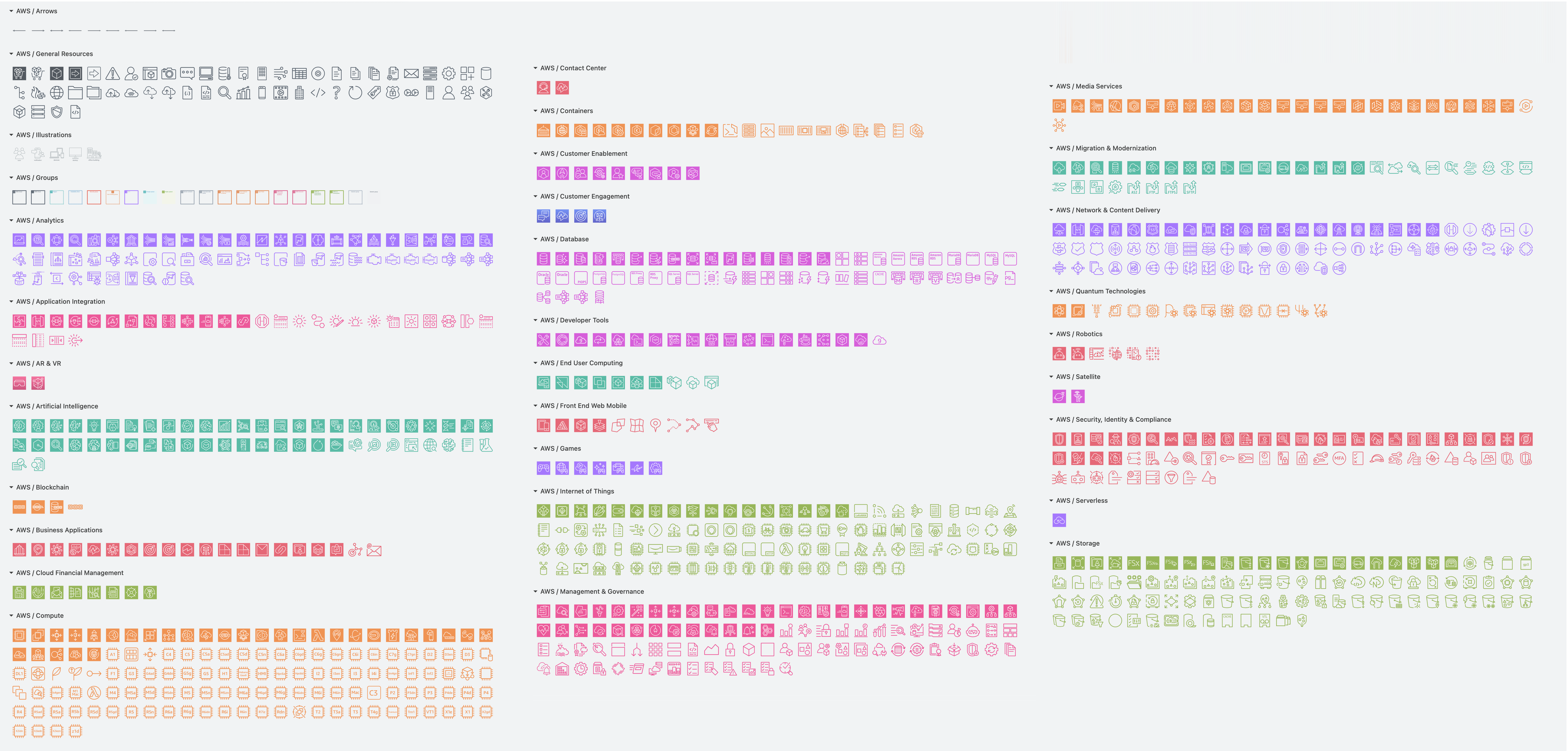
As you can see below, the AWS19 shape library for modelling cloud service architectures on Amazon's platform is large and varied.
The AWS19 shape library for Amazon Web Services infrastructure diagrams has been updated in draw.io

Create a new diagram with the AWS19 shape library already enabled

Updated GCP Icons

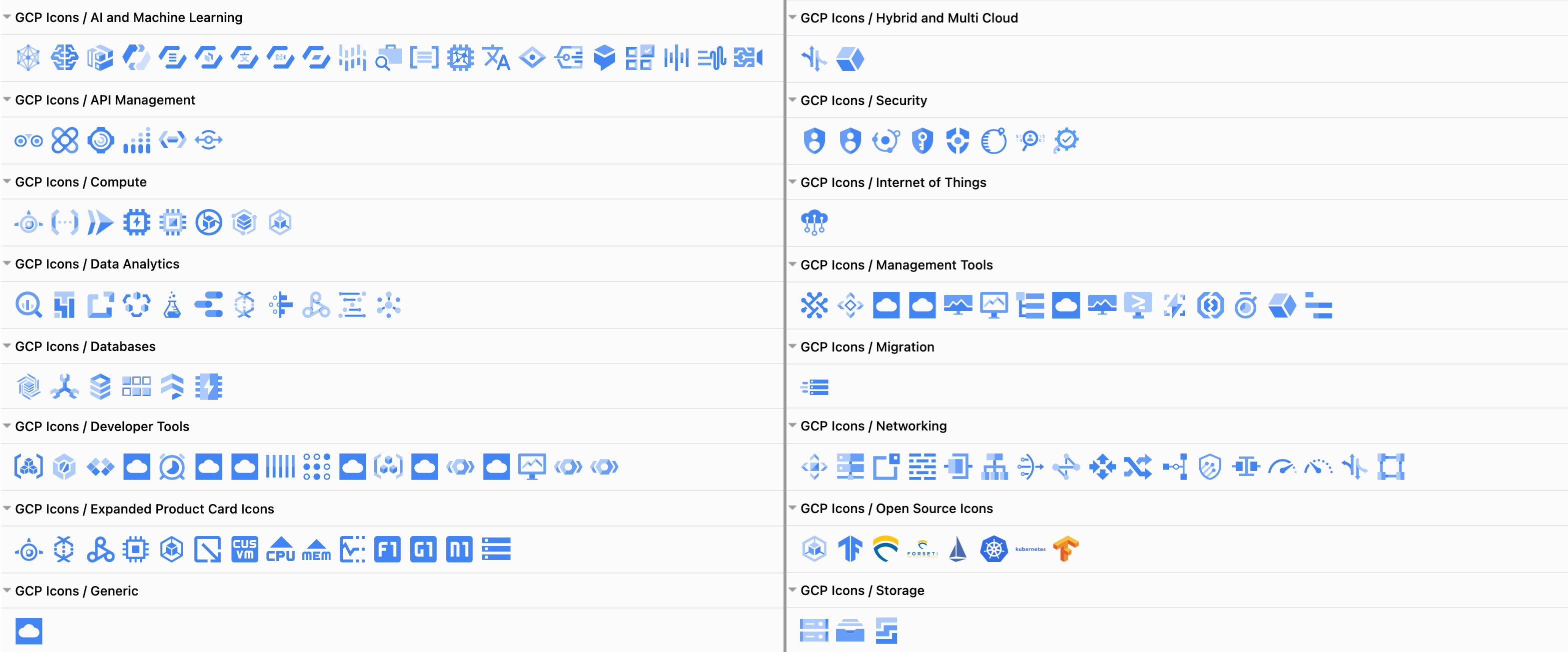
The large Google Cloud Platform shape library containers older labels and icons, whereas the updated GCP Icons are sorted into their own shape library. Click More Shapes and enable the GCP Icons library to see updated sub-libraries shown below.
The GCP icons shape library for Google Cloud Platform infrastructure diagrams has been updated in draw.io

Create a new diagram with the GCP Icons shape library already enabled

Some cloud visualisation platforms can output diagrams in the .drawio format, including Cloudcraft and Cloudockit.

Embed the exported diagram in your system documentation or display it in your wiki with one of our draw.io integrations.

Network diagram templates

draw.io includes many templates for common cloud infrastructures on several platforms. Select Arrange > Insert > Template from the menu.
Network diagrams in the templates at draw.io

Reviews from real draw.io users

· 3 min read

The barrier to anyone diagramming and whiteboarding with draw.io is lower compared to many other SaaS applications. From reviews and customer feedback, some of the things they like the most include:

  • you don't need to register and it costs nothing
  • you can diagram in all major operating systems
  • there is an offline desktop version
  • you can give your diagram to anyone else and they will be able to load and edit it freely
  • you can store unlimited diagram files wherever you prefer
  • project development is in the open and anyone can take part

But don't take our word for it - here is what draw.io users are actually saying on popular review sites.

On Capterra

Capterra verifies reviewers through LinkedIn and checks their reviews for a range of fraudulent activity and credibility. They are one most popular software review sites for businesses.

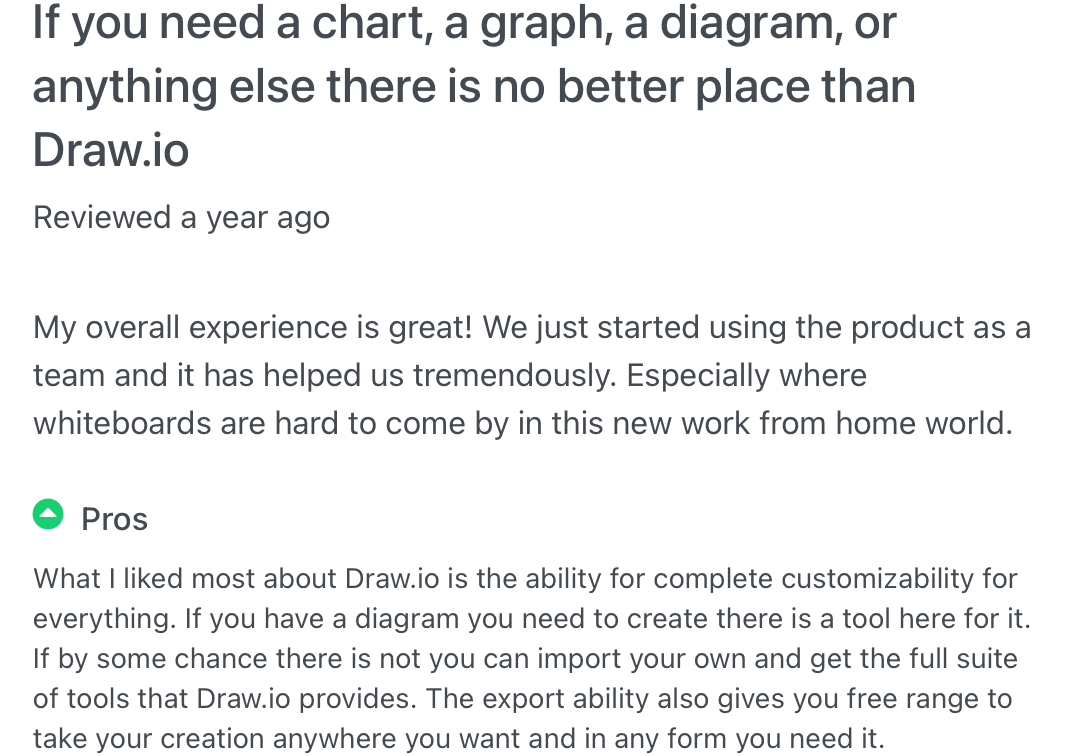
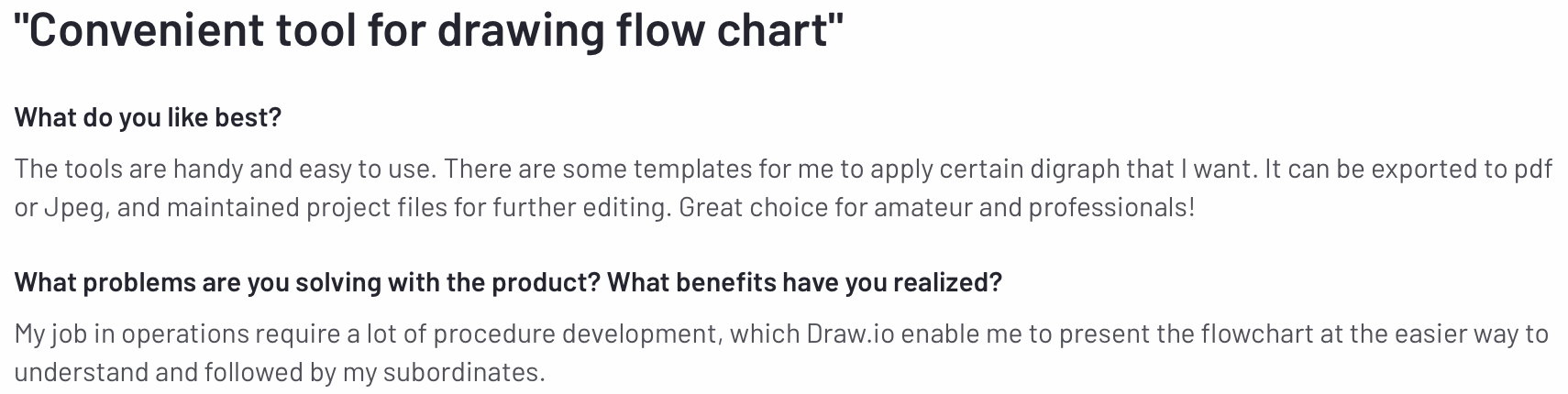
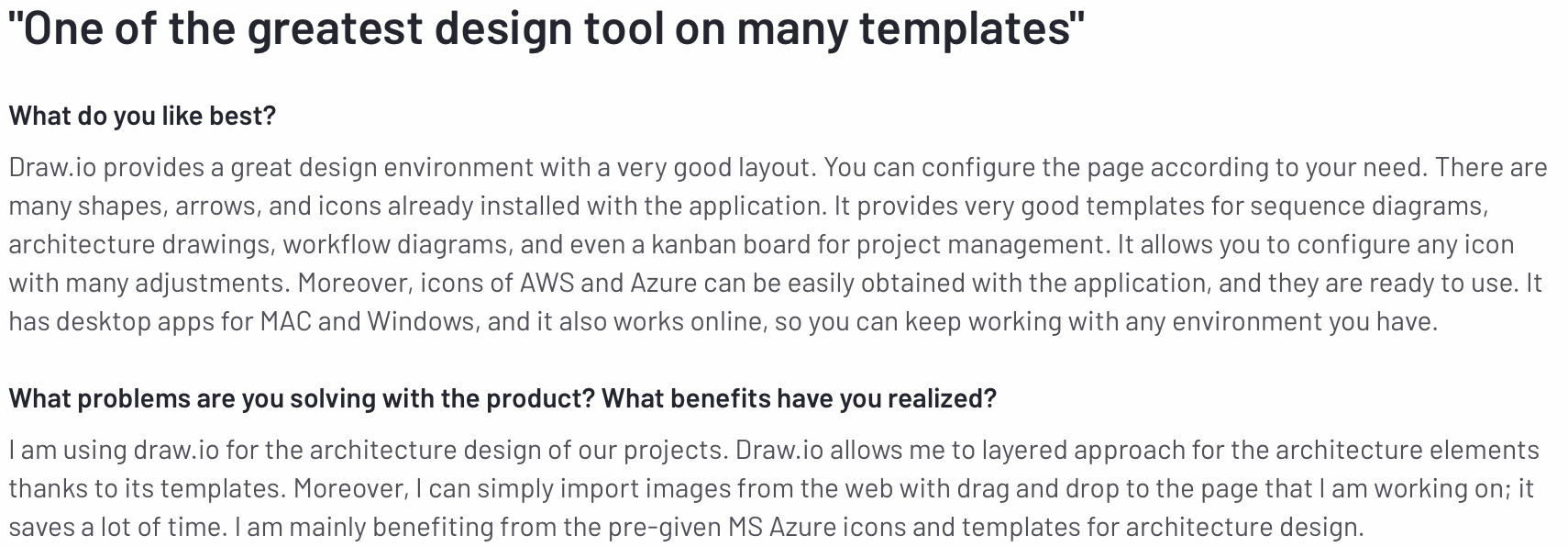
draw.io review from real users on Capterra


draw.io review from real users on Capterra


draw.io review from real users on Capterra


draw.io review from real users on Capterra

See more draw.io reviews on Capterra

On GetApp

GetApp has monitored software trends for the past 10+ years, and collates reviews on its site from a number of other trusted platforms.

draw.io review from real users on GetApp


draw.io review from real users on GetApp

See more draw.io reviews on GetApp

On G2

The G2 company gathers user reviews of software products from their own community, and aggregated data collated from various other social and online sources, with more weight given to recent reviews.

draw.io review from real users on G2.com


draw.io review from real users on G2.com

See more draw.io reviews on G2

Thank you to our reviewers

Useful as these reviews are, we don't actively monitor review sites regularly - if you have a suggestion or want to report a bug, please go to the the support page on the Github project. That is best place to get our attention.

UML 2.5 shape library with updated shapes

· 5 min read

The Unified Modeling Language (UML) is a set of standard symbols and diagram types, commonly used in data modelling, workflow visualisation, and system modelling. UML notation is the defacto industry standard in the fields of software development, IT infrastructure, business systems and other fields. Many languages, such as SysML, SoaML, and a number of architecture frameworks use and extend UML.
Activity diagrams are used to model workflows in various ways

The UML 2.5 specification updated the notation, or the shapes used in diagrams so they could represent a wider range of concepts more clearly. The specification document was extensively rewritten to make it easier to understand.

No new diagram types were added in UML 2.5 - the 14 diagram types that were previously defined in UML 2.0 are extended to cover the additional concepts, with many examples provided in the specification document.

UML diagram types

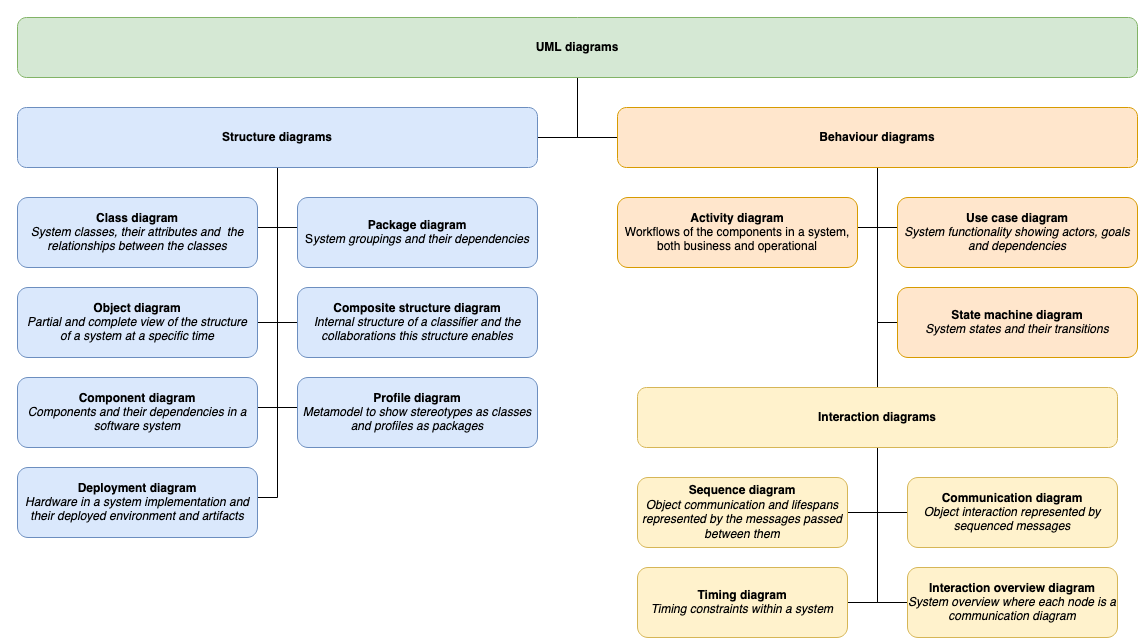
UML diagrams are divided into two categories that provide you with static (structural) and dynamic (behavioural) views of a system.

Diagram types defined in UML 2.5
Open this in our free diagram viewer

Enable the UML 2.5 shape library

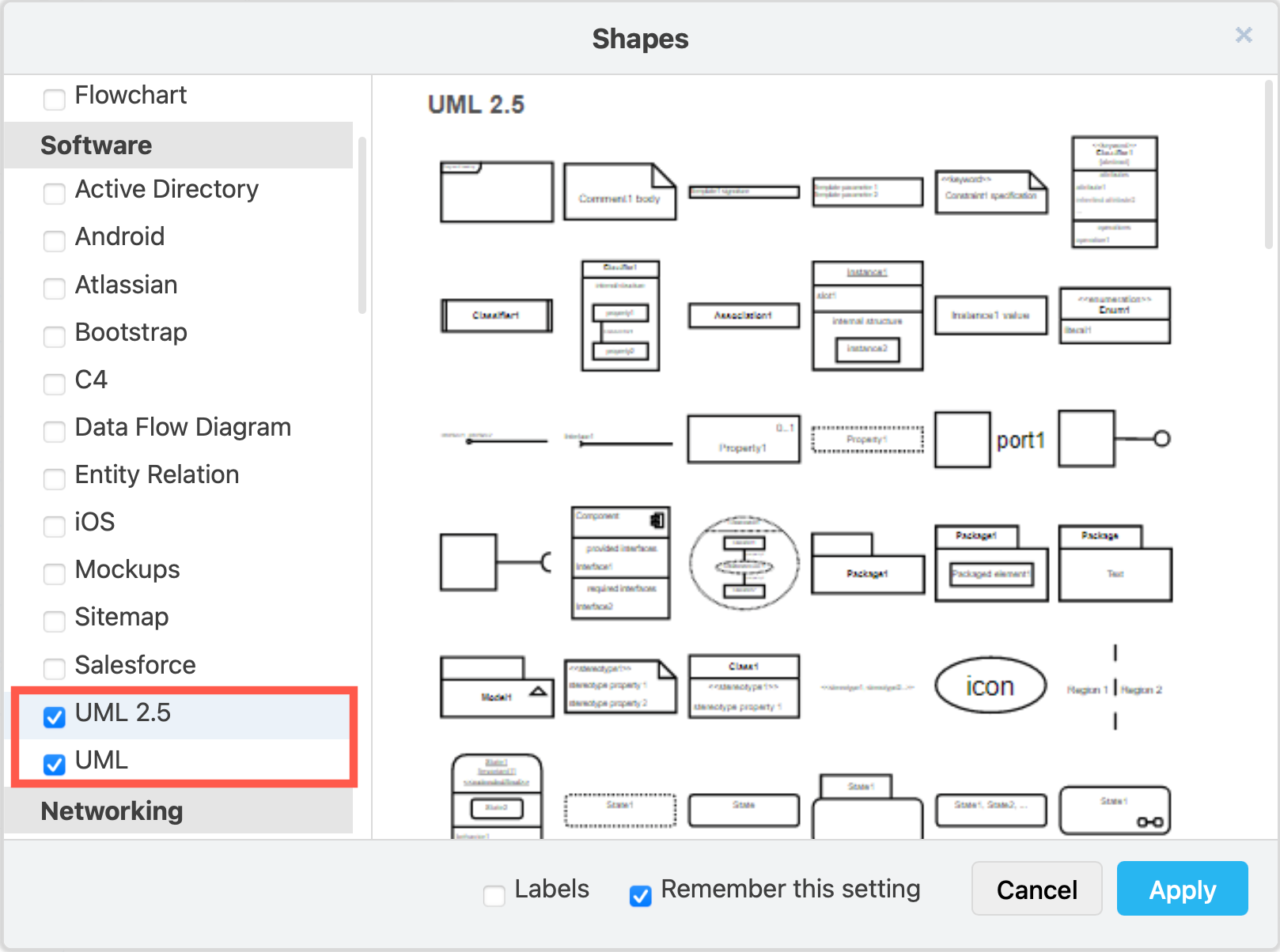
  1. Click on More Shapes at the bottom of the left panel in draw.io, scroll down and click on the checkbox next to the UML 2.5 shape library in the Software section. You may want to also enable the UML shape library. Then click Apply.
    Enable the UML 2.5 shape library, and the older UML library if you wish to use those shapes
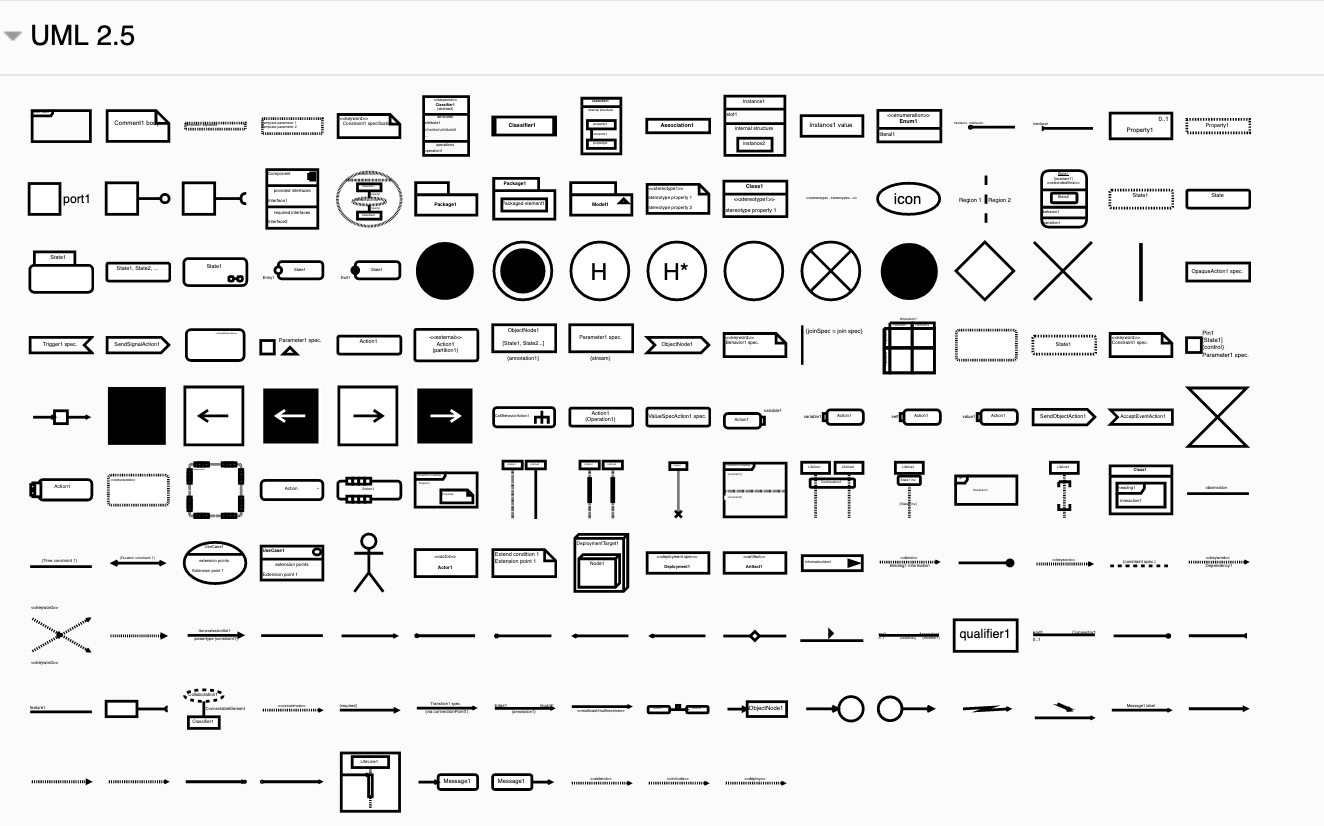
  2. The UML 2.5 shape library will appear in the left panel.
    The shapes in the UML 2.5 shape library let you create clearer and more extensive UML diagrams of many types

Using these shapes, and some of the shapes from the General and older UML shape libraries, you can create the full range of UML diagrams.

Example UML diagrams

Click on a diagram below to open in our diagram viewer

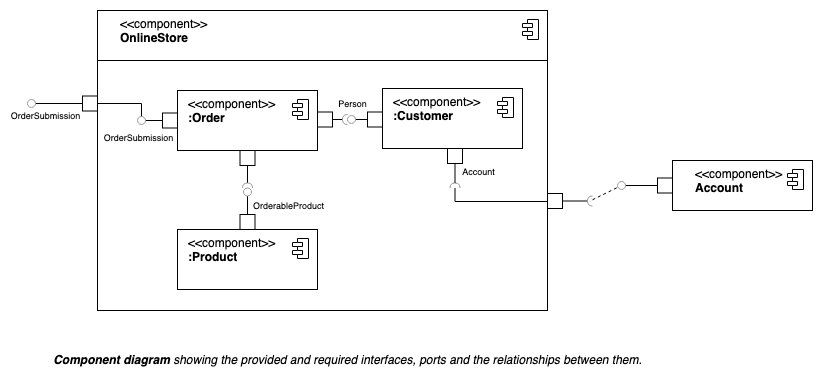
Component diagrams show the dependencies between the logical and physical components of a system with the interfaces that each component requires and provides and their ports.

Component diagrams show the dependencies between the components of a system.

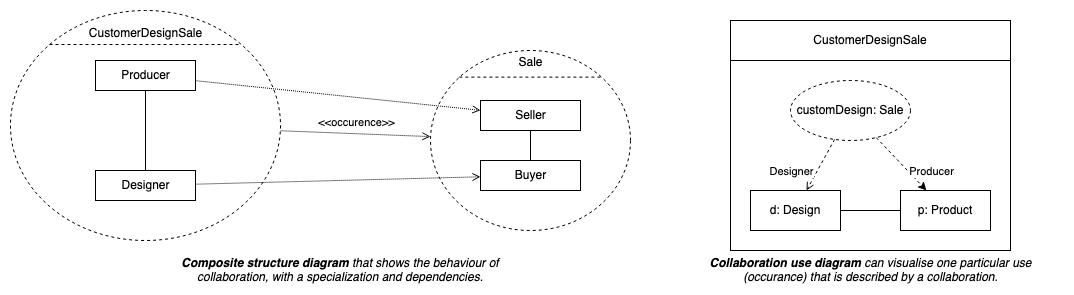
Composite structure diagrams are used to show the internal structure of a classifier, with its properties, parts and relationships, or how a collaboration behaves. You can break down the behaviour of a collaboration into one or more specific situations (occurrences) in a collaboration or collaboration use diagram.

Composite structure diagrams are used to show the internal structure of a classifier

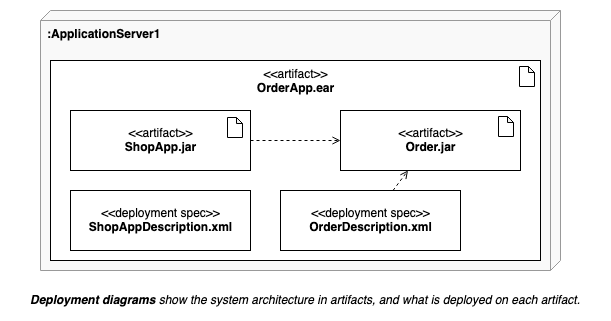
Deployment diagrams shows the system infrastructure and how various software executables and artifacts are deployed on deployment targets.

Deployment diagrams shows the system infrastructure and how various software executables and artifacts are deployed on deployment targets.

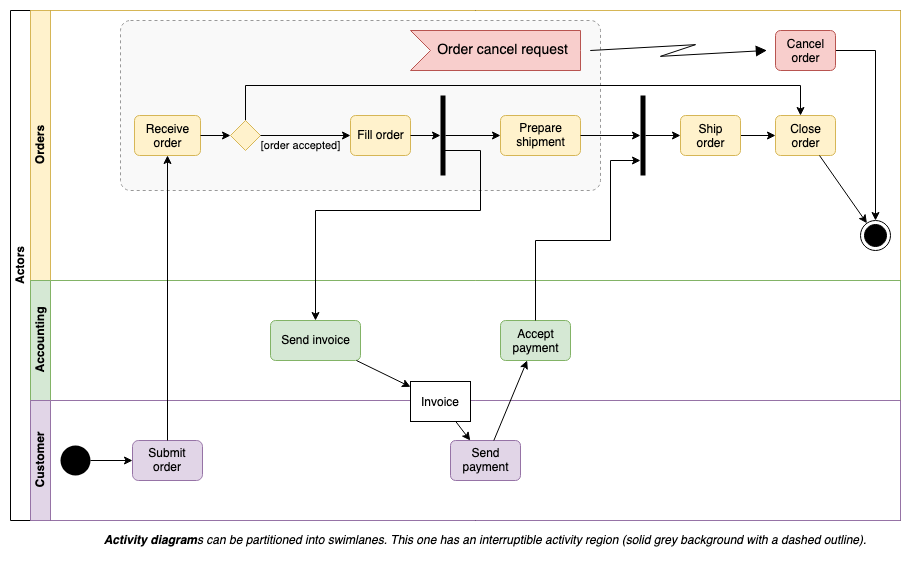
Activity diagrams are used to model workflows in various ways. In this example, the workflow actions are arranged into swimlanes representing the actors, with a section that allows an interrupt (exception) to cancel the order.

Activity diagrams are used to model workflows in various ways