Publish a diagram to presentation mode
Select File > Publish > Presentation Mode to open your diagram page in a simplified viewer. This does not have the large viewer toolbar, and so is less cluttered when presenting your diagram in meetings.
You can click on links in the diagram and hover over shapes to see tooltips, tags and shape metadata, if defined.
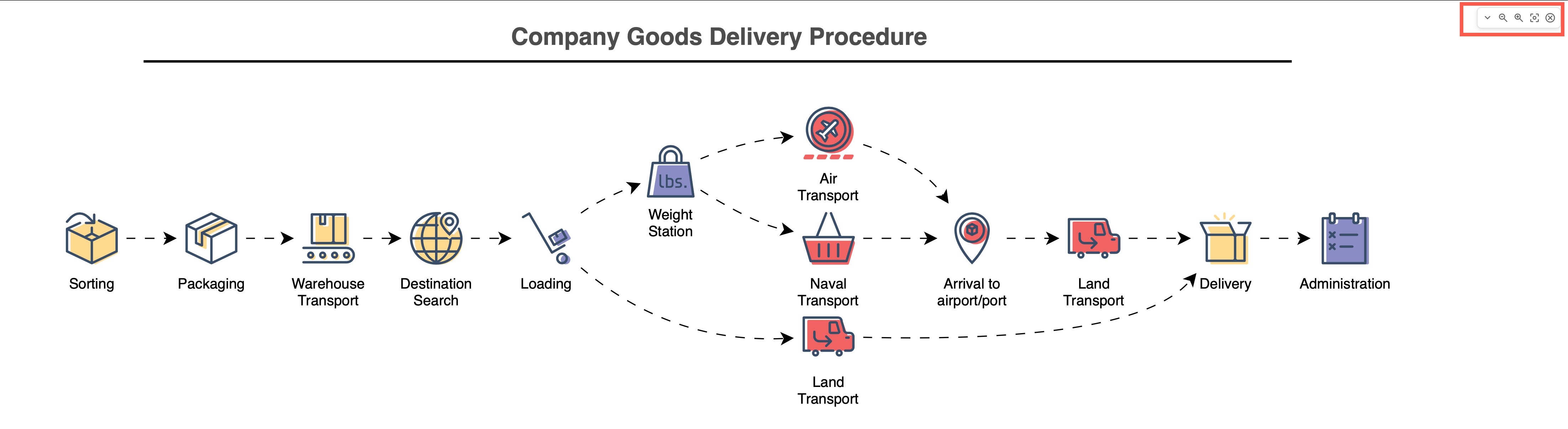
Use the presentation mode controls
- Pages: If your diagram has more than one page, click on the arrow at the top left to select another page. The name of the current page is shown next to it. Press
Ctrl+Right ArroworCtrl+Left Arrowon Windows,Cmd+Right ArroworCmd+Left Arrowon macOS, to show the next or previous page. - Laser pointer: Click on the red dot at the top right to turn the mouse pointer into a laser pointer. Ensure no cats are watching your presentation.
- Explore: Click on Explore at the top right to explore the diagram from a shape. This button is only shown if the page contains shapes with connectors.
- Close: Click on the cross at the top right or press
Escapeto close presentation mode. - Zoom: Click on Zoom In, Zoom Out and Fit at the bottom right. Fit switches between 100% and the whole page.
Press Tab to move between the buttons, then press Enter or Space to click on a button.
Move around the diagram
- Move the diagram: Drag anywhere in the diagram, also on shapes and labels. You can move the diagram almost out of view, so that you can move any shape to the centre, also at the edges of the diagram.
- Highlight a shape: Click on a shape to highlight it. The diagram will not move.
- Remove the highlight: Click on the background of the diagram.
Note: A click on a shape with a link opens the link. These shapes are not highlighted.
Point at shapes with the laser pointer
Click on the red dot at the top right.
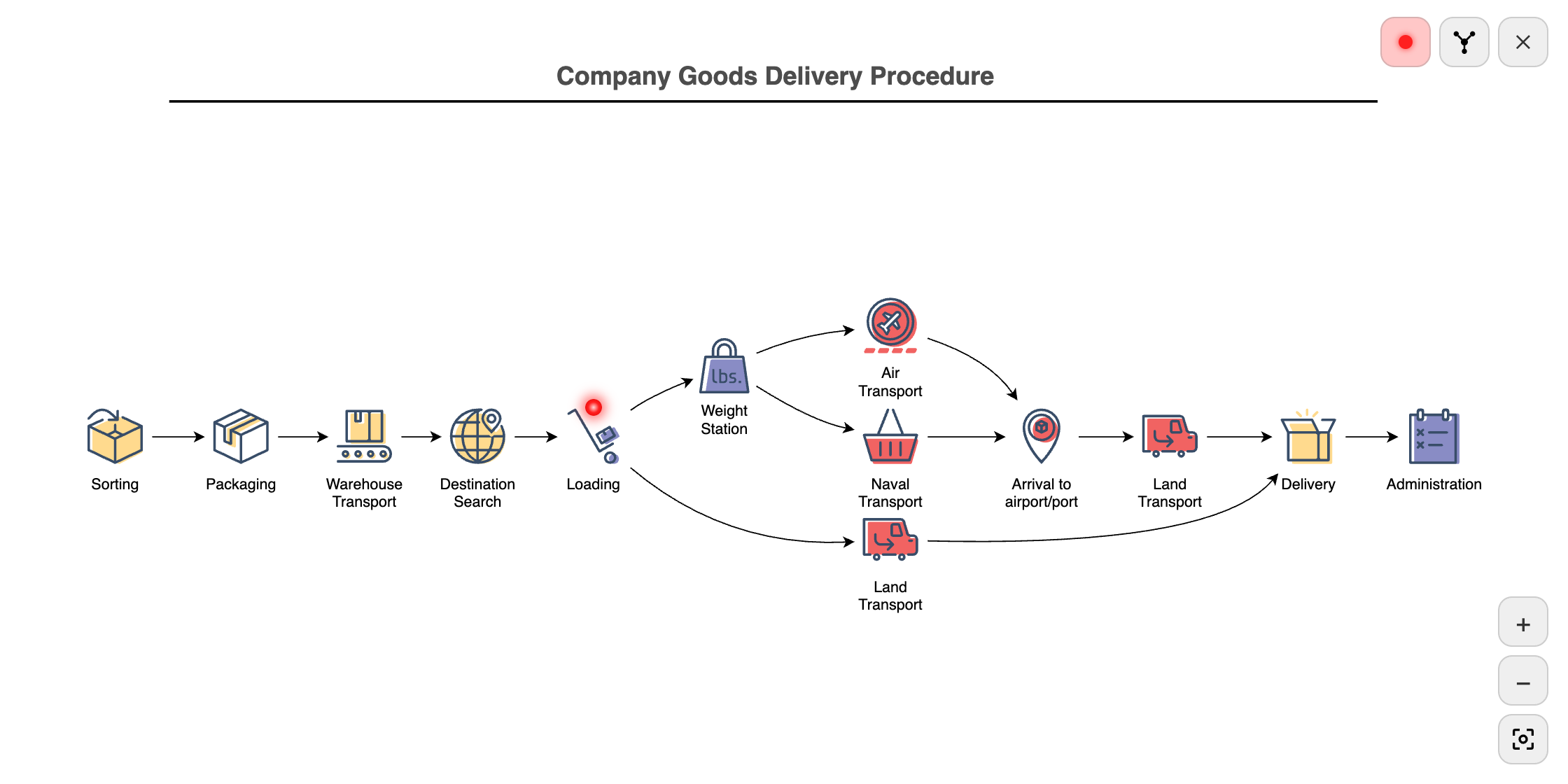
The mouse pointer will turn into a red dot while it is over the diagram. Click on the red dot at the top right again to switch the laser pointer off.
If you present the diagram to everyone, your collaborators will see your laser pointer as you move it around the diagram.
Explore the diagram from a shape
- Click on a shape to highlight it.
- Click on Explore at the top right.
The Explore viewer will open with that shape in the centre. If you haven't clicked on a shape, the shape that was selected in the editor is used, or if nothing was selected, the shape with the most connections on the page.
Animations in presentation mode
Presentation mode will automatically play any page animation actions you have defined via the File > Page Setup menu.
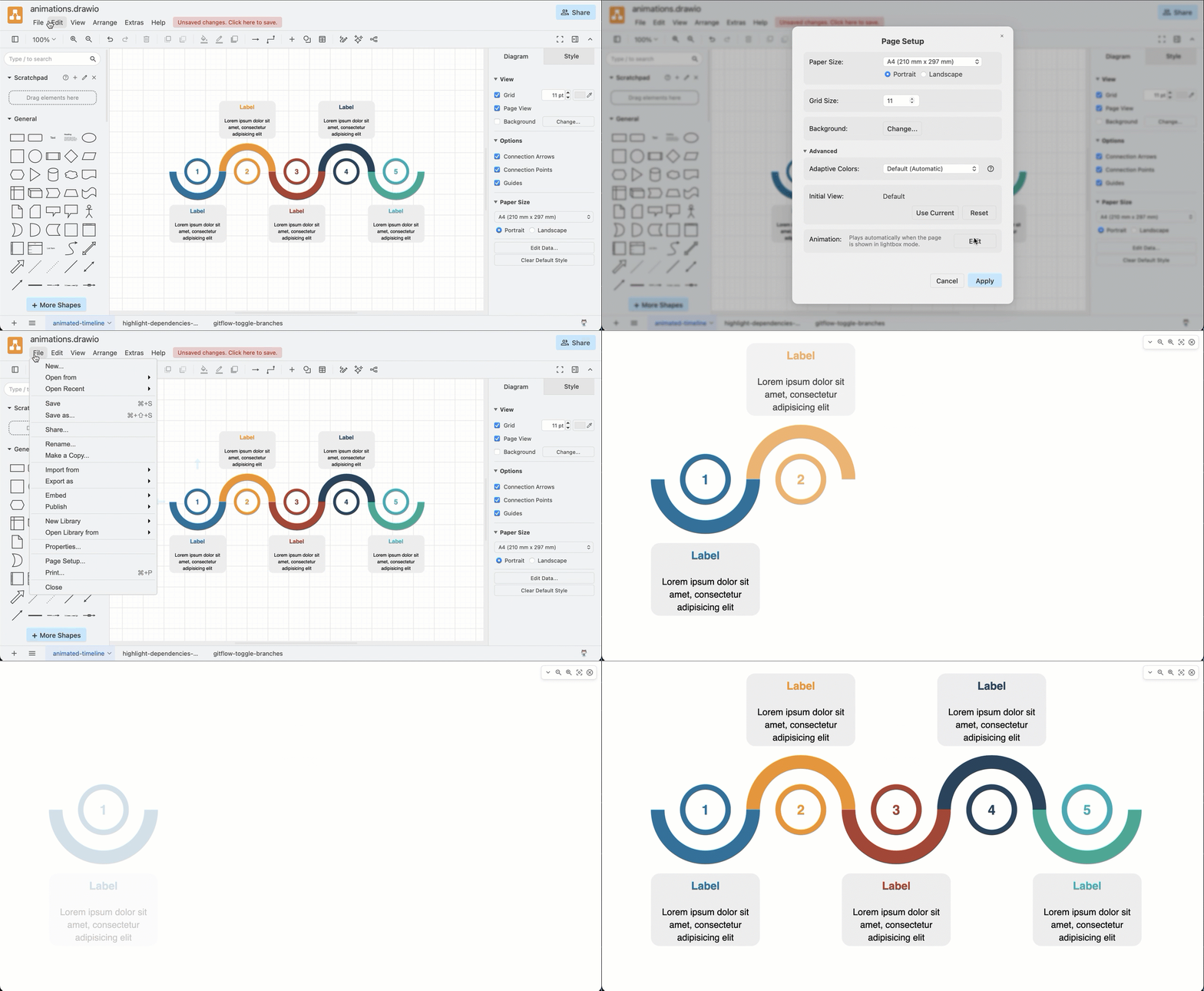
Present to your collaborators
When you edit a diagram in real time with others, select Present to Everyone before you open presentation mode. Your collaborators will see presentation mode, the highlighted shape, the Explore viewer and your laser pointer as you do. See present a diagram to everyone.