Copy and paste the styles of shapes and connectors
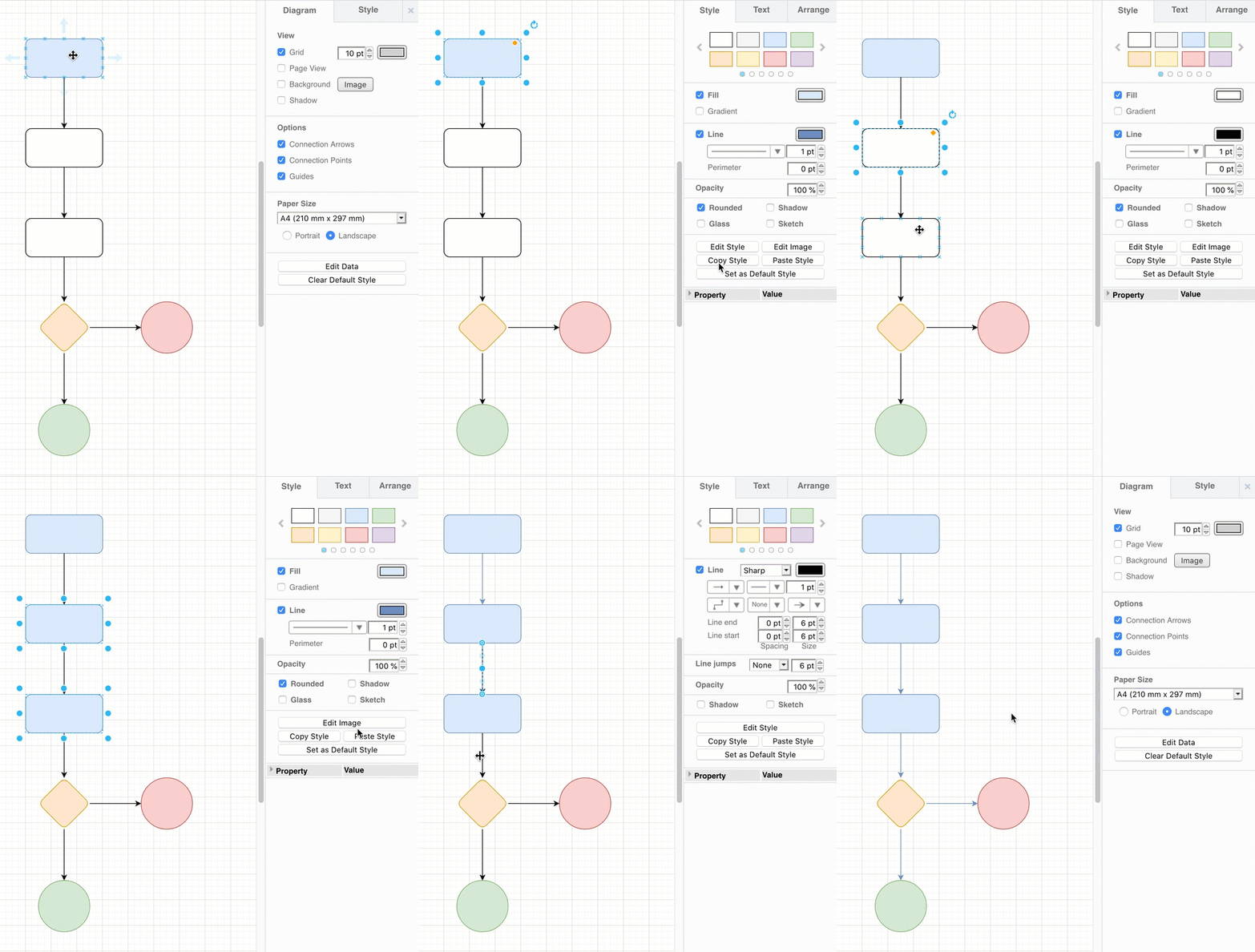
Instead of styling every shape or connector individually, you can style one, then apply that style to multiple selected shapes or connectors via the format panel.
- Update the style of one of the shapes or connectors in your diagram. Note that shape and connector styles must be copied and pasted separately.
- Select that shape or connector, in the Style tab of the format panel, click Copy Style.
- Select the other shapes or connectors that you want to apply this style to. In the Style tab, click on Paste Style.
Paste only the text style
- Select a shape, connector or label. Click Copy Style in the Style tab of the format panel, or Copy Text Style in the Text tab.
- Select the shapes, connectors or labels that you want to format. In the Text tab, click Paste Text Style.
The font, size, colour and alignment of the text, its spacing, and its background, gap and border will be applied. The fill, outline and other styles will not change. Paste Text Style uses the style or text style that you copied last.
Tip: To give the labels of a connector the same text style as the connector's own label, copy the style of the connector, select its labels, then click Paste Text Style.
Related
- Change the styles of shapes.
- Change the style of connectors.
- There are many shortcuts for working with styles in draw.io.
- Change or reset global default styles.