3 posts tagged with "export"

View All Tags

Create data-driven diagrams with draw.io

· 8 min read
draw.io
draw.io Team

Using diagrams.net or draw.io together with scripts and data sources, you can create data-driven diagrams, with colours, shapes, text labels and even animations that change to reflect live data.
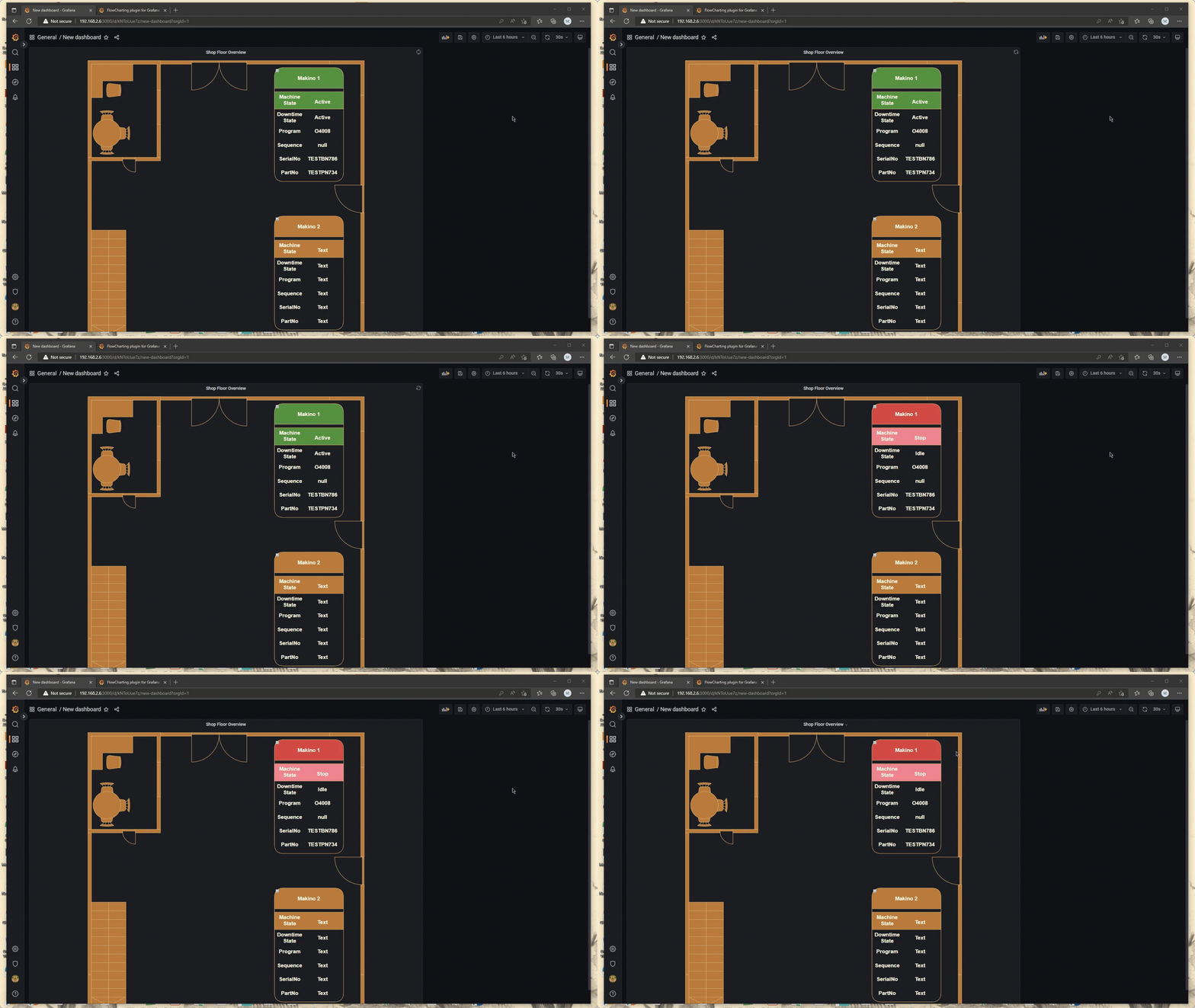
Update shapes in a diagram based on live data with draw.io, Grafana and the Flowcharting plugin

Aside from live diagrams of cloud network infrastructures, and charts that visualise data in graphs, there are few true data-driven diagrams. As draw.io does not include spreadsheet or graph functionality - it's a diagram editor - dynamically updated charts are not possible.

You can program your own scripts or use integrations with other applications to achieve data-driven diagrams where diagram shapes change to reflect live data because draw.io is open source and the .drawio diagram format uses accessible XML.

How it works

Each shape in a draw.io diagram has a unique shape ID.

Because the diagram data is stored in your file using XML tags, you can use a script to search for the shape ID in the XML source and replace common shape properties with a different value to reflect the data at that time.

What you'll need

  • diagram created in the draw.io editor and saved as an XML file
  • application or script to do the following:
    • display and refresh the diagram
    • query or read the live data
    • analyse the data values and update the shape properties in the diagram according to programmed rules

Example - factory status floorplan

To show you how to build such a data-driven diagram, we'll use an example of a dashboard that shows the status of a machine on a factory floorplan based on real-time sensor data from that machine.

This example uses Grafana and Arnaud Genty's Flowcharting plugin to feed the real-time sensor data recorded in a database to scripts that update the shapes in the diagram based on rules that we define.


Draw your diagram and set it up for data

Create your diagram in draw.io online or one of our draw.io apps.

You can draw any type of diagram - flow charts, wireframes, floorplans, org charts, wiring diagrams, etc.

Avoid using complex shapes for elements you want to update. Those that contain multiple fields, like tables, entity shapes or swimlanes won't typically have unique IDs that you can refer to later.

In this example, we've created a factory floorplan with simple text shapes to show important machine information.
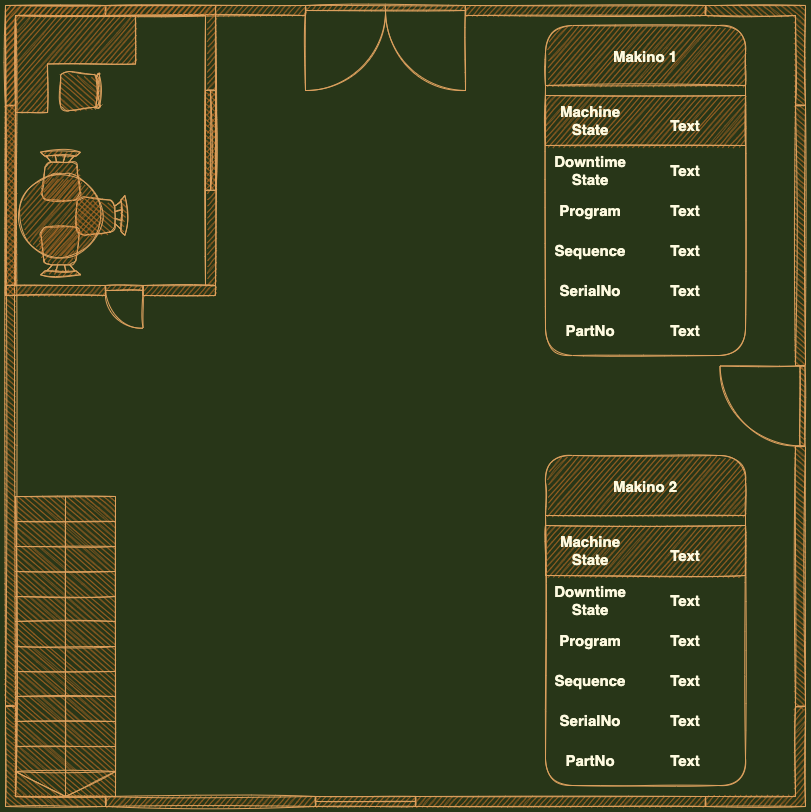
Draw your diagram in draw.io

Set custom unique shape IDs

For each shape that will dynamically update based on a data source, you should override the auto-assigned shape ID to make it easier to refer to later.

  1. Right-click on a shape and select Edit Data. Alternatively, select a shape and press Ctrl+M or Cmd+M.
  2. Hold down Shift and double click on the ID string at the top.
  3. Change the shape ID to something more memorable - make sure it is unique.
  4. Click Apply to save the new shape ID, then click Apply to save the shape data.
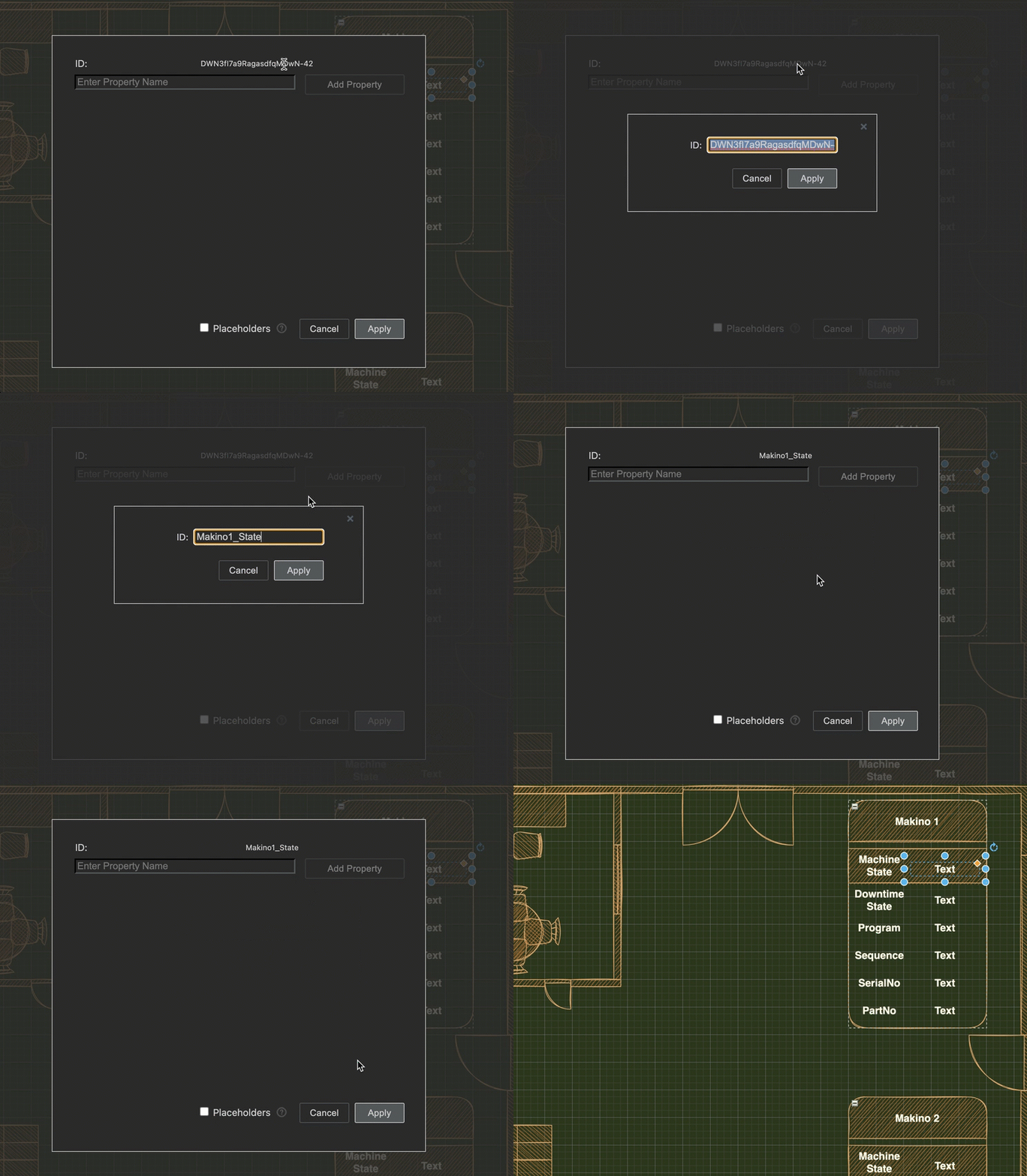
    Give each element in your diagram that you want to dynamically update a new, memorable and unique shape ID via its shape data - select a shape and press Ctrl+M

In our example, all of the text shapes that say Text are to be updated. Each has been assigned a new custom unique shape ID.

View the shape IDs in the Properties section on the Style tab.
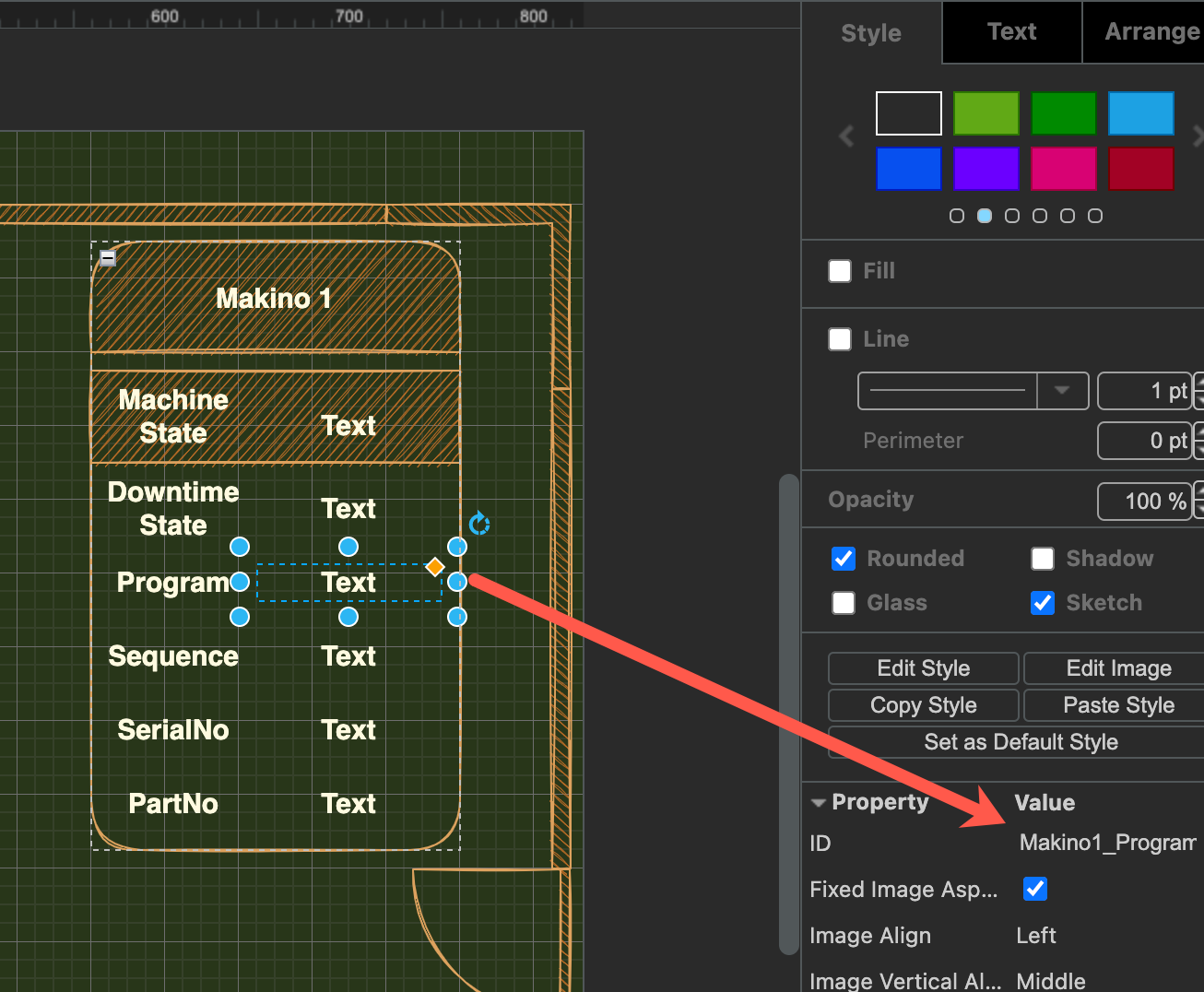
Check each shape has a unique ID assigned in the Properties section of the Style tab in the format panel

Export your diagram as an XML file

You need to read (and copy) the full XML source of your diagram, so export it as an XML file so it can be easily opened by a text editor.

  1. Select File > Export As > XML from the menu.
  2. Save the file to your local device.

Create a dynamic dashboard

  1. Install Grafana and the Flowcharting plugin.
  2. Configure one or more data sources in Grafana.
  3. Create a new dashboard and add a Flowcharting panel.
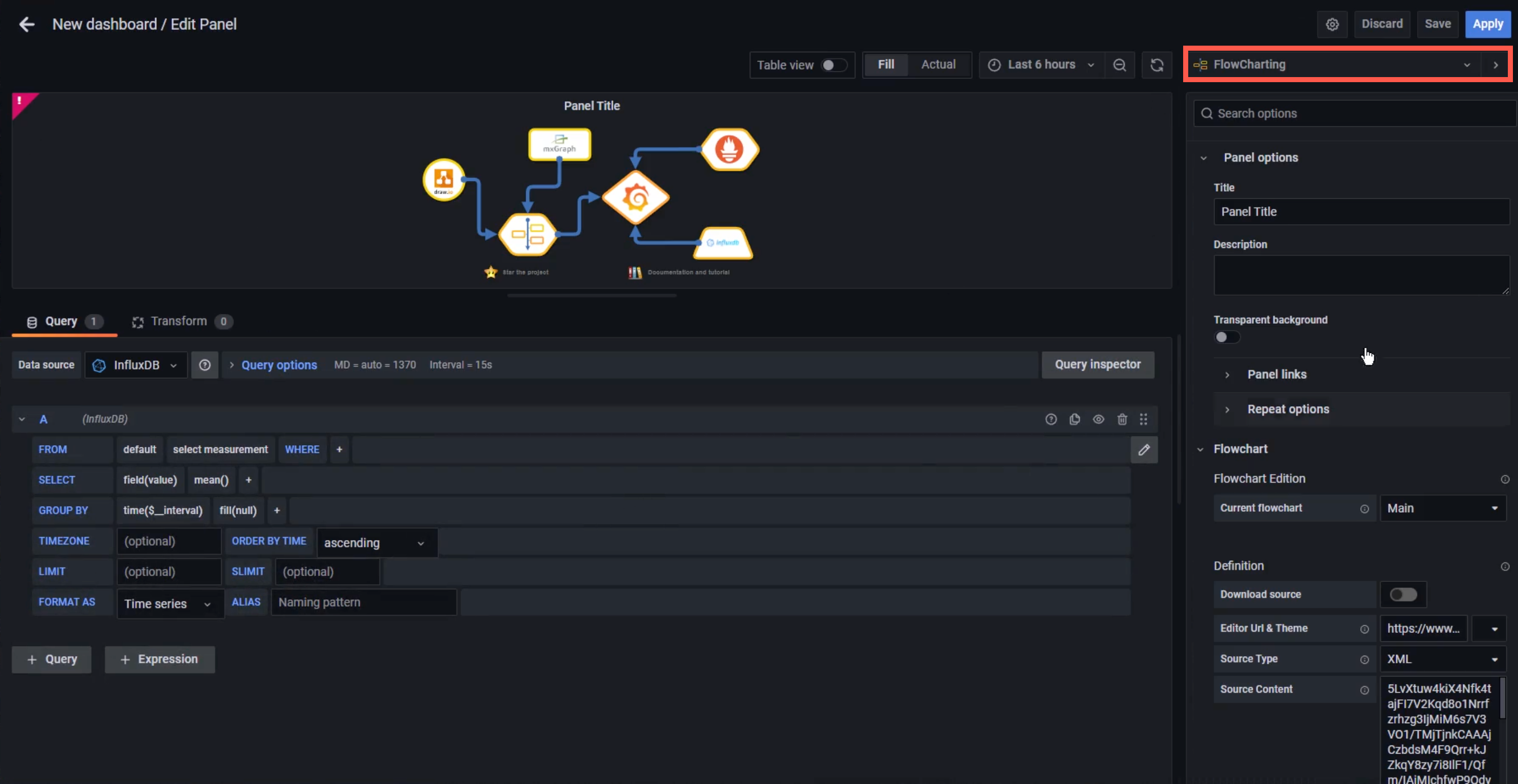
    Install Grafana, connect a database and create a dashboard with the Flowcharting plugin - you can add the .drawio diagram in the next step

Add the diagram to the dashboard

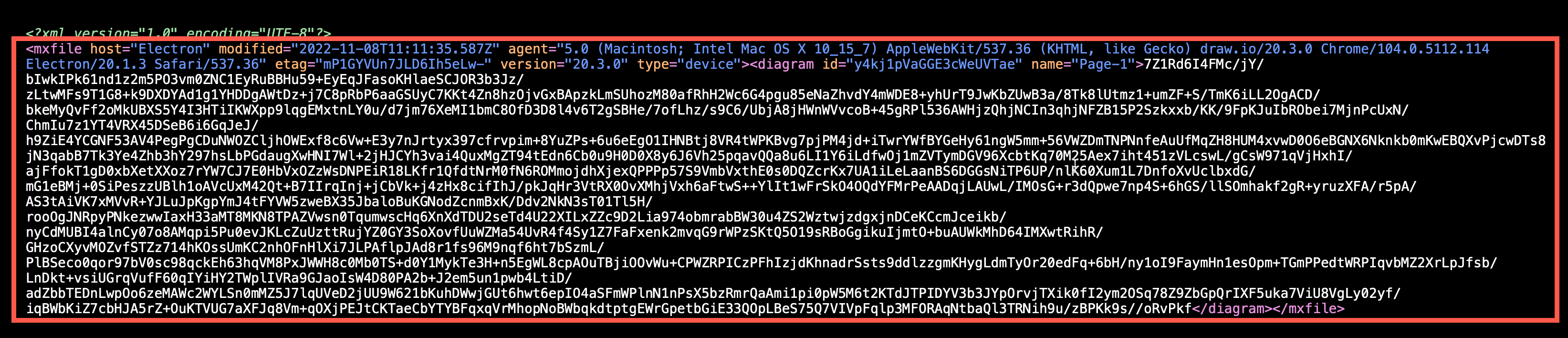
  1. Open the diagram .xml file you previously saved in a text editor.
  2. Copy all the diagram data that appears after the initial <?xml ... > tag.
    Open the .xml file in a text editor and copy all of the text that appears after the first XML tag
  3. Now, add the diagram data to the Flowchart panel in Grafana.
  • Set the Editor URL & Theme to our online service at embed.diagrams.net, and select Dark or Light from the drop down list. If you run your own draw.io server, use its URL instead.
  • Set the Source Type to XML.
  • In the Source Content text field, paste the diagram data you copied from your text editor.
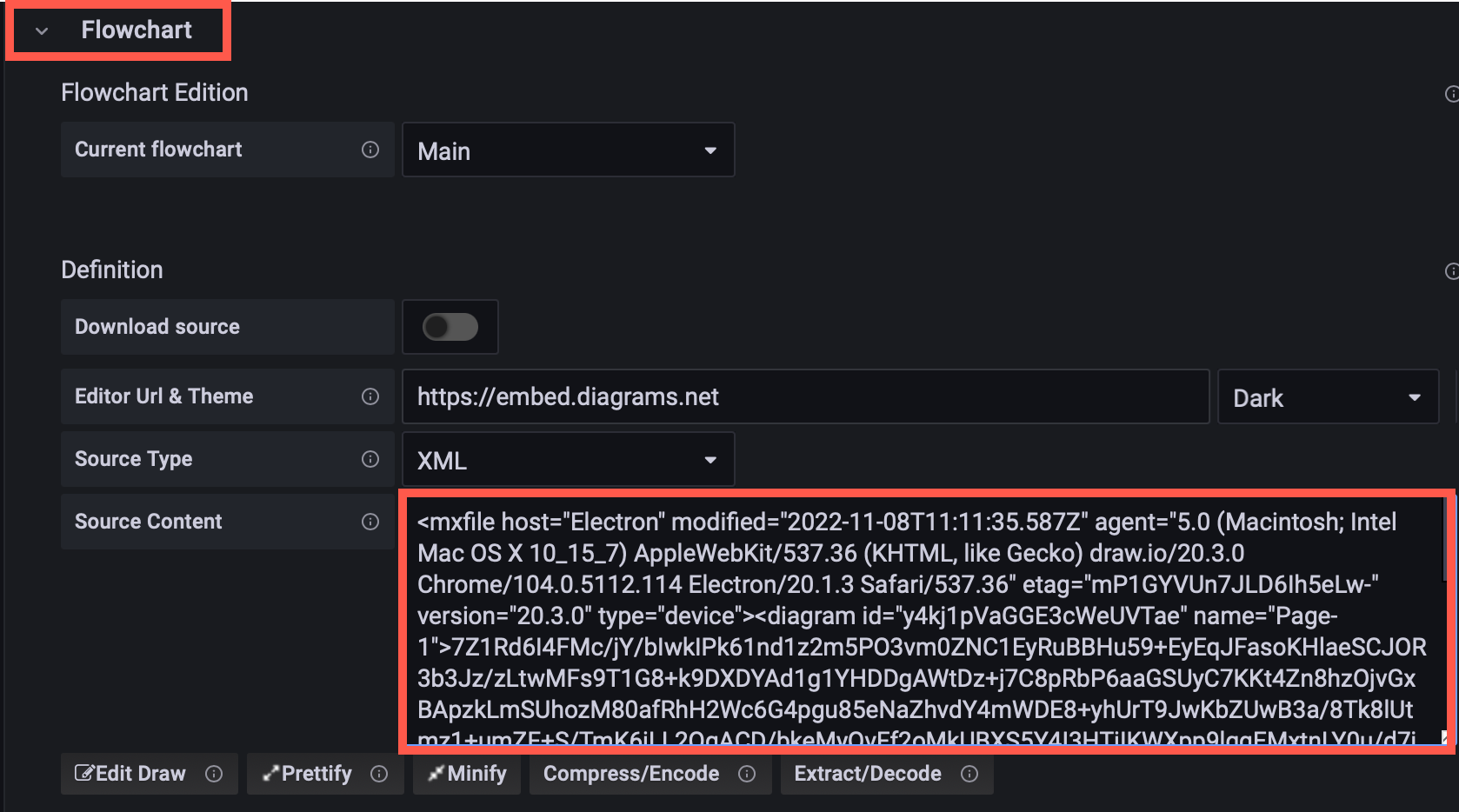
    Add the diagram data to the Flowchart panel in Grafana

The diagram will appear in the dashboard preview panel.

Map diagram shape IDs to data queries with rules

Now, you need to link the diagram shapes you want to update, with queries of a data source and rules defined in the Flowchart panel.
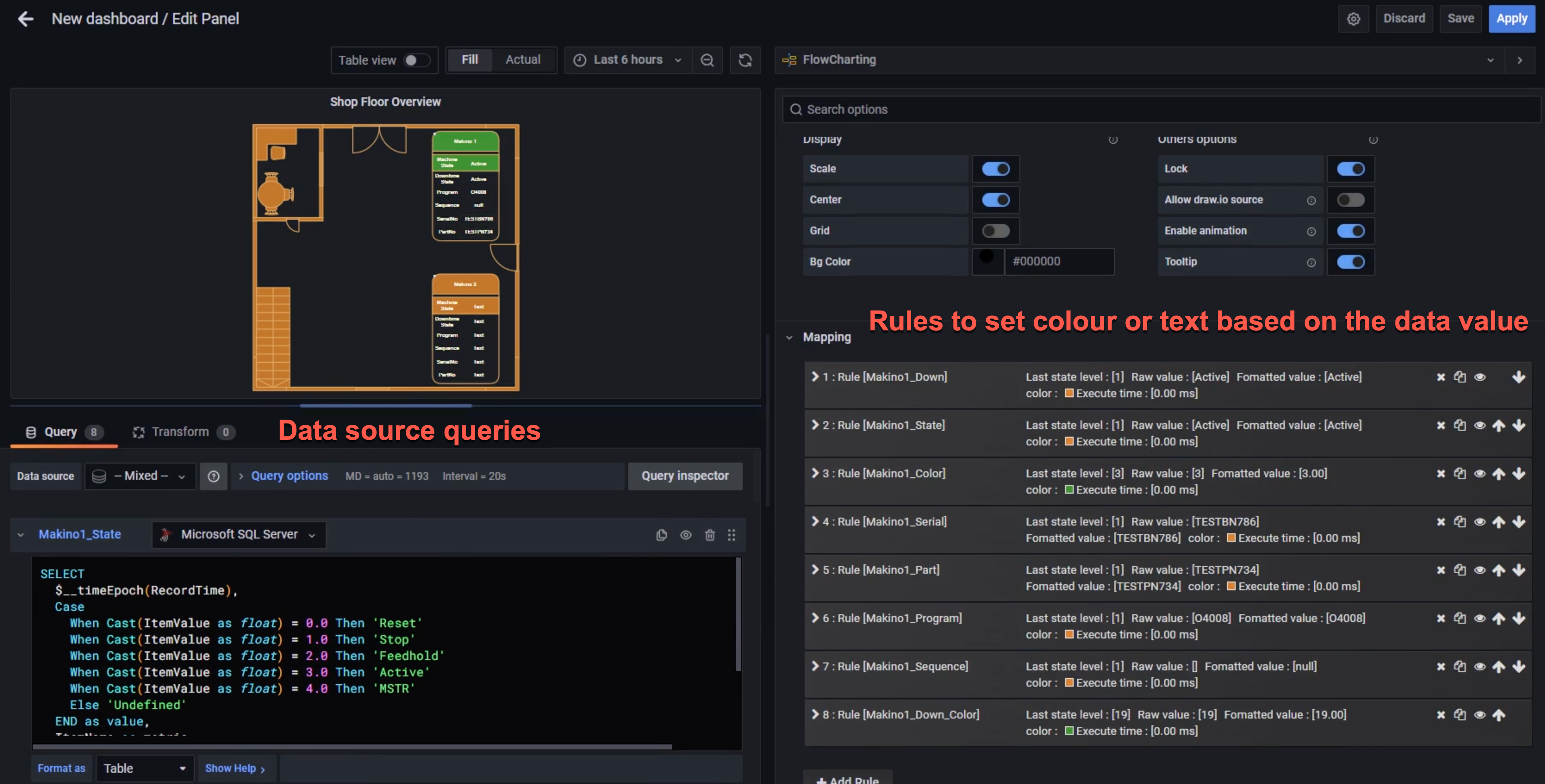
Map the diagram shapes you want to dynamically update to data using rules in the Flowchart panel in Grafana

  1. Write the queries to extract the data you need from your data sources. Set the name of the metric to the diagram shape ID that it updates so it's easier to see which query updates which shape.

    Update the name of each metric to match the diagram shape ID that it updates for ease of understanding
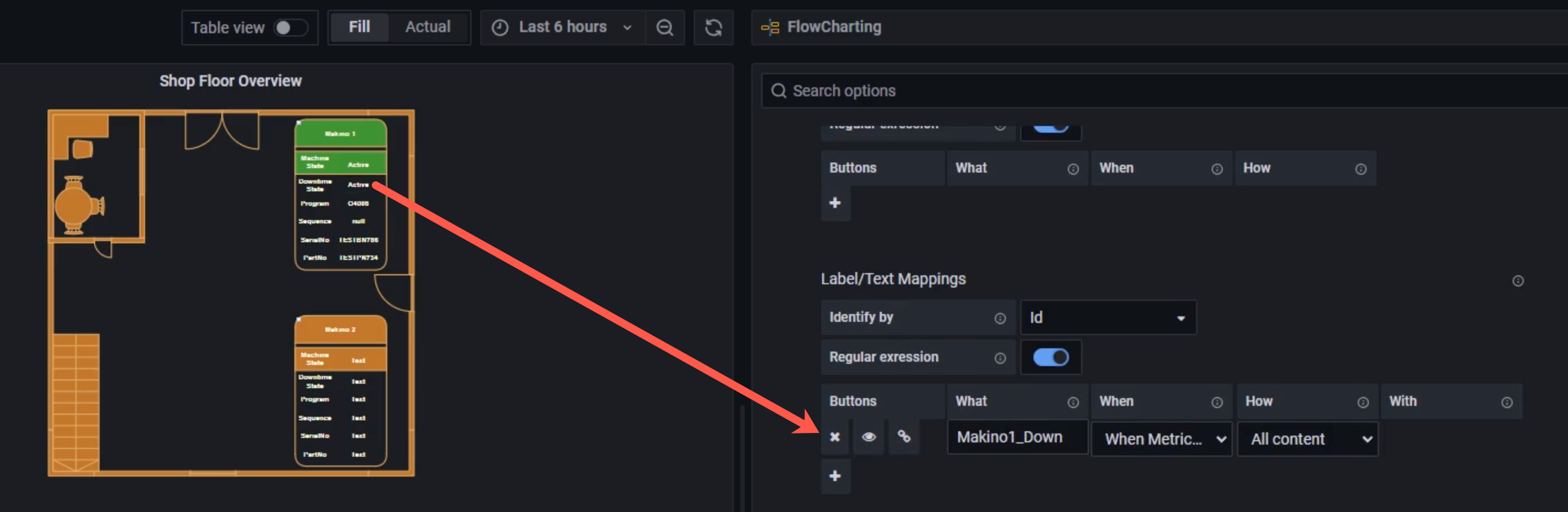
  2. Set the behaviour in the Mapping section for each query.
    • Set Identify by to ID as that is how we identify a specific shape.
    • Enable Regular expression and add some rules. In the What field of the rule, enter the specific shape ID for the shape you want to update.
      Set up the rules for each of the shapes you want to update based on data query values
      The shape label is Active or Stop based on the latest database value.

Refer to the Flowcharting mapping documentation if you need help with this step.

You can change the colour or tooltip of the shape, its text label or link, or add an animation.

Now, when your dashboard runs and your data queries are updated, your diagram will update according to the rules you have set.

Update shapes in a diagram based on live data with draw.io, Grafana and the Flowcharting plugin

More data-driven diagram examples

  1. Select one of these live examples of diagrams in the Flowcharting plugin.
  2. Expand the title and select Edit to see how it is set up.
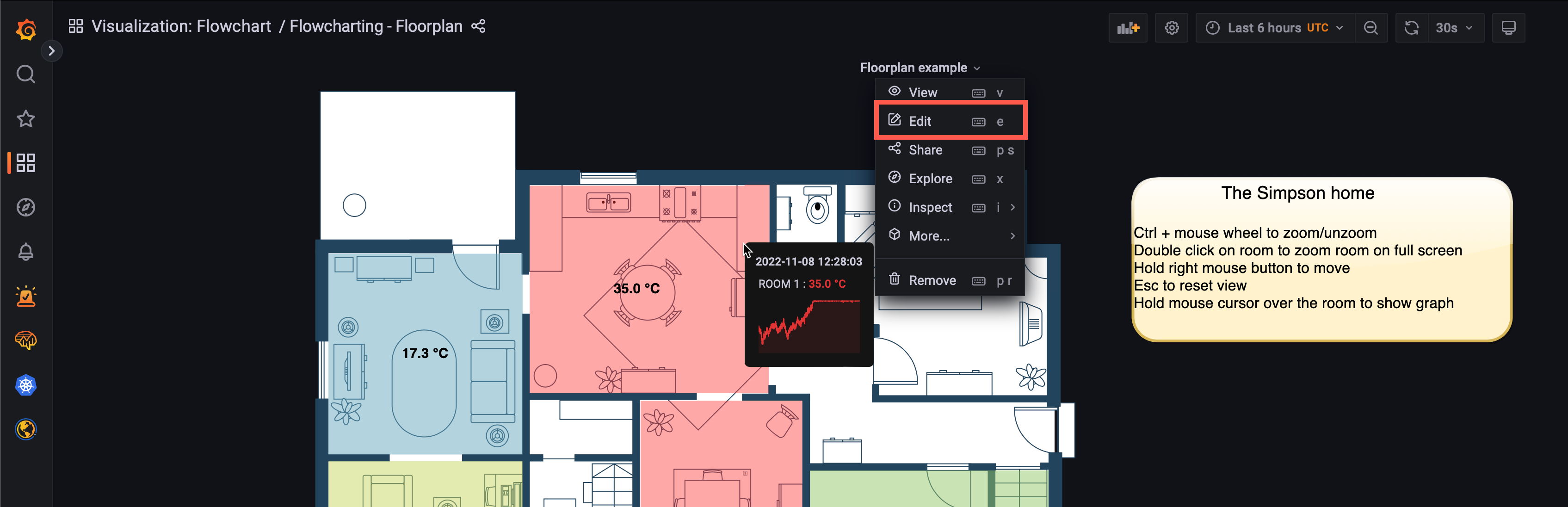
    Have a look at a live example of a draw.io diagram used with the Flowcharting Grafana plugin

Embed diagrams in WordPress as SVG

· 4 min read
draw.io
draw.io Team

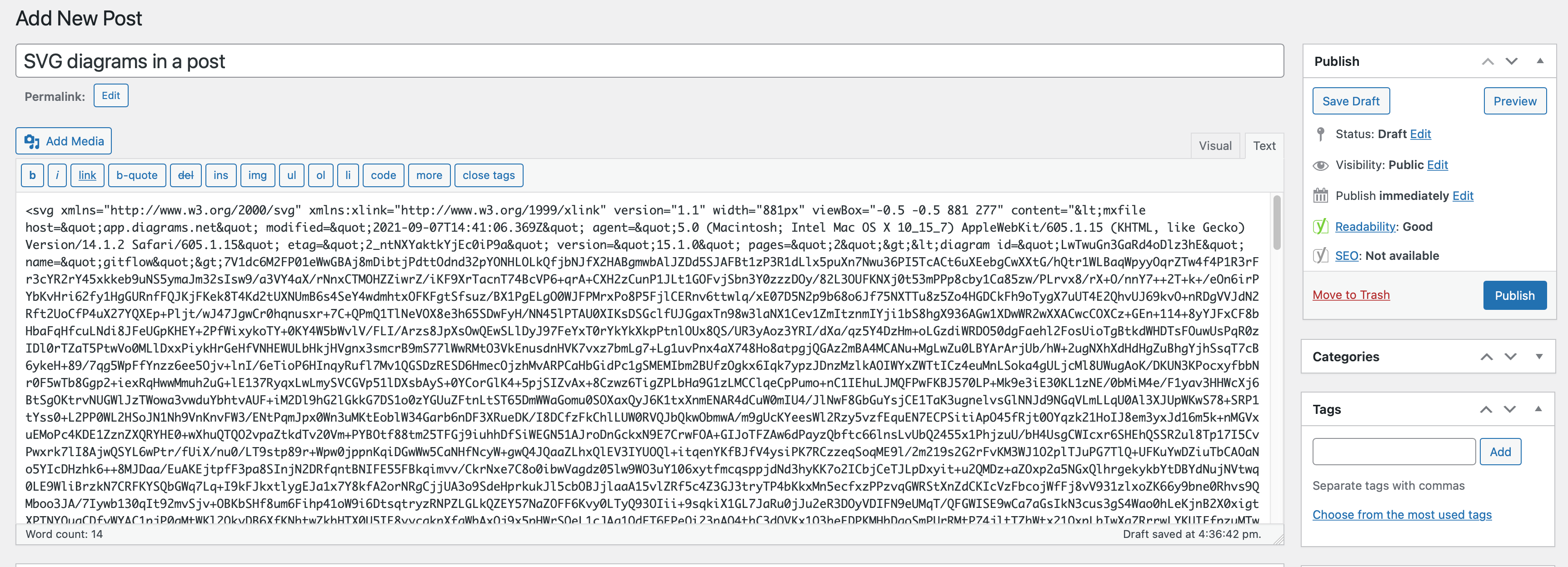
You can embed SVG versions of your diagrams in a WordPress blog post or page. SVG images are quick to load when compared to other formats, and can include your diagram data if you want to allow viewers to download and view a copy of the diagram in the draw.io editor online.

SVG versions of a diagram can only display one page, although the exported SVG file can contain all the diagram data for all pages in your diagram. When you click on an embedded SVG in WordPress, by default, you'll open the diagram in the draw.io lightbox viewer, and be able to see all the links, tooltips, diagram and layers in your diagram.

Embed an SVG diagram in WordPress

  1. Select File > Embed > SVG.
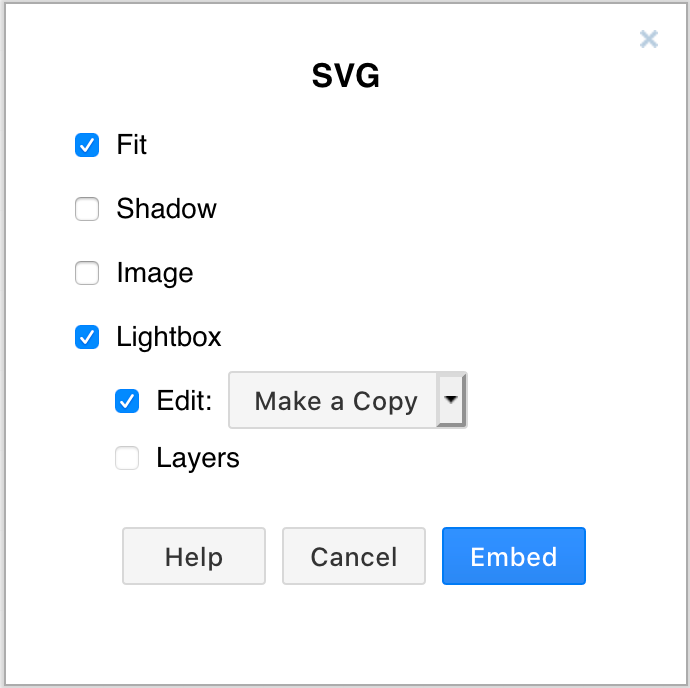
  2. Select the options for the exported SVG file:
    • Fit: Adjusts the diagram to fill the available width of the page or container.
    • Shadow: Adds a drop shadow to the diagram.
    • Image: Creates an image that contains SVG markup.
    • Lightbox: Opens the diagram in a new tab or using the draw.io lightbox.
      • Edit: By default, draw.io will make a copy of the diagram when someone clicks on the Edit button in the lightbox. Change this setting if you want to send them to a specific URL.
      • Layers: Allow viewers to show or hide individual layers in the lightbox.
        Options available when you export your diagram to embeddable SVG markup
  3. Click Embed.
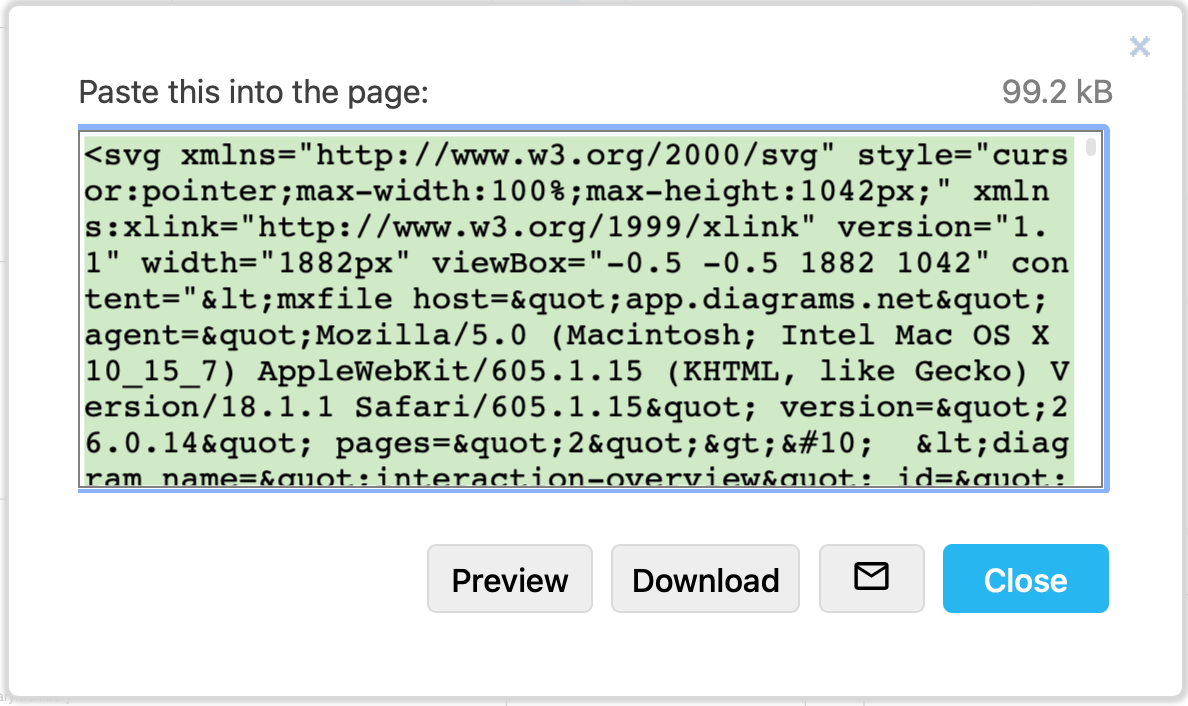
  4. The SVG markup will be displayed in the following dialog, already selected. Click Copy,
    Copy the embeddable SVG markup
  5. When editing a post or page in WordPress, switch to text (HTML) input and paste the SVG markup you copied in the previous step.
    Paste the SVG markup into the text or HTML view of your WordPress page or blog post
  6. Publish your page. Now, when someone clicks on the diagram, it will open in the draw.io lightbox or editor according to the settings you selected.
    When viewers click on the embedded SVG in your WordPress page, they will be taken to the draw.io lightbox or editor

Troubleshooting a broken diagram in WordPress

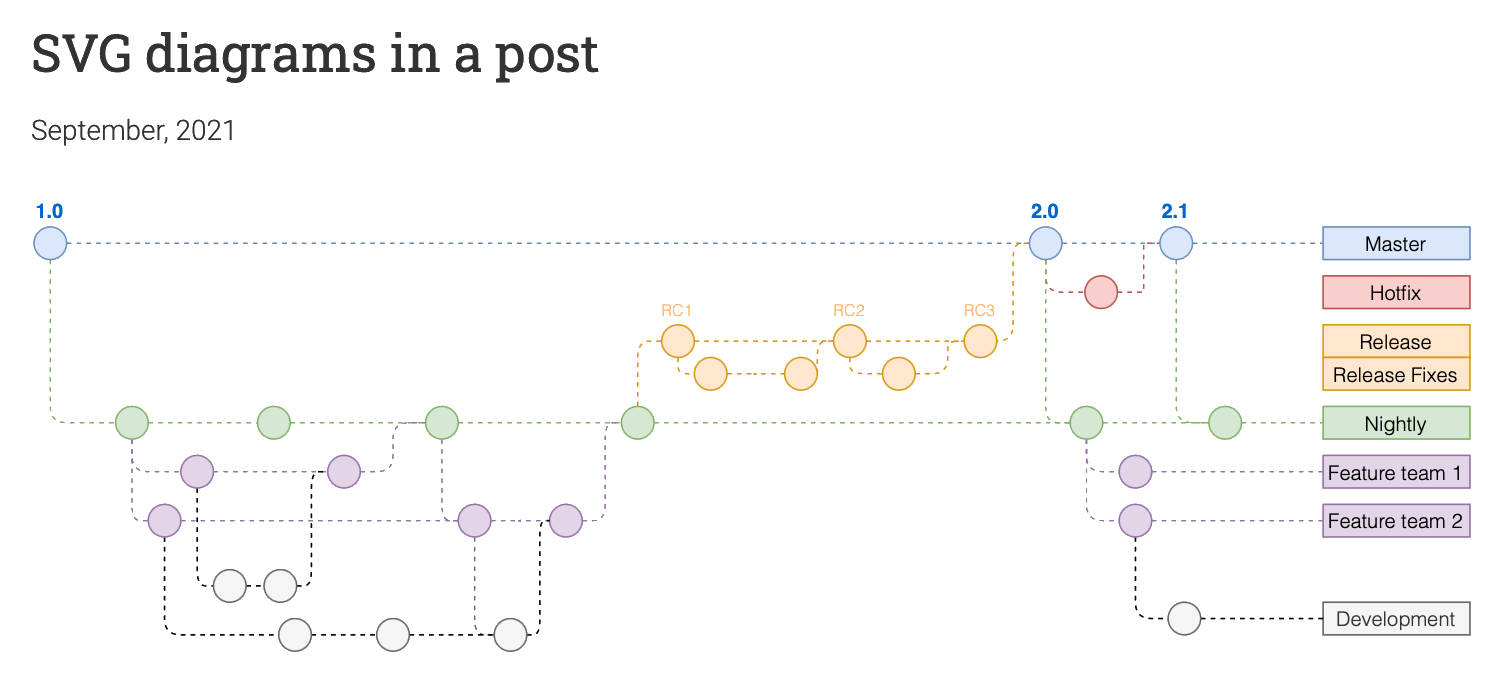
WordPress does not support SVG images with foreign objects, like the HTML text formatting options that you can use on labels.

Shapes (vertices) can use word wrap, and both shapes and connectors can use text formatting by using HTML tags. Both of these must be disabled before you embed your SVG diagram in WordPress.

For example, with both word wrap and text formatting enabled, the diagram above is broken when embedded as an SVG in WordPress.
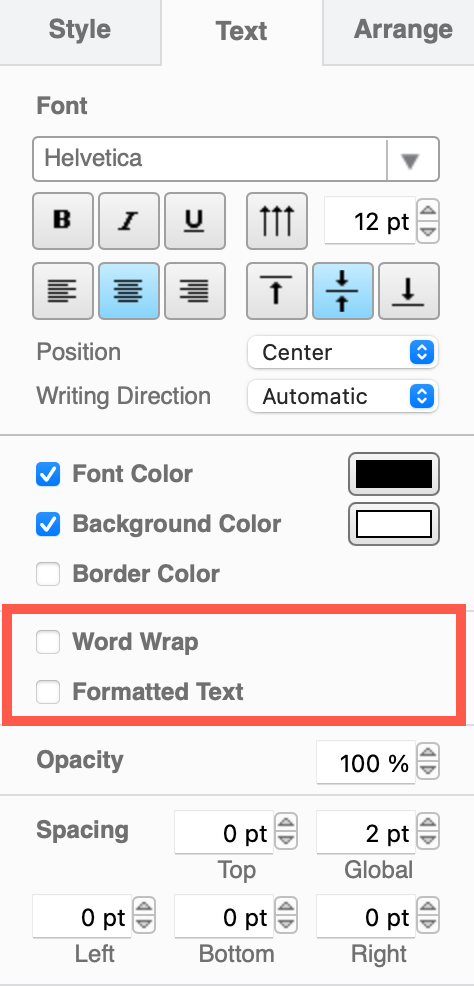
Make sure you disable word wrap and text formatting to get a clean SVG

Disable text formatting:

  1. When editing your diagram in draw.io, right click on a blank spot on the drawing canvas and choose Select All from the context menu to select everything in your diagram.
  2. In the format panel on the right, select the Text tab, and disable the Formatted Text checkbox.

Disable word wrap:

  1. Right click on a blank area on the drawing canvas and choose Select Vertices from the context menu to select all shapes.
  2. In the format panel on the right, select the Text tab, and disable the Word Wrap checkbox.
    Disable word wrap and formatted text when you export or embed your diagram as an SVG image

Embed diagrams in PowerPoint

· 7 min read
draw.io
draw.io Team

Embed images of your diagrams in Microsoft PowerPoint slides with the free draw.io branded add-in. The add-ins can be used in all Microsoft 365 Office applications on both Windows and macOS, and in older versions of PowerPoint, Word and Excel.
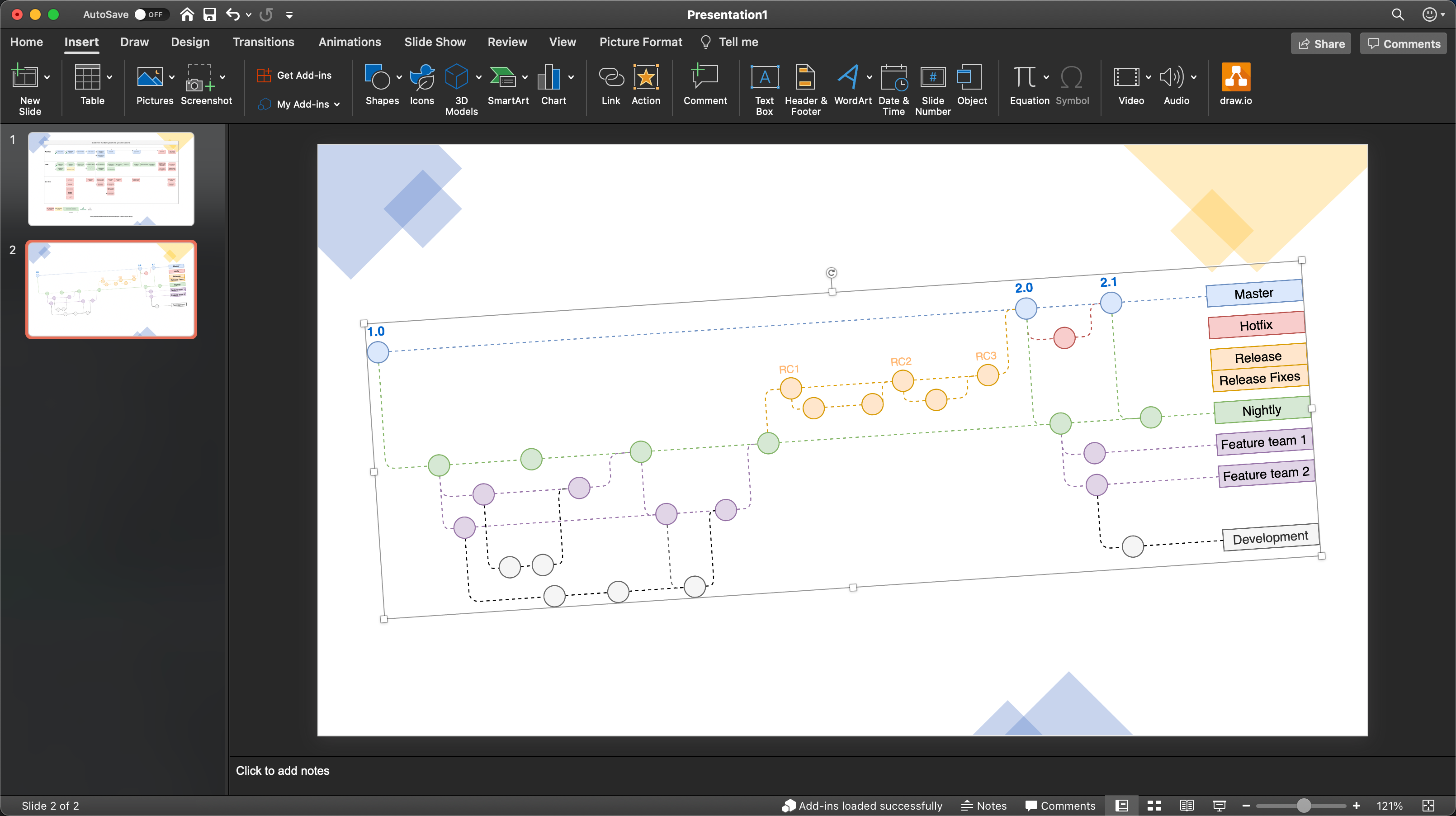
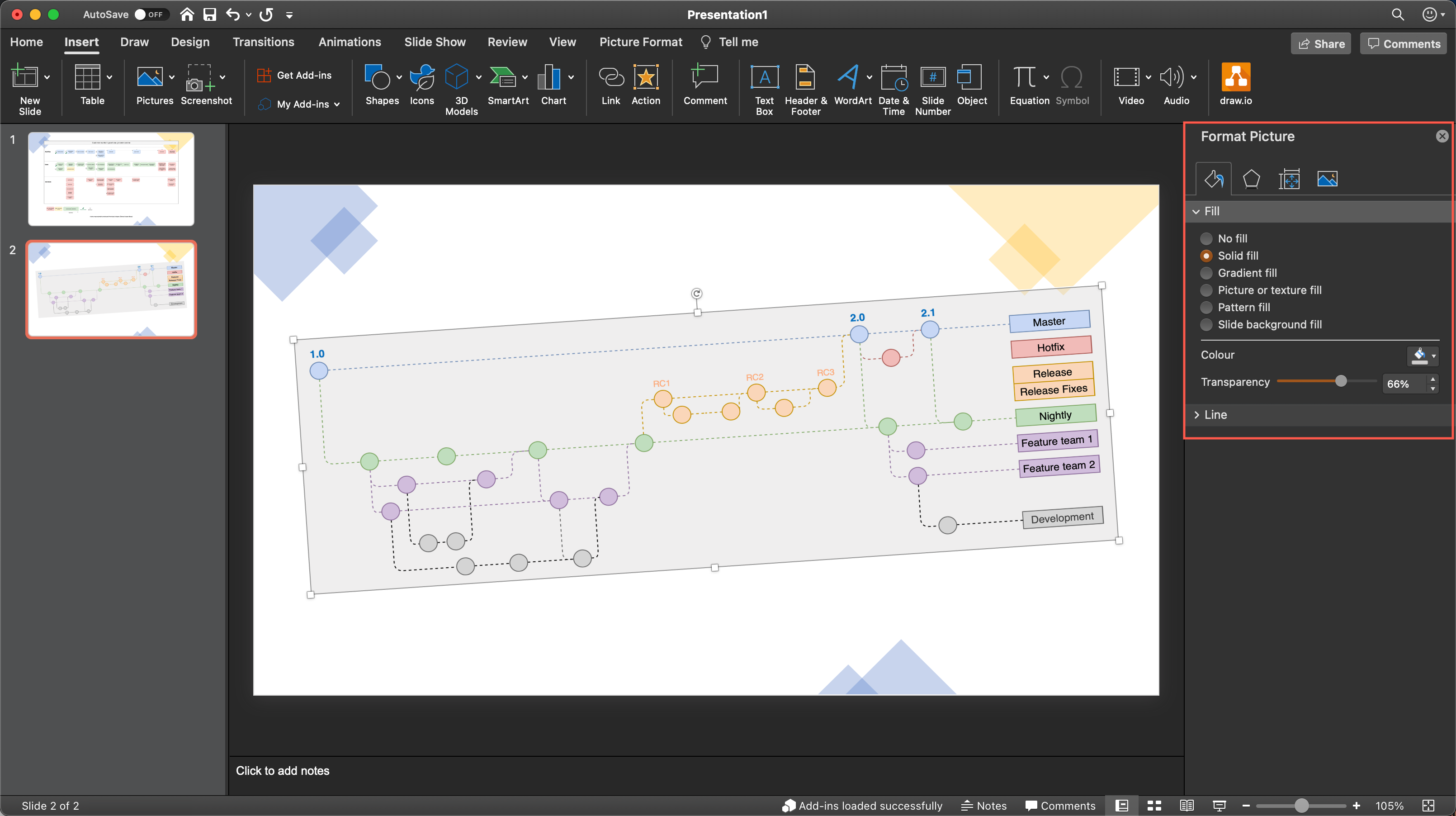
Select the diagram, then drag the grab handles to resize and rotate it in your PowerPoint slide

While the built-in diagramming features in PowerPoint allow you to create simple diagrams, a dedicated diagramming tool makes it easier and faster to create and update more complex diagrams.

Note: Your diagram data is only ever stored in your browser and either on your device, or in your cloud platform (OneDrive or Google Drive) - the draw.io servers never store your diagram data.

Install the diagramming add-in

Install the draw.io add-in for PowerPoint from Microsoft AppSource: https://appsource.microsoft.com/en-us/product/office/wa200000113.
Install the draw.io diagrams add-in via Microsoft and AppSource

Click on Get it now, log in, complete the AppSource registration, and click on Open in PowerPoint.

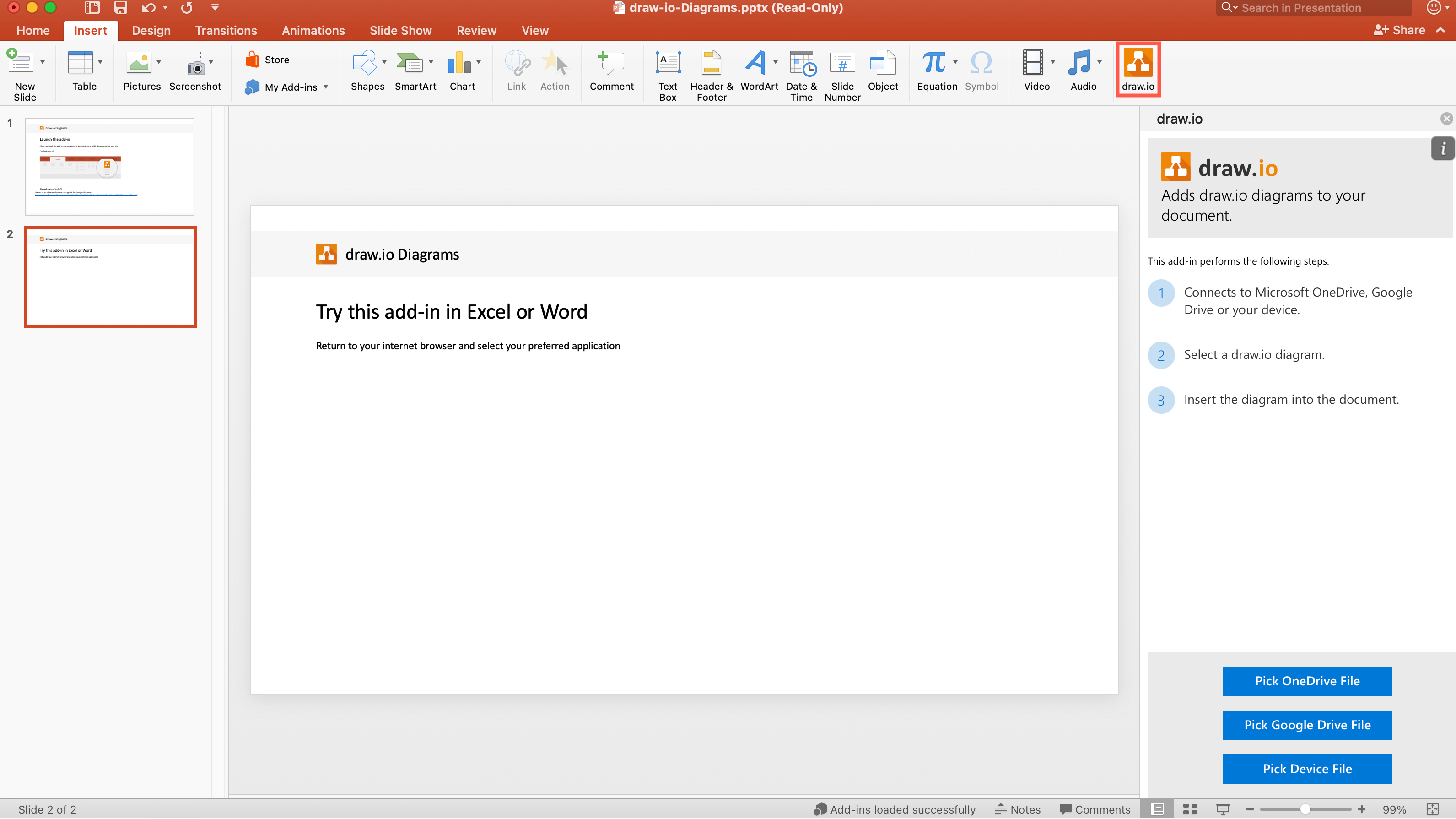
A read-only example slide will be opened in your PowerPoint application, and the draw.io tool in the ribbon will be available under Insert when the add-in has been successfully installed.
The draw.io add-in instructions and the draw.io tool in the ribbon will be displayed after a successful installation

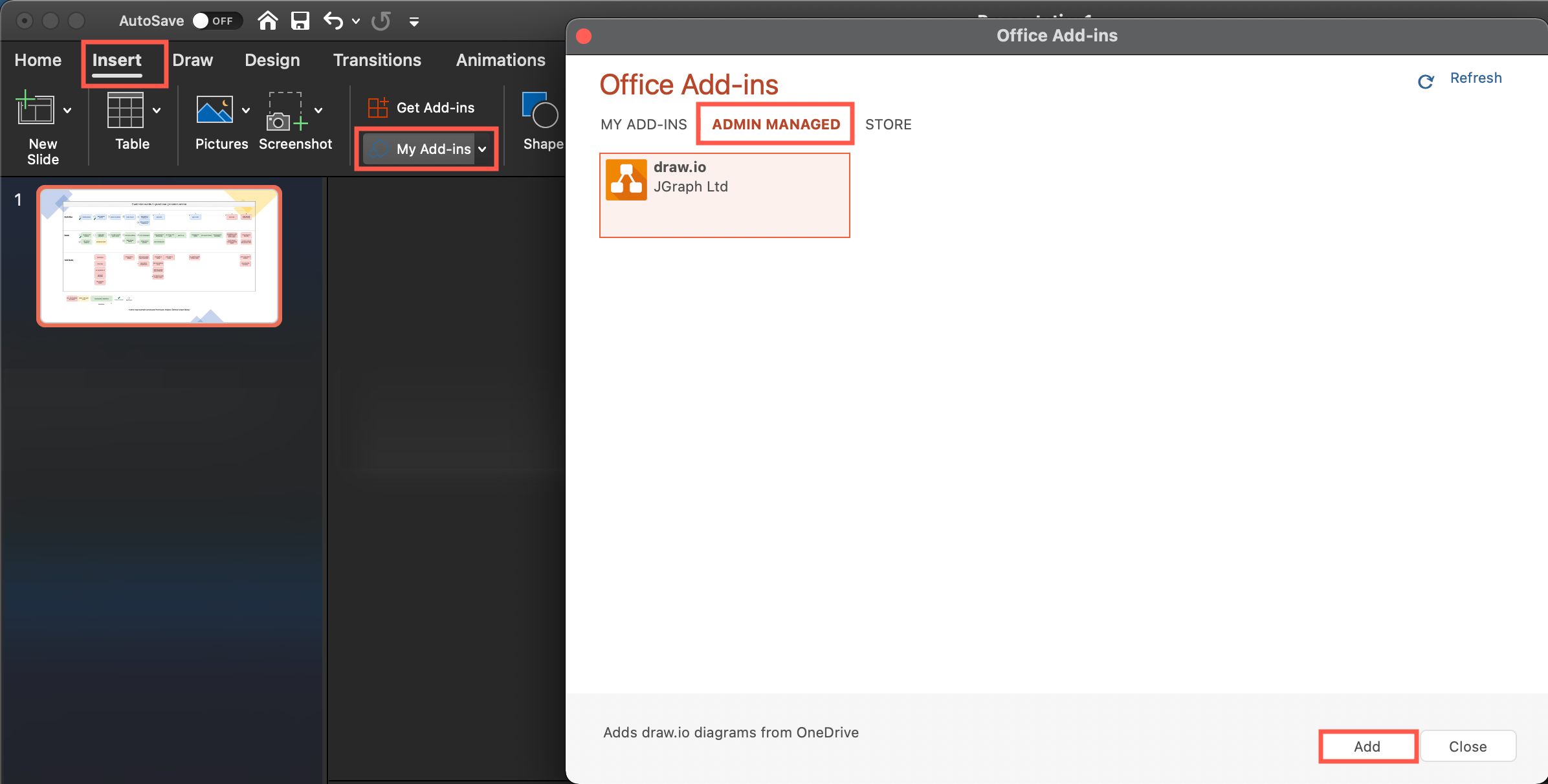
Note: If you are using Microsoft 365 at work, ask your administrator to approve the draw.io add-in first. Then install the draw.io add-in in your PowerPoint application.

  1. Select the Insert tab in PowerPoint, then click My add-ins.
  2. Click on ADMIN MANAGED, select the draw.io add-in, then click Add.
    Install the draw.io add-in after your administrator has approved it for use in your workplace's Microsoft 365 applications

Add a diagram to a PowerPoint slide

Embedded diagrams are displayed in your PowerPoint slides as images. This image is generated at the time you insert a page from your selected diagram file into a slide.

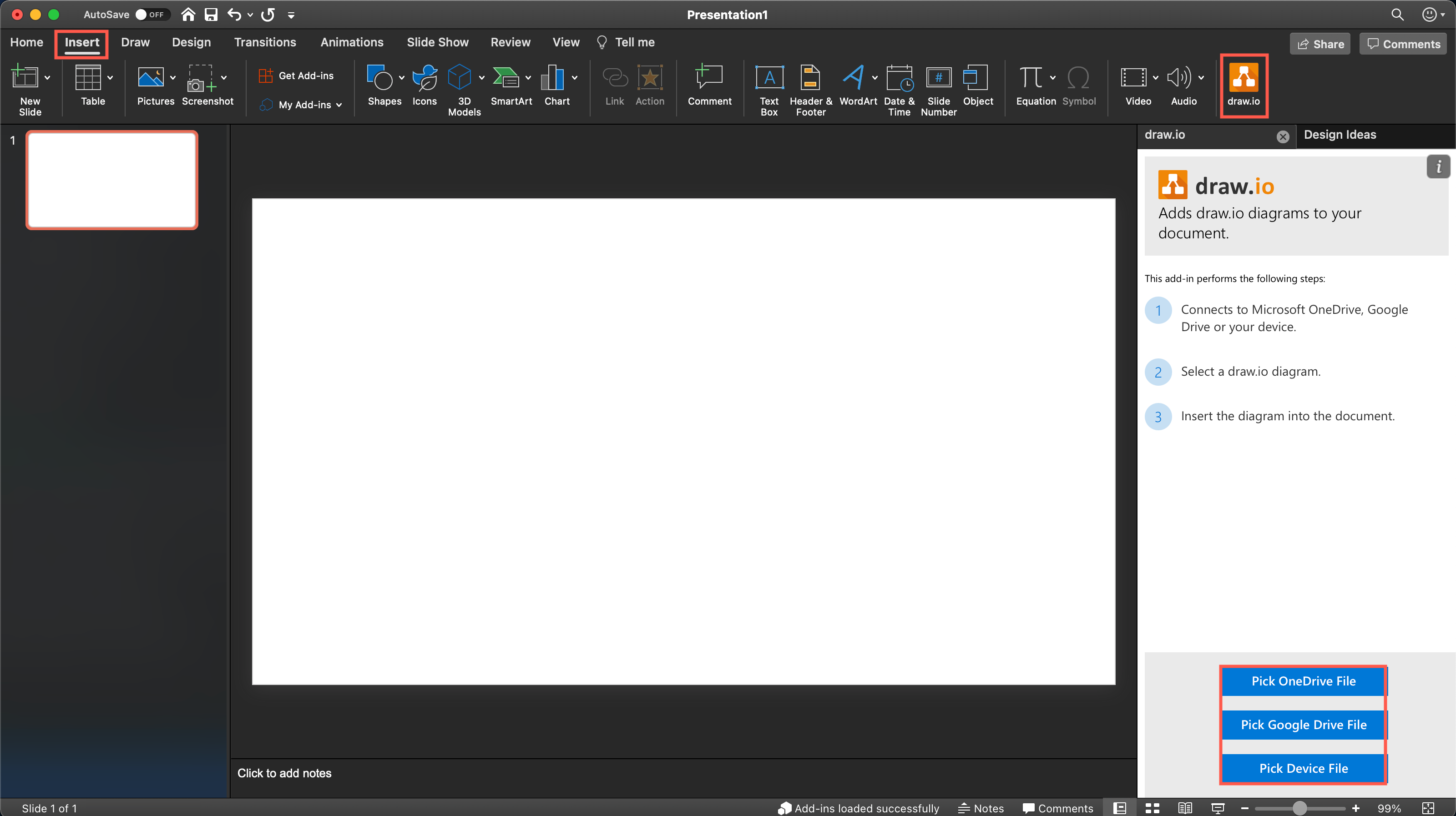
  1. Select the Insert tab, then click on the draw.io tool.
    In the panel that appears on the right, click on the location where your diagram file is stored: OneDrive, Google Drive or a file on your local Device.
    Click on the draw.io tool under the Insert tab in PowerPoint, Excel or Word and select the location where your diagram file is stored
  2. Navigate to and select your diagram file.
    Tip: You may need to authorise draw.io to access your cloud storage.
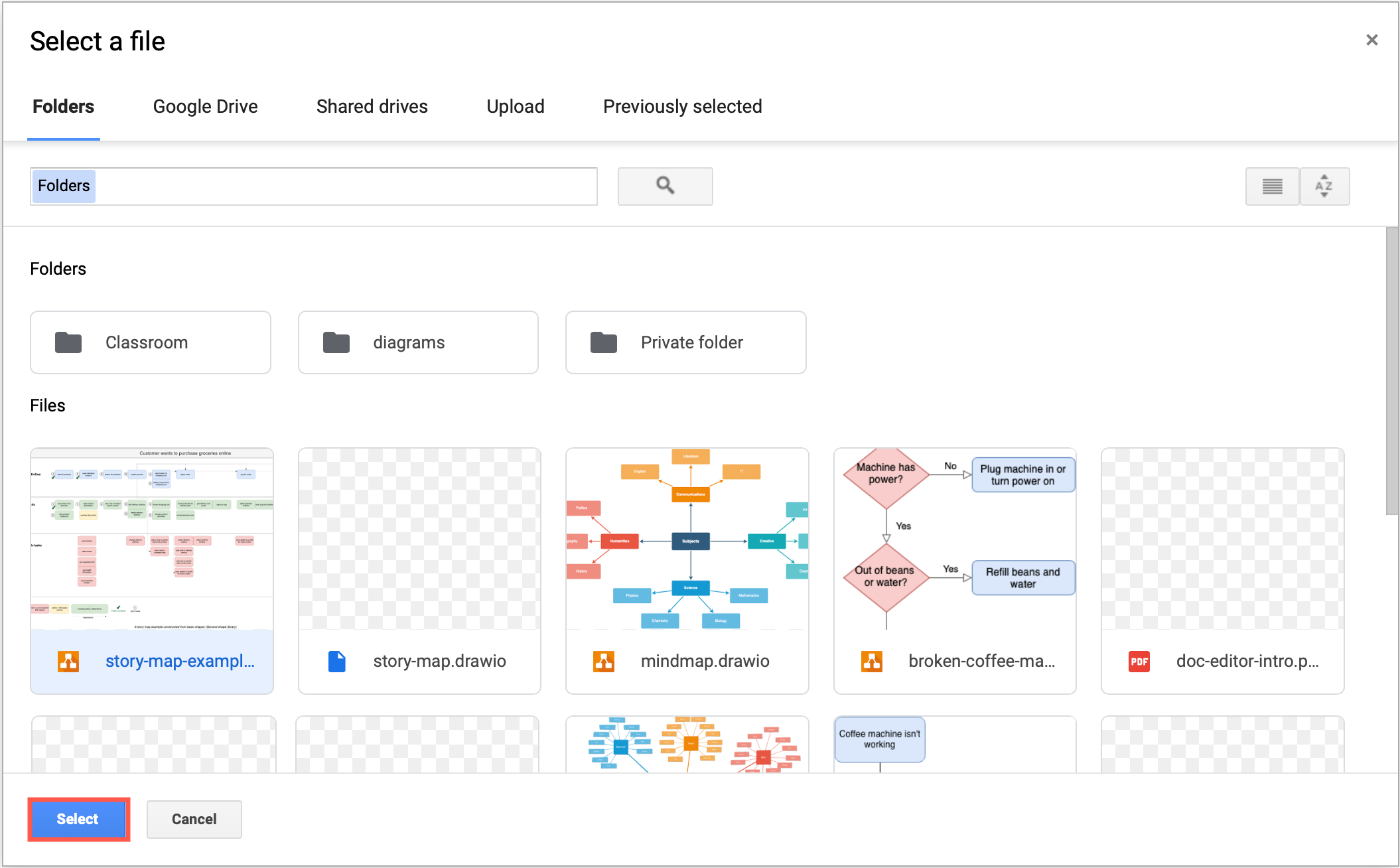
    • Google Drive will display a separate pop-up dialog. Select the file, then click Select to see a preview in the panel on the right.
      Navigate to the diagram file in Google Drive and click Select to see a preview
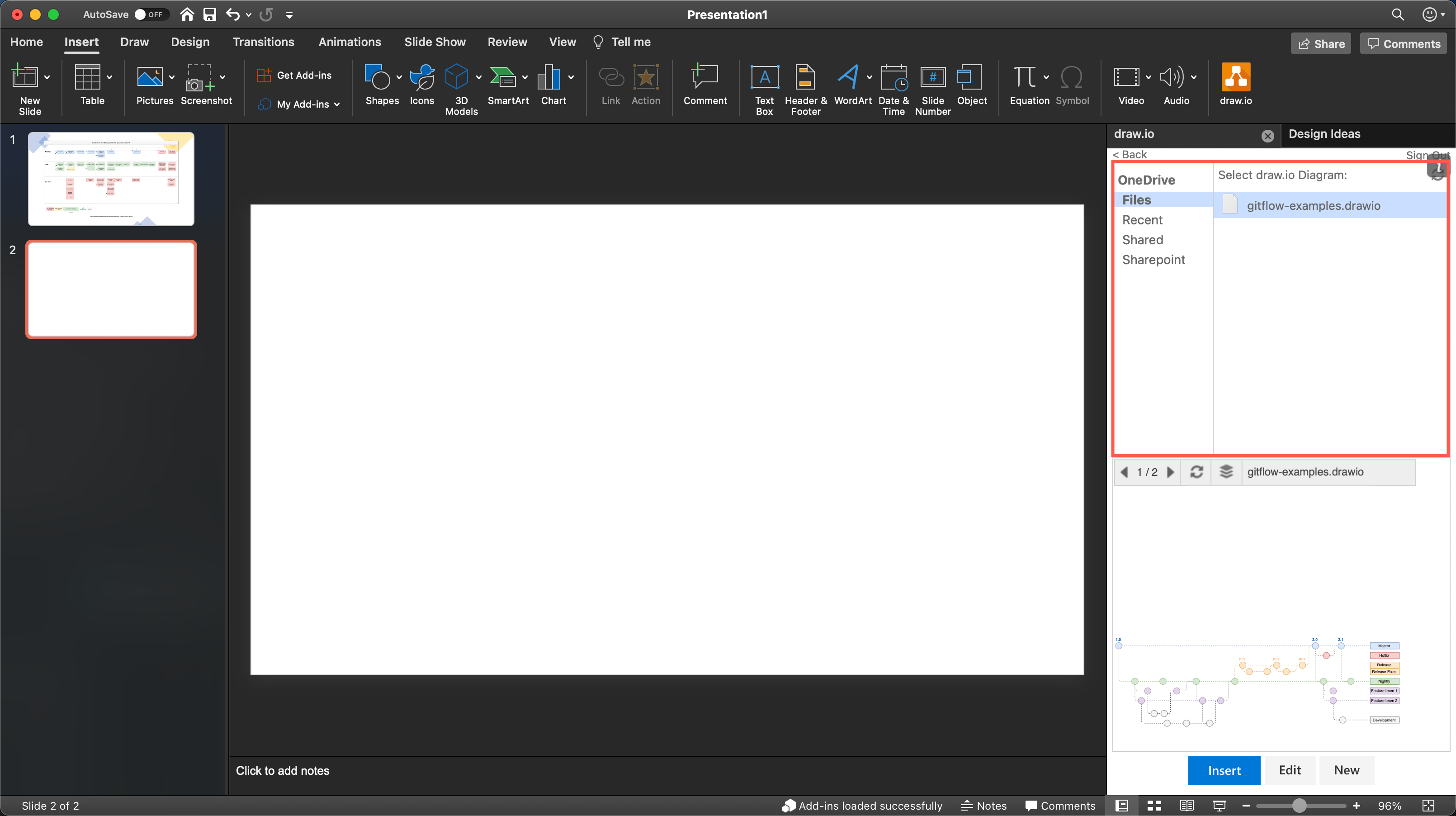
    • OneDrive will display your files at the top of the panel on the right. Select the file to see a preview.
      Navigate to the diagram file in OneDrive at the top of the panel on the right to see a preview
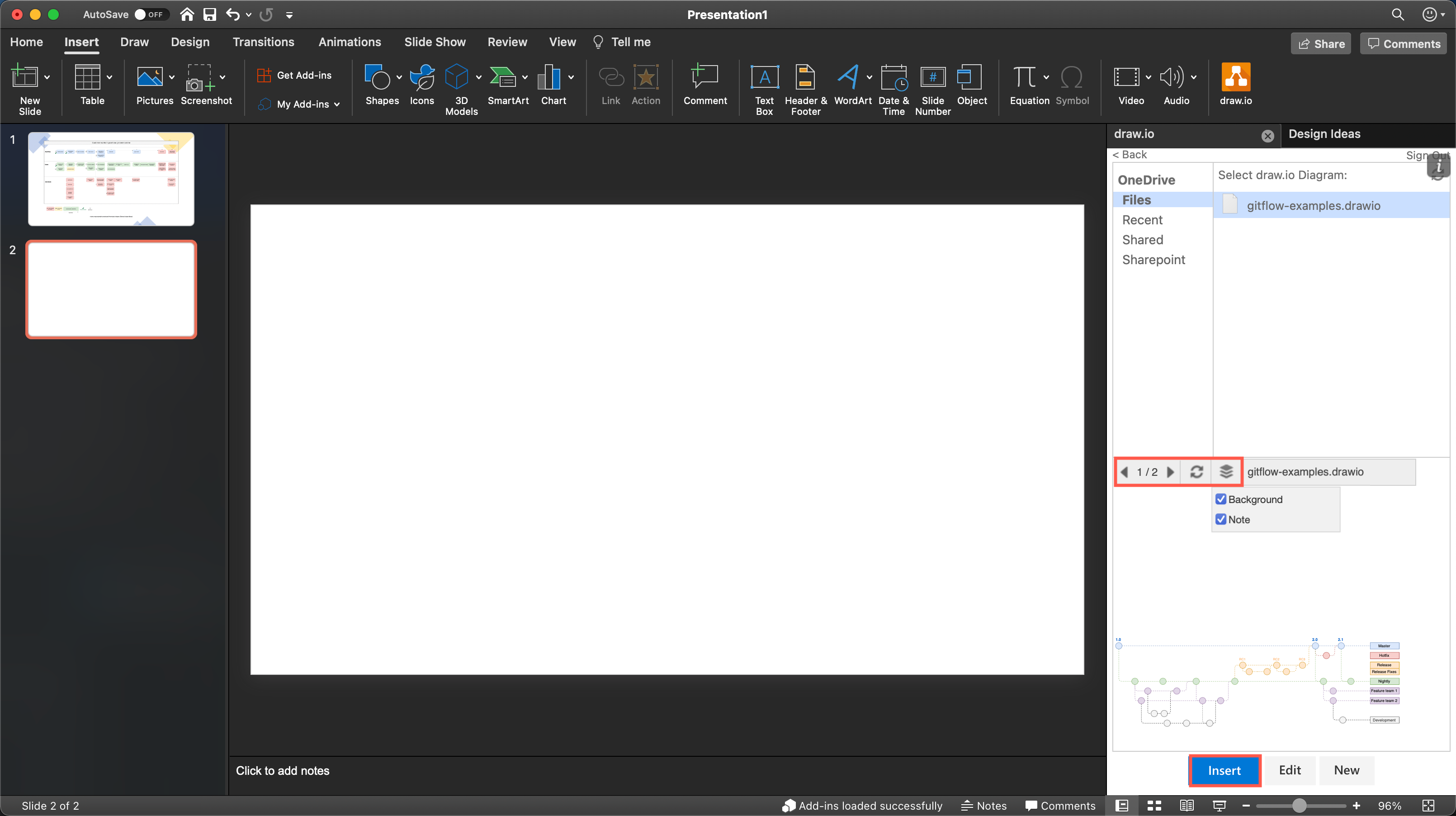
  3. If your diagram has multiple pages, use the arrows above the diagram preview to select the page you want to insert.
  4. If your diagram has multiple layers, click on the layers button to select which to display (all layers are selected by default).
    Select the diagram page and layers you want to display in your PowerPoint slide, Excel sheet or Word document
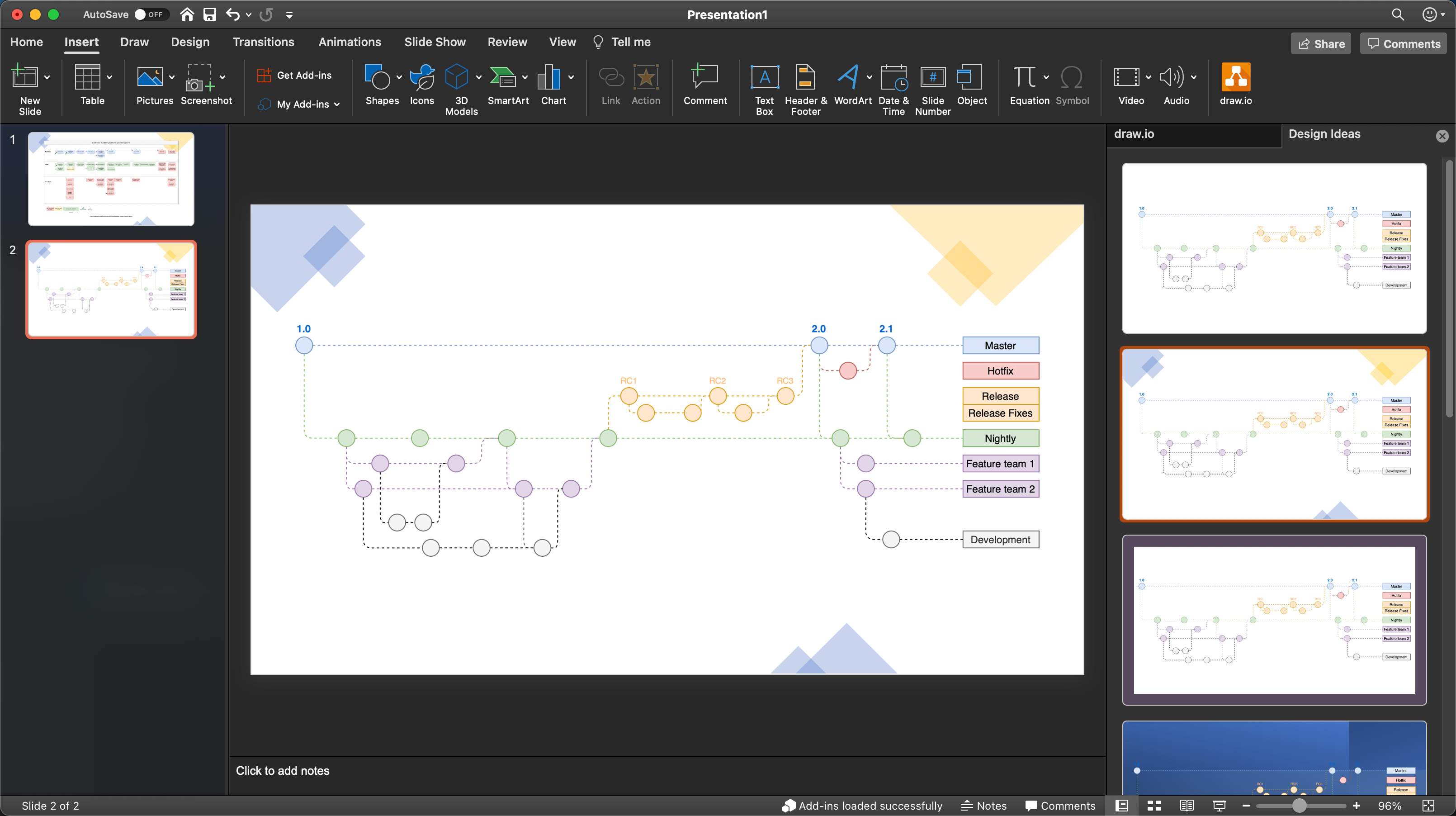
  5. Click Insert to add your diagram to the PowerPoint slide.
    Insert a diagram into a PowerPoint presentation using the free draw.io add-in
    Tip: If you inserted the diagram into PowerPoint, select a slide design from the list that appears on the right.

Change the size and position of your diagram

  • Drag the diagram into another position in the slide, sheet or document.
  • Resize the diagram by dragging the grab handles in the corners.
  • Rotate the diagram by dragging the circular rotate arrow at the top.
    Select the diagram, then drag the grab handles to resize and rotate it in your PowerPoint slide

Format embedded diagrams

You can format the embedded diagram in PowerPoint like any other embedded image file.

Right-click on the diagram, then select Format Picture to display the panel on the right.
Format the embedded diagram in PowerPoint, Excel or Word as you would an embedded image via right-click /> Format Picture

  • Fill & Line tab: Change the background colour and transparency, or add an outline.
  • Effects tab: Add a shadow or other effects.
  • Picture tab: Add a colour filter to change the colours in the diagram, sharpen or soften the lines and text, change the brightness or contrast and more.
    • Use the Crop values under this tab to add whitespace between the image border and the diagram, offset the diagram within the border or crop the diagram.

Note: If you are using an older version of Microsoft Office, the Picture Format options will appear as a new tab on the ribbon.

Use MS Office-compatible SVG labels

MS Office has some quirks when it come to image formats, especially SVG. When you embed diagrams in PowerPoint and resize them, the label text will have cleaner edges if you set the simpleLabels option.

  1. Select Extras > Configuration in the draw.io editor menu.
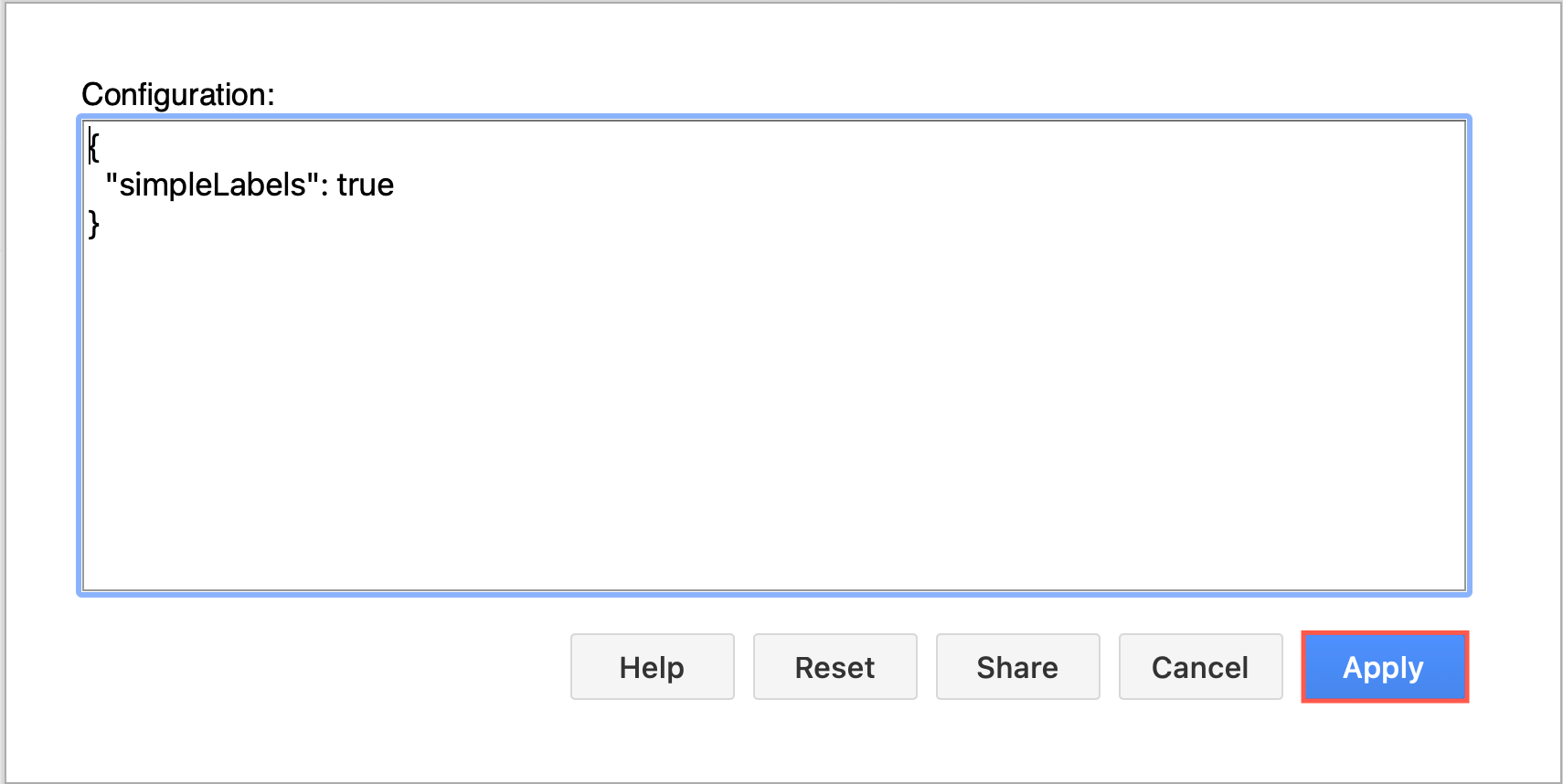
  2. Add the following code to the Configuration text box: { "simpleLabels": true }
    When you are embedding a diagram in PowerPoint, to ensure it can be resized cleanly, set the simpleLabels option in the editor configuration
  3. Click Apply.

Update embedded diagrams

After you edit the diagram files in draw.io, re-insert the diagrams into your PowerPoint slide to regenerate the embedded image.

Microsoft Word lets you import changes to your diagram files and update the images in your document using the draw.io add-in.
Updated the embedded diagrams after you have edited them in draw.io in Word via the draw.io add-in tools under the Insert tab on the ribbon