Enable Copy on Connect
By default, you can drag a connector from a shape and drop it on an empty area of the drawing canvas to have an unattached connector.
To create flows quickly, where there are a large number of the same shape that need to be connected, enable Copy on Connect.
- Enable the Copy on Connect toggle in the Canvas & Grid section of the configuration dialog, or set the
copyOnConnectconfiguration option totruein the JSON tab.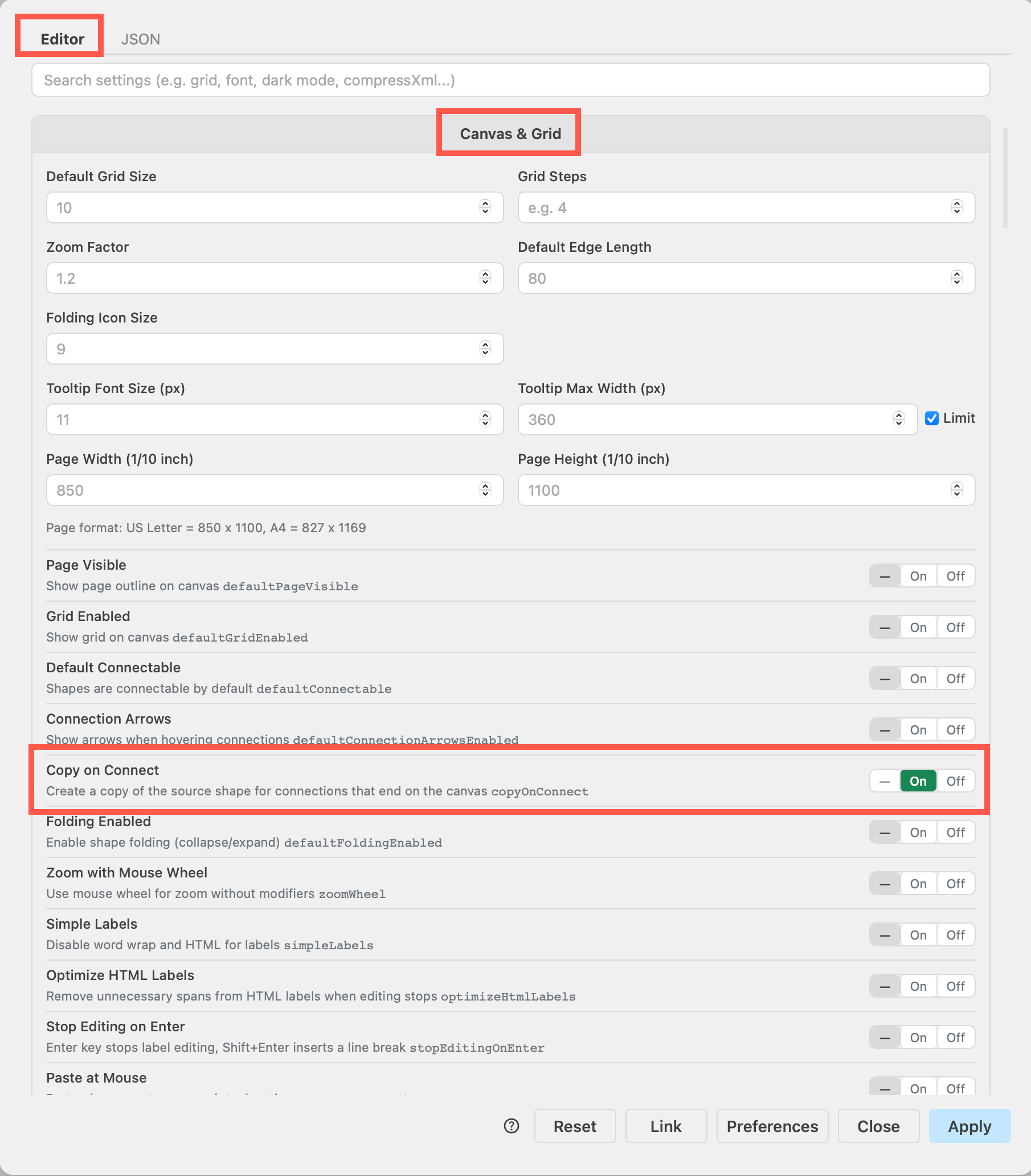
- Now, when you drag a connector from a shape and drop it on an empty area of the drawing canvas, it will add and connect a copy of the source shape.
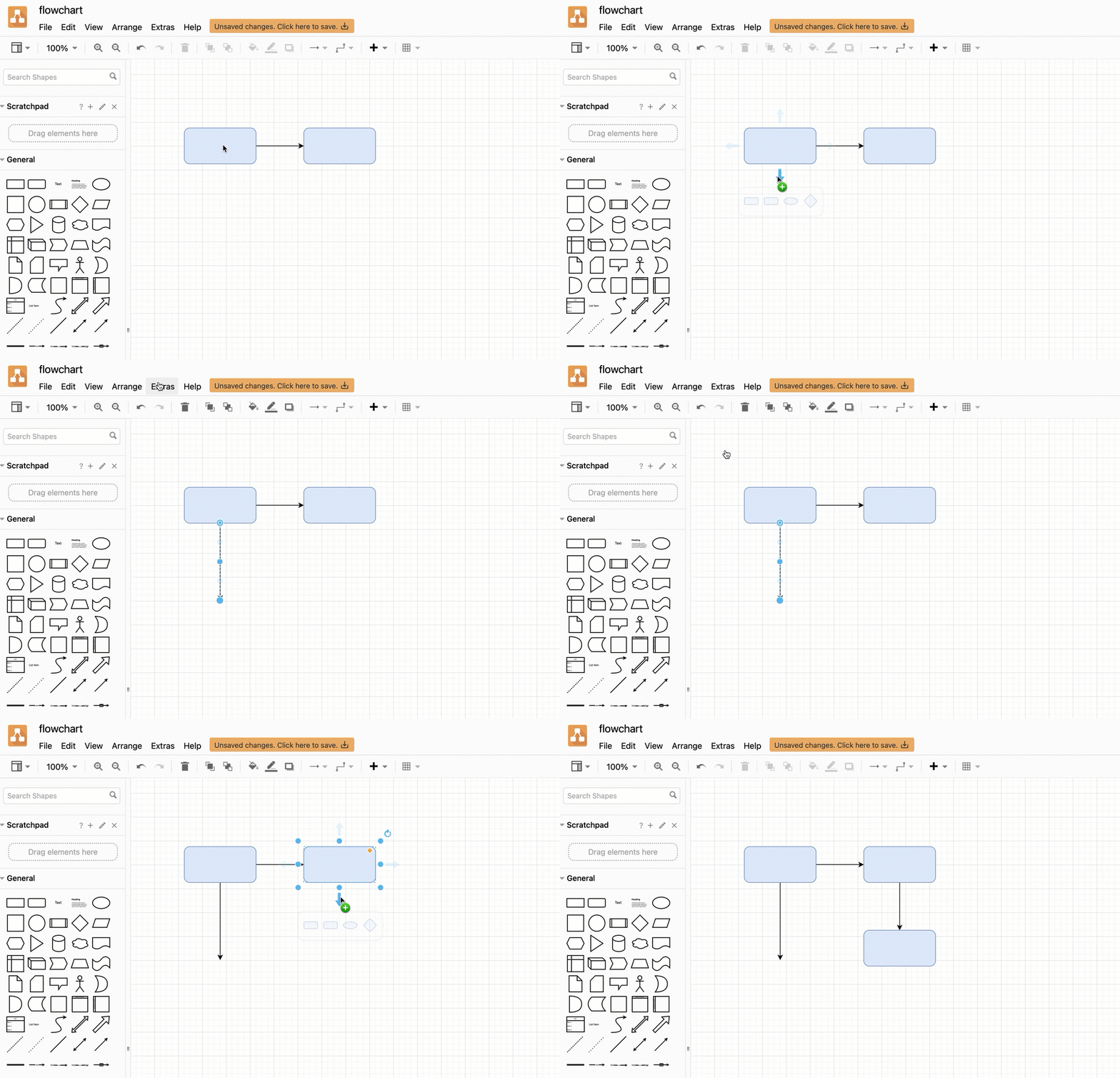
Note: In the sketch theme, Copy on Connect is enabled by default. Hold Ctrl (Cmd on macOS) while dropping a connection to just place a connector without copying the shape.