Explore diagrams interactively
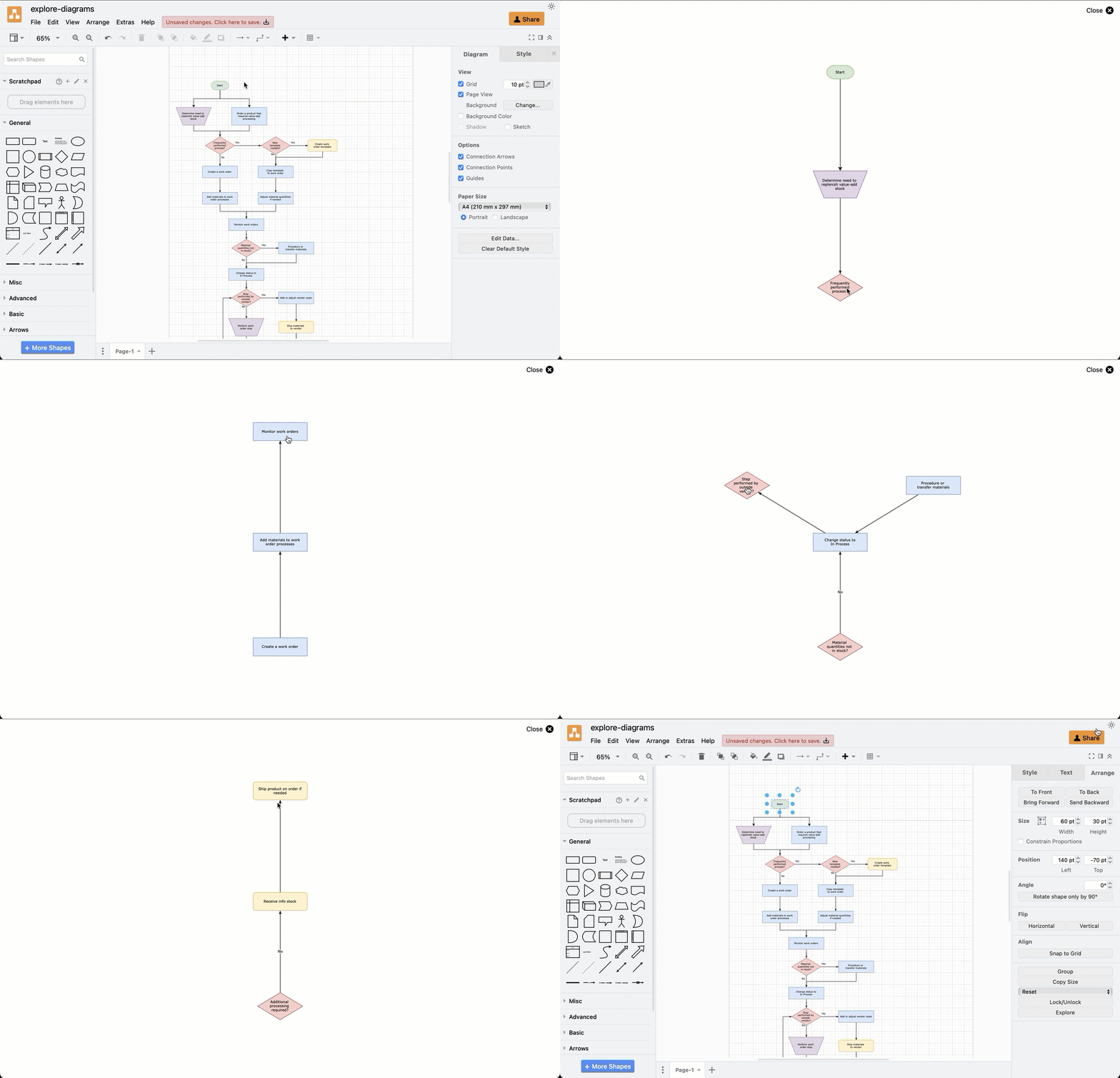
Step through your diagram interactively in the draw.io editor via the Arrange tab in the format panel - select a shape then click on connected shapes in the Explore viewer to see how the shapes in your diagram are related to each other.
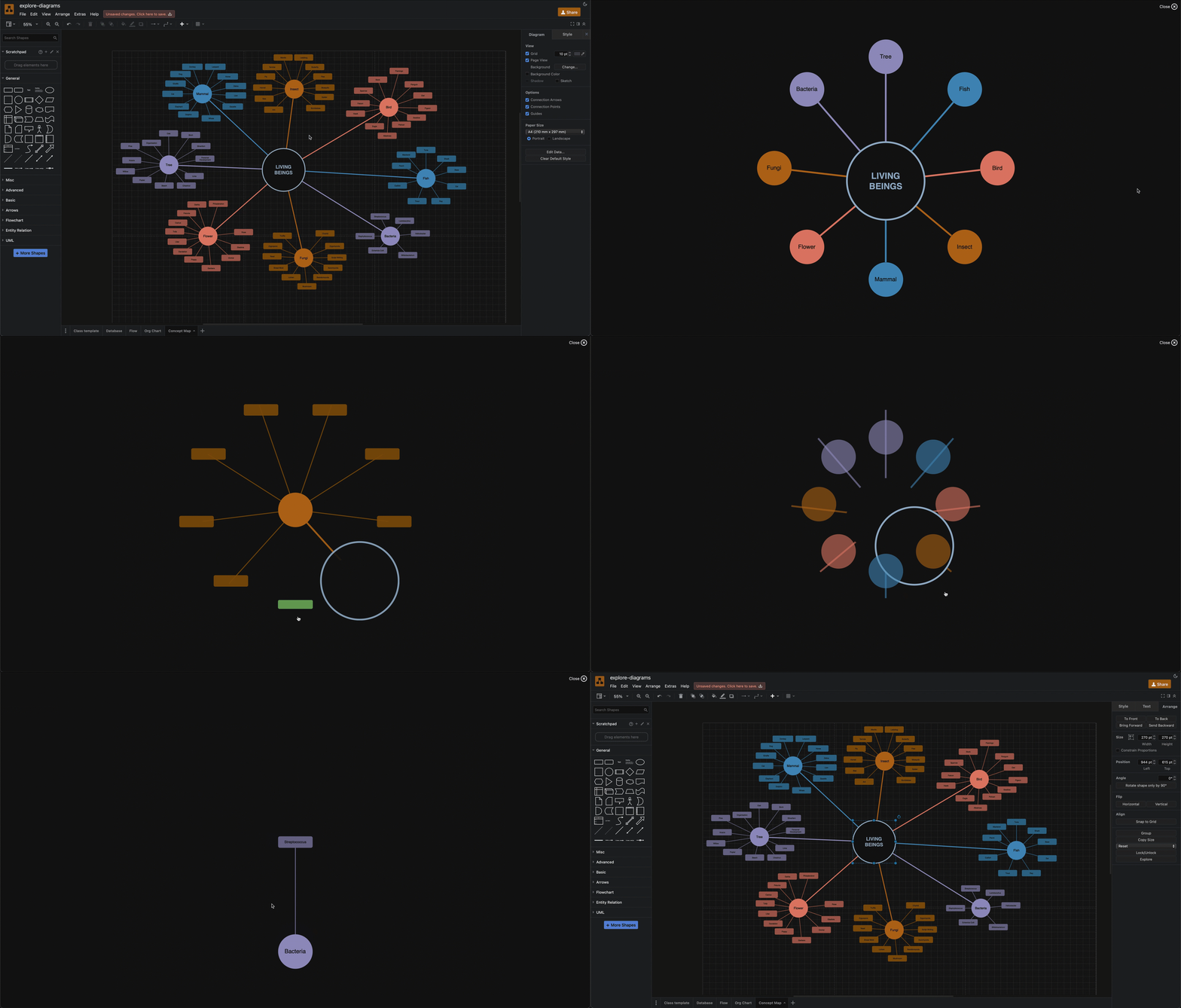
The Explore viewer in draw.io works best on hierarchical diagrams like trees, organisation charts, graphs and UML class diagrams, as well as flowcharts and network diagrams - any diagram that shows relationships using connectors.
Learn better interactively
An interactive visualisation can be a more intuitive way to learn about complex systems in a diagram for people who prefer to learn via exploration and experience rather than by reading static content.
Explore complexity without distraction
Being able to step through and explore a diagram is especially useful for understanding large diagrams.
- complicated code structures in class diagrams
- database or entity relationship diagrams
- complex IT infrastructures and large enmeshed systems
- large team hierarchies in organisation
Draw an explorable diagram
Make sure each shape in your diagram is connected to at least one other shape and has an appropriate label so you can explore and understand the entire diagram. Disconnected shapes - shapes with no connectors - or connectors not connected to any shapes will not appear in the Explore viewer, and you can't explore from them.
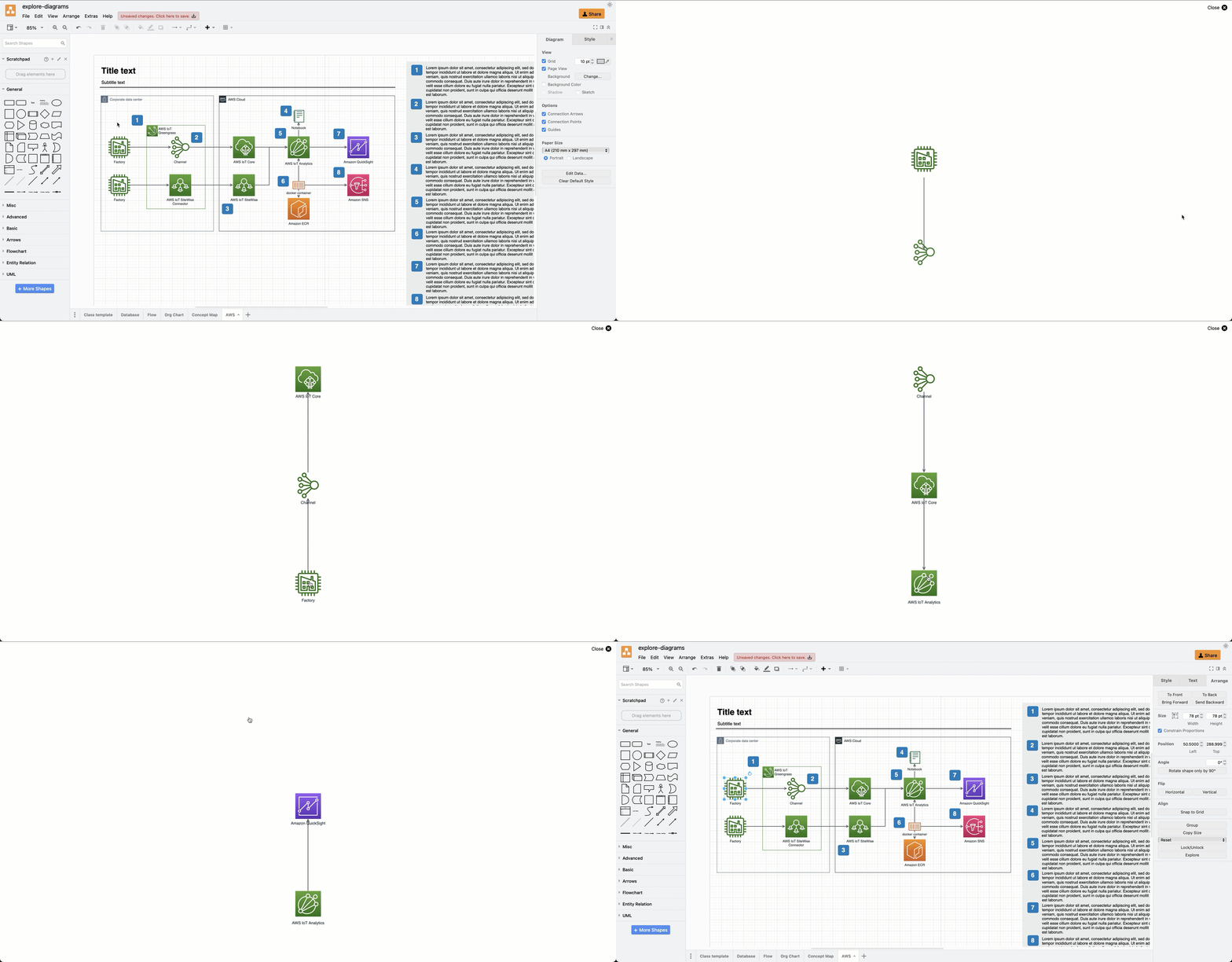
Use this Explore feature to 'debug' complex diagrams - if a shape doesn't appear when or where you expect it to, or if a shape is connected to an unrelated shape, you'll need to edit the connectors to/from that shape.
How to interactively explore a diagram
- In the draw.io editor, select a shape in your diagram.
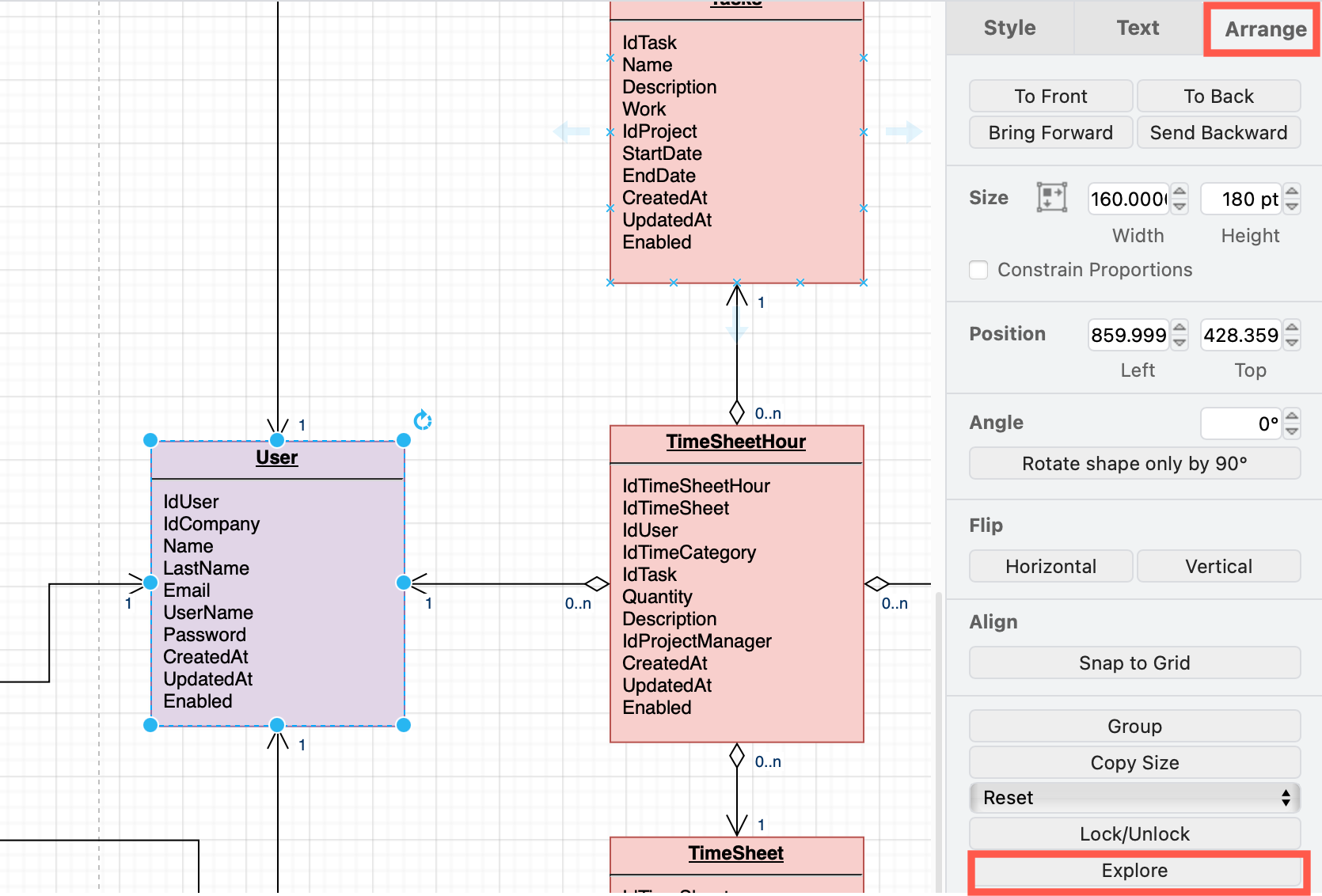
- Go to the Arrange tab in the format panel on the right and click on Explore.
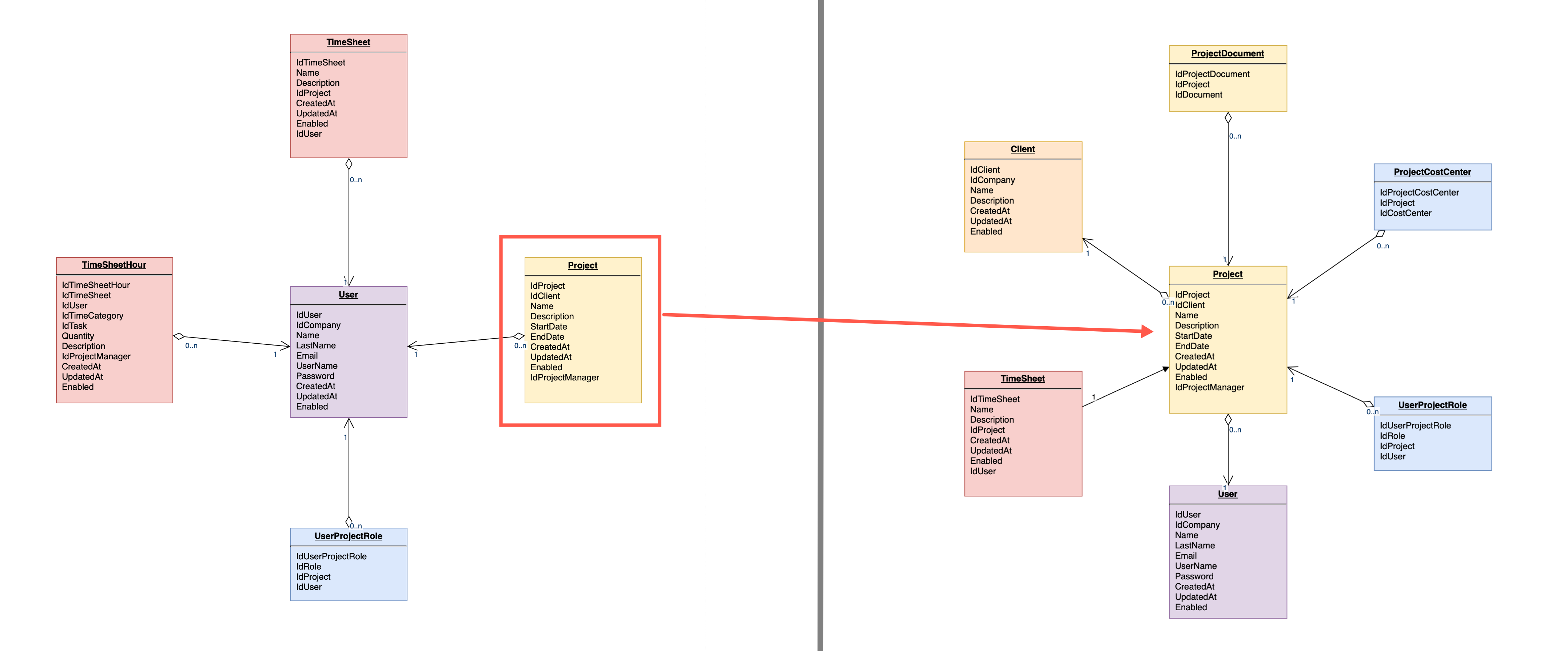
The diagram will open in the Explore viewer with the shape you selected at the centre.
Click on any connected shape to move it to the centre and explore from there. The shapes connected to it will be added, and the layout will rearrange itself around the new central shape. Click on the arrow at the top left, or press Backspace, to go back to the previous shape.
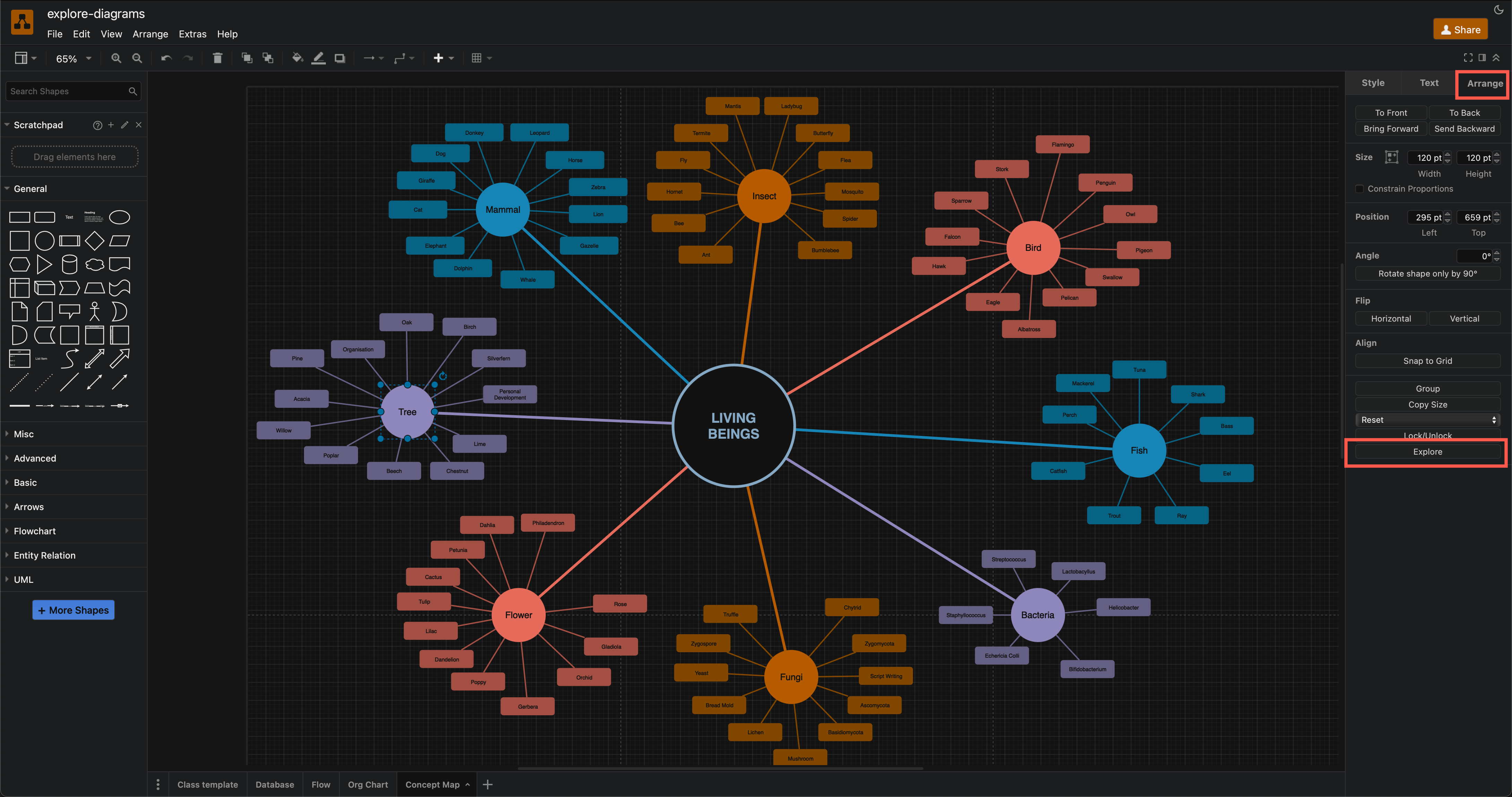
If a selected shape has a large number of connected shapes, such as in the following concept map template, only 12 connected shapes are shown. A grey shape shows how many additional connected shapes are hidden, for example +8. Click on it to show 12 more connected shapes.
See more levels of connected shapes
Zoom out with the mouse wheel, or click on Zoom Out at the bottom right of the Explore viewer, to see the shapes that are connected to the connected shapes. Each step adds one more level, up to six levels. Zoom in to remove them again.
Drag a shape to pull its connected shapes along and see how they are related. Hover over a shape to highlight it and the shapes connected to it.
See only the important paths in a complex diagram
Large and complex diagrams can be overwhelming when learning new systems or stepping through detailed processes.
Explore a diagram in draw.io to 'hide' the extra information: focus on just the next step you need to take in a workflow, or the next connected system you need to check when looking for a problem in a complex infrastructure.
Alternative - use custom links on shapes in the draw.io lightbox
Instead of exploring a diagram from within the draw.io editor, you can explore directly from the draw.io lightbox viewer by adding a custom link to a shape.
- Right-click on a shape and select Edit Link.
- Past the following link into the first text field, and click OK.
data:action/json,{"title":"Explore","actions":[{"explore":{}}]}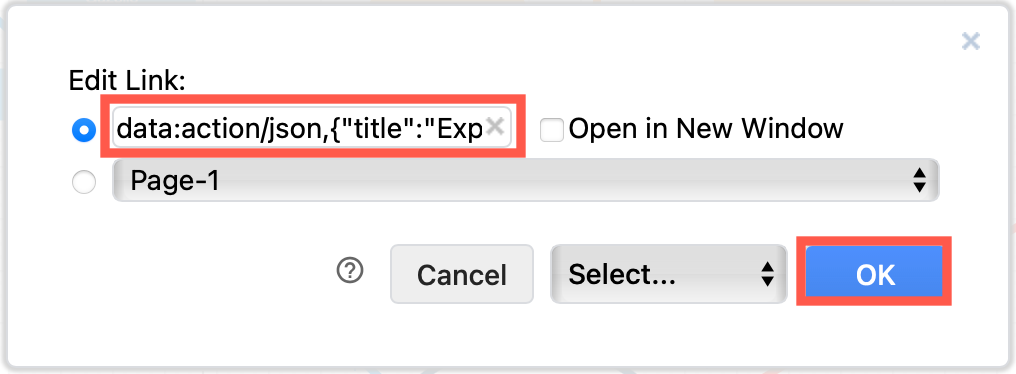
When you click on this shape with the link in the lightbox view of your diagram, you'll be taken to the Explore viewer.
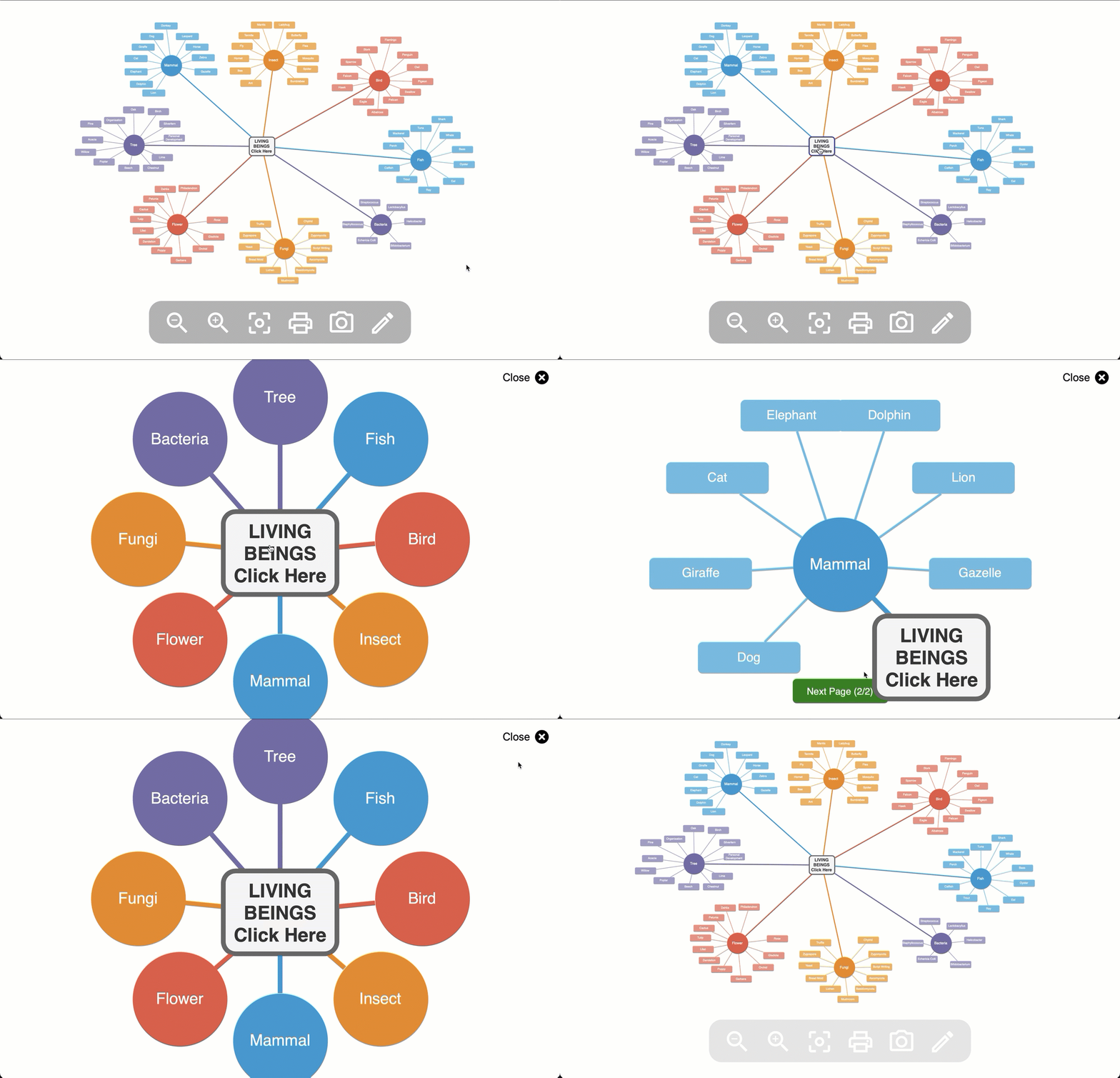
Open this example in the lightbox viewer and click on the central node to go to the Explore viewer.