Privacy policy updates

· 3 min read

Data security and privacy are central to our draw.io diagramming tool - using our application platform, your diagram data storage means saving and loading is direct between your browser and whichever location your choose to save your diagram file. We don't allow your diagram data to be stored on our servers.

We take the same privacy and security focused approach to non-diagram data too here at JGraph - we don't use cookies or tracking pixels on our website.

Of course, if you contact us here at JGraph for support via GitHub, Google Groups, or one of our social channels, we will have your contact details - necessary to resolve your query.

In our updated privacy policy, we have now clarified that we will not send you any marketing communication using your details or data. We will also not share your personal data with any third-party company for marketing purposes.
Note: The draw.io app listings in the Atlassian Marketplace for Confluence and Jira are managed by Seibert Group GmbH, and therefore are governed by their privacy policy.

Use draw.io Desktop to diagram offline

Our draw.io desktop app runs fully offline on your local device, and your diagram data stays on your local device. The only external communications from the software are to check for application updates.
draw.io runs on Windows, macOS and Linux - download the draw.io Desktop installer for your operating system.
Configure data transmission lockdown

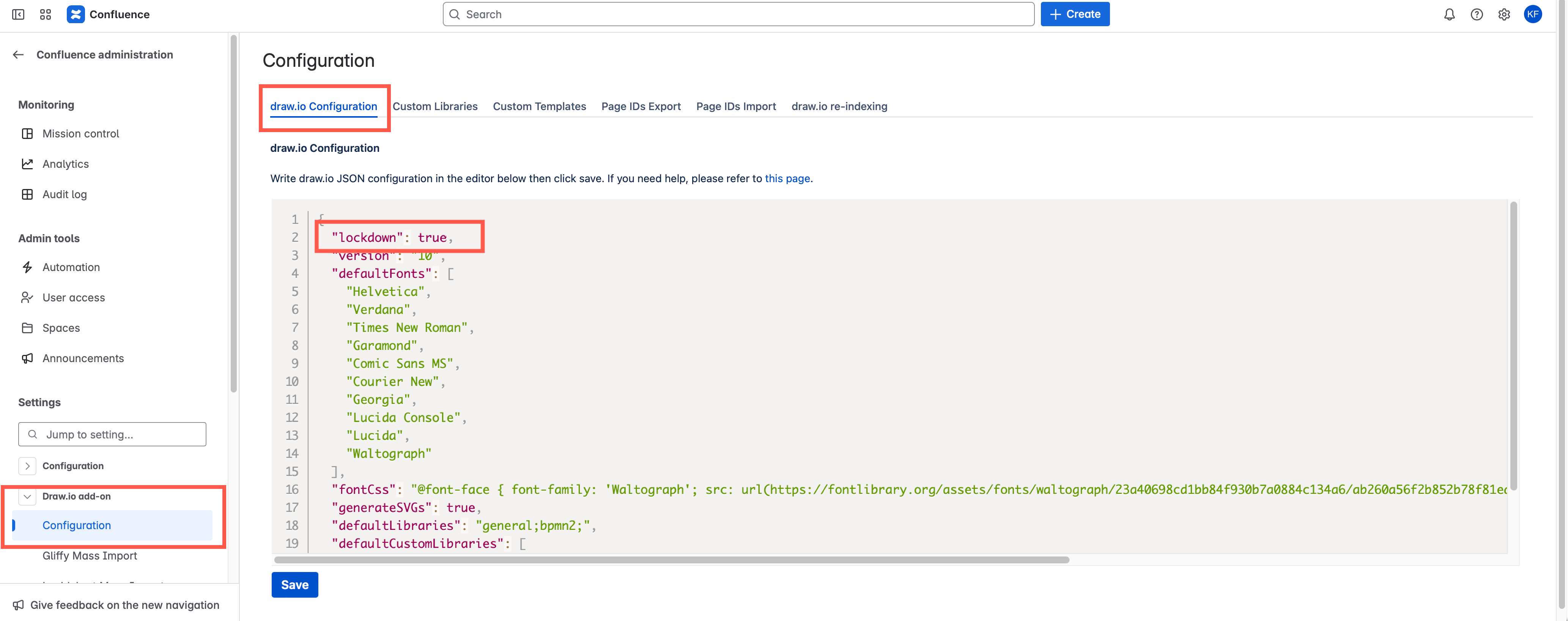
Set "lockdown": true in the editor configuration. Lockdown options only apply to cloud-based draw.io versions.

This will disable data transmission apart from directly between your browser where you are editing your diagram, and the cloud platform or location you have chosen to store the diagram file.

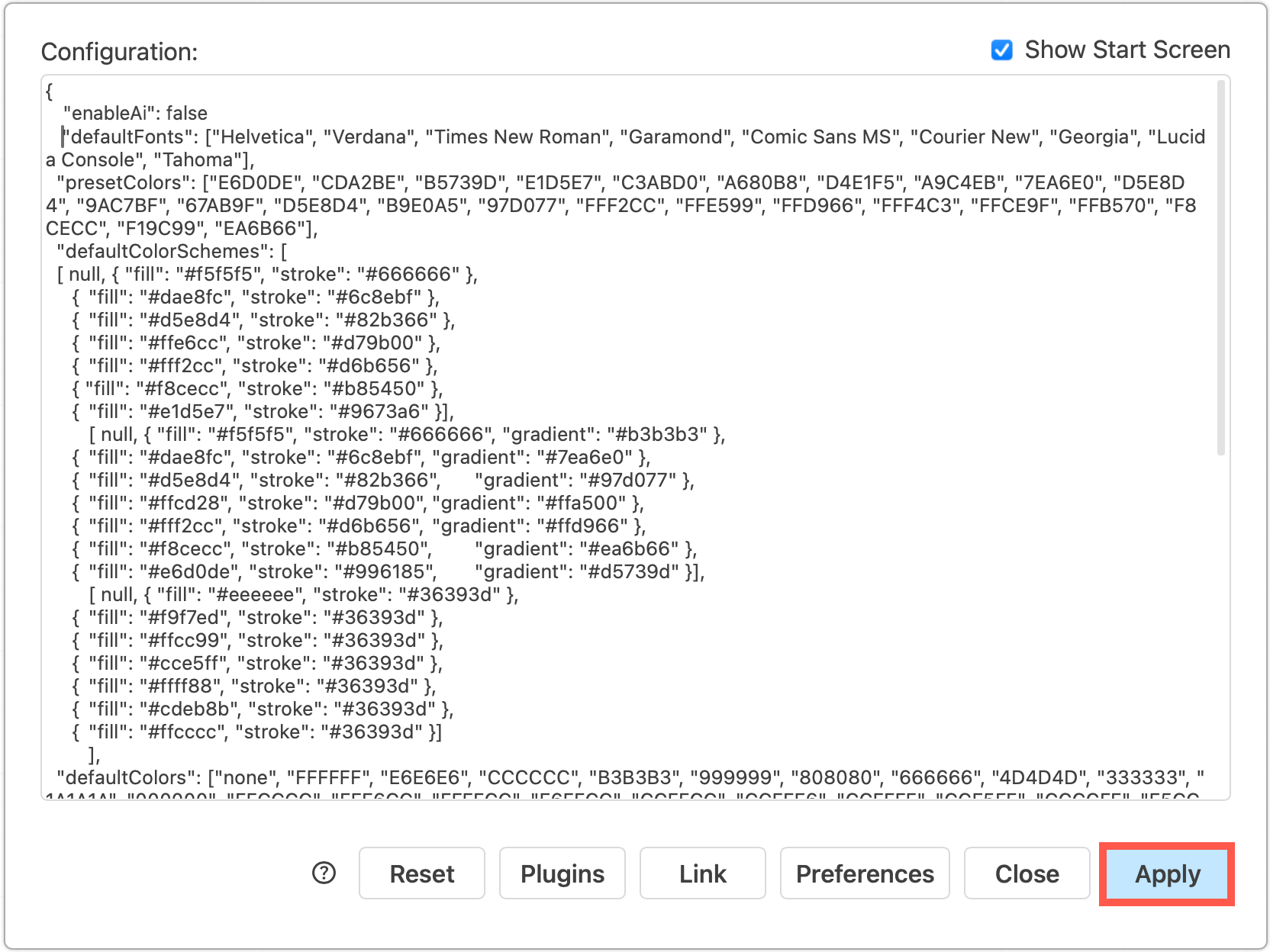
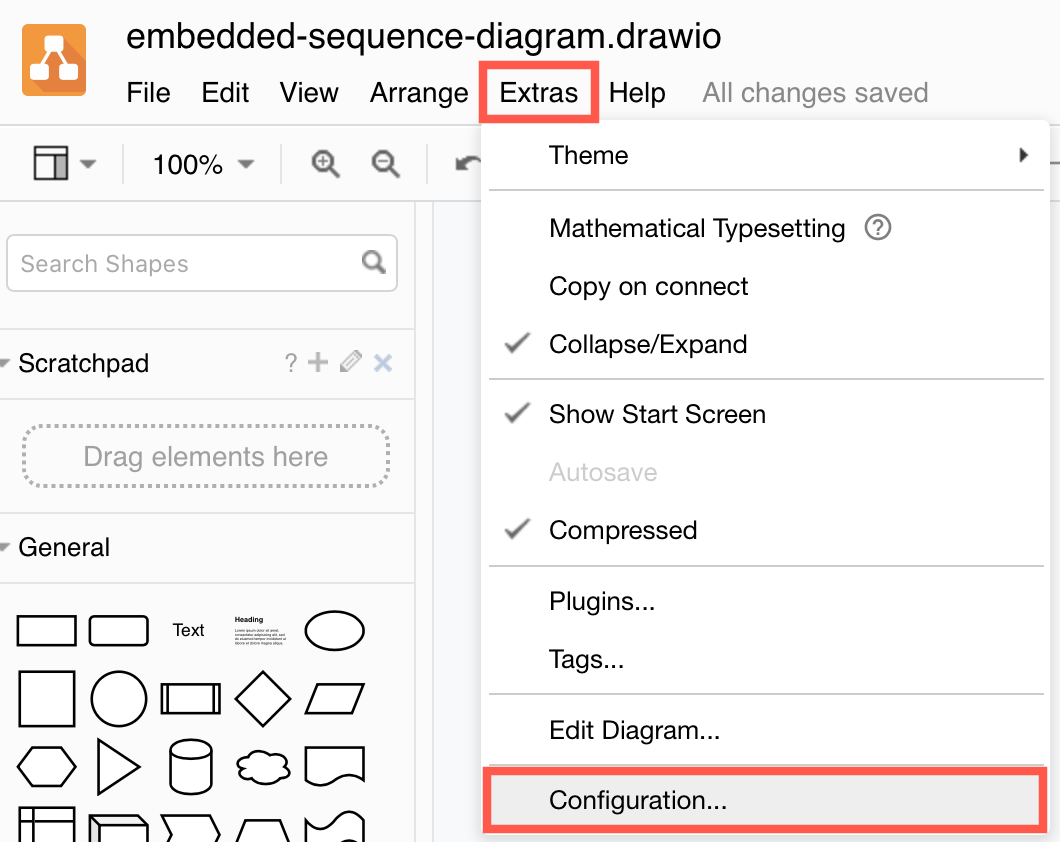
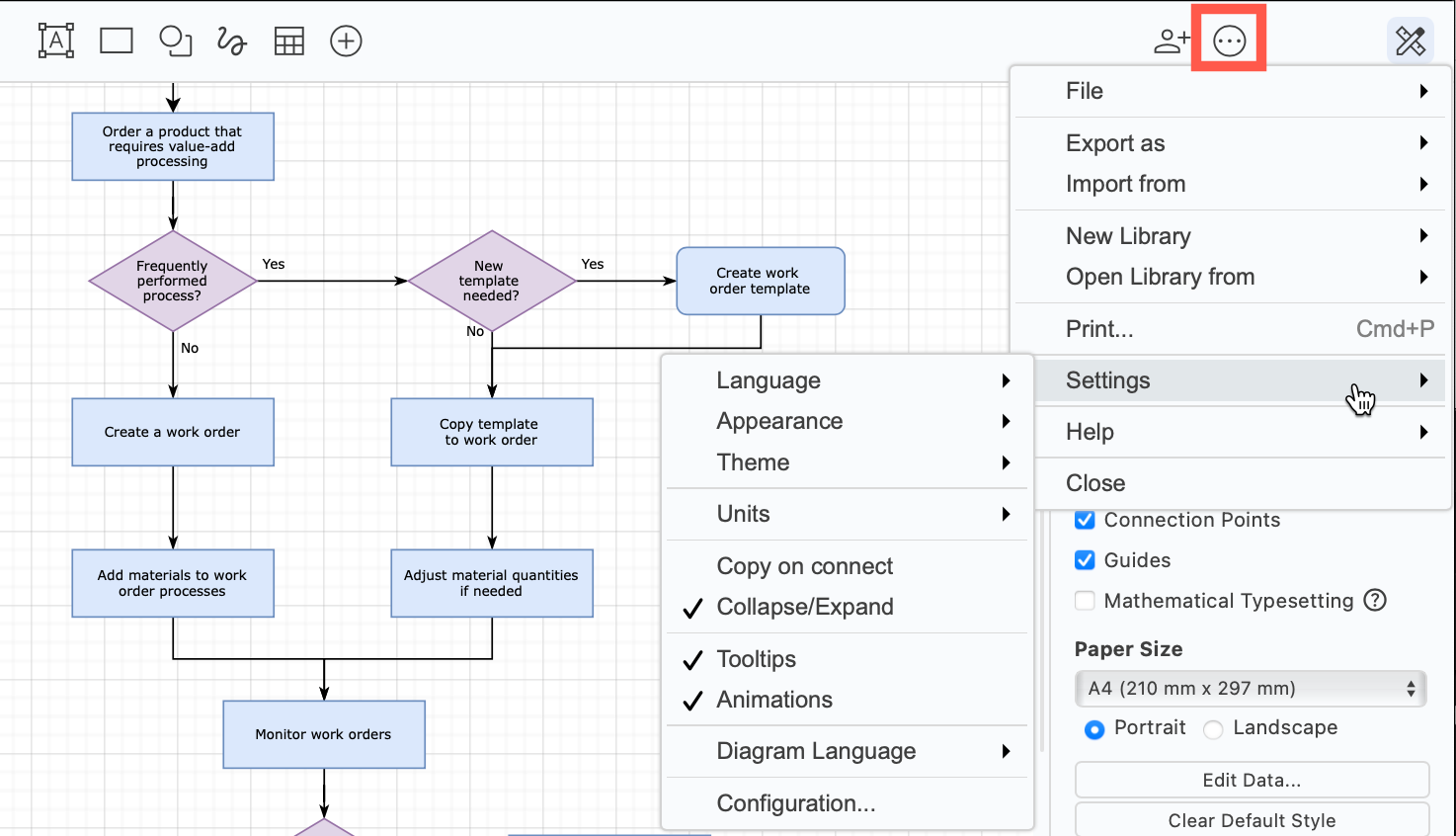
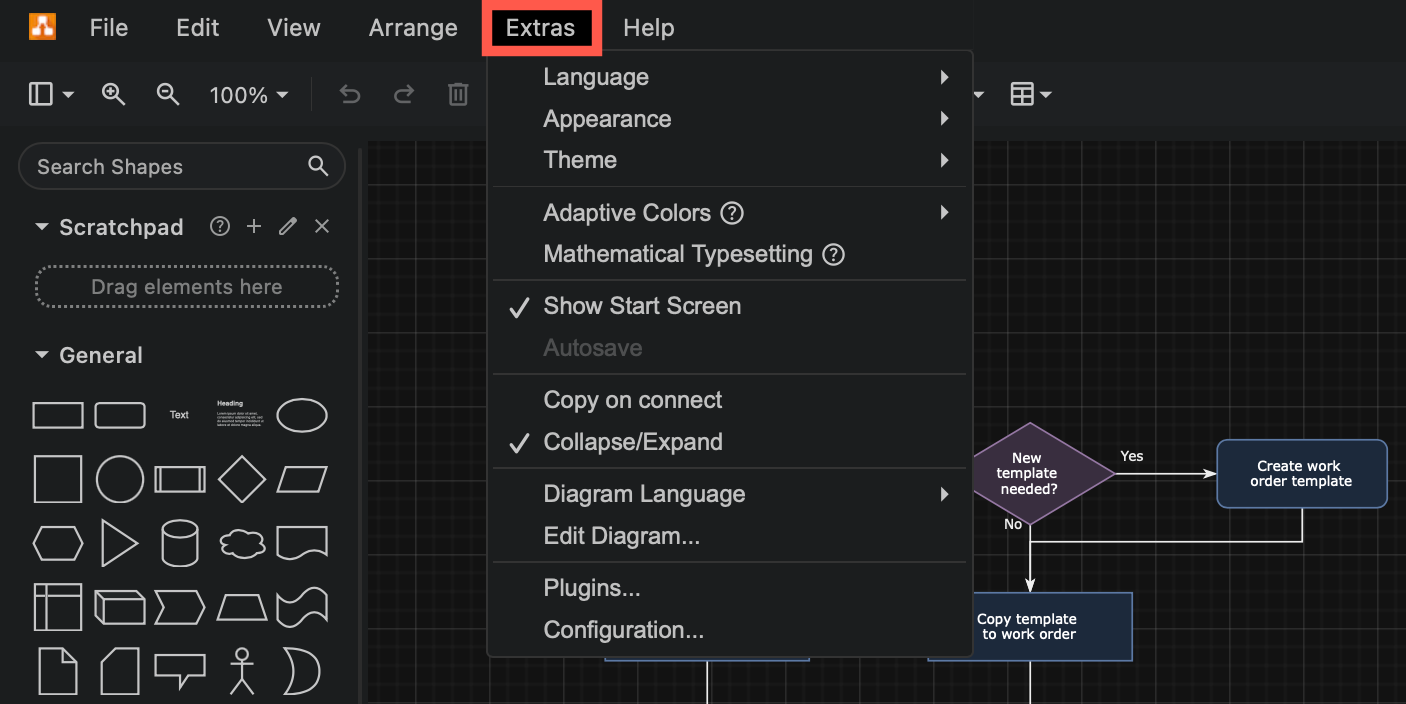
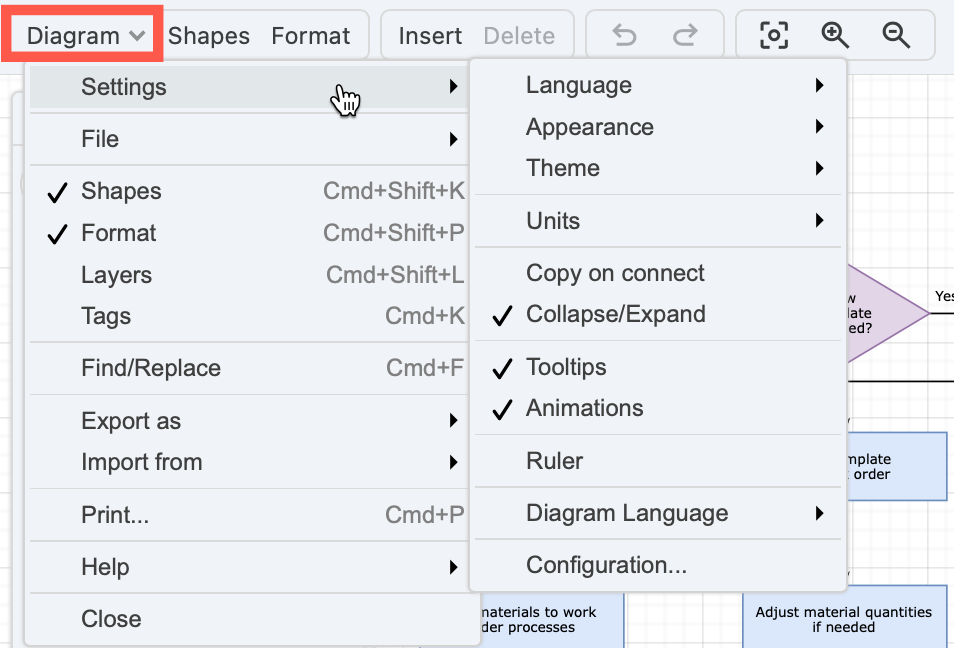
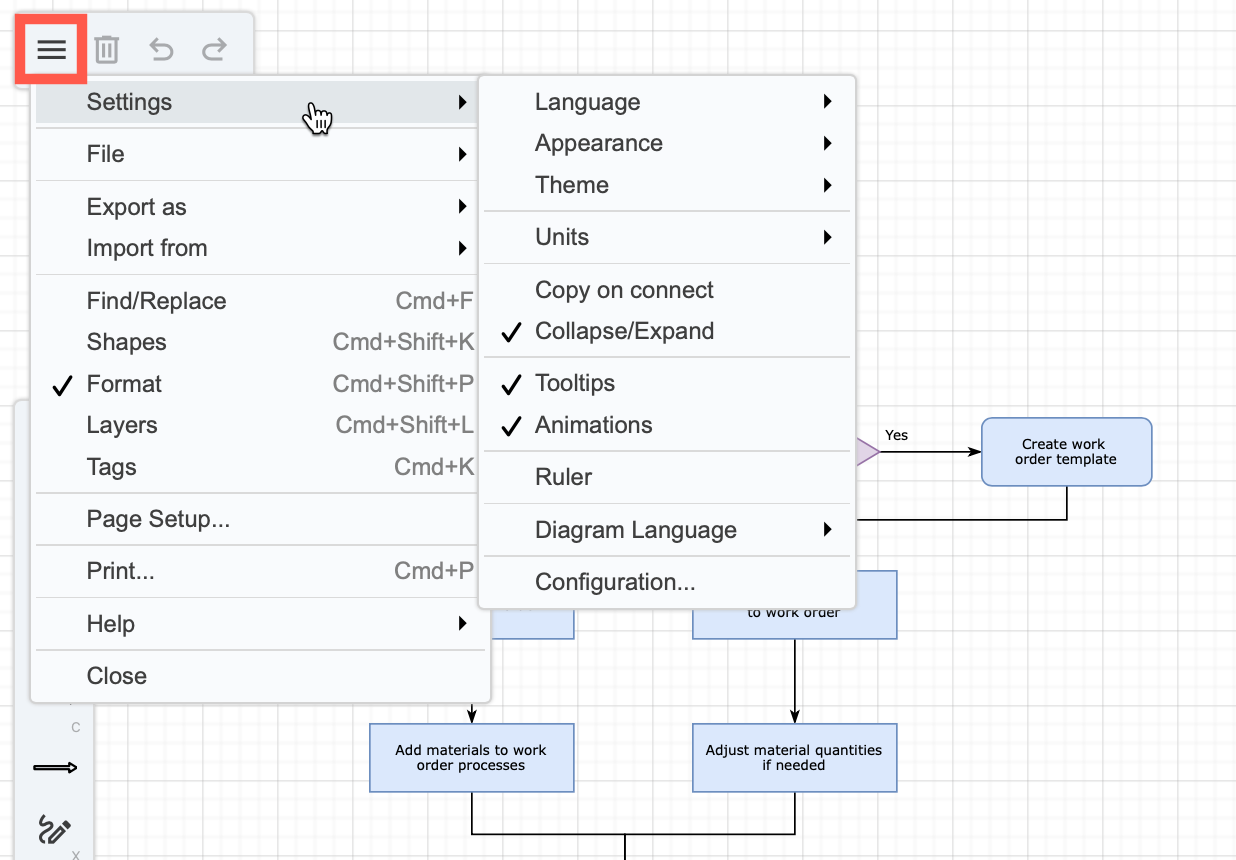
  1. In the online version of draw.io at app.diagrams.net, select Extras > Configuration in classic mode, ... > Settings > Configuration in Simple mode or the Sketch editor theme to open the configuration.
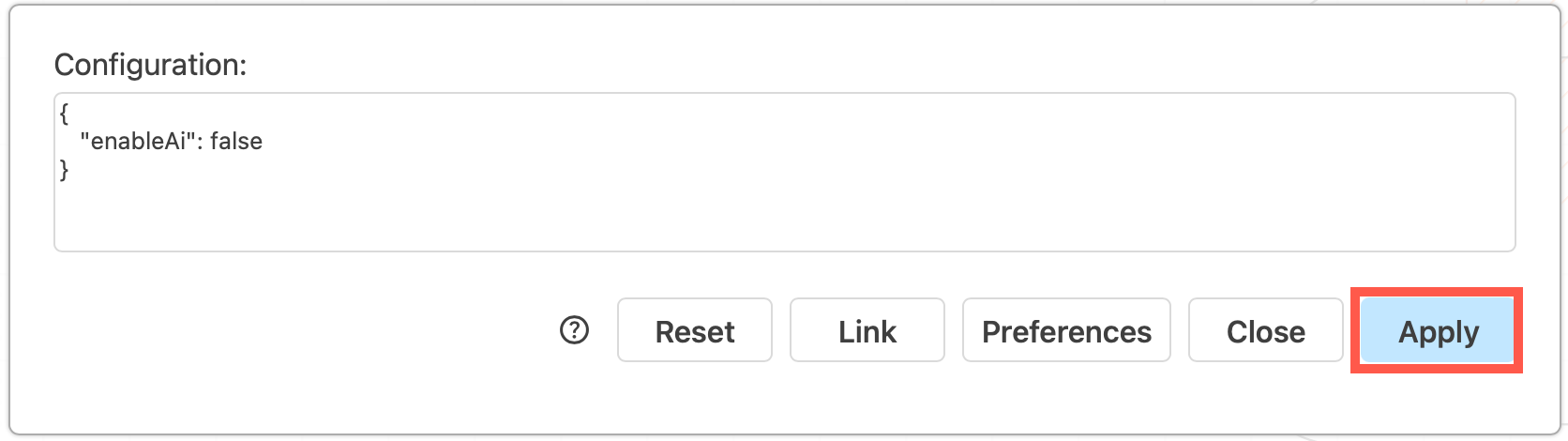
  2. Enter the "lockdown": true JSON string and click Apply.

In the draw.io app for Confluence Cloud (advanced edition only), go to the administration area, then the draw.io Configuration tab. Add "lockdown": true to the UI Configuration, and click Save changes.
Configure draw.io for Confluence Cloud to lock down your diagram data to match your Atlassian data residency settings

Note: There are few functions that use the draw.io servers to perform operations that browsers are not capable of, including to generate a PDF version of your diagram, and import a diagram file in .gliffy format. These functions won't be available if you lockdown data transmission.

Learn more about configuring the draw.io diagram editor

Collaborative editing in draw.io in Confluence DC

· 4 min read

Collaborative editing has long been possible in draw.io for Confluence Cloud. From the draw.io for Confluence DC release 13.0, you and your team will be able to edit the same diagram and see each other's changes.
Collaborative editing is available in draw.io for Confluence DC (version 8.x)

Collaborative editing works in both the draw.io Diagram macro and the draw.io Board macro in Confluence DC. Note the collaboration isn't real-time, we need to ensure a slower update rate is stable and causes no performance issues in the first release.

Real-time multi-user diagramming

Just like in draw.io for Confluence Cloud, the new collaborative editing feature in draw.io for Confluence DC uses the built-in auto-save feature.

  1. When you make a change to a draw.io diagram - add, style, or delete shapes, text and connectors, the diagram will be automatically saved to the Confluence page attachments.
  2. The draw.io diagram editor regularly polls the Confluence DC instance to see if any changes were made by other users, then loads these changes into your editor.

You don't need to manually save or synchronise the diagrams - changes will automatically appear in the draw.io editor for everyone editing the diagram.

No shared cursors?

As Confluence DC is not a cloud service with web sockets, there is no way to share and synchronise users' cursors as they work inside the diagram editor.

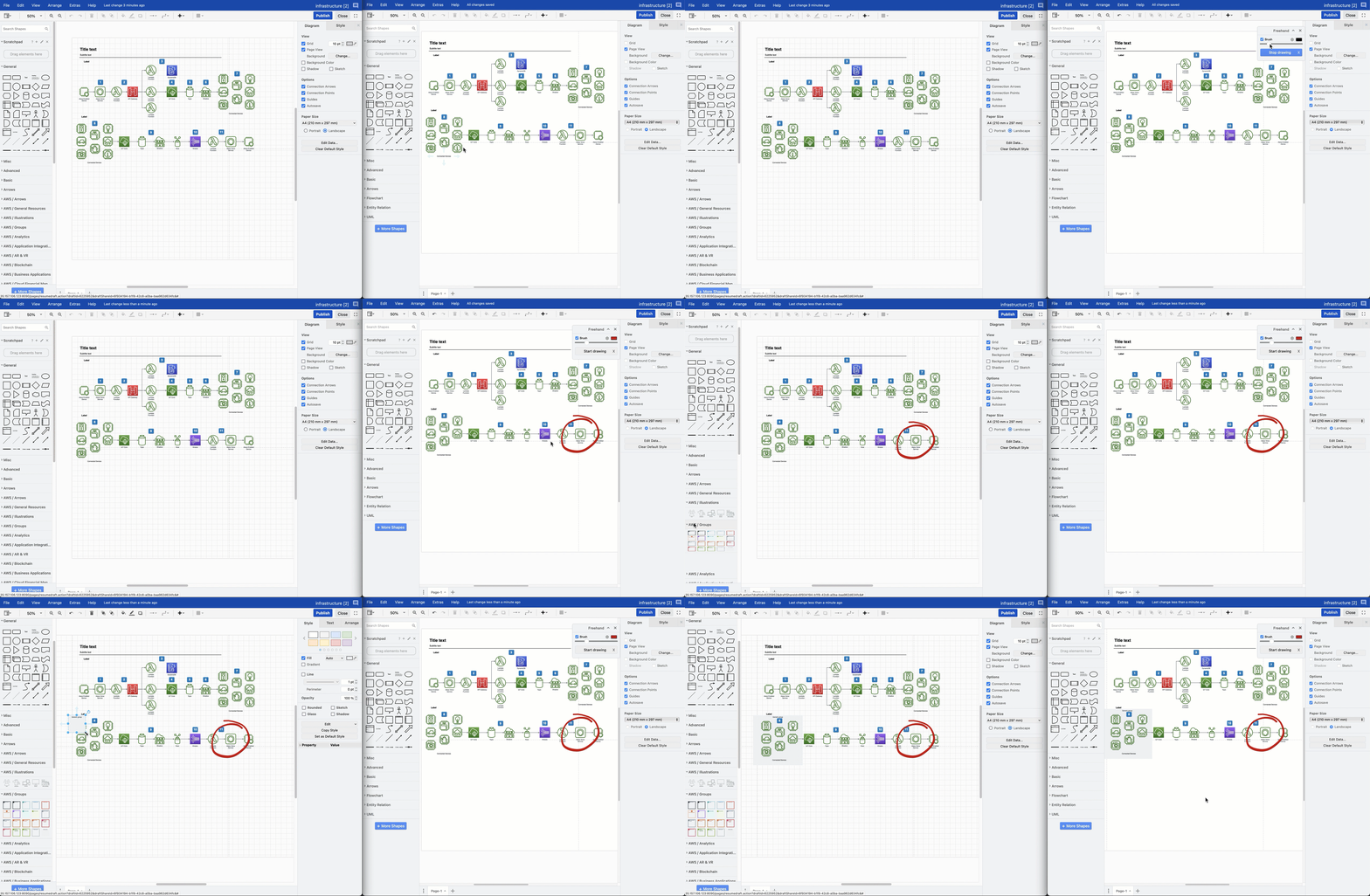
You can still make gestures on the diagram with the freehand brush to discuss a draw.io diagram in online meetings with your team - the freehand shape will appear in the other users' draw.io editor shortly after you draw it.

Collaborative editing is available in draw.io for Confluence DC (version 8.x)

Changes are merged from multiple users

If several users add shapes to the same location on a diagram, draw.io will take all those shapes and simply overlap them.

If one user adds and connects a new shape to an existing shape, but another user deletes the existing shape, both user's changes are saved:

  • The child shape will appear to stand alone as its parent was deleted.
  • The existing parent shape and any connectors from it to new shapes added by other users will be deleted.

This is the same process followed by the collaborative editing function in draw.io for Confluence Cloud.

Because draw.io merges all the changes made to a diagram, and does not overwrite the attachment with the most recent saved state from one user, you won't lose any data when you are editing a diagram as a team.

Change the synchronisation speed and auto-save interval

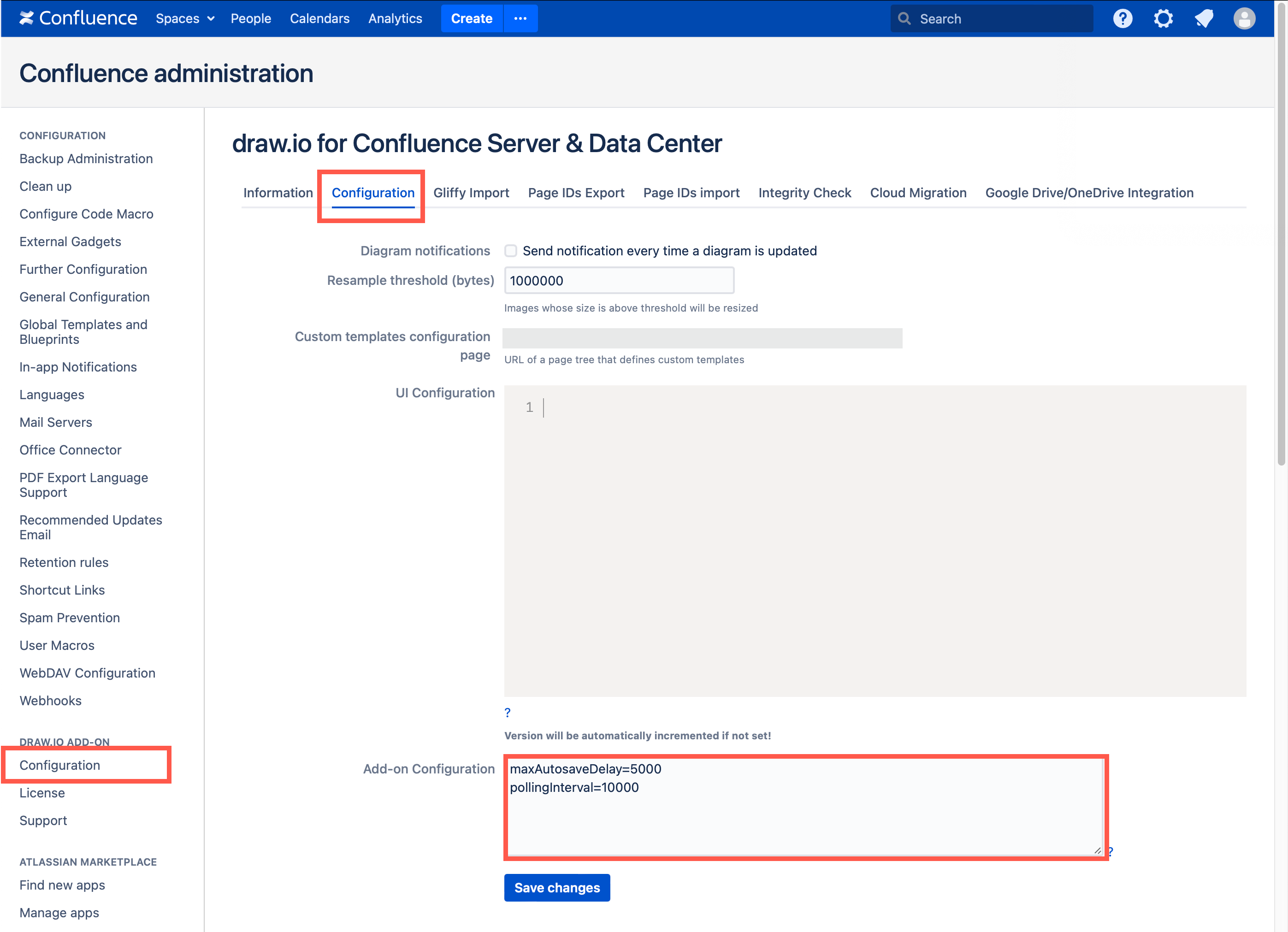
If your Confluence DC users find that changes appear in diagrams they are editing together too slowly, an administrator can increase the polling speed in the draw.io app configuration, by specifying the number of seconds between each poll in the Add-on Configuration field.

Also, you can shorten the time between auto-saving the diagram. A shorter interval will mean more attachment versions of diagrams will be created and added to a Confluence page.

  1. Go to the administration area of your Confluence DC instance.
  2. Go to the Configuration tab in the draw.io Add-on Configuration section.
  3. Add the following lines to the Add-on Configuration text field: pollingInterval=10000 and maxAutosaveDelay=5000
  4. Click Save changes to update the draw.io configuration.
    Set a faster polling interval for collaborative editing in Confluence DC 8.x via the app configuration in your Confluence administration

In the example above, we have set the polling interval to 10 seconds (which is 10,000 milliseconds).

Note: If you collaborate on extremely large and complex diagrams, you may need to set a longer polling interval.

See how to configure the draw.io editor for Confluence DC

High contrast mode in draw.io

· 4 min read

The new high contrast mode is available in draw.io: High Contrast makes the editor interface easier to read without adjusting your monitor's contrast settings, similar to the accessibility options in your operating system.
High contrast simplifies the draw.io editor interface so that it is easier to read, and improve contrast updates the colours in dark mode to make diagrams easier to see on a dark background

High contrast mode simplifies and removes non-essential backgrounds and increases the definition between interface elements by adding clear outlines. You may find it is easier to read text and it can reduce eye strain.

High Contrast mode

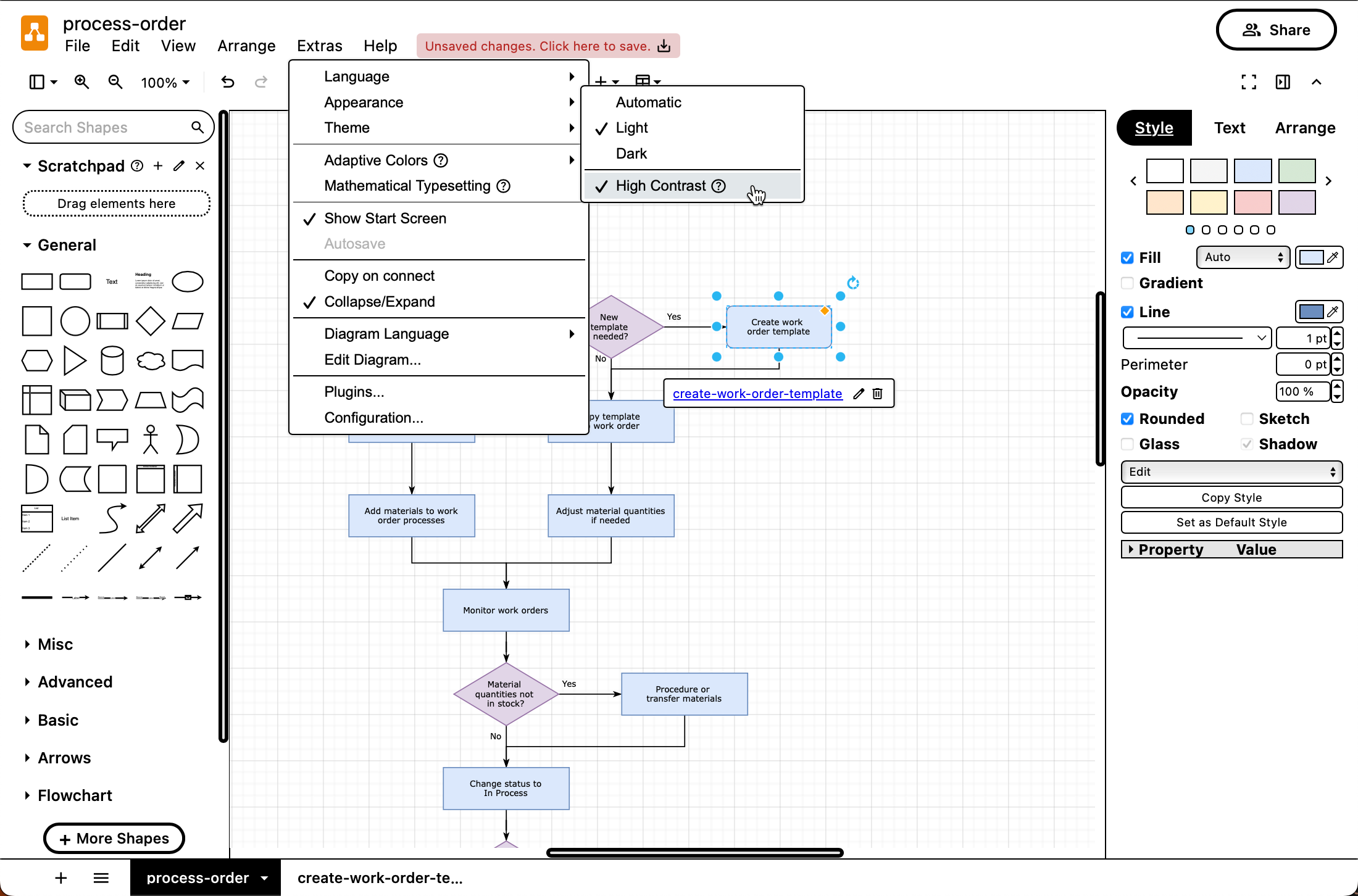
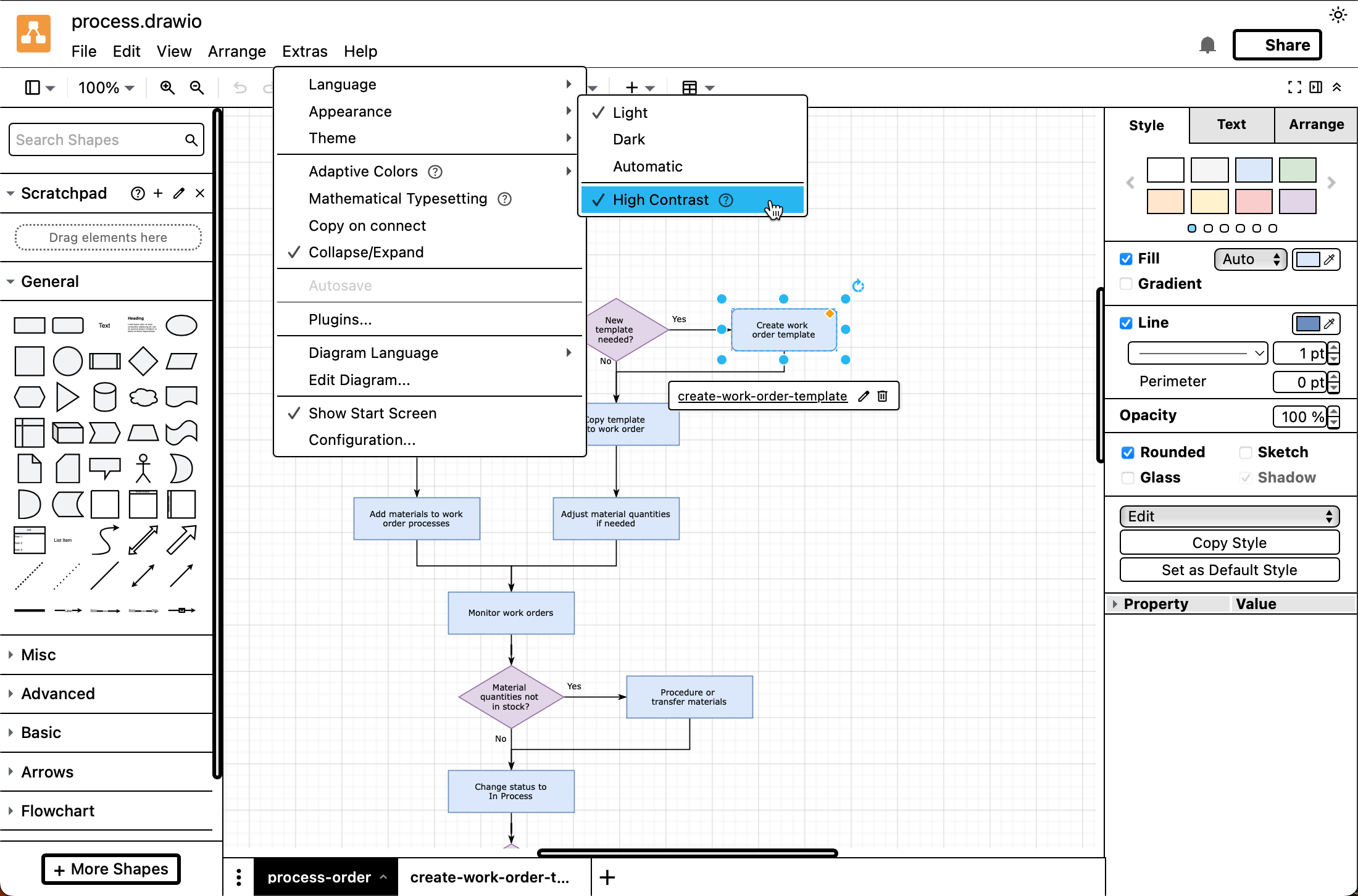
Choose Settings > Appearance > High Contrast from the draw.io menu.

When you enable high contrast modes or themes in your operating system, the range of colours in the interface is reduced and visual elements are simplified. Panels, tools, buttons, and toolbars have simpler backgrounds (white in light mode, black in dark mode), with a clear outline to better separate the various parts of the application's interface.

In the draw.io editor, High Contrast mode works in the same way.

  • Panel backgrounds are simplified to off-white (light mode) or nearly black (dark mode).
  • Text labels, shapes, and tools that were previously grey are clearer - black (light mode) or white (dark mode).
  • Strong contrasting outlines are added around buttons, between the shape libraries, around the format panel tabs and other elements in the editor interface: a crisp white outline in dark mode, and a black outline in light mode.

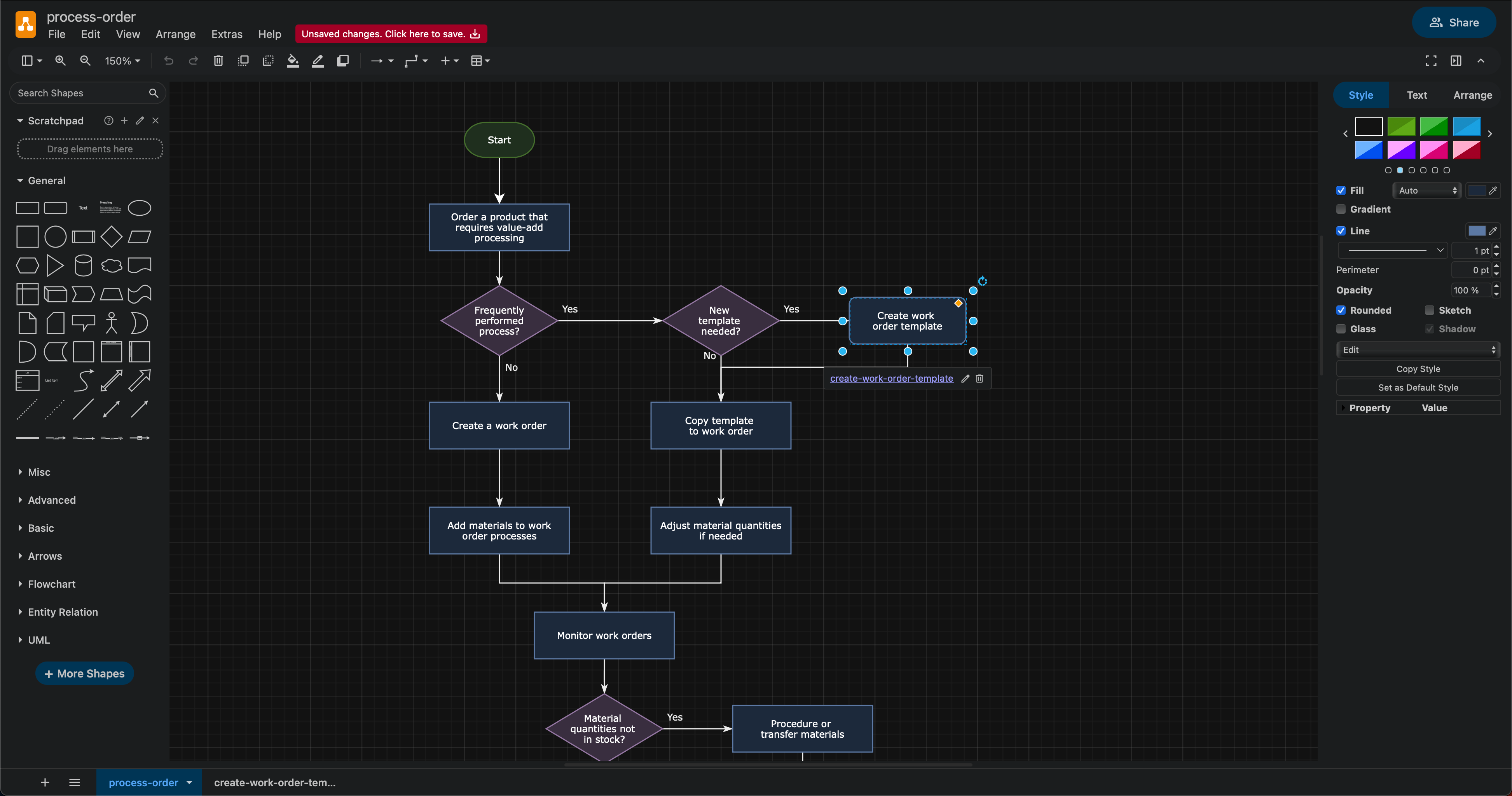
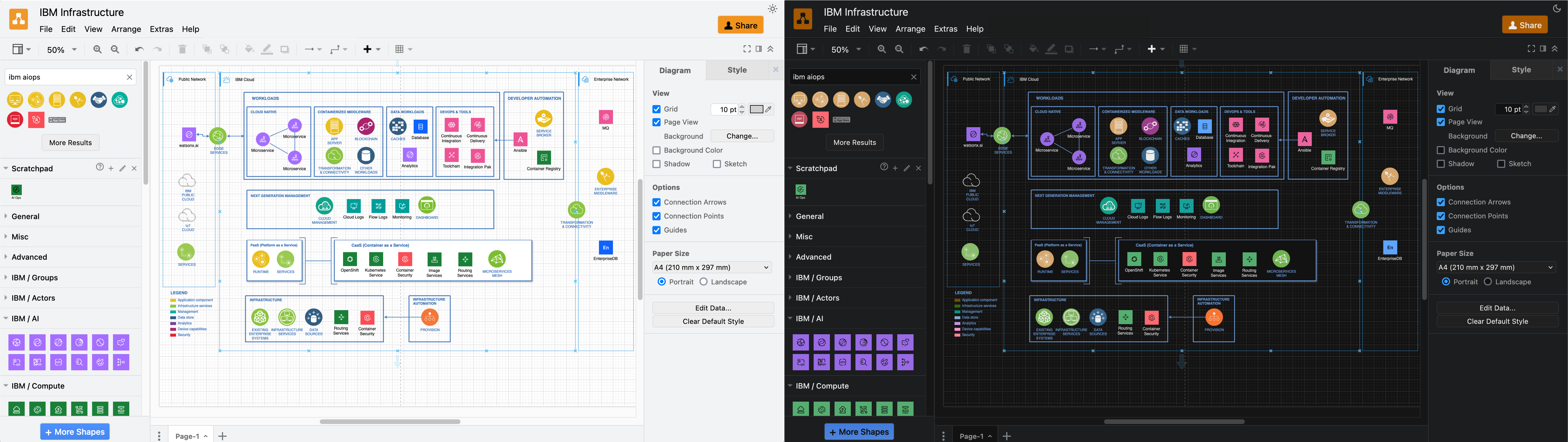
The default dark mode is on the left in the screenshot below, and High Contrast mode on the right.
High contrast works on all of the draw.io editor themes and in both dark and light mode

High contrast mode works with all draw.io themes in both dark and light mode, including the Sketch online whiteboard theme.
High contrast works on all of the draw.io editor themes

Better colours for dark mode

Dark mode is often used to reduce eye strain - with draw.io you can diagram in dark mode using any of our editor themes (click the sun/moon icon in the top right and select the mode you want to use. Alternatively, select Settings > Appearance > Dark Mode from the menu).

A while back, we updated colours automatically change when working with draw.io in dark mode, but continue to use the light mode palette as the default. When you switch to dark mode, by default, shapes, connectors and text change intensity to ensure an improved contrast that remains readable.

  • To disable adaptive colours for light and dark mode, make sure nothing is selected in your diagram, then in the document Style tab of the format panel, set Adaptive Colors to None. (Also available in the Classic mode menu via Extras > Adaptive Colors).
    Set Adaptive Colors to none if you don't want your diagram to automatically change colours in dark and light modes

  • If you want only the black and white parts of your diagram to invert in dark or light mode, set Adaptive Colors to Simple.

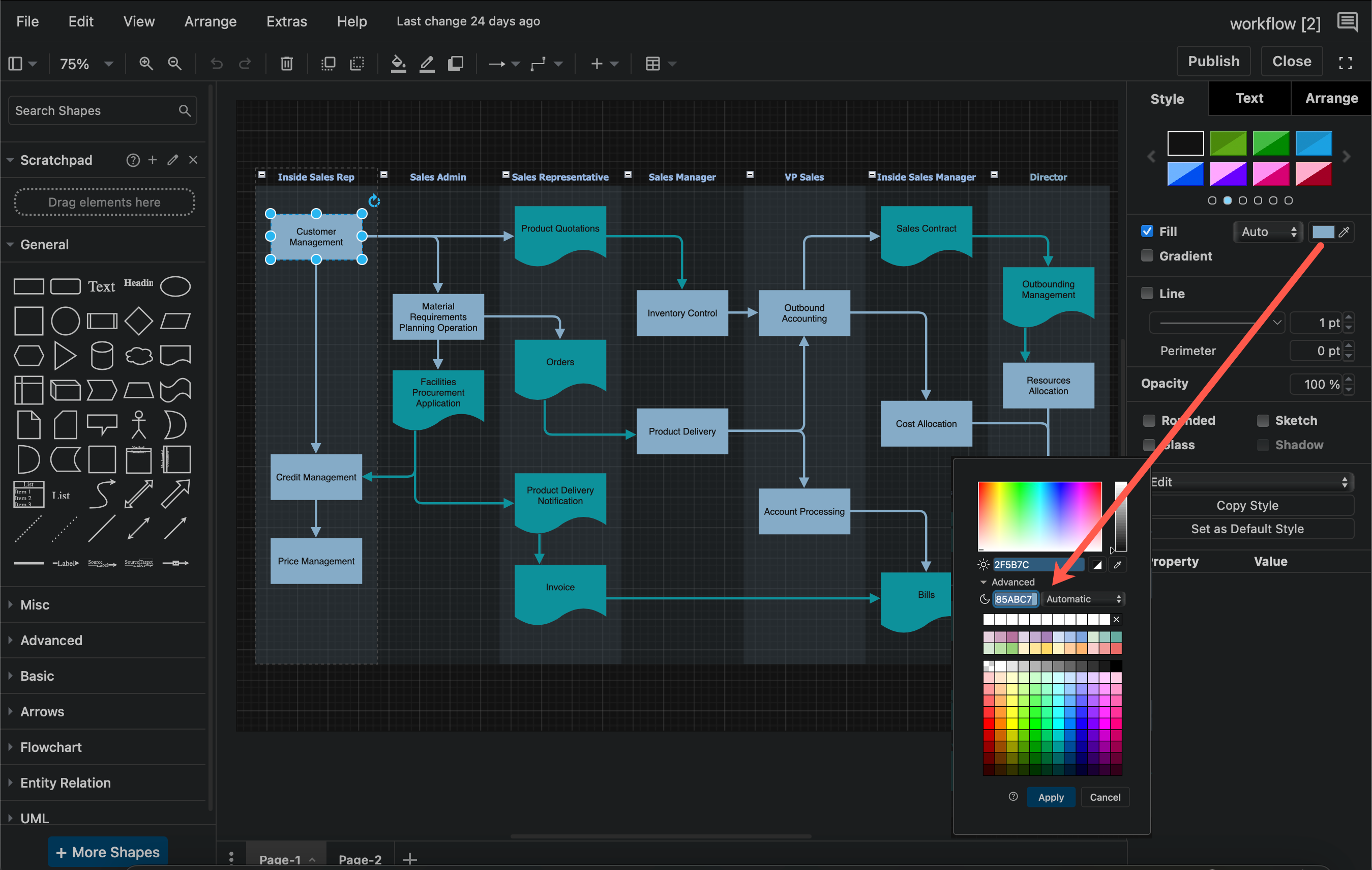
  • If you want to choose specific dark mode colours for shapes, connectors and text instead of using an automatic adaptive colour, add the dark mode colour for that shape in the colour palette under Advanced.

Note: draw.io Desktop uses the original simple adaptive colours. Set Adaptive colour

draw.io in Confluence DC - full version support and regular updates

· 5 min read

The draw.io app for Confluence Data Center provides you with a secure and fully featured diagramming tool for visual documentation, along with a simpler whiteboard macro that also includes everything you need to draw complex technical diagrams.

Works on all supported DC versions

draw.io works on all supported versions of Confluence Data Center, 7.x and later.

Regular updates are released for all supported DC versions, such as updated technical icon sets (shape libraries), new and improved features, and of course bug fixes and optimisations.
The draw.io desktop app has all the same shape libraries and tools as draw.io in Confluence DC - collaborate securely with your external partners using our offline app

Focused on security

While many organisations have opted to move to Confluence Cloud now that Confluence Server has reached its end of life, you may have found that Confluence Data Center is a better fit for your needs, especially if you are in a regulated industry like finance or healthcare.

draw.io is engineered differently to other diagramming apps - we take data security seriously so you can keep your diagram data secure. We participate in Atlassian's bug bounty program and release regular updates for all supported versions of Data Center.

Secure desktop app for external partners

When you do need to collaborate confidentially with external partners, your partners can edit draw.io diagram files securely with the free draw.io desktop app, which keeps the diagram data isolated on their computer. The desktop app has the same shape libraries, templates, and tools, and is designed to work fully offline on Windows, macOS and Linux.
The draw.io desktop app has all the same shape libraries and tools as draw.io in Confluence DC - collaborate securely with your external partners using our offline app

Technical diagrams plus an online whiteboard

draw.io has a wide range of shape libraries with up-to-date icon sets, and a large collection of templates for many different types of technical diagrams.

Even when using the simple draw.io board macro in Confluence, you have access to all the shape libraries, features, and tools. You can use draw.io in meetings and for brainstorming, as well as to document your complex infrastructures and business procedures in great detail.
Access all the technical diagramming shape libraries, templates and tools via + in the toolbar in the draw.io macro for Confluence DC

Migration and import tools

If you choose at some point to migrate to Cloud from DC/Server, to maintain diagram links and embedded diagrams we recommend using the PageID export/import method, now that Atlassian supports 'mass permission change'.

If directed to by draw.io support, you may use the new draw.io migration tool in your old DC instance, but it may have issues if you rename pages during the migration process.
Start the Confluence DC/Server to Cloud migration preparation for draw.io diagrams in the administration area via draw.io add-on /> Configuration > Cloud Migration

draw.io makes it easy to migrate and import from other diagramming tools in Confluence DC.

Configure the diagram editor and draw.io settings

As an administrator, you can configure the draw.io backend in Confluence Data Center via the app administration and set up custom diagram templates and shape libraries.

If your technical diagramming team always use a set palette of colours or shape styles, you can also configure this for everyone in your instance.
Configure default colours and styles in the draw.io configuration in Confluence Data Center for all users in your instance

draw.io is sponsoring FOSDEM 2024

· 2 min read

We are proud to be be once again sponsoring the popular FOSDEM two-day event for open source software, held at the Université Libre de Bruxelles Solbosch Campus in Brussels, Belgium on 3-4 February 2024. There is no registration and the event is free to attend.

draw.io is sponsoring the FOSDEM'24 conference for open source developers

FOSDEM is organised by a large team of volunteers, and provides a space for open source software developers and users to meet, share ideas, and collaborate on open source projects.

If you would like to join a developer room at FOSDEM'24, keep an eye on list of developers that will be calling for participation shortly and the FOSDEM'24 schedule as speakers and projects are confirmed.

FOSDEM: hundreds of open source speakers and events

With well over 5000 developers and speakers attending from all over the world, it’s easily one of the largest events for open source projects.

As usual, there will be a wide variety of presentations by speakers across several tracks, along with keynotes, developer rooms and hacking sessions, lightning talks, project stands with demos and merchandise, and open discussions. You can attend as few or as many activities as you like for free - just turn up on the day.

Unlike previous events, no certification exams are planned for this year. There will be an area for recruiting and job opportunities for open source positions, and several related fringe events that you may be interested in attending.

Open source diagramming

We greatly appreciate our open source community of developers, bug reporters, translators, contributors and sponsors, as well as the developers of the open source projects that we sponsor directly.

As one of the world’s most widely used browser-based diagramming applications, draw.io can be used online, as a desktop app, deployed locally in a variety of formats. Plus, there is an increasing number of third-party integrations, where developers have embedded our open-source diagram editor into their content and project management tools.

Swap and replace shapes and connectors

· 3 min read

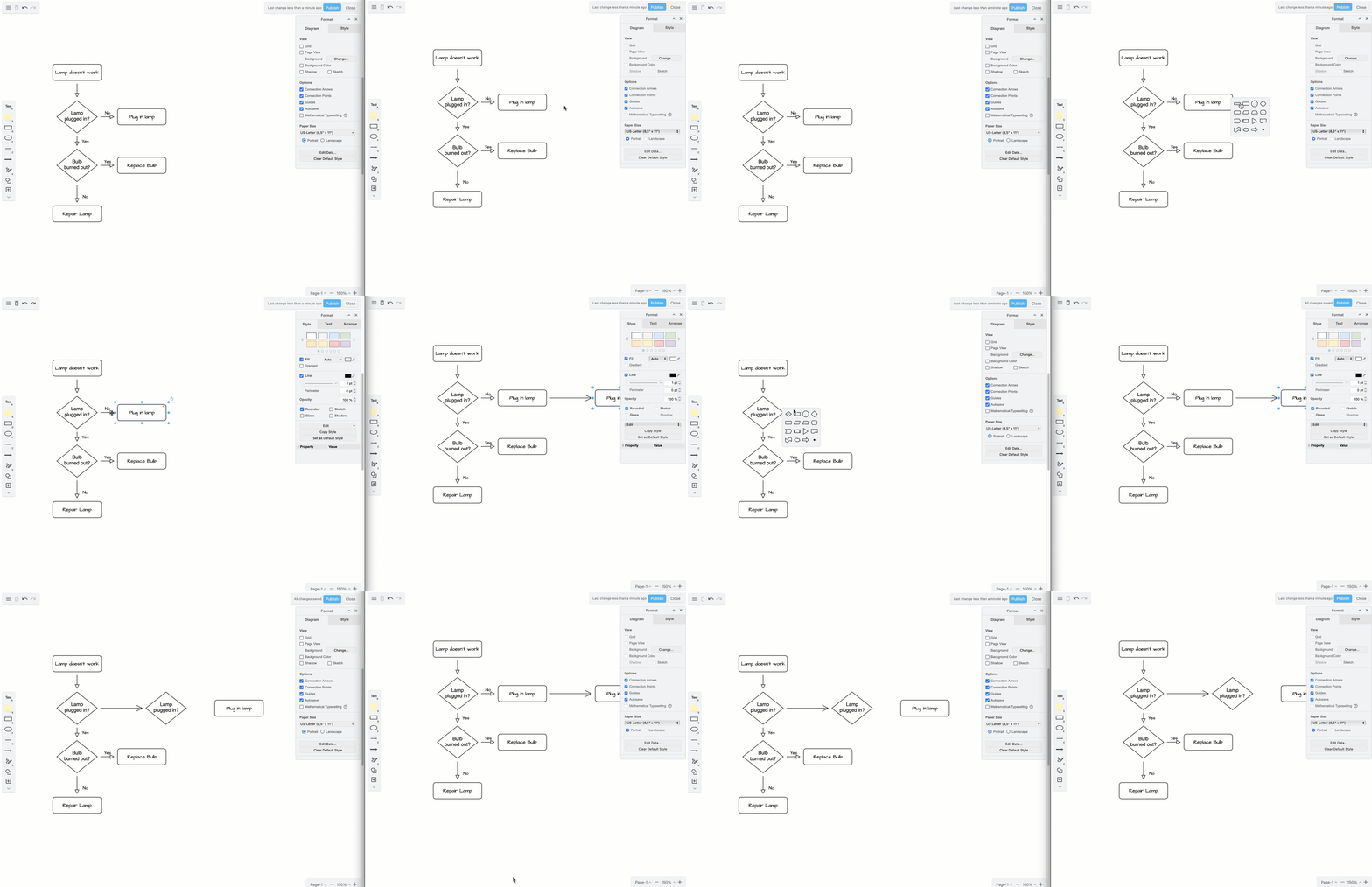
You can swap shapes on the drawing canvas in draw.io via the Arrange tab of the format panel, or by dropping a new shape from the shape libraries on top of an existing shape. You can also reverse the arrows on a connector easily via the Arrange tab.

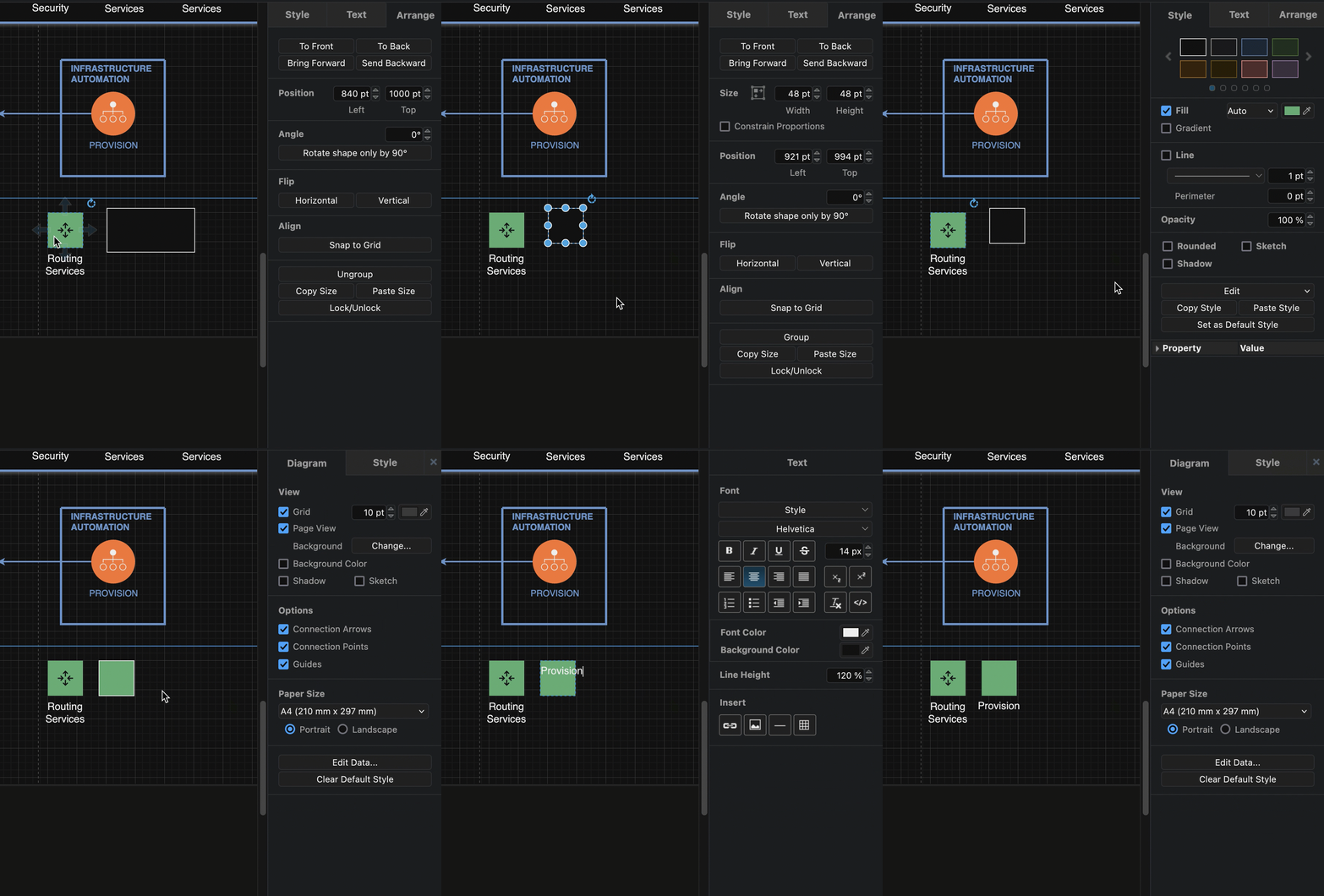
Select two shapes, go to the Arrange tab of the format panel and click Swap

Connectors to and from a swapped shape will move with it, staying attached and automatically updating its path.

If you want to swap the direction of the connector as well, select the connector after you swap the shapes, then click Reverse on the Arrange tab of the format panel.

Hold down shift and drag one shape over another shape to swap them

Replace an existing shape with a different shape

Drag a shape from the shape libraries and hover over an existing shape on the drawing canvas until the replace symbol appears, then drop the shape.
Drag a new shape from the shape library in draw.io and drop it onto an existing shape to replace it

Alternatively, double-click on an empty spot on the drawing canvas to open the quick selection box and drag a shape from there over an existing shape, and drop it when the replace symbol appears.
Drag a new shape from the shape library in draw.io and drop it onto an existing shape to replace it

Do more with shapes in draw.io

There are many more ways you can quickly work with shapes in draw.io. Use these FAQs, tutorials and blog posts to learn how to diagram faster and easier.

Work faster with shape libraries using keyboard shortcuts, and use keyboard + mouse modifier shortcuts to work with shapes faster on the drawing canvas.

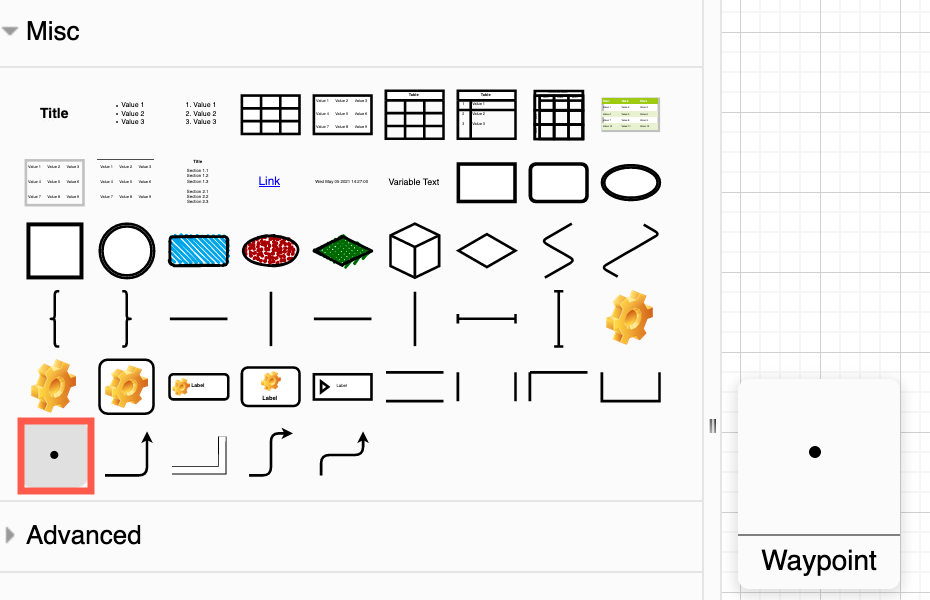
Use the Arrange tab tools on shapes and connectors - move shapes forwards and backwards, group multiple shapes, resize shapes and groups of shapes, reposition shapes, rotate shapes and groups of shapes, and work with connector waypoints to perfectly path your connectors.

Style shapes using the Style tab in the format panel. The styles that are available will depend on the shapes you have selected.

See how you can modify the shape properties in the Style tab of a selected shape to turn a shape into a container, change the perimeter, disallow connectors, prevent it from being deleted or clones, and much more. Select a shape and click on Properties at the bottom of the style tab.
Drag a new shape from the shape library in draw.io and drop it onto an existing shape to replace it

And finally, print out these draw.io keyboard shortcuts for easy reference.

New keyboard shortcuts in draw.io

· 3 min read

As new features are added to draw.io and the menu is refined, new keyboard shortcuts are also built into the editor. Here are some of the new and useful shortcuts for diagramming in draw.io.

Move selected remote shapes and connectors

Select the shapes and connectors you want to move, then hold Shift+Alt+drag and drag the cursor to reposition the selection even if it is not currently under the cursor.
Press Shift+Alt and drag the cursor to move a selected shape, even if your cursor is not over that shape

Increase/decrease font size

Select a shape or connector or label, and press Ctrl+Shift +/- (NumPad) to increase or decrease the text size. This only works with the + and - keys on the number pad.
Press Ctrl+Shift +/- Numpad to increase or decrease the text size of a selected shape or connector label

Increase/decrease shape size

Select a shape, and press Ctrl+Shift+arrow key to increase or decrease the right or lower edge of the shape.
Press Ctrl+Shift+arrow key to increase or decrease the size of the selected shape

Clear all extra waypoints on a connector

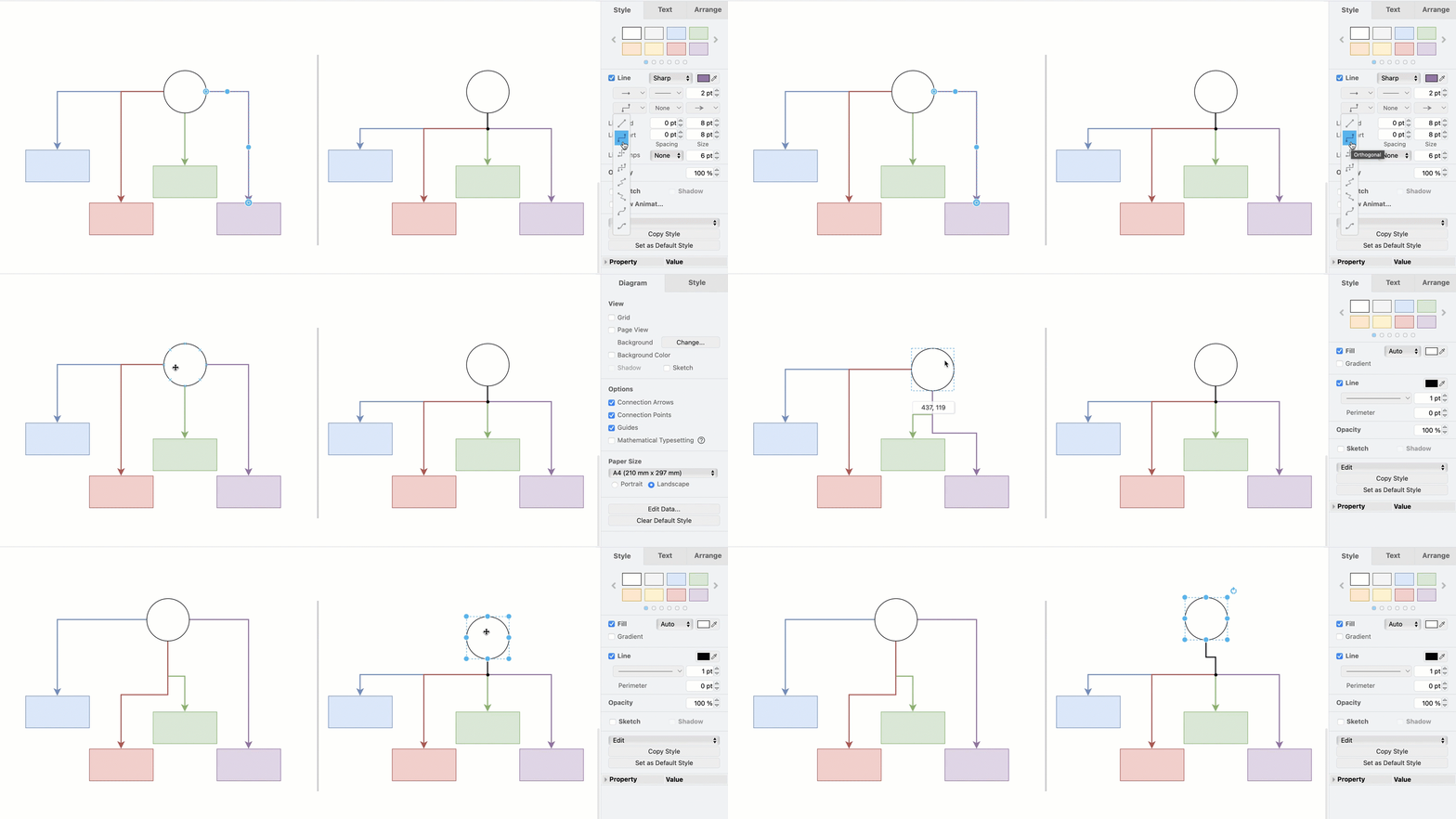
Select a connector and press Alt+Shift+R to reset the waypoints back to the default path.
Press Alt+Shift+R to reset the waypoints of a selected connector

More keyboard shortcuts in draw.io

There are many other mouse + keyboard shortcut combinations in draw.io to help you diagram faster, as well as many other key combinations.

Next time you go through the draw.io menu, or right-click and open the context menu, check and see if there is a keyboard shortcut next to the command you want to use.
There are many keyboard shortcuts available in draw.io

Here's a one-page reference sheet that you can print out containing the most common and useful keyboard shortcuts in draw.io.

Shortcuts available in the draw.io diagramming apps

Updates to draw.io dark mode diagrams improve readability

· 6 min read

draw.io is one of very few diagram editors that lets you work in dark mode. Colours of shapes, text and connectors change automatically when you switch between light and dark modes. Now with adaptive colours, instead of changing the hue, all colours in a diagram will remain the same hue in both modes, but their intensity will be altered to significantly improve readability in dark mode.
The new and improved dark mode makes diagrams much more readable on a dark drawing canvas after switching colour intensity automatically

Switch to dark mode in the draw.io editor

Click on the sun icon in the top right and select Dark to change to dark mode. Alternatively, from the draw.io menu select Settings > Appearance > Dark.
Click on the sun/moon in the top right and switch between any of the four editor themes and the simple mode, as well as between dark and light modes

To switch back, click on the moon icon and select Light, or Settings > Appearance > Light from the menu.

Tip: Choose Automatic if you want the editor to reflect your operating system or browser mode.

Dark mode is available in draw.io Desktop, our free online editor at app.diagrams.net, and in integrations such as the unofficial draw.io extension for VSCode, and the draw.io Chrome extension for Notion.

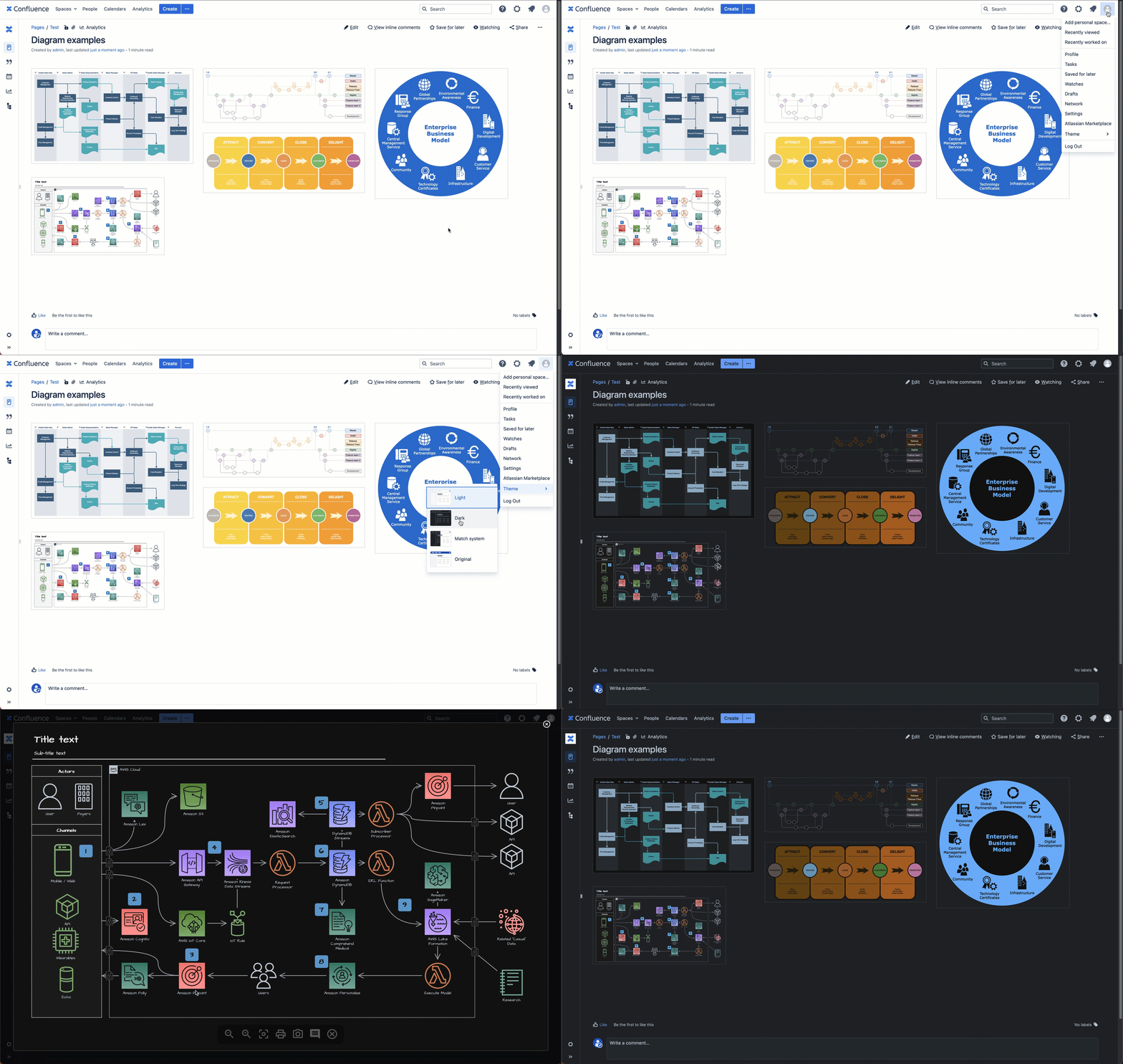
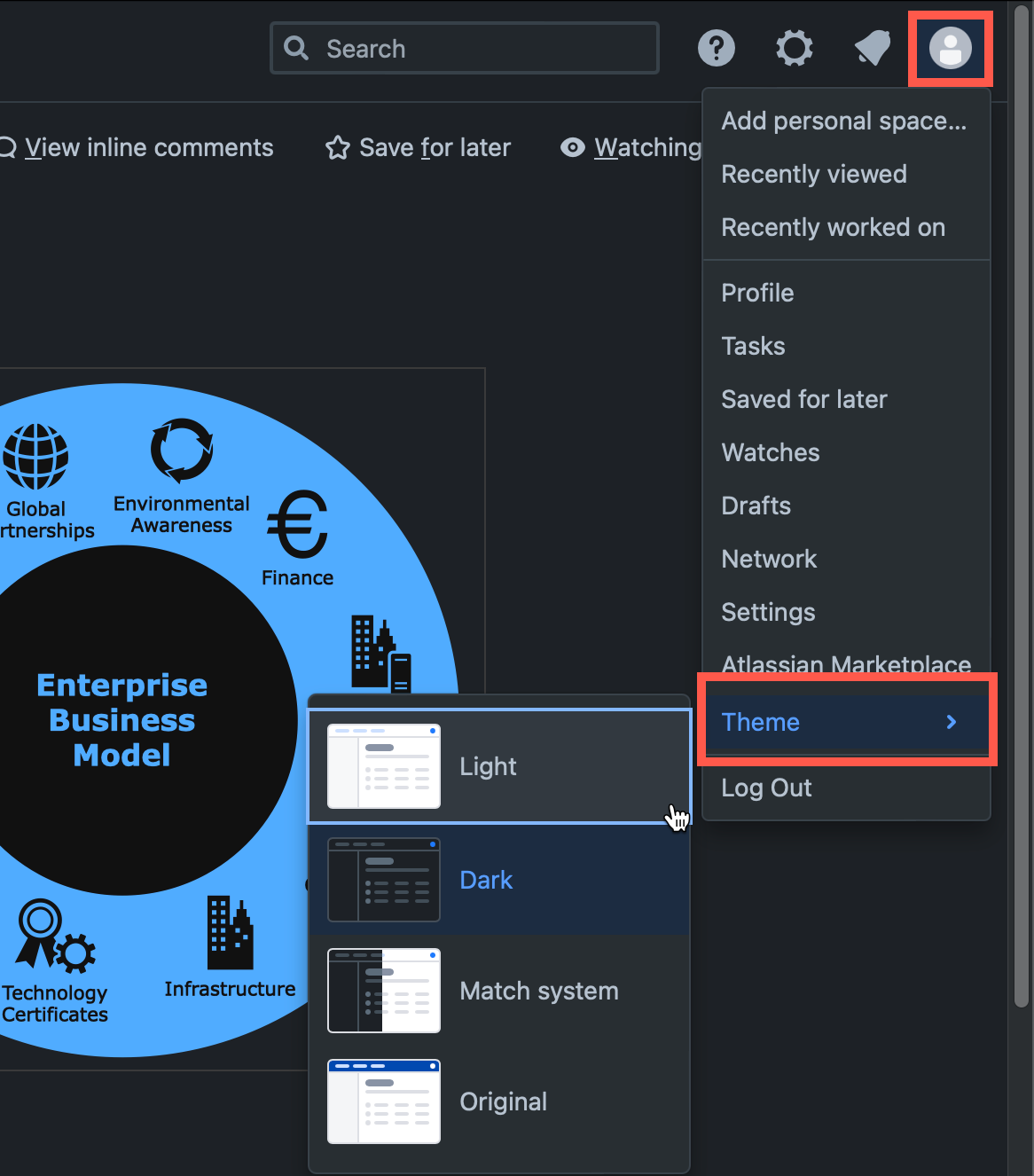
Dark is available in draw.io for Confluence Cloud and Jira Cloud, and diagram thumbnails and the draw.io editor will switch modes automatically when you switch between dark and light themes in Confluence or Jira.

Light and dark colours in draw.io

All colours in a diagram - shapes, text, connectors and the drawing canvas background colour - now have their intensity changed when you switch modes.

This makes sure that text that is readable and connectors that are visible in one mode, are just as legible in the other mode.

All of the style palette colours (in the Style tab of the format panel), and the global diagram styles are changed to reflect the mode you are working in.

Light mode palette colours
All the colours of the Style tab palettes and the global style in light mode in draw.io

Dark mode palette colours
All the colours of the Style tab palettes and the global style in dark mode in draw.io

Set specific colours for light and dark mode

  1. Select a shape or connector, and click on the Fill or Line colour block in the Style tab of the format panel. For text colour, select the colour block in the Text tab of the format panel.
  2. The first value (default) is for light mode. Change this to a new hex colour code.
    By default, this will automatically shift hues to remain readable when someone views or edits the diagram in dark mode.
  3. Expand Advanced and enter a hex colour code for dark mode. Now, when you are in dark mode, the shape or connector will use this defined colour value instead of an automatic shifted hue.

Exporting diagrams from dark mode

When you export a diagram to an image, you can select Dark in the Appearance list. Your diagram will be saved over a dark background in the exported image.
Make sure to leave the Dark checkbox enabled when exporting a diagram as an image from the Dark editor theme

When you export a diagram to a PDF, HTML file, draw.io file or URL, or export to a light-mode image, the diagram will be displayed on a light background with the light colour palette.

Colours in existing diagrams

It is assumed when using dark mode that all diagrams have been created in light mode. As this is by far the most common case, it will ensure the colour intensity change when switching to dark mode will be correct, and your diagram readable.

Note: The mode colour intensity change is a CSS filter - this does not change the colours in your diagram data.

Diagrams not using the right colours?

If you drew a diagram in dark mode and set specific colours to suit the dark background, when you re-open that diagram in the most recent version of the editor, the colours will not be as you originally set.

This is because the algorithm for converting light-mode colour intensity to dark mode is applied to all colours in a diagram when using dark mode. This will affect a minority of users - not many have been using dark mode exclusively to diagram.

If you want to continue using the old dark mode and your customised diagram colours, open the draw.io configuration (Settings > Configuration via the draw.io menu), add the following property, and click Apply.

{
"enableCssDarkMode": false
}


Turn off the new CSS dark mode to use the old system if you have customised colours in diagrams specifically for dark mode

Then, reload the tab or restart draw.io Desktop to load the new configuration. The colours in the diagrams you had customised for dark mode will now look as expected.

For more information, please visit the related discussion in our draw.io GitHub repository.

draw.io automatically applies your Jira Cloud theme to diagram thumbnails

· 4 min read

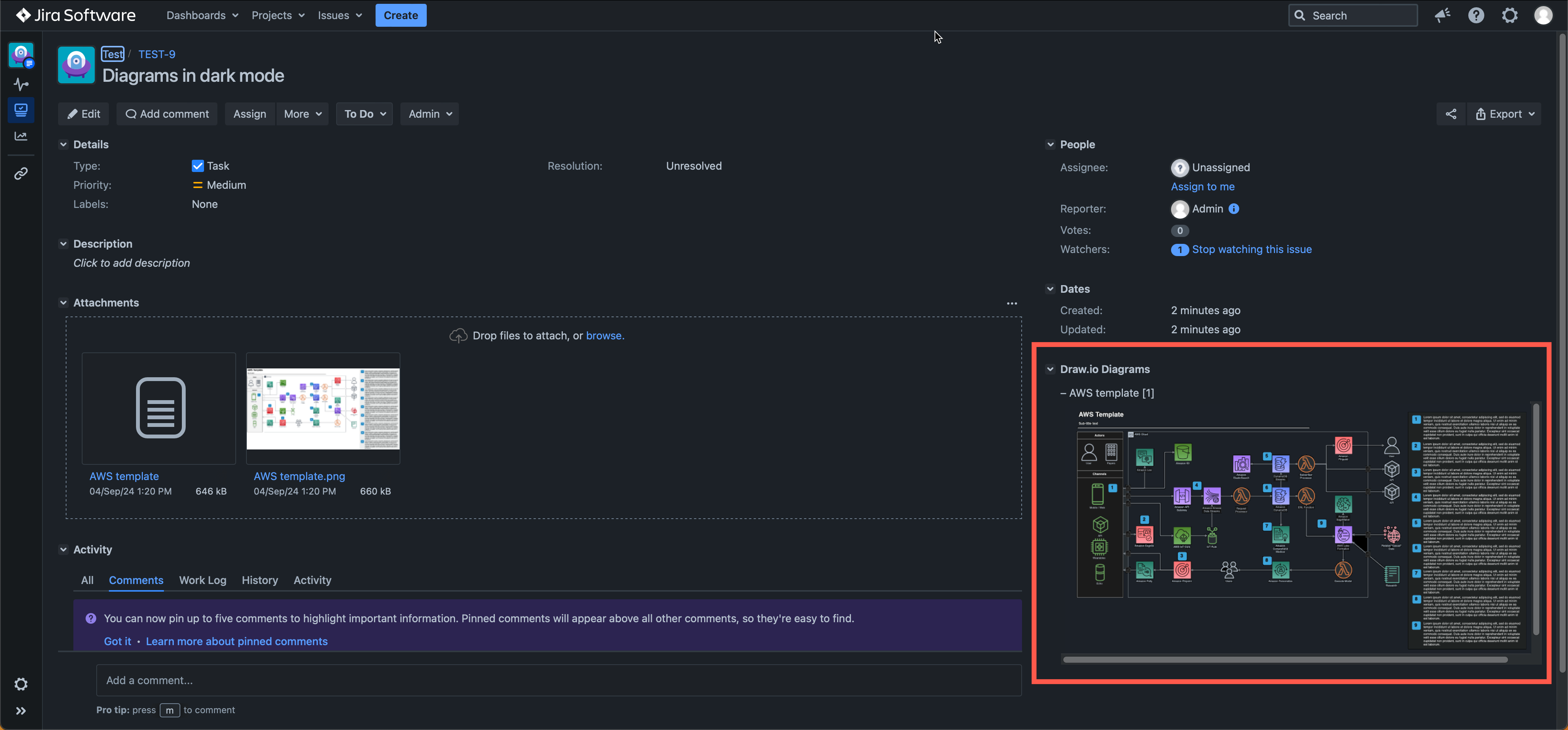
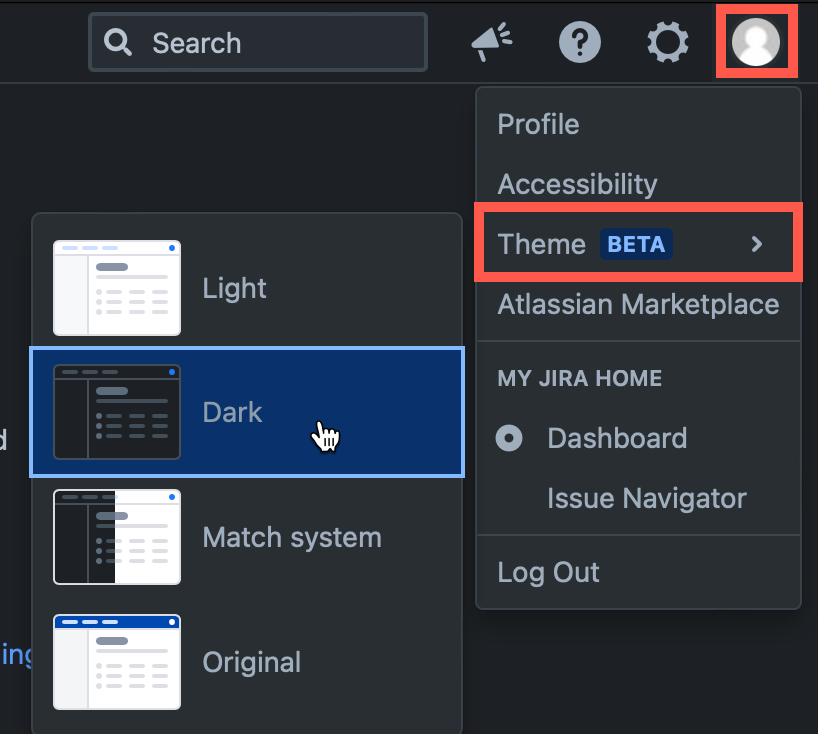
Atlassian has just released a dark theme for Jira Cloud for users who don't like working on light backgrounds. With Jira's new dark theme, draw.io diagram thumbnails in a Jira issue now automatically reflect your selected theme.
draw.io automatically changes the colours in your diagrams to match your Jira Cloud dark or light theme

draw.io has had a dark mode for some time, but diagrams attached to Jira issues displayed on a light background, whether or not you were using the dark mode in the draw.io editor.

Learn more about diagramming with draw.io in Jira

Diagrams on dark backgrounds

draw.io makes an intelligent guess about text and shape fill colours to keep your diagrams readable when you switch between dark and light.

As your team members can use their preferred dark or light theme, and the diagram thumbnail will match their theme, it's best to double check that your diagram is easy to read in both dark and light mode.

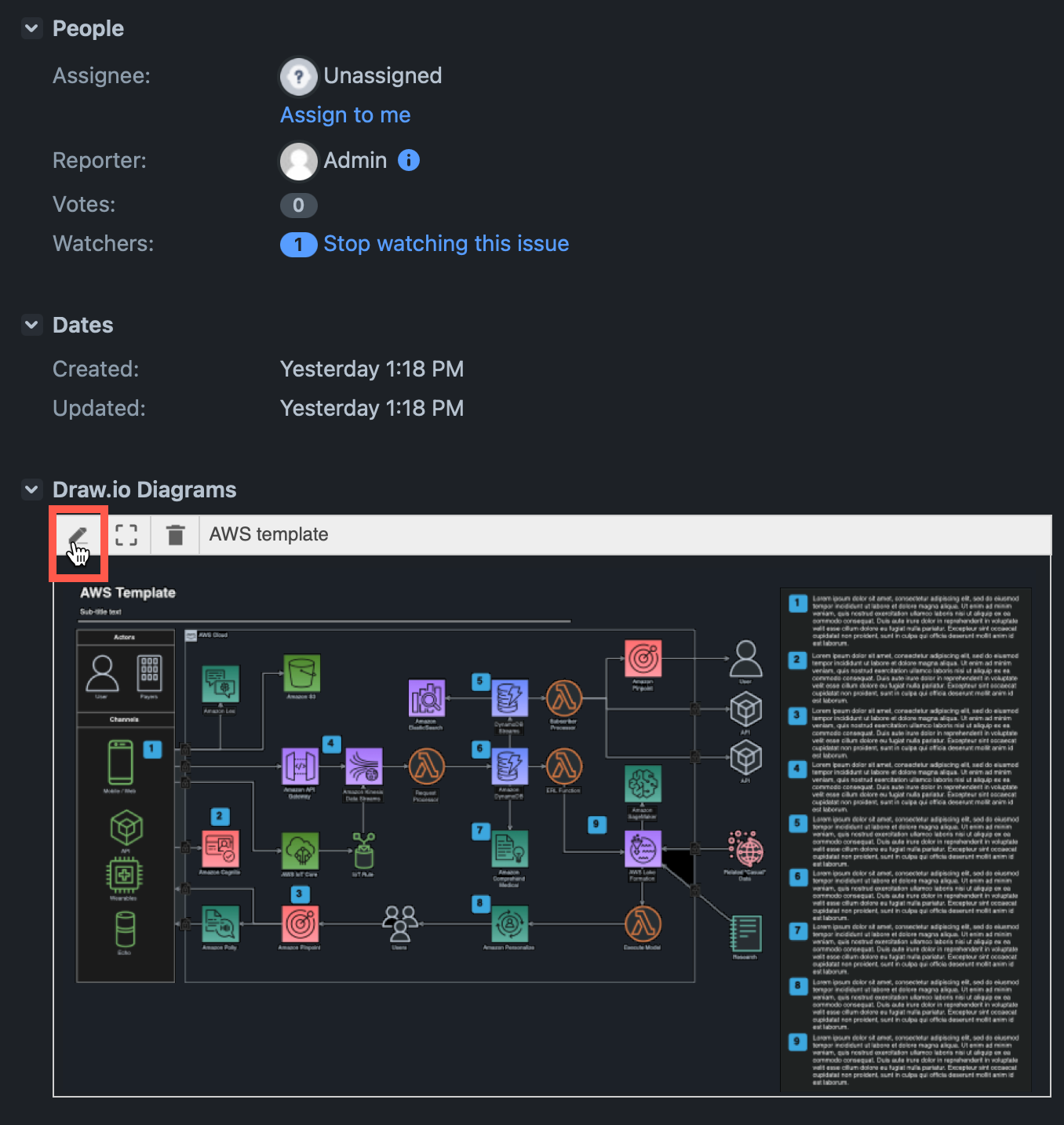
  1. Click on the Edit pencil in the toolbar when you hover over diagram thumbnail in a Jira issue to edit it with draw.io. If you don't see this section, click on the draw.io section at the top.
    Click on the edit button when hovering over a diagram in a Jira issue to open it in draw.io
  2. Click on the sun or moon in the top right to switch to the opposite theme - either Dark or Light_ - and check that your diagram is still readable on that background.
    Click on the sun or moon in the top right of the draw.io editor to change the editor mode to dark or light

Choose Automatic to make the draw.io editor automatically match your operating system's mode (dark mode or light mode).

Note: Switching to dark or light mode in the draw.io editor will not affect the thumbnail on the Jira issue - whether it appears on a dark or light background is based on the Jira theme that the user looking at the issue has chosen.

To use draw.io in dark mode on the web, go to app.diagrams.net/?splash=0&ui=dark, or switch modes via the sun/moon icon in the top right or via the draw.io menu.

Set specific colours in a diagram

Colours in certain types of diagrams may have specific meanings - if you change their colours when adapting to dark mode, the diagram might not make sense.

If you want your diagram to only ever be on a dark or a light background and not automatically adapt colours to match the user's Jira Cloud theme, you'll need to set a background colour, as well as a specific colours for both light and dark modes on the shapes, connectors and text in your diagram.

  1. Open the diagram from the Jira issue in the draw.io editor.
  2. Make sure nothing is selected in your diagram, then enable the Background checkbox in the Diagram tab in the format panel.
  3. Click on the colour button, select a colour from the palette or enter a colour code, and click Apply. Open the Advanced drop down and set the same colour as the dark mode background colour.
    Adding a diagram background ensures your diagram looks the same in both Jira's light and dark themes
  4. Style the shapes and connectors via the Fill and Line colours in the Style tab. Make sure you set both the light colour at the top, and the dark mode colour (under Advanced). Style all text labels via the Text tab.

Now, your diagram will use your defined colours in both dark and light mode.
Adding a diagram background ensures your diagram looks the same in both Jira's light and dark themes

Using diagrams with GitLab

· 4 min read

draw.io will be available as an integration in the web-based GitLab Wiki editor on 22 March with the GitLab 15.10 release and product kickoff. When you add your diagram to a GitLab Wiki page while editing the source of that page, it will be saved as an SVG image containing the diagram code, and displayed in the page content.

Like all files in GitLab, the image with its embedded diagram is versioned, so all changes are tracked.

Note: As this integration is still under development until release, small changes may be made.

Diagram in the GitLab Wiki editor

Add a new diagram: Click on Insert or edit diagram in the toolbar in the Markdown editor.
Add a diagram to GitLab in the Markdown editor

A blank diagram will be opened in the Sketch whiteboard-style editor theme. Use the diagramming toolbar on the left to access templates and shape libraries.
Create your diagram in the Sketch whiteboard-like editor, and save it to return to the GitLab Markdown editor

Save your diagram: It will be added to the page in Markdown as a .drawio.svg file.

Edit an existing diagram: Make sure your cursor is in the diagram file entry in the Markdown code, and select Insert or edit diagram.
Make sure the cursor is in the Markdown reference to the diagram file then edit the diagram in the GitLab Markdown editor

View a diagram in the page: Click on Preview to render the page containing the diagram.
Preview the page to see how the diagram is rendered along with the markdown text content of the GitLab Wiki page

Diagram with the GitLab rich text editor

Edit a diagram: Select the diagram, and click on Edit diagram in the hover toolbar that appears above or below.
Click on a diagram and use the hover toolbar to edit it in the GitLab rich text editor

Add a new diagram: Make sure no other diagram is selected, then click on the + in the toolbar and select Create or edit diagram.
Make sure you have not selected any diagram, click on the + in the toolbar and select Create or edit diagram to add a new diagram in the GitLab rich text editor

Save individual diagram files to GitLab

You can also store your individual diagram files in GitLab. Select GitLab as the save file destination when you create a new diagram, or select Save as from the menu.
Select GitLab as the location where you want to store your files

Alternatively go to our online editor to start diagramming now using GitLab to store your diagrams.

You'll need to authorise access to your GitLab repositories, if you haven't already done so.
Authorize GitLab to save diagram files to this location

Tip:i As draw.io uses secure direct client authorisation, your password is never shared.

Diagram in VSCode with GitLab

  1. Set up the GitLab Workflow extension for Visual Studio Code.
  2. Install Henning Dieterichs' unofficial draw.io extension for Visual Studio Code

The draw.io extension for VSCode lets you view and edit the .drawio diagram files stored in your repositories.
Use the unofficial draw.io extension for VSCode to edit .drawio files stored in a GitLab repository directly in the Visual Studio Code editor

See how this extension works in GitHub - it works in a similar way with GitLab inside VSCode.

Note: The extension only recognises files with the .drawio file extension.

Thanks for supporting draw.io in 2022

· 4 min read

It was quite a year. We want to take this opportunity to thank you for your support, look back at some of the features we've added and updated.

To our diagram editor users

Whether you use our web-based draw.io app or one of our draw.io integrations, or our standalone desktop app, thank you for your support, feedback, and participation in our Google forum and GitHub discussions.

To our open-source contributors and sponsors

Also to our development and support team, translators, bug reporters, and open-source sponsors - we love that you love our secure diagramming app. Thank you for your support and contributions this year.

To those open-source projects and developers we sponsor

Particularly Henning Dieterichs (unofficial draw.io extension for VSCode), Preet (rough style for shapes) and Dan Brown, but we'd like to thank all those we sponsor for your contributions to the open-source community and our application.

New features and updates in 2022

The biggest and most recent new draw.io feature is our redesigned toolbar and menu for a distraction-free diagram editor.

The new simple mode takes the best parts of all of our editor themes and blends them together with a simple, responsive toolbar and large drawing canvas. To switch to this mode, click on the sun/moon in the top right, and select Simple.
Draw a freehand shape in your diagram via the toolbar in simple mode in draw.io

  • draw.io users in Confluence Server/Data Center can apply a sensitive label to exclude diagrams from recent lists and search.

  • draw.io users in Confluence, and with Google Drive and Microsoft One Drive can see each others' mouse cursors in real time as they collaboratively edit a diagram.
    Share your mouse cursor with others who are editing the same draw.io diagram in Confluence Cloud

  • Improvements were made to the mass Gliffy import and Confluence instance migration tools for draw.io users.

  • Shape libraries have been expanded and updated with new icons - particularly the Azure, AWS, Google Cloud and SysML shape libraries.

  • You can add and edit translations within the shape labels as shape metadata - no need to keep separate diagrams for separate languages.
    Translate labels on shapes and connectors directly in the draw.io editor

  • The editor was translated into new languages - Lithuanian and Latvian.

  • Switch between dark and light modes without having to reload the browser tab - click on the sun/moon in the top right and select Dark.

  • A connection point editor tool was added - you can now easily customise the fixed connection points for any shape on the drawing canvas.
    Move, delete and add connection points to a shape visually in draw.io

  • Swap existing shapes on the drawing canvas by holding down Shift as you drag one over the other. Flip connectors and groups of shapes via the Arrange tab on the format panel.

  • Number shapes and connectors with the built-in enumerate property (to replace the number plugin).

  • To run your own diagramming server, you can use our Docker image of draw.io for secure and private diagramming behind your firewall.

  • Freehand drawing was updated with a variable size brush, which works well with a tablet and pen.
    Freehand drawing in draw.io on a tablet - click the freehand tool in the toolbar on the left

  • Several advanced tools and features were updated, including Mermaid import, mathematics typesetting, rough style, CSV import, image cropping, font mapping, SVG export, drag and drop diagram import, and more.

  • More integrations with a wider range of tools for built-in diagramming - thanks to the developers who have integrated our open-source diagram editor.

And, of course, our team also published a mountain of bug fixes, security patches and smaller optimisation changes to both the web version of draw.io and our own draw.io app integrations.

The many faces of draw.io

· 3 min read

Finding a typo-proof word that is also pronounced the same throughout the world is simple, how sensible companies fail to stop users from mis-spelling product names eludes us. draw.io demonstrates the right way to do this, clearly. However, a small, minor, fractional, minority of users regularly fall asleep on their keyboards while typing our product name, this is the only rational explanation.
Freehand drawing in draw.io on a tablet - click the freehand tool in the toolbar on the left

craw.io - do our diagrams make you angry? Or maybe it's a reference to the cleverness of crows? Do those filthy BPMN shapes make your skin crawl?

dra.io - the languages with a close appropriate meaning would be Norwegian (to draw or drag) or Swedish (to pull or tell a story). Or perhaps Yola, the Forth and Bargy dialect (to draw) in County Wexford. We bet you've dropped your lunch under the w key.

dran.io - your turn! (German) Seriously, we're not sure how n slips in for w as those two keys are usually far from each other in most layouts. Perhaps Maltron 3D keyboard users slipping from the a?

draq.io - uncertain, unexpected, indefinable, but riveting. Or perhaps fashionable? Or cut off accidentally while typing something longer...

drag.io - a wonderfully concise description of how to use draw.io - drag shapes onto the canvas and drag connectors between them.

drsw.io - That's tough to say after you've been drinking. Maybe that's the reason you spelt it like that. But that's cool, we'd totally all vote for Sanna Marin if we could.

drwa.io - Polish for firewood or wood, probably. Also Creole for right (entitlement).
Different types of hardwood and softwood trees for firewood, and useful firestarters

dwaw.io - this brings to mind an old movie ...
"Mawwiage ... mawwiage is what bwings us togevvar, today."

draw.net and diagrams.io - how could anyone get this wrong? Our naming change will go in marketing textbooks for years to come as an example of how to re-brand effectively.

diagram.io - our top secret site to get money from you. You're only allowed a single diagram here, until you pay up and we redirect you.

graph.io - because draw.io is developed by JGraph? Or is it diagrams.net...

drow.io - flanked by dark elves? Seriously though, the aw sound in English is difficult in other languages - in Japanese, it is closest to the vowel o. It seems to be tricky in Spanish, too.
drow.io should really redirect to a vector drawing of Drizzt.

ddra.io - when said aloud, this is suspiciously close to daedra. Perhaps we should ask Bethesda if Hermaeus Mora, Jyggalag or Peryite is the patron prince of diagrams? Ooo, an idea - a wabbajack tool for hilarious chaos when teams collaborate!

It's summer, we're bored and it's hot. If you'd like to contribute additional misspellings or propose different meanings for those above, share it with draw.io on Twitter.

How many of these domains will be purchased within a week? You can offer to sell them to us at sales@draw.net.