Reference implementation moving to app.diagrams.net

· 3 min read

The reference implementation of the draw.io project will be hosted at app.diagrams.net. Everything else remains the same - the online editor has all the functionality of the draw.io core editor.

.io domains​

There are two major problems with .io domains:

However, the domain administrator made no attempt, at any time, to communicate with anyone about the issue. We've no evidence to suggest there is anything to be worried about, but the complete lack of communications means we have lost trust in whoever controls .io domains.

draw.io in Atlassian​

draw.io will remain as-is within Atlassian. Our partnership in that ecosystem with Seibert Group GmbH will continue in the same way for a long time to come.

Our draw.io documentation and official blog will move away from the .io domain to drawio.com.

What's next?​

Our web site at www.drawio.com is focused on the core open source project and the reference implementation at app.diagrams.net.

We are testing https://app.diagrams.net to check everything that works on the old draw.io domain works there. Don't switch away from www.draw.io just yet.

When we're happy with the new app sub-domain we'll mark it as the canonical domain and file open requests from Google Drive will be sent there.

What do I need to do?​

Hopefully, nothing. If you use draw.io within your group or company, maybe send a message to let your colleagues know the name is changing. There is time to feedback any concerns you may have.

If you have questions, please post them to https://groups.google.com/forum/#!forum/drawio. If it's technical you can open an issue at GitHub.

We are sponsoring FOSDEM 2020

· 2 min read

FOSDEM is a free two-day event held each year, organised by volunteers, to promote the use and development of free and open source software. Open source software developers and users can meet, share ideas, and collaborate.

FOSDEM’20 will be held at the Université Libre de Bruxelles Solbosch Campus in Brussels, Belgium on 1-2 February 2020.

There is no registration and the event is free to attend!

We are a sponsor of FOSDEM’20​

As an open source technology stack and one of the world’s most widely used browser-based diagramming applications, we are proud to be sponsoring FOSDEM’20 and supporting open source developers around the world.

Open source has a huge number of advantages for customers. With draw.io you get the following benefits.

  • Increased trust – anyone can scrutinise the source code.
  • Extendable – open source encourages third-parties to develop integrations with various platforms.
  • No lock-in SaaS – you’ll always have access to the desktop app even if the website goes away.

Our goal is to provide free, high quality diagramming software for everyone and disrupt the world of diagramming tools.

draw.io is sponsoring the FOSDEM'20 conference for open source developers

FOSDEM: hundreds of open source speakers and events​

With thousands of attendees from all over the world taking place, it’s one of the largest events for open source projects. The 400+ speakers and 500+ events are organised by a hard-working team of volunteers.

In this 20th instalment of the conference, it’s free to participate in more than 50 developer rooms where talks, hacking sessions and open discussions are held on a huge variety of topics, all related to open source development and projects.

In addition to the developer rooms, there are keynotes, main track talks, as well as stands you visit to chat in person with open source project developers. Certification organisations also run several exams during the conference that visitors can take.

Keep an eye on the FOSDEM website or follow @fosdem on Twitter as the schedule of speakers and events are confirmed.

Updates to the draw.io desktop app

· One min read

DESKTOP VERSIONS PRE 10.7.5 ARE STRONGLY RECOMMEND TO DOWNLOAD AND INSTALL A NEW DESKTOP BUILD {: .alert .alert-danger}

Desktop versions prior to 10.7.5 have a critical security flaw, so we’re disabling them all, sorry. To resolve, just go to the draw.io desktop project on GitHub, https://github.com/jgraph/drawio-desktop/releases, and download the latest version for your platform. Once that’s installed, you’re good to go again.

Versions of draw.io Desktop from 10.7.5 onwards run completely isolated from the internet, so the security hole can’t reappear.

More example diagrams and templates on GitHub

· 2 min read

We regularly publish new example diagrams you can use as templates in the jgraph/drawio-diagrams repository on GitHub so they are easy to access. In this repository you'll find diagram examples that are used in:

Open a diagram as a template​

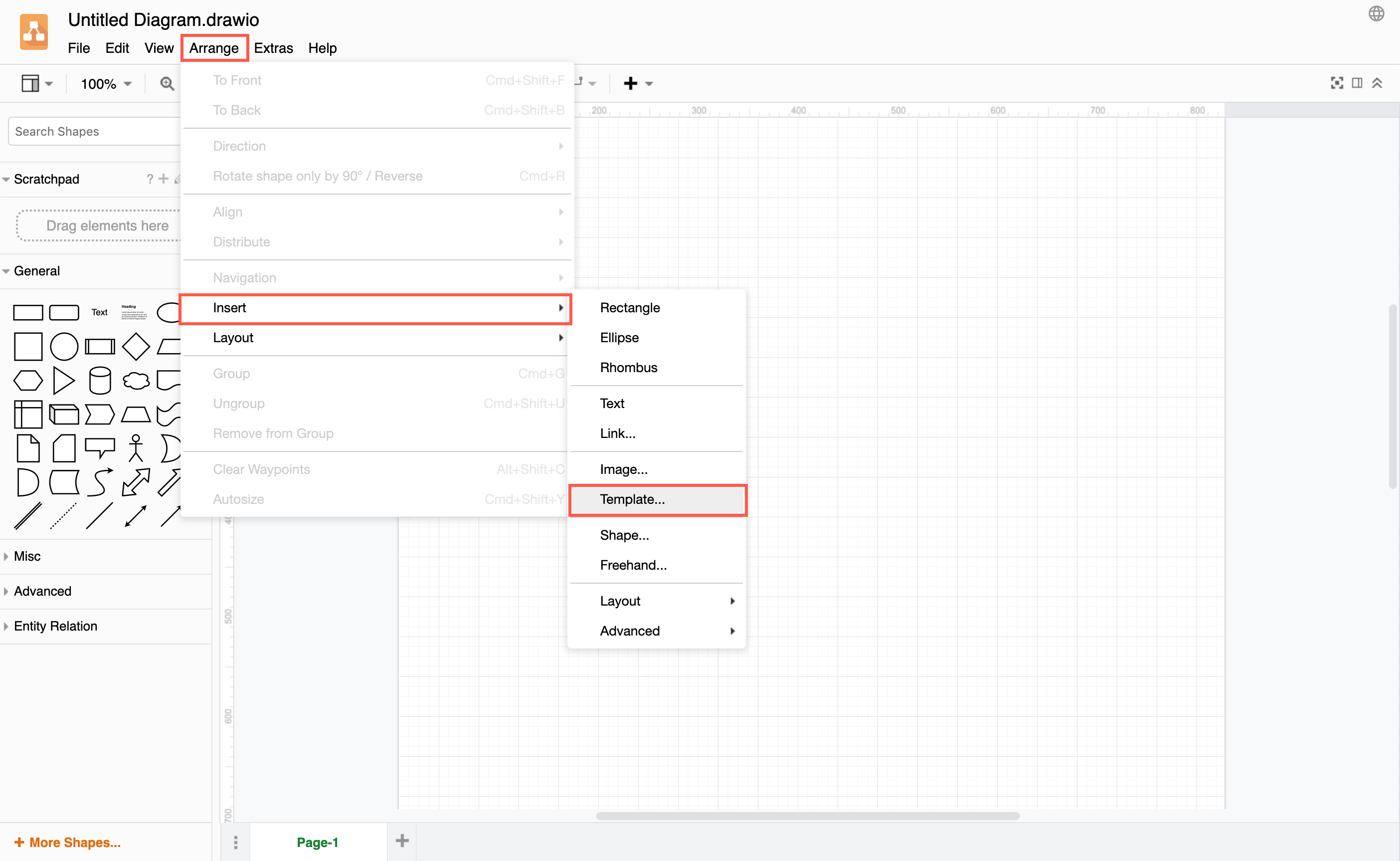
If you find an example diagram that you want to use as a template in your diagram, click Arrange > Insert > Template.

Insert a template diagram

In the template library dialog, click on From Template URL, and enter the URL of the diagram you want to use.

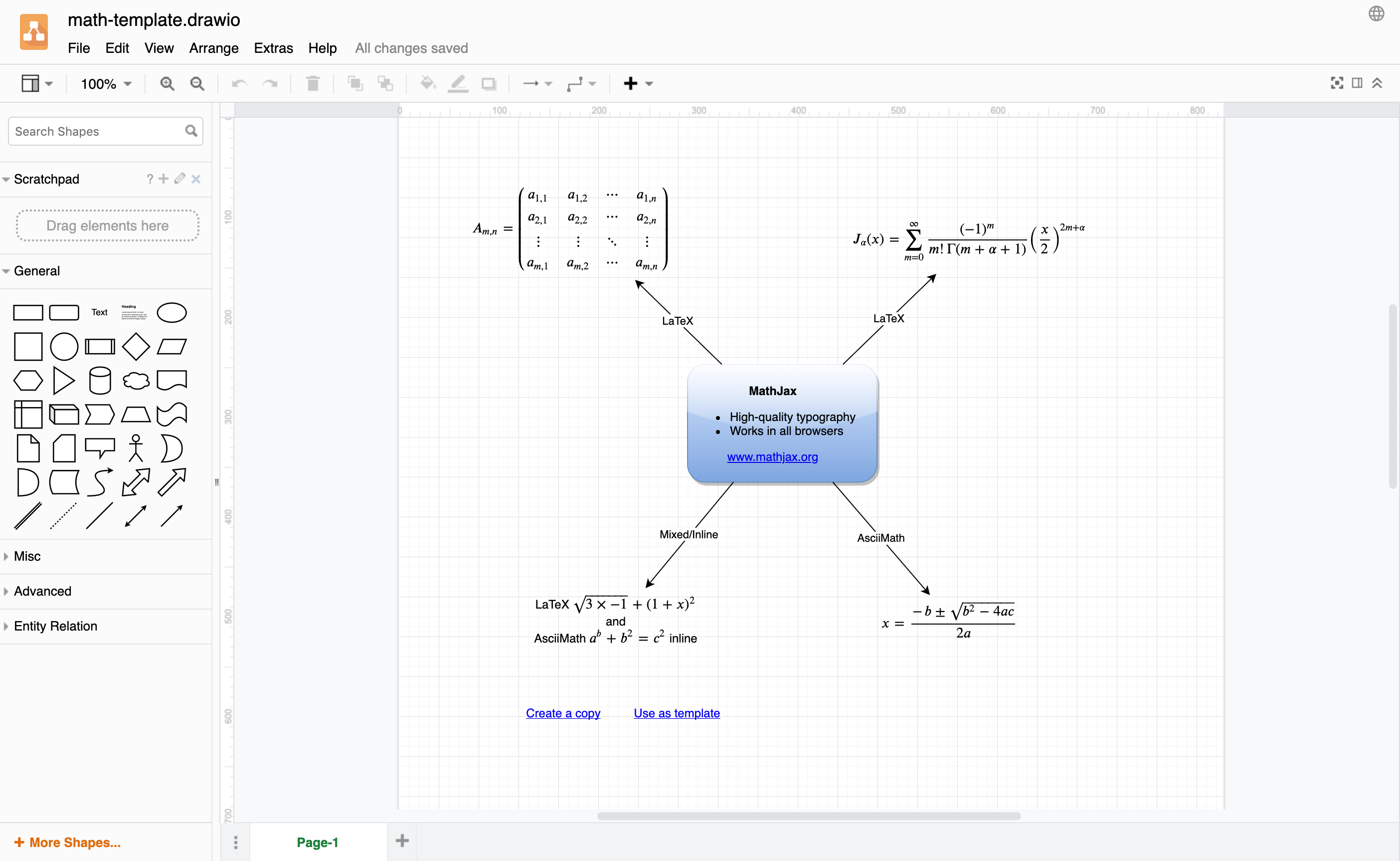
For example: https://raw.githubusercontent.com/jgraph/drawio-diagrams/dev/examples/maths-examples.drawio

Note: This must be the file data, not the page on which the file is attached.

Click Create, and draw.io will open the template diagram in a new browser tab. Name your diagram, and now you can edit it as you need.

An example diagram inserted as a template from GitHub

See the drawio-diagrams repository on GitHub for more ways to use these examples as templates for your diagrams.

Diagrams in Google Docs now support high resolution images

· 3 min read

When you print a Google Doc, you want images and diagrams to be as clear as possible. Diagrams that have been embedded with the Google Docs add-on can now be printed at a high resolution.

Install the Google Docs add-on​

  1. Go to the G Suite Marketplace and click Install.
  2. Click Continue and log into your Google Account.
  3. The Google Docs add-on needs your permission to work with your Google Docs and connect to the draw.io server so you can create diagrams inside your documents. Click Allow to grant these permissions.

Alternatively, you can search for the add-on from within Google Docs.

  1. Click Add-ons > Get Add-ons.
  2. Search for draw.io diagrams, and click on draw.io Diagrams for Docs.
  3. Click Install and follow the steps from (2) above to grant access to the add-on.

Automatic image quality of diagrams in Google Docs​

When you add a diagram to a Google Doc, it will choose an image resolution automatically based on the diagram's size.

  • Smaller diagrams will automatically be scaled to retina-quality high resolution images.
  • Larger diagrams won't, in order to save on bandwidth.

First, you need to add a diagram to a document.

Add a diagram to a Google Doc​

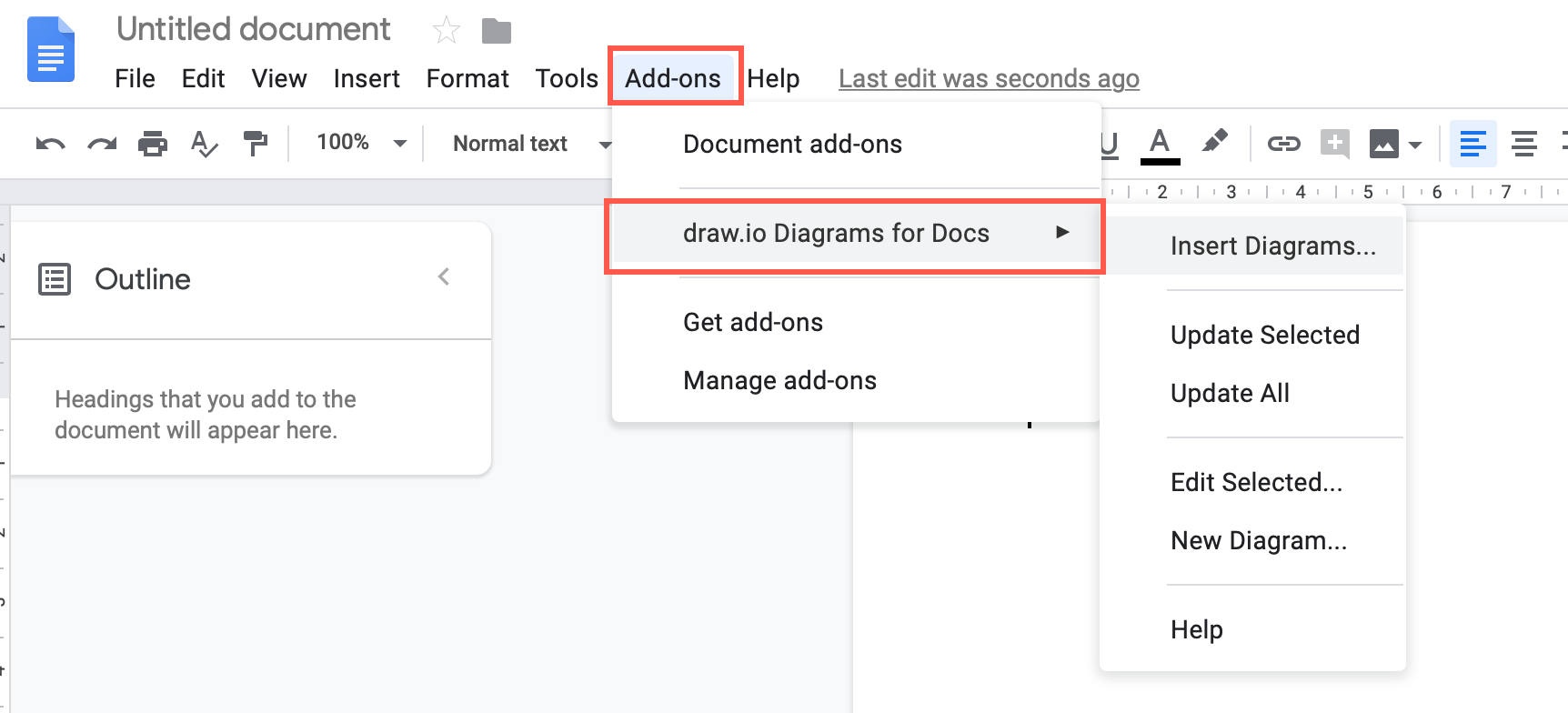
  1. Click Add-ons > draw.io Diagrams for Docs and then select Insert Diagrams. If you don't have any existing diagrams, you can create a New diagram.
    Add a diagram to a Google Doc
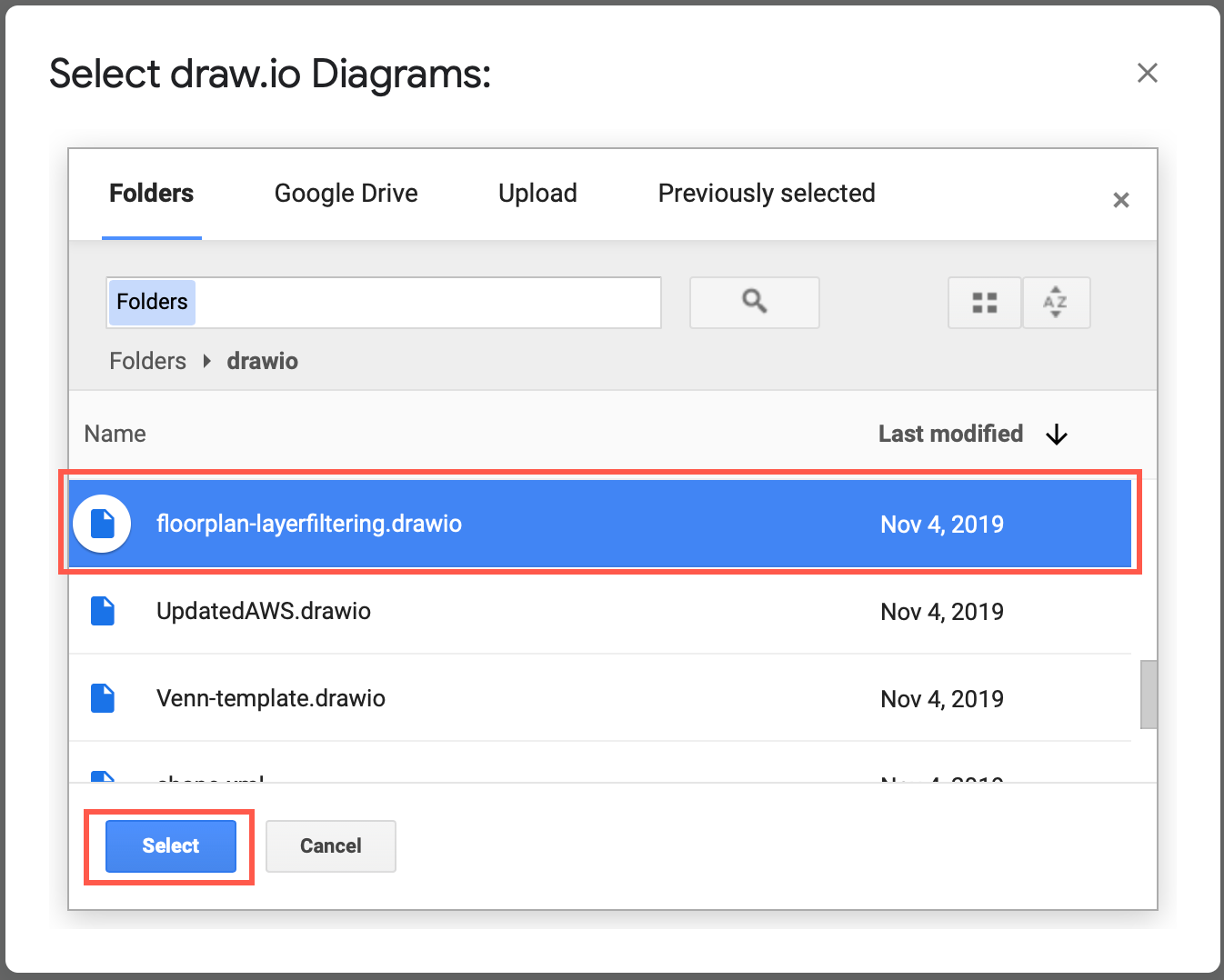
  2. If you are inserting a diagram, navigate to your .drawio diagram file, select it, then click Select.
    Select a .drawio diagram file to insert into a Google Doc
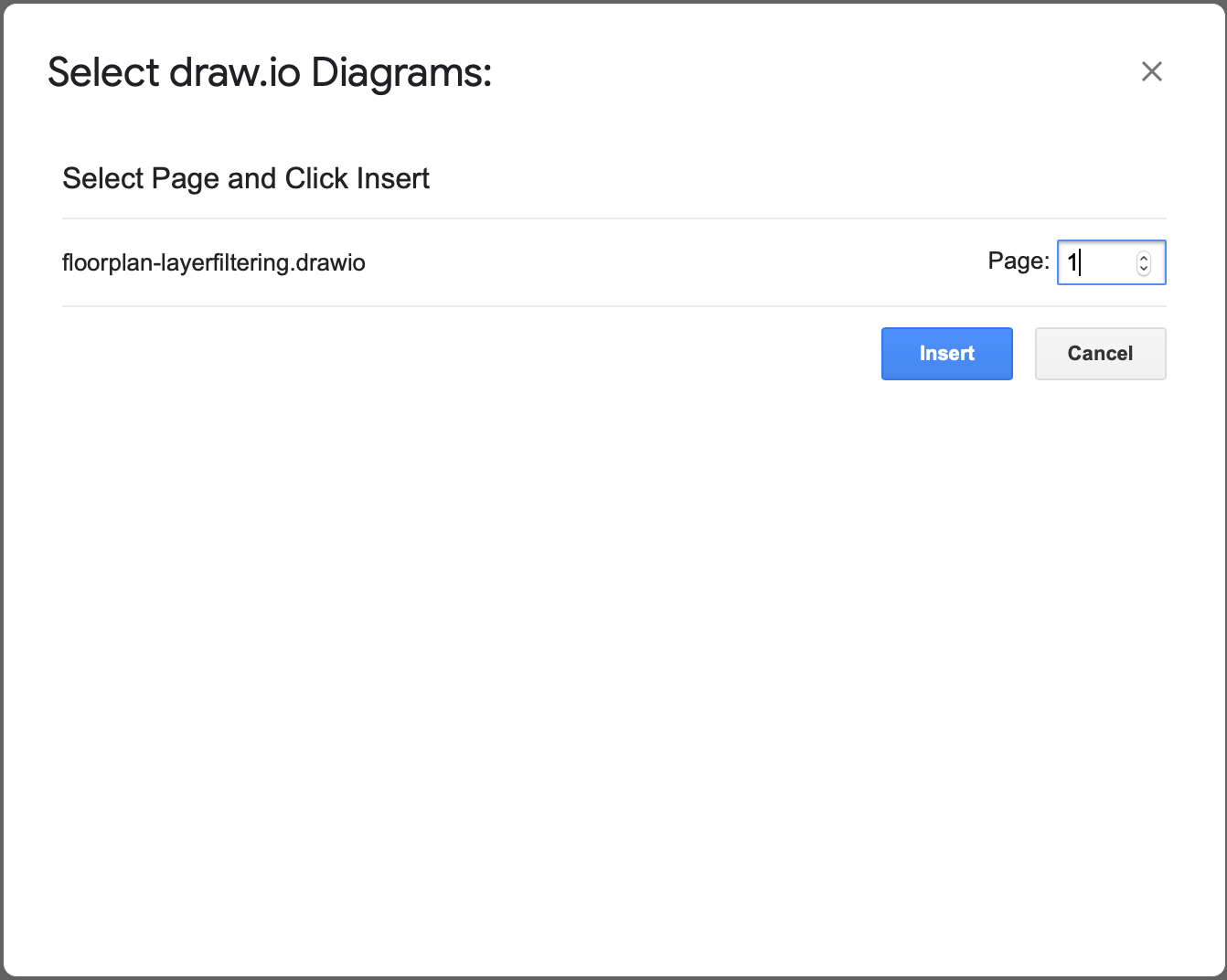
  3. Select the page you want to display, if your diagram has multiple pages, and click Insert.
    Select the diagram page you want to display in your Google Doc, if it is a multi-page diagram

Change the diagram's image resolution in Google Docs​

If you are unhappy with the automatic resolution that your diagram is displayed or printed at, you can change the scale by editing the diagram link embedded in the document.

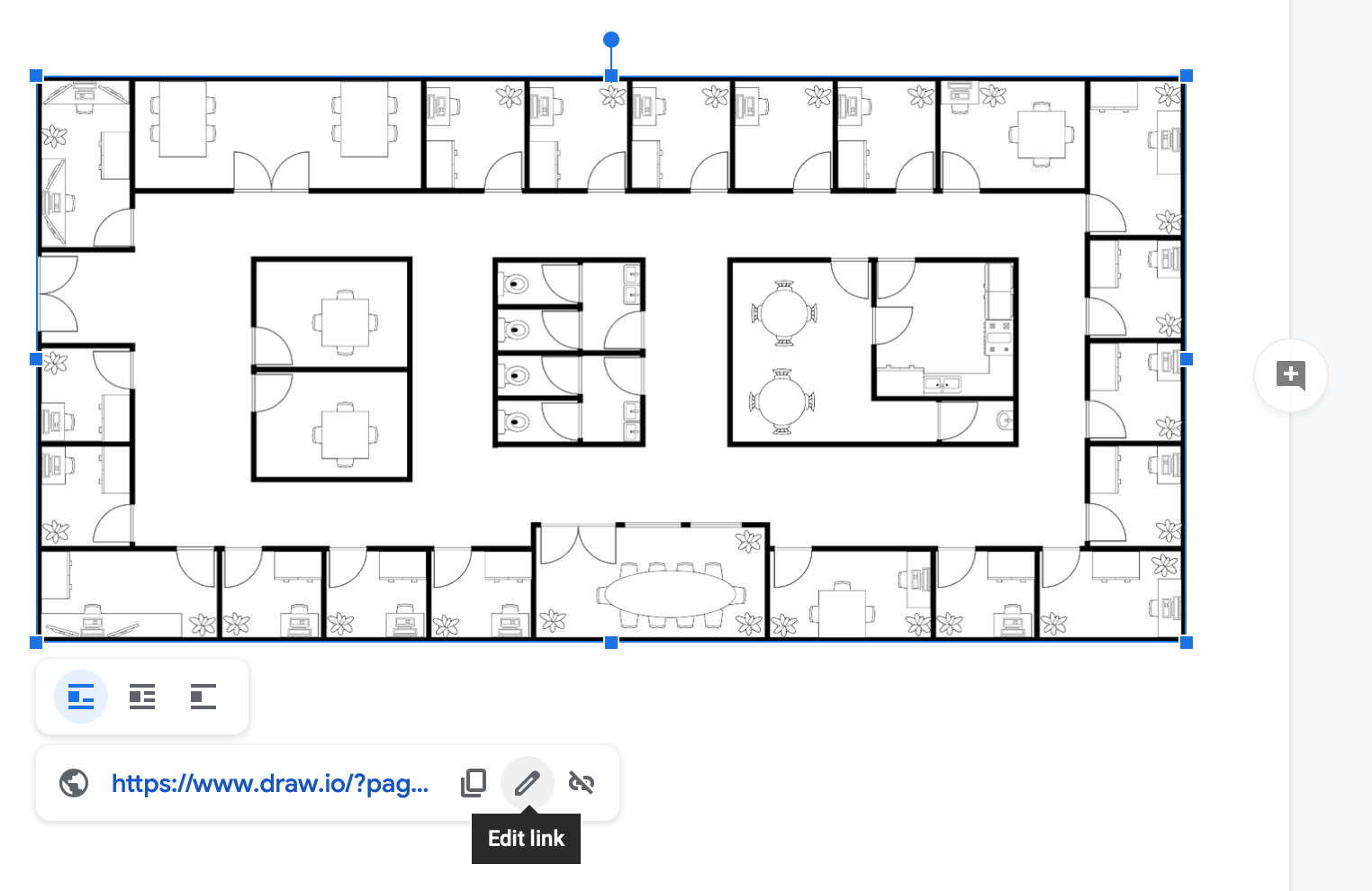
  1. Edit the diagram link by clicking on the pencil icon.
    Edit the diagram link in Google Docs
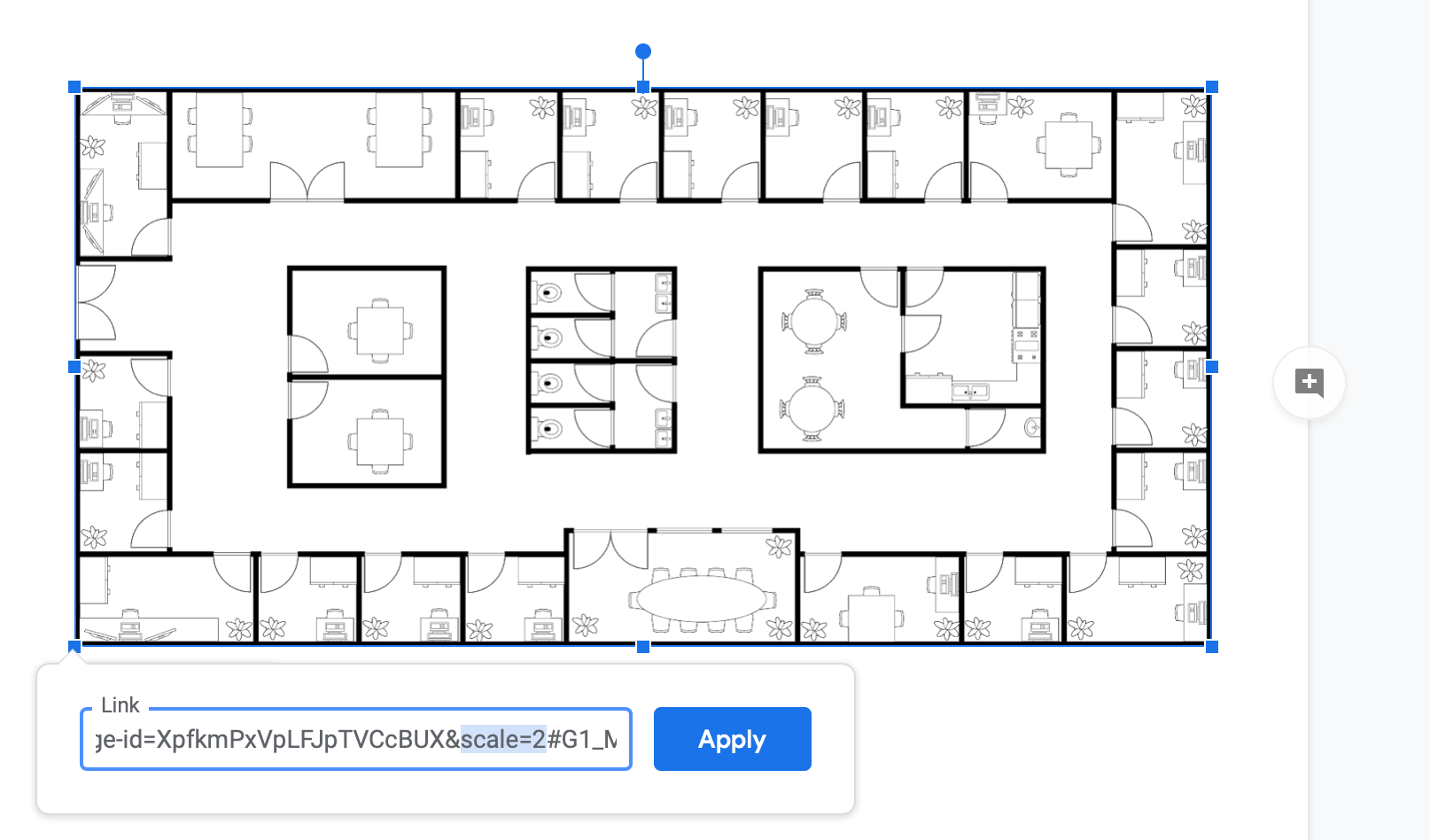
  2. Find the modifier scale=auto and change the value to whatever you want.scale=2 is equivalent to retina-quality high resolution images. Then click Apply.
    Change scale=auto to scale=2 to display and print a retina-quality high-resolution image