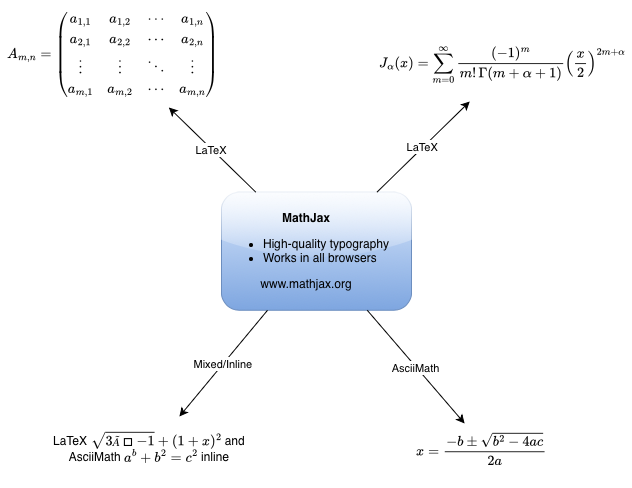
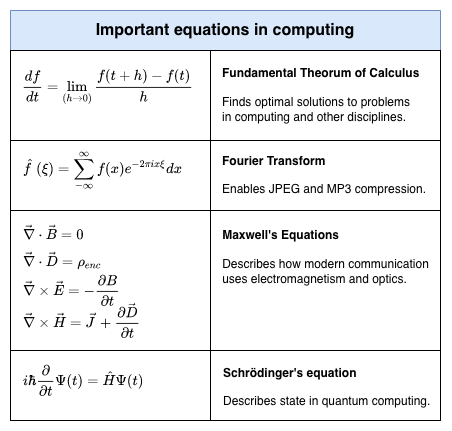
This past year has seen a number of new features and big updates to draw.io, including the online editor, our Confluence and Jira apps, and other integrations for a variety of platforms.
Data security and privacy
As a unique security-first diagramming app, we want to provide you with the best in data privacy and data security.
Building on the data governance and lockdown options we implemented last year, our draw.io branded app for Confluence Cloud and Jira Cloud was the first secure diagramming app to meet Atlassian's rigorous Cloud Fortified standard, making it your most secure choice for diagramming and visualization.
The draw.io App for Github is an alternative authorisation method you can use to limit draw.io's repository access to specific repositories, rather than all of the repositories in your account.
We researched a stricter implementation of our content security policy on the test se.diagrams.net domain. Take up of the domain has been very low, so we will port all the changes we can from that project and then close it down.
New and updated integrations
Several new integrations were released, and existing ones were updated in the past year. New and updated features common across all integrations are described in the following section.
draw.io for Atlassian Confluence and Jira
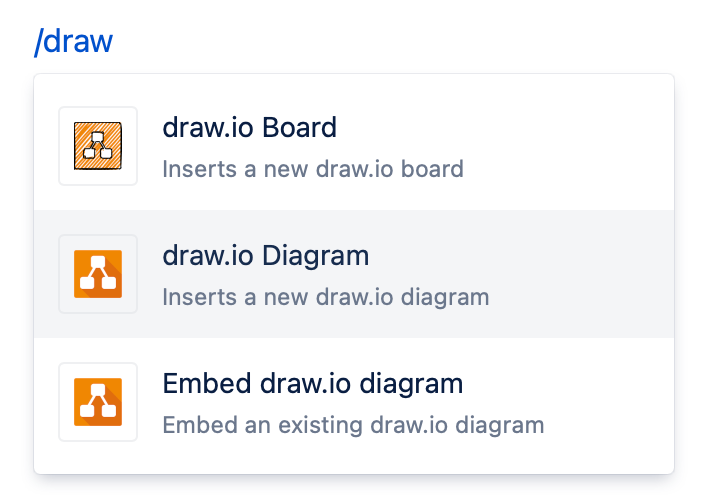
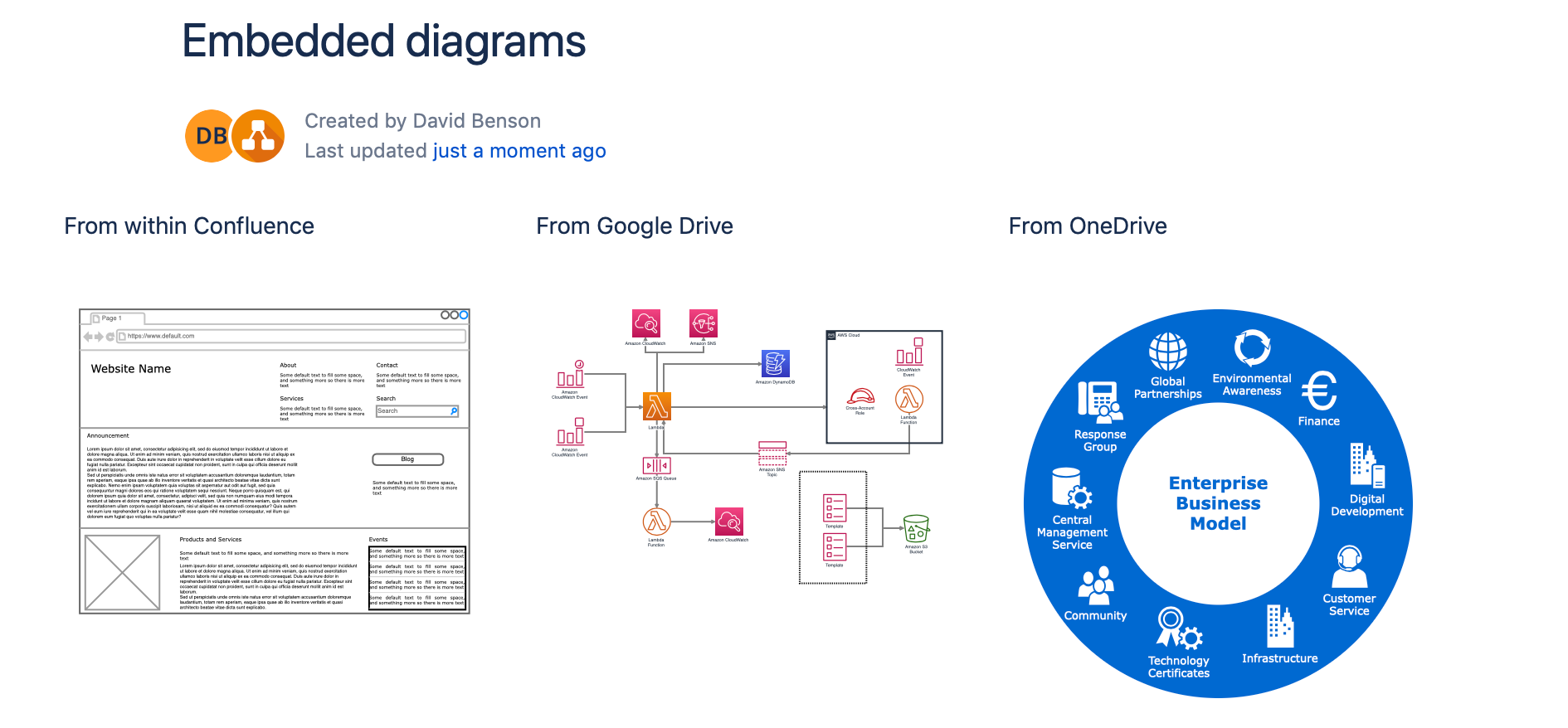
With the draw.io apps for Confluence Cloud and Jira Cloud, you can embed diagrams that are stored in Confluence Cloud in your Jira Cloud issues. Keep all of your visual documentation for systems, processes and software in your Confluence Cloud knowledge base, and reference them in your project tasks in Jira.
The draw.io app is now free in small Confluence Cloud instances (up to 10 users). If you are taking advantage of Atlassian's offer of a free Confluence Cloud instance for your small team, you can now add the draw.io board macro and embed diagrams in Confluence pages without needing to purchase a license.
We've improved the draw.io app's performance within Atlassian host products, updated the authentication to use the new API, and refreshed the Kennedy editor theme. The Gliffy and Lucidchart conversion features received a number of updates and bugfixes throughout the year.
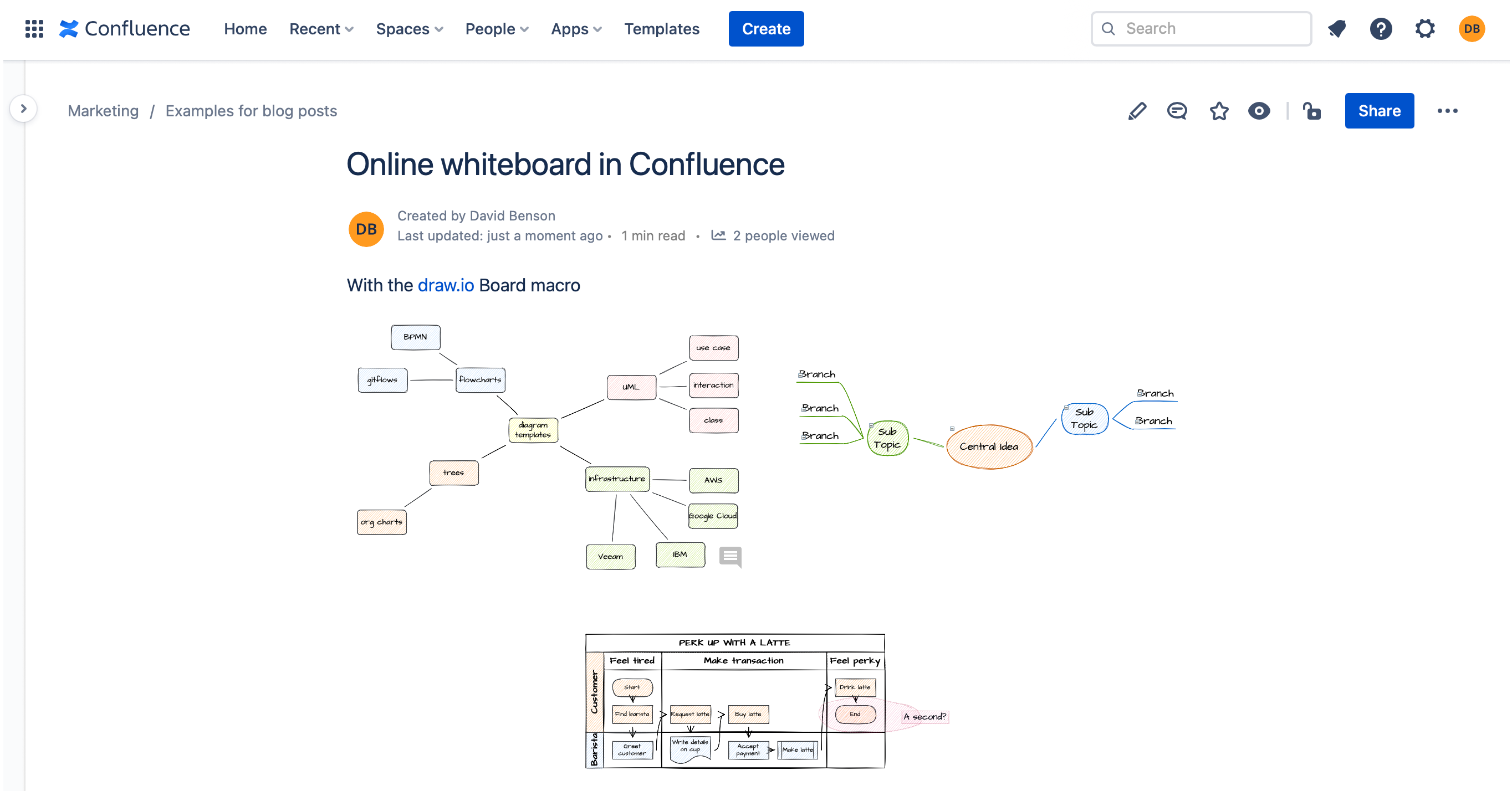
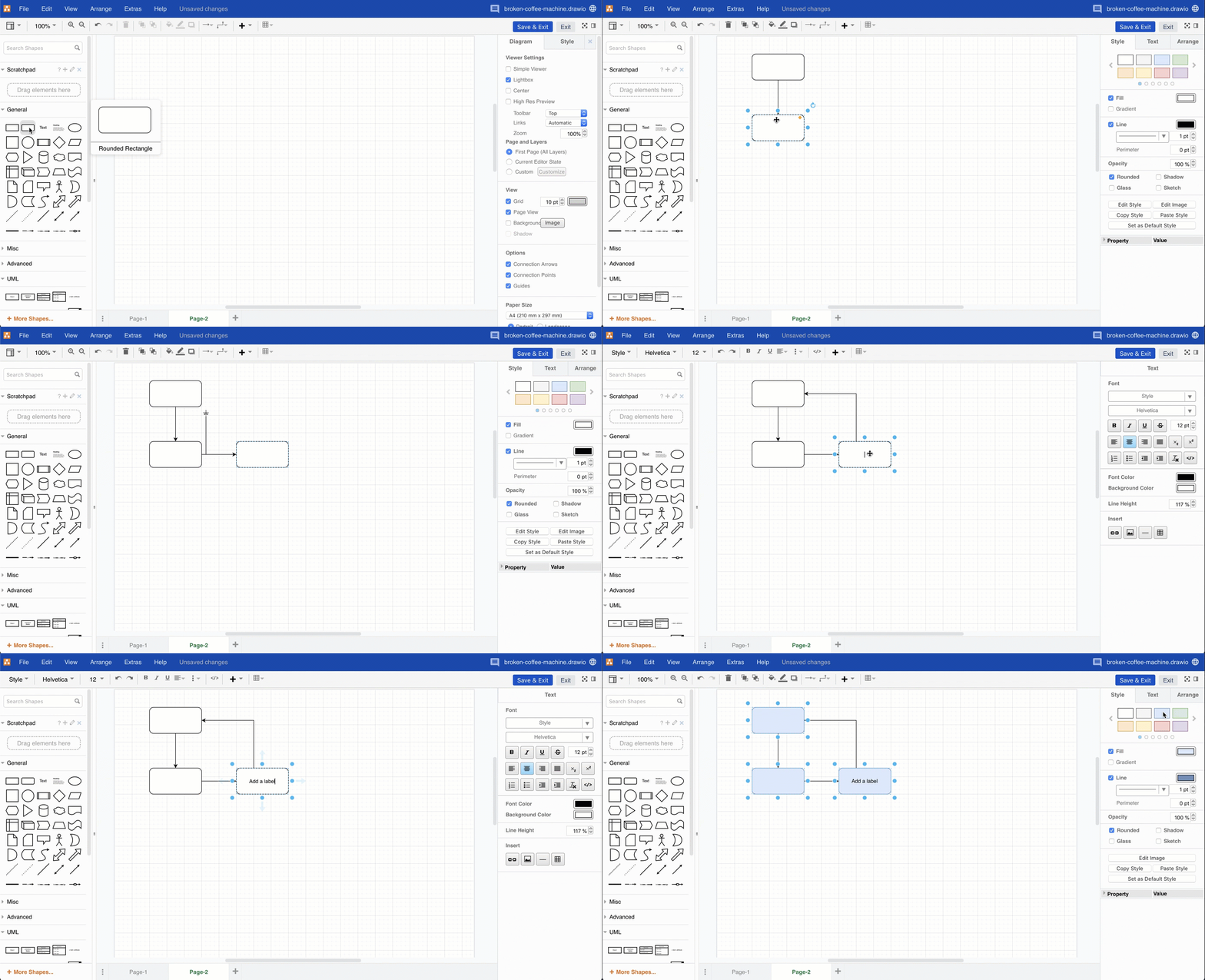
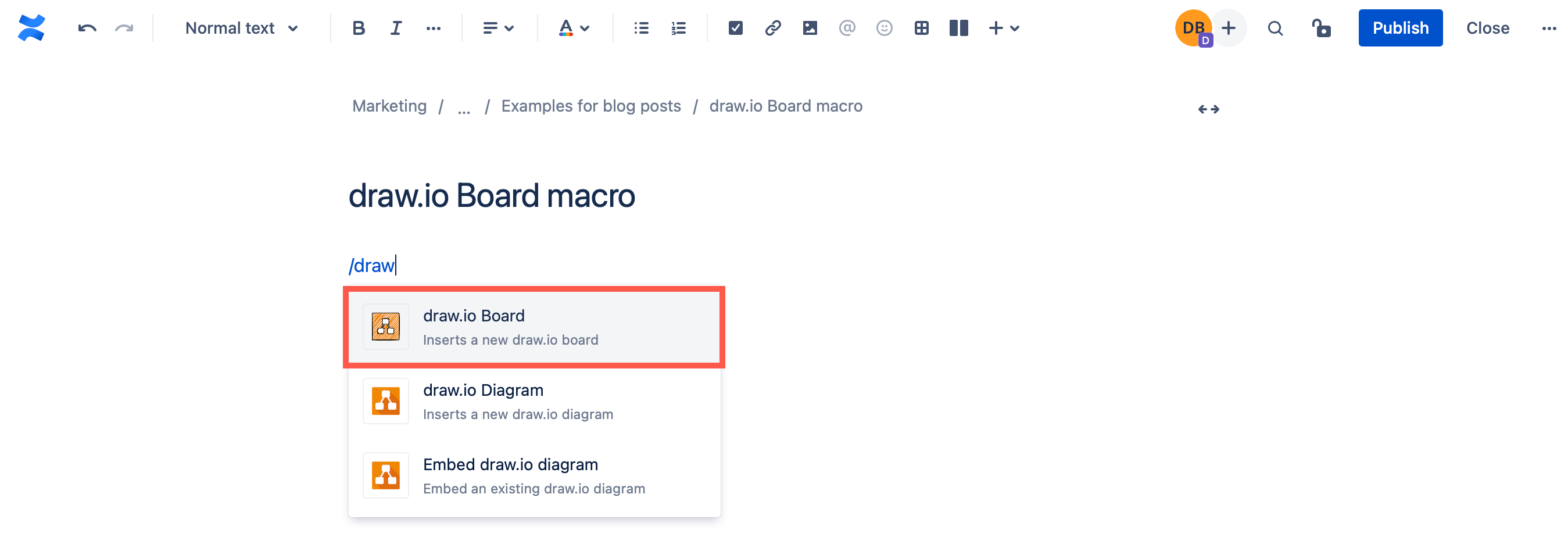
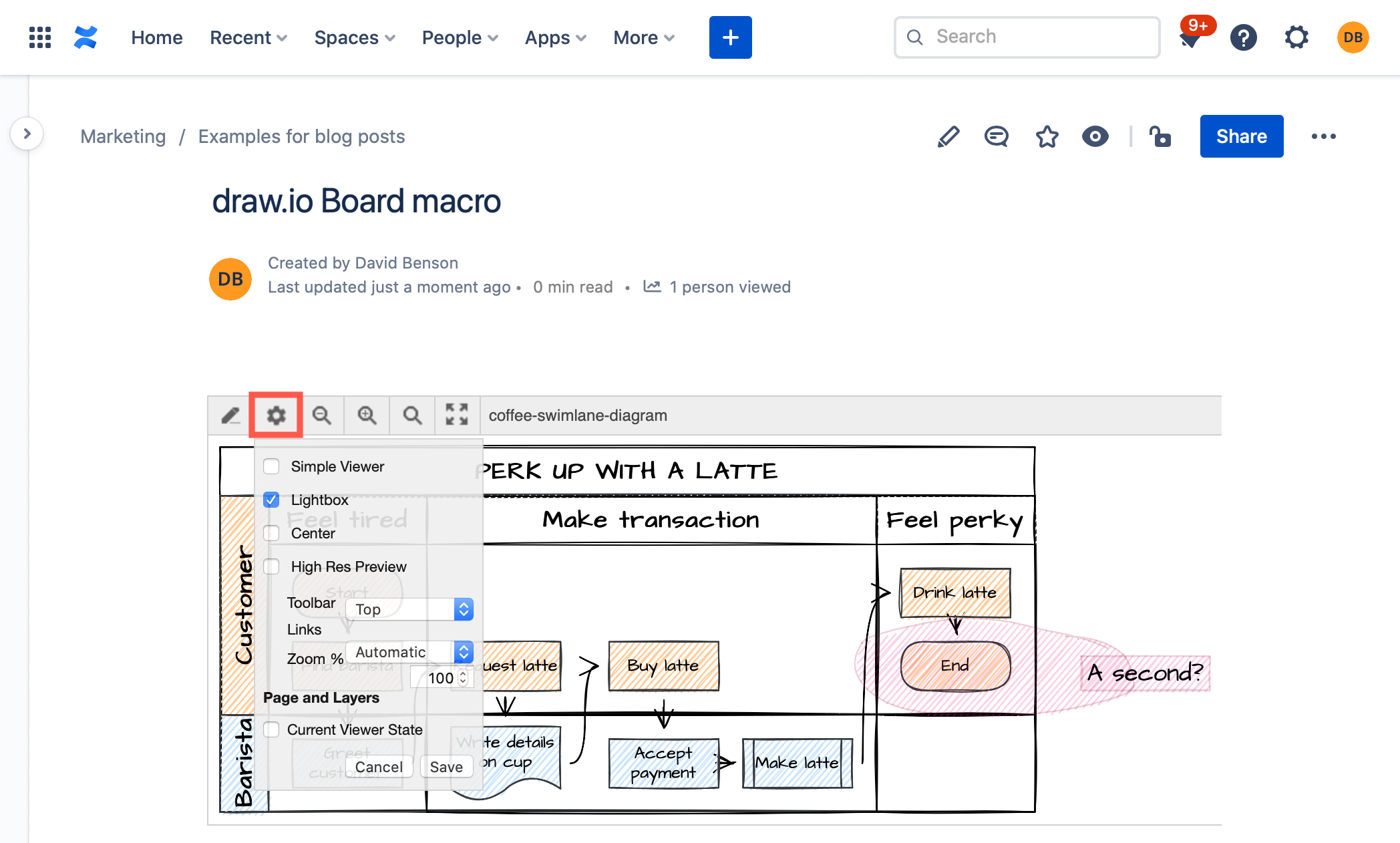
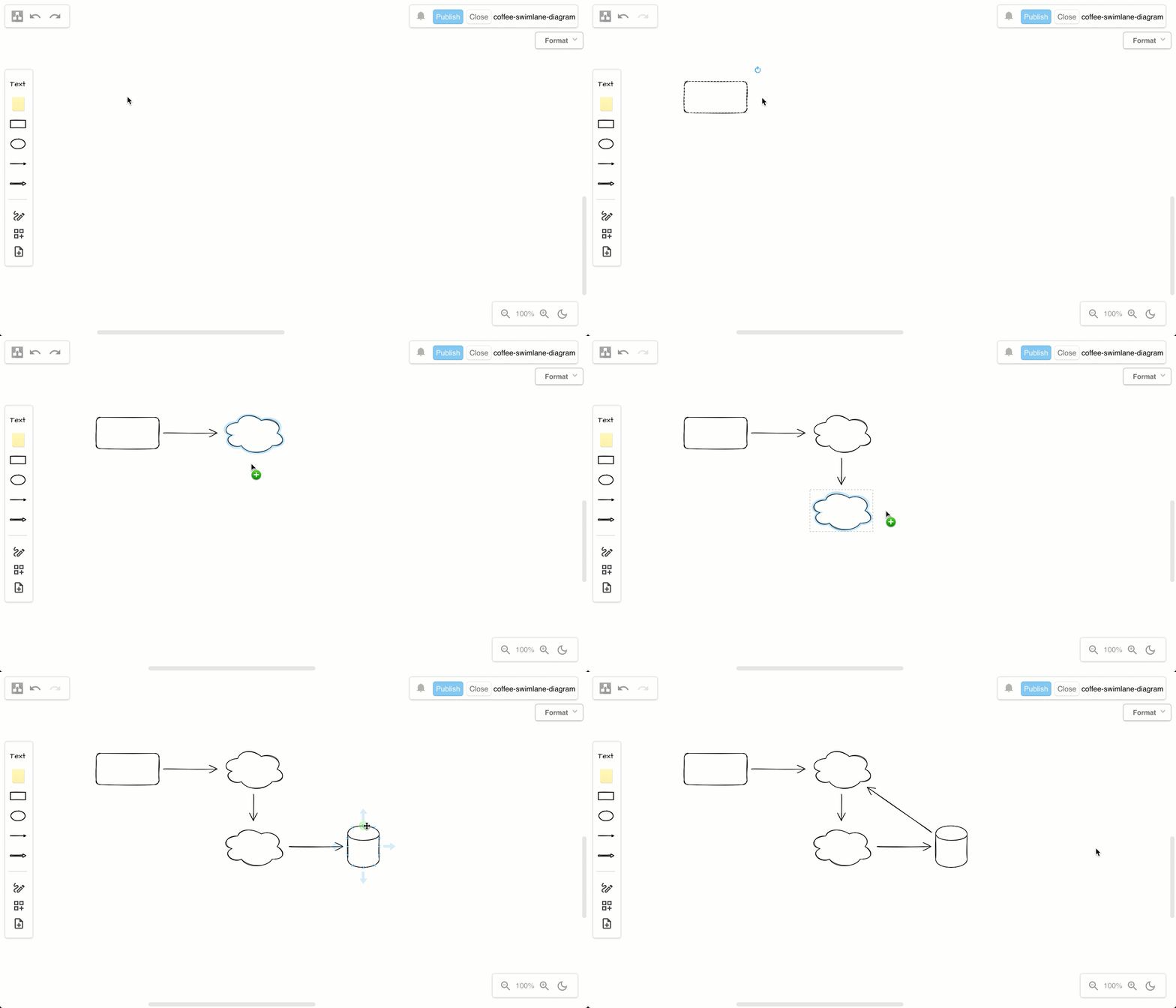
The new draw.io board macro in Atlassian Confluence uses the updated Sketch editor theme by default, providing teams with an easy-to-use digital whiteboard.
draw.io for Google Workspace, Drive and Classroom
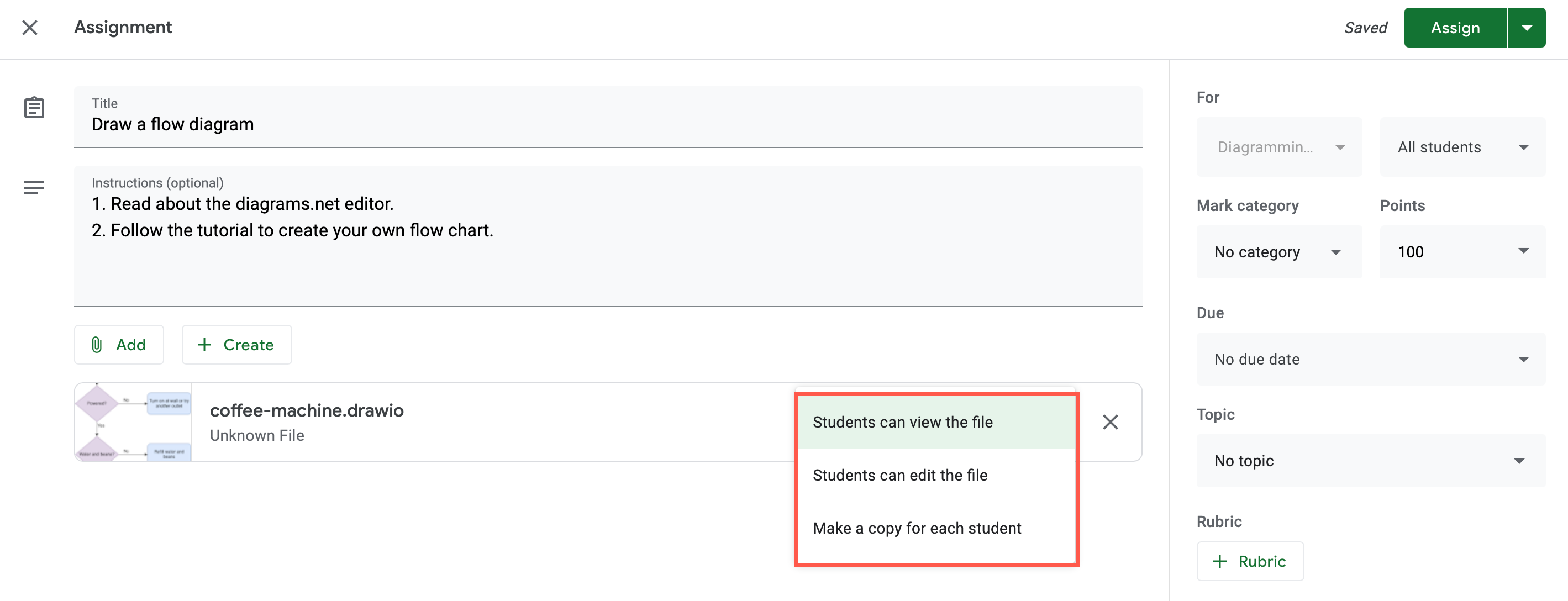
Google Classroom continued to be used extensively by schools and training providers. The draw.io app for Google Drive lets you integrate diagrams into Google Classroom assessment tasks and discussions. Diagrams set in assessment tasks can be collaboratively edited, or act like a template with each student getting their own copy.
Tip: Install the Google Workspace apps for Docs, Sheets and Slides to embed diagrams in your Workspace documents.
draw.io for VSCode and GitHub
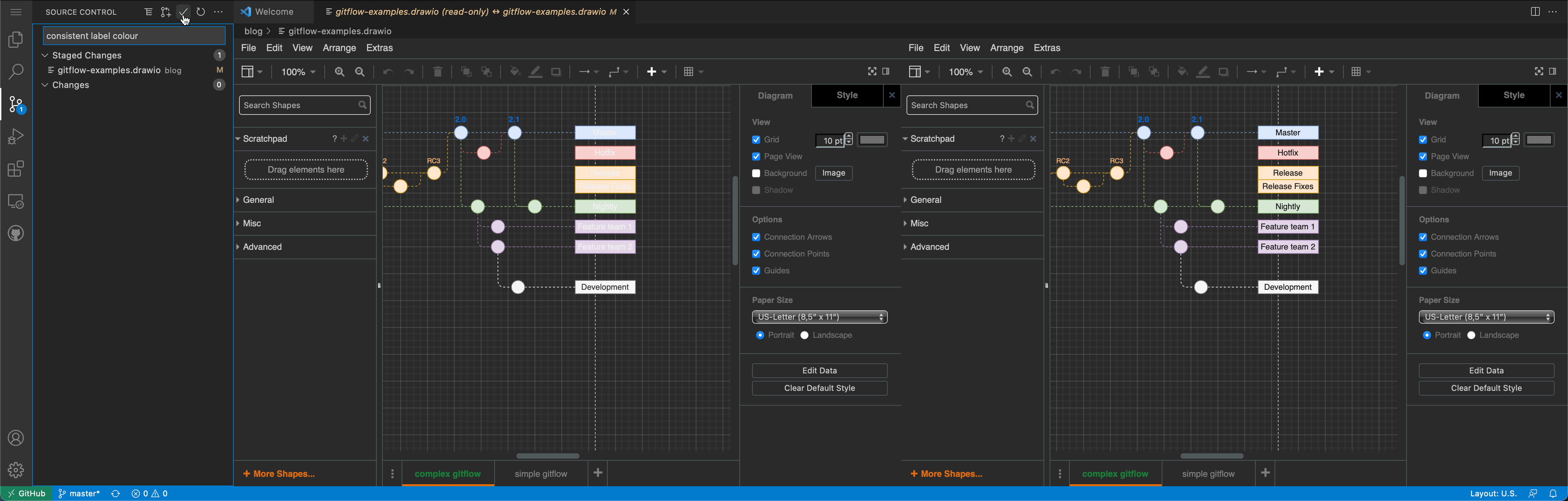
In combination with the third-party draw.io app for VSCode, and the github.dev web-based code editor, you can now edit diagrams stored in GitHub, without needing to change to another tab. You can even compare changes side-by-side on commit.
draw.io diagrams in Notion
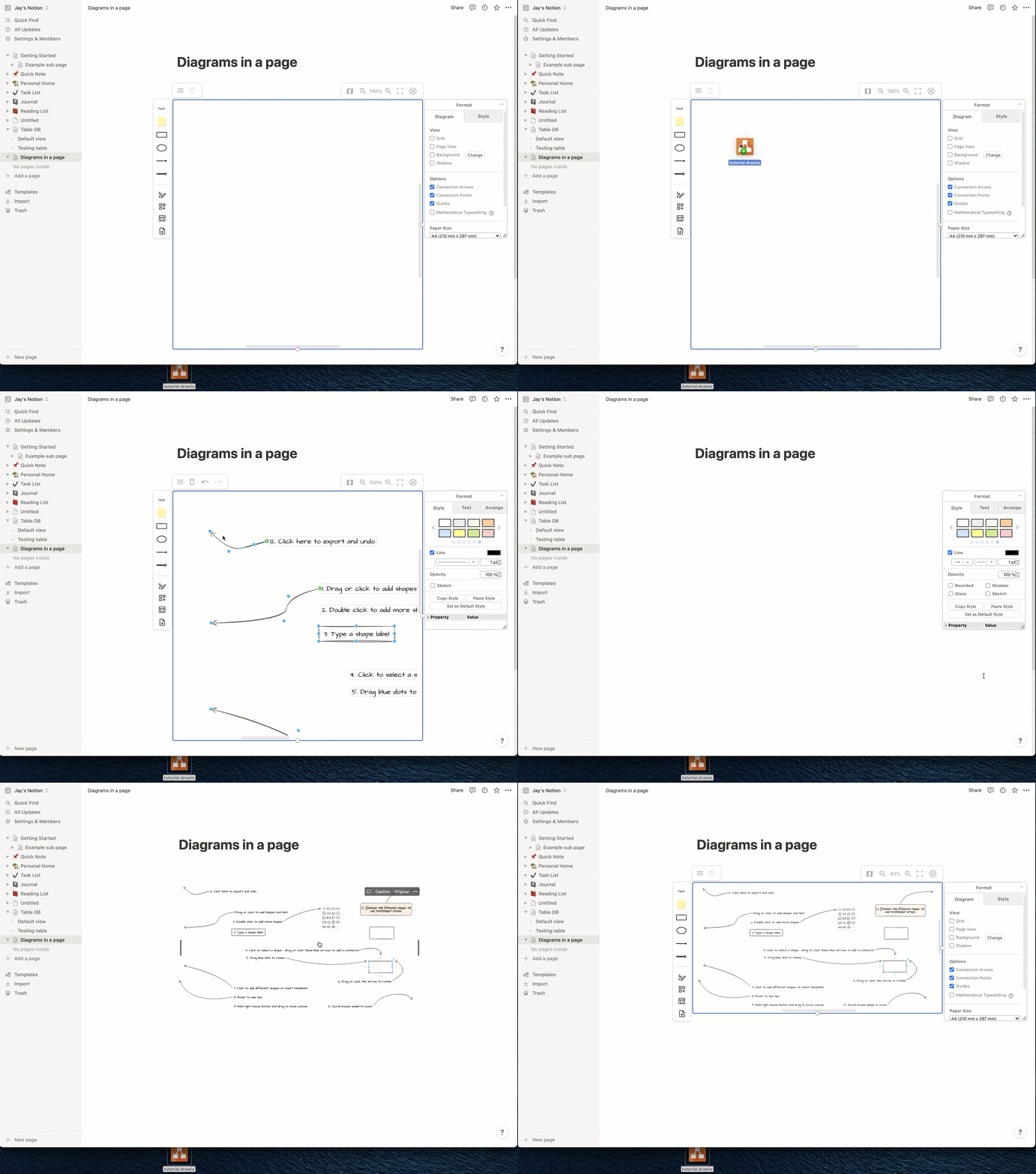
You can use the draw.io for Notion extension for the Chrome, Opera and Edge web browsers to store your diagram files in your Notion pages. The diagram editor loads inline in your Notion page using the simple Sketch editor theme.
draw.io for Microsoft Teams
You can now collaborate in real time on diagrams stored in Microsoft One Drive or Sharepoint, directly from your team’s channel with the draw.io app for Microsoft Teams. Install the draw.io app in your Teams channel to add diagrams to conversations or to a Teams tab.
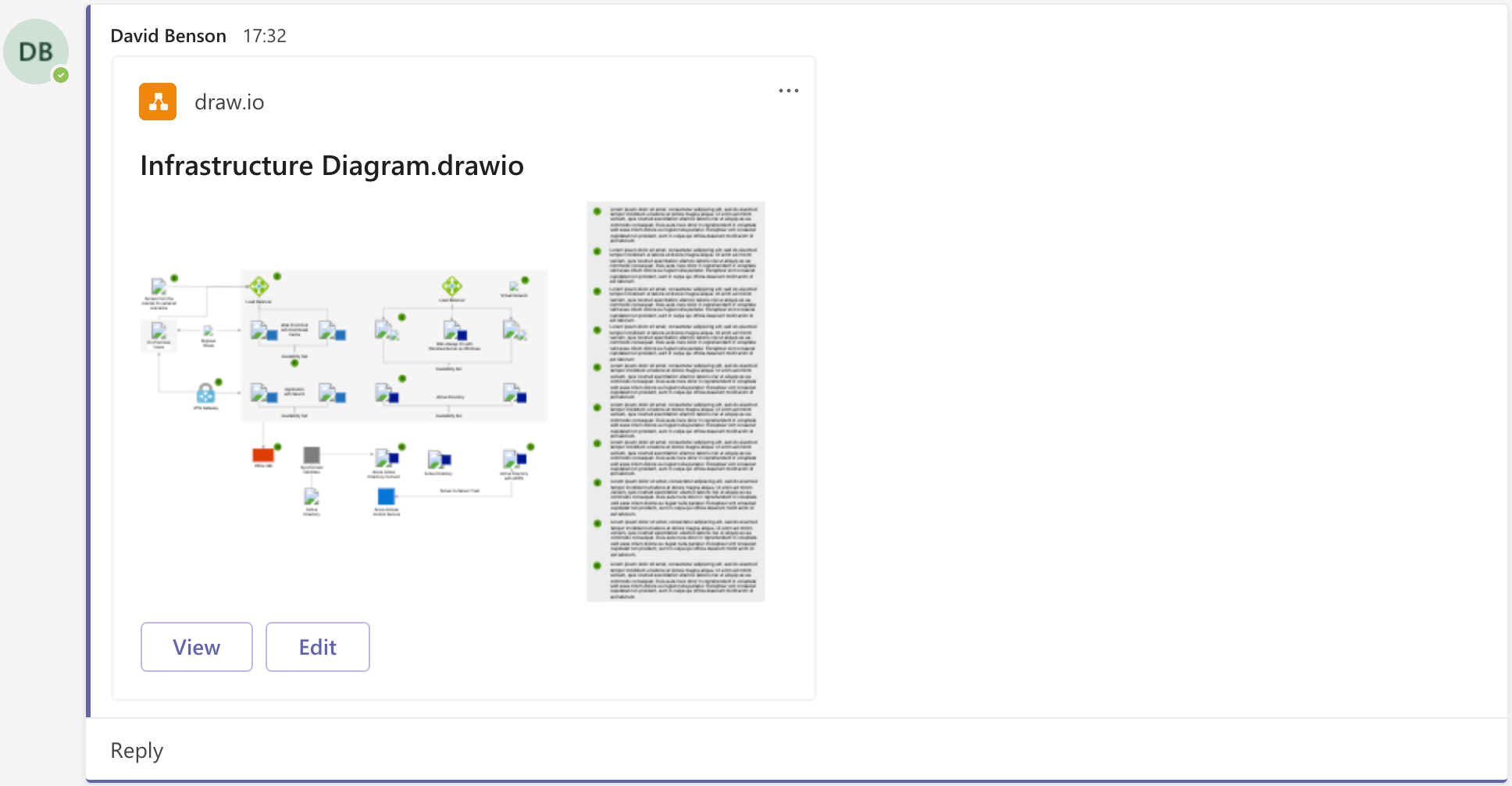
Diagram import and file conversion
The free draw.io Importer extension for the Google Chrome browser lets you convert all of your Lucidchart diagrams to draw.io in a couple of steps. This lets you continue editing all of your diagrams now that Lucidchart has limited Lucidchart EDU, their previously free education plan, to only three editable diagrams.
New features and updates in 2021
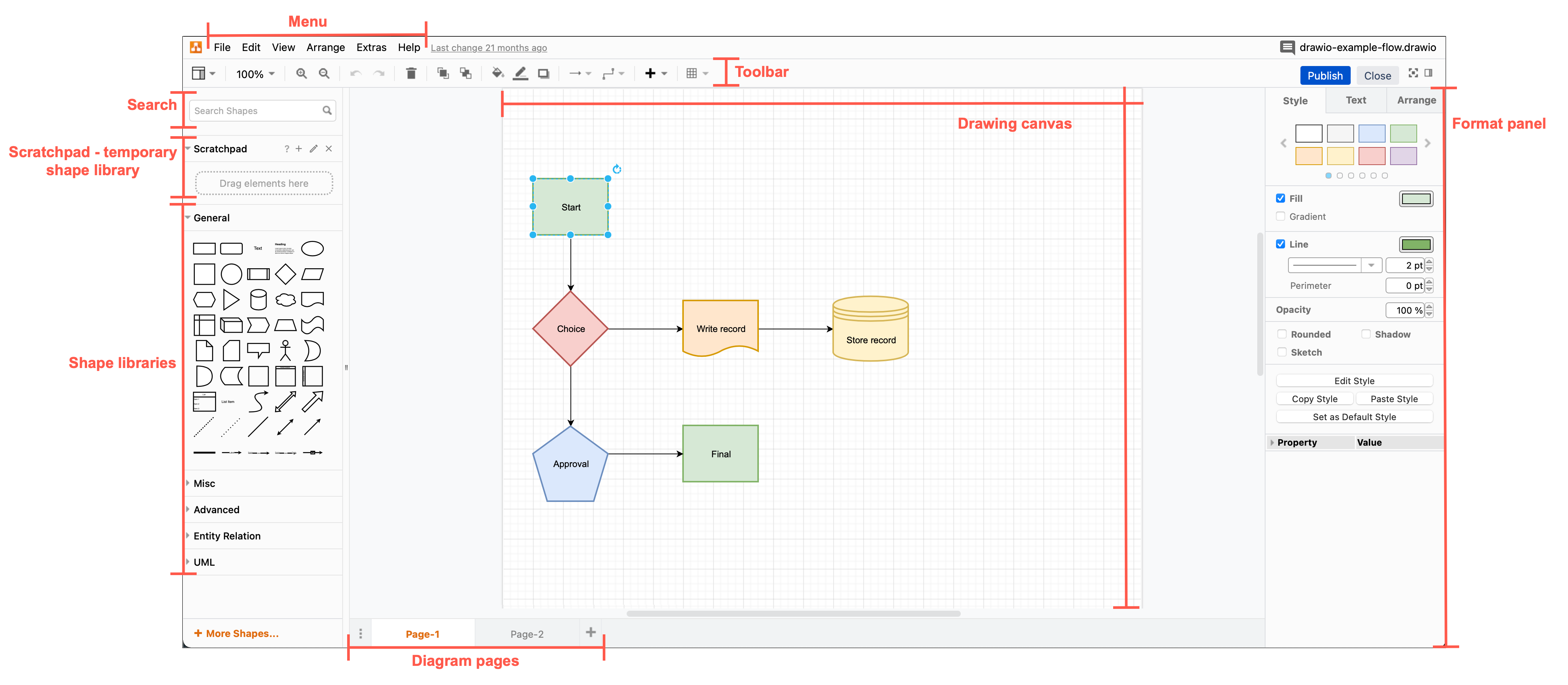
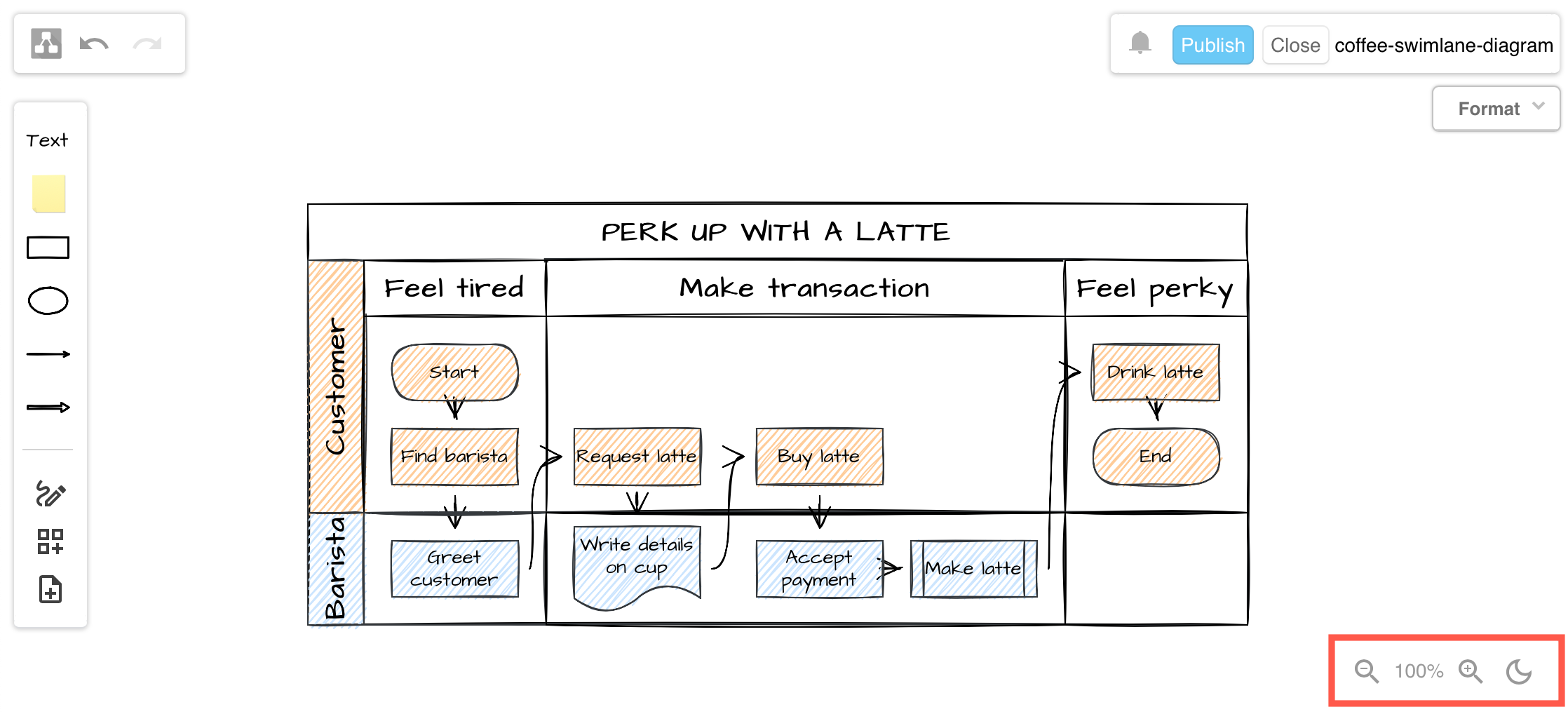
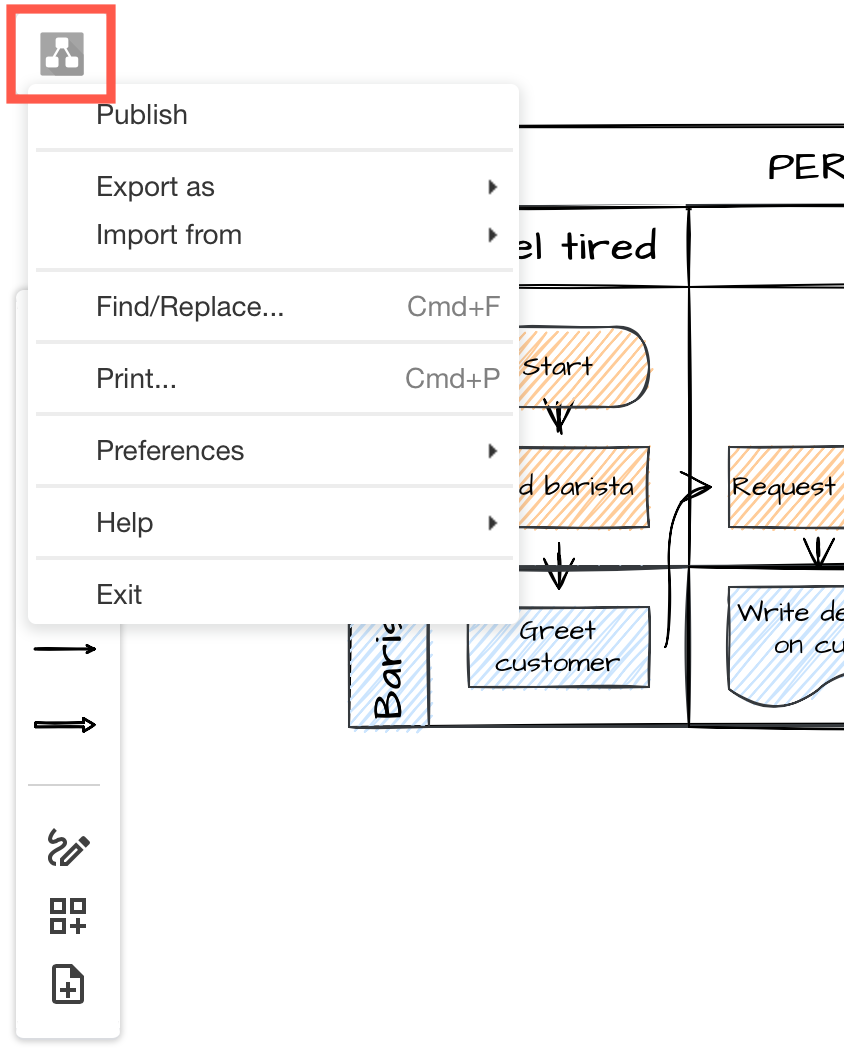
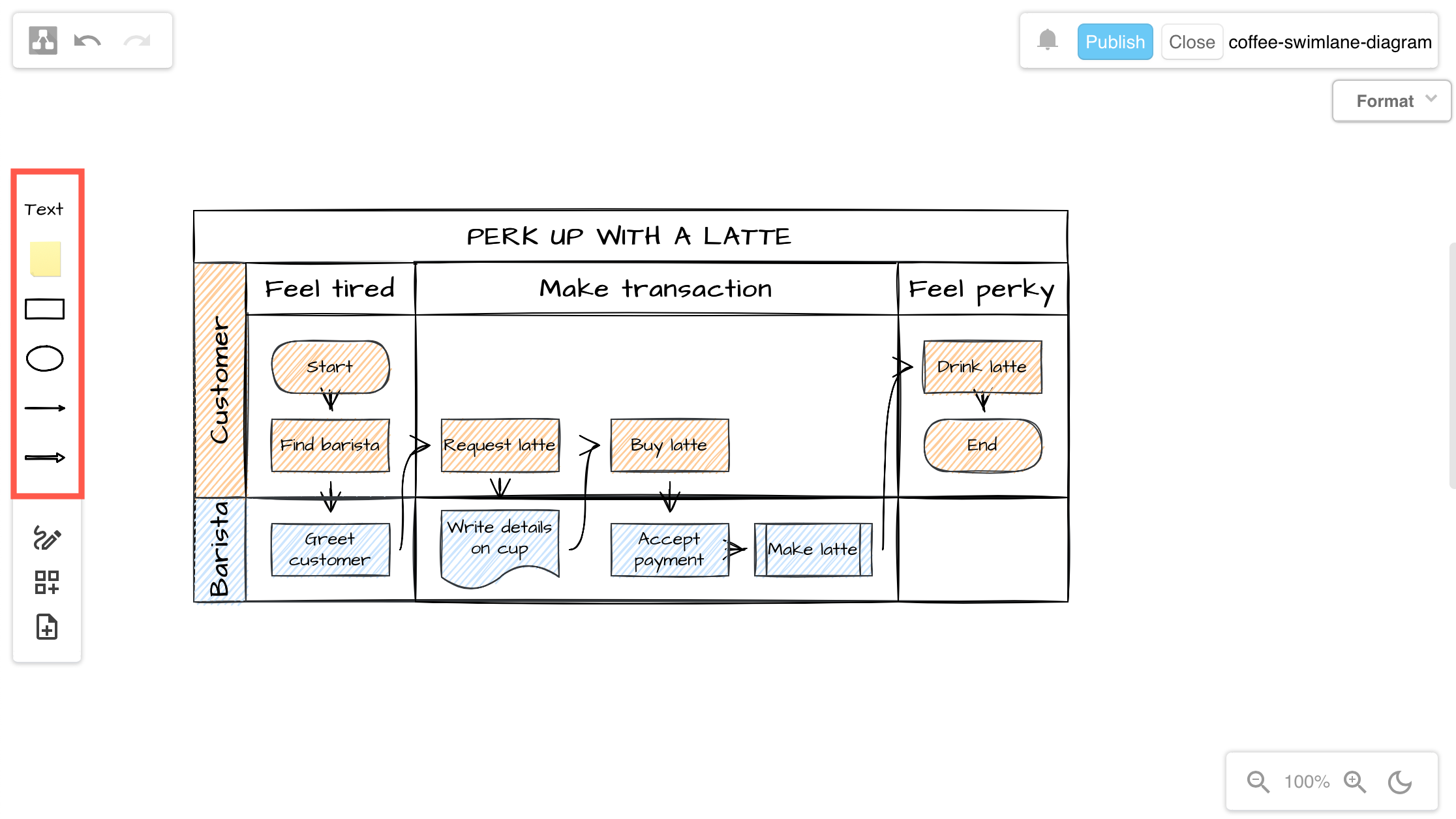
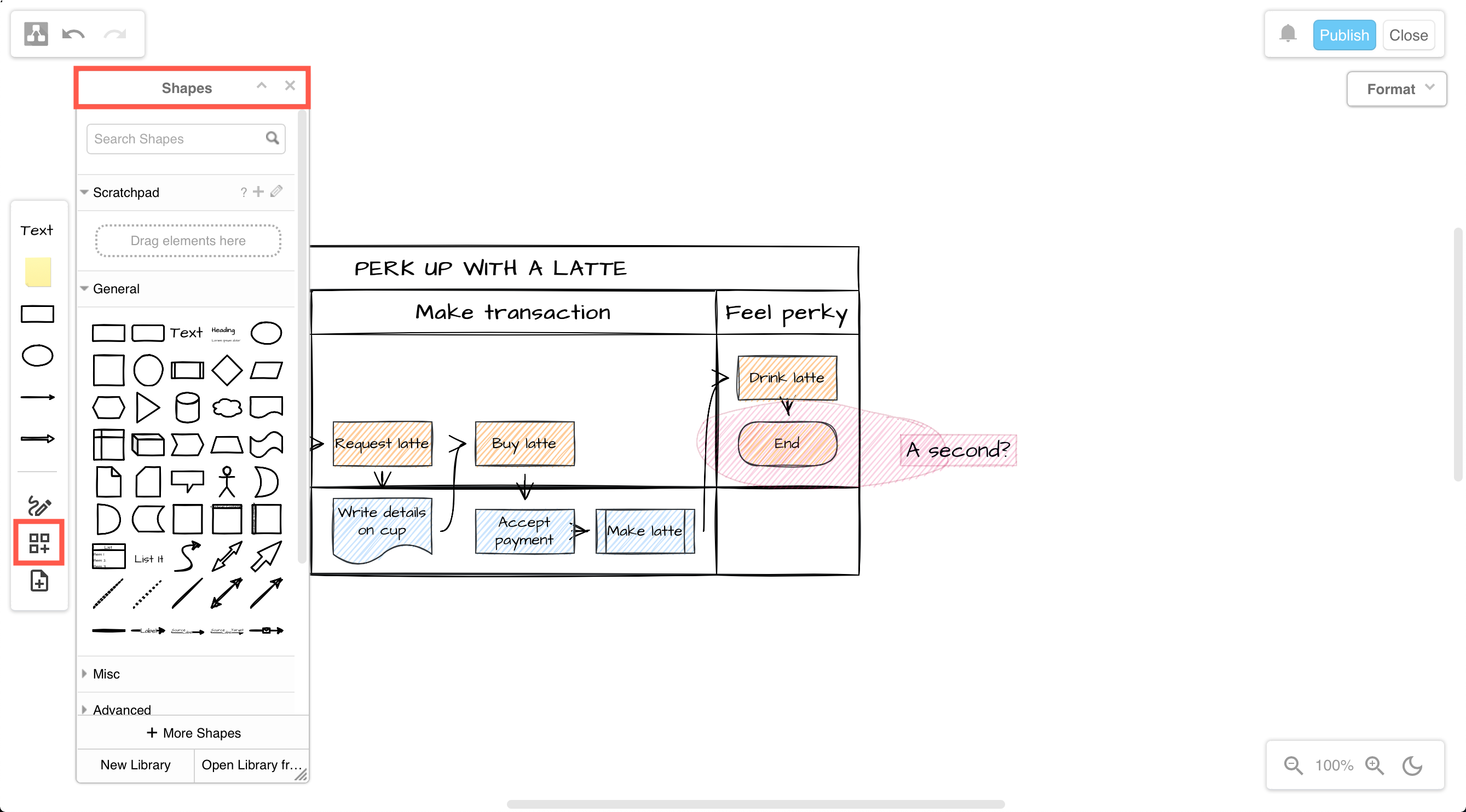
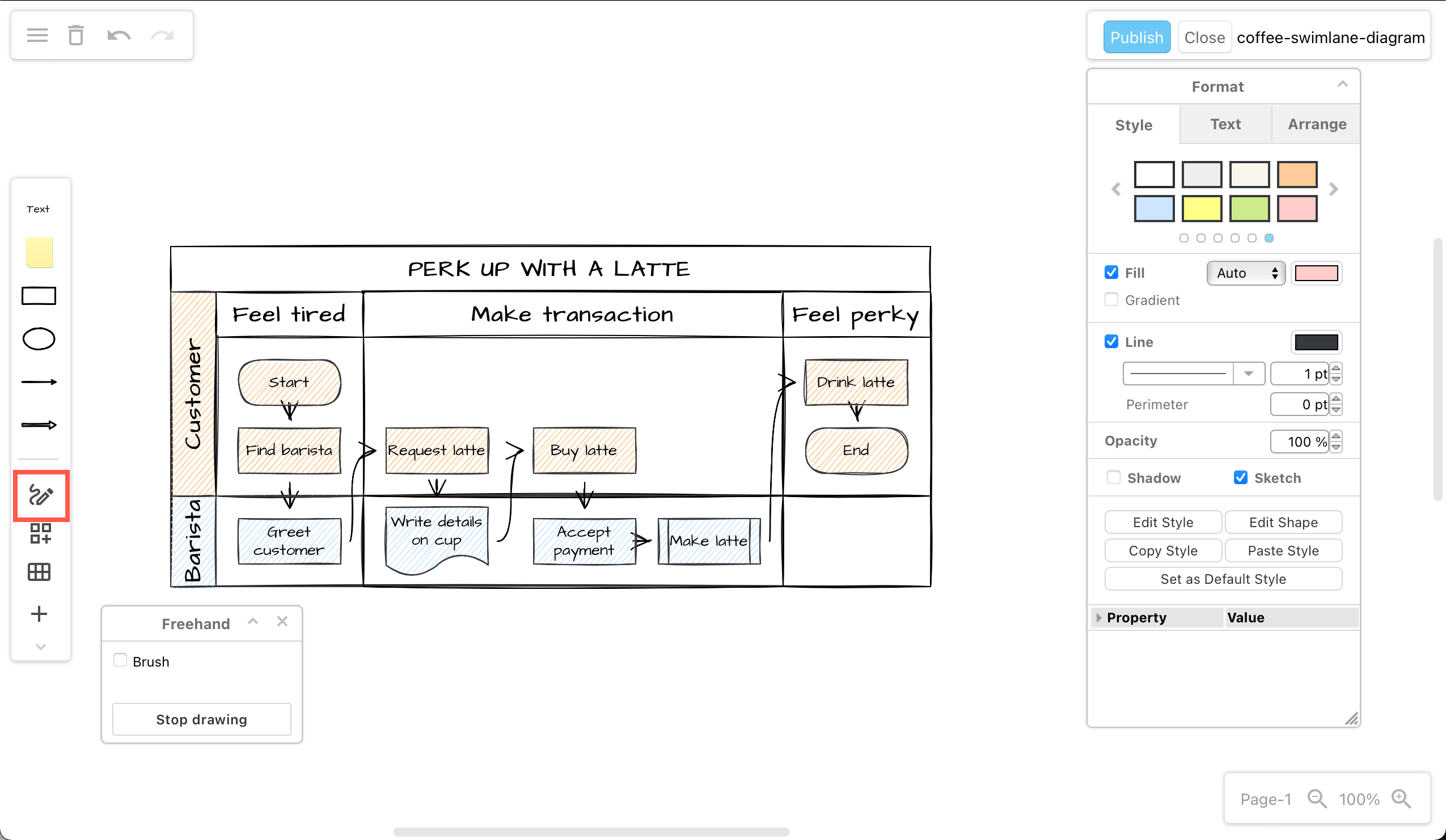
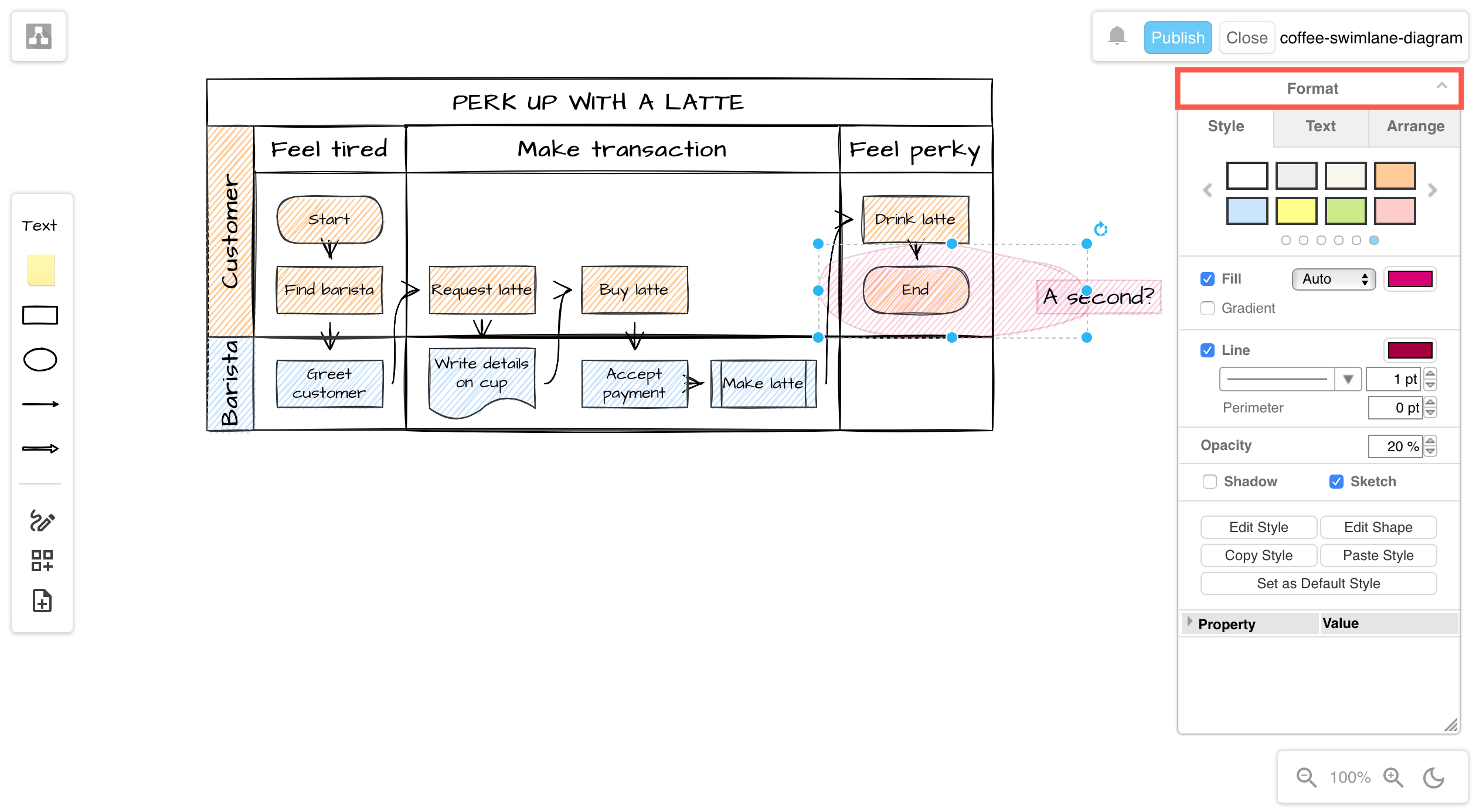
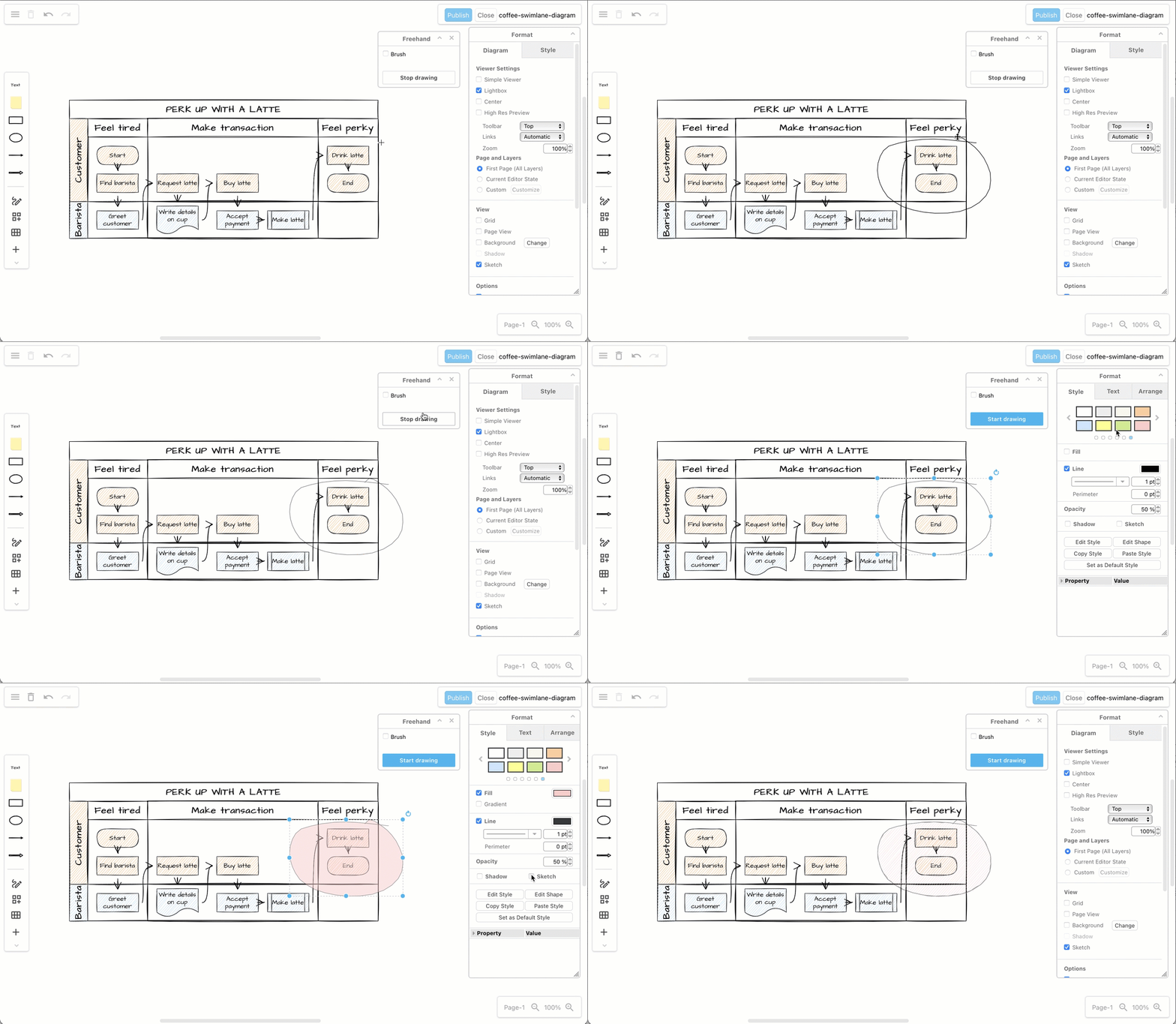
The Sketch editor theme, and the right-click context menu received a comprehensive overhaul. The tools and menus were simplified and reorganised to make it feel much more like a whiteboard you can sketch freely on. You can expand or collapse most of the panels, and move them to another location around the drawing canvas.
The freehand drawing tool was updated along with the whiteboard like editor theme.
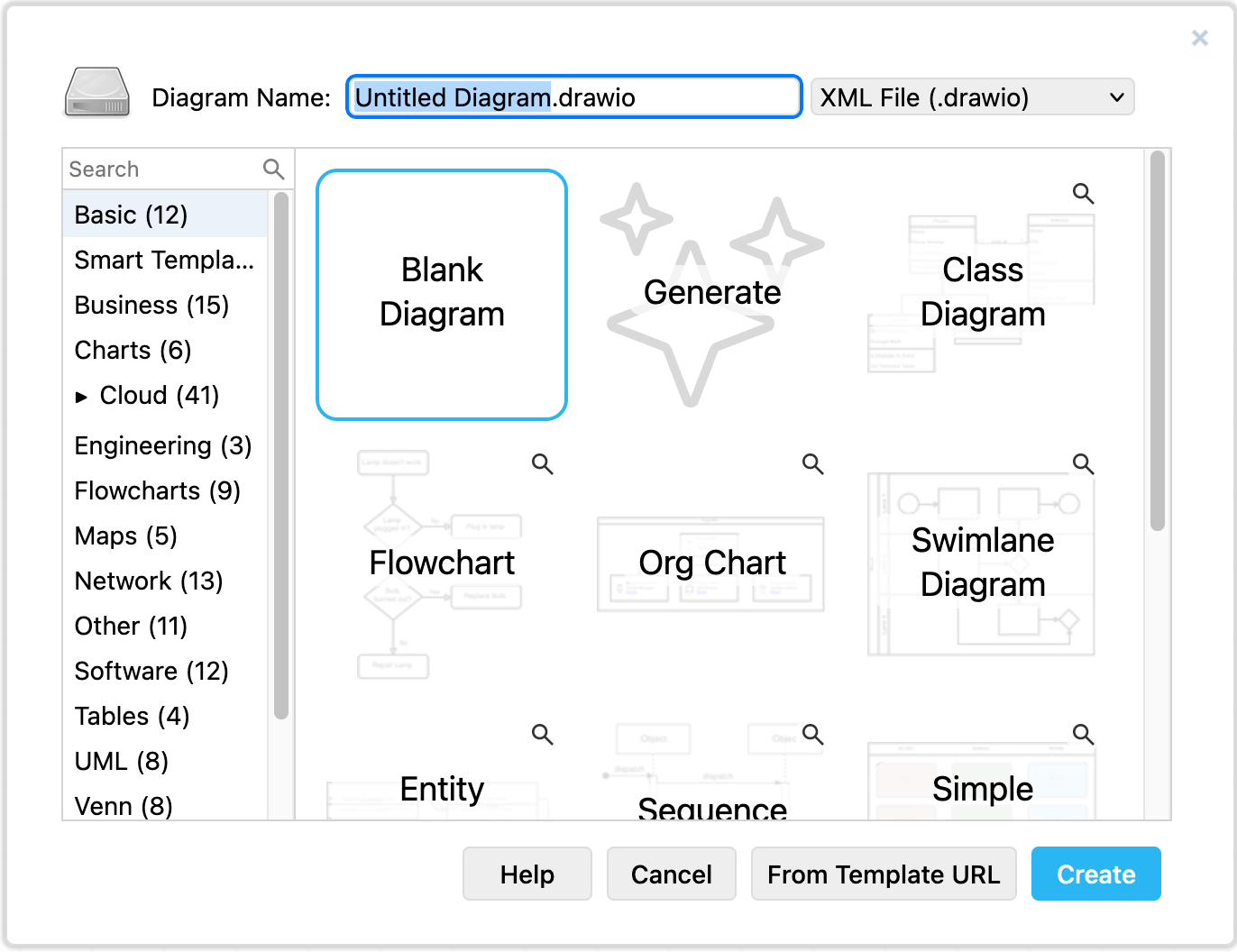
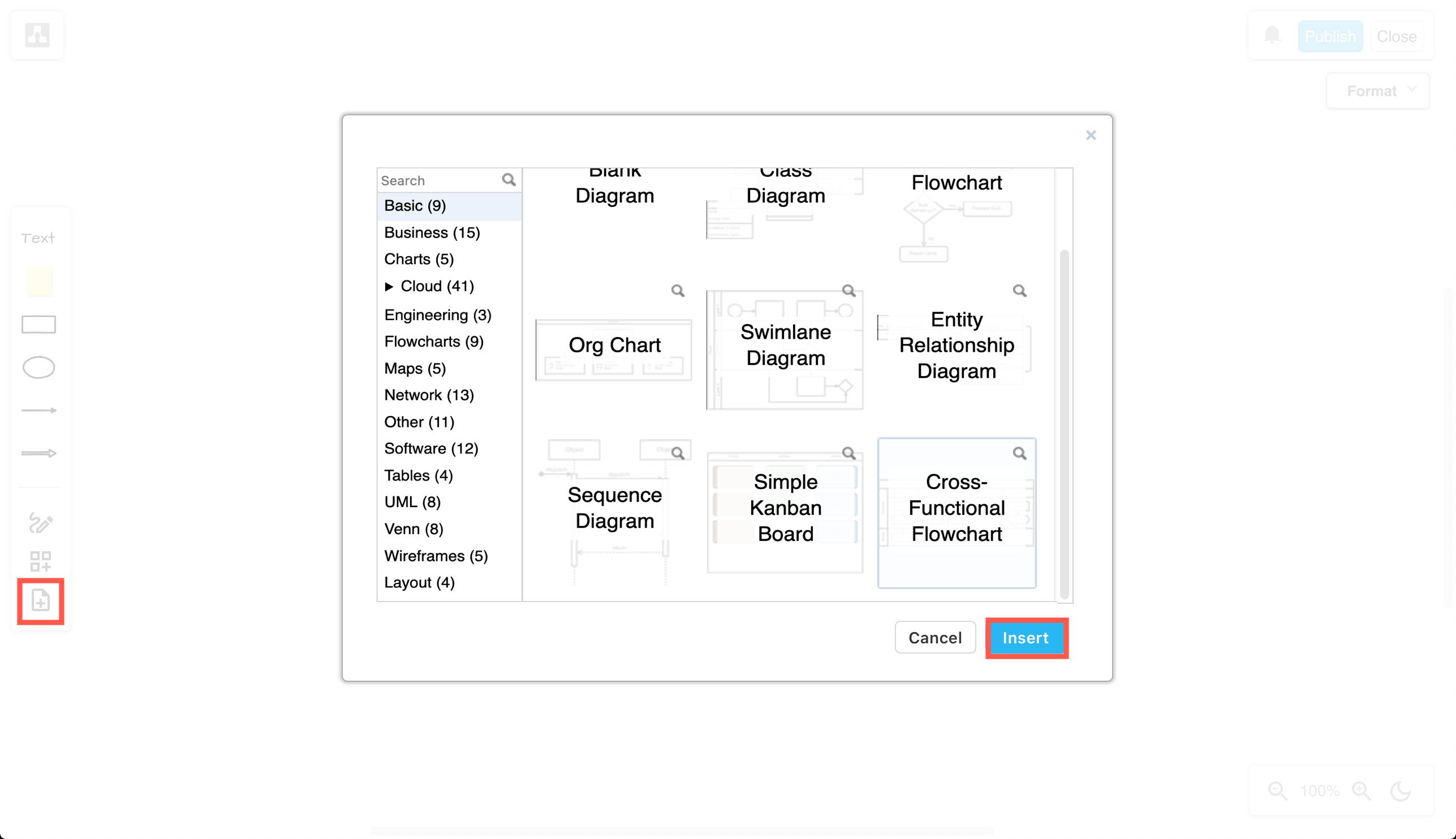
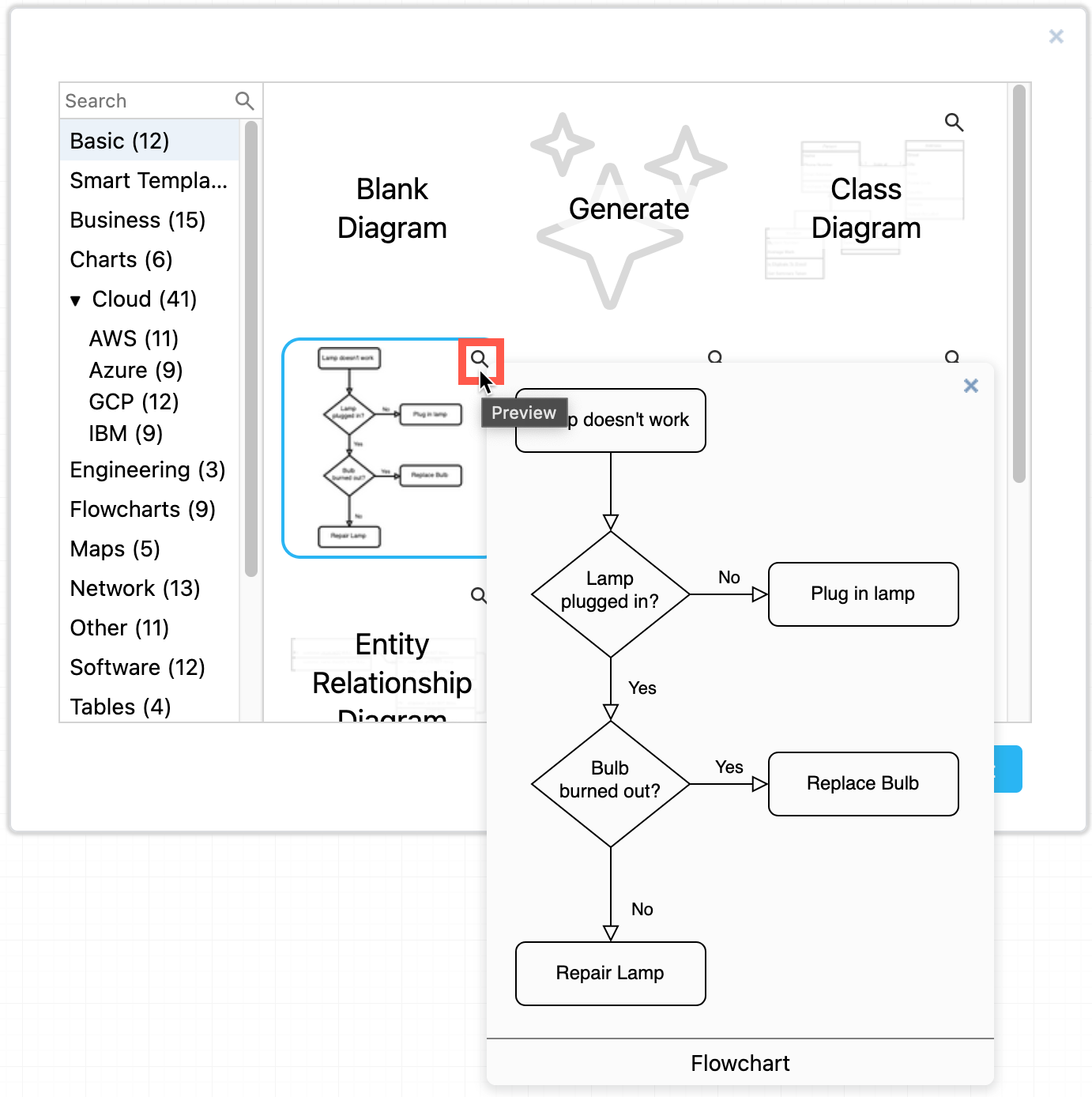
You can now search for templates and click on the magnifying glass in the top right of any template to see a larger preview. The draw.io template library was also expanded with more templates and template categories.
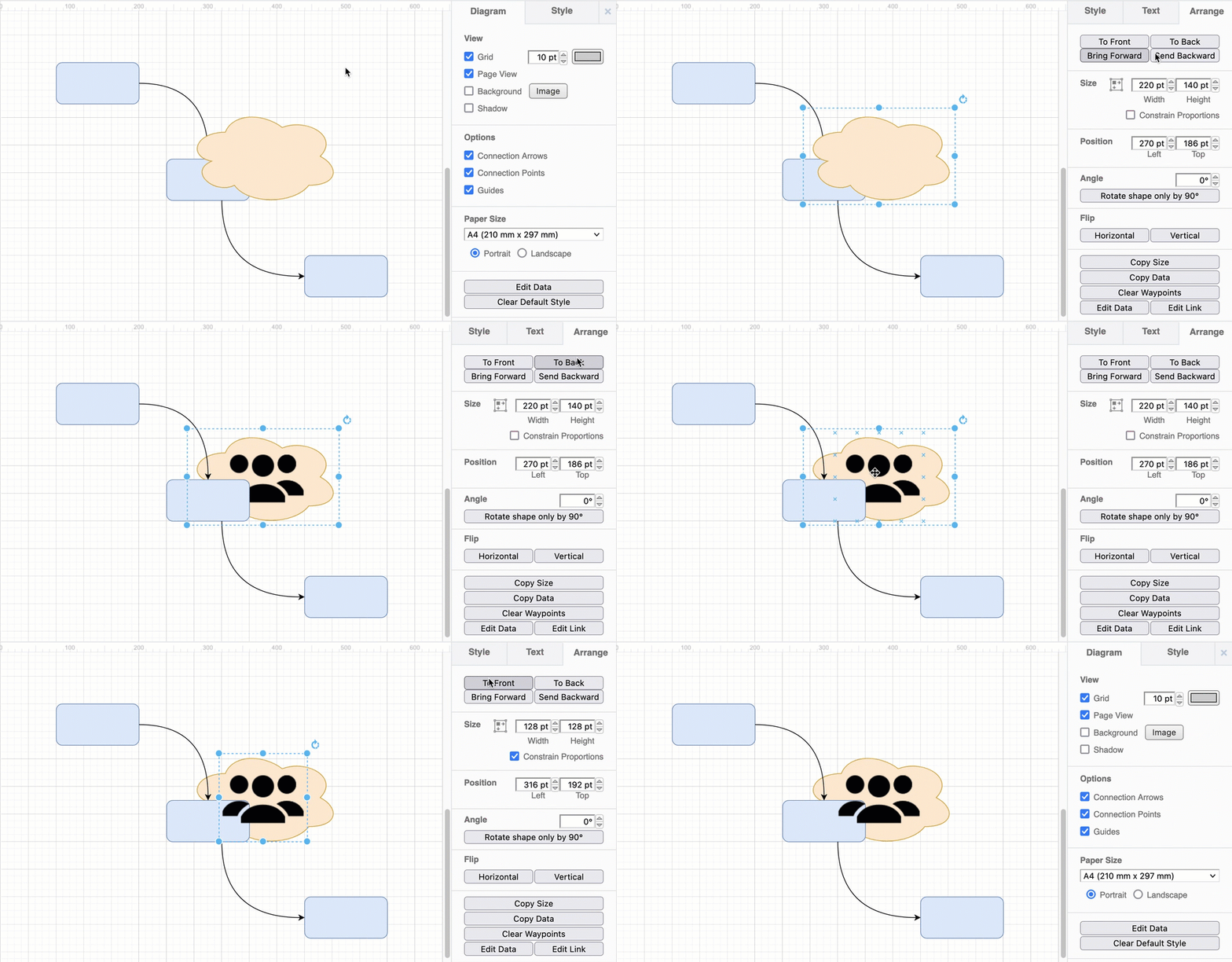
In addition to moving diagram elements to the front or the back of an overlapping stack, you can step shapes and connectors forwards and backwards in the z-order stack using the Bring Forward and Send Backward buttons on the Arrange tab in the format panel.
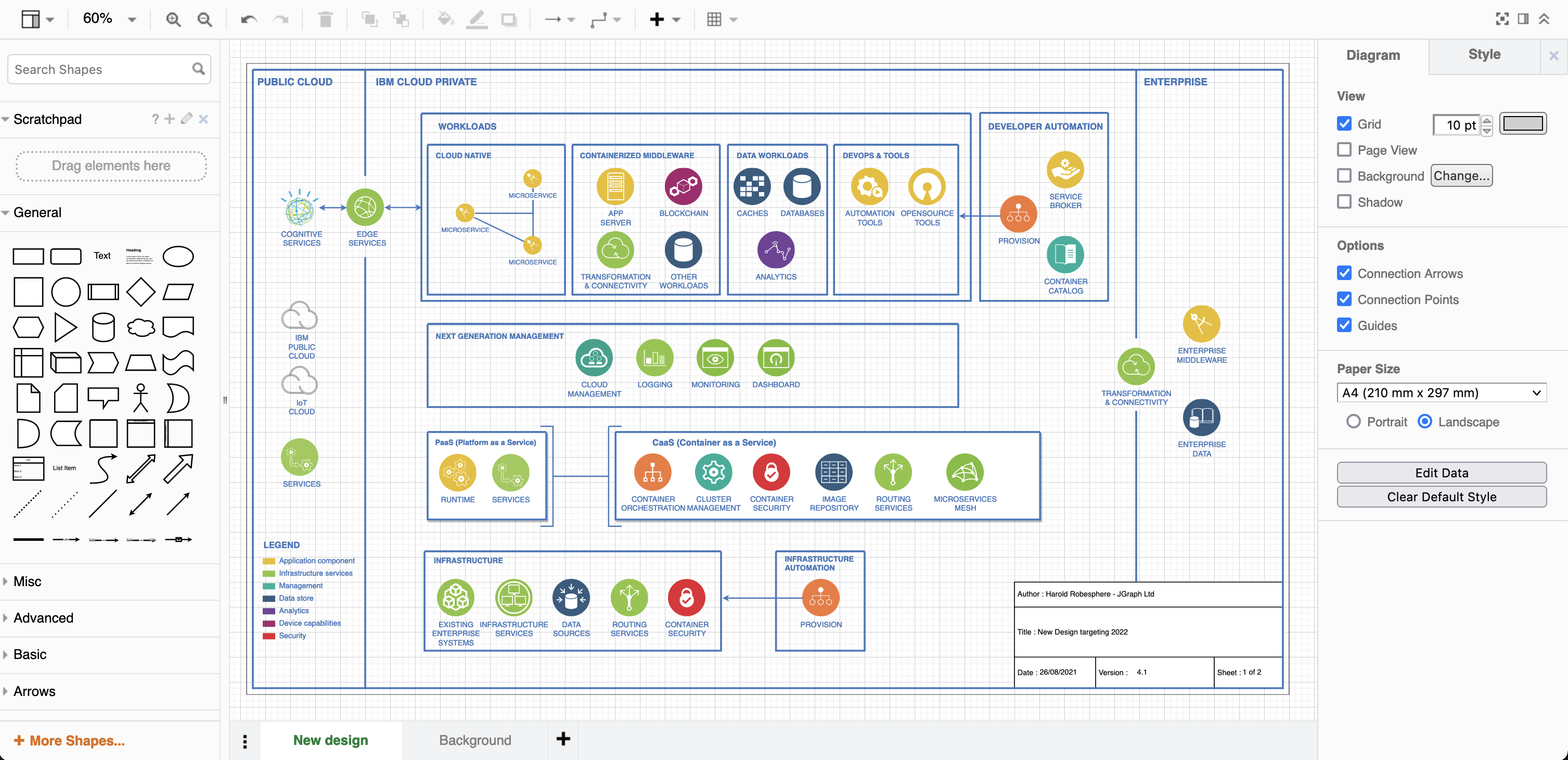
You can now use a diagram page as a background behind another diagram page. It will be printed along with the diagram, and is ideal for watermarking your diagrams, providing a common layout for mockups, or adding a template for diagram metadata on development documentation.
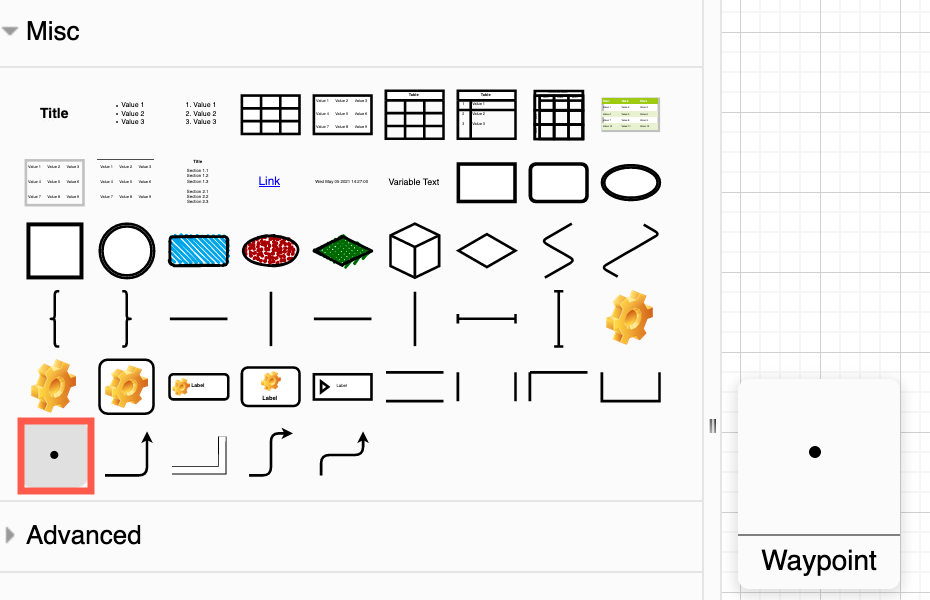
A waypoint shape is now available in the Misc shape library (part of the General collection). You can use the small waypoint shape to join connectors together, replacing overlapping connectors with the same target or source shape neatly and cleanly.
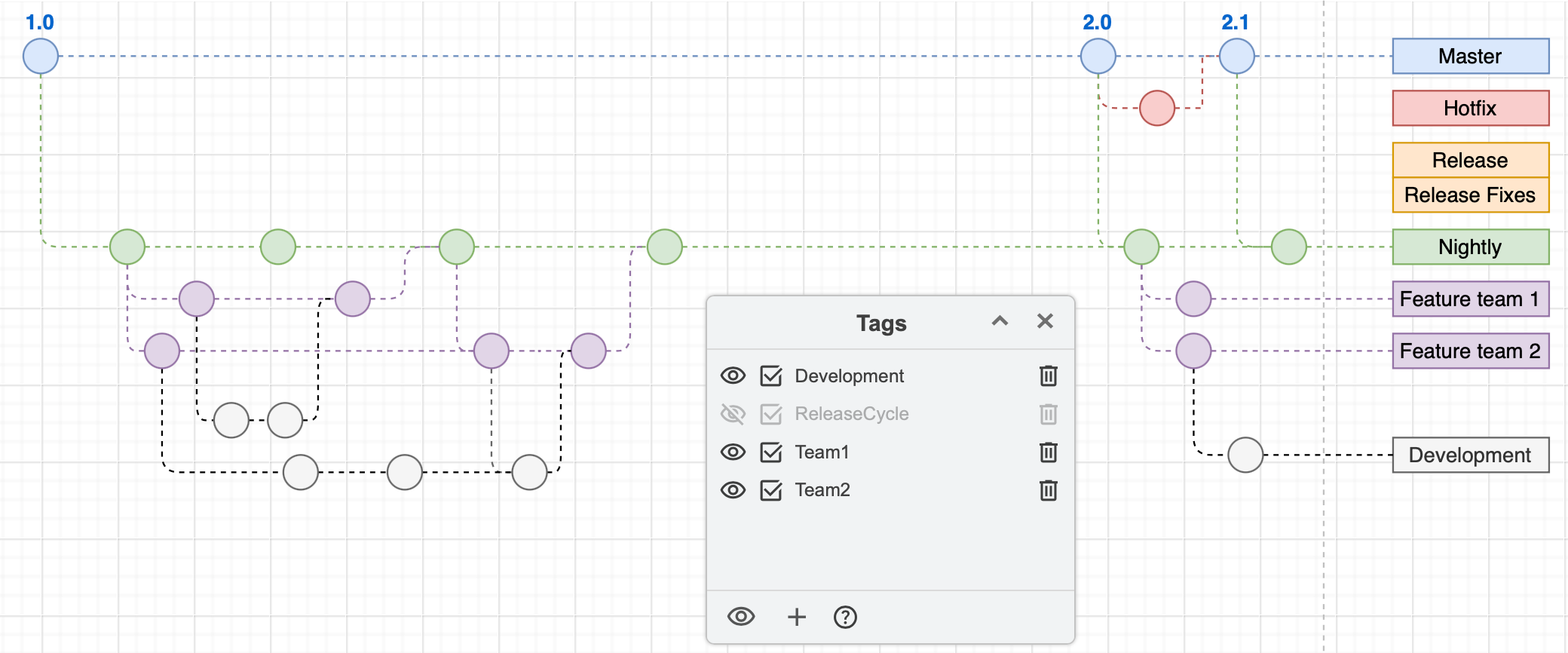
Tags have been brought into the draw.io editor as a core feature and the experimental tags plugin has been retired. Add one or more tags to shapes and connectors to group them without needing to place them on the same layer in your diagram.
Use the Tags dialog (View > Tags) to group, select, hide or display the tagged shapes.
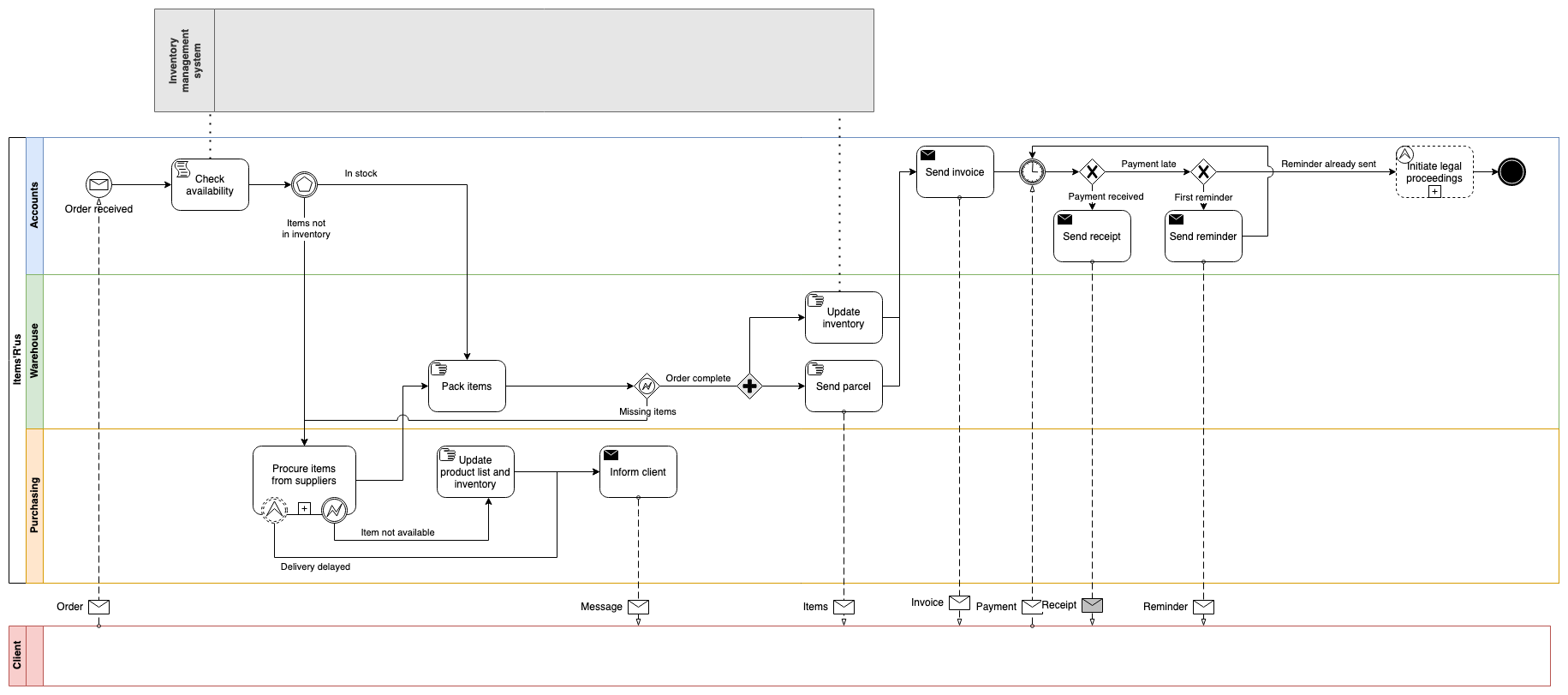
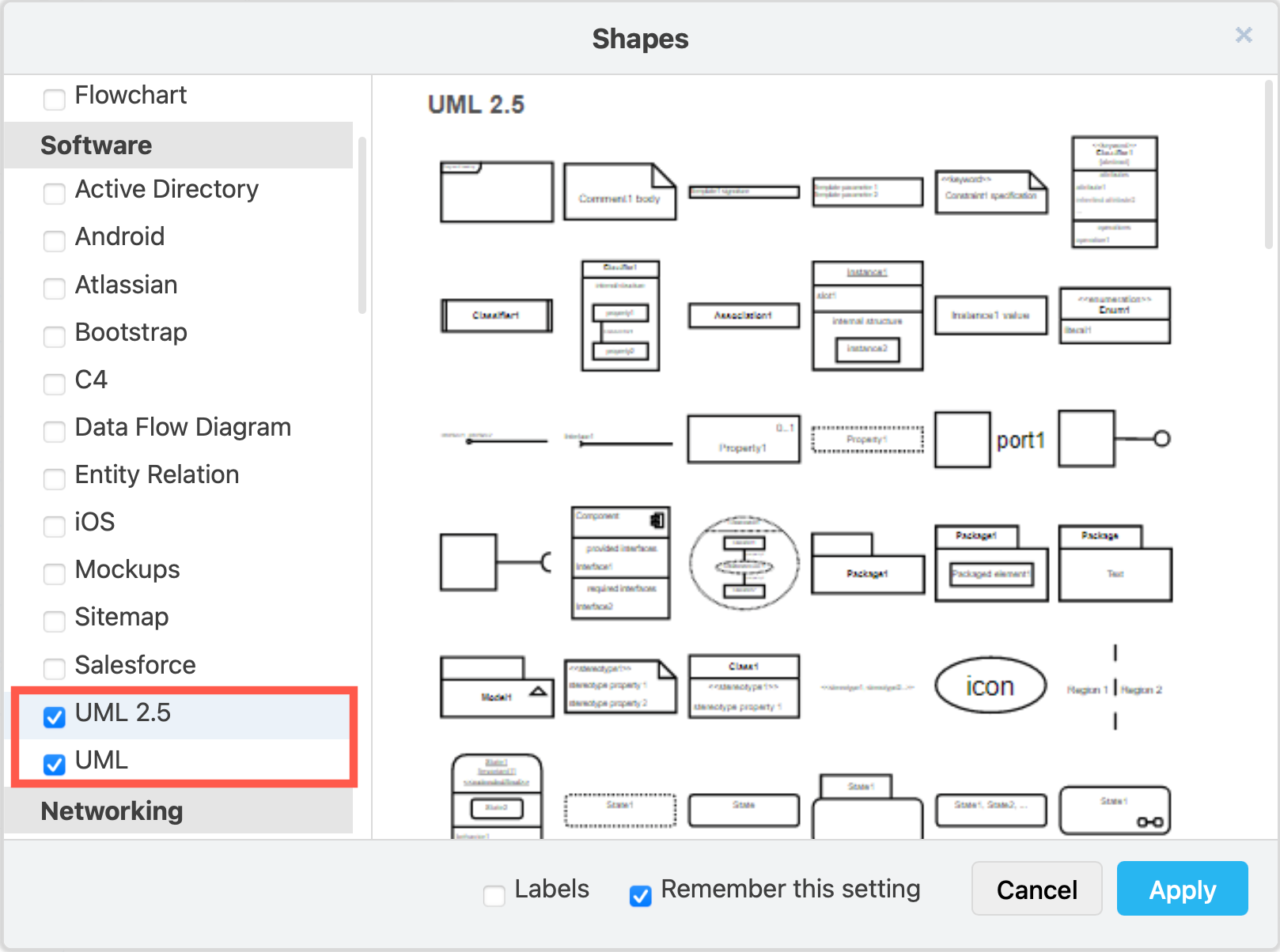
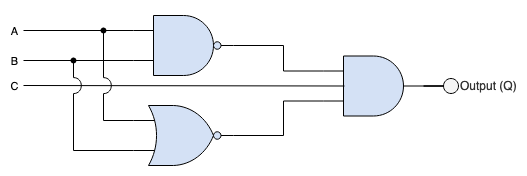
Several shape libraries saw new or updated stencils, including AWS, C4, GCP, BPMN 2.0, electrical and swimlane shapes.
Many more features have been updated, expanded, and some simplified. Additional interface translations have been completed, and existing translations refreshed - thank you to all of our translators!
And of course, a mountain of bugs have been squashed.
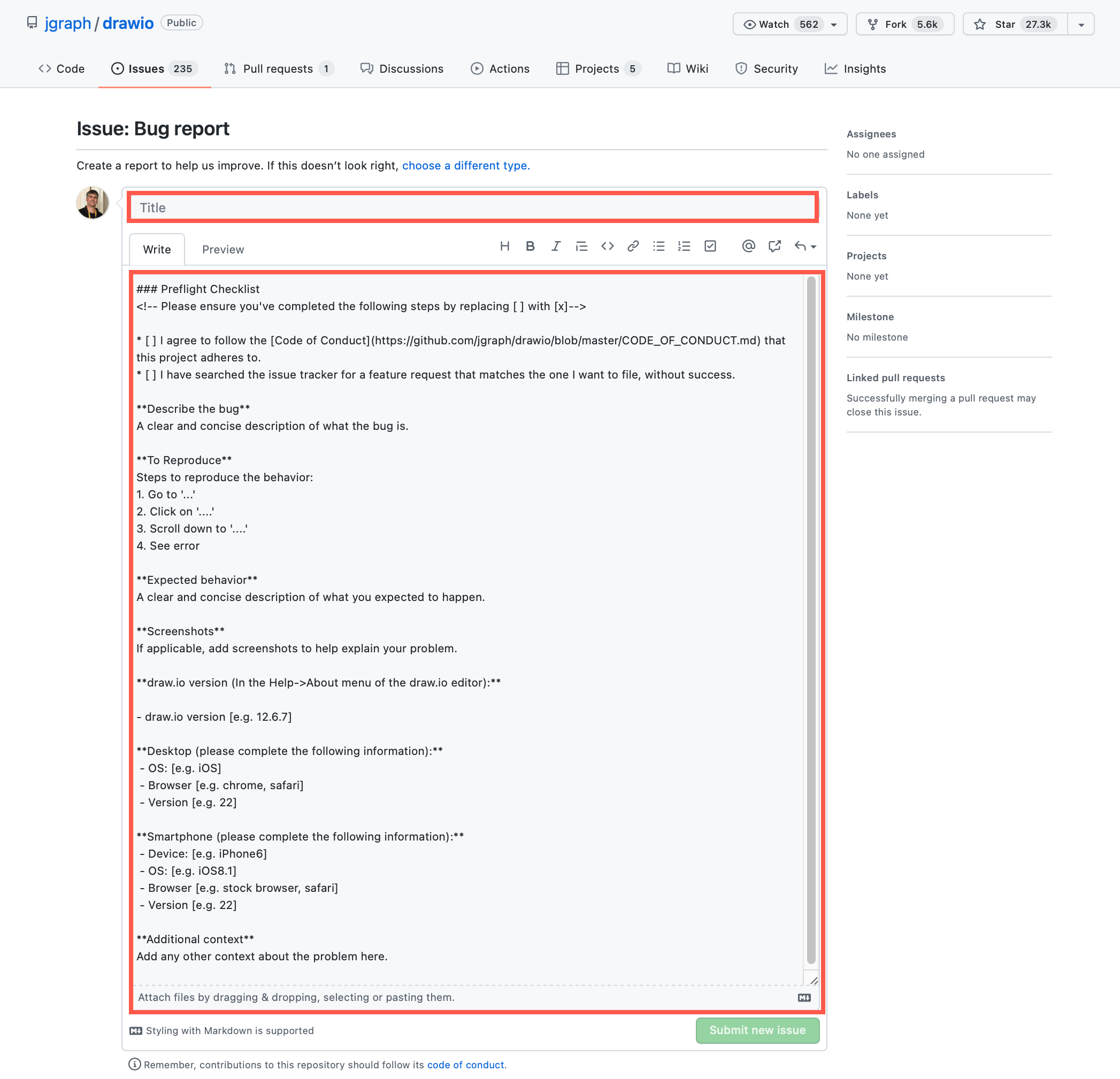
See the changelog in our drawio GitHub repository for full details of all of the releases.