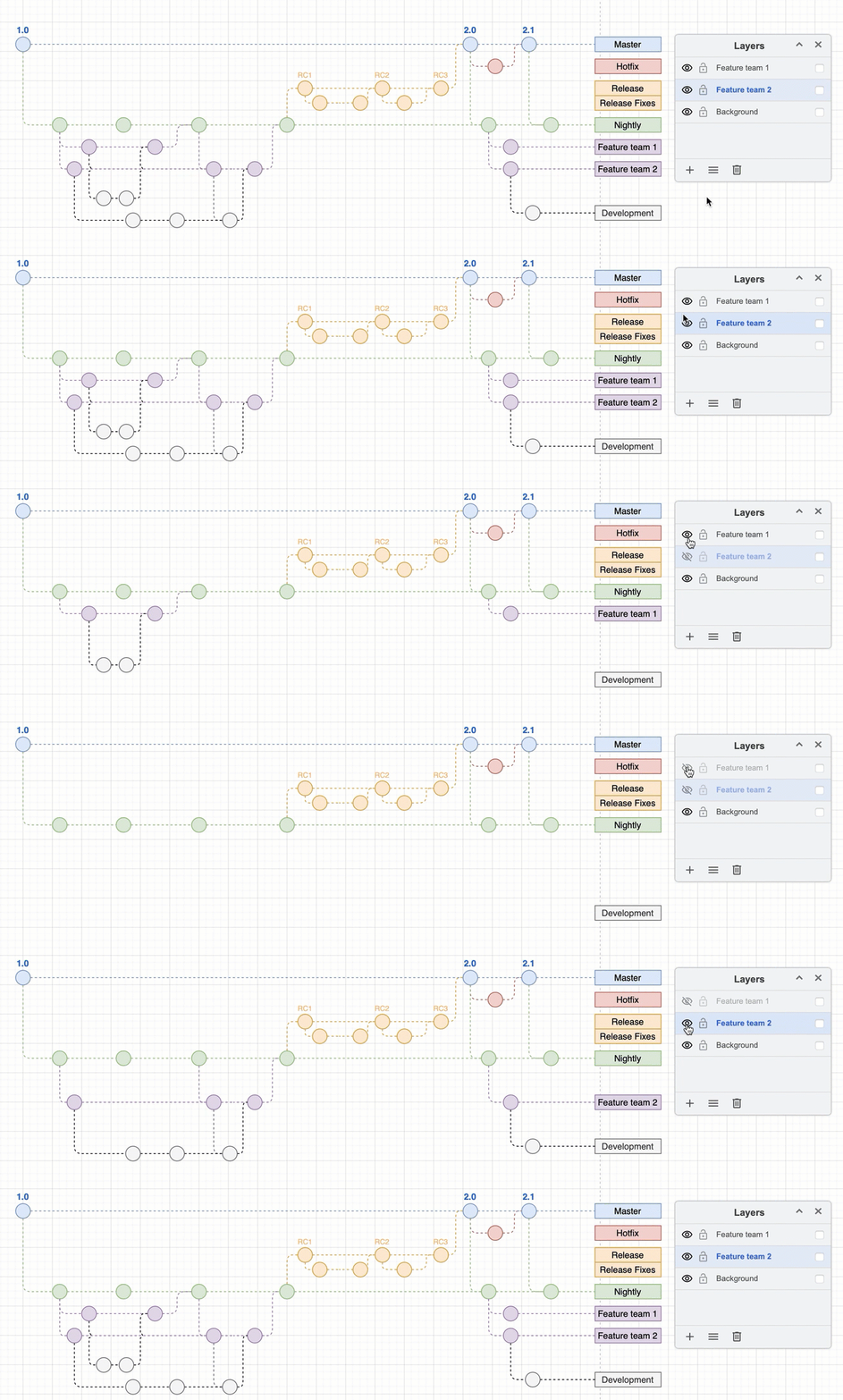
Move shapes and connectors from one layer to another
Use layers to add structure to your diagrams and make them interactive.
- Select View > Layers or press
Ctrl+Shift+L/Cmd+Shift+Lto display or hide the Layers dialog.
Tip: By default all shapes on a new diagram are added to the Background layer.
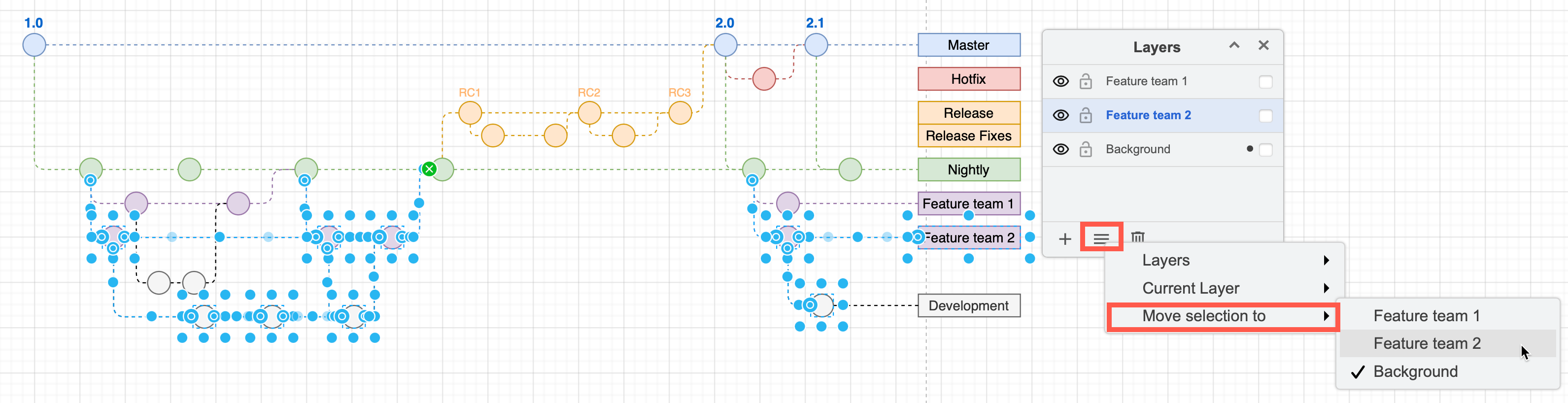
You can move shapes and connectors from one layer to another via the Layers dialog.
- Select the shapes, connectors and text you want to move to another layer.
- Click on the Layers dialog menu (three horizontal lines), then on Move Selection to and choose the layer you want to move the selected diagram elements to.
Now you can interact with your diagram by displaying and hiding the layers.