Embed diagrams in WordPress as SVG

· 4 min read
draw.io
draw.io Team

You can embed SVG versions of your diagrams in a WordPress blog post or page. SVG images are quick to load when compared to other formats, and can include your diagram data if you want to allow viewers to download and view a copy of the diagram in the draw.io editor online.

SVG versions of a diagram can only display one page, although the exported SVG file can contain all the diagram data for all pages in your diagram. When you click on an embedded SVG in WordPress, by default, you'll open the diagram in the draw.io lightbox viewer, and be able to see all the links, tooltips, diagram and layers in your diagram.

Embed an SVG diagram in WordPress

  1. Select File > Embed > SVG.
  2. Select the options for the exported SVG file:
    • Fit: Adjusts the diagram to fill the available width of the page or container.
    • Shadow: Adds a drop shadow to the diagram.
    • Image: Creates an image that contains SVG markup.
    • Lightbox: Opens the diagram in a new tab or using the draw.io lightbox.
      • Edit: By default, draw.io will make a copy of the diagram when someone clicks on the Edit button in the lightbox. Change this setting if you want to send them to a specific URL.
      • Layers: Allow viewers to show or hide individual layers in the lightbox.
        Options available when you export your diagram to embeddable SVG markup
  3. Click Embed.
  4. The SVG markup will be displayed in the following dialog, already selected. Click Copy,
    Copy the embeddable SVG markup
  5. When editing a post or page in WordPress, switch to text (HTML) input and paste the SVG markup you copied in the previous step.
    Paste the SVG markup into the text or HTML view of your WordPress page or blog post
  6. Publish your page. Now, when someone clicks on the diagram, it will open in the draw.io lightbox or editor according to the settings you selected.
    When viewers click on the embedded SVG in your WordPress page, they will be taken to the draw.io lightbox or editor

Troubleshooting a broken diagram in WordPress

WordPress does not support SVG images with foreign objects, like the HTML text formatting options that you can use on labels.

Shapes (vertices) can use word wrap, and both shapes and connectors can use text formatting by using HTML tags. Both of these must be disabled before you embed your SVG diagram in WordPress.

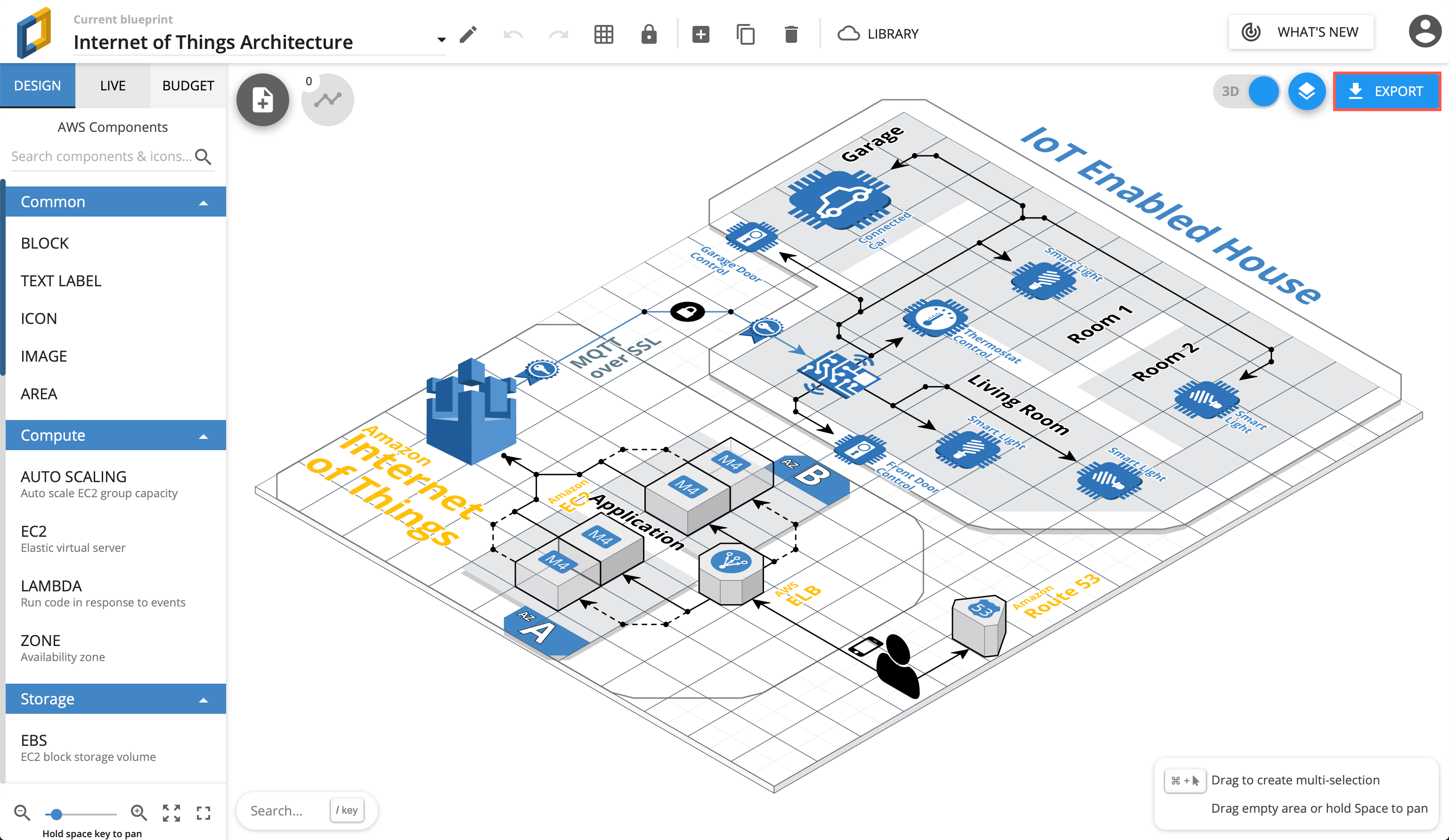
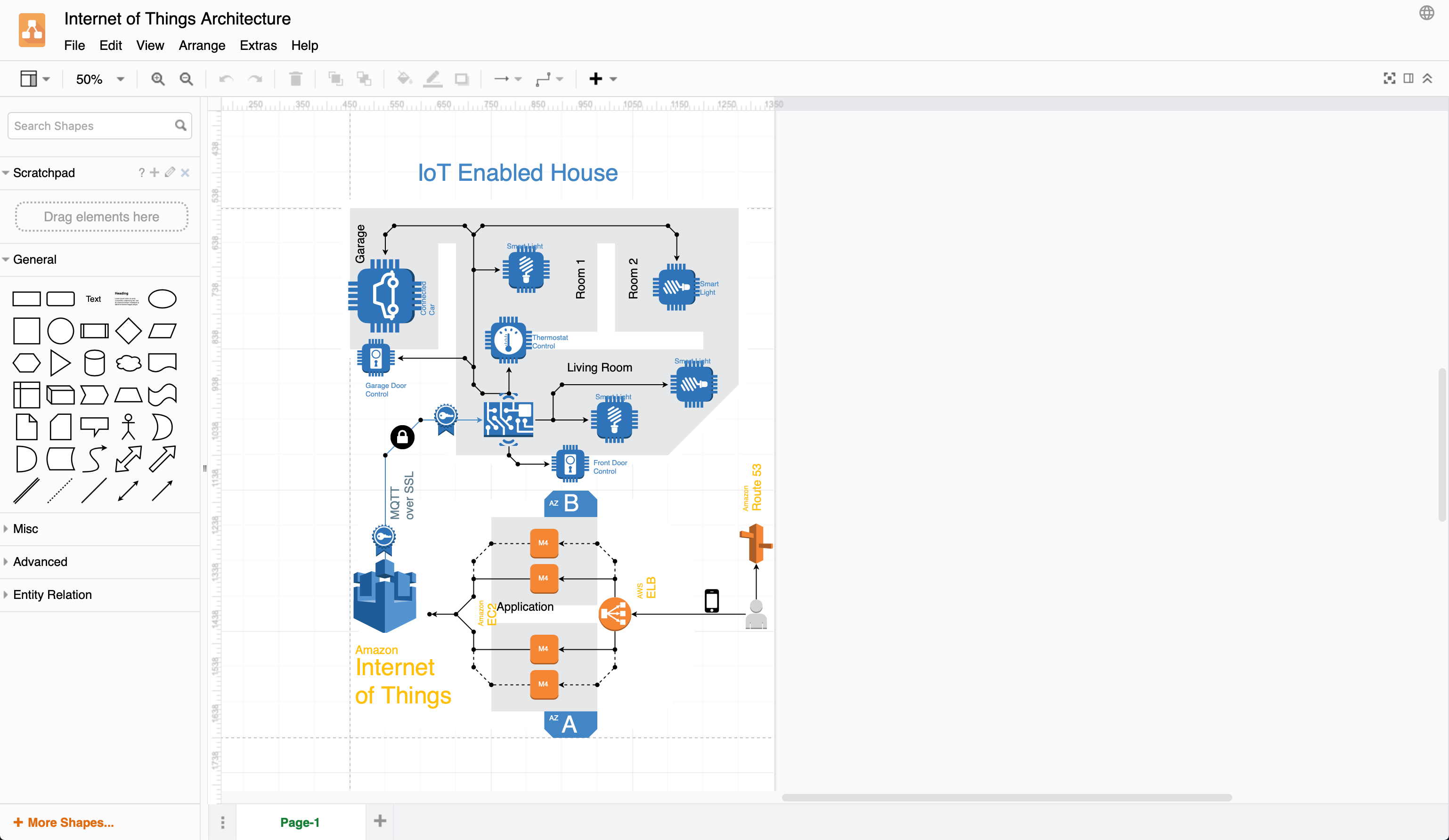
For example, with both word wrap and text formatting enabled, the diagram above is broken when embedded as an SVG in WordPress.
Make sure you disable word wrap and text formatting to get a clean SVG

Disable text formatting:

  1. When editing your diagram in draw.io, right click on a blank spot on the drawing canvas and choose Select All from the context menu to select everything in your diagram.
  2. In the format panel on the right, select the Text tab, and disable the Formatted Text checkbox.

Disable word wrap:

  1. Right click on a blank area on the drawing canvas and choose Select Vertices from the context menu to select all shapes.
  2. In the format panel on the right, select the Text tab, and disable the Word Wrap checkbox.
    Disable word wrap and formatted text when you export or embed your diagram as an SVG image

Using pages as backgrounds

· 4 min read
draw.io
draw.io Team

One of the most requested features for draw.io and draw.io was the concept of using one or more pages as backgrounds for other pages. This could be a background graphic to provide a consistent branding across your diagrams. Another popular use case is more technical diagrams where each page displays a border with an information block in a specific format and dimensions.

Background pages are now implemented in the 15.0.0 editor release.

How to set a background page

Select one of the pages to be your background, often it makes sense to define the last (right-most) page as the background. Note that you can have more than one background page if you wish. Being a background page isn't a specific property of a page, it still behaves like a standard diagram page.

First, create two pages:

Two diagram pages, one for the foreground diagram, the other for the background

In that page build your background:

Background page to diagram

Select your foreground page:

Foreground page to diagram

Note that we're using built-in placeholders within the information block.

With nothing in the diagram selected click change in the right-hand diagram format panel to bring up the background dialog:

Location of background in diagram format panel

In the background dialog we select our background page, named background in this case:

Background options dialog

And the first page now contains the second page as a non-selectable background (click to open the actual diagram):

Diagram complete with background

Create a Template

If you are using draw.io for Confluence you could add templates of your background pages in both Cloud and Data Center.

If you are storing your diagrams in Google Drive, you could create a background pages folder in your shared team drive that users can copy and use as a basis for their own diagrams.

When can I use the features?

There are a number of flavours of draw.io that we, at draw.io Ltd, are responsible for. There are also other packages that third-parties author. In the later case, ask your app author when they will update.

Of the apps we develop and maintain:

  • app.diagrams.net. Background pages are available in v15.0.2 (see the help menu of the editor). If you are struggling to update in a particular browser, close the app, go to https://app.diagrams.net/clear.html and try re-opening it.

  • draw.io for Confluence Cloud. Available in the editor v15.0.2. The cache clear URL there is https://ac.draw.io/clear.html.

  • draw.io for Jira Cloud. Available in the editor v15.0.2. The cache clear URL there is https://aj.draw.io/clear.html.

  • draw.io Desktop. The feature be will in the release after the 14.9.6 release. We don't yet know what that release number will be.

  • draw.io for Confluence Server and DC. The feature be will in the release after the 9.6.7 release. We don't yet know what that release number will be.

Diagramming in a free Confluence Cloud instance

· 7 min read
draw.io
draw.io Team

draw.io and the draw.io branded Atlassian integrations are the leading solution for web based sketching and diagramming functionality. The article describes the draw.io integration for Confluence that we, draw.io Ltd., build, deliver and maintain alongside the online version of our editor at app.diagrams.net, our draw.io desktop application.

Confluence Cloud is a popular tool for team productivity suitable for both small and large organisations. Atlassian provides customers with free instances, as long as the instance has ten users or fewer, and you can diagram in these instances with our draw.io Confluence Cloud integration.

Diagram freely

With the draw.io app installed in your free Confluence Cloud instance, you and your small team can draw a wide range of diagrams:

The draw.io diagram editor is easy to use and powerful. The draw.io app in Confluence Cloud is also secure and private - Your data stays in the browser while you are editing a diagram and is stored only in your Confluence Cloud instance when you use the draw.io app.

  • Attach unlimited diagrams to pages with the draw.io macros.
  • Use and connect shapes from an extensive collection of shape libraries.
  • Style shapes, connectors and text labels.
  • Draw freehand shapes and create custom shapes.
  • Use a template from the template library to start diagramming quickly.
  • Switch to various editor styles, including a simpler draw.io Board macro, ideal for brainstorming.
    Use the freehand drawing tool in a draw.io Board diagram to markup diagrams or draw shapes with your mouse

Install draw.io in a free Confluence Cloud instance

  1. Set up a new Confluence Cloud instance, choosing the Free tier of up to 10 users on Atlassian's Confluence Cloud pricing page.
  2. Step through the installation and setup until you see the space landing page and Confluence Quickstart tutorial.
    Confluence Cloud will step you through the setup of a new instance and space

Install the draw.io app for Confluence Cloud

  1. Click on the gear icon in the top right, next to your user initials to open the Confluence Cloud administration settings.
  2. Under the Atlassian Marketplace section, click on Find new apps. Search for draw.io and click on it to see details about the draw.io app for Confluence Cloud.
    Alternatively, go to the draw.io app on the Atlassian Marketplace website.
    Install the draw.io app in your Confluence Cloud instance
  3. Install the draw.io app in your Confluence Cloud instance. Note: If you have a team of users larger than 10, start a free trial - when the license expires, you'll still be able to create all types of diagrams, but some advanced features are limited to the licensed version in larger Confluence Cloud instances.

draw.io as an online whiteboard

  1. Edit a Confluence page, type /draw.io and insert the draw.io Board macro. The simple whiteboard-like editor will open.
  2. Save your diagram and page so that your remote team members can collaborate on the draw.io Board drawing with you.

Learn more about using draw.io as an online whiteboard in Confluence
With the draw.io Board macro, you have a fully featured online whiteboard inside Confluence Cloud

Learn the draw.io diagram editor

  1. Edit a Confluence page, then type /draw.io and insert the draw.io Diagram macro. This will open the draw.io editor.
    Add the draw.io Diagram macro to insert a diagram into Confluence Cloud
  2. Select the Blank Diagram template, enter a filename for your diagram, and click Create.
    Choose a diagram template when you create a new diagram in draw.io
  3. Get to know the layout of the diagram editor: the shape and format panels, the toolbar, menus and drawing canvas. The default layout is the same as at app.diagrams.net.
    The draw.io editor, its tools and panels
  4. Step through the tutorial to draw a basic flowchart in the draw.io editor.
    • add and connect shapes using the shape libraries on the left
    • add labels to the shapes and connectors on the drawing canvas
    • style your diagram using the tools in the format panel on the right.
      Create your diagram from shapes, connectors and text, and add styles
  5. Instead of exporting your diagram, click Publish to save your new diagram, or Save & Exit to save an existing diagram, then publish your Confluence page.

License draw.io for larger teams

The price of the draw.io app is very affordable in Confluence Cloud. See the tier-price comparison when migrating from Confluence Server to Confluence Cloud with draw.io.

If you have started a free trial in your team of more than 10 users and let the license expire, you will need to purchase draw.io to continue diagramming in your instance.

Licensing the draw.io app for your larger Confluence Cloud instance allows you to receive product support and use all of draw.io's features, including those listed below.

  • Import and export .vsdx files.
  • Drag and drop diagram files into the editor.
  • Add multiple pages to a diagram.
  • Export to PDF files and print diagrams.
  • Use math typesetting.
  • Set up and use custom shape libraries.
  • Customise the draw.io editor and set global corporate styles with JSON configuration options.
  • Use the search feature to find shapes.
  • Use the collaborative editing functionality to simultaneously edit a diagram with your teammates.
  • Work with the diagram file's revision history.
  • Display an older version of the diagram when viewing a page.
  • Import Mermaid code to automatically create a diagram.
  • Import CSV data with formatting options to automatically create a diagram.
  • Embed diagrams from cloud storage platforms (Google Drive and Microsoft OneDrive).
    Embedded diagrams in draw.io for Confluence Cloud

Small teams with up to 10 Confluence Cloud users can use all of the features of the draw.io app for free.

Template diagrams with previews, subcategories and search

· 3 min read
draw.io
draw.io Team

You can now search for template diagrams and preview templates in the template library in draw.io. The new subcategories make it easier to find a specific template diagram in categories with many diagrams, such as the cloud infrastructure templates.

Open the template manager dialog

When you create a new diagram, the template library dialog will appear by default after you select where you want to store your diagram.
Choose a diagram template when you create a new diagram in draw.io

In the draw.io editor, select Arrange > Insert > Template from the menu.

If you are using the Sketch whiteboard-style diagram editor theme, click the Template tool on the left to open the template library dialog.

Find a template diagram

Templates are organised into categories on the left in the template library. Click on the solid arrow next to a large category to see its subcategories.
Open the template library dialog to see a wide range of diagram templates in draw.io

Preview a template

Click on the magnifying glass icon in the top right of a template in the template library dialog to see a larger preview of it.
Hover over a template in draw.io to see a larger preview of it

You can freely edit a template that you have added to your diagram: change labels, add and connect new shapes, reposition shapes and connectors, change shape styles, and more.

Note: If you are using the whiteboard-style editor theme, the sketch (rough) shape, text and connector styles will be applied by default to the basic shapes in this template.
Hover over a template in draw.io to see a larger preview of it

Search for a template

  1. Click in the Search field at the top of the template library dialog.
  2. Type your search term and press Enter to find any template with your search term in its name. For example, search for class to see class diagram templates.
    Enter a search term in the template library to find matching templates

Add the template to your diagram

You can add more than one template to your diagram.

  1. Select the template in the template library dialog.
  2. Click Insert to add it to the drawing canvas (or click Create if you are creating a new diagram).
    Hover over a template in draw.io to see a larger preview of it

Match the shapes used in a template

If you don't see the shapes that are used in the template diagram you selected in the shapes panel on the left, click on More Shapes at the bottom of this panel, select the shape library you need, then click Apply.

Tip: In the sketch diagram editor theme, click on the Shapes tool or press Ctrl+Shift+K on Windows (Cmd+Shift+K on macOS) to see the shapes panel.

Embed Confluence diagrams in Jira Cloud with the draw.io app

· 5 min read
draw.io
draw.io Team

You can now embed draw.io diagrams stored in Confluence Cloud in your Jira Cloud issues. This is a new feature for our integration with Confluence Cloud, delivered as part of our draw.io brand.

Visual documentation for systems, processes and software is typically stored in a central knowledge base like Confluence, where all the teams that are involved can access and collaborate on the diagrams.

You also often need to refer to those diagrams in projects and tasks in Jira.

With single-sign-on (SSO) for draw.io between Jira Cloud and Confluence Cloud now implemented, you can search for diagrams that you have stored on Confluence Cloud pages and attach them to Jira issues.

Authorise access to your Confluence Cloud instance

You need to tell the draw.io app for Jira Cloud which Confluence Cloud instance you want to embed a diagram from. That requires you to authorise it via Atlassian's Cloud.

  1. Open an issue in your Jira Cloud instance.
  2. If you don't see the draw.io Diagrams section, click on the draw.io logo just under the issue title, then click on Embed Diagram.
    Embed a draw.io diagram from a Confluence Cloud instance to a Jira Cloud issue
  3. Select the Confluence tab, then click on Authorise draw.io to access Confluence and log into your Atlassian Cloud account.
    Before you can embed a draw.io diagram into a Jira Cloud issue, you must authorise draw.io to access your Confluence Cloud instance
  4. If you need to, allow your browser to store all cookies. Select the Confluence instance you want to Authorise, then click Accept.
    Before you can embed a draw.io diagram into a Jira Cloud issue, you must select the Confluence Cloud instance and authorise draw.io to access it

Troubleshoot: If you find you have problems during this authorisation process, make sure you have configured your browser to allow third-party cookies and allow cross-site tracking as this SSO spans multiple Atlassian systems, or use an alternative browser.

Update: Atlassian changed their authorisation method recently. If you can't see previously embedded diagrams in your Jira issues or embed new diagrams, clear your browsers' locally saved site data and cookies, and reauthorise the connection between your Jira Cloud and Confluence instances.

Embed a diagram from Confluence Cloud to Jira

  1. Search for the name of the draw.io diagram you want to embed from Confluence Cloud.
  2. Select a diagram on the left to see a larger preview, then click the tick or check mark in the top right to embed it in your Jira issue.
    Search for a draw.io diagram stored in your Confluence Cloud instance, select it, and embed it

View an embedded diagram

Click on the draw.io diagram in your Jira Cloud issue to expand the diagram to the size of your browser window. Alternatively, click on Show in the embedded diagram's toolbar.
Hover over an embedded draw.io diagram in a Jira Cloud issue to view the toolbar and click on Show to see the full-size diagram

Delete an embedded diagram

Hover over the embedded diagram in the Jira Cloud issue to see the toolbar, then click on Delete (rubbish bin icon).

Using draw.io in Confluence Cloud

The draw.io app for Confluence Cloud offers some additional useful features:

Embed a whiteboard-style diagram with the draw.io Board macro for quick meeting notes, team brainstorming, mockups, remote kanban boards, and more.
Double click on the drawing canvas to add a shape, or click on a direction arrow, or drag a new connection to a shape in another position in the draw.io editor

Customise the draw.io diagram editor for Confluence Cloud to use specific or custom shape libraries, templates, and corporate styles. You can also customise draw.io to use a different diagram editor style by default - Kennedy, Dark, Minimal, or Sketch.

Search for diagrams in your Confluence Cloud instance by filename, label text or the name of a shape.

Set your data residency region to choose where your data or in-scope product content resides at rest in your Confluence Cloud instance (advanced edition only), in addition to setting data governance rules centrally for all users on your Confluence instance.

Mass import all of the Gliffy diagrams in your Confluence Cloud instance to draw.io in one step.
Log of the Gliffy mass import to draw.io in Confluence Cloud

Getting started with draw.io diagrams

The draw.io editor, its tools and panels

New draw.io Board macro for whiteboard-style diagrams in Confluence Cloud

· 7 min read
draw.io
draw.io Team

Embed whiteboard-style diagrams in Confluence Cloud pages with the new draw.io Board macro. The Board macro is a new feature for our integration with Confluence Cloud, delivered as part of our draw.io brand.

When you add or edit a diagram using the draw.io Board macro, it uses the Sketch editor theme, with the rough sketch shape and connector styles set as the default global style. The diagram editor has a a white non-paginated background and no grid lines so it feels more like a whiteboard.

A discussion thread on the GitHub draw.io project is open if you have any questions or suggestions.

Add the draw.io Board macro to a Confluence Cloud page

  1. Edit the page and type /draw to see a list of macros you can embed.
  2. Select the draw.io Board macro from the list to open the diagram editor.
    Add the draw.io Board macro to a Confluence Cloud page

Diagram in Confluence Cloud using the draw.io Board macro

The draw.io Board macro uses a simplified editor theme, where the diagramming tools are reduced to the essentials. The panels you are used to seeing in draw.io are minimised to make it feel more like a whiteboard.

You can display panels and use the menus at any time to use the full functionality of the draw.io editor in the draw.io Board macro.

Zoom: To zoom in and out, click on the magnifying glass tools in the bottom right. Click on the number in the center to reset the zoom to 100%.

Dark mode: To switch between the default light theme and a dark theme (dark background and interface), click on the moon/sun tool in the bottom right.
Zoom in and out and switch the editor into a dark mode with the tools in the bottom right in a draw.io Board diagram

Open the menu in the draw.io Board macro

Click on the draw.io logo in the top left to open the menu.
Click on the draw.io logo to open the menu when using the draw.io Board macro

Undo and redo: Click on the undo and redo arrows next to the menu icon to undo and redo the most recent changes. These will not be shown unless you have edited the diagram.

Work with shapes in the draw.io Board macro

Add shapes: Double click on a blank space on the drawing canvas and select a shape.
Double click on the drawing canvas to add a shape, or click on a direction arrow, or drag a new connection to a shape in another position in the draw.io editor

Connect shapes: Hover over shapes to see direction arrows.

  • Click on the direction arrow to add a new shape in that direction.
  • Click and drag a new connector from the source shape and drop it on another shape to connect them.

Alternatively, click on or drag the text, sticky notes, basic shapes and connectors in the top half of the toolbar on the left to add them to the drawing canvas.
Click on the shapes or drag them from the toolbar onto the drawing canvas

Use shape libraries in the draw.io Board macro

To see the shape libraries and use a greater variety of shapes, click on Shapes in the toolbar to open the Shapes panel.

  • Search for shapes by entering a search term and press enter.
  • Drag shapes or groups of shapes from the drawing canvas to the scratchpad.
  • Enable more shape libraries: Click on More Shapes toward the bottom of the shape library, select the shape library, then click Apply.
    Click on the Shapes tool to open the Shapes panel and access all the shapes in the shape library

Draw a freehand shape in the draw.io Board macro

You can draw images with a transparent background with your mouse.

  1. Click on the Freehand tool in the toolbar.
    Click on the shapes or drag them from the toolbar onto the drawing canvas
  2. Click Start Drawing in the Freehand panel.
  3. Click and hold to draw a freehand line on the drawing canvas. You can add multiple separate lines in your freehand drawing.
  4. Click Stop Drawing when you are finished, to save it as an image with a transparent background.
    Use the freehand drawing tool in a draw.io Board diagram to markup diagrams or draw shapes with your mouse

Learn more about drawing and styling freehand shapes

Tip: Use the Style tools in the format panel on the right to change your freehand shape's style, just as you would a shape from the shape libraries.

Style shapes in the draw.io Board macro

To access the format panel, click on the minimised heading. The tools and options that are available in the format panel will depend on what you have selected in your diagram.
Click on the Format panel's title to open it and style shapes, text and connectors in a draw.io Board diagram

Insert a template in the draw.io Board macro

Click on the Template tool to select and use a diagram template from the template library. Click on the magnifying glass in the top right of a template to see a larger preview of it.
Select a diagram template and click Insert to add it to the drawing canvas in a draw.io Board diagram in Confluence Cloud

Save the draw.io Board to Confluence Cloud

  1. Click Publish in the top right to save your diagram.
  2. Enter a filename if it is a new diagram, and click Save.
    Publish your diagram to save it and return to the Confluence Cloud page editor

You will return to the Confluence page and see a preview of your diagram in the draw.io Board macro.

Finally, publish your Confluence page.

Change the draw.io Board macro viewer settings

There are two methods to change how your diagram appears to viewers:

When viewing the Confluence page, hover over the diagram, click on the gear icon in the toolbar, change the viewer settings then click Save.
Set the viewer options to change how your diagram appears on the Confluence page
Note: If the diagram uses the Simple Viewer, you will not see the toolbar

Alternatively, from within the draw.io diagram editor, make sure nothing in your diagram is selected, then open the Format panel. The Viewer options are available at the top of the Diagram tab of the format panel.
Set the viewer options within the draw.io Board editor to change how your diagram appears on the Confluence page

Create a remote kanban board with draw.io

· 7 min read
draw.io
draw.io Team

Kanban boards show the breakdown of large projects into smaller tasks that you prioritise and track as they are completed. Collaborative projects benefit from a kanban board as it helps everyone visualise workflows, the state of the project, and the current workload.
The kanban template in draw.io automatically updates colours and labels when you move tasks to another column

The Kanban method or system is commonly used by project and production managers, agile and system developers, designers and content marketers. Almost all areas of a business can use this method to track work, identify bottlenecks, and improve processes.

You can draw remote kanban boards in draw.io in many different ways - you don't have to use the simple kanban template as shown above. You can use simple sticky note shapes over coloured rectangles, list elements, or entity table shapes - whichever you find most convenient.

Create your kanban board in draw.io using simple shapes, lists, entity tables or the simple kanban template

However, the simple kanban board template in draw.io will automatically colour tasks based on the column (the swimlane or state) they are in, and update the label text accordingly.

Using the kanban board template

Insert the simple kanban template

  1. Select Arrange > Insert > Template from the draw.io menu to see the template library.
  2. In the Basic library, select the Kanban template, and click Insert.
    The kanban template in draw.io automatically updates colours and labels when you move tasks to another column

You aren't limited to just three columns in your kanban board. This template uses a custom shape property on the swimlane (column) to set the label text, and the swimlane's fill colour for the tasks.

Add and move tasks

  1. Hover over one of the tasks in a column to see the direction arrows, then click on it. A new task will be added in that direction with a copy of the previous task label.
  2. Double click on the new task and edit their task name
    Tip: Don't edit the %status text - learn more about this placeholder in the section below.
  3. Drag tasks from one column to another to change their state and show where they are in your workflow.
    The kanban template in draw.io automatically updates colours and labels when you add tasks or move them to another column

Delete a task: Select the task, and press Delete or Backspace.

Vote and prioritise on the kanban board

Teams can work remotely and collaboratively on their kanban board diagrams, add links to external sites or documents, add and link to other diagram pages, and vote on priorities.

Vote on tasks or set task priorities by placing pins or other simple shapes on your kanban board in draw.io
  • Hold down Alt to overlay shapes on the kanban board, such as when prioritising or voting on the next tasks to implement.
  • To make your kanban board more readable, select all of the voting/pin shapes, go to the Arrange tab on the format panel, and click To Front to make sure they will be visible on top of your tasks.

Tip: Right-click on the drawing canvas and share your mouse cursor with your team in real-time with draw.io for Confluence Cloud, as well as in draw.io when storing shared diagram files in Google Drive or Microsoft OneDrive.

Add a new column to the kanban board

  1. Select a column (one of the swimlanes) and hover over one side to see the direction arrows.
  2. Click on the direction arrow to add a new column in that direction.
    Add a new column to the kanban template in draw.io

Delete a column: Select the column (swimlane), and press Delete or Backspace.

Change the colour of the tasks in a column

Task colours are automatically set to match the swimlane's fill colour.

  1. Select the column (swimlane), then in the Style tab of the format panel, click on the Fill colour button.
    Change the colour of the tasks in a column to the kanban template in draw.io
  2. Select a new colour from the palette, and click Apply.

Change the status text in the task label

As you saw in above, the status text in the simple kanban board template is a placeholder. When you select the text in one of the tasks, you'll see the word status surrounded by percentage characters: %status%.
Placeholders are used to set text automatically in the simple kanban template in draw.io

The text that replaces this placeholder is set in the swimlane's custom properties.

  1. Select the column (swimlane), then press Ctrl+M on Windows or Cmd+M on macOS to open the shape properties dialog.
    Placeholders are used to set text automatically in the simple kanban template in draw.io
  2. Change the status text, and click Apply.

Note: The title of the column is not set automatically. Select the column and start typing to replace the column's title.

Learn more about custom properties and placeholders

Embed your kanban board

The many different draw.io integrations let you use your kanban boards with the tools you use.

Embed your kanban diagram wherever you are working: HTML pages, VSCode and GitHub projects, Google Workplace and Microsoft Office documents and slides, Atlassian Confluence, Notion pages, and more.

See the draw.io editor embedding walkthrough if you want to embed your kanban board and the draw.io editor in another application.

Kanban in a simpler diagram editor

Use the Minimal or Sketch editor theme, with the editor grid turned off to make your kanban board feel more like sticky notes on a whiteboard. Use the draw.io Board macro in Confluence to use the Sketch editor theme by default.
Use the Minimal or Sketch editor themes in draw.io to make your remote kanban board feel more like a whiteboard
Open these examples in the minimal draw.io editor

Embed diagrams in PowerPoint

· 7 min read
draw.io
draw.io Team

Embed images of your diagrams in Microsoft PowerPoint slides with the free draw.io branded add-in. The add-ins can be used in all Microsoft 365 Office applications on both Windows and macOS, and in older versions of PowerPoint, Word and Excel.
Select the diagram, then drag the grab handles to resize and rotate it in your PowerPoint slide

While the built-in diagramming features in PowerPoint allow you to create simple diagrams, a dedicated diagramming tool makes it easier and faster to create and update more complex diagrams.

Note: Your diagram data is only ever stored in your browser and either on your device, or in your cloud platform (OneDrive or Google Drive) - the draw.io servers never store your diagram data.

Install the diagramming add-in

Install the draw.io add-in for PowerPoint from Microsoft AppSource: https://appsource.microsoft.com/en-us/product/office/wa200000113.
Install the draw.io diagrams add-in via Microsoft and AppSource

Click on Get it now, log in, complete the AppSource registration, and click on Open in PowerPoint.

A read-only example slide will be opened in your PowerPoint application, and the draw.io tool in the ribbon will be available under Insert when the add-in has been successfully installed.
The draw.io add-in instructions and the draw.io tool in the ribbon will be displayed after a successful installation

Note: If you are using Microsoft 365 at work, ask your administrator to approve the draw.io add-in first. Then install the draw.io add-in in your PowerPoint application.

  1. Select the Insert tab in PowerPoint, then click My add-ins.
  2. Click on ADMIN MANAGED, select the draw.io add-in, then click Add.
    Install the draw.io add-in after your administrator has approved it for use in your workplace's Microsoft 365 applications

Add a diagram to a PowerPoint slide

Embedded diagrams are displayed in your PowerPoint slides as images. This image is generated at the time you insert a page from your selected diagram file into a slide.

  1. Select the Insert tab, then click on the draw.io tool.
    In the panel that appears on the right, click on the location where your diagram file is stored: OneDrive, Google Drive or a file on your local Device.
    Click on the draw.io tool under the Insert tab in PowerPoint, Excel or Word and select the location where your diagram file is stored
  2. Navigate to and select your diagram file.
    Tip: You may need to authorise draw.io to access your cloud storage.
    • Google Drive will display a separate pop-up dialog. Select the file, then click Select to see a preview in the panel on the right.
      Navigate to the diagram file in Google Drive and click Select to see a preview
    • OneDrive will display your files at the top of the panel on the right. Select the file to see a preview.
      Navigate to the diagram file in OneDrive at the top of the panel on the right to see a preview
  3. If your diagram has multiple pages, use the arrows above the diagram preview to select the page you want to insert.
  4. If your diagram has multiple layers, click on the layers button to select which to display (all layers are selected by default).
    Select the diagram page and layers you want to display in your PowerPoint slide, Excel sheet or Word document
  5. Click Insert to add your diagram to the PowerPoint slide.
    Insert a diagram into a PowerPoint presentation using the free draw.io add-in
    Tip: If you inserted the diagram into PowerPoint, select a slide design from the list that appears on the right.

Change the size and position of your diagram

  • Drag the diagram into another position in the slide, sheet or document.
  • Resize the diagram by dragging the grab handles in the corners.
  • Rotate the diagram by dragging the circular rotate arrow at the top.
    Select the diagram, then drag the grab handles to resize and rotate it in your PowerPoint slide

Format embedded diagrams

You can format the embedded diagram in PowerPoint like any other embedded image file.

Right-click on the diagram, then select Format Picture to display the panel on the right.
Format the embedded diagram in PowerPoint, Excel or Word as you would an embedded image via right-click /> Format Picture

  • Fill & Line tab: Change the background colour and transparency, or add an outline.
  • Effects tab: Add a shadow or other effects.
  • Picture tab: Add a colour filter to change the colours in the diagram, sharpen or soften the lines and text, change the brightness or contrast and more.
    • Use the Crop values under this tab to add whitespace between the image border and the diagram, offset the diagram within the border or crop the diagram.

Note: If you are using an older version of Microsoft Office, the Picture Format options will appear as a new tab on the ribbon.

Use MS Office-compatible SVG labels

MS Office has some quirks when it come to image formats, especially SVG. When you embed diagrams in PowerPoint and resize them, the label text will have cleaner edges if you set the simpleLabels option.

  1. Select Extras > Configuration in the draw.io editor menu.
  2. Add the following code to the Configuration text box: { "simpleLabels": true }
    When you are embedding a diagram in PowerPoint, to ensure it can be resized cleanly, set the simpleLabels option in the editor configuration
  3. Click Apply.

Update embedded diagrams

After you edit the diagram files in draw.io, re-insert the diagrams into your PowerPoint slide to regenerate the embedded image.

Microsoft Word lets you import changes to your diagram files and update the images in your document using the draw.io add-in.
Updated the embedded diagrams after you have edited them in draw.io in Word via the draw.io add-in tools under the Insert tab on the ribbon

Work with entity relationship table shapes in draw.io

· 7 min read
draw.io
draw.io Team

Entity relationship diagrams or ER models in software engineering show the structure of and relationships between database objects. They are used extensively in database modelling to plan new systems, and document existing systems for maintenance and updates.
Use the basic entity relationship diagram template as your starting place
Open this ER model in the draw.io editor

In draw.io, entity relationship diagrams have their own shape library, and use the new extended table tools in the Arrange tab of the format panel. These tools and keyboard shortcuts let you quickly add and delete rows from your relational database model.

Enable the Entity Relation shape library: Click on More shapes at the bottom of the left panel, select the Entity Relation shape library in the Software section and click Apply.
Enable the Entity Relation shape libary via More shapes in the left panel in draw.io

If you prefer to work from a template diagram, see the end of this post to access one of the many ER diagram templates in draw.io.

Select a row inside a table: Click on an entity once to select the entire table. Click a second time, this time on a row inside that table, to select that cell within the row. Click a third time to select the entire row.

Add a row to a table or ERD table shape

There are many ways you can add new rows to your entity table shape in draw.io.

  • Add a blank row: In the Arrange tab of the format panel, click the Insert Row After or the Insert Row Above button. If you had selected the entire table shape, a blank row will be inserted at the end or at the start of your table, otherwise it will be inserted before or after the selected cell.
  • Add a row from the shape library: Drag a row (with or without a primary or foreign key) from the Entity Relation shape library and drop it on an existing entity (highlighted in purple*).
  • Clone a row: Select a row, and press the keyboard shortcut Ctrl+Enter on Windows or Cmd+Enter on macOS to insert a clone of the selected row immediately below. The Ctrl+D/Cmd+D keyboard shortcut or right-clicking on the row and selecting Duplicate from the context menu work in the same way.
  • Move a row from another entity: Drag a row from one existing entity and drop it on another, just as you would a new row from a shape library.
    Add new rows to entity tables in an ER model in draw.io many different ways

Tip: To reposition rows inside the table shapes, simply drag them to a new position.

Combine entity relationship tables and delete rows

When you want to reorganise your database entities, you can drag and drop an existing table onto another table shape to combine all of their rows. The primary key and foreign keys may not make sense after this, so make sure you delete any unnecessary rows.

  1. Drag and drop one table onto another table.
  2. Select the extra primary and foreign key rows and click the delete row tool in the Arrange tab of the format panel on the right. Just pressing the Delete key will delete the row's content, but not the row itself.
    Combine entity tables and delete rows in an ER model in draw.io

Tip: When you fully delete a row that has a connector attached to it (rather than just delete its contents), the connector is automatically deleted.

Connect to entity tables or rows

Some people prefer to connect primary to foreign keys across entities in an ER diagram to better show which elements are related. Use the connectors in the Entity relation shape library to show what type of a relationship exists.

  • Drag a connector end and hover over the entity's name to add a floating connector to the outside of the table shape. You can move rows around inside the table without moving the connector.
  • Drag a connector end and hover over a row inside the entity table, and drop the connector when the row is highlighted to connect it to that row. When you move that row, the connector will stay attached to it.
    Draw floating connectors between entity tables, or connect them directly to rows inside the table

Tip: You can either set the ends of the connectors using the style tab, or use the connectors in the Entity Relation shape library. Hover over the connector shapes in this shape library to see which relationship they represent.
Hover over a connector in the Entity Relation shape library to see how it is used to show a relationship

There are various notations you can use for the connector ends. The most common is crow's foot notation.

Work from an ER diagram template

When you create a new diagram, you can choose from a wide variety of templates, including many different entity relationship models. You can also insert one of these templates into an existing diagram.

Select Arrange > Insert > Template from the draw.io menu to open the template manager.

There are two categories of templates containing ER diagrams:

  • Select Basic, then select the simple Entity Relationship Diagram template for a simple model with three tables.
    Select the basic Entity Relationship Diagram template in the draw.io template manager
  • Select Software, then choose one of the many different example ER diagram templates. These are much more complex than the basic ER diagram template. Click on the magnifying glass icon in the top right of a template to see a larger preview.
    Select one of the many more complex entity relationship diagrams in the Software section of the draw.io template manager

Generate a custom smart template

You could also generate a custom smart template diagram based on a text description of your system and process.

  1. Open the template library (Arrange > Insert > Template) and select Smart Templates.
  2. Select Entity Relationship Diagram from the list of diagram types.
  3. Describe your system and process and click Generate.
    Generate a custom template from a text description in the Smart Templates section of the draw.io template manager
  4. If you are happy with the generated smart template, click Insert or Create to add it to the drawing canvas.

Create entity table shapes from SQL code

You can insert SQL code to create your entities automatically. Once you've inserted the code and generated the entities on the drawing canvas, all you need to do is draw the connectors between them to show their relationships. This is useful for modelling existing relational database systems.

Insert SQL code then click Insert to create an ER diagram automatically Entity shapes are automatically created based on your SQL code

UML 2.5 shape library with updated shapes

· 5 min read
draw.io
draw.io Team

The Unified Modeling Language (UML) is a set of standard symbols and diagram types, commonly used in data modelling, workflow visualisation, and system modelling. UML notation is the defacto industry standard in the fields of software development, IT infrastructure, business systems and other fields. Many languages, such as SysML, SoaML, and a number of architecture frameworks use and extend UML.
Activity diagrams are used to model workflows in various ways

The UML 2.5 specification updated the notation, or the shapes used in diagrams so they could represent a wider range of concepts more clearly. The specification document was extensively rewritten to make it easier to understand.

No new diagram types were added in UML 2.5 - the 14 diagram types that were previously defined in UML 2.0 are extended to cover the additional concepts, with many examples provided in the specification document.

UML diagram types

UML diagrams are divided into two categories that provide you with static (structural) and dynamic (behavioural) views of a system.

Diagram types defined in UML 2.5
Open this in our free diagram viewer

Enable the UML 2.5 shape library

  1. Click on More Shapes at the bottom of the left panel in draw.io, scroll down and click on the checkbox next to the UML 2.5 shape library in the Software section. You may want to also enable the UML shape library. Then click Apply.
    Enable the UML 2.5 shape library, and the older UML library if you wish to use those shapes
  2. The UML 2.5 shape library will appear in the left panel.
    The shapes in the UML 2.5 shape library let you create clearer and more extensive UML diagrams of many types

Using these shapes, and some of the shapes from the General and older UML shape libraries, you can create the full range of UML diagrams.

Example UML diagrams

Click on a diagram below to open in our diagram viewer

Component diagrams show the dependencies between the logical and physical components of a system with the interfaces that each component requires and provides and their ports.

Component diagrams show the dependencies between the components of a system.

Composite structure diagrams are used to show the internal structure of a classifier, with its properties, parts and relationships, or how a collaboration behaves. You can break down the behaviour of a collaboration into one or more specific situations (occurrences) in a collaboration or collaboration use diagram.

Composite structure diagrams are used to show the internal structure of a classifier

Deployment diagrams shows the system infrastructure and how various software executables and artifacts are deployed on deployment targets.

Deployment diagrams shows the system infrastructure and how various software executables and artifacts are deployed on deployment targets.

Activity diagrams are used to model workflows in various ways. In this example, the workflow actions are arranged into swimlanes representing the actors, with a section that allows an interrupt (exception) to cancel the order.

Activity diagrams are used to model workflows in various ways

Manage your budget moving to Confluence Cloud

· 3 min read
draw.io
draw.io Team

draw.io and our Atlassian integrations are the leading solution for web based sketching and diagramming functionality. The article describes the draw.io integrations for Confluence that we, draw.io Ltd., build, deliver and maintain alongside the online app.diagrams.net and the offline draw.io Desktop application.

Atlassian recently deprecated their Confluence Server range. As the software market evolves, accelerating the move to Cloud is the next natural step in Atlassian's strategy.

Users able to move to Cloud have seen an overall cost saving due to reduced maintenance and downtime, as well as benefiting from Atlassian's scalability and security record. There are various mechanisms in place to smooth the road to Cloud, including free Cloud licenses while you migrate away from Server.

At smaller tiers Confluence Cloud is the clear winner, at higher tiers the cost outlay is greater (excluding the benefits). You can see a comparison between Confluence Server and Confluence Cloud at various tiers below (pricing as per the July 2021 price list, annual renewal in USD):

Users   Conf Server  Conf Cloud
101,300Free
251,3001,250
503,0002,500
1005,5005,000
25010,90012,500
50016,40018,500
2,00020,10061,000
10,00025,200256,000

For under 500 users, the cost is largely the same. But that isn't the whole picture, as you're likely to have apps installed, also.

Taking the top selling Confluence app, Gliffy, let's see how the price changes as you move to Cloud and compare it to draw.io on Cloud:

Users   Gliffy Server   Gliffy Cloud   draw.io Cloud
10510010
25301950187.50
506301,900375
1001,1783,800750
2502,4068,0001,500
5003,12510,2502,000
2,0006,56623,7504,500
10,0009,43095,75016,500

In fact, up to 4k users, you will save money on your Gliffy Server renewal by using draw.io on Confluence Cloud. With 10k users, you will pay 75% more for draw.io on Cloud compared to Gliffy on Server. However, if you have 10k users switching to Cloud and keep Gliffy, you pay over ten times (x10) the Server price.

There is a rich selection of apps in the Atlassian ecosystem and it's worth evaluating alternatives when migrating from Confluence Server to Cloud. Some apps, like draw.io with its one-click Gliffy mass importer, make it easy to switch whilst saving you money. Of course, you save that amount every year after you have switched.

Embed a diagram in GitHub markdown

· 4 min read
draw.io
draw.io Team

You can use a versioned diagram in a GitHub README file in a number of different ways, and include links to edit the diagram or use it as a template for a new diagram.

You can also use GitHub as the storage location for your diagrams, even if you don't plan to display them in the README files.

The integration with GitHub to display and edit diagrams uses the draw.io editor's embed mode, where the storage of the diagram is taken care of by a host application (GitHub), and where our online editor (app.diagrams.net) is used for diagram editing.

Embedded diagrams and diagram editing in Github support the following file formats: .png, .svg, .html and .xml (default)

Embed a diagram in GitHub wiki markdown

  1. Save your diagrams as editable .png or .svg images.
    • When editing your diagram, select File > Export as > PNG or File > Export as > SVG and make sure the checkbox for Include a copy of my diagram is selected.
  2. In your GitHub markdown, include these images as normal, with or without alt text. For example: ![Alt text here](images/someimage.png)

Embed editable diagrams in GitHub wiki pages

View this example of diagrams in a GitHub wiki page

Edit a diagram in a GitHub README

Using the file edit-diagram.html, available from our GitHub repository, you can enable developers with appropriate access to edit the diagrams embedded in Github markdown pages.

The edit-diagram.html file interfaces with GitHub and uses draw.io in embed mode allowing you to edit and save diagrams stored in a repository. The following URL parameters are required: user, pass, repo, path, ref and action=open.

Use action=open, and pass the user and pass parameters to create links that let your developers immediately edit diagrams. Your link will look similar to the following.

http://jgraph.github.io/drawio-github/edit-diagram.html?repo=drawio-github&path=diagram.png

Use links to edit diagrams directly when they are stored in a GitHub repository

View this GitHub README file with embedded editable diagrams

Use a diagram in GitHub as a template

Pass the diagram as a URL parameter to the draw.io editor at app.diagrams.net to use the diagram stored in GitHub as a template. Your link will look something like the following:

https://app.diagrams.net/#Uhttps%3A%2F%2Fraw.githubusercontent.com%2Fjgraph%2Fdrawio-github%2Fmaster%2Fdiagram.png

Embed a self-editing SVG image in GitHub markdown

You can display an SVG file with embedded PNG data (to support Internet Explorer users who are unable to use foreignObject). The SVG file combines an image format that you can include in markdown with <img src="..." />, with scripting for GitHub integration.

To edit such a 'self-editing' SVG image, you need to build a link like the following:

http://jgraph.github.io/drawio-github/self-editing.svg

Use HTML as a container for self-editing diagrams

You can build a 'self-editing' HTML file with embedded diagrams, using nanocms.js for the GitHub interface and diagram editing functionality, as well as Bootstrap and nanocms.css for CSS styling. HTML can be used in this way with diagrams in a number of formats, including inline SVGs containing links.

Go to the following example of a self-editing HTML file containing diagrams

Use this example for self-editing HTML with diagrams to see how to implement this in GitHub